




How to Fix “There Was A Problem Resetting Your PC” on Windows 11/10
Encountering the “There was a problem resetting your PC” error on Windows 11/10 can be frustrating, especially when you’re trying to restore your system. Here, you will learn the main causes and reliable solutions to resolve it.

By Hedy Updated on May 29, 2026


Why does “there was a problem resetting your PC” occur?
There are several reasons why can't I reset my PC, and identifying the root cause is essential before attempting further fixes. Below are the most common factors that can prevent Windows from resetting properly.
➨ Corrupted or missing system files: If essential Windows components or registry hives are damaged, the reset process may fail because the system cannot rebuild itself correctly. In many cases, a System File Checker (SFC) scan is required to address file corruption issues.
➨ Hard drive or disk errors: Problems such as bad sectors, file system corruption, or MBR/BCD issues can interrupt the reset process. Any instability in the storage drive may lead to incomplete or failed recovery operations.
➨ Insufficient free space or recovery partition issues: Windows requires adequate disk space and a properly sized recovery partition to extract and reinstall system files. A nearly full C: drive or missing/undersized WinRE partition can cause reset failures.
➨ Malware or third-party interference: Viruses, malware, or even overly aggressive antivirus programs can block or disrupt system reset components. In some cases, temporarily disabling security software may be necessary to proceed.
➨ Interrupted reset process: If the reset is unexpectedly stopped due to power loss or forced shutdown, system files may become damaged. This can leave Windows in an unstable or partially reset state.
➨ Outdated or incompatible drivers: Driver conflicts or problematic Windows updates can also interfere with the reset process. Booting into Safe Mode and removing recent updates or faulty drivers may help restore functionality.
Any of these issues can lead to a failed system reset. The following sections will explore practical methods to repair and successfully complete the reset process.
How to fix “there was a problem resetting your PC”
There are several methods you can use to resolve this issue. Go through them one by one to ensure a smooth reset process and get your PC running fresh again.
Way 1. Wait for the PC to complete
The system reset process can take some time to complete. In many cases, it may last anywhere from around 40 minutes up to 5 hours, depending on your device and data size. During this period, it’s best to remain patient and let the process run uninterrupted.
However, if the reset remains stuck at 99% for longer than the expected time range, then it may indicate an underlying issue. At that point, you should move forward and apply troubleshooting methods to resolve the problem.
Way 2. Using SFC & DIMC scan command
This method can help resolve the "there was a problem resetting this PC" error quickly by repairing corrupted system files.
Step 1. Open the Windows search bar, type CMD, then right-click it and select Run as Administrator.
Step 2. In the Command Prompt window, enter the following command:
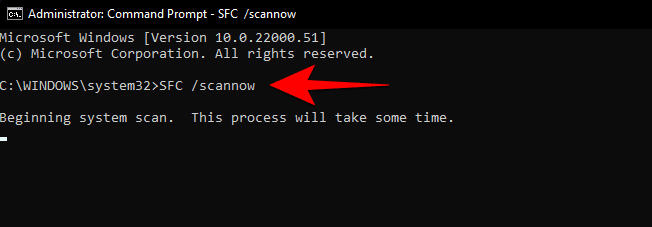
Step 3. Wait approximately 10 to 15 minutes for the scan to complete.
Step 4. The tool will automatically detect and repair any missing or corrupted system files.
Step 5. If the issue persists and SFC is unable to fix the problem, the Windows image itself may be damaged. In that case, use the DISM tool to repair the system:
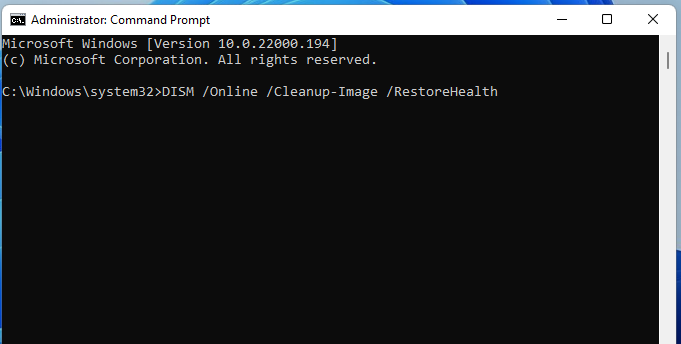
Step 6. Allow the process to complete, as it will restore the system health and fix deeper corruption issues.
Way 3. Check and fix disk errors
If your PC reset is stuck at 99%, one effective solution is to check and repair disk errors, as storage issues are often the root cause. For this purpose, a reliable third-party utility such as AOMEI Partition Software can be helpful.
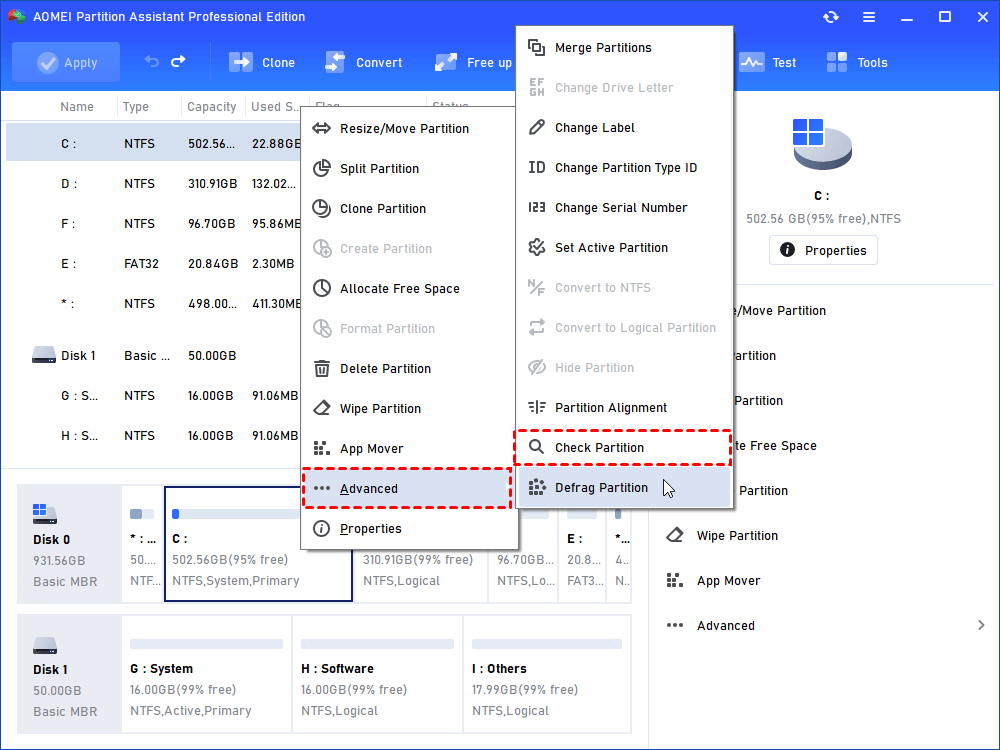
Its Check Partition feature enables users to scan the drive for errors and automatically fix corrupted or problematic sectors. To learn how to use this tool to diagnose and repair disk-related issues, follow the guide below.
 AOMEI Partition Software
A safe and reliable disk partition management tool that helps you migrate OS to SSD or HDD, reorganize disk space, and improve overall PC performance.
Step 1. Open AOMEI Partition Software. Select the partition that you want to check for, right-click it, and select Advanced -> Check Partition.
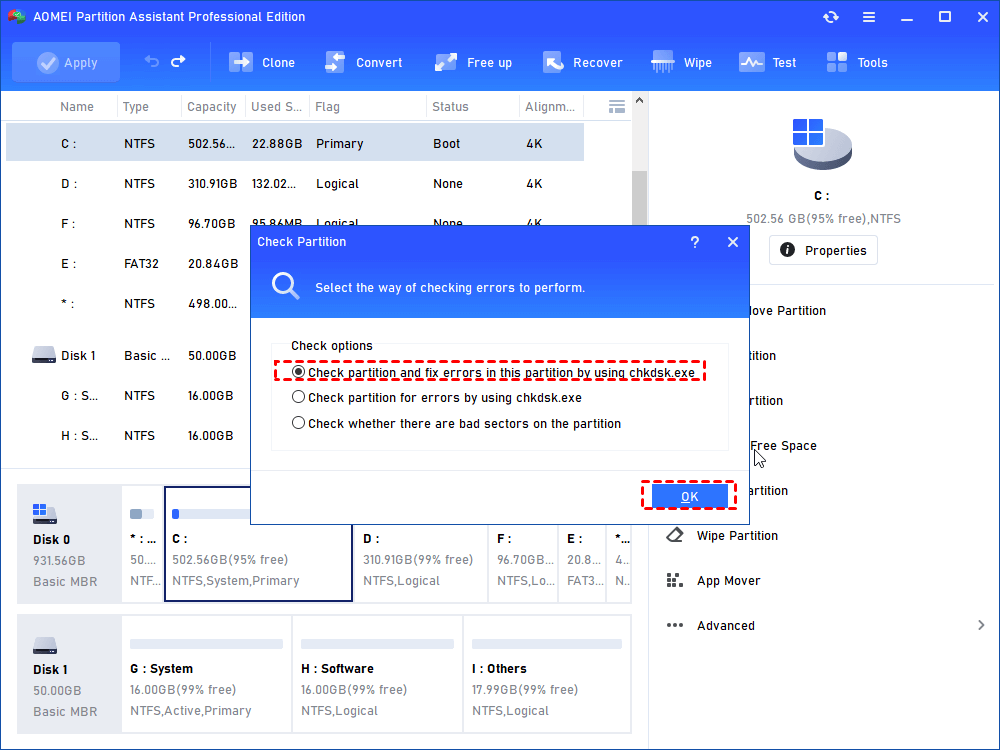
Step 2. It will pop up a small window where you can select the way of checking errors to perform. Choose one according to your needs and click OK. It will proceed immediately.
Way 4. Run Startup Repair
Running Startup Repair can effectively resolve the issue of resetting this PC stuck at 99. To proceed, follow the steps below carefully.
Step 1. Insert a Windows bootable drive into your computer and boot the system from it.
Step 2. When the Windows setup screen appears, click Next, then select Repair your computer.
Step 3. Follow the prompts to choose your preferred language and keyboard layout. Then navigate to Troubleshoot > Advanced options.
Step 4. From the Advanced Options menu, select Startup Repair and allow the tool to run.
Once initiated, wait patiently as the system automatically diagnoses and fixes internal errors that may be preventing your PC from completing the reset process.
Way 5. Try Fresh start through Windows Security
If you are unable to reset your PC, you can use the Fresh Start feature in Windows Security. This option reinstalls Windows while keeping your personal files intact, helping restore system stability without a full data wipe.
Step 1. Open Settings > Update & Security > Windows Security.
Step 2. Go to Device performance & health.
Step 3. Under the Fresh Start section, click Additional info.
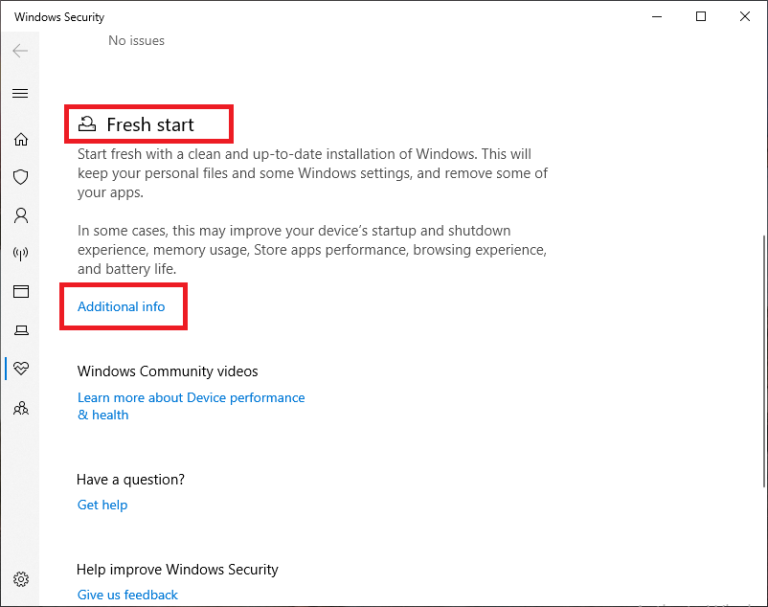
Step 4. Select Get started and follow the on-screen instructions to complete the process.
Way 6. Reboot using Windows Recovery Environment
Booting into the Windows Recovery Environment (WinRE) can help resolve issues such as the “There was a problem resetting your PC” error. This environment provides built-in tools for system repair, reset, and recovery.
Step 1. Right-click the Windows Start icon and open Settings.
Step 2. Go to Update & Security > Recovery.
Step 3. Under Advanced startup, click Restart now.
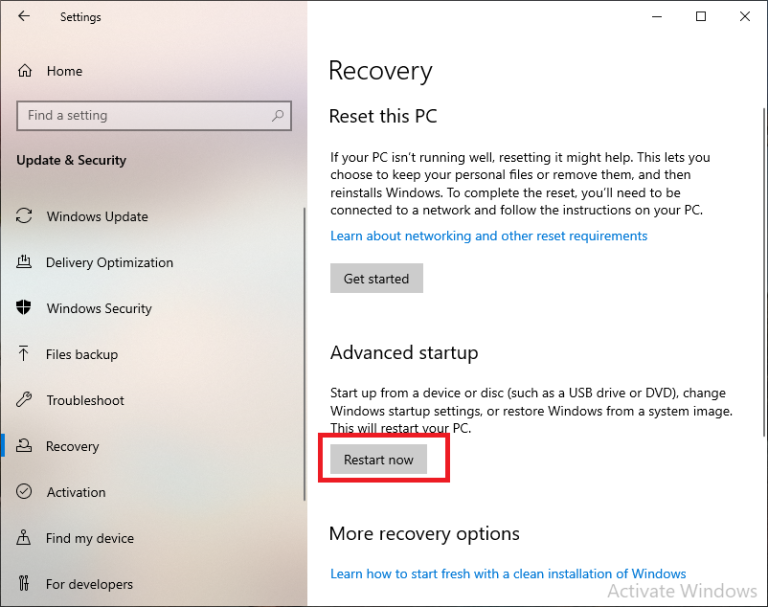
Step 4. Once the blue screen appears, navigate to Troubleshoot > Reset this PC.
Step 5. Choose one of the available options:
▷ Keep my files
▷ Remove everything
Step 6. Select your Windows installation drive, typically the C: drive, when prompted.
Step 7. Continue following the on-screen instructions to complete the reset process.
After completing these steps, the system should proceed with the reset successfully, resolving the resetting Windows 10 stuck error in most cases.
FAQs
🔸 Why does my PC say “No changes were made” after reset?
This message usually appears when Windows cannot complete the reset process due to corrupted system files, insufficient recovery partition space, or interrupted operations, causing the system to roll back all attempted changes.
🔸 Can I fix this error without losing data?
Yes, you can often fix it without data loss by using repair tools like SFC, DISM, or Startup Repair. Choosing “Keep my files” during reset also helps preserve personal data.
🔸 Is resetting better than reinstalling Windows?
Resetting is quicker and easier, keeping drivers and basic settings intact, while reinstalling Windows provides a cleaner system by removing all issues, making it better for severe corruption or persistent errors.
🔸 How long should a reset take?
A typical reset takes 30 minutes to 2 hours, depending on system speed, disk performance, and chosen options. Older devices or heavily corrupted systems may take significantly longer to complete.
Conclusion
In summary, the “There was a problem resetting your PC” error usually stems from system file corruption, disk issues, insufficient space, malware interference, interrupted processes, or driver conflicts. By patiently waiting, repairing system files, checking disk health, or using recovery tools like Startup Repair and WinRE, most users can resolve the issue and restore their system to a clean, functional state successfully.

 as a preferred
source on Google
as a preferred
source on Google