



3 Ways to Fix Windows 11 Update Stuck at 100% Error
During the upgrade to Windows 11, you may encounter the Windows 11 update stuck at 100% error. Fortunately, this guide provides practical and efficient solutions to quickly resolve the issue and get your system update back on track.

By Hedy Updated on May 29, 2026


Microsoft has rolled out the latest Windows 11 23H2 update, now available for eligible devices that meet the required system specifications. While many users can upgrade seamlessly, others encounter frustrating issues during the process. A common complaint is the update appearing to complete—reaching 100%—yet remaining frozen on the message: “Working on updates 100% complete”.
Several factors can disrupt the update process. Sudden network interruptions or power failures are often to blame. In other cases, incompatible software, outdated drivers, limited storage capacity, or corrupted system files may prevent the installation from finishing properly. To address these challenges, AOMEIoffers a practical troubleshooting guide designed to resolve the issue of Windows 11 download stuck at 100%.
Why Windows 11 update stuck at 100%?
When a Windows 11 update gets stuck at 100%, it usually means the download phase is complete—but something is going wrong during installation or final configuration. This stage can sometimes take a while, but if it’s frozen for hours, there’s likely an issue. Here are the most common causes:
💭 Background installation still in progress: Even when the progress bar shows 100%, Windows may still be completing background tasks like file extraction, driver installation, or system configuration, which can take extra time without updating the visible percentage.
💭 Corrupted update files: Downloaded update files might be incomplete or corrupted due to interruptions or network issues, causing the installation process to hang at 100% while the system struggles to verify or replace damaged components.
💭 Insufficient system resources: Limited disk space, low RAM, high CPU usage, or C drive full can slow down or halt the update process. When system resources are exhausted, Windows may appear stuck even though it is trying to complete operations.
💭 Software or driver conflicts: Outdated or incompatible drivers and third-party software, such as antivirus programs, can interfere with the update process. These conflicts may prevent Windows from finalizing installation, causing it to freeze at completion.
💭 Windows Update service issues: Problems with Windows Update services, such as misconfigured settings or stopped services, can disrupt the installation process. This may cause the Windows update stuck at 100% without successfully completing.
Quick tips to fix Windows 11 update stuck at 100%
A variety of factors can cause a Windows 11 update to freeze—whether it stalls at 0% or remains stuck at 100%. Before moving on to more advanced solutions, it’s worth trying a few quick fixes that often resolve the working on updates 100 complete stuck issue without much effort:
🚩 Ensure your internet connection is stable and your power supply is uninterrupted
🚩 Disconnect all external USB devices
🚩 Perform a clean boot to eliminate background interference
🚩 Restart the Windows Update service
🚩 Run the built-in Windows Update Troubleshooter
🚩 Reset Windows Update components
If these initial steps fail to resolve the problem, continue exploring more dependable methods outlined below. Should these solutions prove useful, consider sharing them with others who may be facing the same issue.
How to fix Windows 11 update stuck at 100%
Here are three effective methods to fix the updates are underway Windows 11 stuck issue, explained clearly and step by step:
Method 1. Check and clear the SoftwareDistribution folder
Windows relies on the SoftwareDistribution folder to temporarily store update files required for installing Windows 11. Checking this folder can reveal whether the update is still progressing or has stalled. If the Windows 11 update stuck at 100, clearing this folder can prompt the system to restart the download process.
Stage 1. Inspect the SoftwareDistribution Folder
Use the following steps to determine whether the update is still active:
Step 1. Open C:\Windows on your system
Step 2. Locate and select the SoftwareDistribution folder
Step 3. Check its size:
>> If the size continues increasing, the update files are still downloading
>> If there is no change for a long time, the process may be stuck
Stage 2. Clear the SoftwareDistribution Folder
Follow these steps carefully to remove the folder contents and reset the update process:
Step 1. Launch Command Prompt with administrative privileges
Step 2. Enter the commands below one at a time, pressing Enter after each:
net stop wuauserv
net stop bits
These commands stop the Windows Update service and the Background Intelligent Transfer Service (BITS).
Step 3. Navigate to C:\Windows\SoftwareDistribution. Delete all files and subfolders inside this directory
Step 4. Return to Command Prompt and restart the services:
net start wuauserv
net start bits
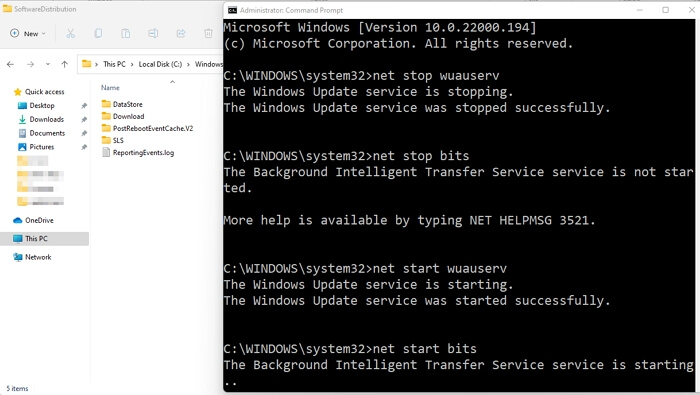
Once completed, restart your computer and attempt the Windows 11 update again. This process often resolves issues where the update remains stuck at 100%.
Method 2. Extend the System Partition with enough space
A Windows 11 update may fail to install if the system partition lacks sufficient storage space. Before proceeding, make sure your device has enough free capacity to accommodate the update. While removing unnecessary applications can help free up space, it may not always be enough.
For a more effective solution, consider using AOMEI Partition Software to expand the C drive. By increasing the available space on the system partition, the update process can continue smoothly without interruptions caused by storage limitations.
 AOMEI Partition Software
A safe and reliable disk partition management tool that helps you migrate OS to SSD or HDD, reorganize disk space, and improve overall PC performance.
Step 1. Download and install AOMEI Partition Software, then open the program to access its main interface.
Step 2. From the disk layout displayed on the screen, find a partition with sufficient unused space, such as the D drive. Right-click on it and choose the “Allocate Free Space” option.
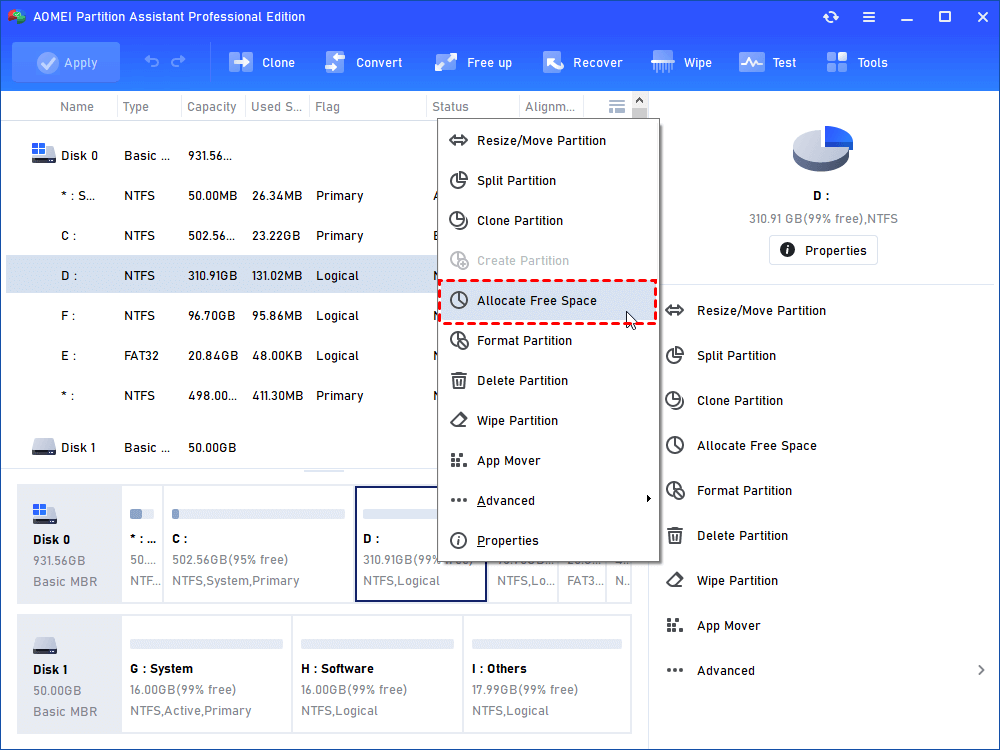
Step 3. A dialog box will appear. Enter the exact amount of space (in GB) you want to transfer from the selected partition.
Step 4. In the dropdown menu provided, select the C drive as the destination where the free space will be assigned.
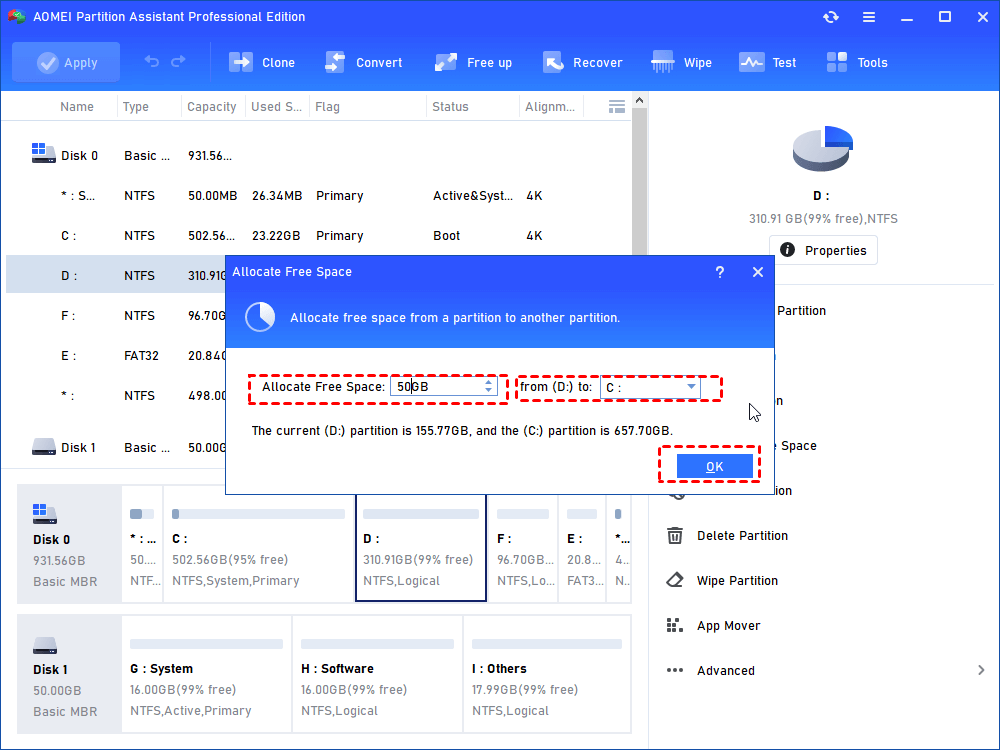
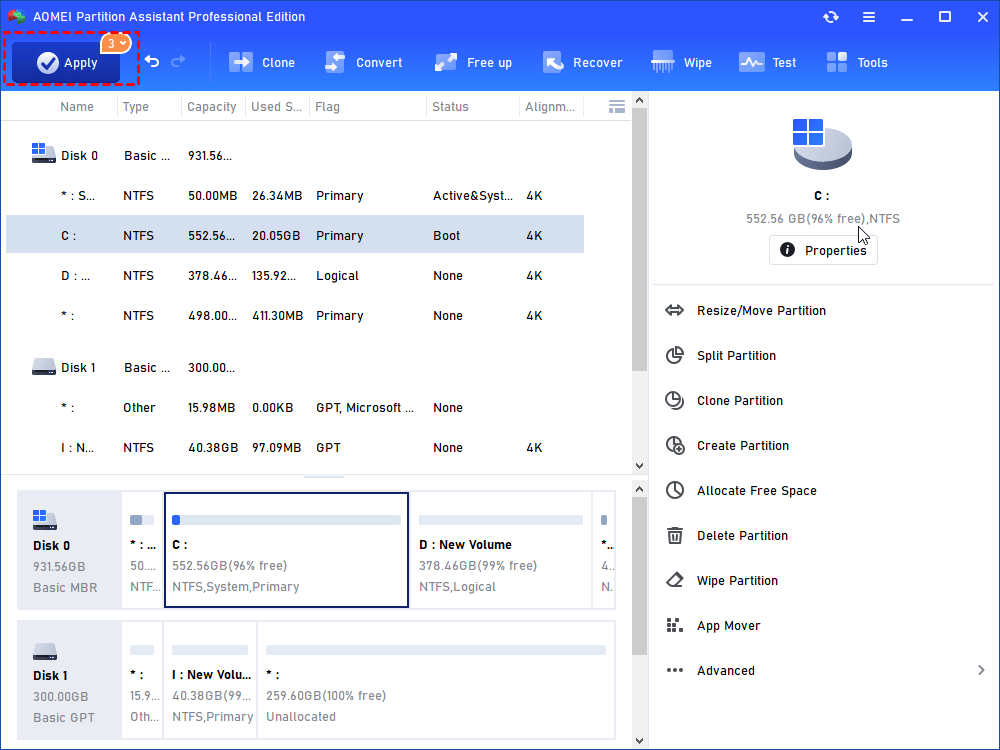
Step 5. Confirm your settings by clicking “OK”. Finally, press “Apply” and then “Proceed” in the upper-left corner to carry out the operation securely.
Method 3. Uninstall a Conexant audio device in Device Manager
Some users have found this method effective in resolving the Windows 11 update stuck issue. Follow the steps below to apply the fix.
Section 1. Turn off automatic driver downloads
Step 1. Open the Start menu, search for “Control Panel”, and launch it. Then select “System” from the list of options.
Step 2. Click on “Advanced system settings” in the next window.
Step 3. Switch to the “Hardware” tab and choose “Device Installation Settings”.
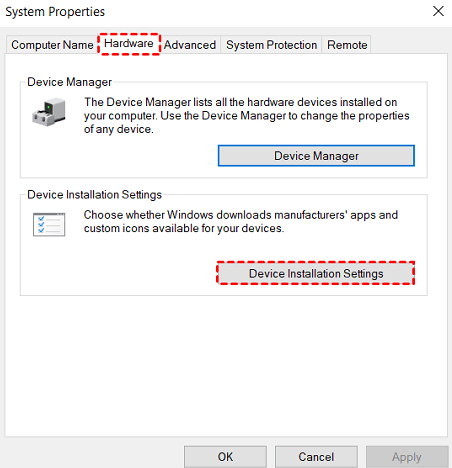
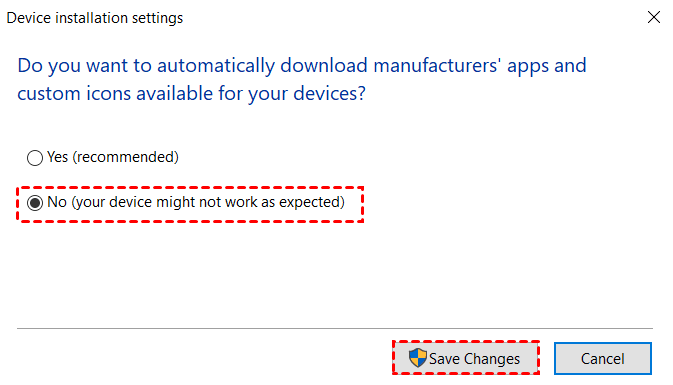
Step 4. Select “No (your device might not work as expected)”, then click “Save Changes” to disable automatic driver updates.
Section 2. Remove the Conexant Audio Device
Step 1. Right-click the Start menu and open Device Manager.
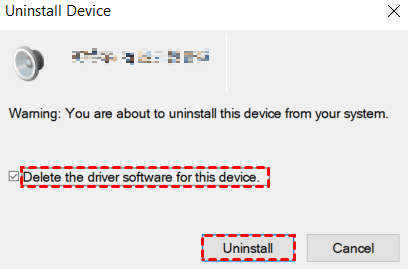
Step 2. Expand “Sound, video and game controllers”, locate your audio device, right-click it, and choose “Uninstall device”.
Step 3. In the confirmation window, check “Delete the driver software for this device”, then click “Uninstall”.
After completing these steps, restart your computer. Once rebooted, open Device Manager to ensure the driver has not been automatically reinstalled. Then, proceed with the Windows 11 update again. After the update is successfully completed, you can re-enable automatic driver downloads if needed.
FAQs
1. What should you do if the Windows 11 update is stuck?
If your Windows 11 updates are underway stuck, try to interrupt the update process by restarting your computer. If it's stuck on the update in progress screen for an extended period, a reboot often helps resolve the issue and restarts the update process.
2. Why are my Windows 11 updates underway 100?
A slow or unstable internet connection, or even a power outage, can cause the update to freeze at 100%. Additionally, outdated drivers or corrupted system files may prevent the update from completing successfully, resulting in the update process stalling.
3. How long does it take to update Windows 11?
Typically, installing Windows 11 takes around 20 minutes. However, if you run into issues with Windows Update, the upgrade process can take up to an hour or longer, depending on the nature of the problem.
Conclusion
We hope this guide helps you resolve the issue of Windows 11 updates or installations getting stuck at 100%. Be sure to maintain a stable internet connection and power supply during the update process. Additionally, checking the Software Distribution folder can address many common issues.
If the problem persists, consider using AOMEI Partition Software to repair corrupted system files, extend partitions, or even reinstall Windows 11. For additional solutions related to Windows 11, download AOMEI Partition Software today for more comprehensive tools to fix your system.

 as a preferred
source on Google
as a preferred
source on Google