




How to Make HP Laptop Faster: Full Guide
How to make HP laptop faster? This guide provides effective tips and tools to enhance performance and keep your laptop running smoothly and efficiently.

By Hedy Updated on May 29, 2026


Why does your HP laptop slow down?
An HP laptop can slow down for many reasons, and it’s usually a combination of software, hardware, and usage habits. Here are the most common causes:
1. Too many startup programs: When your laptop boots up, many apps may launch automatically. These background programs consume memory and CPU, making the system feel sluggish right from the start.
2. Insufficient RAM: If your laptop doesn’t have enough RAM, it struggles to handle multiple tasks. Opening several apps or browser tabs can quickly slow everything down.
3. Low disk space: A nearly full hard drive reduces system performance. Windows needs free space for temporary files and smooth operation, so limited storage can cause lag.
4. Fragmented or slow hard drive: Traditional HDDs (not SSDs) are slower, especially when fragmented. This affects file access speed and overall responsiveness.
5. Background processes and bloatware: Many HP laptops come with pre-installed software that runs in the background. These unnecessary programs can consume system resources.
6. Malware or viruses: Malicious software can secretly run processes, use CPU power, and slow down your system significantly.
7. Outdated system or drivers: Running an outdated version of Windows 10 or missing driver updates can lead to performance issues and compatibility problems.
How to make HP laptop faster manually?
This section outlines three practical methods to manually improve your laptop’s performance. Review each approach carefully to identify the one that best suits your specific needs and situation.
Method 1. Remove unnecessary items
As time passes, laptops tend to collect a large number of redundant files and unused applications. These items consume valuable storage space and can slow down overall performance. Regular disk cleanup helps reduce this burden and keeps the system running efficiently. Follow the steps below to reclaim disk space:
Step 1. Press Windows + S, then enter Disk Cleanup in the search field.
Step 2. Choose the drive you want to clean and click OK.
Step 3. Select the file types you wish to remove, then click OK to begin the cleanup process.
Method 2. Add RAM to your laptop
Random Access Memory (RAM) plays a crucial role in handling active programs and temporary data. When memory capacity is insufficient, the system may rely on virtual memory or shut down background tasks, which can noticeably reduce performance. Upgrading RAM is an effective way to boost your laptop’s speed. Follow these steps:
Step 1. Press Ctrl + Shift + Esc to launch Task Manager.
Step 2. Navigate to the Performance tab to check the current memory type and the number of occupied slots.
Step 3. Choose compatible RAM based on your system specifications.
Step 4. Insert the new RAM module into an available slot inside your laptop.
Method 3. Enable security scans
In some cases, a noticeable drop in performance is caused by viruses or malicious software running in the background. These threats can damage system files, disrupt normal operations, and even harm your hard drive. Running regular security scans and using reliable protection tools is essential to keep your laptop operating smoothly. Follow the steps below to detect and remove threats using Windows Security:
Step 1. Press Windows + I to open Settings.
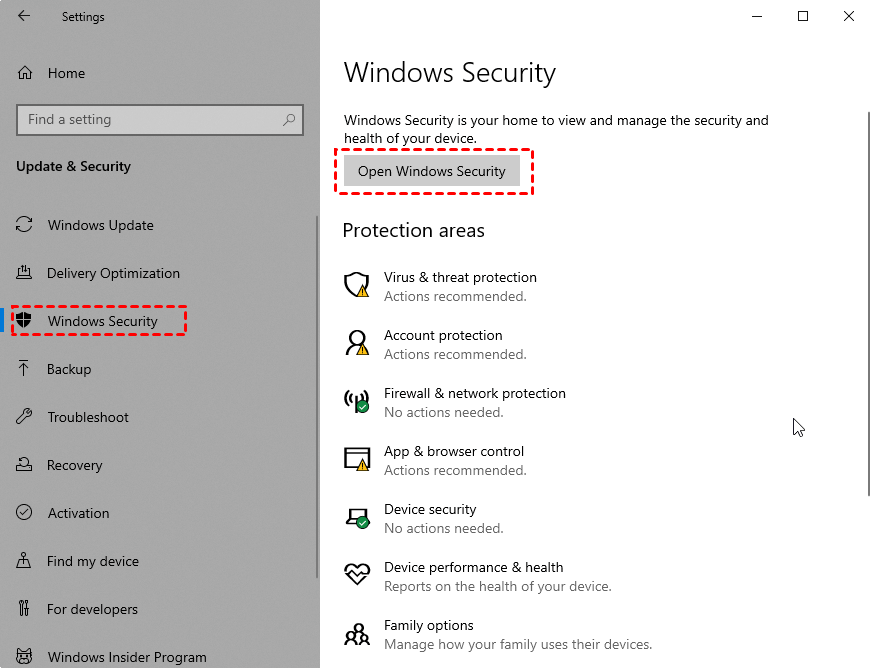
Step 2. Go to Update & Security > Windows Security, then select Open Windows Security.
Step 3. Click Virus & threat protection, and choose Scan options.
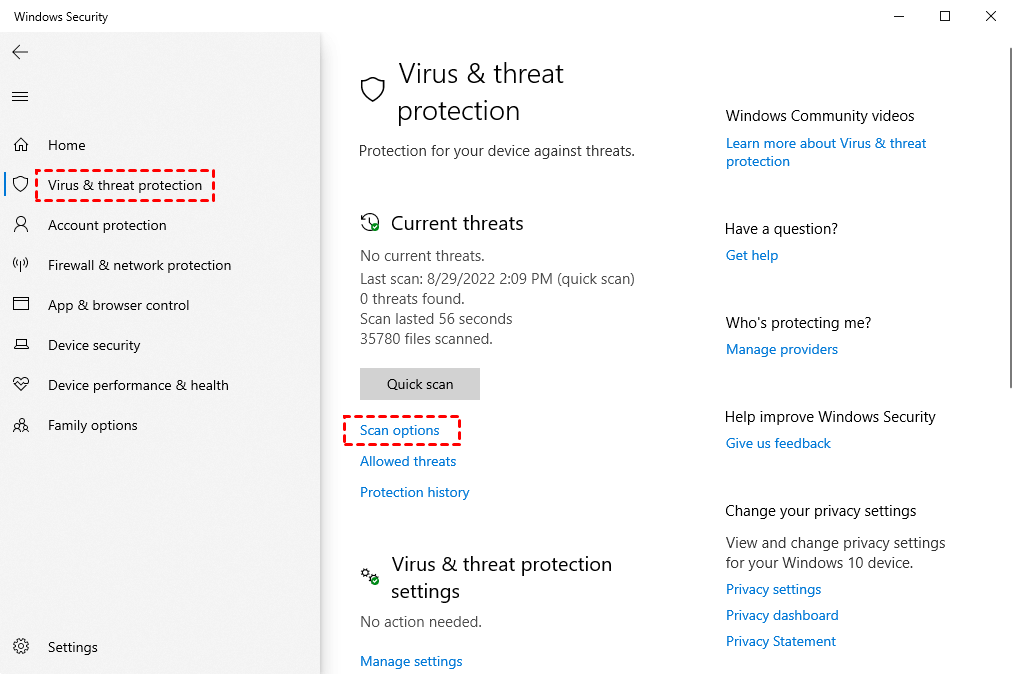
Step 4. Select the preferred scan type, then click Scan now to begin scanning for potential threats.
How can I make my HP laptop faster with minimal effort?
AOMEI Partition Software is a powerful disk and partition management solution designed for Windows 11, 10, 8.1, 8, and 7. It provides a wide range of features to optimize storage and enhance system performance, including disk cleanup, SSD-to-HDD cloning, and flexible partition resizing.
What sets this software apart is its intuitive interface, which makes complex operations straightforward and accessible. It enables users to manage disks efficiently and resolve common system issues with ease. Download the tool to explore its capabilities and improve your computer’s performance.
 AOMEI Partition Software
A reliable disk partition software that helps you resize partitions, migrate OS, convert disks, and optimize PC efficiently.
Method 1. Allocate free space
“How can an HP laptop be accelerated with the help of AOMEI Partition Software?” One effective approach is to extend the system drive. When the C: drive runs low on space, overall performance often declines. With AOMEI Partition Software, unused space can be redistributed from one partition to another without hassle. Follow the steps below:
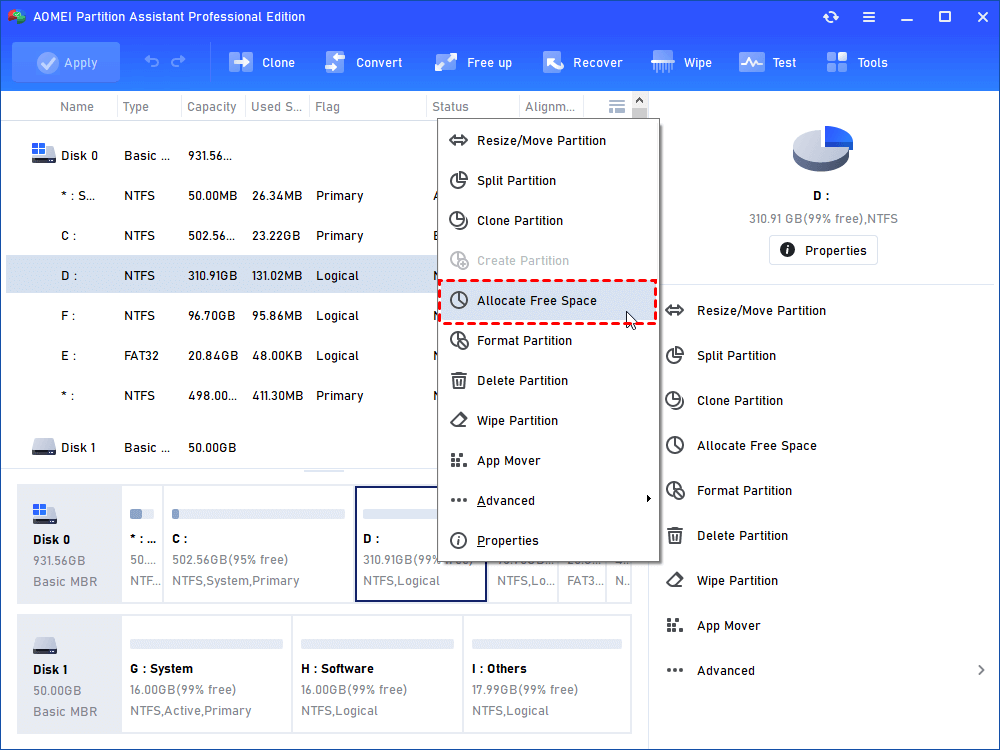
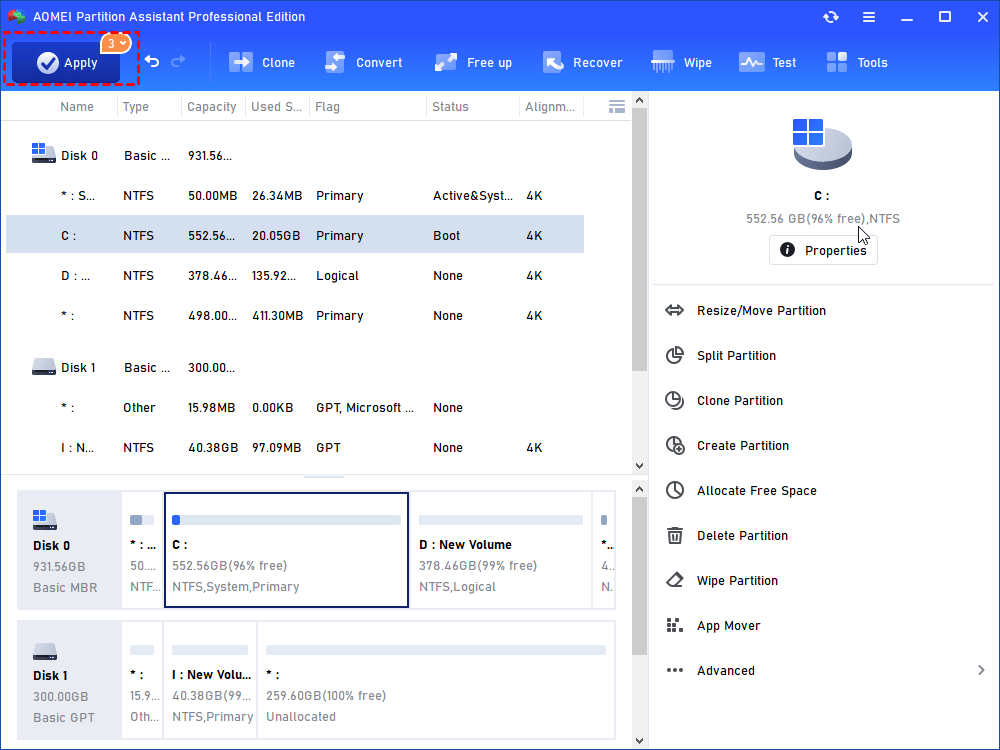
Step 1. Open AOMEI Partition Software, then right-click a partition that has sufficient free space and choose Allocate Free Space.
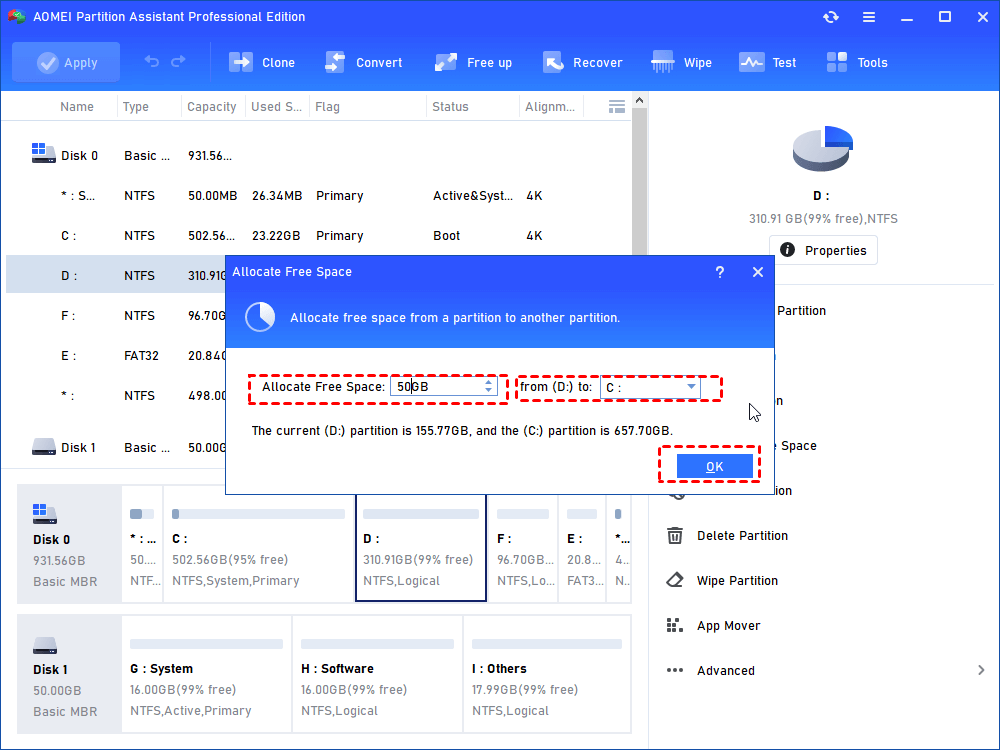
Step 2. Enter the amount of space to transfer and click OK. For example, you can move 50GB from the D: drive to the C: drive.
Step 3. Return to the main interface to preview the changes. The C: drive will appear larger, while the D: drive will be reduced accordingly.
Step 4. Click Apply, then select Proceed to execute the operation.
Method 2. Defrag disk
In addition to freeing up space, disk defragmentation is another effective way to enhance system performance. AOMEI Partition Software provides built-in tools to analyze disk conditions and perform defragmentation when necessary. Follow the steps below to optimize your system drive:
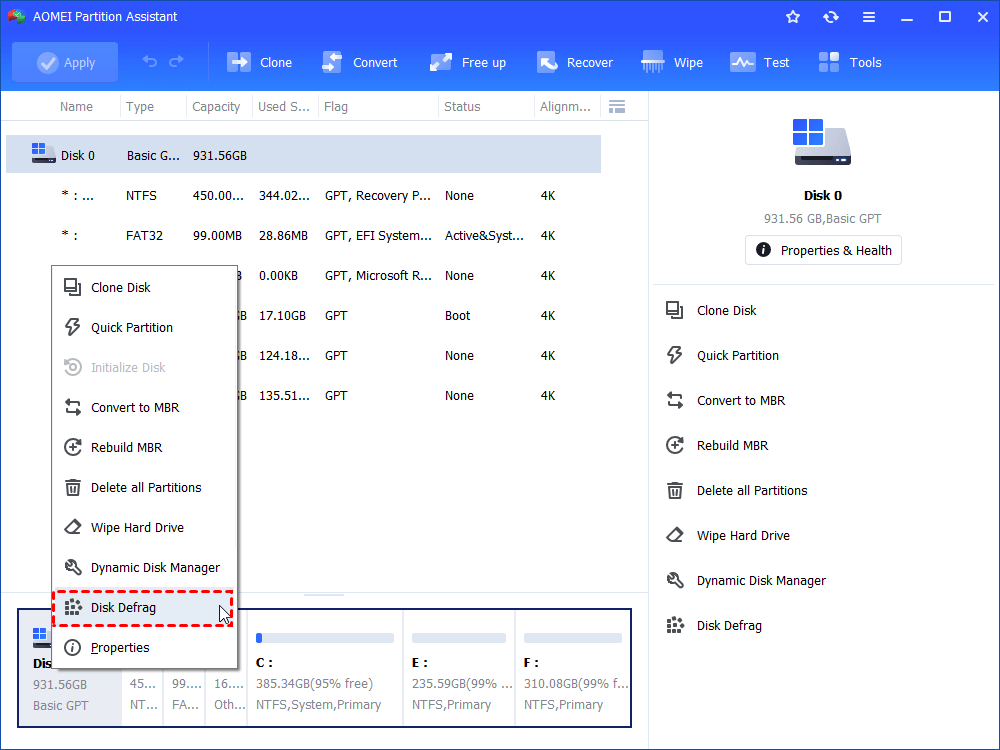
Step 1. Open AOMEI Partition Software, then right-click the target partition and select Disk Defrag.
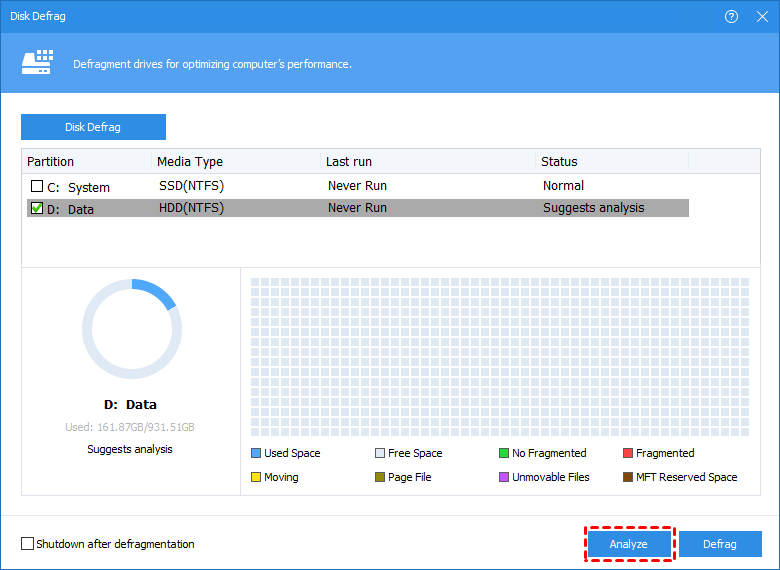
Step 2. Click Analyze to examine the disk status. If you choose Defrag directly, the software will automatically perform an analysis first.
Step 3. Wait for the analysis to finish. The results are typically categorized as follows:
Score ≥ 90: The partition is in excellent condition; no action is needed.
60 ≤ Score < 90: Minor fragmentation is detected; defragmentation is recommended.
Score < 60: Severe fragmentation is present; immediate defragmentation is advised.
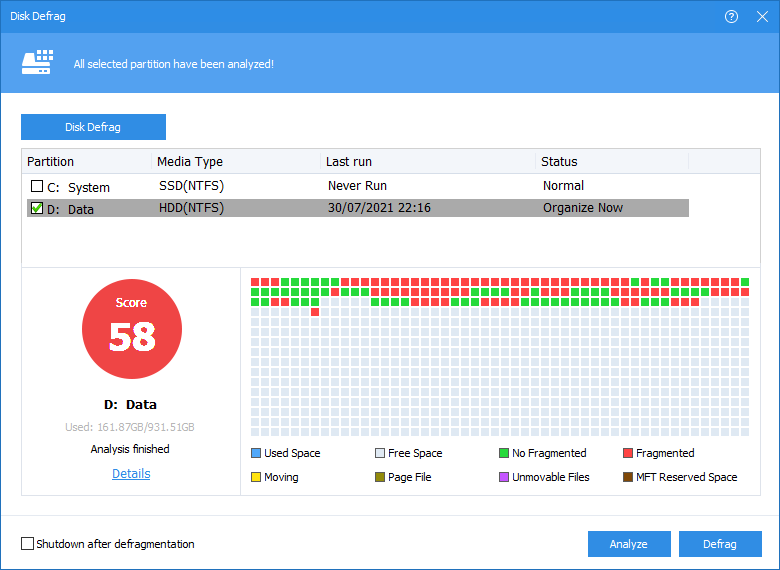
Step 4. Review detailed results by clicking Details, or proceed by selecting Defrag to begin the process.
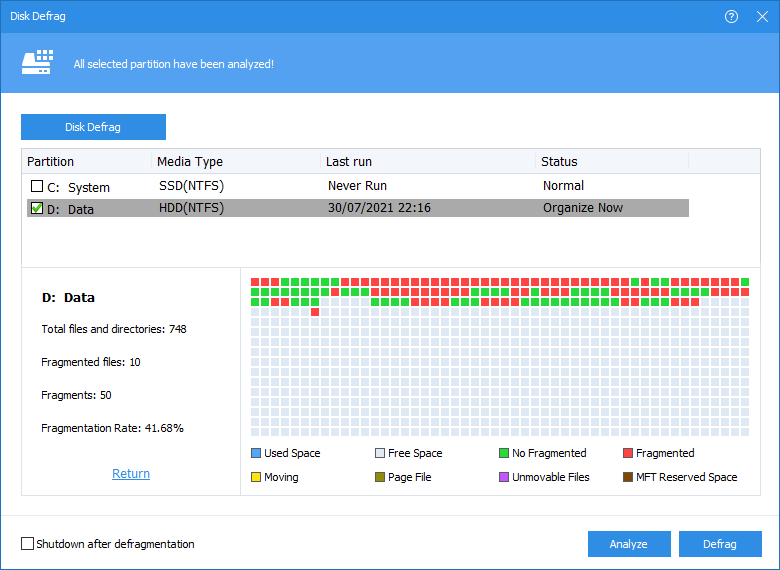
Step 5. Once completed, the partition will receive an updated score reflecting its optimized state.
Conclusion
A gradual decline in computer performance can be frustrating and disruptive. If your HP laptop is running slower than expected, there’s no need to worry. This guide walks you through practical methods to boost speed and efficiency. By applying the recommended techniques and tools, you can address underlying issues and restore smooth, reliable performance.

 as a preferred
source on Google
as a preferred
source on Google