




Why is My Computer Screen Black? (With Causes & Fixes)
Why is my computer screen black? Understanding both the causes and the corresponding fixes makes it much easier to identify the issue and restore your display quickly and effectively.

By Hedy Updated on June 4, 2026


What does a black screen actually mean?
A “black screen” means your device is turned on but not displaying any visible content. The screen remains blank, with no icons, interface, or images appearing, even though the system may still be running.
It indicates that the normal visual output—such as the desktop, apps, or startup screen—is not being shown. In some cases, you might still notice signs that the device is active, like indicator lights, sounds, or a moving cursor, but the display itself stays black.
In simple terms, a black screen represents a loss or absence of visual output from the system, preventing you from seeing or interacting with what’s happening on the device.
Why is my computer screen black?
A black computer screen usually means your system is running, but something is preventing the display from showing content. Here are the most common causes:
✐ Display connection issues: Loose or damaged cables, a faulty monitor, or the wrong input source can stop the screen from displaying anything.
✐ Graphics card problems: A failing or improperly seated GPU may prevent video output, resulting in a black screen.
✐ Driver errors: Corrupted or incompatible display drivers can cause the system to boot but not show anything on screen.
✐ Operating system glitches: Issues during startup, such as failed updates or corrupted system files, may lead to a black screen after login or during boot.
✐ Power supply issues: Insufficient or unstable power can cause components (especially the GPU or monitor) to stop functioning properly.
✐ External devices interference: Connected USB devices or peripherals can sometimes interfere with the boot process.
✐ Hardware failure: Problems with the motherboard, RAM, or screen (in laptops) can also lead to a black display.
3 cases and fixes for computer black screen
A black screen issue can occur in more than just one scenario. In addition to the common help-seeking situation, there are two other typical cases where your computer display may suddenly go black.
In this section, all three scenarios are outlined and categorized, along with targeted solutions for each. This structured approach makes it easier to identify the cause and apply the appropriate fix quickly and effectively.
Case 1. Computer turns on but the screen is black
If your computer produces sounds during startup, it usually means the system is running properly. However, a black screen in this situation often points to issues with connections, hardware components, or drivers. The following checks can help identify and resolve the problem:
✍ Loose or improper connections: Verify that all cables—such as the power cord and display cable—are firmly and correctly connected. Even a slightly loose connection can prevent the screen from displaying properly.
✍ Hardware malfunctions: Inspect key components like the graphics card and motherboard for potential damage or failure. If any hardware is defective, replacing it may be necessary to restore normal display function.
✍ Outdated or corrupted drivers: Ensure that your system drivers, particularly the display adapter, are up to date. If a recent update caused the issue, rolling back to a previous version can often resolve the problem.
Case 2. My computer screen is black after Windows updating
Some users encounter a black screen after installing a Windows update, especially during startup. This problem is often referred to as the “Black Screen of Death (BSOD)”.
In such cases, starting Windows in Safe Mode can help isolate the issue, while rebuilding the MBR (Master Boot Record) is another effective method to restore normal system boot and resolve the black screen problem.
Fix 1. Reboot your Windows in Safe Mode
Windows BSOD issues are often triggered by driver conflicts or problems. Booting into Safe Mode loads only the essential system files and drivers, which helps rule out the interference of third-party software or faulty drivers.
Step 1. Press and hold the power button for 10 seconds to turn off your PC. Repeat this process three times, then restart your computer. When the “Choose an option” screen appears, navigate to Troubleshoot → Advanced options → Startup Settings, and then click Restart.
Step 2.Once the system restarts, press F4, F5, or F6 to enter the appropriate Safe Mode option based on your needs. Follow the on-screen instructions to proceed.
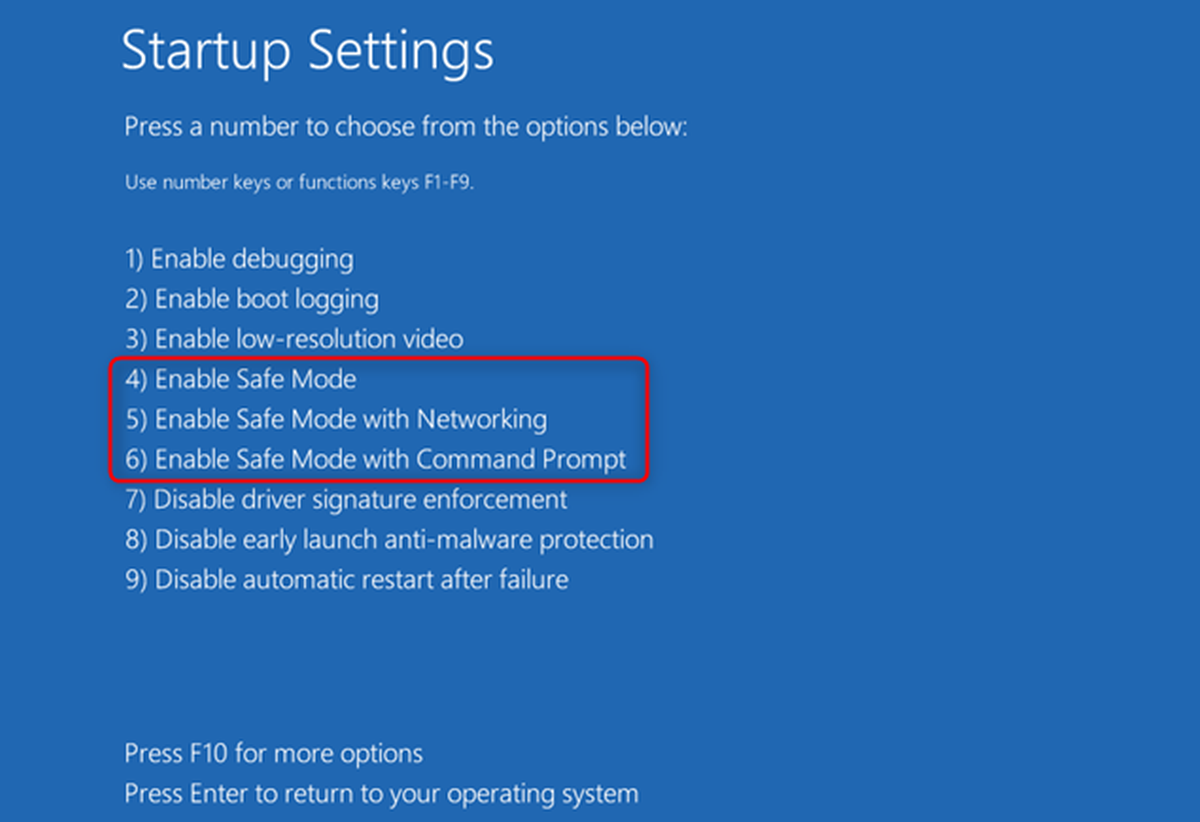
Step 3.If the black screen or continuous restart issue does not occur in Safe Mode, the problem is likely caused by third-party software or drivers. To resolve it, uninstall these programs or drivers one at a time, checking each time to see if the issue has been fixed.
Fix 2. Rebuild MBR
An MBR (Master Boot Record) error can sometimes lead to system restart problems, including the dreaded Windows black screen of death. Fixing MBR manually can be complex, so using a tool like AOMEI Partition Software simplifies the process with a clear, user-friendly interface and step-by-step guidance.
 AOMEI Partition Software
A free and reliable disk partition software that helps you resize partitions, migrate OS, convert disks, and optimize PC efficiently.
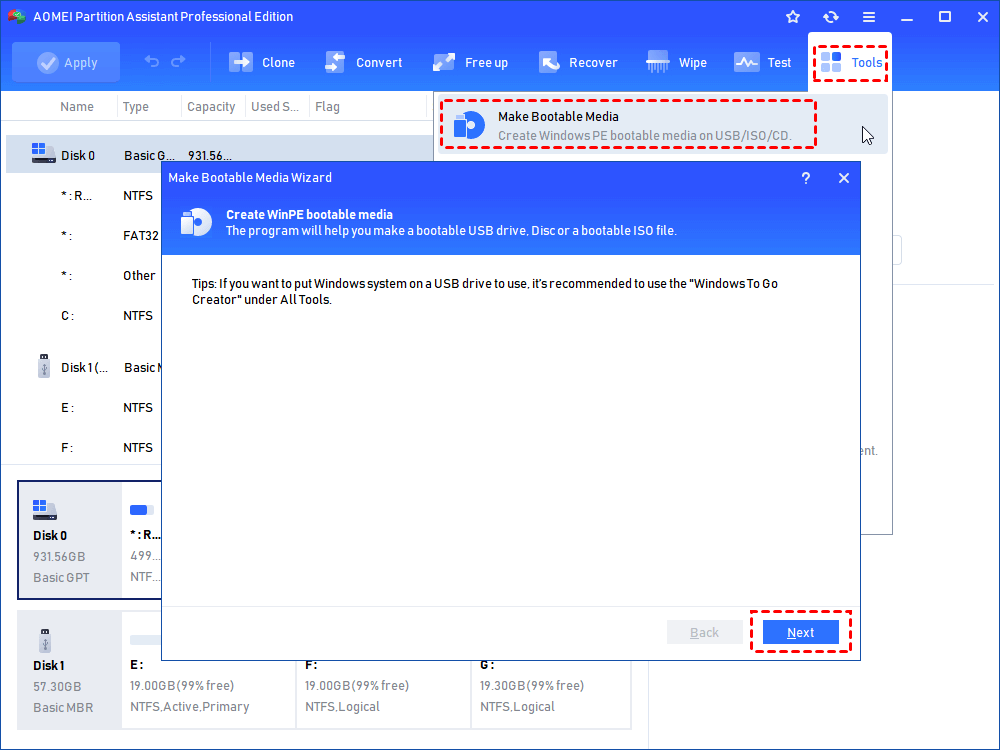
Step 1. On a working Windows PC, insert a USB drive. Open AOMEI Partition Software, click Tools, and select “Make Bootable Media”. Click Next to continue.
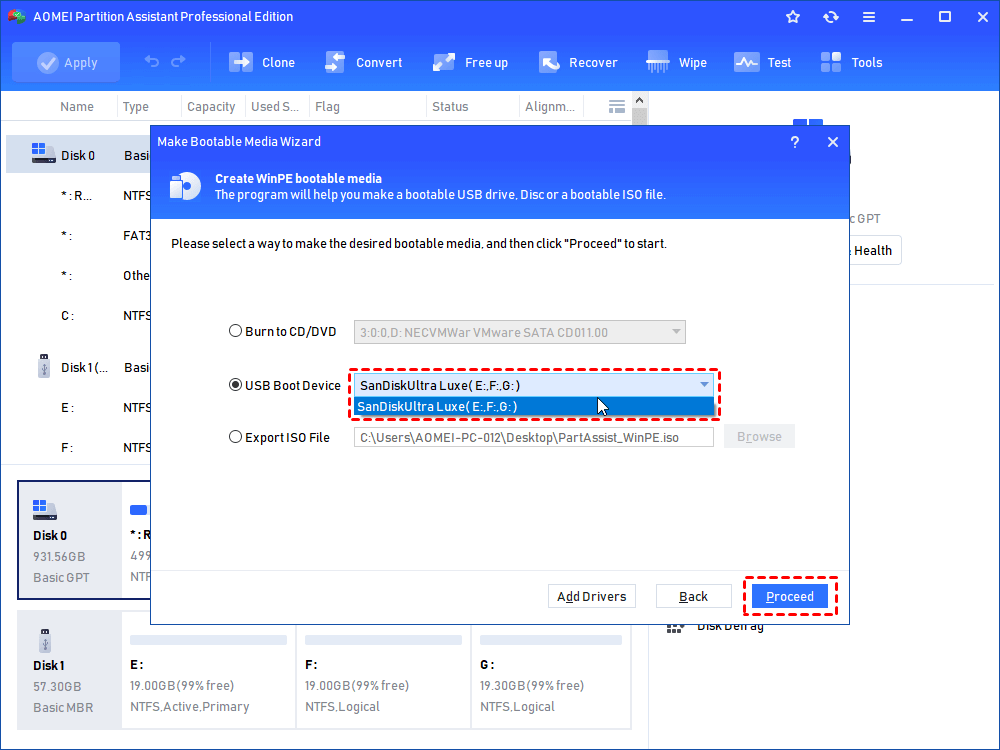
Step 2. Select your USB drive and check “USB Boot Device”, then click Proceed.
Step 3. A warning will appear indicating that the USB will be formatted. Back up any important data before clicking Yes to continue.
Step 4. Wait for the bootable media creation process to complete.
Step 5. Insert the bootable USB into the affected PC. Access the BIOS and change the boot order to start from the USB. You can then use the tool to repair the MBR on the system’s primary hard drive.
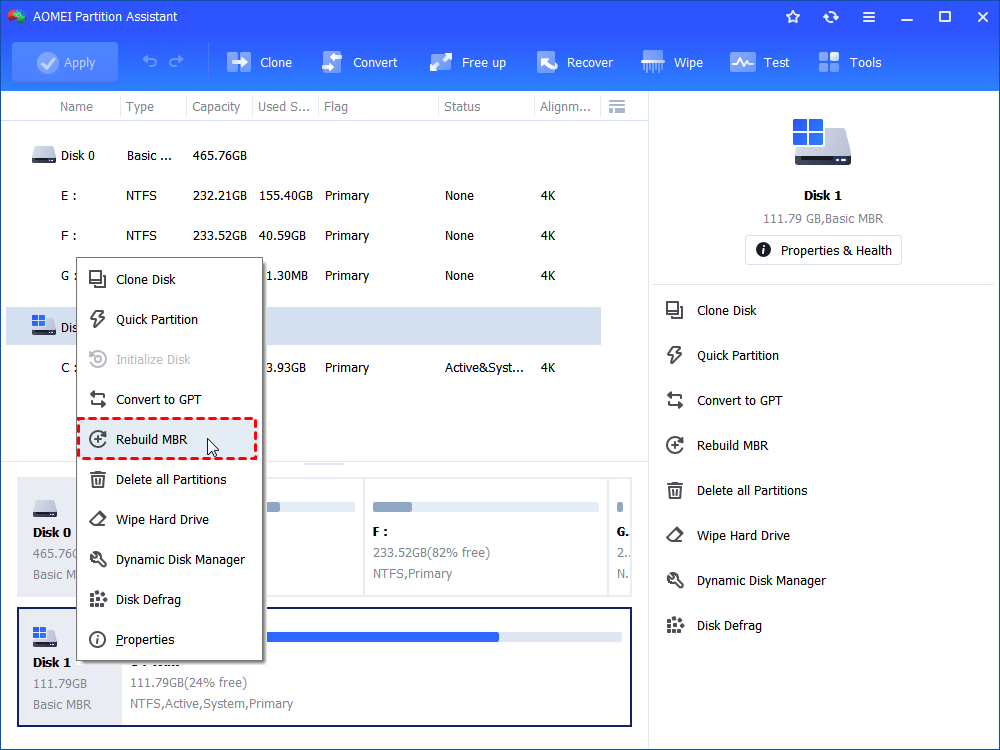
Step 6. In the pop-up window, select the correct MBR type for your version of Windows.
Step 7. Click Apply to execute the pending operations. Once completed, shut down the computer, remove the USB, and restart the system from the original disk. The MBR repair should resolve the black screen and restart issues.
Case 3. My computer screen goes black randomly for a few seconds
If your computer experienced a brief black screen before a Windows issue and a System Restore Point exists, you can use System Restore to revert your system to an earlier state. This can undo changes or settings that may be causing the screen to go black unexpectedly.
Step 1. Boot into the Windows Recovery Environment, click Troubleshoot, then navigate to Advanced options → System Restore.
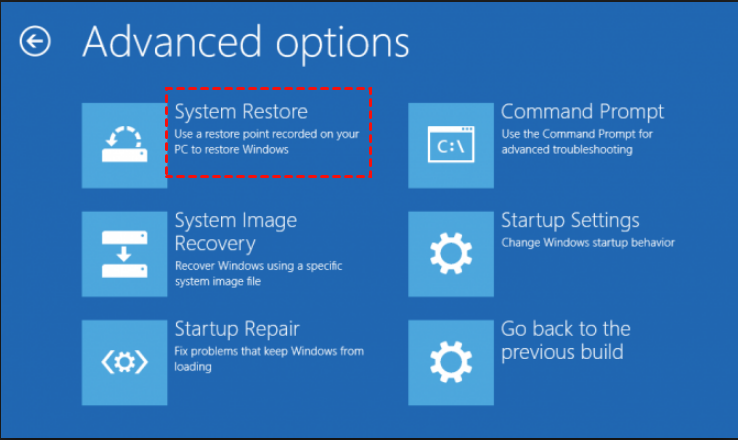
Step 2. Follow the on-screen instructions to choose the restore point you want, and wait for the process to complete. Once finished, your system will return to the selected state, potentially resolving the black screen issue.
Conclusion
In conclusion, a black screen on your computer indicates that while the system may still be running, the display is not showing content. Common causes include display connection issues, faulty hardware, driver errors, and power supply problems. Solutions vary based on the situation, such as checking connections, updating drivers, booting in Safe Mode, or rebuilding the MBR. By troubleshooting step-by-step, you can often restore your system's visual output.

 as a preferred
source on Google
as a preferred
source on Google