




Advanced Disk Defrag: Boost Your PC Performance Efficiently
If you’re looking for a powerful solution to perform advanced disk defragmentation, you’re in the right place. This guide introduces two effective methods to carry out advanced defrag on Windows 10, helping you optimize disk performance and improve overall system efficiency.

By Hedy Updated on June 4, 2026


What is advanced disk defrag?
Disk fragmentation occurs when files or parts of files are scattered across your hard drive. This forces your computer to access multiple locations to read a single file, reducing efficiency and slowing down your system. Advanced disk defrag reorganizes fragmented data, placing file pieces close to each other to improve read/write speed, reduce system hangs, and prevent crashes or hard drive failure.
When should you defrag your disk?
◾ A large number of files have been added recently.
◾ Less than 15% of available disk space remains.
◾ A new program or operating system version has been installed.
◾ Fragmentation exceeds 15% on the disk.
Can you defrag the operating system hard drive?
Yes, it’s possible to defrag the system drive (usually C:) on Windows, but there are a few considerations:
✏️ Defragmenting HDDs
Traditional HDDs benefit from defragmentation because the read/write head must move to different locations to access fragmented data. Organizing these fragments improves speed and reduces wear.
✏️ Defragmenting SSDs
SSDs work differently. They can access data scattered across the drive almost instantly, making defragmentation unnecessary. In fact, defragging an SSD can cause unnecessary wear and shorten its lifespan. Instead, SSDs benefit from TRIM and 4K alignment, features often included in advanced partition tools like AOMEI Partition Assistant Pro.
Get two tools for advanced disk defrag
1. Windows built-in defragmenter
Windows comes with a built-in disk defragmentation tool that helps optimize your hard drives, especially HDDs. Over time, as files are created, modified, and deleted, data can become fragmented, meaning pieces of a single file are scattered across the disk. The Windows defragmenter reorganizes these fragments, allowing your system to access files more quickly and efficiently.
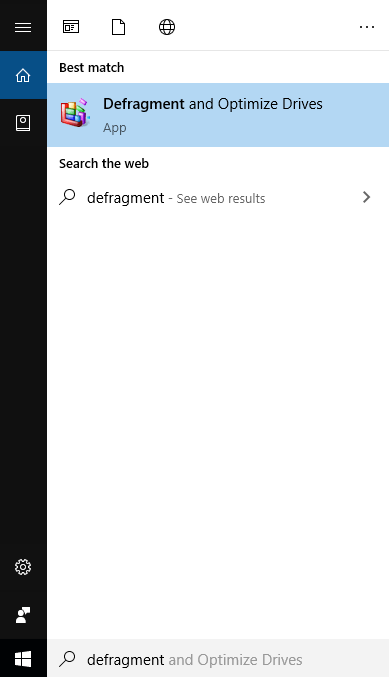
Step 1. Type “Defragment” into the search bar and select “Defragment and Optimize Drives” from the results to launch the tool.
Step 2. Once the Optimize Drives window opens, all available drives that support optimization and defragmentation will be displayed under the Status section.
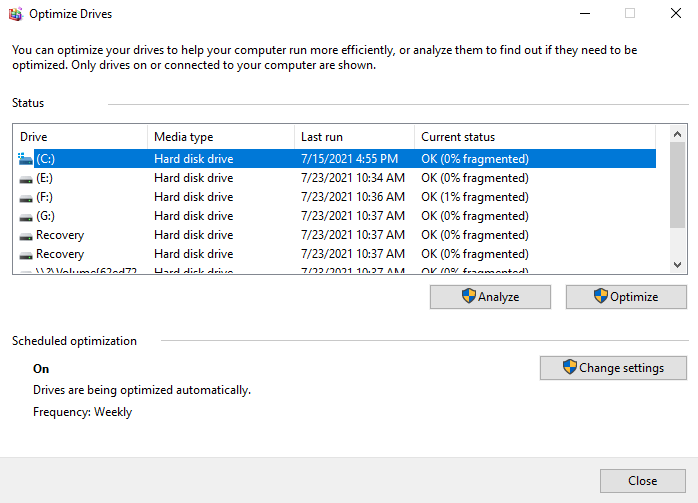
Step 3. Choose the drive you want to defragment. Use the Current status column to decide which drive needs optimization.
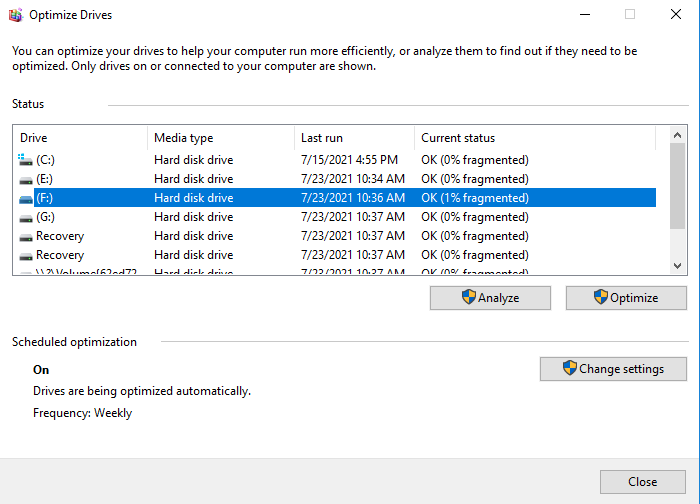
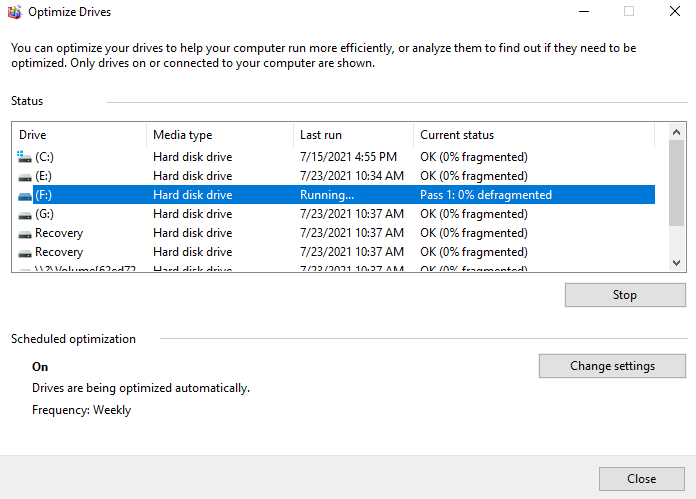
Step 4. Click “Optimize” to begin the defragmentation process. The operation may take some time, depending on the drive size and fragmentation level.
2. AOMEI Partition Software
AOMEI Partition Software is a professional disk management tool that goes beyond standard defragmentation. Its advanced features make it suitable for users who want deeper control over disk optimization. Key highlights include:
✔️ Advanced defragmentation: Optimizes fragmented files across HDDs more efficiently than the Windows built-in tool.
✔️ Partition management: Allows resizing, merging, splitting, or moving partitions without data loss, helping to maintain smooth system performance.
✔️ SSD optimization: Offers specialized tools to optimize SSDs safely, including alignment and trim functions.
✔️ Comprehensive disk health checks: Can detect bad sectors and other disk issues that might slow down your system before they become serious problems.
AOMEI Partition Software is ideal for power users or anyone managing multiple drives, providing a complete suite for both performance optimization and disk maintenance.
 AOMEI Partition Software
A free and reliable disk partition software that helps you resize partitions, migrate OS, convert disks, and optimize PC efficiently.
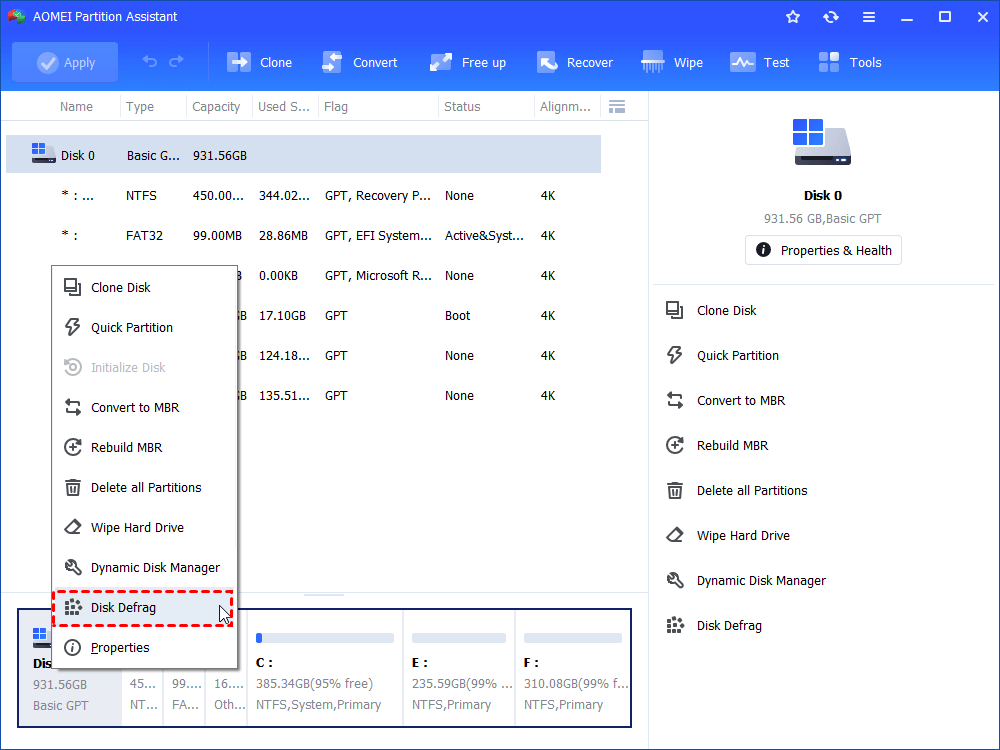
Step 1. Install and launch the software. Right-click the target disk and choose “Disk Defrag”.
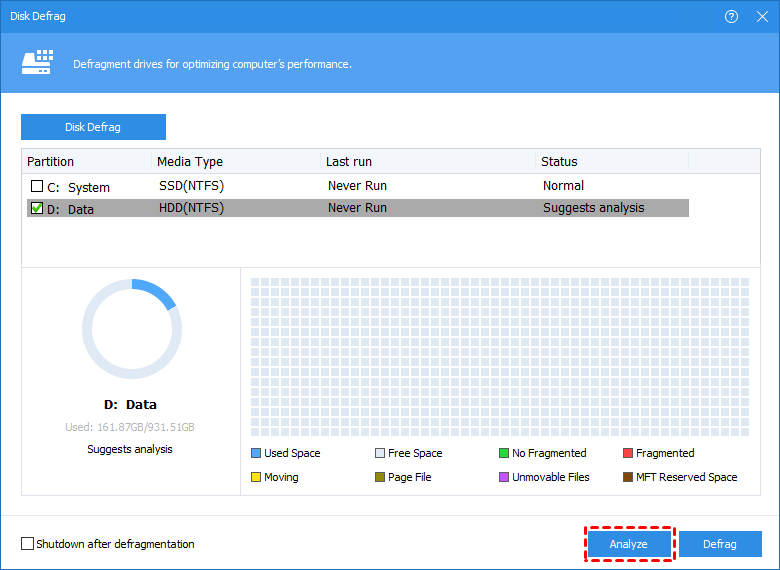
Step 2. Select the disk you want to analyze and click “Analyze”.
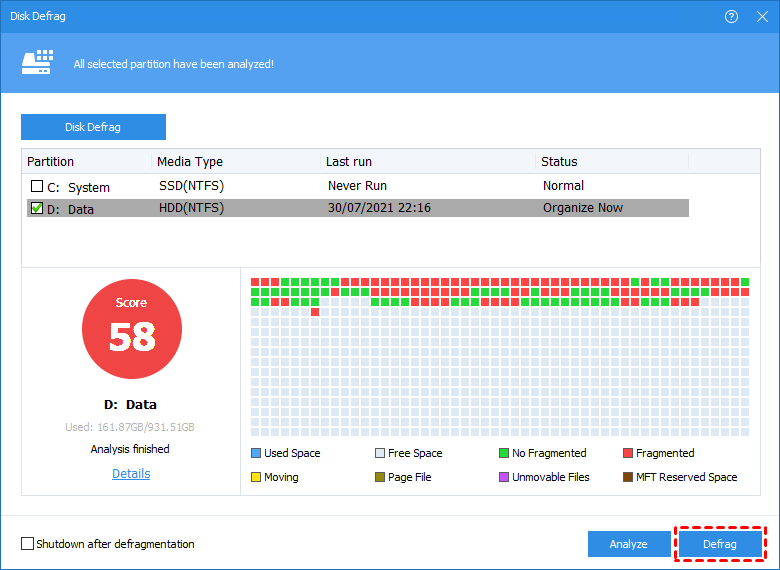
Step 3. Once the analysis completes, the disk will be assigned a fragmentation score.
Step 4. Click “Defrag” to start the defragmentation process.
FAQs
🔺 Is it safe to defragment the system (C:) drive?
Yes, on traditional HDDs it is safe and beneficial. Use a reliable tool to ensure data is organized efficiently.
🔺 Can I defragment an SSD?
No, SSDs do not require defragmentation. Use TRIM and alignment features instead to maintain optimal performance and longevity.
🔺 How often should I defrag my system drive?
For HDDs, monthly defragmentation is usually sufficient. Analyze periodically and defrag when fragmentation exceeds 10–15%.
Conclusion
Fragmentation can significantly degrade the performance of traditional hard drives. With advanced disk defrag, you can reorganize scattered files, improve read/write speed, and extend your drive’s lifespan. While Windows’ built-in defragmenter is a good start, tools like AOMEI Partition Assistant provide more powerful, detailed, and efficient ways to maintain your disks. For SSDs, defragmentation is unnecessary—focus instead on TRIM and 4K alignment.

 as a preferred
source on Google
as a preferred
source on Google