




6 Ways for Windows 10 Login without Password
For security reasons, Windows 10 typically requires a password to log in. However, it is possible to access Windows 10 without a password. Continue reading to explore various methods for logging into Windows 10 without needing to enter a password.

By Hedy Updated on June 4, 2026


Can I sign in to Windows 10 without password?
"Shortly after I got my new Lenovo laptop, I was trying to eliminate the need to enter my password to log in. What I wanted was to go straight to the desktop on boot but I didn't succeed at that. Can you help me complete the Windows 10 login without password?"
▶ Why Windows 10 need a login password?
When you install Windows 10 for the first time, the system prompts you to create a password for your computer. Each time you start your PC or laptop, you must enter this password to access your account.
This security measure ensures that anyone who doesn’t know the password cannot log in, effectively protecting your personal data from unauthorized access. For this reason, Windows 10 encourages users to set a password that is private and known only to them.
▶ What are the advantages of automatic login in Windows 10?
While a login password provides security, it can sometimes feel inconvenient—especially when you just want to wake your device from standby and are still prompted to enter a password, which can slow down startup.
The situation becomes more serious if you forget or lose your password. Without it, you cannot access your device, effectively losing control. Users with a Microsoft account can reset their password online easily, but those using a local account face a more complicated process to set a new password.
For this reason, many Windows 10 users prefer to log in without a password. This approach speeds up startup and eliminates the stress and complications that come with forgetting a password.
How to login Windows 10 without password if you know password?
If you know your password and can access your computer normally, you can use the following methods to bypass the login password for quicker access.
Way 1. Use other sign-in options
Entering your password manually can be slow and cumbersome. A faster alternative is to use other sign-in options such as Windows Hello Face, Windows Hello Fingerprint, PIN, or Security Key, which offer a quicker and more convenient way to log in.
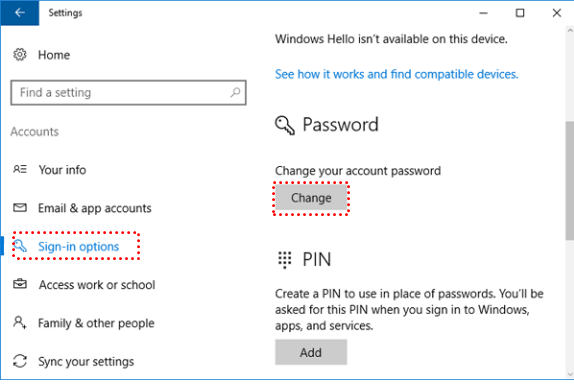
You can manage and change these options in Windows Settings as follows:
Step 1. Click the Start button, then select Settings to open the Windows Settings menu.
Step 2. In the Settings window, go to Sign-in options. From here, click Change to switch your logon method to one of the available alternatives.
Way 2. Disable welcome screen at logon
To log in to Windows 10 without entering a password, you can disable the welcome screen through the Local Group Policy Editor, allowing the system to sign in automatically.
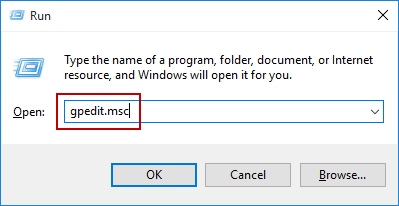
Step 1. Press Win + R to open the Run dialog, type gpedit.msc, and press Enter to launch the Local Group Policy Editor.
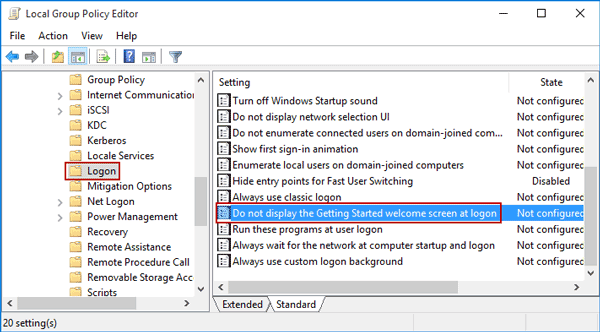
Step 2. In the left panel, navigate to Computer Configuration → Administrative Templates → System → Logon. Then, in the right panel, double-click “Don’t display the Getting Started welcome screen at logon”.
Step 3: In the new window, select Enabled, then click OK. This will disable the welcome screen and help streamline the login process.
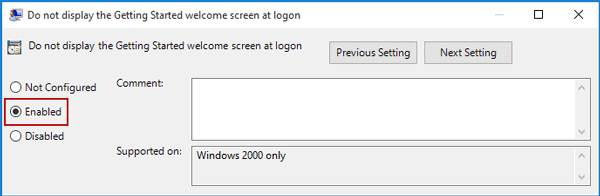
After completing these steps, your system can proceed with login automatically, reducing the need to enter a password each time.
Way 3. Enable automatic login
Enabling automatic login is another effective way to skip the password prompt in Windows 10, making system access faster and more convenient. Follow these steps to configure it:
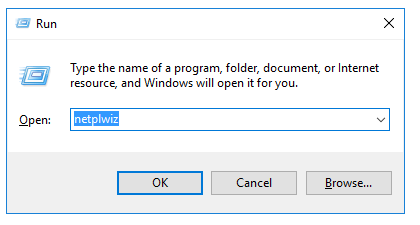
Step 1. Press Win + R to open the Run dialog, type netplwiz, and click OK.
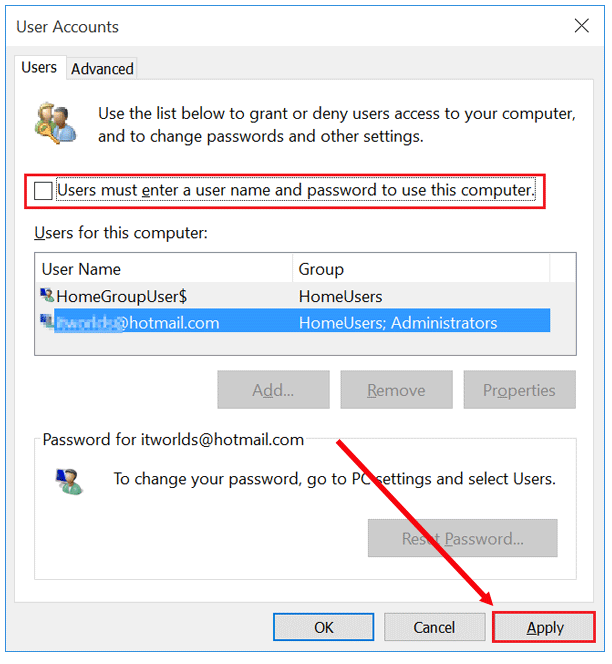
Step 2. In the User Accounts window, uncheck the option “Users must enter a user name and password to use this computer”.Then click OK to continue.
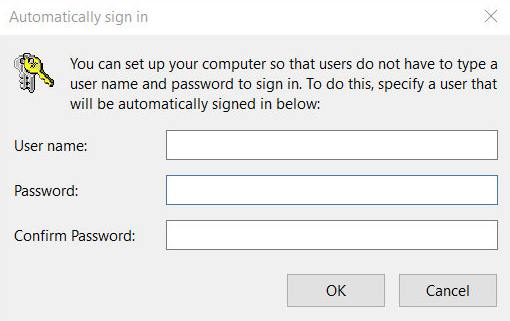
Step 3. A prompt will appear asking for your account credentials. Enter your username and password, then click OK to confirm.
Step 4. Restart your computer. After rebooting, Windows 10 should log in automatically without requiring a password.
Way 4. Remove login password
In addition to the previous methods, you can also remove the login password entirely to gain direct access to your PC without any prompts.
There are three different ways to do this. Each method is explained step by step below, so you can choose the one that best fits your needs.
Option 1. Skip Windows 10 login password from Settings
Step 1. Press Windows + I to open Settings, then select Accounts.
Step 2. In the left panel, click Sign-in options, and under the Password section, choose Change.
Step 3. Enter your current password and click Next to continue.
Step 4. Leave the new password fields blank and click Next again. This will remove your existing password, allowing you to access your PC without a login prompt.
Option 2. Bypass Windows 10 password using CMD
Step 1. Type “Command Prompt” in the search bar, then right-click it and choose Run as administrator.
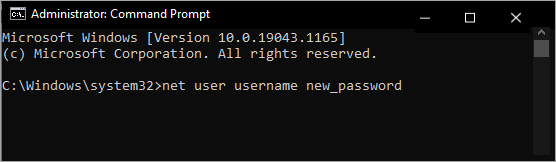
Step 2. Enter the command net user and press Enter to display all user accounts on the system. Identify and note the username of your current login account.
Step 3. Next, type net user username * (replace username with your actual account name) and press Enter. Follow the prompts, leaving the password fields blank if you want to remove it. Afterward, check whether you can log in to Windows 10 without a password.
Option 3. Remove Windows 10 password in Local Users and Groups
Step 1. Press Windows + R, type lusrmgr.msc, and click OK to open the Local Users and Groups manager.
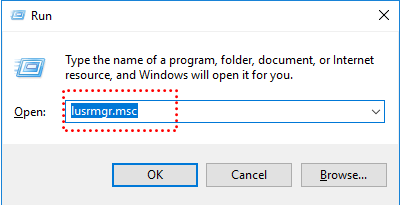
Step 2. In the left pane, select Users, then right-click the account you want to modify and choose Set Password.
Step 3. Click Proceed to acknowledge the warning message.
Step 4. Leave the password field blank and click OK. This removes the password, allowing the account to log in without entering any credentials.
How to login Windows 10 without password if you forgot password?
If the password is still known, several simple approaches are available, and each can be completed without difficulty. The situation becomes more challenging once the login credentials are forgotten.
Even so, there’s no need to worry. This section outlines three reliable and proven solutions, each accompanied by clear, step-by-step instructions to help you choose the one that best fits your needs.
Way 1. Remove password with a password reset USB
According to Microsoft, a password reset disk offers a straightforward way to remove a forgotten Windows password. If such a USB was created in advance, it can be used immediately to regain access by following a few simple steps.
Step 1. Insert the prepared reset USB into the Windows 10 computer. On the login screen, click “Reset password”.
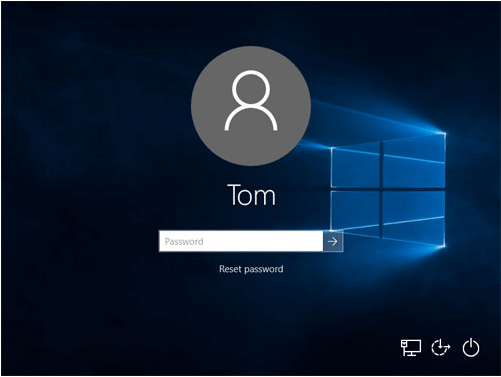
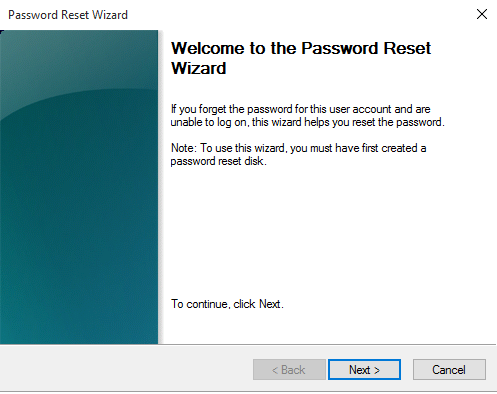
Step 2. In the setup window, click “Next”, choose the correct reset disk, and proceed.
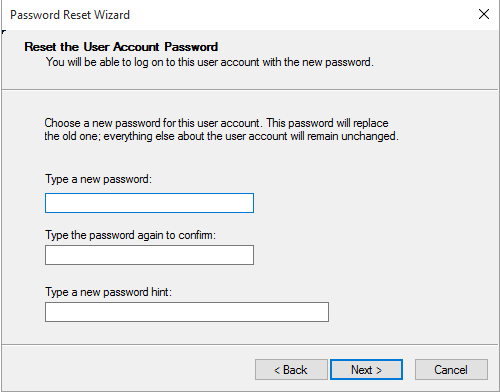
Step 3. Leave the new password fields blank to remove the existing password, then click “Next”.
Step 4. Click “Finish”. The system can now be accessed without a password.
If no reset disk was created beforehand, an alternative approach is required. A practical option is to use a third-party utility such as AOMEI Partition Software, which allows password removal or reset even after the password has been forgotten. It supports multiple Windows versions, including Windows 11, 10, 8, and 7, and enables the creation of a reset USB on another working computer.
 AOMEI Partition Software
A free and reliable disk partition software that helps you resize partitions, migrate OS, convert disks, and optimize PC efficiently.
Step 1. Connect a blank USB drive to a functioning Windows PC. Install and launch the software, then navigate to “Tools” > “Reset Windows Password”.
.png)
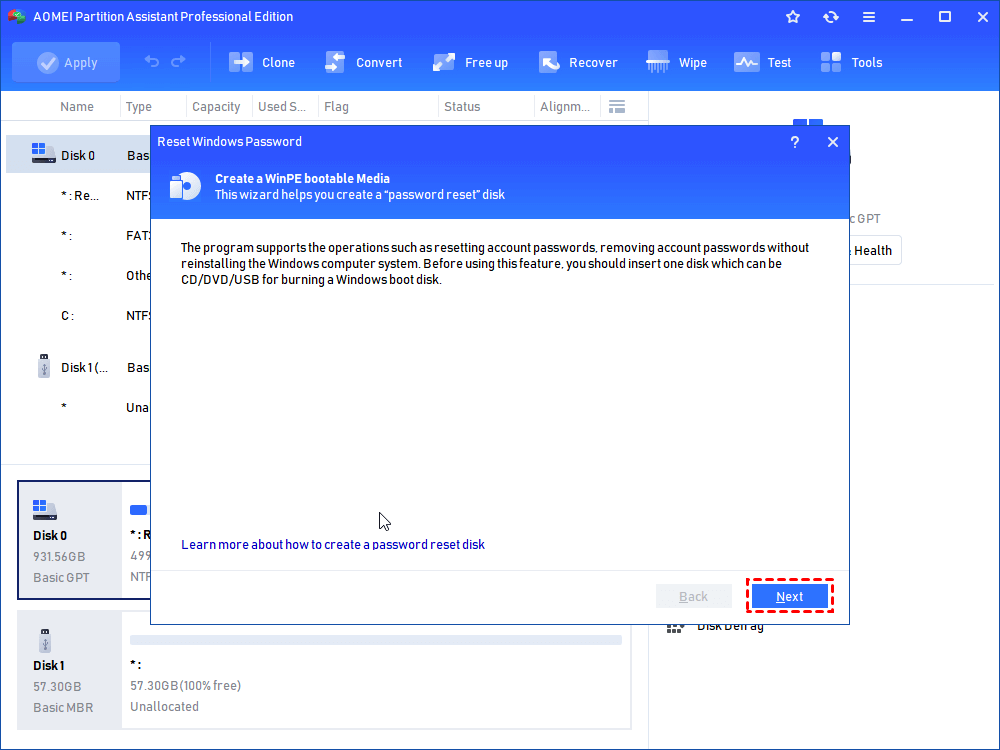
Step 2. Click “Next” to begin creating a WinPE bootable media.
Step 3. Select “USB Boot Device”, choose the inserted USB drive, and click “Proceed”.
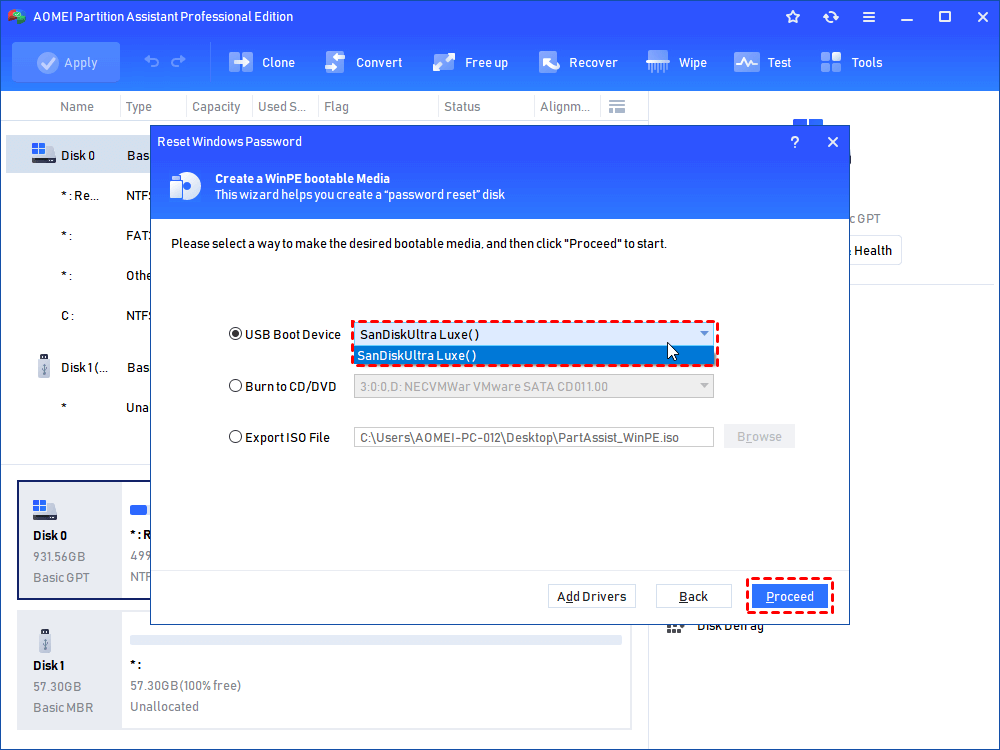
Step 4. Confirm the prompt noting that the USB will be formatted, then continue.
Step 5. Once the bootable USB is ready, insert it into the locked computer and adjust the boot order to start from the USB.
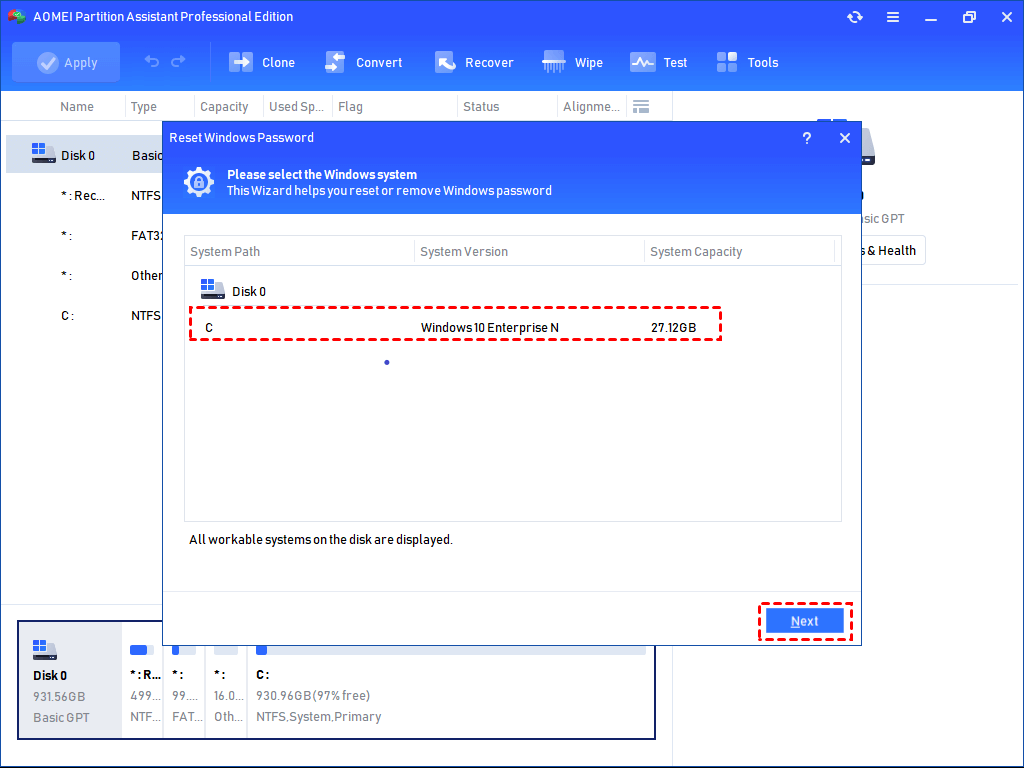
Step 6. After startup, the program interface will load automatically. Select “Reset Windows Password,” choose the target system, and click “Next”.
Step 7. Pick the user account and select either “Remove Account Password” or “Reset Account Password.” Then proceed.
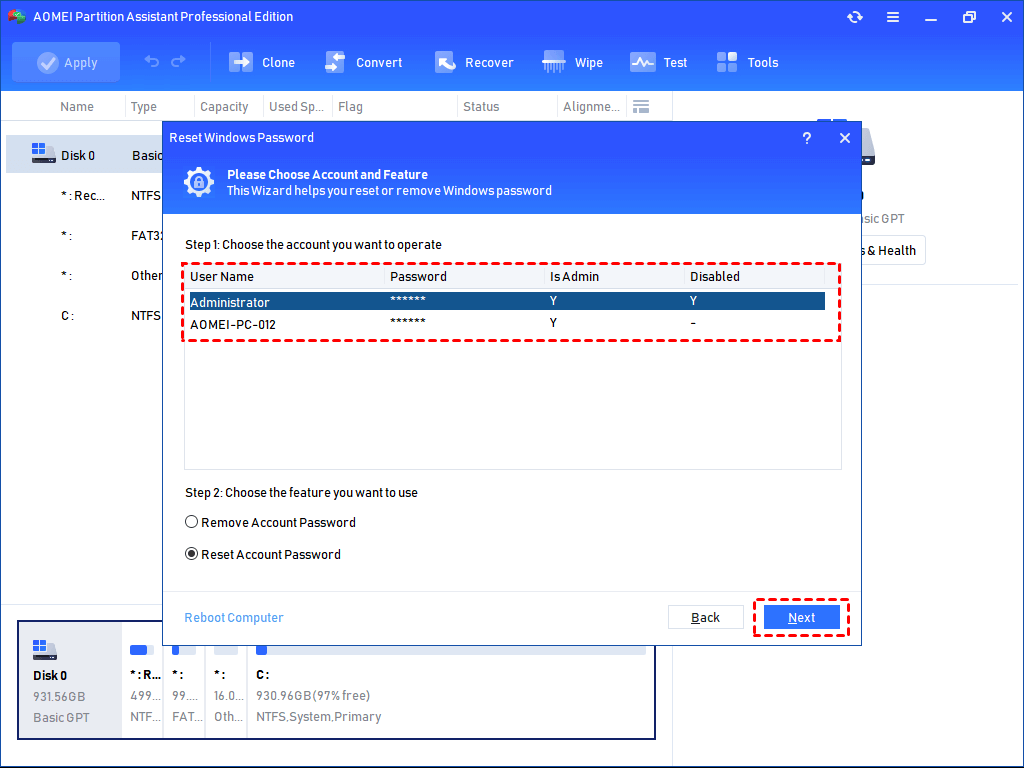
Step 8. Confirm the action when prompted. After completion, the system can be accessed without entering a password.
Way 2. Remove password via Windows installation disk
Besides using a password reset USB, another option is to reinstall Windows with an installation disk. This method completely wipes the system—including the existing password—essentially restoring the computer to a fresh state.
However, this approach comes with a major drawback: all data on the system will be erased. The process can also take some time, so patience is required. Below is how to bypass the Windows 10 login by reinstalling the operating system:
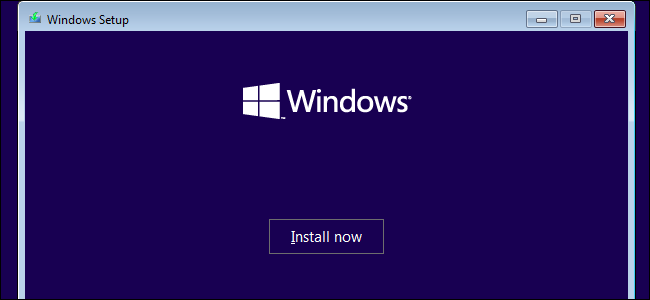
Step 1. Create a Windows installation disk, connect it to the target PC, and boot the computer from it.
Step 2. Configure your preferred settings on the setup screen, then click “Install Now”.
Step 3. Enter the product key when prompted. If unavailable, select “I don’t have a product key” to continue.
Step 4. Choose the operating system you want to install and click “Next”.
Step 5. Select “Custom: Install Windows only (advanced)” to proceed with a clean installation.
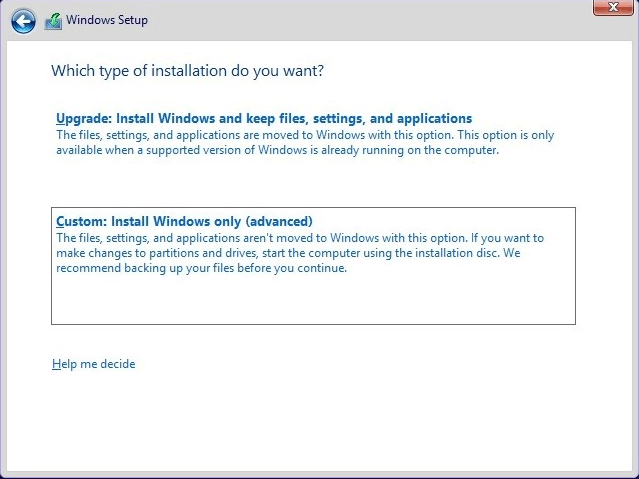
Step 6. Pick the target partition and click “Next” to begin the installation process.
Once completed, the system will restart as a fresh installation with no password configured, allowing direct access to Windows.
Conclusion
Constantly entering a password at startup can become frustrating, especially if access to the system has already been lost due to a forgotten login credential. In such cases, it’s natural to look for a way to sign in to Windows 10 without a password.
This page has outlined several effective methods to bypass the Windows 10 login requirement. Each option is dependable and secure—simply select the one that best matches your situation and follow the instructions provided.

 as a preferred
source on Google
as a preferred
source on Google