




5 Ways to Fix There Is Not Enough Space on the Disk
Have you ever encountered the “there is not enough space on the disk” issue on your Windows PCs? In this guide, you will know the most common reasons and reliable solutions to it.

By Hedy Updated on May 29, 2026


Why there is not enough space on the disk?
What does not enough disk space mean? When using Disk Management in Windows 11/10/8/7 to create, extend, or shrink partitions, you may encounter the error: “There is not enough space available on the disk(s) to complete this operation”. This typically indicates limited available space, which can slow down your system and affect software performance.
✍ Common causes of the error:
◆ Disk Management not updated: Recent changes to the disk may not be recognized. If the tool hasn’t refreshed properly, operations like extending or creating volumes can fail. A simple disk rescan is often required.
◆ MBR partition limit: MBR disks support a maximum of four primary partitions. Once this limit is reached, creating an additional partition is no longer possible.
◆ Lack of unallocated space: If there isn’t enough unallocated space on the target disk, extending a volume will fail, triggering this error message.
How to fix there is not enough space on the disk on Windows
To address the “not enough disk space but there is plenty” issue effectively, several solutions are available based on the underlying cause. These include both built-in tools like Disk Management and alternative methods for more flexibility.
Apply each approach step by step until the problem is resolved, ensuring you identify the method that works best for your specific situation.
Fix 1. Rescan the disk
In many cases, the problem can be resolved quickly by refreshing Disk Management. A simple rescan allows the system to detect recent changes and restore normal functionality.
Step 1. Press Win + R to open the Run dialog. Type diskmgmt.msc and press Enter to launch Disk Management. At the top menu, click Action, then select Rescan Disks.
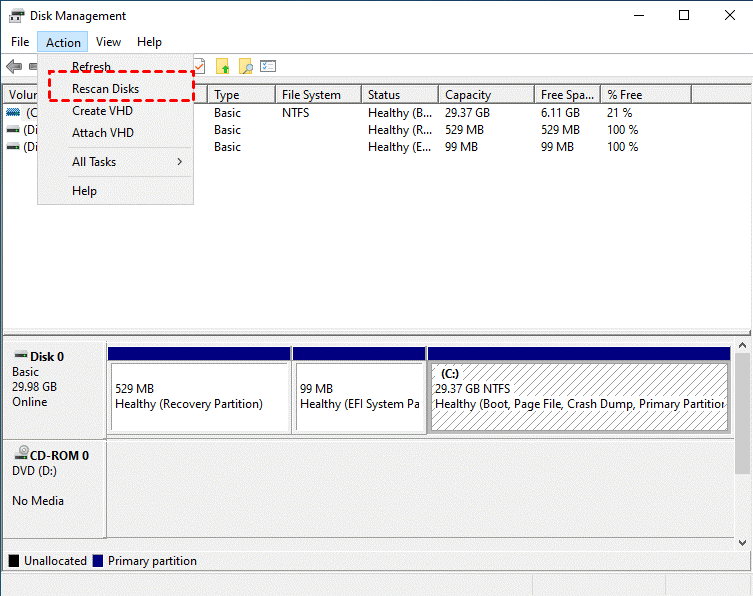
Step 2. Once the rescan is complete and all partitions are updated, try shrinking the volume or performing the desired operation again.
Allow the process to finish scanning your disks, then check whether the issue has been resolved.
Fix 2. Convert MBR to GPT
If your disk uses the MBR partition style, you may encounter the “not enough space on disk” error when creating new partitions in Windows 11, 10, 8, or 7. This happens because MBR only supports up to four primary partitions, making further partition creation impossible.
A practical solution is to convert the disk from MBR to GPT. Unlike MBR, GPT does not impose the same partition limit, allowing you to create additional volumes without restriction.
To perform this conversion safely, a reliable tool is essential. AOMEI Partition Software is a widely used disk management solution that supports Windows systems from 7 to Windows 11. It enables seamless conversion from MBR to GPT without data loss. The process is straightforward and can be completed in just a few simple steps, making it an efficient and user-friendly option.
 AOMEI Partition Software
A safe and reliable disk partition management tool that helps you migrate OS to SSD or HDD, reorganize disk space, and improve overall PC performance.
Step 1. Right-click on the disk that has the issue, and click “Convert to GPT” or click the disk and choose "Convert to GPT" from the right menu.
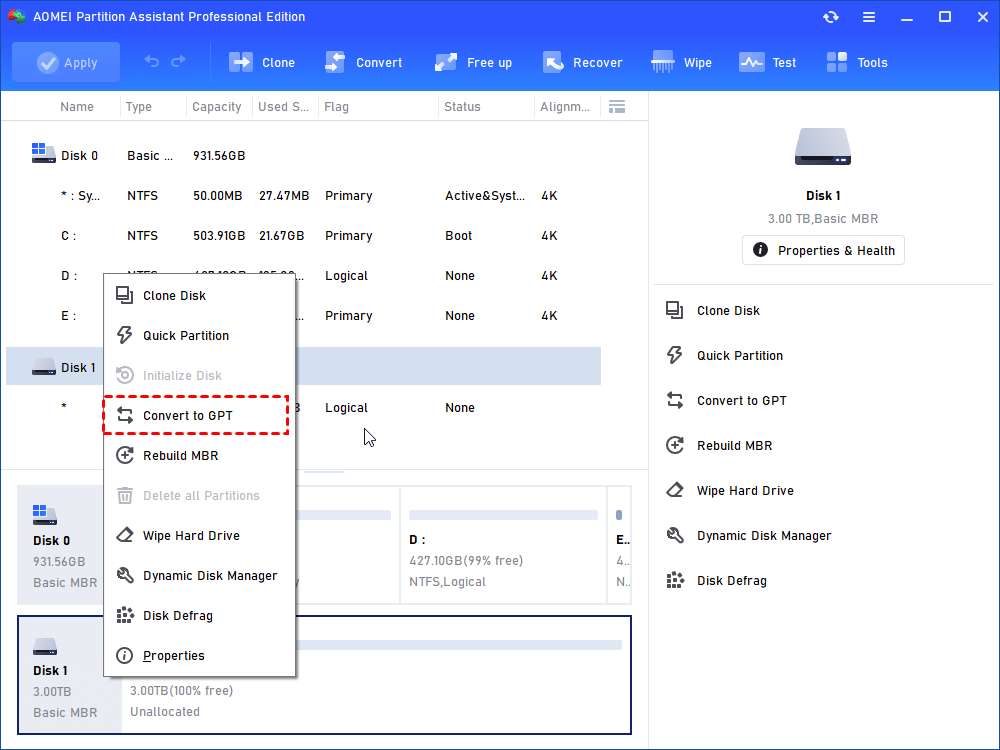
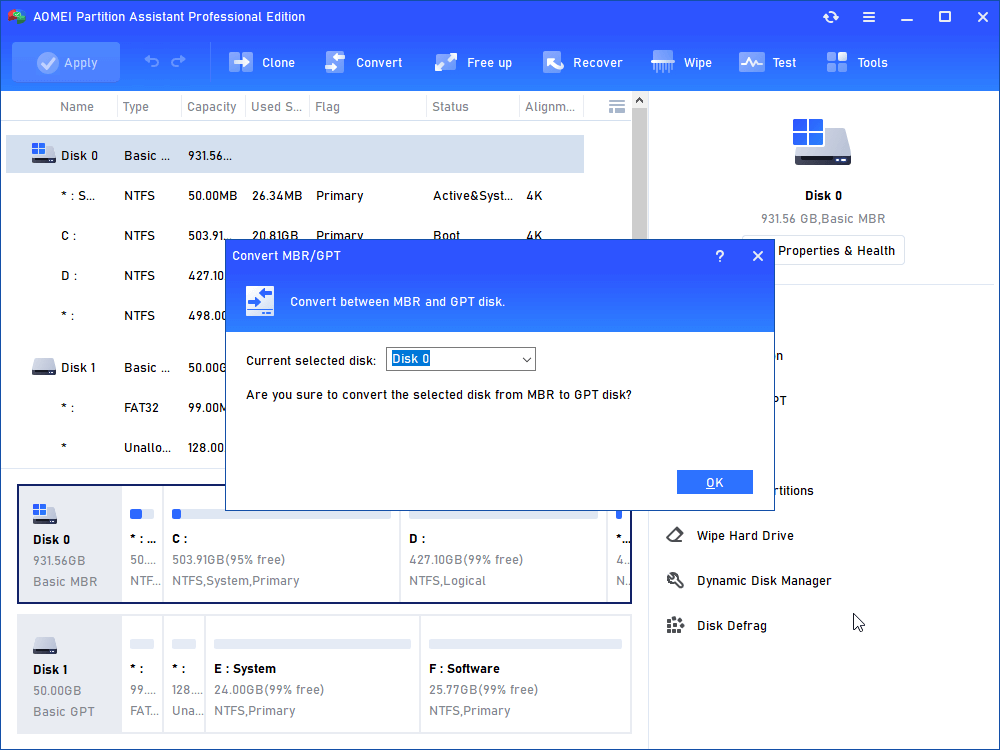
Step 2. It will prompt a note to ask you to ensure your motherboard supports UEFI if the disk contains a system. Click "OK" > “Yes” to confirm.
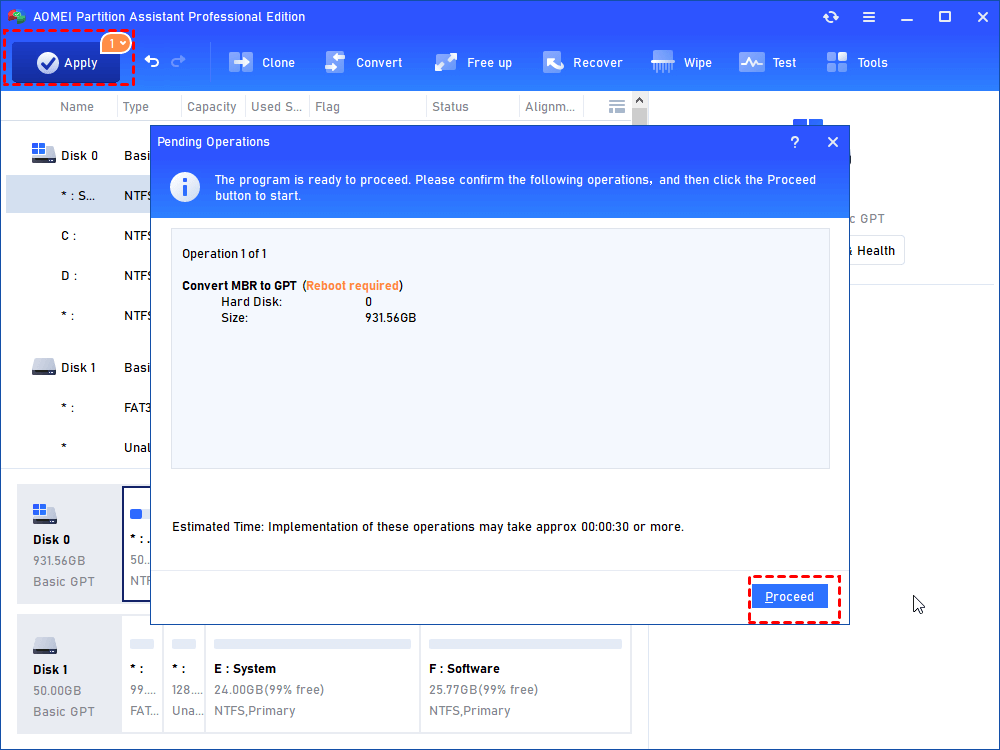
Step 3. Click “Apply” on the main console. Wait for a while, the disk will be converted to GPT disk. Then you can continue creating partition on the disk.
Fix 3. Check disk errors
In some situations, the disk may appear to have sufficient space, yet still report an “not enough disk space but there is plenty Windows 11” error. This can be caused by bad sectors, which interfere with normal disk operations.
To resolve this, you can use the Check Disk feature in AOMEI Partition Software. This tool scans the drive for errors, identifies problematic sectors, and helps repair disk issues, restoring proper functionality and ensuring accurate space detection.
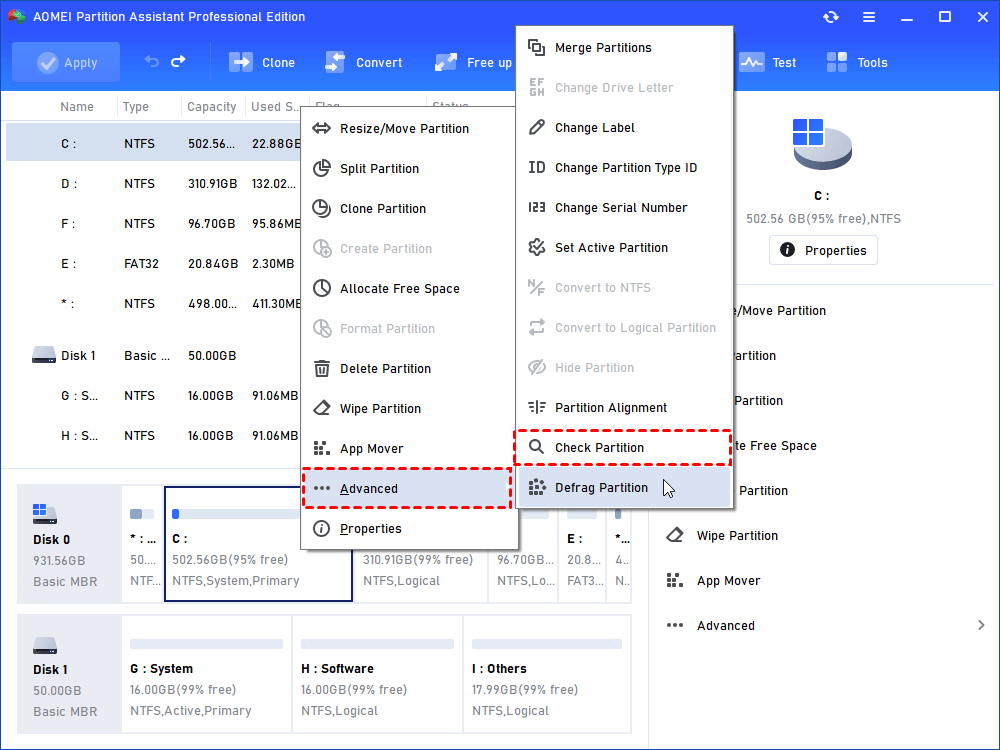
Step 1. Download and open AOMEI Partition Software, right-click the target hard drive, select “Advanced” and click “Check Partition”.
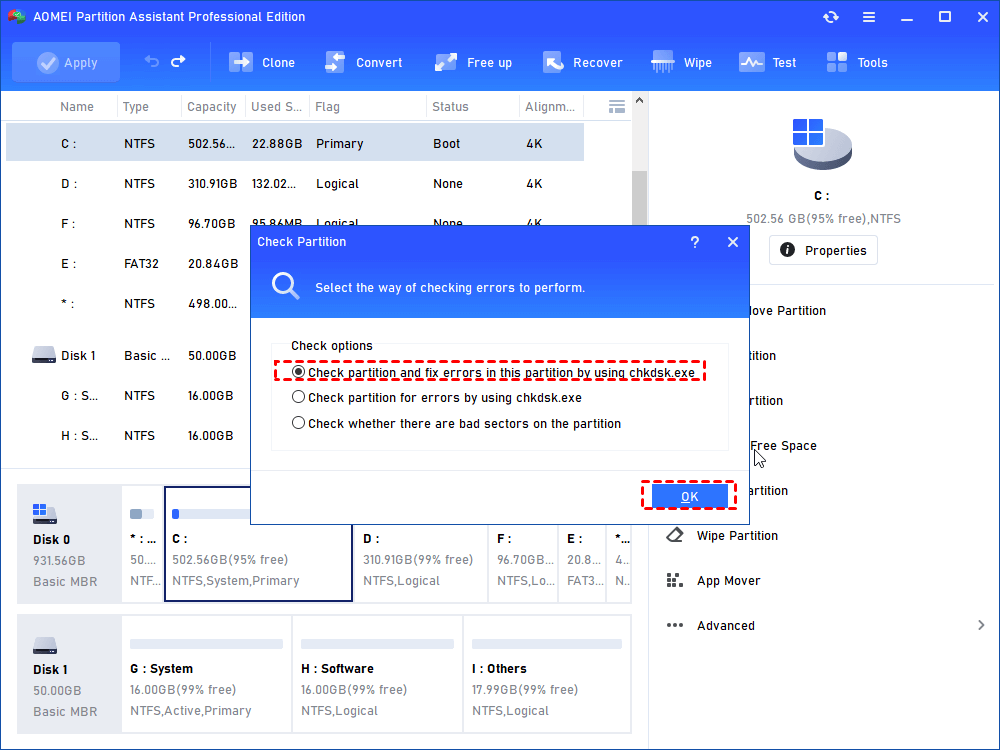
Step 2. In the check options window, here we choose “Check partition and fix errors in the partition using chkdsk.exe” and you can also choose other check options, and click “OK”.
Fix 4. Extend volume
Extending partitions with Windows’ built-in utility can be time-consuming and often leads to issues like “insufficient disk space” errors. The process isn’t always smooth, especially when dealing with complex disk layouts.
A more efficient approach is to use AOMEI Partition Software, a powerful disk management tool designed to streamline partition resizing. It allows you to expand the C drive into adjacent or non-adjacent unallocated space quickly and safely, all without risking data loss.
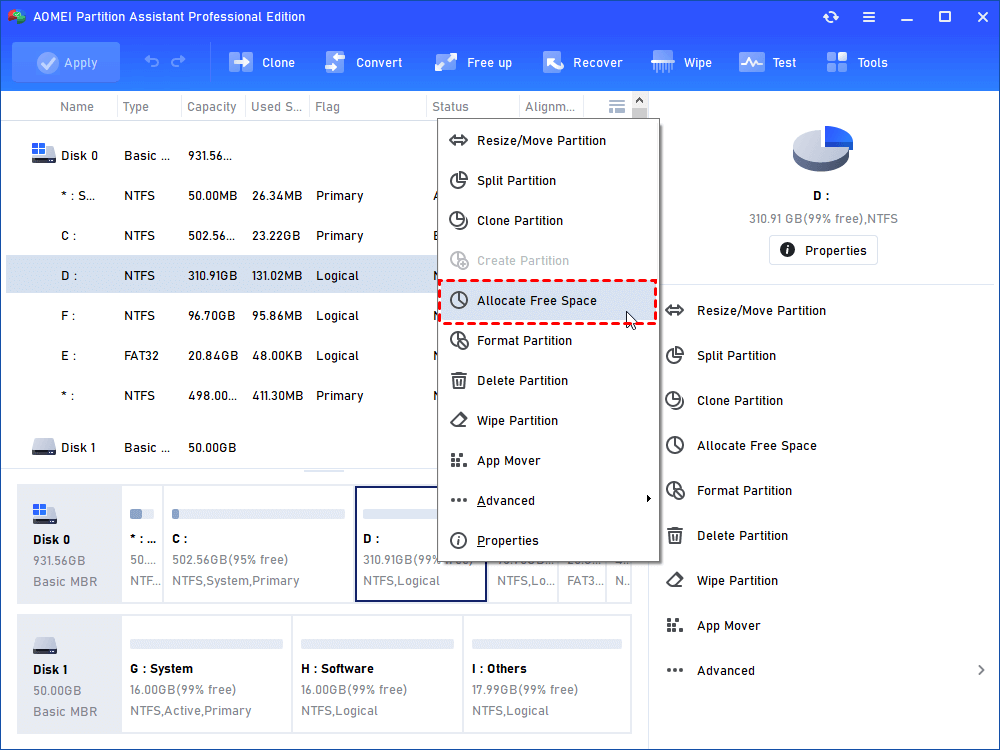
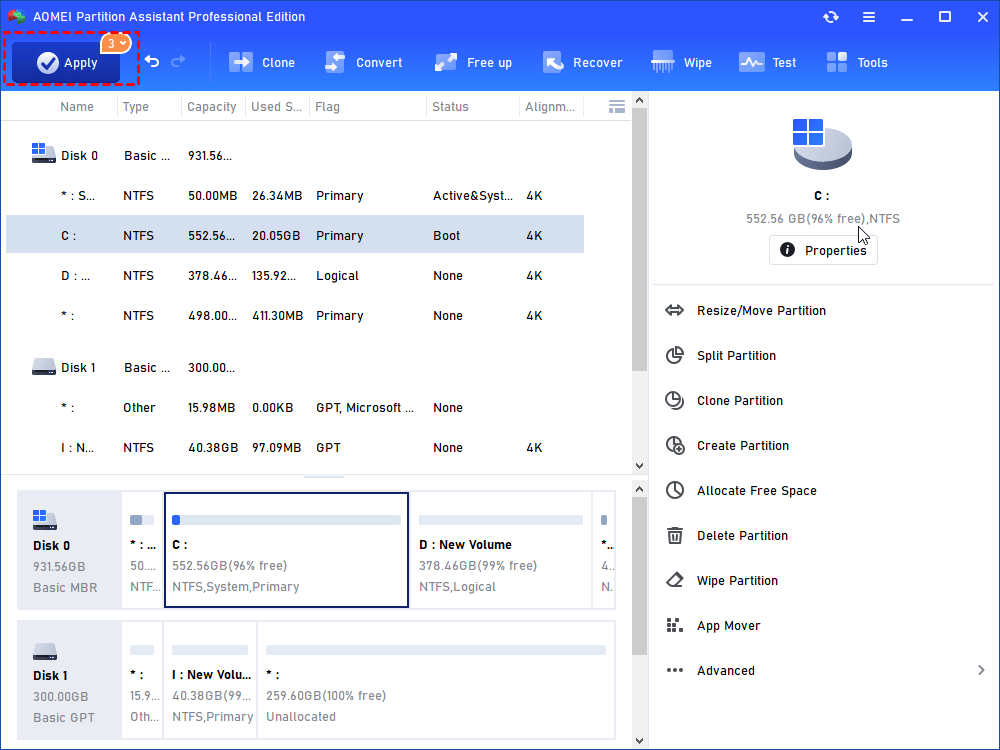
Step 1. Install and open AOMEI Partition Software. Right-click the D drive and choose "Allocate Free Space".
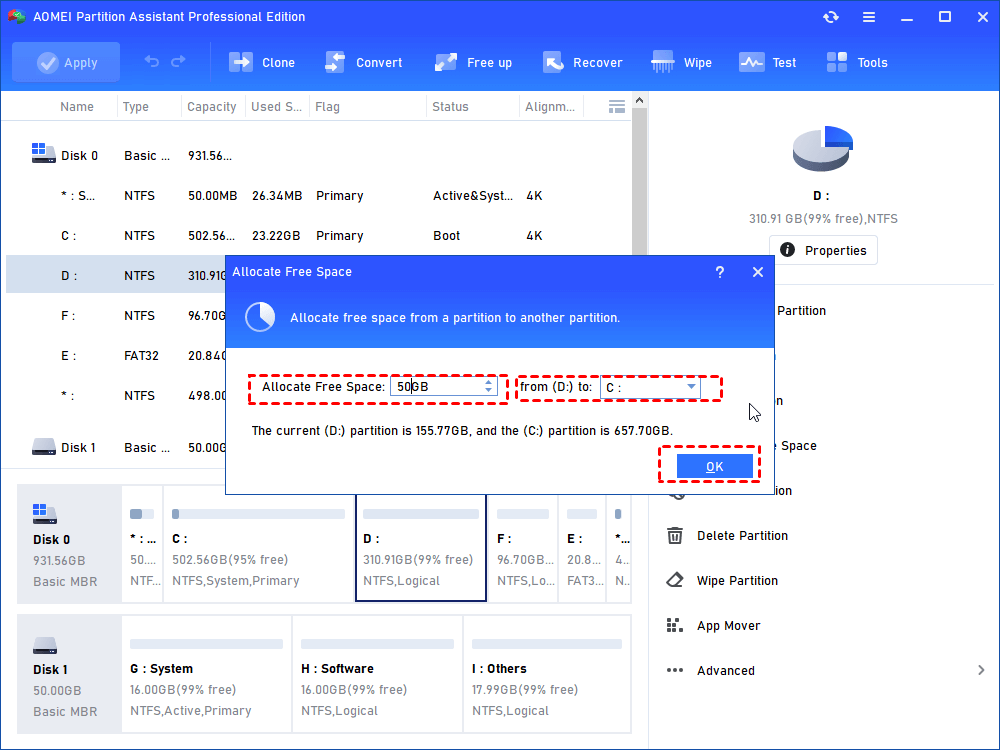
Step 2. In the new window, you can specify the space size and target partition. If it’s C drive, you need to select C drive from the given list, and click “OK”.
Step 3. Now, you can preview that the C drive has been extended. Then, click Apply to save the changes.
Fix 5. Free up disk space
If your device shows a "nodisk space" error despite having available space, it may be caused by fragmented data at the end of the volume. When disk sectors are not stored contiguously, it can prevent the system from utilizing free space efficiently.
To address this, use Windows Disk Defragmenter:
Step 1. Click the search box, type "defrag", and select Defragment and Optimize Drives.
Step 2. In the Optimize Drives window, select your drive and click Optimize. The system will begin analyzing and defragmenting the disk.
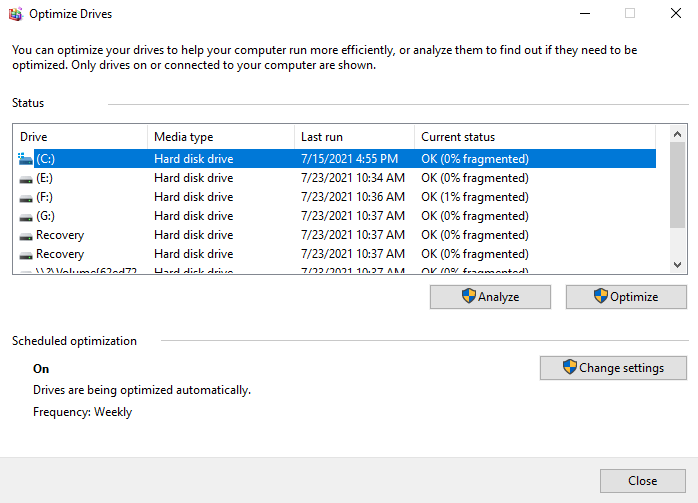
Step 3. Once the defragmentation is complete, click OK.
This process will help rearrange fragmented files and optimize space usage, potentially resolving the "Out of disk space" issue.
Conclusion
In conclusion, the “not enough disk space” error in Windows can result from outdated disk data, MBR limitations, insufficient unallocated space, disk errors, or fragmentation. By rescanning disks, converting MBR to GPT, repairing errors, extending volumes, or optimizing storage, you can effectively resolve the issue and restore smooth disk operations.

 as a preferred
source on Google
as a preferred
source on Google