




How to Fix SSD Not Showing up in BIOS | 7 Ways
Is your SSD not showing up in BIOS? This issue can be frustrating, especially when your system fails to recognize the drive at startup. Fortunately, there are several proven solutions to help you get your SSD working properly again.

By Hedy Updated on May 29, 2026


It is not unusual for a newly installed SSD to be missing from the BIOS boot priority list. This situation often leaves users confused, with little idea of what went wrong or how to resolve it.
Boot priority is controlled through BIOS or UEFI settings, where the system determines which drive to start from. By entering the firmware menu, users can manually arrange the boot sequence so the correct disk is selected during startup.
However, certain issues may prevent the SSD from appearing in this list altogether. If you are facing the same problem, it is important to explore the possible causes and check the system carefully.
Why SSD not showing up in BIOS?
As outlined earlier, several factors may prevent an SSD from appearing in the BIOS boot menu. The most common causes include:
➤ Disabled drive in BIOS: If the SSD is turned off within BIOS settings, it will not show up in the boot priority list.
➤ Connection issues: Loose or damaged SATA cables, as well as faulty ports, can interrupt proper detection.
➤ Hardware compatibility: Incompatibility between the motherboard and the SSD type (such as SATA or NVMe) may lead to recognition problems.
➤ Incorrect partition style: A mismatch between the SSD’s partition format and the system’s boot mode can prevent it from being listed.
➤ Driver-related problems: Missing or outdated SATA controller drivers may stop the BIOS from identifying the drive correctly.
➤ Firmware limitations: Outdated BIOS or SSD firmware can interfere with proper disk detection.
Understanding these potential causes makes it easier to identify why the SSD is missing from the boot menu. With this knowledge in mind, continue exploring practical solutions to resolve the issue effectively.
7 ways to fix SSD not showing up in BIOS
Since an SSD may fail to appear in the BIOS boot priority list for a variety of reasons, a single fix is rarely enough. Different underlying causes require different approaches.
In the following section, several practical methods are presented to help troubleshoot the issue step by step. Continue reading to explore these solutions to "SSD not showing up in BIOS boot priority" and restore your SSD to proper working condition.
Fix 1. Check connections
An SSD may fail to be detected if there are problems with its physical connections. Make sure the drive is securely linked to both the motherboard and the power supply.
If the issue persists, remove the SSD and carefully reinstall it in the slot. A firm, proper connection often resolves detection problems.
Fix 2. Change SATA mode
Selecting the correct SATA mode plays a key role in ensuring the system can properly recognize your SSD. If the SSD is not showing up as boot option, it is worth verifying whether the current SATA setting is appropriate.
Step 1. Restart the computer and press the required key (commonly F2, DEL, or ESC) during startup to access the BIOS/UEFI interface.
Step 2. Navigate to sections such as Advanced, Integrated Peripherals, or Main, depending on your motherboard layout.
Step 3. Locate settings labeled SATA Configuration, SATA Mode, or a similar option.
Step 4. Change the SATA mode to AHCI, which is widely supported and recommended for modern systems.
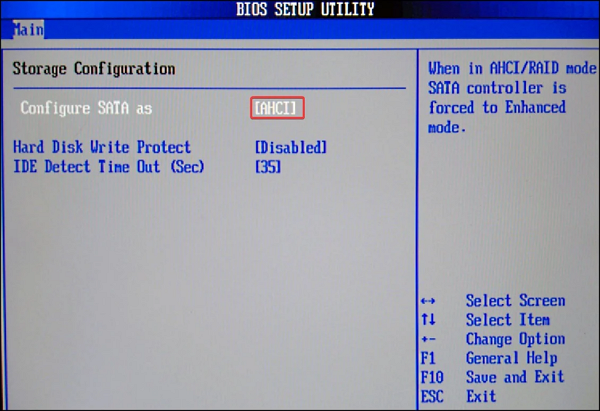
Step 5. Save the changes and exit the BIOS/UEFI.
Fix 3. Switch to legacy BIOS /UEFI mode
For modern systems such as Windows 10 or Windows 11, especially when using newer SSDs, enabling UEFI mode instead of Legacy BIOS is essential. An incorrect boot mode can prevent the SSD from appearing in the available boot options.
Follow these steps to switch from Legacy to UEFI mode:
Step 1. Restart the computer and press the required key (such as F2, DEL, or ESC) to enter the BIOS/UEFI setup.
Step 2. Navigate to the Boot or System Configuration section.
Step 3. Locate the UEFI/BIOS Boot Mode setting and press Enter.
Step 4. If the system is currently set to Legacy, change it to UEFI mode.
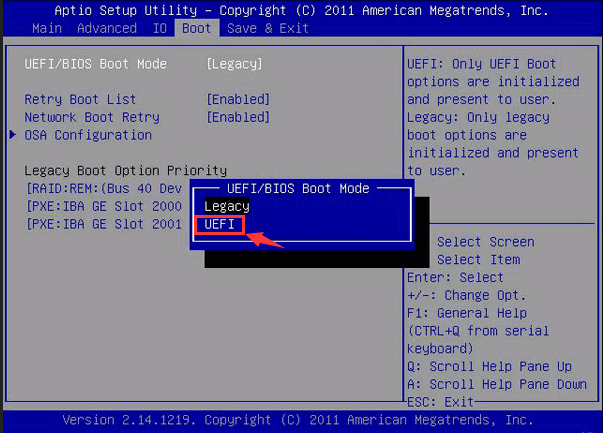
Step 5. Press F10 to save the changes and exit the setup.
Fix 4. Convert SSD from MBR to GPT
An incompatible partition style can also cause the SSD not recognized as boot device. In Windows 11, an MBR disk is supported only as a secondary drive, which means an MBR-based SSD may not be recognized as a bootable device. To use it as the primary disk, converting it to GPT is necessary.
To complete this conversion without data loss, reliable tools such as AOMEI Partition Software can be used. This utility allows seamless conversion from MBR to GPT on both HDDs and SSDs. Once the process is finished, the SSD should become visible in the boot priority settings.
 AOMEI Partition Software
A safe and reliable disk partition management tool that helps you migrate OS to SSD or HDD, reorganize disk space, and improve overall PC performance.
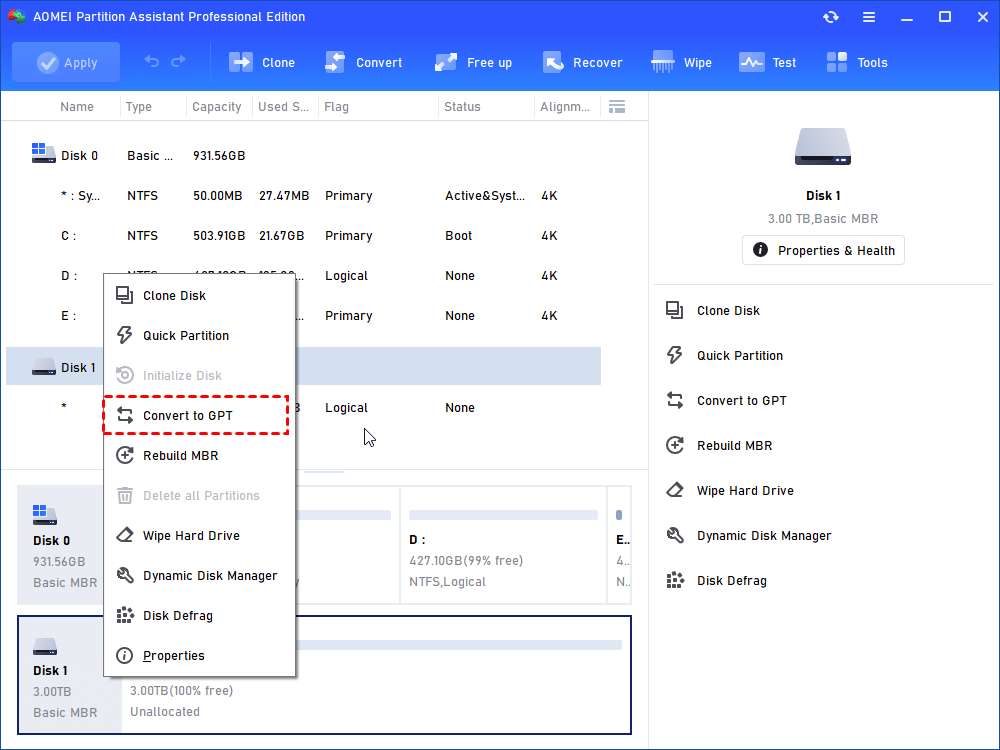
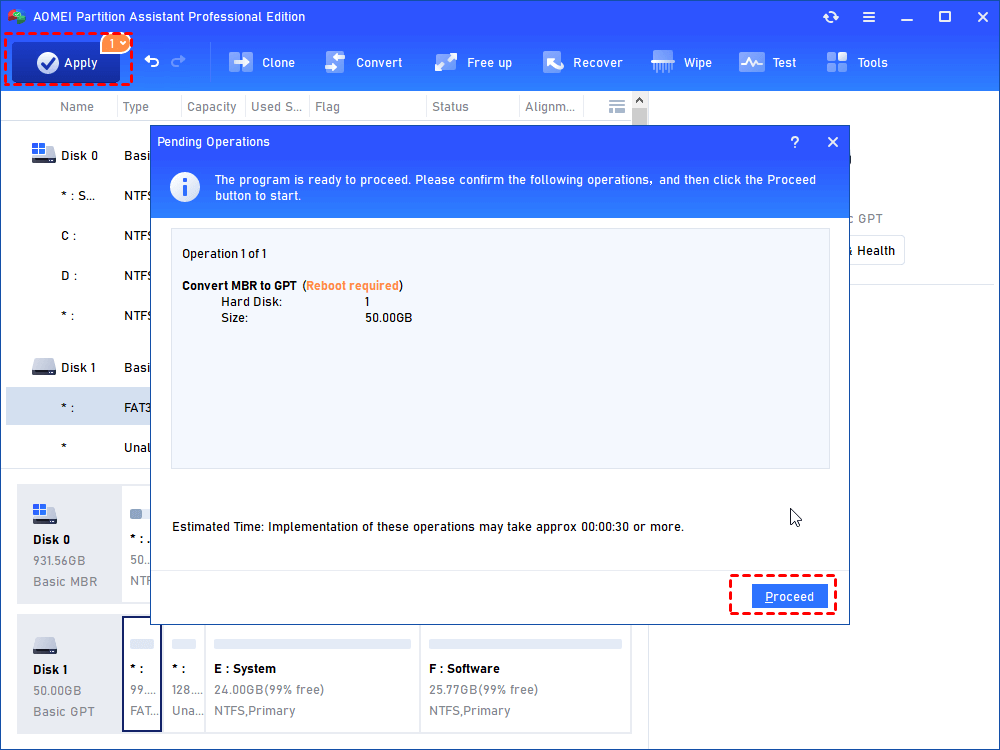
Step 1. Install and run AOMEI Partition Software. Right-click the disk you want to convert to GPT and select “Convert to GPT”.
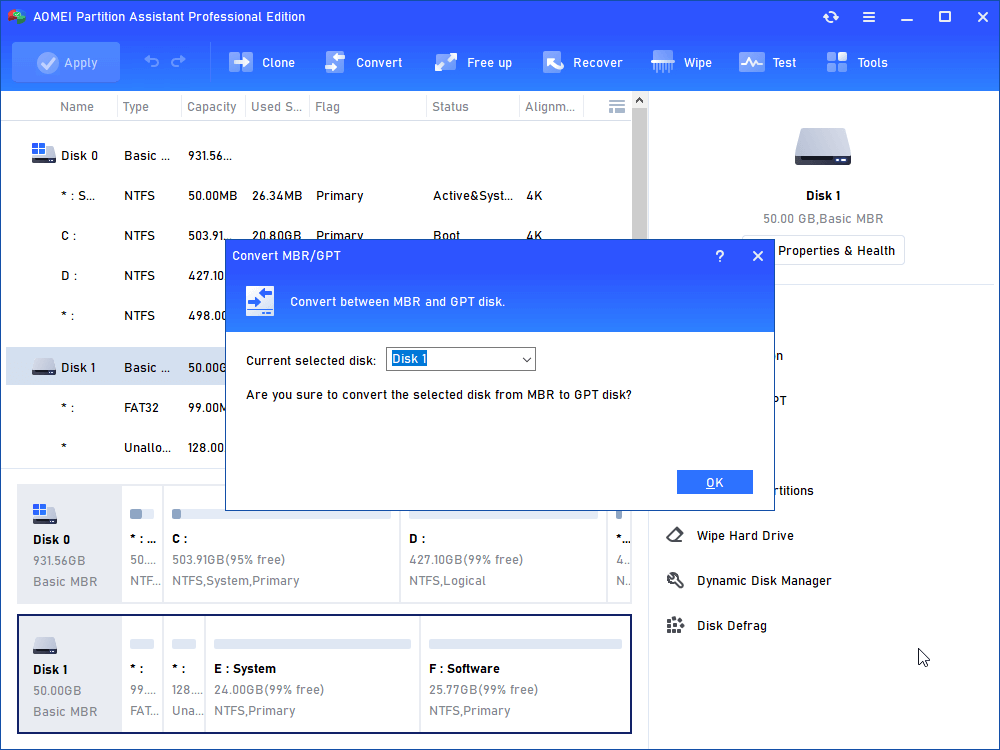
Step 2. Confirm your operation by clicking “OK” to continue.
Step 3. Click “Apply” button on the toolbar to commit the pending operation.
Fix 5. Update your BIOS or UEFI firmware
Updating the BIOS/UEFI firmware can be an effective way to resolve system bugs and improve hardware compatibility, especially when dealing with SSD detection issues.
Step 1. Press Windows + R, type msinfo32, and open the System Information window.
Step 2. Locate BIOS Version/Date or UEFI Version/Date to identify the current firmware version.
Step 3. Visit the official support website of your motherboard or system manufacturer and download the latest BIOS/UEFI update file.
Step 4. Format a USB flash drive to FAT32, then copy the downloaded firmware file onto it.
Step 5. Restart the computer and enter the BIOS/UEFI setup menu.
Step 6. Find update-related options such as BIOS Update, EZ Flash, or USB Flash Utility, depending on your system.
Step 7. Select the update method and carefully follow the on-screen instructions until the process is complete.
Fix 6. Disable Fastboot
Fast Startup stores the system state in a hibernation file, which can sometimes interfere with a complete system shutdown. As a result, newly connected drives or updated configurations may not be properly detected by the BIOS.
To rule out the BIOS not detecting SSD as boot option, you can disable Fast Startup by following these steps:
Step 1. Open the Control Panel from the taskbar search box.
Step 2. Navigate to Control Panel > Hardware and Sound > Power Options.
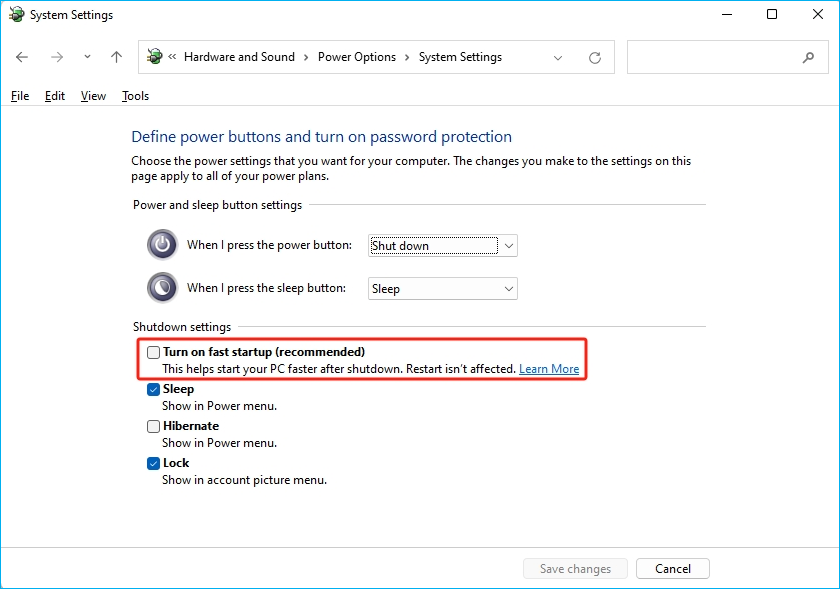
Step 3. Click on “Choose what the power buttons do”. If the Fast Startup option is unavailable, select “Change settings that are currently unavailable”.
Step 4. Uncheck “Turn on fast startup (recommended)” and save the changes.
Fix 7. Update SATA controller drivers
Outdated or incompatible SATA controller drivers can prevent the BIOS from properly detecting an SSD, which may result in the drive not appearing in the boot options.
Step 1. Right-click the Start button and open Device Manager.
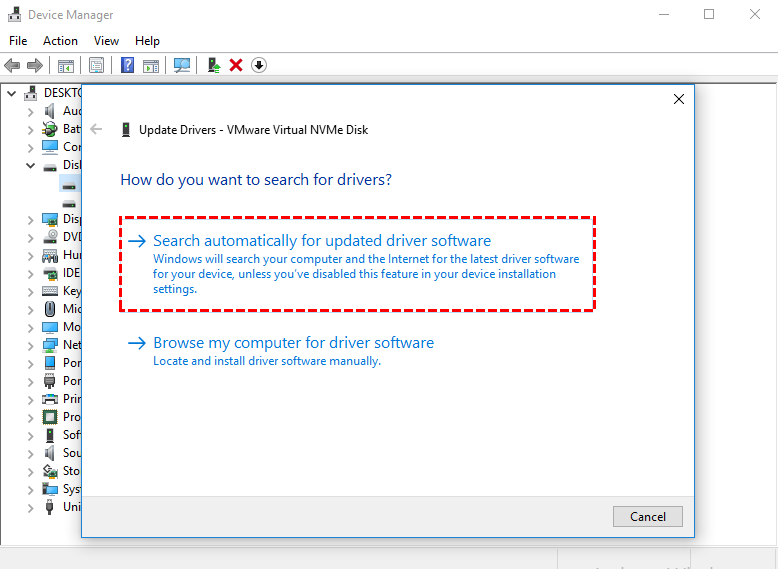
Step 2. Expand IDE ATA/ATAPI controllers, then right-click Standard SATA AHCI Controller and choose Update driver.
Step 3. Select Search automatically for drivers. Windows will then scan and install any available driver updates to improve compatibility and device detection.
FAQs
◉ Why doesn’t my BIOS recognize my SSD as a boot drive?
Your BIOS may fail to detect the SSD as a bootable device due to incorrect SATA configuration, outdated system drivers, loose or faulty connections, or the drive being disabled in BIOS settings. Compatibility issues or firmware limitations can also contribute to this problem.
◉ How do I prioritize my SSD in BIOS?
To set your SSD as the primary boot device, restart your PC and enter BIOS setup using keys like F2, DEL, or ESC. Navigate to the Boot menu, locate your SSD, and move it to the top of the boot priority list. Save the changes and exit to apply the new settings.
◉ Why won’t my PC boot from SSD?
A system may fail to boot from an SSD if it is not selected as the primary boot drive in BIOS, if the system partition is not properly configured, or if boot files are corrupted. Incorrect SATA settings or misconfigured firmware settings can also prevent a successful startup from the SSD.
Conclusion
This article explains the common causes and practical solutions for an SSD not appearing in the BIOS boot priority list. If your SSD is missing from BIOS, you can find a complete set of troubleshooting methods here to help identify and resolve the issue.
In some cases, third-party disk management tools such as AOMEI Partition Software can provide additional support. Beyond converting disks between MBR and GPT formats, it also offers advanced functions to detect and repair disk-related errors, improving overall drive recognition and system stability.

 as a preferred
source on Google
as a preferred
source on Google