



Solved: No Bootable Image Found Notebook Will Be shutdown
When you receive the error message saying “No bootable image found, notebook will be shutdown”, it means you can’t use your computer. Here covers five methods to resolve it.

By Hedy Updated on May 29, 2026


Understanding the “No Bootable Image Found, Notebook Will Be Shutdown” error is the first step toward fixing it. This issue usually points to deeper system or hardware problems that prevent your device from starting normally.
Common causes include a corrupted operating system, incorrect BIOS or UEFI configuration, or potential hardware failures. By carefully checking BIOS settings and inspecting the hard drive, you can identify the source of the problem and follow the appropriate troubleshooting steps to restore normal boot functionality on Windows 10 or Windows 11.
One click to fix no bootable image found error
Selecting the Boot Repair feature in AOMEI Partition Software is a practical approach for resolving this error, thanks to its advanced repair algorithms. This tool is designed to handle a wide range of boot-related problems, including boot failures, blue screen errors, and black screen issues.
Its intelligent repair mechanism works by targeting the underlying causes of system boot failure, ensuring a more complete and effective restoration of normal system functionality. With this feature, you can address various boot errors and help your system start properly again.
 AOMEI Partition Software
A safe and reliable disk partition management tool that helps you migrate OS to SSD or HDD, reorganize disk space, and improve overall PC performance.
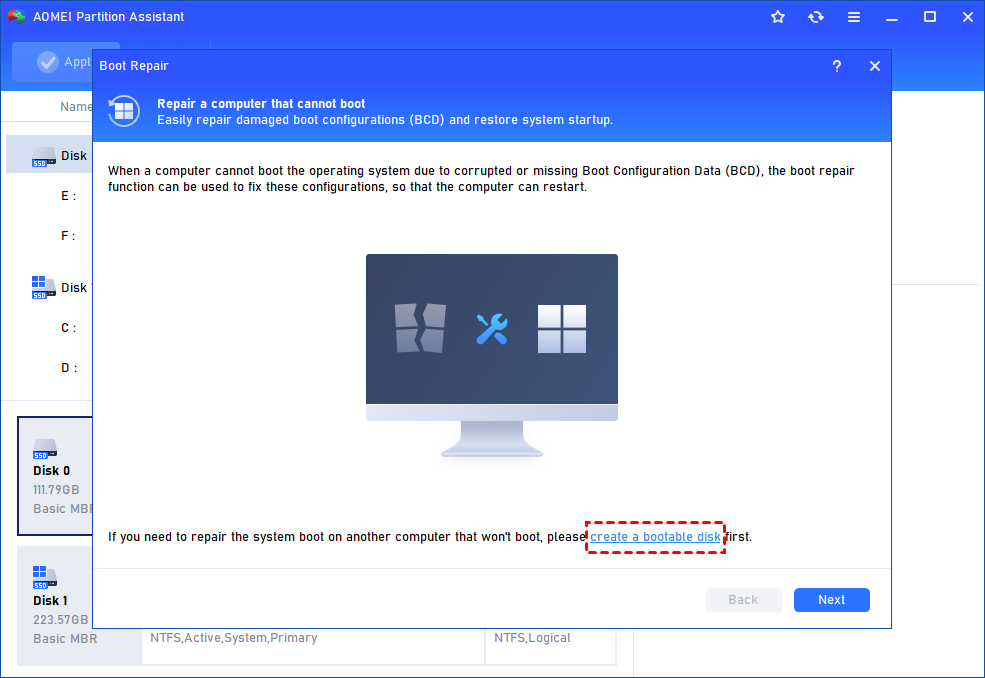
Step 1. Install and open AOMEI Partition Software on a functioning computer. Navigate to “Recover” > “Boot Repair”, then select “Create a bootable disk” to generate a WinPE-based Boot Repair media.
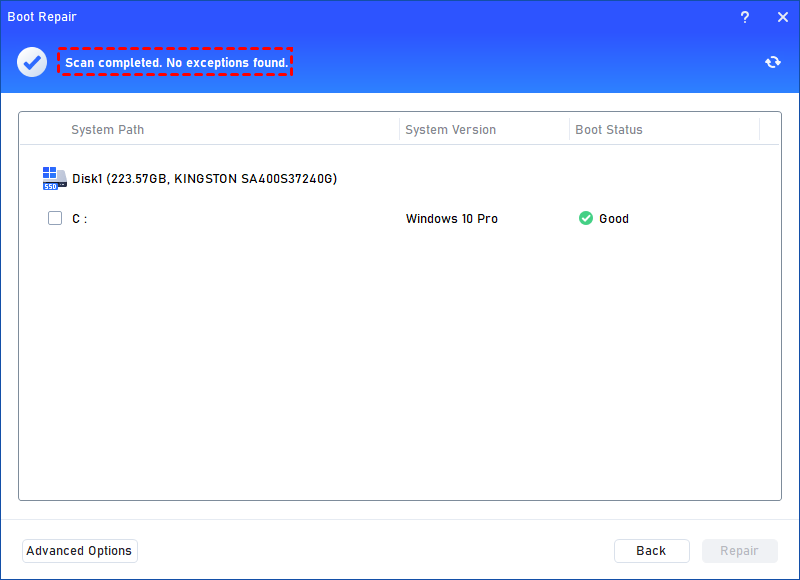
Step 2. Insert the created bootable disk into the unbootable PC and start it from the WinPE environment. The Boot Repair tool will launch automatically and begin scanning for existing boot entries, displaying all detected results.
✍ Advanced Settings (Choose where to store the repaired boot entry):
♦ Repair to the current disk: Ensures the system boots from the existing disk by fixing and completing necessary boot files (default option).
♦ Repair to another disk: Repairs or creates a new boot entry on a selected disk, allowing the system to boot from that location.
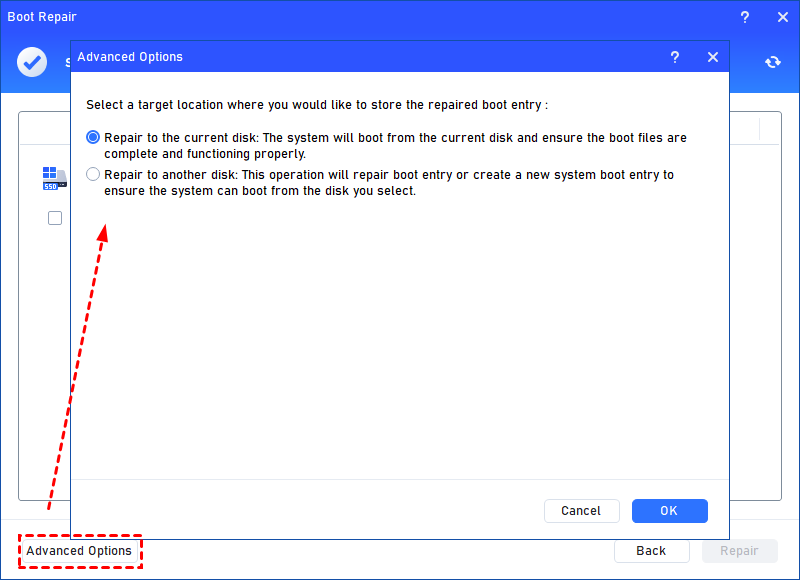
For most users, repairing to the current disk is the recommended choice.
Step 3. Select one or more boot entries that can be repaired, then click “Repair” to begin the process.
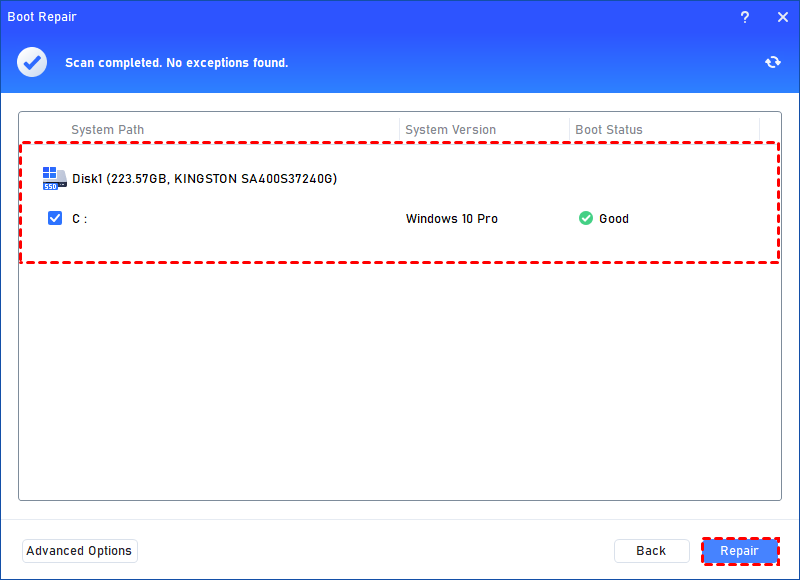
Step 4. Wait for the operation to complete. Once finished, review the results. A successful repair will display a “Repair Successfully” confirmation message.
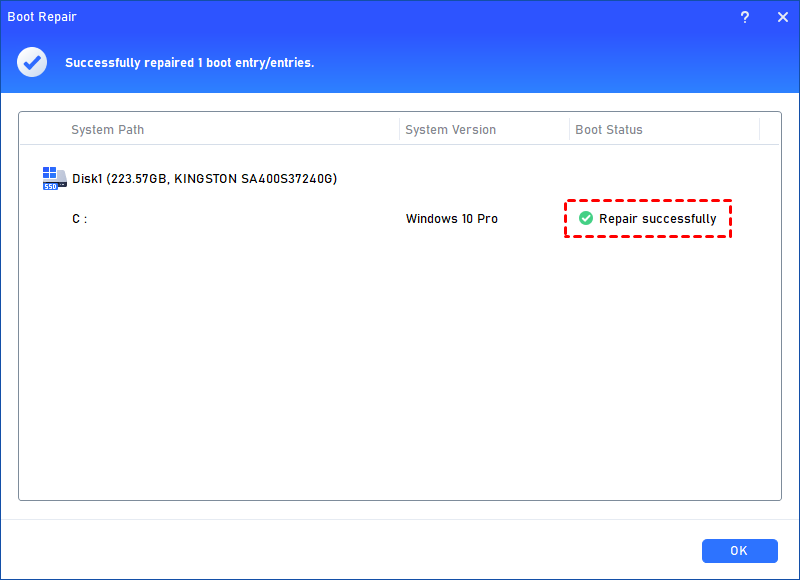
How to fix no bootable image found, notebook will be shutdown
Users are encouraged to carefully follow the recommended solutions to resolve the error and restore their system to normal working condition.
If you find this guide helpful in fixing the issue, feel free to share it with others who may also benefit from it.
Way 1. Change boot options in BIOS/UEFI
BIOS settings play a key role in loading the primary drive and starting the operating system. When boot-related issues occur, adjusting these settings can help resolve errors such as “No bootable image found. The notebook will be shut down.”
Step 1. Restart your computer and immediately press the designated BIOS key to enter the BIOS setup. If you are unsure of the correct key, check your device model online for guidance.
Step 2. Go to System Setup and disable Secure Boot.
Step 3. Open Boot Maintenance Manager, then navigate to Advanced Boot Options.
Step 4. Select Boot Mode and switch it to Legacy from the available options.
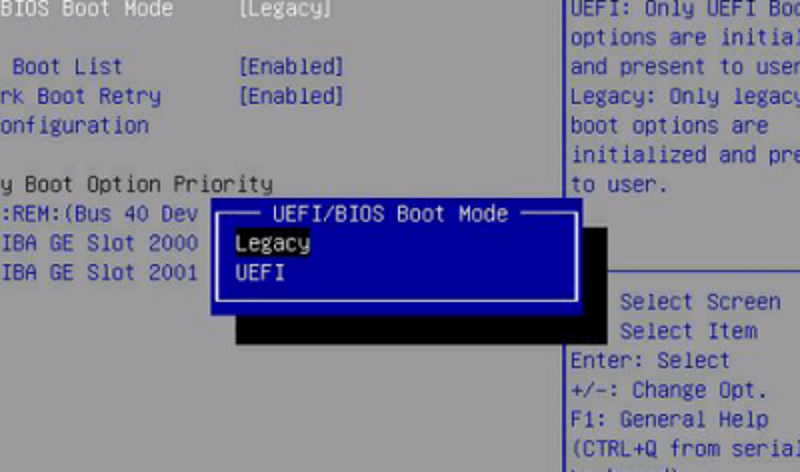
Step 5. Press F4 to save the changes, or choose Save & Exit manually to apply the settings.
Way 2. Reset BIOS to default settings
If adjusting the boot configuration does not resolve the issue, resetting the BIOS to its default settings can often help. This is especially useful when dealing with the “HP No bootable image found. The notebook will be shut down” error.
Step 1. Enter the BIOS/UEFI settings using the method described earlier.
Step 2. Locate the Load Setup Defaults option to restore factory BIOS settings.
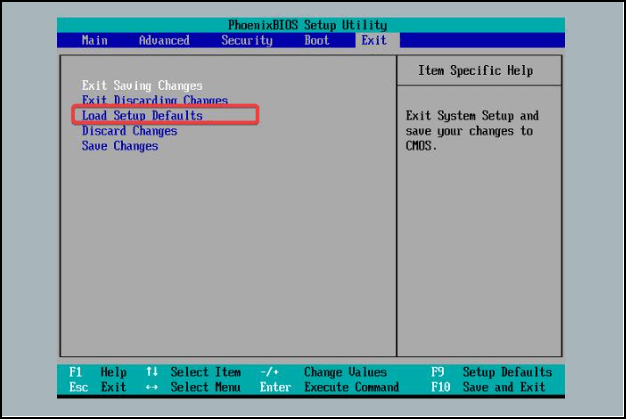
Step 3. Press ESC, then select Apply Changes to confirm the reset.
Step 4. Exit the BIOS interface. The system will restart automatically.
After rebooting, check whether the issue has been resolved. If the problem persists, reinstalling the operating system may be required.
Way 3. Reinstall the Windows OS
Reinstalling the Windows operating system can feel overwhelming, particularly when dealing with serious errors such as “No Bootable Image Found, Notebook Will Be Shutdown”. However, this process becomes much more manageable with the help of AOMEI Partition Software.
This utility allows users to create bootable media, which is essential for performing a clean and efficient Windows reinstallation. With its intuitive interface and broad functionality, it extends beyond basic partition management to include features such as OS migration and system cloning, making system recovery and setup significantly easier for users of all experience levels.
Way 4. Reinstall the hard drive
If the issue continues, reinstalling the hard drive may be necessary to rule out potential hardware-related problems. The “No bootable image found. The notebook will be shut down” error can sometimes occur when the hard disk is not properly connected or seated.
Follow the steps below to reseat the drive:
Note: The exact process may vary depending on your notebook model.
Step 1. Power off the system completely and disconnect all cables.
Step 2. Turn the laptop upside down and remove the bottom cover.
Step 3. Take out the battery (if removable) and hold the power button for a few seconds to discharge any remaining power.
Step 4. Carefully remove the hard drive and reinstall it, ensuring it is firmly and correctly connected to the drive slot.
Step 5. Reinsert the battery, secure the bottom panel, and power on the device.
If the system still fails to boot after this process, the hard drive itself may be faulty, and replacing it could be necessary to resolve the issue.
Way 5. Replace the hard drive
If reinstalling the operating system and adjusting disk settings still does not fix the “No bootable image found. The notebook will be shut down” error, the system drive may be physically damaged.
To confirm this, first remove the disk by following the steps described in Method 4. Then, connect it to another computer for testing. If the drive is still not detected or fails to function properly on a different system, it is likely defective and should be replaced.
However, if the disk works when connected externally, you can back up your data by cloning it to a new drive using AOMEI Partition Software. Its cloning feature allows you to transfer all partitions, files, and system data to another disk efficiently in just a few steps, helping you preserve your information safely.
FAQs
1. What does “No bootable image found, notebook will be shut down” mean?
This message indicates that the system cannot detect any valid bootable device to load the operating system. It is usually related to issues with the hard drive, BIOS configuration, or damaged system files.
2. How do I shut down a device showing “No Bootable Image Found”?
To power off the notebook, press and hold the power button for several seconds until the system completely shuts down. This is often necessary when the system becomes unresponsive.
3. What happens when your laptop shows “No Bootable Device”?
This warning means the system cannot locate the operating system required to start the computer. Common causes include OS corruption, a failing or disconnected drive, or incorrect BIOS/UEFI settings.
Conclusion
In conclusion, the “No Bootable Image Found” error signals critical boot or hardware issues that require prompt attention. By adjusting BIOS settings, repairing boot files, or using reliable tools like AOMEI Partition Software, most problems can be resolved effectively. If software fixes fail, checking or replacing the hard drive becomes essential. Applying the right method ensures your system regains normal boot functionality quickly and safely.

 as a preferred
source on Google
as a preferred
source on Google