



Best Windows Partition Manager for Windows 11/10/8/7
A Windows partition manager is a utility designed to organize and control how storage space is divided on a hard drive or SSD. Get a powerful Windows disk management tool from this page to simplify partition managementand improve overall disk organization.

By Hedy Updated on May 29, 2026


What is Windows partition manager?
A partition manager, often referred to as disk partitioning software, is a utility designed to help Windows users organize and control their hard drive partitions with ease. Instead of handling complex disk operations manually, this type of software simplifies the entire process, saving both time and effort.
High-quality partition management tools go beyond basic functions. They help structure and organize data efficiently, improving overall system performance and making better use of available storage space.
For Windows 11 users, a dependable Windows 11 partition manager enables smooth execution of essential tasks such as creating new partitions, resizing existing partitions, extending volumes, or removing unnecessary partitions—all without unnecessary complications.
Selecting the right partition tool requires careful consideration. The following factors can help determine whether a solution meets your needs:
✎ Functionality: Ensure the software includes all the necessary features to handle your disk management requirements effectively.
✎ Pricing: Evaluate whether the cost aligns with your budget and offers good value for the features provided.
✎ Ease of use: Look for an intuitive interface that makes partitioning tasks straightforward, even for less experienced users.
✎ System compatibility: Confirm that the software fully supports Windows 11 and operates smoothly within your system environment.
✎ Customer support: Reliable technical support is essential. A responsive service team ensures that assistance is readily available whenever issues arise.
AOMEI Partition Software for Windows 11 (32/64 bit) free download
Although countless partition management tools are available online, only a small number deliver consistent reliability and performance. Among them, AOMEI Partition Software has built a strong reputation for efficiently handling disk partition tasks and improving overall storage performance across Windows systems.
More advanced than many built-in utilities and comparable solutions, this software offers a broader range of capabilities. It is designed to accommodate both beginners and experienced users, providing flexible features tailored to different disk management needs.
With its intuitive interface and powerful functions, managing partitions in Windows 11 becomes a straightforward and hassle-free process.
AOMEI Partition Software offers a comprehensive set of tools designed to handle both basic and complex disk management tasks in Windows 11. Below is an overview of its key features, giving you a clear understanding of what this powerful partition manager can accomplish.
◆ Maximize disk space efficiency: Perform essential operations such as creating, deleting, formatting, extending, and shrinking partitions to make full use of available storage.
◆ Improve data organization: Easily allocate space and reorganize your disk by merging or splitting partitions, helping maintain a clean and structured data layout.
◆ Simplify IT disk management: Utilize guided tools for new disks and resolve low disk space issues quickly with one-click solutions, reducing manual effort.
◆ Wide system compatibility: Fully supports a broad range of Windows operating systems, including Windows 11, 10, 8.1, 8, 7, as well as Windows Server editions from 2003 to 2019.
◆ Flexible disk conversion: Convert disks from MBR to GPT during system setup without risking data loss, ensuring compatibility with modern systems.
◆ Enhance system performance: Expand the system (C:) drive or allocate additional free space to improve overall performance and maintain smooth system operation.
 AOMEI Partition Software
A safe and reliable disk partition management tool that helps you migrate OS to SSD or HDD, reorganize disk space, and improve overall PC performance.
Step 1. Download, install, and launch AOMEI Partition Software.
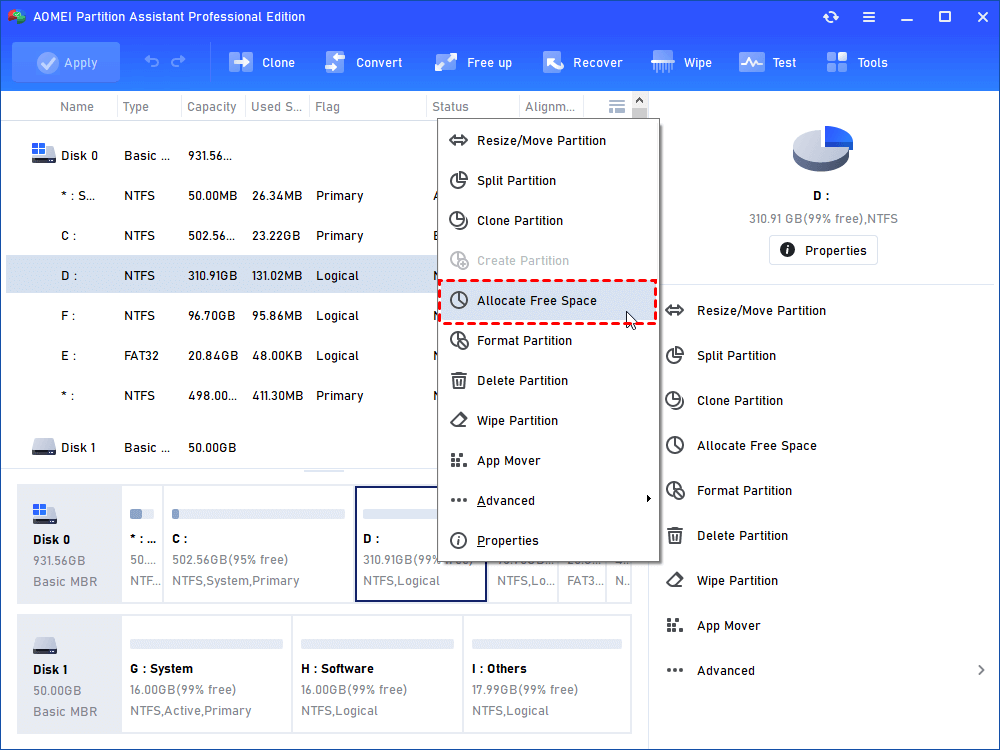
Step 2. On the visual disk map, right-click the partition that has plenty of free space (e.g., your D: drive) and select Allocate Free Space.
Step 3. A pop-up window will appear. Type in exactly how many GBs of space you wish to take from the D drive.
Step 4. In the drop-down menu below, choose to assign that free space to your C: drive.
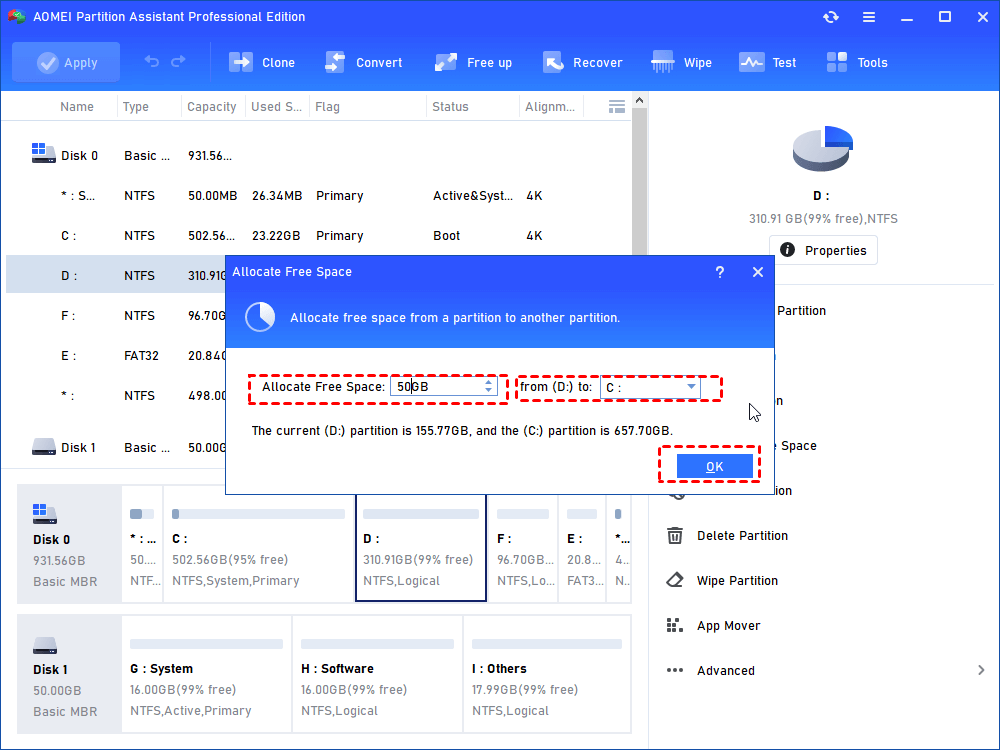
Step 5. Click OK. Then, click Apply and Proceed in the top-left corner of the software.
Manage partitions in Windows 11 without downloading third-party software
If installing third-party software isn’t your preference, Windows provides a built-in solution called Disk Management. This disk manager Windows 11 allows you to handle basic partition tasks without additional tools. Follow the steps below to manage your disk effectively.
A safe and reliable disk partition management tool that helps you migrate OS to SSD or HDD, reorganize disk space, and improve overall PC performance.
Step 1. Start by opening the Start menu and typing “Create and format hard disk partitions”. Select the matching result to launch the Disk Management interface in Windows 11.
Step 2. Once opened, Disk Management displays your disks and partitions. From here, you can perform essential operations such as creating, shrinking, or deleting volumes.
Step 3. To create a new volume, right-click on unallocated (free) space and choose “New Simple Volume”. Follow the on-screen instructions to define the size and settings based on your disk capacity. If no unallocated space is available, you can generate it by shrinking an existing partition.
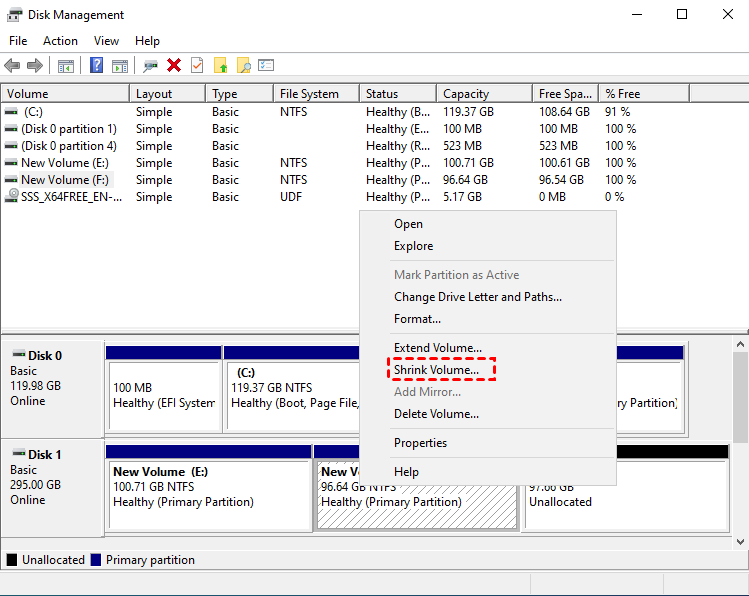
Step 4. Right-click on a partition with available space and select “Shrink Volume”. Enter the amount of space (in MB) you want to free up, then confirm. Once the system creates unallocated space, return to Step 3 to set up a new partition.
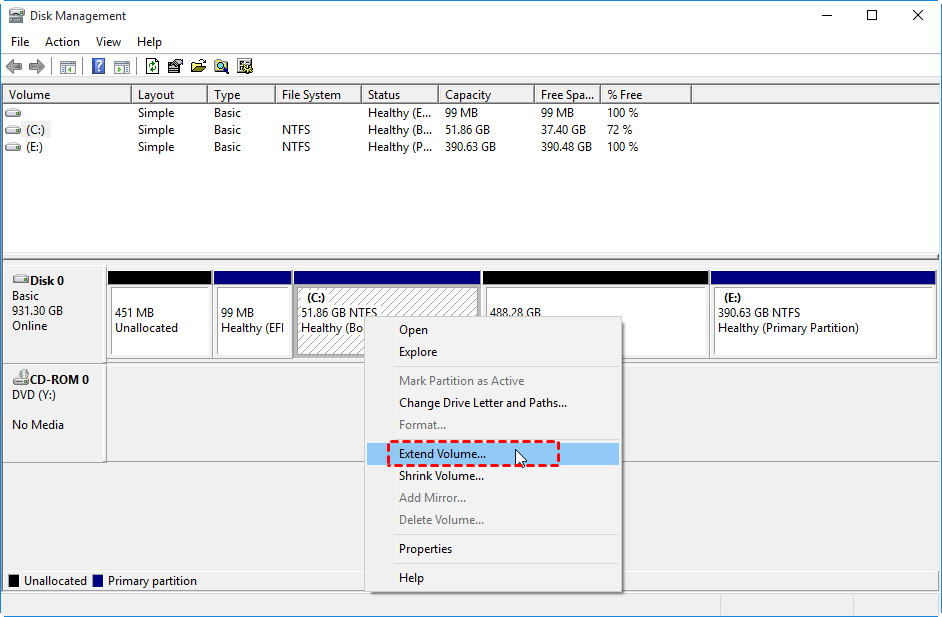
Step 5. To expand a partition, right-click on the target volume and select “Extend Volume”. This option is only available when there is adjacent unallocated space on the disk.
AOMEI Partition Software & Disk Management: Which is better?
A final takeaway is simple: both options have been thoroughly examined, leaving the choice in your hands. However, when a clear recommendation is required, AOMEI Partition Software stands out as the superior solution. Compared to traditional Disk Management, it delivers a smoother, more intuitive experience that feels far less restrictive. Its streamlined interface and expanded capabilities make disk management significantly more accessible and efficient.
Why choose AOMEI Partition Software in Windows 11?
|
Key advantages |
When to use a partition manager |
|
● Straightforward and highly efficient operation |
● To organize storage more effectively by separating system and personal data |
|
● Beginner-friendly interface with minimal learning curve |
● To safeguard files against potential partition or volume corruption |
|
● Reduces risks associated with manual partitioning |
● To enhance overall system performance and stability |
|
● Simplifies complex disk management tasks |
● To allocate disk space for multiple purposes, such as running more than one operating system |
|
● Offers additional features for comprehensive disk space control |
With its ease of use and powerful functionality, AOMEI Partition Software provides a practical and reliable way to manage disk partitions in modern Windows environments.
FAQs
▶ What is the best partition manager for Windows?
The best Windows partition manager Windows 11 is AOMEI Partition Software, known for its user-friendly interface, powerful features, and ability to resize, merge, split, and manage partitions safely without data loss.
▶ Is it safe to resize partitions?
Yes, resizing partitions is generally safe when using reliable tools. However, unexpected issues like power failure can cause data loss, so it’s always recommended to back up important data beforehand.
▶ Can I partition a drive without losing data?
Yes, you can partition a drive without losing data using modern disk management tools. They allow resizing and creating partitions while preserving existing files, provided the process is done correctly.
▶ Why can’t I extend my partition?
You may be unable to extend a partition because there is no unallocated space directly next to it, or the free space is not contiguous, which Windows Disk Management requires.
▶ Do I need third-party software?
No, third-party software isn’t mandatory. Windows includes Disk Management and DiskPart tools, but third-party tools offer more flexibility, advanced features, and easier operation for complex partition tasks.
Conclusion
In conclusion, a reliable partition manager is essential for efficient disk management in Windows 11. While built-in tools like Disk Management handle basic tasks, advanced solutions such as AOMEI Partition Software offer greater flexibility, ease of use, and enhanced features. Choosing the right tool ultimately depends on your needs, but investing in a powerful partition manager can significantly improve storage organization, system performance, and overall user experience.

 as a preferred
source on Google
as a preferred
source on Google