




Where Are My Videos Saved on Windows?
If you’re asking “where are my videos saved,” the answer depends on how you saved them. Check the right folders and app settings, locate the actual file, and consider recovery only when deletion is confirmed.

By Ivy Updated on November 3, 2026


You saved a video, closed the app, and now can’t find the file. If you’re wondering “where are my videos saved”, start with Videos and Downloads, but remember Windows doesn’t put every video in one folder.
The actual location depends on the browser, camera, recording tool, or editor you used. Some apps save an editing project or a bookmark without creating a separate video file.
This article describes methods to track down where the video actually came from and find its location. Keep in mind that recovery software only helps if the local file was actually deleted, just because you can't find it in a folder doesn't mean it's gone.
Where to Look for My Saved Videos First?
Think about how the video reached your computer, then choose the matching starting point.
| 🎬 Video Source | 📍 Where to Start | 🔍 What to Check |
|---|---|---|
| Browser download | Downloads or a selected folder | Browser download history |
| Windows Camera | Pictures → Camera Roll | Where the camera saves files |
| Xbox Game Bar | Videos → Captures | Whether the capture folder was moved |
| Video editor | Selected export folder | Whether export finished |
| Transferred video | Folder chosen during transfer | The original device or target folder |
| Unknown source | Videos, then a wider search | Filename, extension, and modified date |
These are common locations, not universal rules. A folder you selected manually takes priority over an app’s default.
Method 1: Find Saved Videos with File Explorer
👍 Best for: Locating existing videos on your computer or a connected storage device.
File Explorer lets you check likely folders before searching more widely. Start with a known location to avoid sorting through unrelated files.
Step 1. Press Win + E and open Videos or Downloads from the sidebar. For Windows Camera recordings, check Pictures > Camera Roll. For Xbox Game Bar clips, look in Videos > Captures.
Step 2. Try to enter part of the filename in the search box. If you don’t remember the name, search by extension, for example, *.mp4 for MP4 videos.
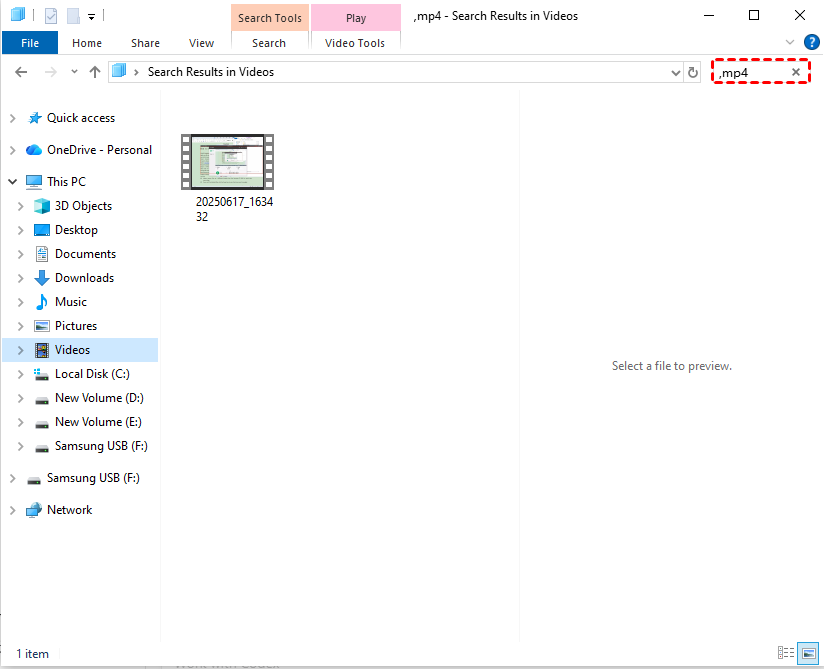
Step 3. If the folder search finds nothing, select This PC and repeat the search across connected drives. If it's an external drive, connect it first.
Step 4. Review likely matches, then right-click a file and select Properties to check its location.
- On Windows 11, personal folders may appear under Home or Quick access, rather than beneath This PC. A missing sidebar shortcut doesn’t mean the folder or its videos were deleted.
- For files missing from an external hard drive, check two things separately: whether Windows can detect the drive, and whether you can open it.
Method 2: Find Downloaded Videos Through Your Browser
👍 Best for: Tracing a video downloaded from a website.
The downloaded filename may differ from the title you saw online. Your browser’s download history can help identify the file before you search for it.
The following steps use Microsoft Edge.
Step 1. Open Microsoft Edge, click Settings and more (…), and select Downloads.
Step 2. Find the video in the download list and click Show in folder to open its saved location in File Explorer.
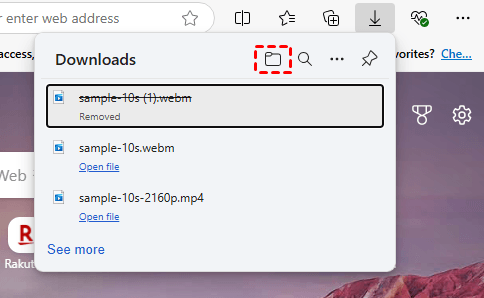
Step 3. Open the video to check that it’s the file you’re looking for.
The current download setting doesn’t necessarily identify where older downloads were saved. A download history also remains useful only as a clue if the file was moved or deleted afterward.
Method 3: Check the App’s Save or Export Location
👍 Best for: Finding a finished video after editing, especially when the project opens but no MP4 is visible.
Can’t find your video after editing? You may have saved the project without exporting it. The project lets you continue editing; exporting creates a video you can play on its own.
For example, Clipchamp for personal accounts saves editing progress automatically, but you must export the project to obtain a finished MP4.
Step 1. Open the Clipchamp project and confirm the expected video appears on the timeline.
Step 2. If you haven’t exported it, select Export. Then, choose an available video resolution.
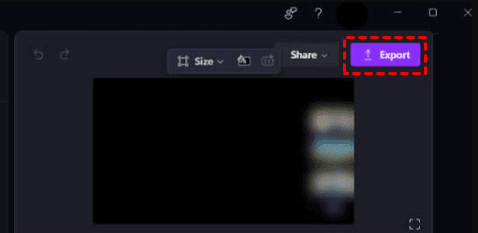
Step 3. Wait for export to finish. The exported video normally saves to Downloads. Check any different destination if change it.
Open the MP4 outside Clipchamp and play it to confirm.
- Using a work or school account? Check the project’s Exports folder in OneDrive or SharePoint.
- For other recording or editing apps, check the save location in the app you used to create the video.
Method 4: Recover Deleted Videos with AOMEI FastRecovery
👍 Best for: Retrieving videos deleted from a local drive that are no longer in the Recycle Bin.
AOMEI FastRecovery is a reliable video recovery software for Windows that scans hard drive for deleted videos and lets you select the files to retrieve instead of everything.
 AOMEI FastRecovery
- 🧩 Scenario matching: Offers dedicated modes for different situations. Deleted File Recovery is a great choice for quick results.
- ⚡ Two Scan Modes: Quick Scan finds deleted videos fast, while Deep Scan offers a more thorough search.
- 🎬 Wide Range of Video Formats: Recover deleted or lost videos, including MP4, MOV, AVI, and more.
- 🗂️ Flexible browsing: Browse by Type or Path, then use search or sort to narrow down the results.
- 🎁 Free recovery: The Free edition provides thumbnail preview and saves up to 500MB.
 100% Secure
Step 1. Open AOMEI FastRecovery after installing and select Deleted Files Recovery to get started. You can also select a more suitable mode.
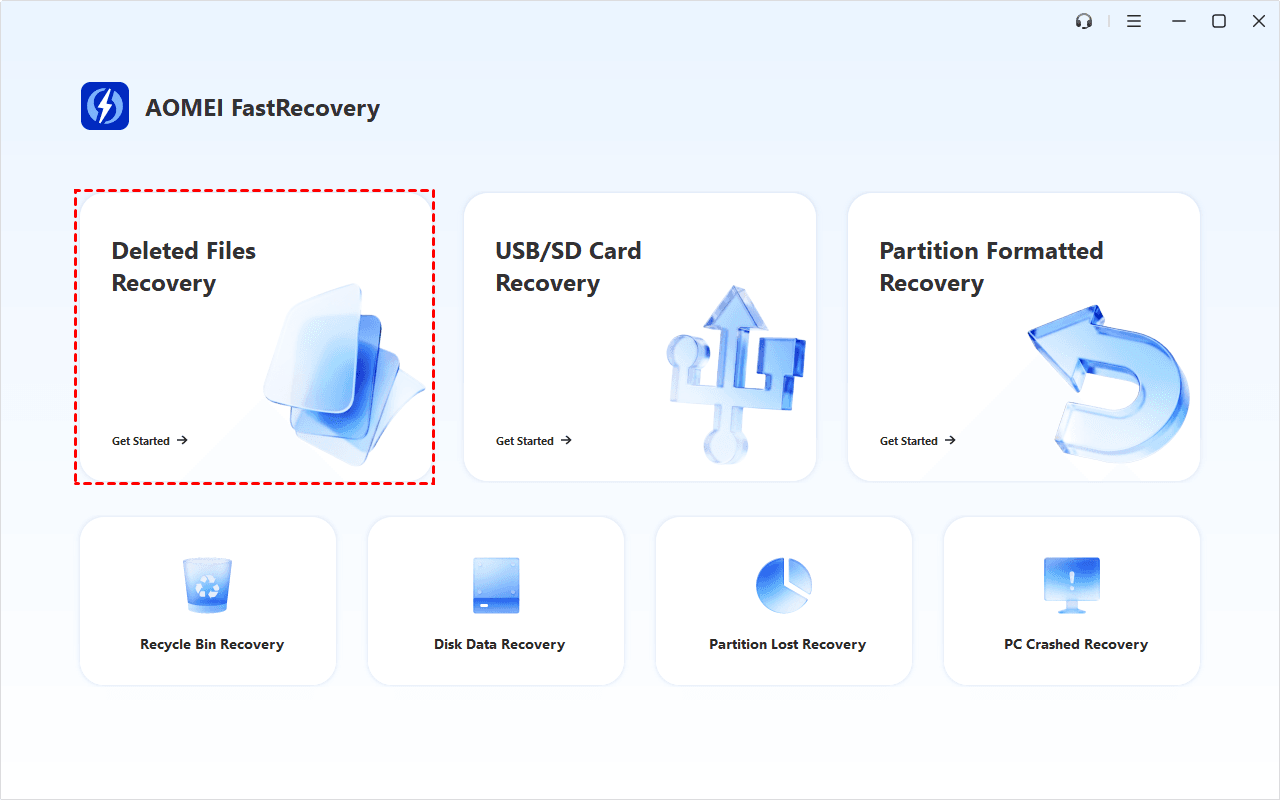
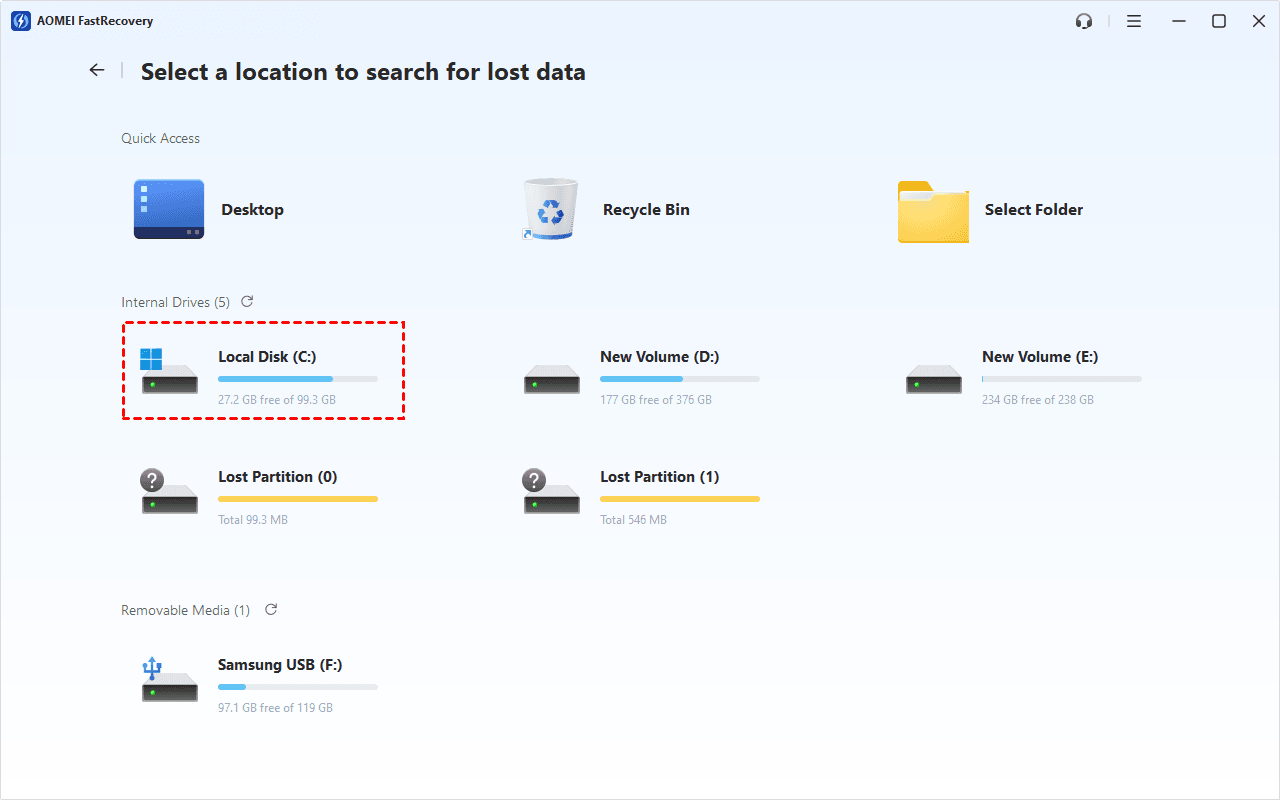
Step 2. Choose the drive that originally stored the videos and click Scan. It will start a Quick Scan mode.
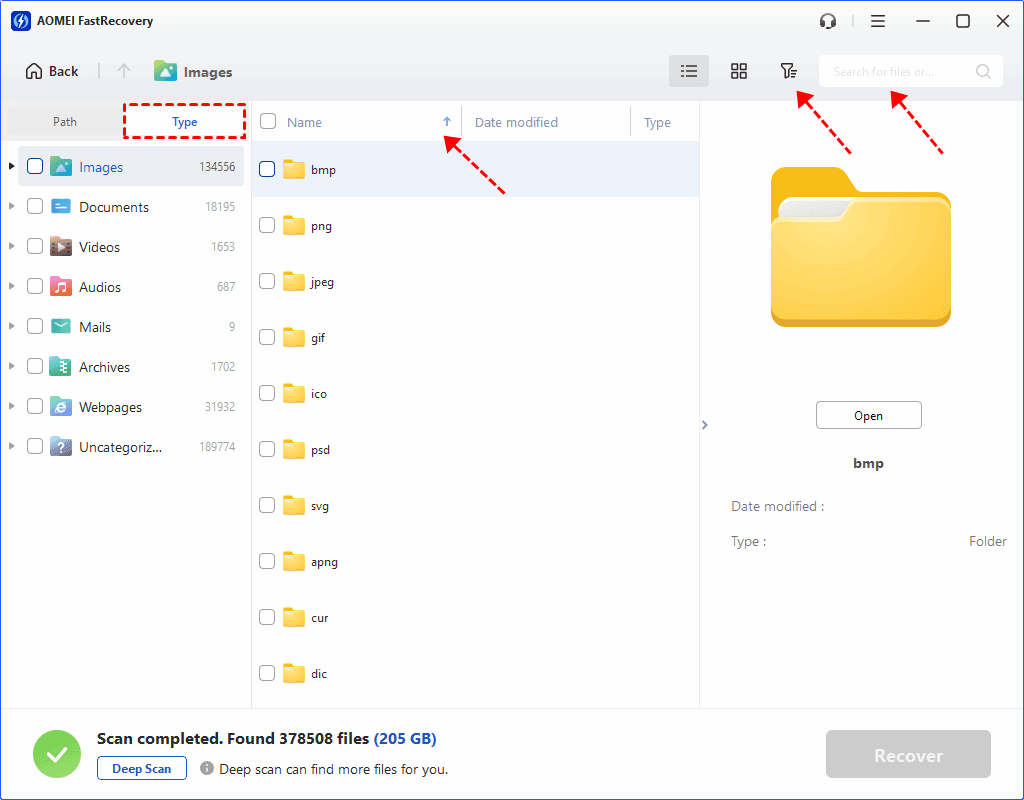
Step 3. Browse the results by Type or Path, search for filename or extension, or click the column headers to sort the results. This makes it easy to find deleted files by date, type, name, and more.
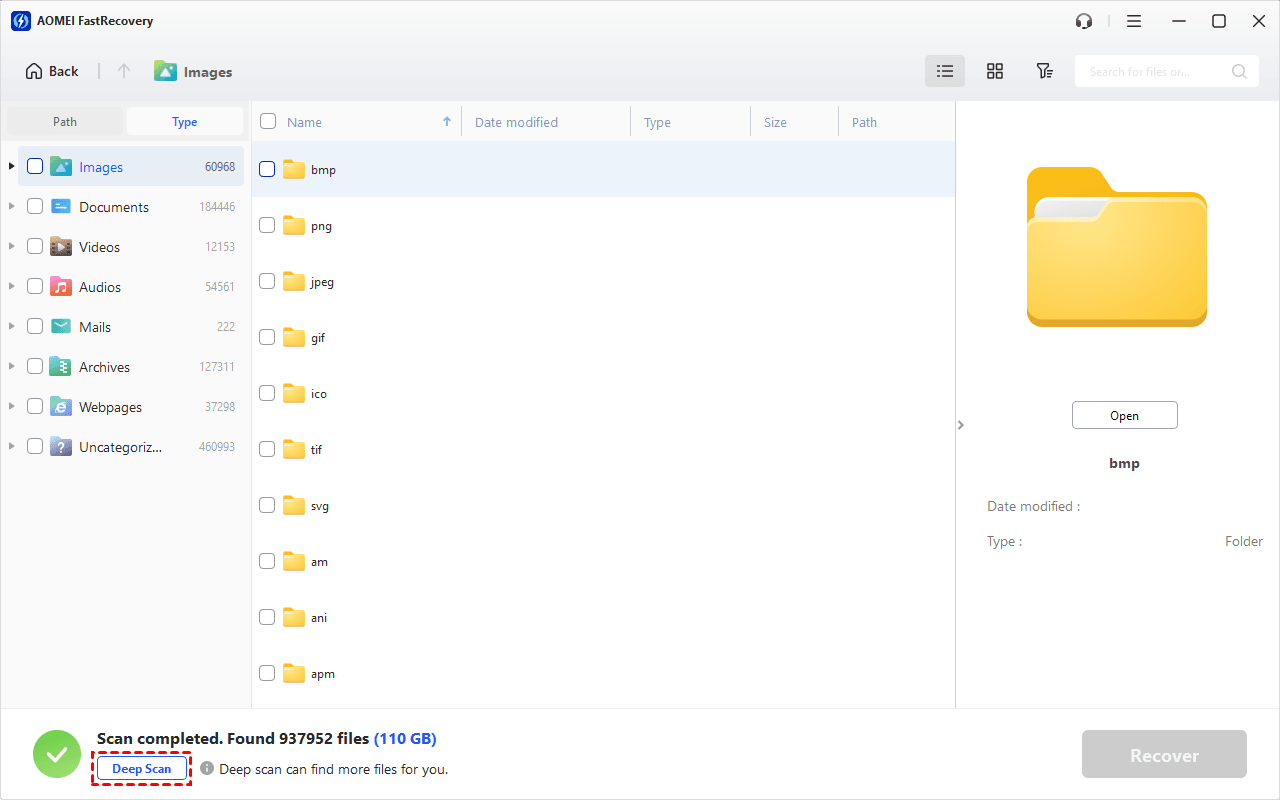
Step 4 (optional). If the videos don’t appear, click Deep Scan to search more thoroughly. This may take longer.
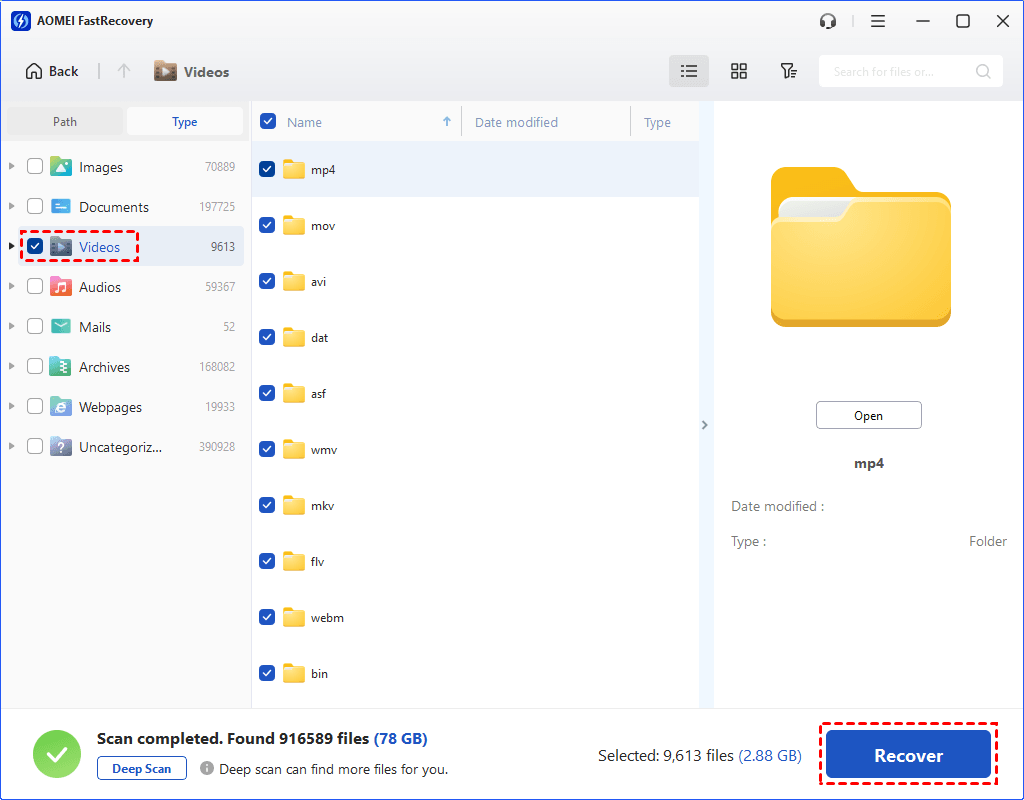
Step 5. Select the videos you want and click Recover. Save them to a different drive; another folder on the same drive is not a safe destination.
For specific videos, such as MP4, see recovering permanently deleted MP4 files. Afterward, Play recovered videos beyond the opening seconds and check the duration and sound.
-
The free edition can recover up to 500MB. Recovery beyond that allowance requires an upgraded edition.
-
Recovery depends on what data remains available; overwriting and SSD TRIM can limit the results.
FAQs
Why isn’t my video in the Videos folder?
The browser or app may use Downloads, Camera Roll, Captures, or a custom folder. Videos is a useful starting point, but it doesn’t collect every video saved on your PC.
Why can I see a video in an app but not in File Explorer?
You may be viewing a cloud file, a saved link, or an app-managed offline copy. Check whether the app offers a download or export option for creating a separate local file.
Can recovery software retrieve a video I never exported?
It cannot recover an exported MP4 that was never created. If the editing project and its source media remain available, reopen the project and export the video.
Conclusion
The answer to “where are my videos saved” depends on how you downloaded, recorded, transferred, or exported them. Start with the matching folder or app, then expand your search through File Explorer.
If deletion is confirmed, check for an existing copy or use AOMEI FastRecovery to scan the original drive. Once you locate the video, record its folder path and keep a separate backup.

 as a preferred
source on Google