




How to Recover Data from SD Card Formatted as Internal Storage
Wondering what “format SD card as internal storage” means on Android? This guide explains it in detail and shows how to recover data from SD card formatted as internal storage step by step.

By Ivy Updated on May 28, 2026


Is It Possible to Recover Data from SD Card Formatted as Internal Storage?
“I use my phone mostly to receive A LOT of work documents, photos, audio, etc via WhatsApp.So, I thought in get an SD card and format it as internal storage, since what I need is just a lot of storage to save as much data as possible, not gaming or anything of the sort. The issue is, since it's formatted as internal storage, connecting the phone to PC via USB won't let me see the content and I have no way to transfer from PC to phone OR from phone to PC.
I want to know how to transfer WhatsApp photos/documents/audio/etc on a phone with an SD card formatted as internal storage to a PC, or if it's just not possible. Same if it's possible to send files from PC to phone.”
- Question from a real user
Accidentally lost files after an SD card was formatted as internal storage on Android? This is a common issue, and your data may still be recoverable. When an SD card is set as internal storage, Android encrypts and integrates it into the system, which often makes files appear lost or inaccessible.
Don't worry, this guide will explain what “format SD card as internal storage” really means, why data becomes inaccessible, and how to recover data from an SD card formatted as internal storage step by step. Let’s get started.
What Is Format SD Card as Internal Storage?
The SD card itself is external storage, but Android devices offer users the “Format as internal” option to use SD as internal storage. The difference is that external storage can be used to store files and photos, but applications and system information can only be stored using internal storage.
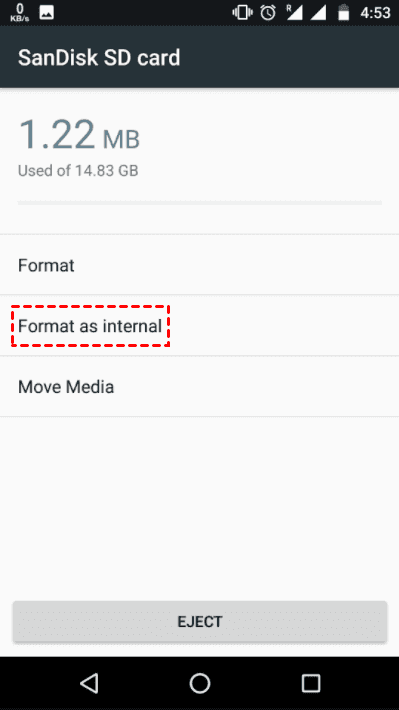
In order to integrate your SD card with the internal storage, the system will format SD card with a different file system (eg, EXT4 or F2F) and encrypt it. At the same time, it will make this card inaccessible on other devices. This is why you cannot access your data on a Windows PC.
How to Recover Data from SD Card Formatted as Internal Storage
In order to recover data from SD card formatted as internal storage, you need to decrypt this formatted SD card first. Otherwise, your system cannot recognize it. Then you can employ professional data recovery software like FastRecovery to scan and recover your files in simple steps.
Part 1: Decrypt SD Card Formatted as Internal Storage
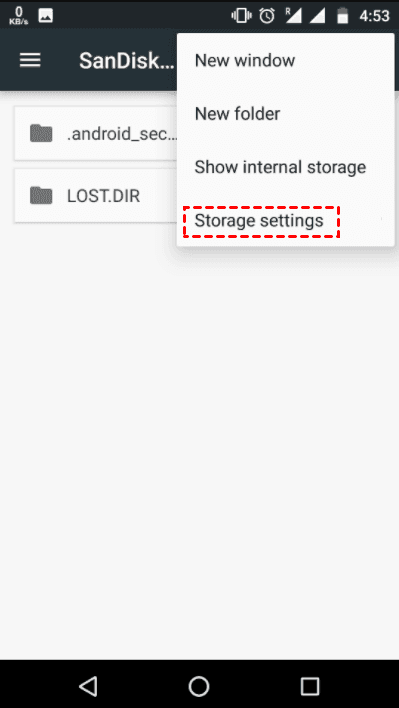
Step 1. Open your Android phone. Go to Settings > Storage and select Storage Settings.
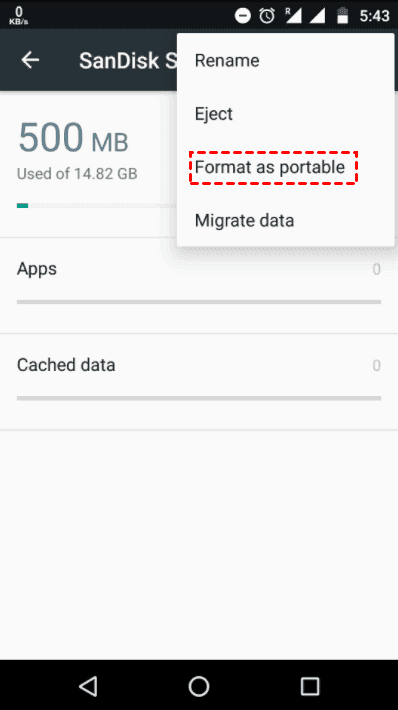
Step 2. Select Format as portable.
Step 3. Last, select Format. It will make this card portable and allow you to unmount SD card from your phone.
Part 2: Recover SD Card Formatted as Internal Storage
AOMEI FastRecovery is a reliable data recovery software, designed with simplicity and ease of use in mind, it addresses various data losss cenarios and enables users to recover files from SD card formatted as internal storage easily and quickly.
 AOMEI FastRecovery
- 🔎 Integrate Quick Scan & Deep Scan (core technologies ) to find all recoverable data, ensuring a high recovery rate.
- 📚 Recover deleted images (GIF, PNG, JPG/JPEG, PNG), videos (MP4, MOV, AVI, WMV), documents (TXT, DOC, XLSX, CSV, PDF, PPT), etc., up to 1000 data formats.
- 🧬 Organize and display deleted or lost files by Type or Path, allowing you to sort, search, filter, and preview files, making it easier and faster to find files.
- 💾 Supports all types of SD cards (Standard SD, SDHC, SDXC, and SDUC) as well as various brands, such as SanDisk, Samsung, Lexar, PNY, Sony, etc.
- 👾 Handle different data loss scenarios such as accidental deletion, formatted disk, system crashes, or virus attacks.
- 🔥 Free data recovery, up to 500MB.
 100% Secure
In addition, the software does not require technical expertise and is friendly to novices.
-
Stop using the SD card right now as soon as you realize data loss. Otherwise, your data may be overwritten, making recovery impossible. For example, don’t add new data or format it again.
-
Meanwhile, don't download and install AOMEI FastRecovery to the SD card formatted as internal storage. This may cause data overwriting as well.
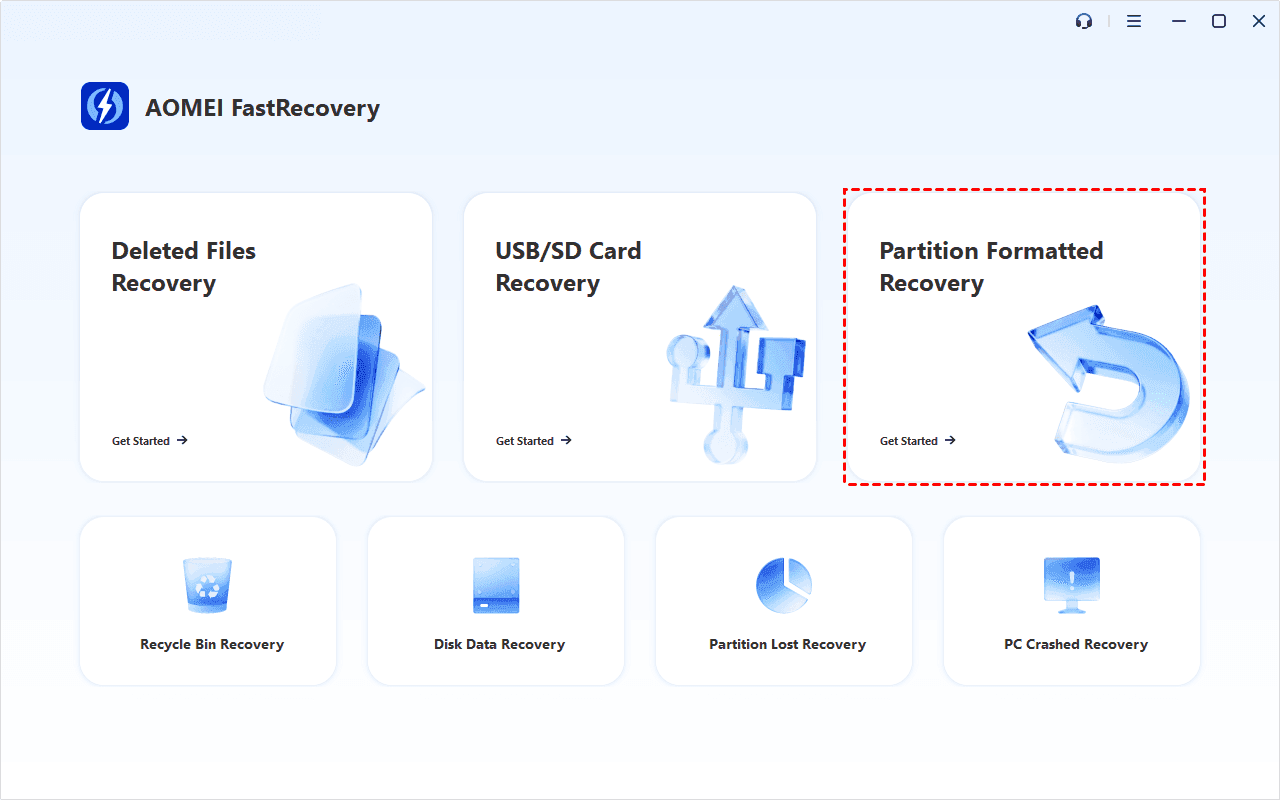
Step 1. Connect the decrypted SD card to a Windows PC using a card reader. Launch this reliable data recovery software - AOMEI FastRecovery, and click Partition Formatted Recovery.
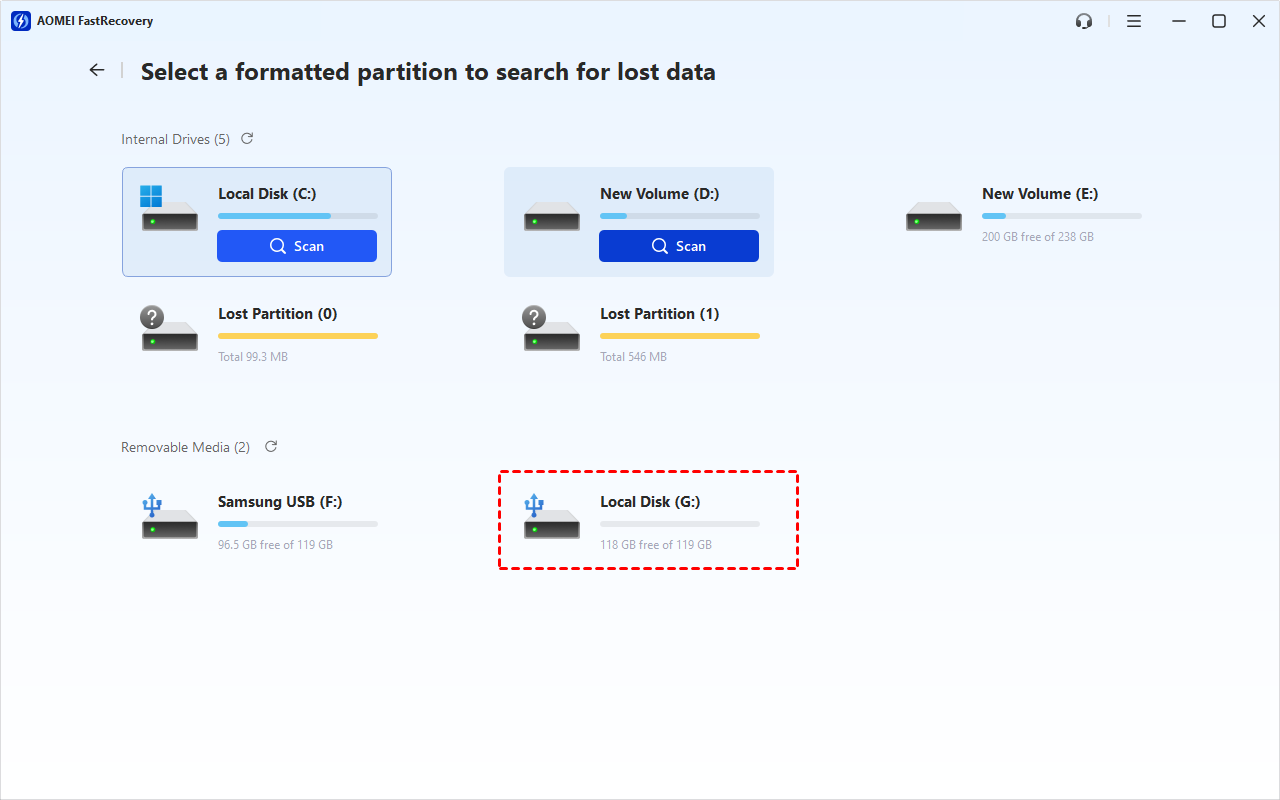
Step 2. Hover the mouse over the SD card formatted as internal storage and click Scan.
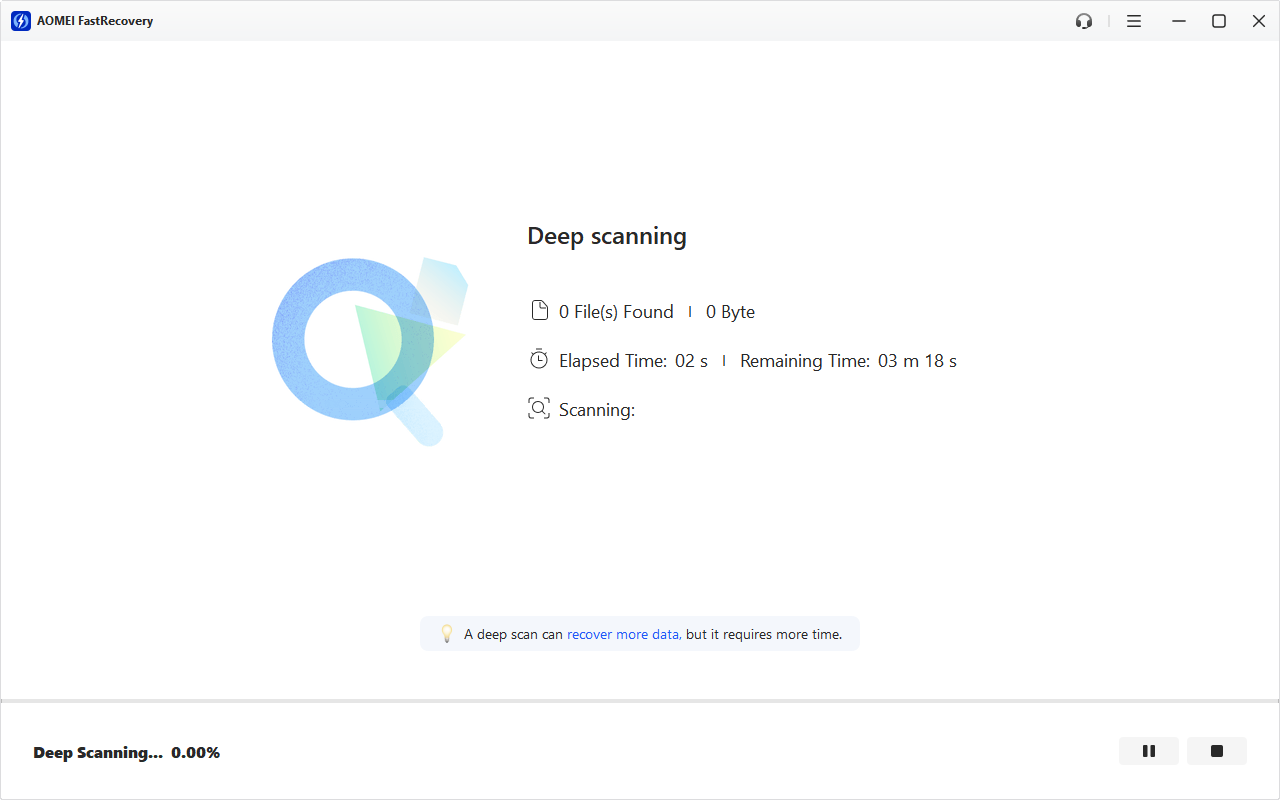
Step 3. It will run Deep Scan automatically to search and display all deleted or lost files. During scanning, you can click the Stop or Pause button if you select the wrong disk or something goes wrong.
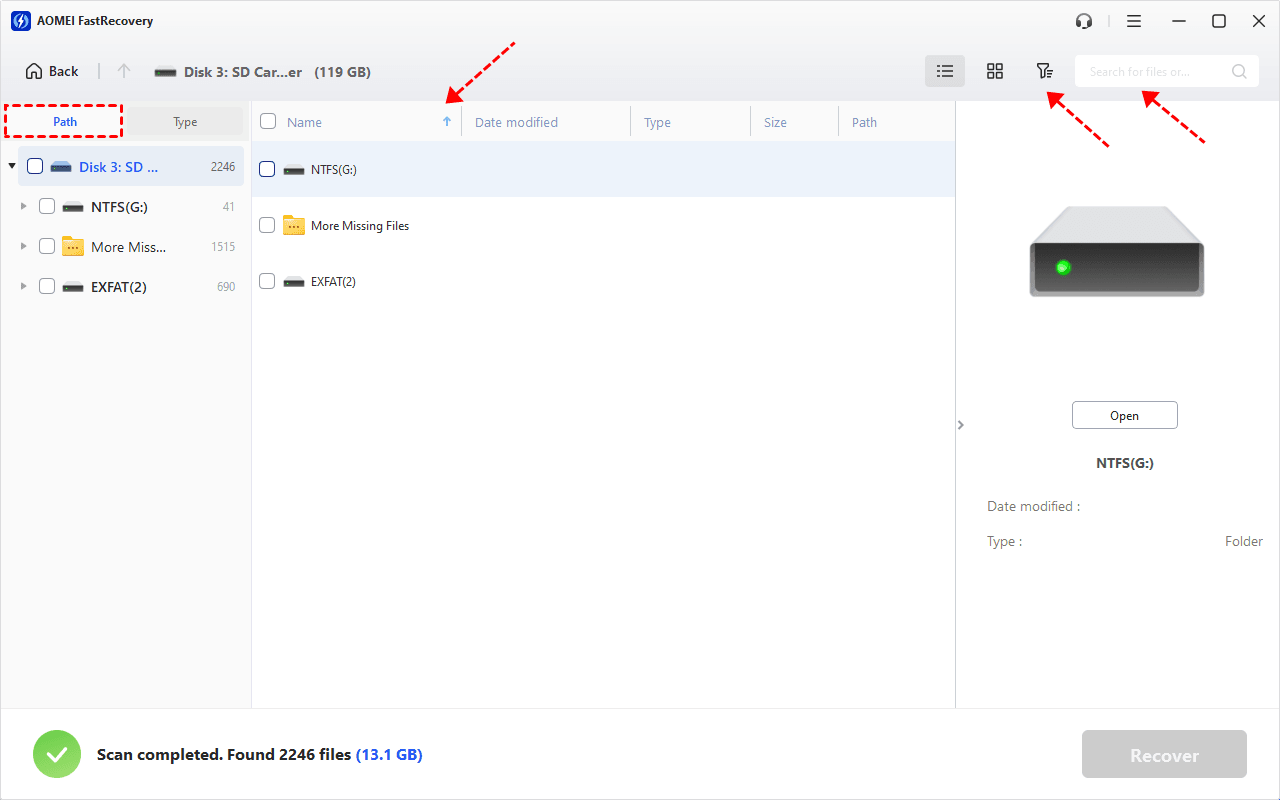
Step 4. Wait for the process to complete. To restore all data, under the Type section, select all data types and formats, then click Recover. Or go to the Path section, check all subdirectories for complete recovery.
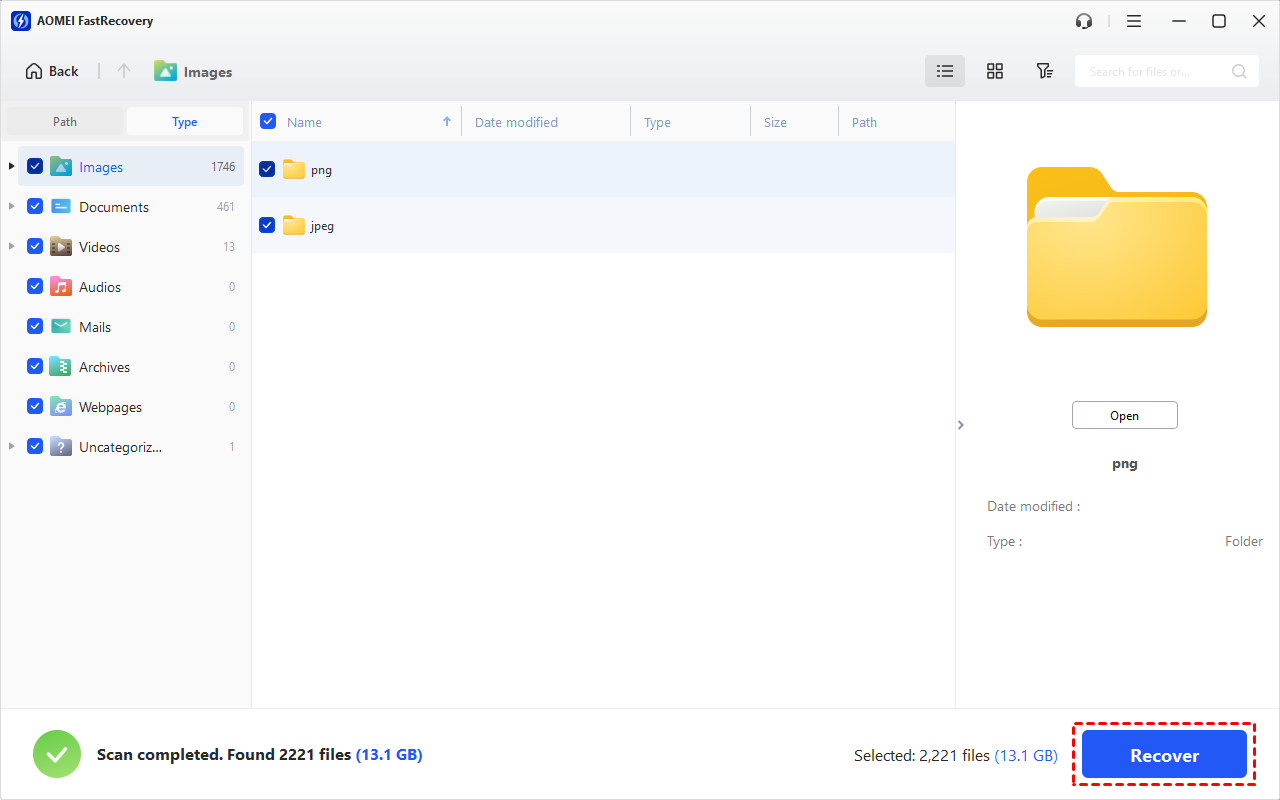
For specific files or folders, you can make use of the sort, search, filter, and preview options to find files quickly.
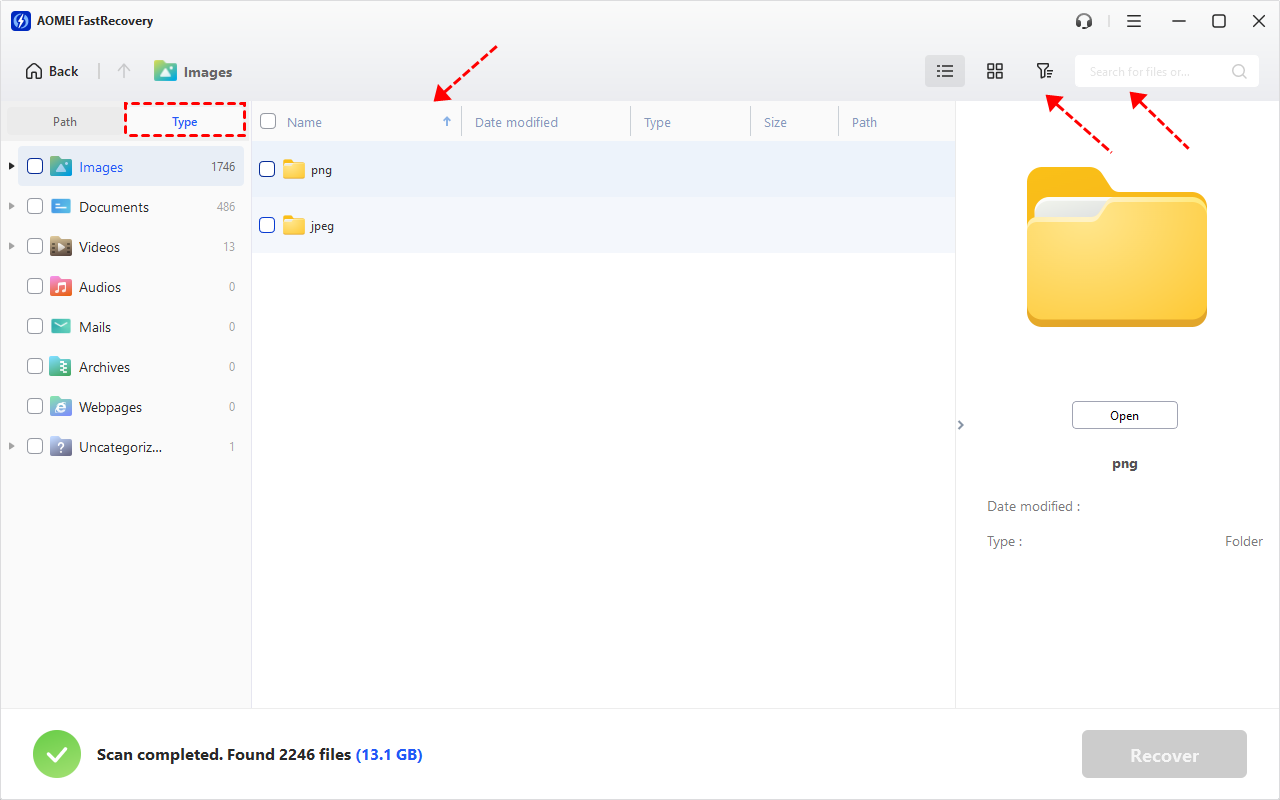
👉Under the Type section:
- Specify the data type (i.e., Images) and specific formats, then click the arrow next to type, size, date modified, etc., to sort files.
- To locate files quickly, type the file name or extension (i.e., .png, .jpg, .gif, .svg, etc) in the search box.
- Or use the filter feature, similar to the Type category, allowing you to further specify the size of files, from less than 512 KB to 1GB above.
- Once found, double-click the files to preview.
👉 Under the Path section: Expand NTFS/More Missing Files/FAT32 to find any data you want to recover. Make sure you know the original location of lost data on the SD card.
- The Type categories and filter options include all supported data types, such as images, videos, documents, mails, web pages, compressed files, etc.
- You can preview a wide range of data formats, such aswav, ico, jpg, png, bmp, jpeg, tif, svg, gif, mp4, mp3, txt, xlsx, pdf, ini, docx, etc.
- Please select a new location instead of the original SD card to prevent potential data overwriting.
You can get data back from the SD card for free, up to 500MB. To recover all files, please upgrade to the advanced editions.
In addition, you still can use this software to recover CFast card, xD-Picture card, SDXC card, SDHC card, microSD or mini SD, xD card, CF card, MMC card, etc.
Benefits and Drawbacks of using SD Card as Internal Storage
You probably want to format SD card as internal storage to expand space, but there are still drawbacks. So before doing so, it’s advisable to learn about it in detail. Here's a quick look at the chart.
Benefits
- Gain more space for your apps, photos, videos, and other data.
- Faster app loading, especially on devices with limited internal storage.
- No need to transfer data manually between internal storage and SD card.
- Prevent accidental deletion on other devices.
- Less power consumption compared to internal storage.
- ...
Drawbacks
- Slow read and write speed.
- Restrict to transfer data from or to different devices, such as from PC to phone or vice versa.
- Performance degrades over time, limited lifespan of SD cards.
- Some apps will not working properly.
- File browsing, even file manager will stop working.
- ...
When to Format SD Card as Internal Storage?
If your storage space is really tight, you can choose to format SD as internal storage. In fact, when you insert a new SD card into your phone, the system will ask you to set up your SD card and walk you through all the steps. Or format SD card in the storage settings.
Step 1. Open your Android phone. Go to Settings > Storage and select Storage Settings for your SD card.
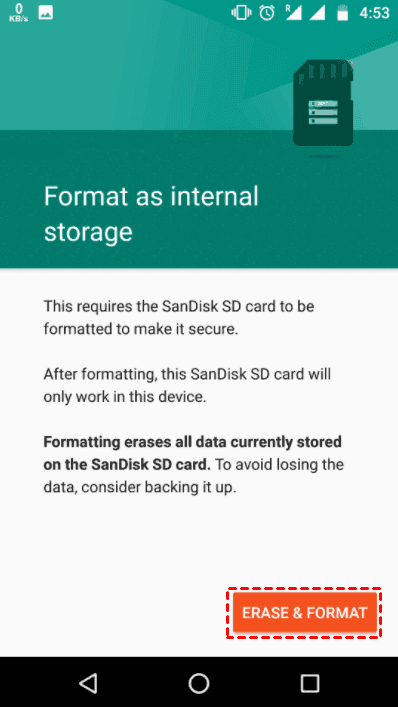
Step 2. Select Format as internal > Erase & Format and click OK to confirm you want to format SD card as internal storage.
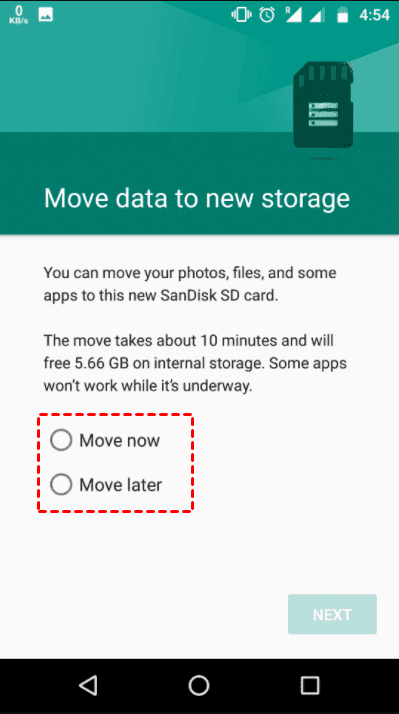
Step 3. The system will ask you to move data to this new SD card. You can choose to move now or later. The transfer time depends on your data volume. Finally, click Done to finish this process.
How to Prevent SD Card Data Loss Effectively
To avoid such data loss incidents in the future, consider the following precautions:
- Don’t format your SD card as internal storage if there are any important data. Please move it to other storage devices first. Meanwhile, be cautious before making any significant changes to your SD card.
- Avoid using the device with the SD card inserted when the battery is low.
- Always remove your SD card physically with the safe eject option. Abrupt removal may result in data loss or corruption.
- Invest in a high-quality SD card with a larger storage capacity and robust data retention features.
- Regularly back up your important data to different storage devices, such as external hard drives, cloud drives, network drives, NAS, etc. You will then always have a copy of your files and are able to recover files from backup timely.
Conclusion
Formatting SD card as internal storage but realizing there is important data in it, you may be frustrated. But this doesn't mean you will lose your valuable data permanently. With the help of professional data recovery software like AOMEI FastRecovery, you can recover data from SD card formatted as internal storage successfully.
However, prevention is always better than a cure. Take the necessary precautions to safeguard your data from such incidents in the future, and you'll have peace of mind knowing that your data is secure. Even if you format SD card as internal storage again, you can get your data back quickly.
FAQs
1. What happens when an SD card is formatted as internal storage?
When you format an SD card as internal storage, your Android phone will erase all data on the SD card, format it to ext4 or f2fs file system, encrypt and make it inaccessible to other devices.
2. Will data recovery software work on all types of SD cards?
Most data recovery software is designed to work with various SD cards, including microSD, SDHC, and SDXC cards. Usually, it also applies to memory card data recovery.
3. How much time does the data recovery process usually take?
The recovery time depends on the size of the SD card and the number of files being scanned. It can range from a few minutes to several hours.
4. Is there any risk of further data loss during the recovery process?
In fact, there is a minimal risk of further data loss during the recovery process unless you install data recovery software on the device requiring data recovery. If you still worry about it, try to backup your files in advance.
5. Can I use my SD card after data recovery?
Yes, you can continue using your SD card after data recovery. However, it is advisable to format the card correctly before using it again to avoid potential issues.

 as a preferred
source on Google
as a preferred
source on Google