




GIF Recovery: How to Recover Deleted GIF Images Easily
Lost important GIF images on your Windows PC or iPhone? Don’t worry, you'll learn how to recover deleted GIF images step by step, including the Recycle Bin, data recovery software - AOMEI FastRecovery, File History, and Backup and Restore (Windows 7).

By Ivy Updated on May 27, 2026


Help! Is it possible to recover deleted GIF images?
Hey, folks! I need your help! I deleted some GIF images from my Recycle Bin and later realized I needed some of them. But I can’t find them in the Recycle Bin, and I’m freaking out. Are there any ways or software you can recommend to recover deleted GIFs? If you have any personal experience or recommended photo recovery software for Windows, please let me know. Thanks a million!
Accidentally deleted GIF images and can’t find them in the Recycle Bin? Don’t panic, deleted GIF files may still be recoverable. Whether your GIF files were removed by mistake, permanently deleted, or lost from a Windows PC or iPhone, there are still several ways to get them back.
In this guide, you’ll learn 5 simple and effective methods to recover deleted GIF images on Windows and iOS devices quickly and safely, along with step-by-step instructions.
How to recover deleted GIF images on Windows
So, how to recover deleted GIF images? This part offers 4 simple and effective ways to recover deleted GIF images on Windows. Please avoid adding new data to your Windows PC, which could overwrite deleted and missing GIF files, significantly decreasing the recovery rate.
Option 1. Recover deleted GIF from the Recycle Bin
The recently deleted GIF images and other unwanted files are all stored in the Recycle Bin. It’s easy to restore accidentally and recently deleted GIF images from your desktop Recycle Bin before emptying it.
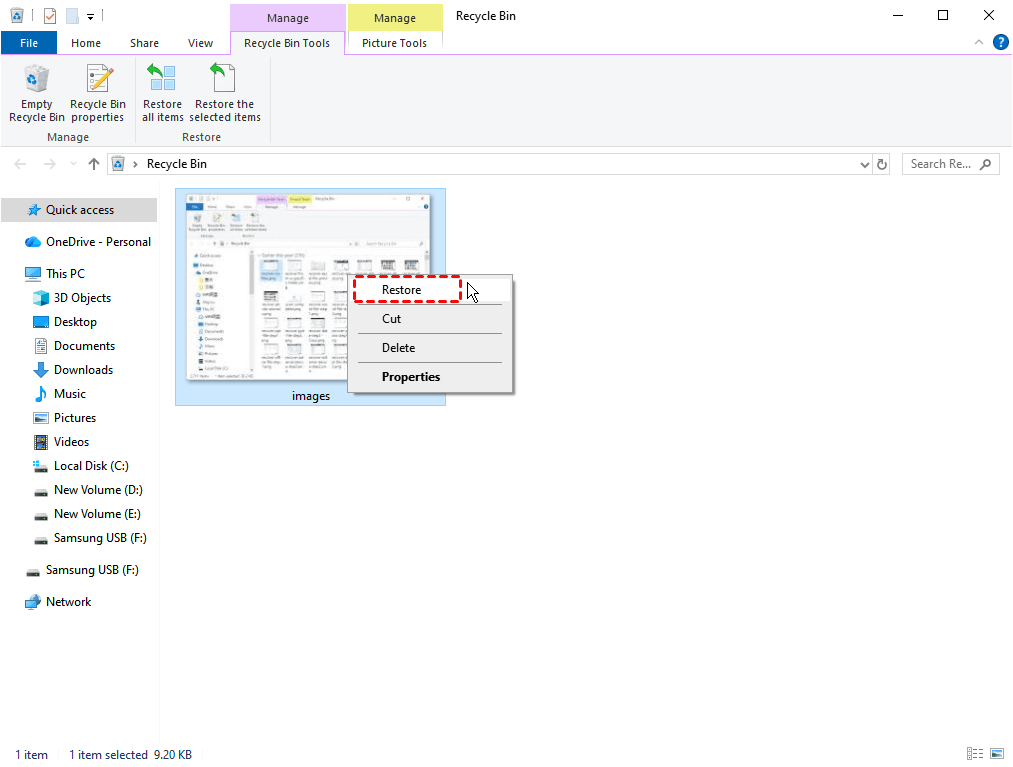
Step 1. Open the Recycle Bin on your desktop.
Step 2. Right-click deleted GIF files and choose "Restore" to move them to their original location. Don’t empty the recycle bin, otherwise deleted GIF files will disappear from your computer.
🔥 Option 2. Recover permanently deleted GIF files using software
If your files are not in the Recycle Bin, they are permanently deleted. Using a professional photo recovery software like AOMEI FastRecovery to recover deleted GIF images in Windows 7, 8, 8.1, 10, 11, and Windows Server easily and quickly.
 AOMEI FastRecovery
- 1000+ data types: Recover deleted images (GIF, PNG, JPG, PNG), videos (MP4, MOV, AVI, WMV), documents (TXT, DOC, XLSX, CSV, PDF, PPT), etc.
- 2 scanning methods: Integrate Quick Scan & Deep Scan to search all recoverable data, ensuring a high recovery rate.
- Excellent compatibility: Support HDDs/SSDs, external drives, USB drives, SD cards, etc., and compatible with NTFS, FAT32, exFAT, and ReFS file systems.
- Complete scenarios: Handle data loss scenarios such as accidental deletion, disk formatting, system crashes, or virus attacks.
- Flexible layout: Organize and display data by Type and Path, with options to sort, search, filter, and preview files, making it easier and faster to find files.
 100% Secure
Now, try to download and install the free version of FastRecovery to recover up to 500 MB of GIF files!
Step 1. Run AOMEI FastRecovery on your Windows PC. Then, click Deleted Files Recovery.

Step 2. Hover the mouse over the drive that saved deleted GIF files and click Scan.
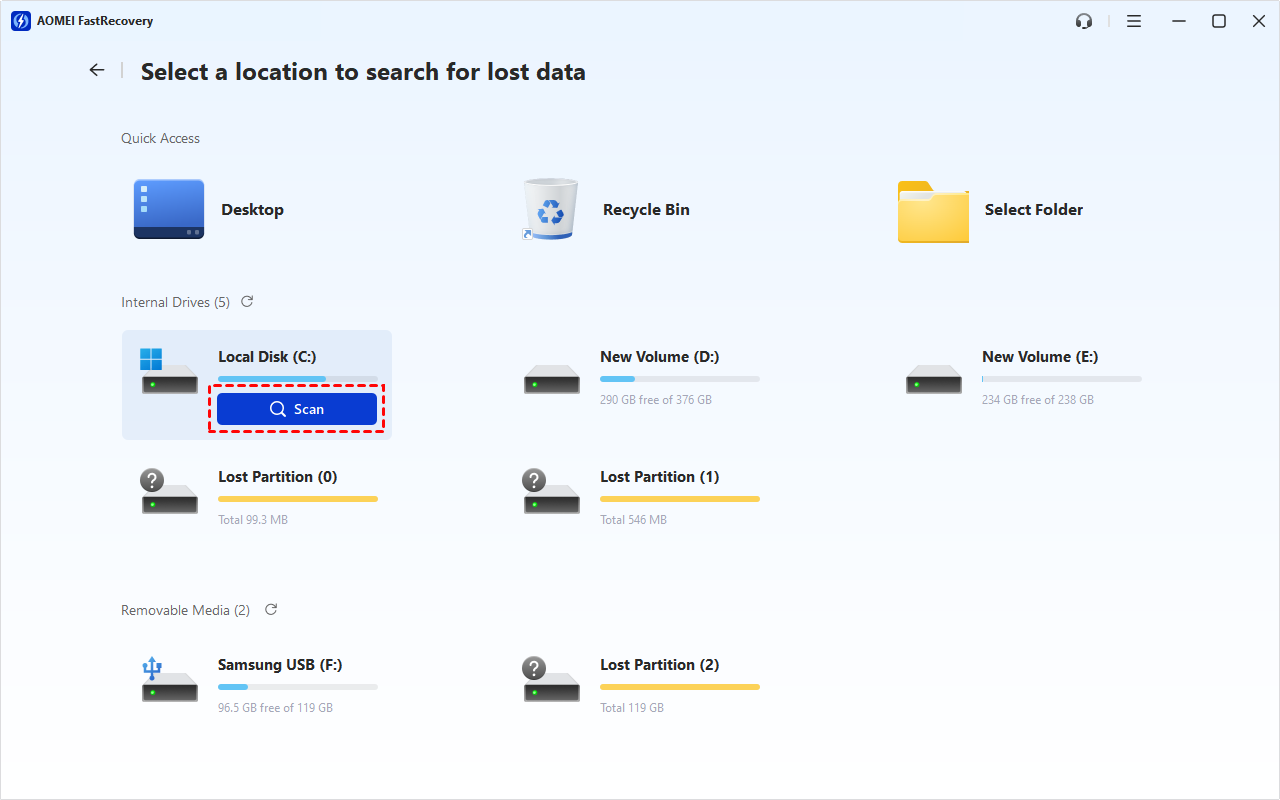
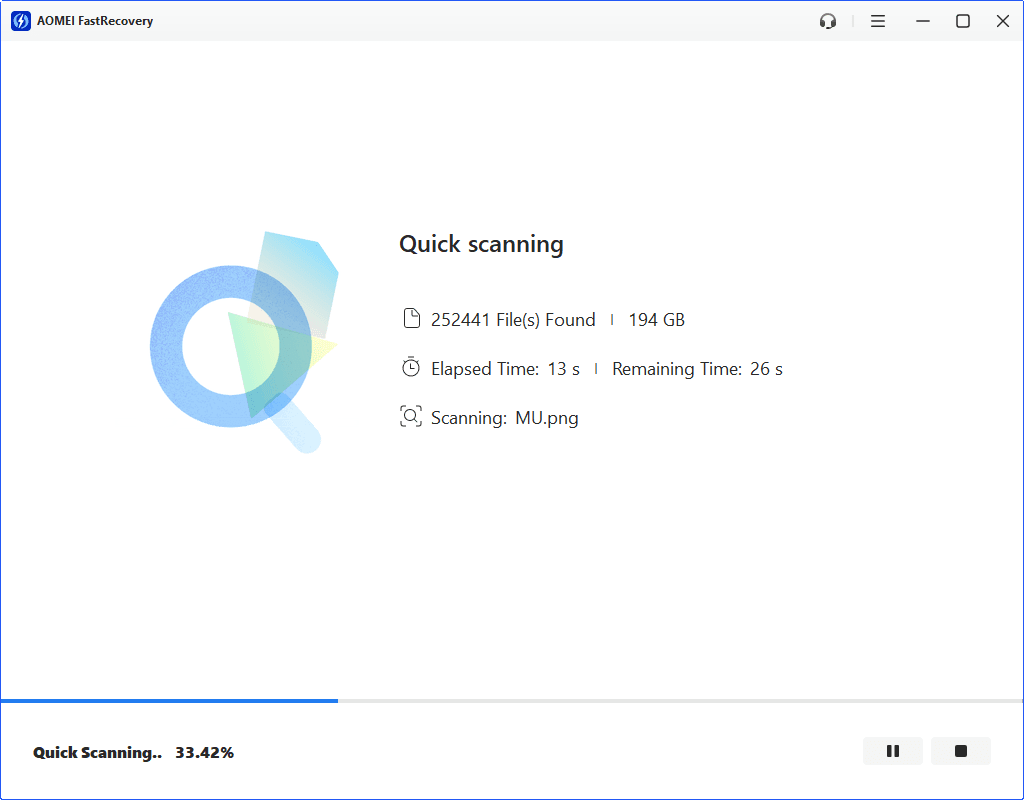
Step 2. It will automatically start a quick scanning process to scan your C drive and display all recoverable files. You won't have to wait long. Scan time mainly depends on disk size and health, especially regarding bad sectors or file system corruption.
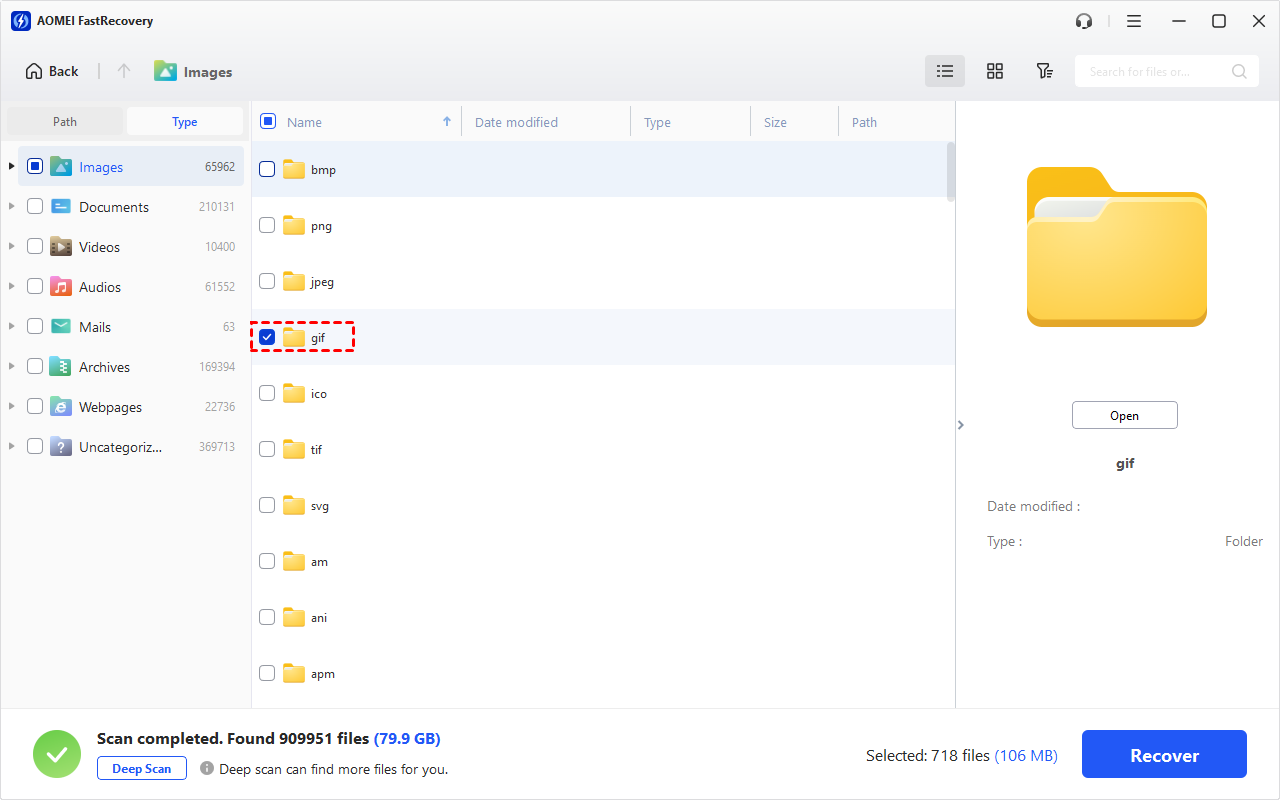
Step 4. Wait for the process to complete. You can select files by Type (default) or Path, with options to sort, search, filter, and preview files, making it easier and faster to find files.
👉Under the Type section:
- Specify the "Image" data type and click the arrow next to type, size, date modified, etc., to sort files.
- To locate files quickly, type the file name or extension (.gif) in the search box.
- Or use the filter feature, similar to the Type category, allowing you to further specify the size of files, from less than 512 KB to 1GB above.
- Once found, double-click the files to preview.
👉 Under the Path section: Expand Deleted Files/Recycle Bin/Existing Files to find where deleted GIF files were.
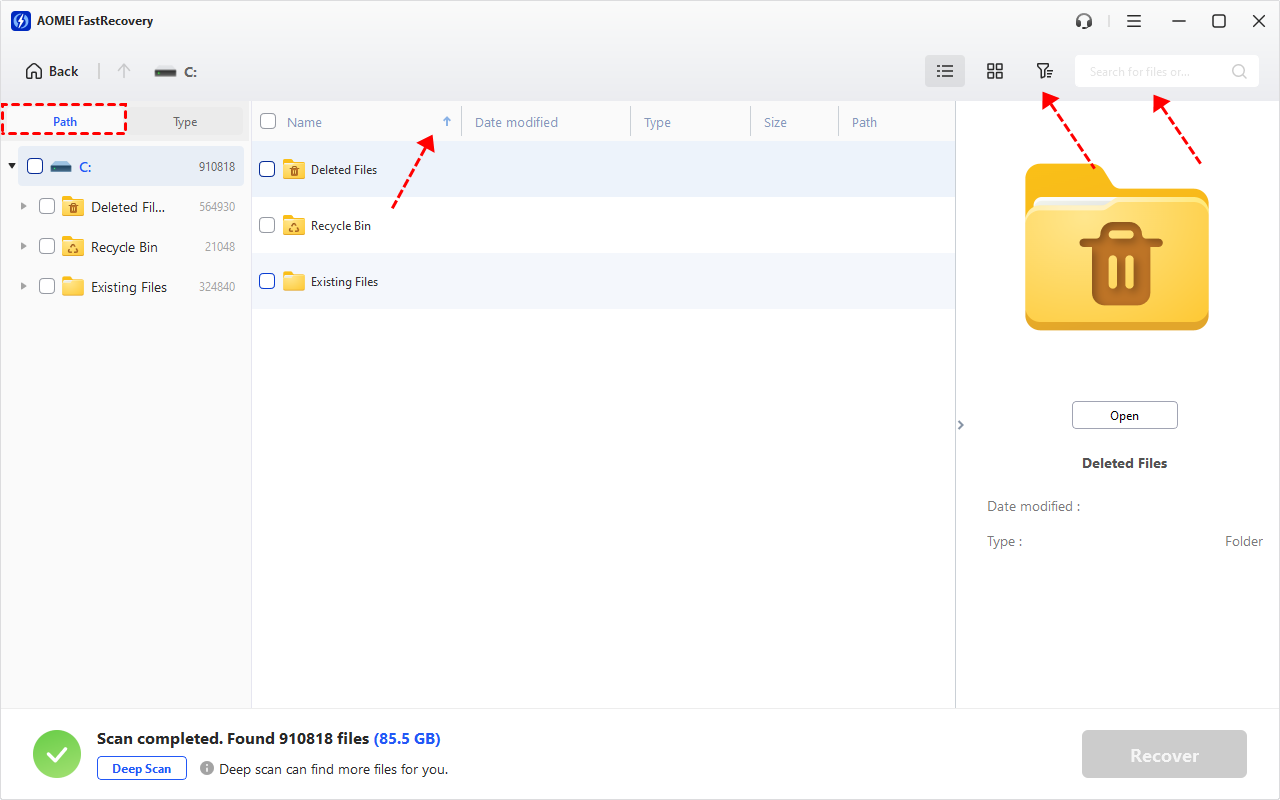
- The Type categories and filter options include all supported data types, such as images, videos, documents, mails, web pages, compressed files, etc.
- Click the Deep Scan to find more data if Quick Scan fails. It will scan every sector of the disk and take longer.
Step 5. Select your desired GIFs and click “Recover” to start the GIF recovery process.
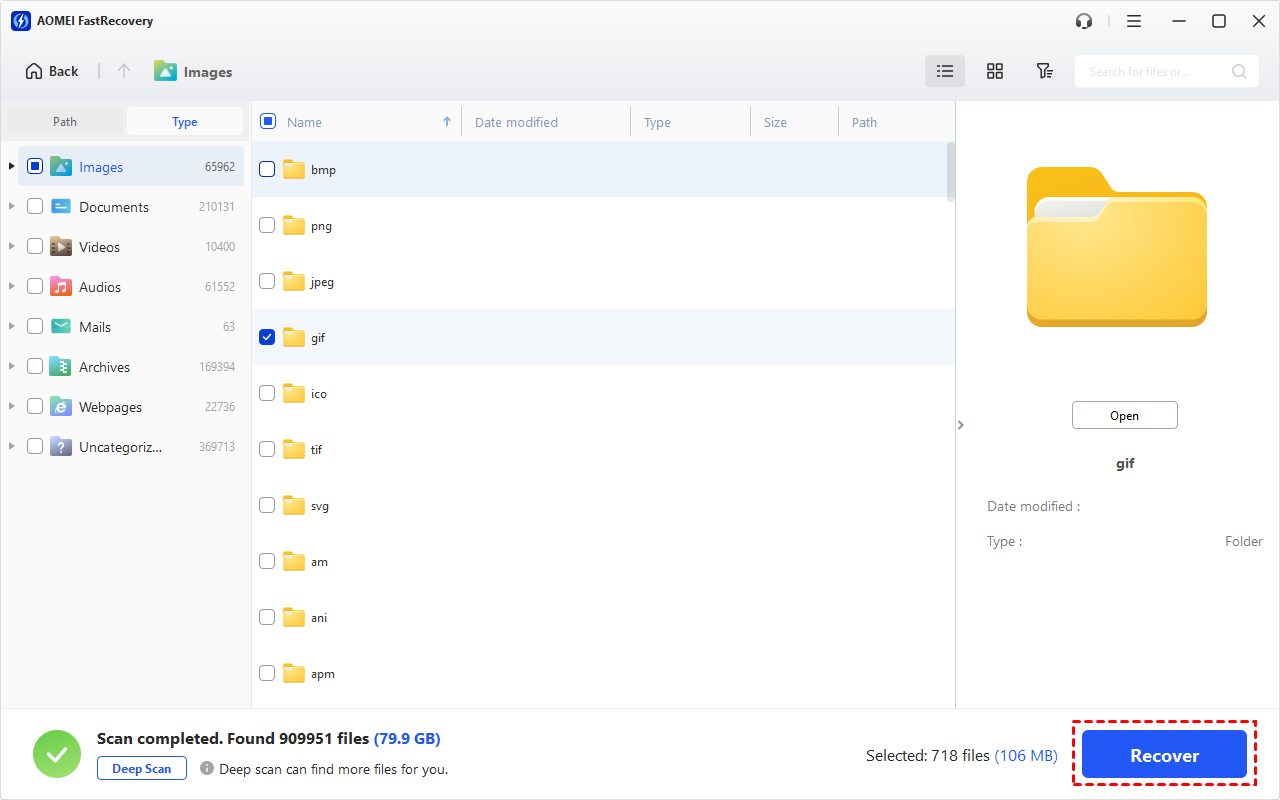
- After GIF photo recovery, please store your recovered GIF files in a new path instead of the original drive.
- The free version supports 500MB of GIF file recovery. To recover all data, upgrade AOMEI FastRecovery to the advanced editions.
Option 3. Recover deleted GIF files using File History
Recovering deleted GIF files using File History is an effective way to recover lost files. This tool allows you to backup and restore user files on your computer. To use File History, you’ll need an external storage device to store the backups.
Step 1. Open the Control Panel and navigate to System and Security, then click on File History.
Step 2. Click Restore personal files. This will open the File History window.
Step 3. Select the latest backup containing deleted GIF files. Or click the left arrow to browse all backups. Once you find them, click the Restore button to get your files back.
Option 4. Restore deleted GIF images using Backup and Restore (Windows 7)
As the name suggests, a prepared backup is essential to the restoration process. If you create a regular backup with Backup and Restore (Windows 7), you can make good use of this feature to restore desired GIF images.
Step 1. Type “System and Security” in the search bar to open it. Then, select “Restore files from backups” under the Backup and Restore (Windows 7) tab.
Step 2. Click the “Restore my files” button.
Step 3. Select “Browse for files” to locate your desired GIF images.
Step 4. Select In the original location or following location, depending on if you want to restore deleted GIF to a new path. At last, click Restore.
How to recover deleted GIF files on iPhone
Likewise, some users are wondering where permanently deleted photos go on iPhone because they’re eager to recover deleted GIF files. If you don't create any backup on iCloud or iTunes backups, the only option is to use a powerful iOS data recovery software like FastRecovery for iOS to recover permanently deleted GIF images.
- Recover 10+ data types, including Photos, Videos, Contacts, Notes, Reminders, Calendars, Call History, Voice Memos, etc.
- Your current backup will not delete all existing data on your iPhone.
- Selectively restore files, not all.
- Supports iOS 10 and later, and compatible with iPhone models, such as iPhone 13/14/15/16/17.
- Preview all data before recovery.
Don’t hesitate to download MyRecover for iOS to perform GIF recovery!
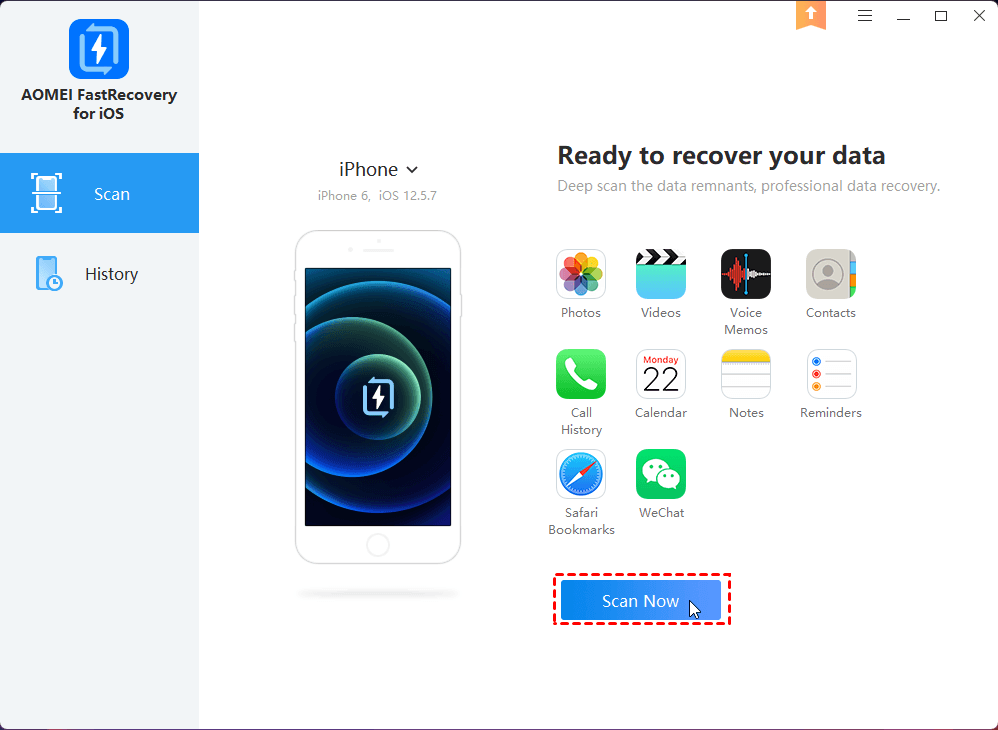
Step 1. After running it, connect your iPhone to this computer using a Lightning cable. Open FastRecovery for iOS to recover deleted GIF.
Step 2. Click “Trust your Computer” on your iPhone while clicking the “Scan Now” button to start FastRecovery for iOS.
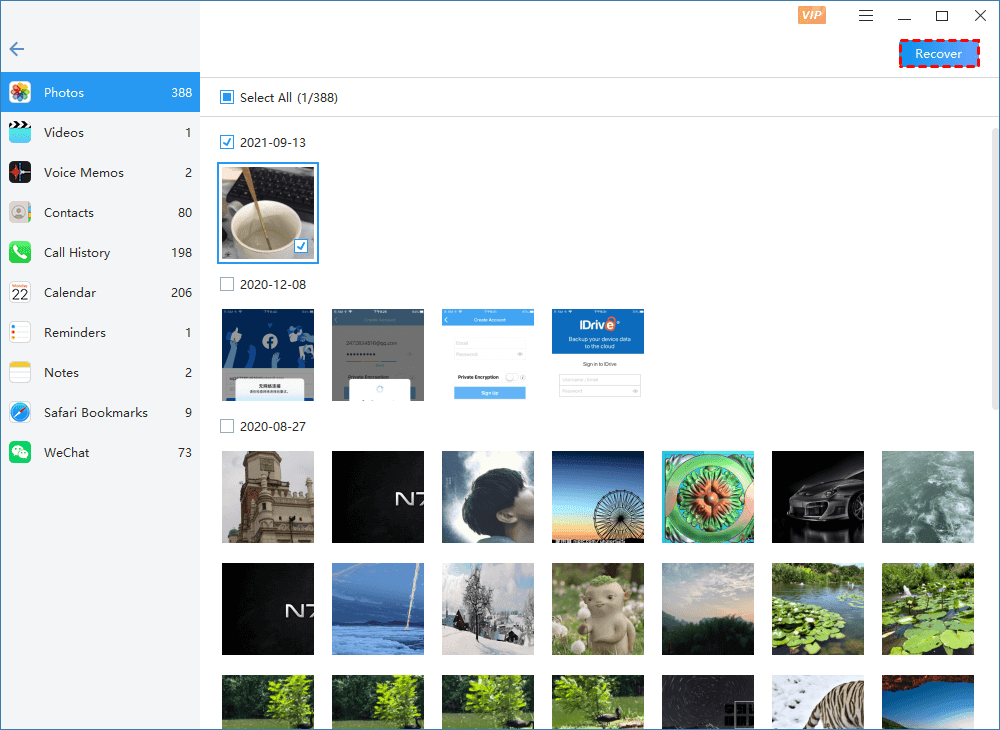
Step 3. Under the Photos tab, select your desired GIF files and click “Recover”.
Common reasons for loss of GIF files
Several factors can cause the disappearance of GIF images from your computer or other storage devices. Here are some prevalent causes.
⛔ Accidental Deletion: This is the most frequent reason for experiencing missing GIF images. Typically, accidentally/recently deleted files can be restored from your Recycle Bin.
💾 Hardware issues: Problems associated with the hard disk, such as bad sectors or partition complications, may lead to the loss of stored GIF images.
👾 Virus or malware attacks: GIF images can be corrupted or even deleted as a result of a virus or malware attack.
🗑️ Formatting or partition loss: Formatting a hard drive, USB drive, or memory card, whether intentionally or by mistake, can erase stored GIF files. Similarly, lost or deleted partitions may result in all GIF images becoming inaccessible.
⚠️ System crashes or software errors: Unexpected system crashes, Windows update failures, application errors, or sudden shutdowns may interrupt file operations and lead to GIF file corruption or deletion.
🔄 File transfer interruptions: Interruptions during file transfer, such as unplugging a USB drive suddenly or losing power while copying files, may damage or delete GIF images before the transfer process completes successfully.
Conclusion
How to recover deleted GIF images from Windows and iOS devices? You can find the corresponding answers in the above content. We recommend downloading a GIF recovery tool like FastRecovery to solve the GIF loss problem. It is easy to use and can retrieve lost or deleted GIFs for free without backup. Have a try!
FAQs
1. Where to find deleted GIF files free?
You can first check the Recycle Bin, Recently Deleted folder, or cloud backups like Google Photos and OneDrive. If the files are permanently deleted, free data recovery software - AOMEI FastRecovery may help recover GIF files before they are overwritten.
2. How do I recover deleted GIFs on Android?
To recover deleted GIFs on Android, you can check the Google Photos Trash folder, or local backups. If no backup is available, try using Android data recovery software.
3. How can I transfer photos from PC to iPhone without iTunes
To transfer photos from PC to iPhone without iTunes, you can consider using iCloud Photos:
- Go to Settings > Apple ID > iCloud > Photos, then turn on iCloud Photos.
- Open iCloud Photos on your PC and sign in with your Apple ID.
- Click the Upload button and select the photos.
- Connect your iPhone to Wi-Fi and wait for the photos to appear in the Photos app automatically.
4. How do I secure my photos from data loss?
To protect your photos from data loss, regularly create backups and save them on external drives or cloud storage. It is best to enable the automatic backup feature. This way, you won't have to worry about losing your photos.

 as a preferred
source on Google
as a preferred
source on Google