




Comprehensive Guide: How to Recover Deleted MB Files
In this article, you will learn how to recover deleted MB files with a professional recovery tool - AOMEI FastRecovery and protect MB files from being deleted effectively.

By Ivy Updated on March 5, 2026


Maya, a prominent 3D computer graphics software available for Microsoft Windows, Mac OS X, and Linux operating systems, employs two primary file formats: MA and MB.
In this tutorial, we delve into the depths of the MB file format, elucidating its distinctions from the MA variant, elucidating methods of access, and providing a data recovery tool to recover deleted MB files.
What Is an MB File?
When a 3D graphics artisan embarks on a creative endeavor, an array of digital graphical components and configurations converge to sculpt intricate vistas and animations. Within the realm of Maya, the creative journey entails a choice between the binary essence of MB and the textual allure of MA.
What constitutes an MB file? Recognizable by the .mb extension, such files emerge as binary project entities meticulously shaped within the confines of the Autodesk Maya application. Departing from the textual tapestry of the MA file format, these MB counterparts ensconce their essence within the realm of binary code.
However, MB files are facing the risk of data loss, which can be troublesome for users. But do not worry, please read the following section to get the best free file recovery software now.
How to Recover Deleted MB Files: Best Way Here
Want to find a quick and efficient way to recover deleted MB files? If you do not create backups for your MB files, asking for help from professional data recovery software is the best method.
AOMEI FastRecovery plays a great role in the data recovery field and is able to recover deleted MB files from different devices, regardless of the data loss scenarios. This is achieved through its pioneering scanning methodology and exceptional data recovery success rate.
 AOMEI FastRecovery
- 📚 Wide Recoverable data types: Have the power to recover in excess of 1000+ file types, including documents, images, audio, videos, etc.
- 💾 Wide compatibility: Compatible with different HDDs/SSDs, USB drives, SD cards, and more storage devices.
- 📌 Top algorithms: Provideboth Quick Scan and Deep Scan to find all recoverable data, ensuring a comprehensive retrieval and recovery.
- 🔎 Pinpoint the files: Organize and display deleted or lost files by Type or Path, allowing you tosort, search, filter, and preview files.
- 🧩💻Crashed PC recovery: create a bootable USB to recover data from hard drive without an OS.
 100% Secure
Here is the simple tutorial to recover deleted MB files with AOMEI FastRecovery:
-
Avoid adding new data to the drive when you experience data loss, as any subsequent inflow may cause further data loss and result in recovery failure.
-
Download and install AOMEI FastRecovery to a new location instead of where the deleted files were originally stored.
-
Choose a new location for the recovered MB files.
Step 1. Initiate the AOMEI FastRecovery software on your Windows PC. Hover the mouse over the drive that includes files, and click Scan.
Step 2. AOMEI FastRecovery performs a Quick Scan to find all your deleted MB files and other missing files. To locate MB files quickly, you can directly type the .mb extension in the search box.
Step 3. You can select your MB files in the Deleted Files folder. Then, click on the Recover button to get back something you accidentally deleted.
-
Click the Deep Scan button to find more data if Quick Scan fails. It scans every sector of the disk and thus takes longer.
-
You can perform M2TS file recovery for free, up to 500MB. Once exceeded, please upgrade to the advanced editions.
How to Access MB Files
Fortuitously, files adorned with the MB file extension graciously yield to access and manipulation through Maya's complimentary trial version. Initiating the process entails establishing an Autodesk account, authenticating credentials, securing the installer, and seamlessly adhering to on-screen directives. Subsequently, the act of double-clicking upon an MB file shall yield swift entry.
Alternatively, Autodesk extends an inclusive 3D model viewer spanning various platforms and embracing an assortment of beloved 3D graphic formats. This viewer, compatible with Windows, Mac OS X, and iOS, stands as an exemplar of simplicity, imbued with intuitive facets facilitating seamless transitions between wireframe, shading, textures, and luminosity configurations.
Keep MB Files Away from Loss
For those unwilling to recover files next time, you should take actions to protect your MB files:
- Install and run trustworthy antivirus software on your device.
- Create regular backups of your MB files.
To make a secure backup for your MB files, you need a reliable backup tool. AOMEI Backupper Standard can meet your requirements and protect MB files.
- Backup files, folders, partitions, disks, and even the systems to internal or external drives, USB drives, network shares, or cloud drives.
- Support incremental backup to save you much backup space and time.
- Enable the schedule backup feature to run the backup taskautomatically and regularly.
Follow the tutorial here, and go to create a backup of your MB files so that you can restore files from backup directly.
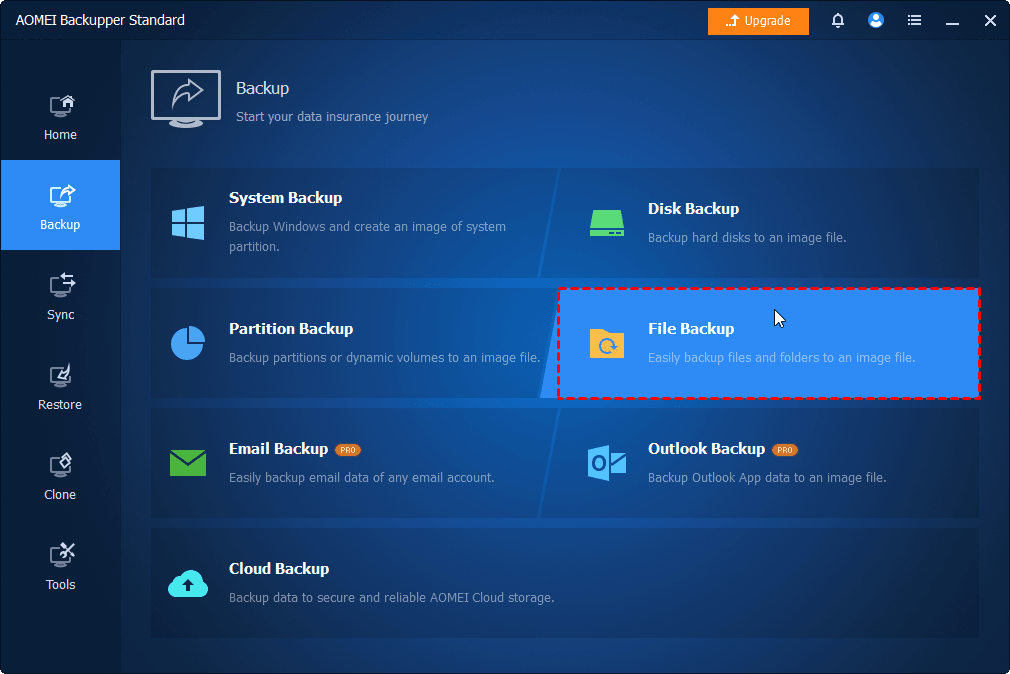
Step 1. Start the AOMEI Backupper on your Windows computer. Choose Backup > File Backup in turn.
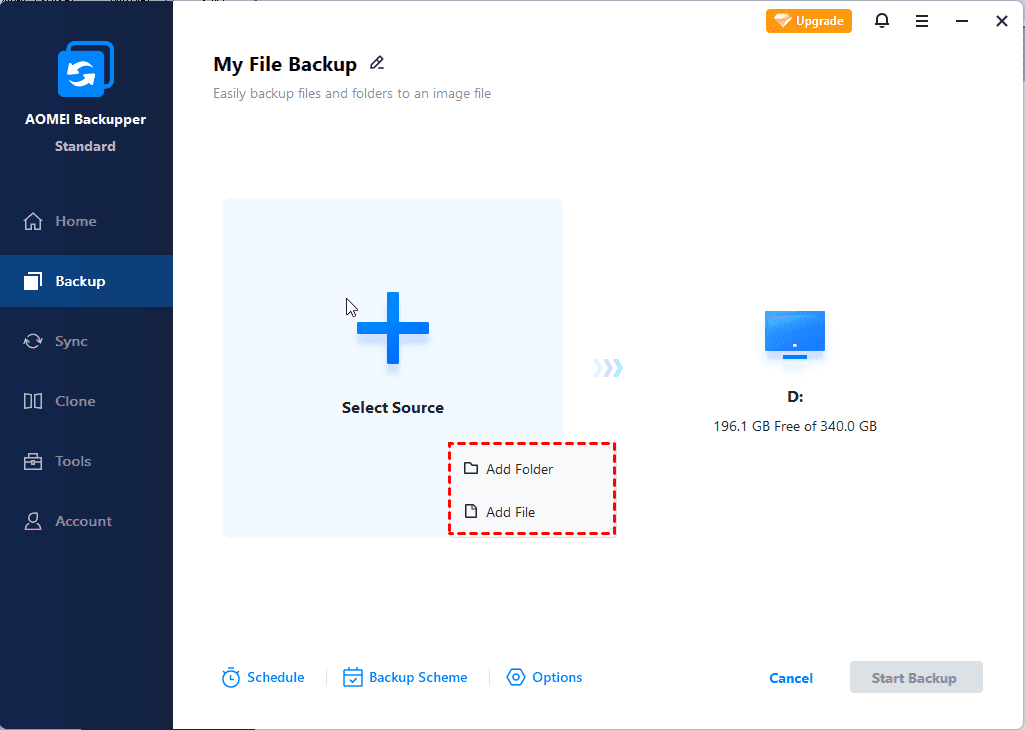
Step 2. Click Choose Source > Add Folder/Add File to select your MB files. You can also add other data valuable to you.
Step 3. To make the backup task easier, enable Schedule Backup. You can choose any backup interval based on daily, weekly, monthly, or event triggers.

Written in the End
Reading here, you have learned the best way to recover deleted MB files and how to create a backup to protect your MB files. With the experienced data recovery tool - AOMEI FastRecovery, you can even recover permanently deleted files fromany situation.

 as a preferred
source on Google
as a preferred
source on Google