




Lost Volume Recovery: Safely Restore Missing Volumes
Need lost volume recovery? Learn different ways to restore a missing volume when Windows can boot or cannot boot, with data-first repair guidance.

By Jonna Updated on September 8, 2026


Scenario: Accidentally Deleted a Volume on a Disk Drive. How to Recover It & Files?
A volume can disappear because it was accidentally deleted, a drive letter was removed, the file system became RAW, the partition table was damaged, or Windows can no longer boot from the system disk. A lost volume is not always lost data. Sometimes the partition still exists but has no drive letter. Sometimes Windows sees the disk as unallocated partition/volume or RAW partition. In worse cases, the disk is failing, or the boot volume is damaged. The right solution depends on what the computer can still do.
- If your computer still starts, use Windows tools to check the disk and recover files first.
- If the computer cannot boot, you need to work from a recovery environment or another PC so you can rescue data before repairing the boot problem.
Regardless of how you have missing volume recovery, the primary step is to stop any write operations; otherwise, data in the deleted or lost partition will be overwritten and rendered unrecoverable, making the recovery of the lost volume an impossible task. In the following, you will learn how to perform lost volume recovery in the above 2 situations, with detailed guidelines.
Case 1. How to Recover Lost Volume - Computer Can Boot into Windows
When Windows starts normally, you have the safest working environment for lost volume recovery. The goal is to inspect the disk without changing it, recover important files if the volume is damaged, and then repair the volume structure.
Method 1. Run CMD for Lost Partition Recovery
A volume/partition can disappear from File Explorer when its drive letter is removed, even though you have not deleted it or the partition itself is still intact. In such a case, you may run the DiskPart command to restore lost volumes. You can use it to undelete an NTFS partition.
Step 1. Press Win + R, and type cmd to open Command Prompt as administrator. Then, run diskpart to access the Windows command-line disk partitioning utility.
Step 2. Run the following commands one by one:
- Type list disk with Enter. You will see a list of all physical hard drives connected to the computer. Identify the disk you want to wipe based on its storage capacity.
- Type select disk X (replace X with the target disk's number) and press Enter.
- Type list volume to view all volumes on the drive.
- Locate the volume that does not have a drive letter assigned > type select volume n (replace n with the volume's actual number).
- Then type assign letter = x. Please choose a letter that is different from existing drive letters.
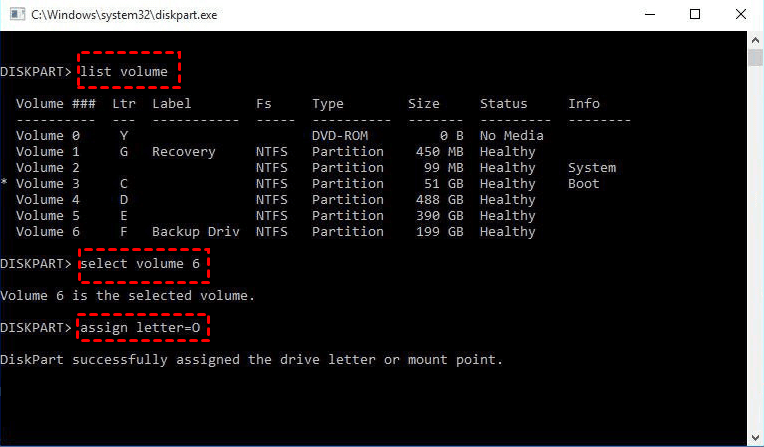
Step 3. When it's done, type exit to close the utility.
Method 2. Use AOMEI Partition Assistant to Recover a Lost Volume
If the volume was deleted by accident or appears as unallocated space, AOMEI Partition Assistant can be used as a partition recovery solution. Its Partition Recovery Wizard allows you to search for lost or deleted partitions on a selected disk.
▶ It supports Fast Search, which scans the hard disk quickly, and Full Search, which scans the hard drive sector by sector.
▶ It supports recovering accidentally deleted Windows partitions from hard drives or SSDs, external drives, SD cards, USB drives, and various storage devices.
Step 1. Install & open AOMEI Partition Assistant on the Windows computer.
Step 2. Go to Recover > Partition Recovery, then select the disk that contained the lost volume.
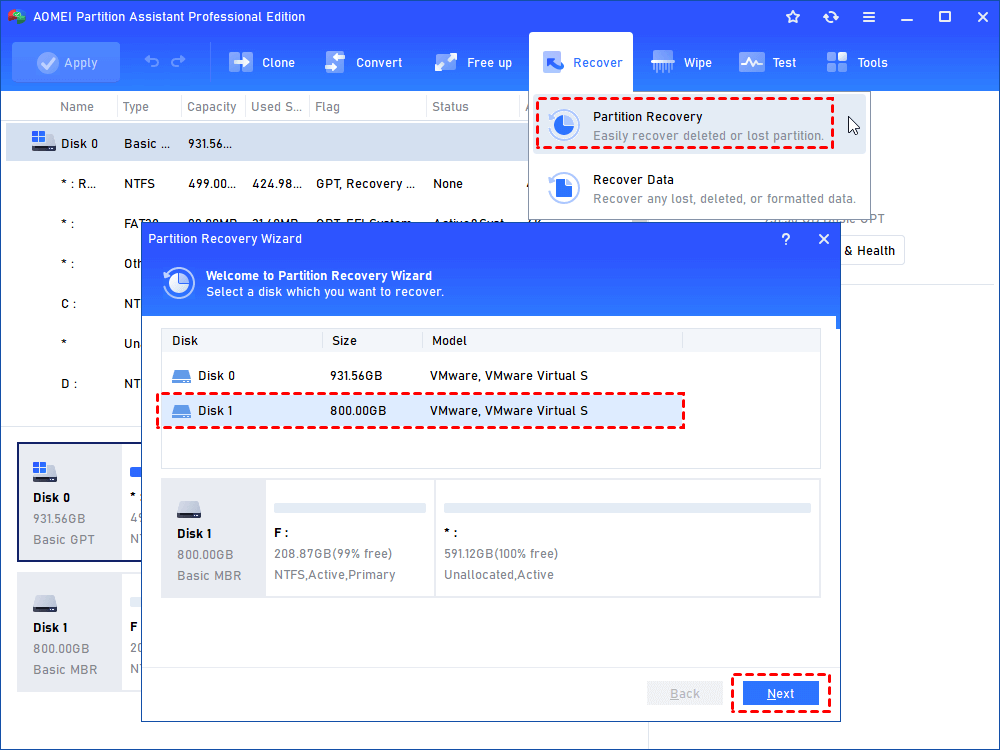
Step 3. Choose Fast Search first. If the lost volume is not found, run Full Search for a deeper scan.
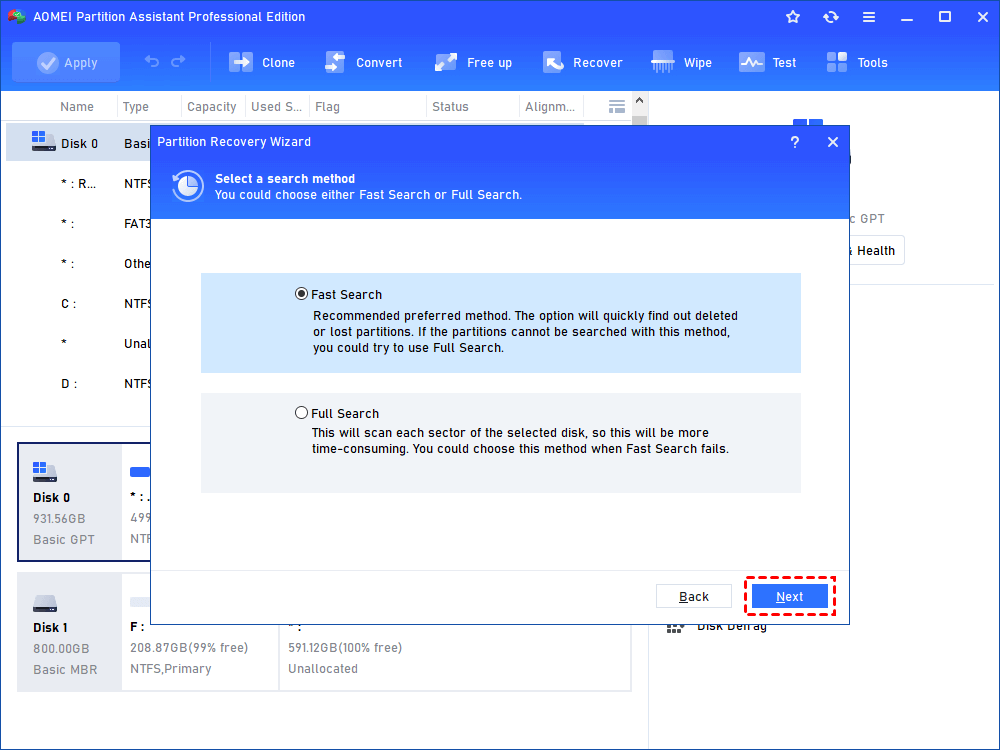
Step 4. Select the found partition that matches the missing volume by size, file system, and position. Click Proceed for lost partition recovery.
Then, confirm the recovery operation and check whether the volume appears in File Explorer. If the partition is restored but files are damaged or missing, switch to file-level recovery before further repairs.
🎯Supplement: Recover Files with AOMEI FastRecovery
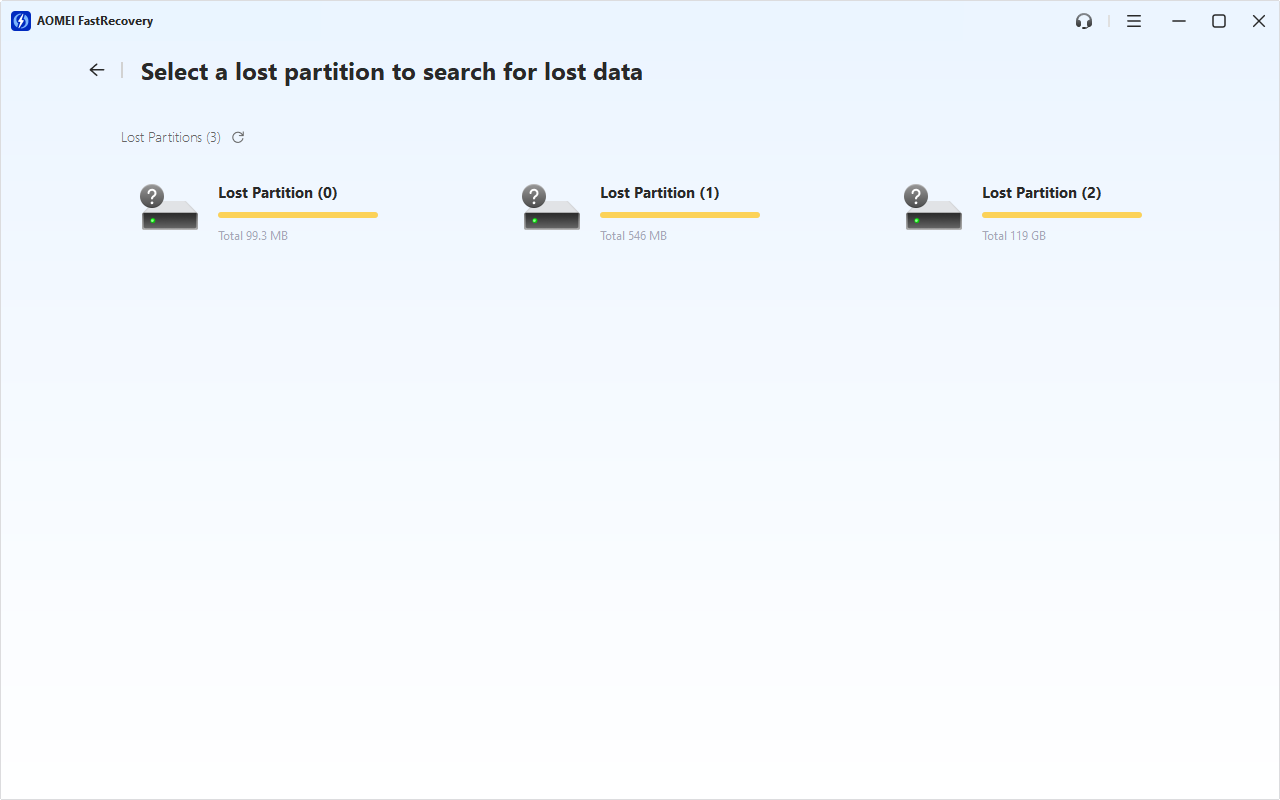
AOMEI FastRecovery should not replace partition repair here, but it is useful as a supplement plan when the goal is to retrieve files rather than rebuild the exact volume. Use it when the disk is detected, but the lost volume cannot be safely restored, appears RAW, or still lacks readable files after partition recovery.
 AOMEI FastRecovery
- Recover deleted & lost photos, folders, documents, compressed files, videos, audio, websites, and other up to 1000+ file formats.
- Integrate quick & deep scans to search for all recoverable data.
- Organize and display files by Type or Path, allowing you to sort, search, filter, and preview files, and perform selective file recovery.
- Retrieve deleted files in any scenario, such as accidental deletion, empty Recycle Bin, disk formatting, virus infection, etc.
- Support NTFS, FAT32, exFAT, and ReFS file systems and work with Windows 11, 10, 8, 7, or Server PCs.
 100% Secure
Just get and run the AOMEI FastRecovery software, go to Scan, and restore files if they are lost after recovery.
Case 2. How to Restore Lost Volumes - Computer Cannot Boot
If you accidentally delete the Windows system partition or a boot volume, the computer may fail to start. In this situation, do not reset or reinstall Windows immediately. Work from outside the installed operating system so you can protect data and then repair the boot problem.
Method 3. Use AOMEI Partition Assistant in a Bootable Environment
AOMEI Partition Assistant can also be part of the unbootable-PC route when you use a Windows PE-based bootable environment. This lets you inspect disks without relying on the broken Windows installation.
Step 1. On a working computer, plug in a connct a USB drive and go to Make Bootable Media > select USB Boot Device > Proceed to prepare suitable WinPE bootable media. Add storage drivers if the target disk uses RAID or a special controller.
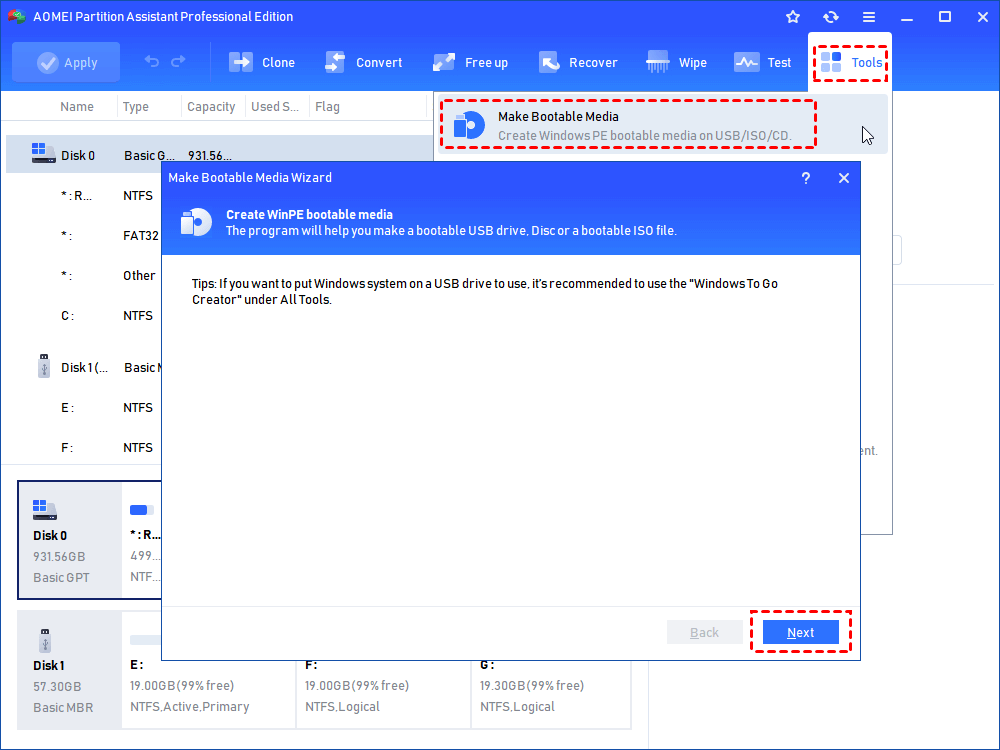
Step 2. Boot the failed computer from the USB media by changing the boot order in BIOS or UEFI.
Step 3. Open AOMEI Partition Assistant in the bootable environment and check whether the lost volume or disk is detected likewise. Restore the partition when the found volume matches the expected size and location.
FAQ About Lost Volume Recovery
1️⃣Can a lost volume be recovered without losing data?
Often yes, if the partition metadata is still recoverable and data has not been overwritten. Start with inspection and recovery before repairs.
2️⃣Should I use AOMEI Partition Assistant or AOMEI FastRecovery?
Use AOMEI Partition Assistant when you want to restore a lost or deleted partition. Use AOMEI FastRecovery as a supplemental option when you need files from a detectable disk.
3️⃣What if the computer cannot boot?
Use WinPE bootable media, an AOMEI bootable environment, or another working PC before reinstalling Windows.
4️⃣Is CHKDSK a good first step?
Not when data is important and the volume is inaccessible. Recover or back up files first because repair tools can modify file-system records.
Conclusion
Lost volume recovery depends on whether the computer can boot. On a working Windows system, restore a missing drive letter, and use AOMEI Partition Assistant for partition-level recovery when a volume is deleted or unallocated. On an unbootable computer, use bootable media or another PC before reinstalling Windows. AOMEI FastRecovery can support file-level recovery when the disk is detectable, but the main task should stay focused on safe partition recovery and data protection.

 as a preferred
source on Google
as a preferred
source on Google