




Windows System Partition Missing? Recover It without Reinstalling Windows
Windows system partition missing? Your PC may fail to boot, but the partition and data are often still recoverable. This guide explains how to recover Windows system partitions using partition recovery software - AOMEI Partition Assistant or CMD.

By Ivy Updated on May 25, 2026


Windows system partition missing?
"A month with windows10 I have rundown back to Windows 8.1, then after 2 days the laptop was not starting and as I tried to refresh/reset it displays system partition missing, error in creating. With the help of some previous answers here I tried DISKPART, I found that the drive/partition/volume having OS(c: 465GB) & d: 150GB are missing in list partition/vol'............finally I was unable to boot now please help me to solve. Thanks in advance.”
- Question from a user
A Windows system partition is a primary partition that contains Windows Boot Manager and Boot Configuration Data(BCD). It means if you accidentally deleted the Windows system partition or the system partition is missing, the computer won't boot normally.
Usually, there are two types of Windows system partitions. EFI System partition and System Reserved partition. If your hard drive is a GPT-based disk, it must contain an EFI System partition to boot Windows. It occupies 100 MB in Disk Management. The System Reserved partition is created when the operating system is installed in an MBR-based drive.
How to recover missing Windows system partition
To recover missing Windows system partition, you can choose one of the following solutions, depending on how important your data is.
- If the data stored in the local boot partition (usually the C: drive) is not important, you could reinstall Windows to create a new Windows system partition. Remember to format the whole drive.
- On the contrary, detach your hard drive and recover it using a CMD repair tool, or professional partition recovery software, even if the system is not bootable.
Way 1: Recover missing Windows system partition using partition recovery software
Surely no one would consider their data worthless, so I’ll skip reinstalling Windows and proceed directly with partition recovery. A reliable software such as AOMEI Partition Assistant is necessary. It provides users with two scanning methods, which will scan your drive and find missing Windows system partition for recovery.
If your system is not bootable, it also supports creating a bootable USB and accessing it, whether it's using Windows 7/8/10/11/Server or on a drive formatted in NTFS, FAT, Ext2, Ext3, and Ext4.
Make a bootable USB disk to start unbootable system
Step 1. Prepare an empty USB drive and connect it to a healthy computer. Then, open AOMEI Partition Assistant Professional after installing. Click "Tools" > “Make Bootable Media”.

Step 2. Choose “USB Boot Device” in the following window and click “Proceed” to start the creation.
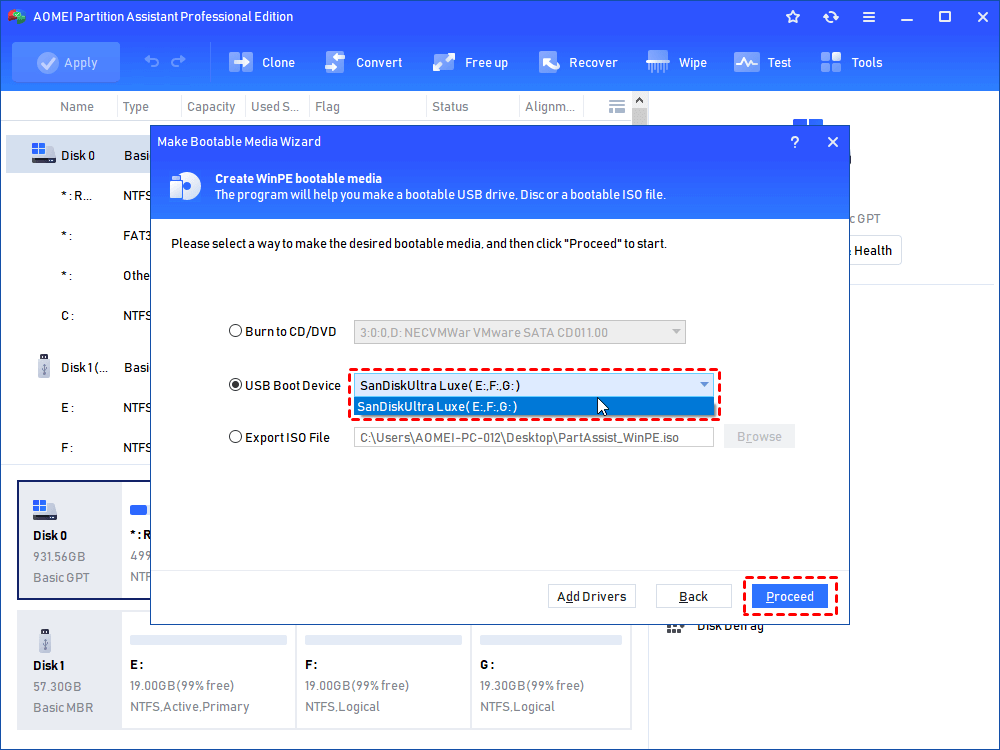
Step 3. Click “Yes” to confirm formatting the USB drive and creating a bootable disk.
Recover missing Windows system partition in 4 steps
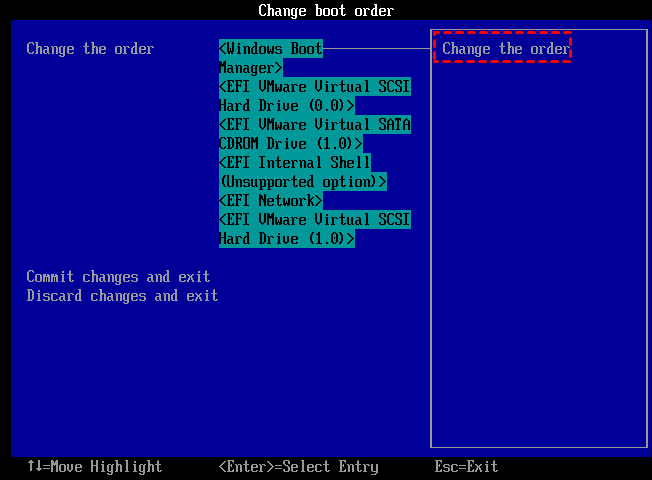
Step 1. Connect the bootable USB disk to the computer that can’t boot. Boot the computer and press the BIOS key (e.g., Del, F2, F10, etc) to enter BIOS and change the BIOS boot priority to start it from the USB drive.
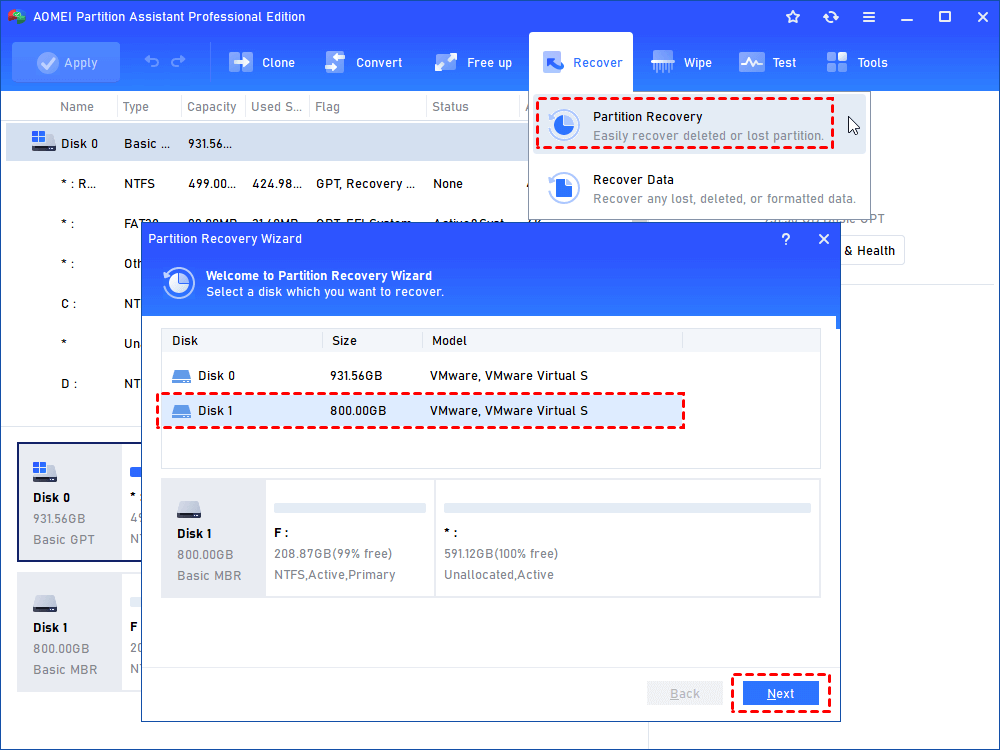
Step 2. After loading, you'll see AOMEI Partition Assistant. Click "Recover" > "Partition Recovery", and select the disk including the missing Windows system partition.
Step 3. When using this for the first time, select “Fast Search” to save time. If the Windows system partition couldn’t be found, use “Full Search”.
Step 4. After the search process completes, select the missing Windows system partition in the list and click “Proceed”. When the partition recovery is done, the computer will boot normally again.
Way 2: Recover missing Windows system partition using CMD
In addition, you can still use the bootrec commands to fix missing Windows system partition. It helps repair damaged boot records, rebuild BCD data, and fix startup errors caused by missing EFI System Partitions or System Reserved Partitions.
Step 1. Insert the Windows 10 installation DVD or USB flash drive to boot your computer. Under the Windows recovery environment, click "Repair your computer" > “Troubleshoot” > “Advanced options” > “Command Prompt”. Or press “Shift + F10“ to open Command Prompt directly.
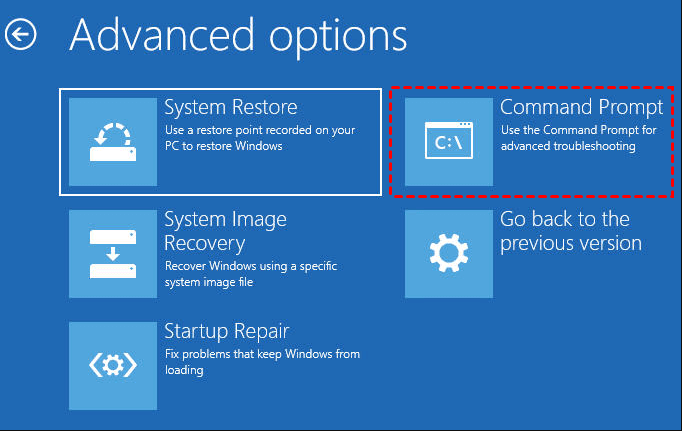
Step 2. In the Command Prompt window, enter the following command in turn.
- bootrec /scanos
- bootrec /fixmbr
- bootrec /fixboot
- bootrec /rebuildbcd
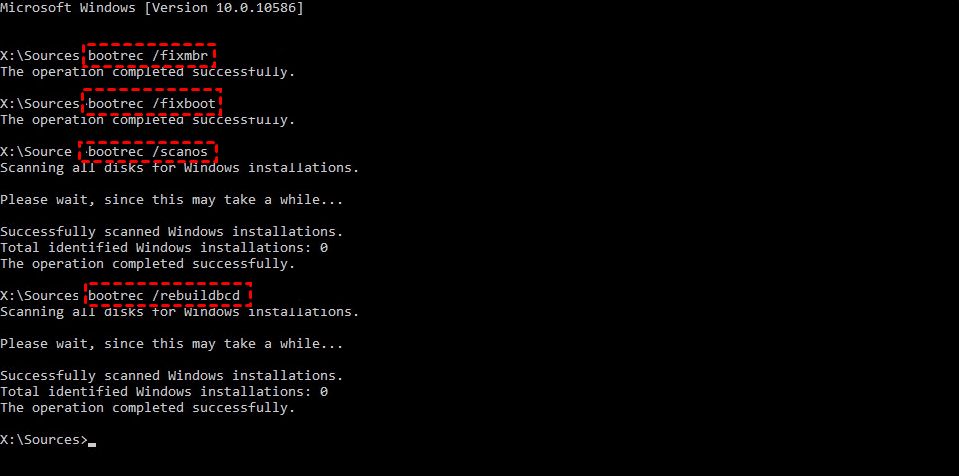
Step 3. Type exit to leave the Command Prompt window. Then, restart your computer and see if it's bootable.
This also applies to “Unable to reset your pc. A required partition is missing.”
Conclusion
Windows system partition missing? Try partition recovery software such as AOMEI Partition Recovery Wizard to restore accidentally deleted or lost boot partitions in Windows. For the missing Windows system partition due to MBR or BCD corruption, rebuilding BCD using CMD is a better choice.
Of course, to avoid partition and data loss, the best way is to use Windows backup freeware - Backup and Restore (Windows 7), File History, or third-party tool -AOMEI Backupper to back up important data, partitions, and systems.

 as a preferred
source on Google
as a preferred
source on Google