




Best Data Recovery Software for Unallocated Partition
AOMEI FastRecovery is one of the best data recovery software for unallocated partitions in Windows 11, 10, 8.1/8, 7. Click to get it and fix unallocated partition in 2 useful methods.

By Ivy Updated on February 3, 2026


How can I recover data from unallocated drive?
I find that my hard drive shows as unallocated without knowing what happened, and the files disappear. I want to recover my data first cause I’m afraid of data loss when I fix the unallocated space. So, How can I recover data from unallocated drive? Is there any data recovery software unallocated partition?”
- Question from a user
When you encounter the same problem, how to recover data unallocated disk? Read the whole post to get possible reasons and the best data recovery software to recover files and even the entire partition.
📍📍📍Warning: Don’t perform any extra actions on your unallocated partitions. Otherwise, your data may be overwritten, making it nearly impossible to recover.
Possible Reasons for unallocated partitions
The absence of any spaceon a disk is indicated by the unallocated partitions, which restrict data writing to such space. There are several possible causes for this. The most well-known ones are in the list below.
♦Virus or malware assault. Partitions on your hard drive may be specifically targeted by viruses, showing unallocated space.
♦Hardware malfunction. Hard drives are corruptedbymalfunction. The partition might have been lost as a result of the hard drive failing at some point.
♦Unexpected power outage. If your computer lost power while writing to the drive, yourdata may becorrupted and the partition may be destroyed.
Best data recovery software for unallocated partition on Windows
If your files are invisible on the partition and you don’t have any backup, the best choice for recovering data is to use the professional Windows recovery tool - AOMEI FastRecovery. As the best data recovery software unallocated partition for Windows, it has the following benefits:
 AOMEI FastRecovery
- 👵 Easy-to-use: The operation is easy, allowing you to recover datawithin only 3 steps.
- ✅ All-inclusive: It offers comprehensive solutions to save you from all data loss situations, such as deleted data,Recycle Bin recovery, formatted disk, etc.
- 🚀 Efficient: Embedding two advanced scanning algorithms, it will scan and recover your data quickly.
- 🔎 Convenient: Support search, filter, preview, selective recovery, and crashed PC recovery, making it easy to find files and recover.
- ❌👾 Safe: It is 100% secure and trustworthy with a virus-free guarantee.
- 👍 Compatible: It supports NTFS, FAT32, exFAT, ReFS drives as well as Windows 11/10/8.1/8/7 and Windows Server.
 100% Secure
Step 1. Launch the software on your computer, hover the mouse over the drive, and click Scan.
Step 2. The software will quick scaning your drive. Then, organize and display them by Type (default) or Path, allowing you to sort across multiple options.
🌟Tip: To narrow your search, you can click the filter button to specify the data type. Or directly enter the file name or extension into the search box.
Step 3. Select the target files and click Recover to get them back at once. Be sure to save your files to a new location, preventing data overwriting.
How to fix an unallocated partition
How to recover unallocated partition? In this part, we offer you feasible ways to do this job.
Way 1. Recover unallocated partition along with data
With more than 30 useful features to easily and safely optimize the performance of your hard disk partition, AOMEI Partition Assistant may be the best option for you. If you accidentally deleted partition, you can use the Partition Recovery wizard feature to recover your unallocated partition without data loss.
Before operations, install AOMEI Partition Assistant on your computer. You can use it for a free trial.
 AOMEI Partition Software
A reliable partition recovery software for Windows 7, 8/8.1, 10, 11, and server.
Step 1. Open the software, click Recover > Partition Recovery, and then choose the disk that includes unallocated partition.
Step 2. Select a scanning method based on your needs. We recommend you choose Fast Scan to save time. Click Next to scan the disk for deleted partitions.
Step 3. Check the unallocated partitions and then click Proceed. Wait until you see the Congratulations page. You could go to Windows File Explorer for further inspection.
Way 2. Create a new partition
If your case does not suit the aforementioned approach. You can use Disk Management to create a new partition.
🌟Tips:
- We advise using the Perform a quick format option when using Disk Management. This option does not fully wipe your hard disk.
- It allows you specify the size of new partition, 8 MB at least. The maximum is determined by the size of the hard drive's free space.
Step 1. Right-click the Start menu and click Disk Management to open it.
Step 2. Locate the unallocated partition, right-click it, and select New Simple Volume.
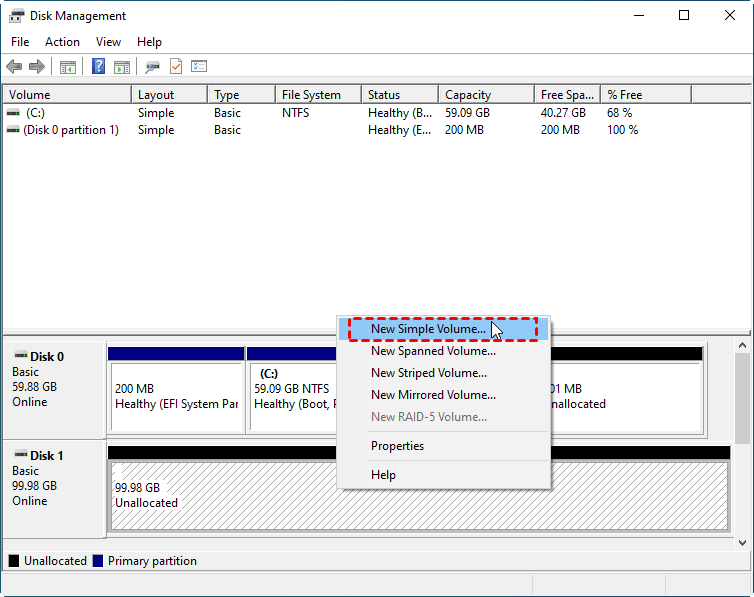
Step 3. Click Next when you see the pop-up window below.
Step 4. Specify the size, drive letter, volume label, and check Perform a quick format. Click Next.
The bottom line
Looking for data recover ysoftware for unallocated partition? Here in this post, we recommend the best data recovery software, AOMEI FastRecovery to retrieve your lost data from unallocated partitions. Besides, we also offer you 2 useful ways to fix your allocated partition.

 as a preferred
source on Google
as a preferred
source on Google