




How to Use DiskPart Delete Partition Force Protected Parameter?
This passage explains how diskpart delete partition force enables you to clear protected segments. You can handle drive management tasks efficiently when standard deletion methods do not work as expected.

By Irene Updated on May 14, 2026


🔥 Quick Look
The article explains how to bypass Windows restrictions when standard tools fail to remove protected, hidden, or recovery partitions. When Disk Management denies access, users can utilize the DiskPart command-line utility with a specific override parameter to force the deletion.
✔️ Core Method: DiskPart Override
To remove a stubborn partition, users must navigate the command line to identify and target the specific volume. The critical command is delete partition override, which bypasses the "Access is denied" error typically seen with OEM or EFI partitions.
✔️ Step-by-Step Summary
-
Launch DiskPart: Run the utility via the Windows Run dialog as an administrator.
-
Identify Target: Use list disk and list partition to locate the specific drive and segment.
-
Select Volume: Precisely choose the correct disk and partition numbers to avoid accidental data loss.
-
Force Deletion: Execute the override command to wipe the protected partition.
-
Exit: Close the utility once the space becomes unallocated.
✔️ Safer Alternative: AOMEI Partition Software
Because DiskPart lacks a visual interface and carries a high risk of permanent data loss if a typo occurs, the article suggests AOMEI Partition Software as a beginner-friendly alternative.
-
Visual Guidance: Provides a graphical interface to see exactly which partition is being deleted.
-
Versatility: Handles hidden, recovery, and system partitions with a few clicks.
-
Additional Features: Supports disk wiping, partition recovery, and resizing to optimize the newly freed space.
✔️ Why Force Deletion is Necessary
Windows intentionally blocks the deletion of certain partitions to protect system stability. This "force" method is required for:
-
Removing old recovery partitions to reclaim space.
-
Cleaning OEM-protected partitions on secondary drives.
-
Fixing corrupted partitions that standard tools cannot modify.
Warning: Force deleting a partition permanently erases all contained data and can prevent Windows from booting if a system partition is removed. Always verify the partition identity before proceeding.
How to delete partition force protected parameter with DiskPart?
Sometimes, Windows Disk Management cannot remove certain partitions because they are protected, hidden, corrupted, or marked as system partitions. In these situations, the DiskPart command line tool can help force delete the partition by using the override parameter. This method is commonly used to remove OEM recovery partitions, EFI partitions, or damaged partitions that display errors like “Access is denied” or “The selected partition may not be deleted.” Since DiskPart directly modifies the disk structure, deleting the wrong partition may cause data loss or make Windows unable to boot. Before starting, it is recommended to back up important files and carefully confirm the correct disk and partition number.
★Tip: Please be careful while performing these steps. Force deleting a partition will permanently remove all data stored on it. To avoid deleting the wrong partition, double check both the disk number and partition number before running the delete command.
Step 1. Open DiskPart
Press the Windows + R keys together to open the Run dialog box. Type diskpart and press Enter. If prompted, click Yes to allow administrator permission.
Step 2. View All Disks
Type the following command and press Enter:
list disk
This command displays all storage disks currently connected to your computer.
Step 3. Select the Target Disk
Type the command below and replace X with the correct disk number:
select disk X
Then press Enter to select the disk that contains the partition you want to remove.
Step 4. Display Partitions on the Disk
Run the following command:
list partition
You will now see all partitions available on the selected disk.
Step 5. Select the Partition to Delete
Type the following command and replace X with the partition number:
select partition X
Press Enter to choose the target partition.
Step 6. Force Delete the Partition
Type the command below and press Enter:
delete partition override
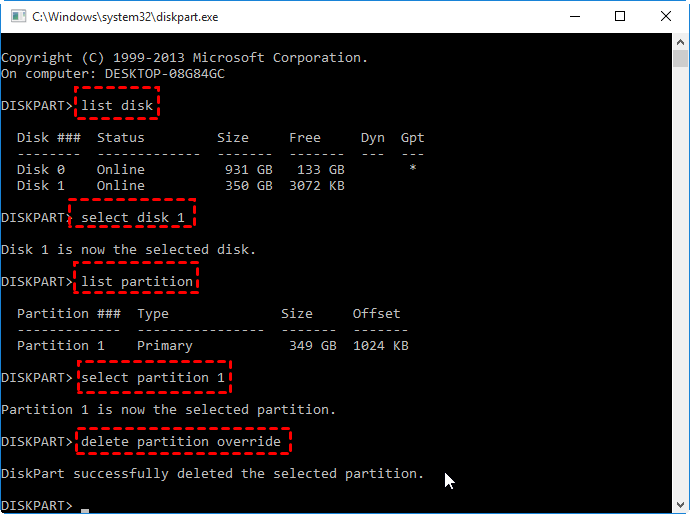
The override parameter forces DiskPart to delete protected or hidden partitions that normally cannot be removed.
Once the deletion process finishes successfully, type the following command to close DiskPart:
exit
A free alternative to DiskPart to delete partition force protected parameter
If DiskPart shows the “cannot delete a protected partition without the force protected parameter set” error, a simpler solution is using AOMEI Partition Software. Compared with command lines, it provides a clear interface that helps users identify the correct partition more easily and reduce the risk of deleting the wrong one. Whether it is a hidden recovery partition, system partition, or USB partition, the software can help remove it with just a few clicks.
Besides deleting protected partitions, AOMEI Partition Software also supports formatting, resizing, moving, and merging partitions in Windows 11, 10, 8, and 7. If you want to free up more disk space after deleting a partition, it also offers useful features like allocating free space, moving installed apps, and cleaning large or duplicate files. For users who need deeper data removal, it can securely wipe HDDs and erase SSDs as well.
Unlike DiskPart, which may require advanced commands and extra care, AOMEI Partition Software makes disk management more straightforward and beginner friendly.
 AOMEI Partition Software
- Manage Disks & Partitions: Resize, move, extend, shrink, and merge partitions without data loss, helping you make full use of available disk space.
- Migrate OS & Copy Disks: Migrate Windows OS to SSD or HDD, or clone system and data disks easily for migration or backup.
- Convert Disks Effectively: Safely convert disks between MBR and GPT, switch between basic and dynamic disks, and convert file systems between NTFS and FAT32.
- Free Up More Disk Space: Accurately clean junk files and reclaim disk space, especially useful to solve the C: drive full problem and adjust OS drive usage.
- Wipe Sensitive Data Securely: Use advanced wiping algorithms to permanently erase disks or partitions, ensuring sensitive data is completely removed and unrecoverable.
 100% Secure
Step 1. Install and launch AOMEI Partition Software on your Windows computer, right-click the system partition (usually C: drive) and select "Delete Partition".
📢Note: If you want to remove all the partitions on your drive, you can right-click the disk that contains unwanted partitions and choose "Delete All Partitions" from the menu.
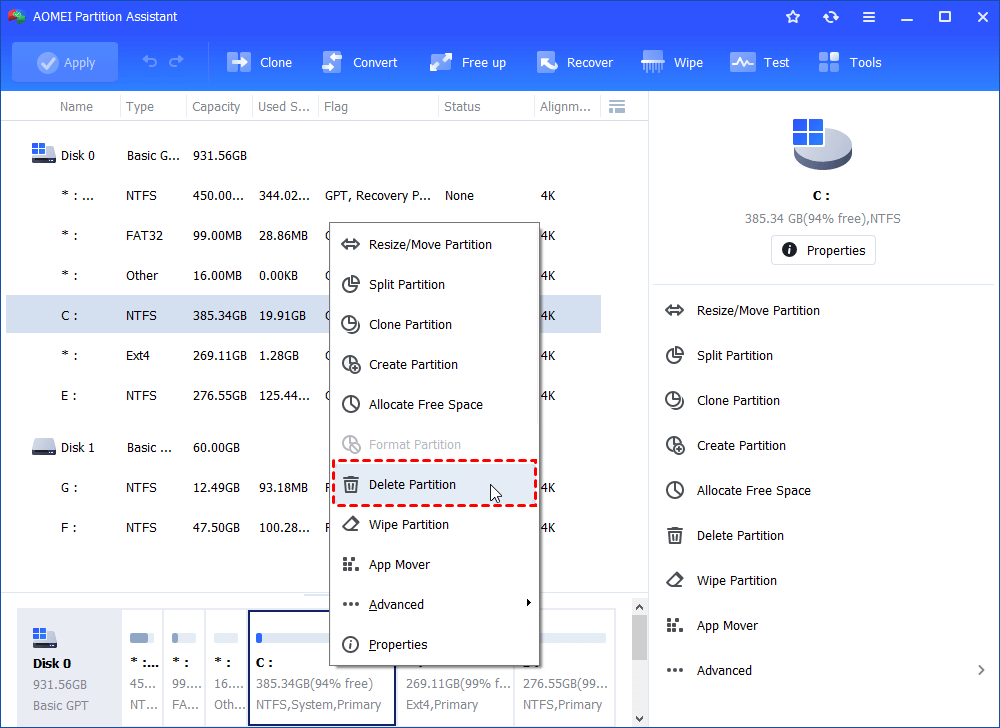
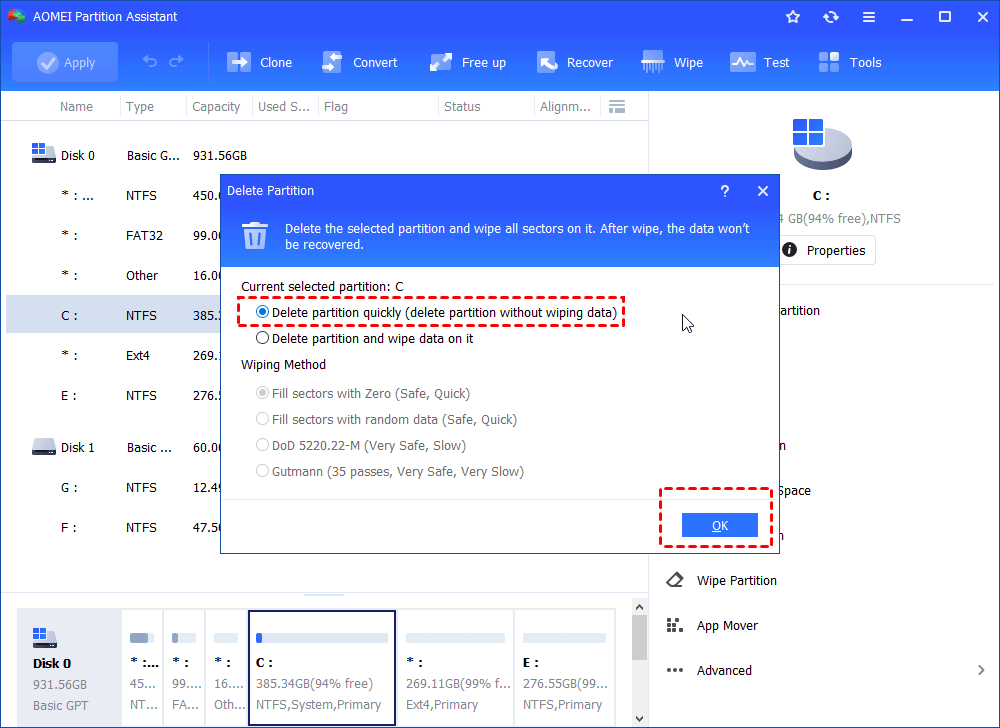
Step 2. Select a way to delete the selected C partition and click "OK" to continue.
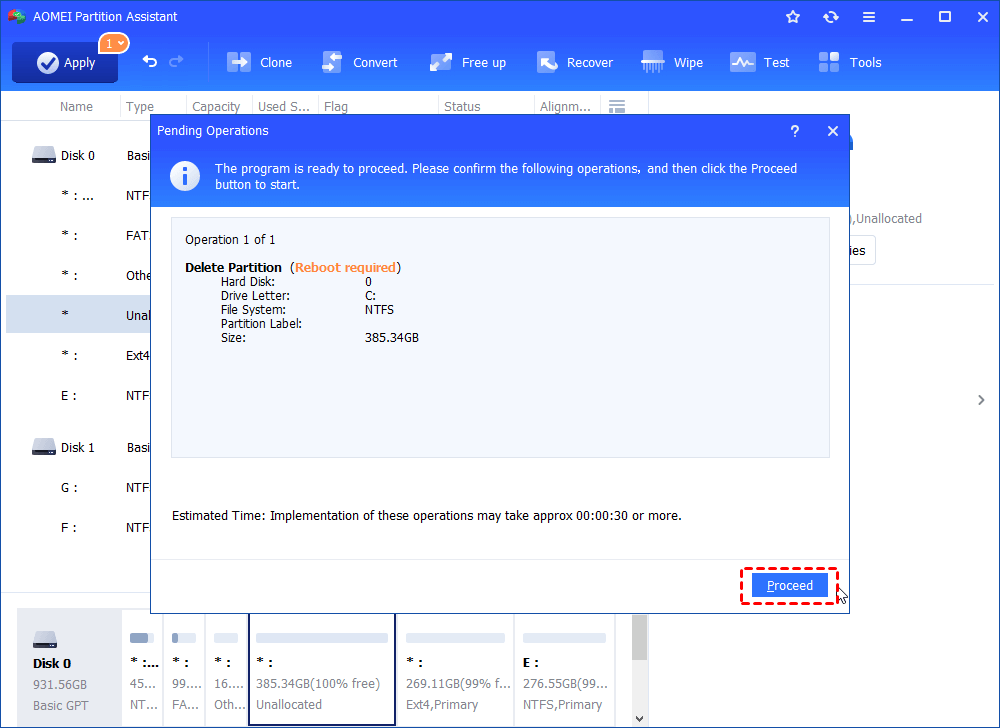
Step 3. Back to the main interface, click "Apply" and then "Proceed" to commit the pending operation. It is deleting the system partition, so a reboot is required.
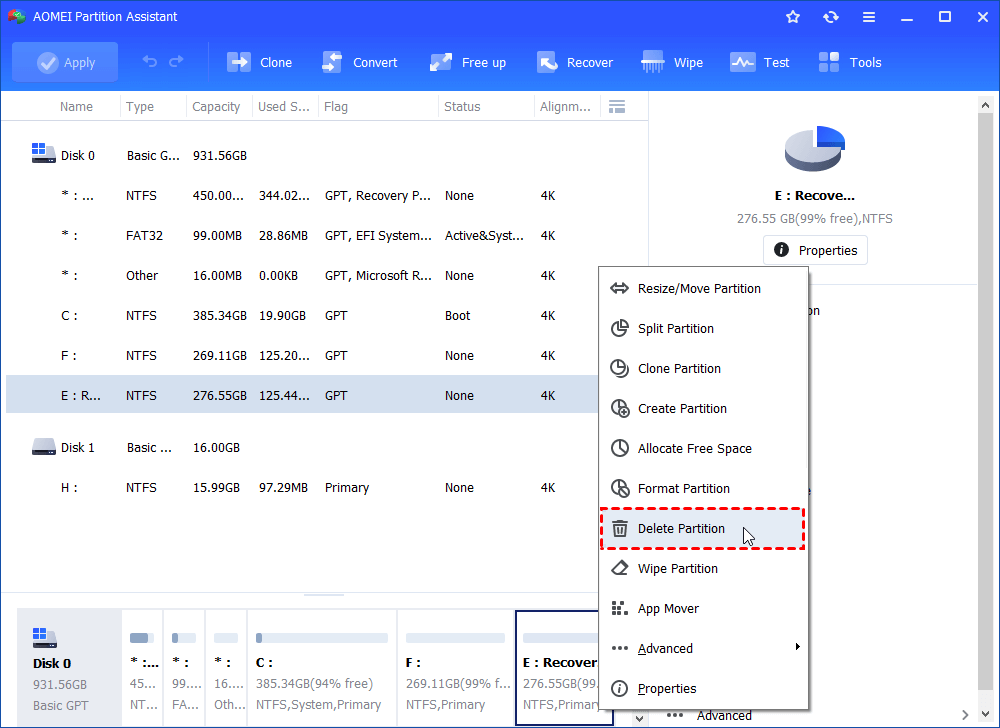
If you want to delete recovery partition, you can just right-click the recovery partition, choose "Delete Partition" and follow the instructions.
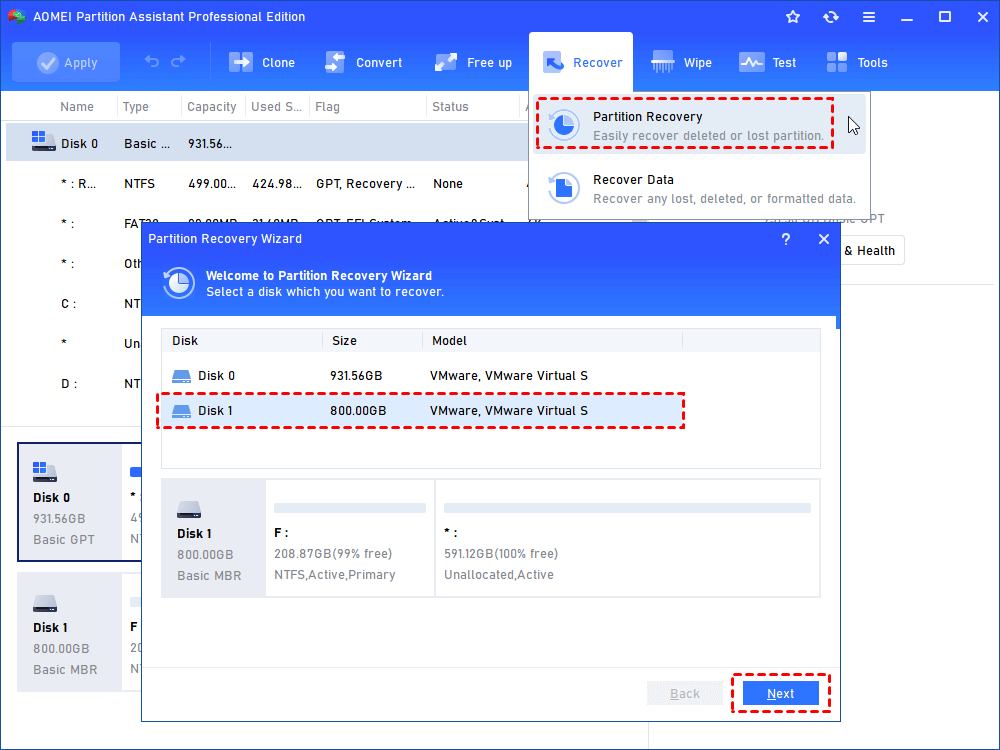
🔥 Bonus tip: if you delete a wrong partition and lost all data saved inside, you can use the software to recover lost partitions easily and quickly.
When is “DiskPart delete partition force” needed?
In most cases, the normal delete partition command in DiskPart can remove common data partitions without problems. However, some partitions are protected by Windows, so the standard command may fail and show the error message: “Cannot delete a protected partition without the force protected parameter set”.
This usually happens when you try to remove special partitions that Windows uses for recovery or system protection.
| Situation | What happens |
|---|---|
| Deleting a Recovery partition | DiskPart blocks the operation to protect recovery files |
| Removing hidden partitions | The standard delete command may not work |
| Deleting OEM or system protected partitions | Windows prevents accidental deletion |
| Cleaning old USB or external drive partitions | Some partitions may still be marked as protected |
When this issue appears, you need to use the delete partition override command instead of the normal delete partition command. The override parameter tells Windows to force delete the selected protected partition.
Before using DiskPart force delete commands, it is important to double check the selected partition because deleting the wrong partition may cause data loss or make Windows won't boot.
Conclusion
DiskPart can help force delete protected, hidden, or recovery partitions by using the delete partition override command. However, since the command line tool directly changes disk structures, users need to be very careful to avoid deleting the wrong partition. For users who prefer a simpler and safer method, AOMEI Partition Software provides an easier way to manage and remove partitions with a clear interface and useful disk management features. Whether you want to delete a protected partition, free up disk space, or organize your storage, choosing the right tool can make the whole process easier and more efficient.
FAQs
🗨️ How to delete the undeletable using DiskPart?
If a partition cannot be deleted in Disk Management, you can try DiskPart with the override parameter. Open Command Prompt as administrator, type diskpart, then use commands like list disk, select disk X, list partition, and select partition X. Finally, run delete partition override. This command can force remove hidden, protected, or recovery partitions that normal methods cannot delete.
🗨️ How to force delete a partition in Windows 11?
Windows 11 users can force delete a partition through DiskPart by using the delete partition override command. This is often used for recovery, OEM, or corrupted partitions. If you prefer a simpler method with a graphical interface, AOMEI Partition Software can also help delete protected partitions more easily.
🗨️ Why can't I delete disk partitions?
Some partitions are protected by Windows and cannot be removed with normal delete commands. This usually includes EFI partitions, recovery partitions, OEM partitions, or partitions currently used by the system. In some cases, the partition may also contain active paging files or boot files, which prevents deletion.
🗨️ How to completely delete partitions?
You can completely remove a partition by deleting it with DiskPart, Disk Management, or third party partition tools. After deletion, the space becomes unallocated and can be reused to create a new partition or extend another drive. If you want to permanently erase all data, you may also need to wipe the drive instead of performing a standard partition deletion.
🗨️ How do I force delete a hard drive?
To force remove all partitions from a hard drive, you can use DiskPart commands like clean or clean all. The clean command removes partition information quickly, while clean all writes zeros to the entire disk and takes much longer. Before running these commands, make sure important data has been backed up because all partitions and files on the drive will be erased.

 as a preferred
source on Google
as a preferred
source on Google