




[Fixed] We Couldn't Create a New Partition or Locate an Existing One
This resource explains how to fix the cannot create a new partition or locate an existing one error. It helps users who encounter Windows 11 partition issues during the installation process.

By Irene Updated on June 3, 2026


🌟 TL;DR: Fixing Windows Partition Errors
If you see the error "We couldn't create a new partition or locate an existing one" while installing Windows, follow these quick solutions:
🔶 The Main Causes
-
Corrupted installation files on your USB drive.
-
A mismatch between your disk style (MBR) and modern system requirements (GPT/UEFI).
-
Disabled security features like TPM 2.0 or Secure Boot.
-
Extra external devices interfering with the setup.
🔶 How to Fix It
-
Refresh Your Media: Use the official Microsoft Media Creation Tool to make a fresh bootable USB.
-
Unplug Everything: Remove all non essential hardware like printers, extra hard drives, or SD cards before trying again.
-
Update Disk Style: Windows 11 requires a GPT partition style. You can convert your disk from MBR to GPT using specialized software to avoid data loss.
-
Check BIOS Settings: Ensure your Motherboard is set to UEFI mode rather than Legacy. You must also enable TPM 2.0 and Secure Boot in the BIOS menu.
-
Clear the Drive: If you don't have important data, delete all existing partitions in the setup menu until only "Unallocated Space" remains, then click Next.
User case: Encounter an error when installing Windows system
[Installing Win11] We couldn't create a new partition or locate an existing one
I get this (apparently) very common error when trying to install windows on my new SSD. I have tried formatting the SSD in various formats, but it never seems to please windows. Most solutions seem to come with command prompt -> diskpart -> select disk -> format fs=ntfs etc. But that didn't work for me either. Is there another solution? Could the USB image or Windows ISO be to blame?
- Question from www.reddit.com
A user reported a common problem when trying to install Windows on a new SSD. During the setup process, an error appeared saying that Windows could not create a new partition or find an existing one. Even after trying different formats and using DiskPart commands, the issue still remained. This situation is frustrating and often makes users wonder whether the USB installer or ISO file is faulty.
In fact, this error is widely seen when installing Windows 11, especially with SSDs, RAID setups, or bootable USB drives. It may also appear in dual boot setups or when there is unallocated space on the disk. Sometimes, error codes like 0x8004240f or 0x80042468 are shown. The problem usually happens when Windows setup cannot properly detect or manage the target drive. The good news is that this issue can be fixed with the right methods. By following clear and simple solutions such as adjusting BIOS settings, reconnecting drives, or properly preparing the disk, users can complete the installation smoothly without unnecessary stress.
How to fix the We couldn’t create a new partition error
Before you fix the “we couldn’t create a new partition” error while installing Windows 11, you can first check whether your PC meets the system requirements, as unsupported hardware may cause installation issues. Next, use Microsoft’s PC Health Check tool to confirm compatibility and avoid forcing the install unless necessary. Finally, disconnect all unnecessary external devices like USB drives, printers, and hubs, since they may interfere with the installation process.
Fix 1. Recreate the Installation Media
Corrupted or missing setup files can trigger errors like “install Windows we couldn't create a new partition” or 0x80070570. Recreating the installation media ensures all setup files are complete and not damaged. This helps Windows read the files correctly and prevents installation failures caused by file corruption.
Step 1. On another working computer, visit the Microsoft Software Download page.
Step 2. Download the Windows Media Creation Tool for your version (Windows 11).
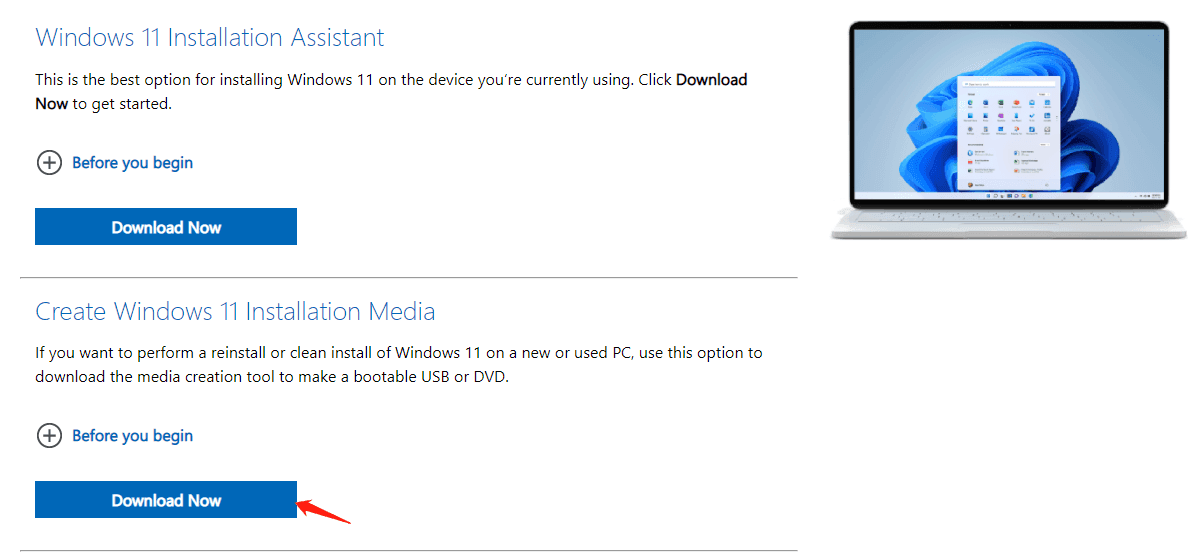
Step 3. Use the tool to create a new bootable USB drive with the latest Windows ISO file.
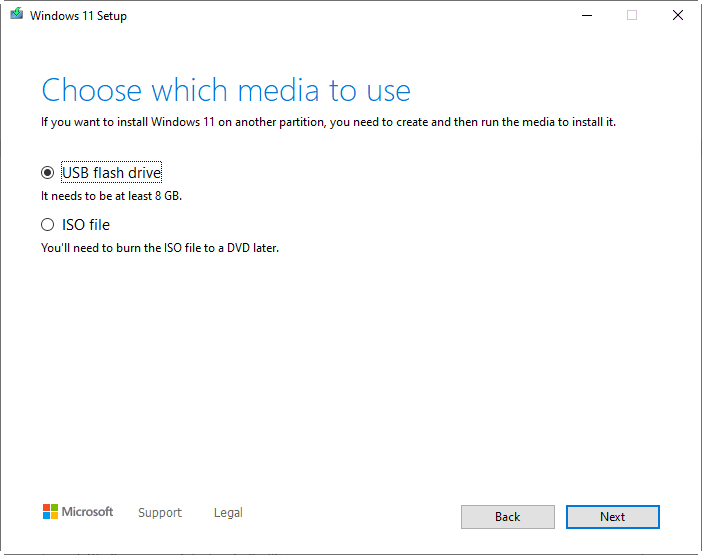
Step 4. Once finished, safely eject the USB and use it to reinstall Windows.
💡 Tip: Avoid third-party ISO files and cheap USB drives. Always use a reliable, 8GB+ USB flash drive and a stable internet connection during creation.
Fix 2. Convert MBR to GPT without data loss
The “we couldn’t create a new partition” error can happen when your disk uses the MBR partition style while your system is set to install Windows 11 in UEFI mode. MBR works with Legacy BIOS, but it has limitations such as fewer partitions and no support for modern boot features. In contrast, Windows 11 is designed to run on UEFI firmware, which requires a GPT disk. GPT supports larger drives, more partitions, and works with features like Secure Boot, so if your disk is still MBR, the installer may fail to create or detect the required system partition. Because of this mismatch between Legacy MBR and UEFI GPT, converting the disk to GPT is a necessary step to make the installation process work properly.
Instead of using command tools that may erase all data, you can rely on AOMEI Partition Software to complete the conversion safely. It allows you to switch from MBR to GPT without deleting files and even provides a bootable environment to fix the issue when the system cannot start. Once the disk is converted to GPT, your PC will better match Windows 11 requirements, and the installation should proceed without the partition error.
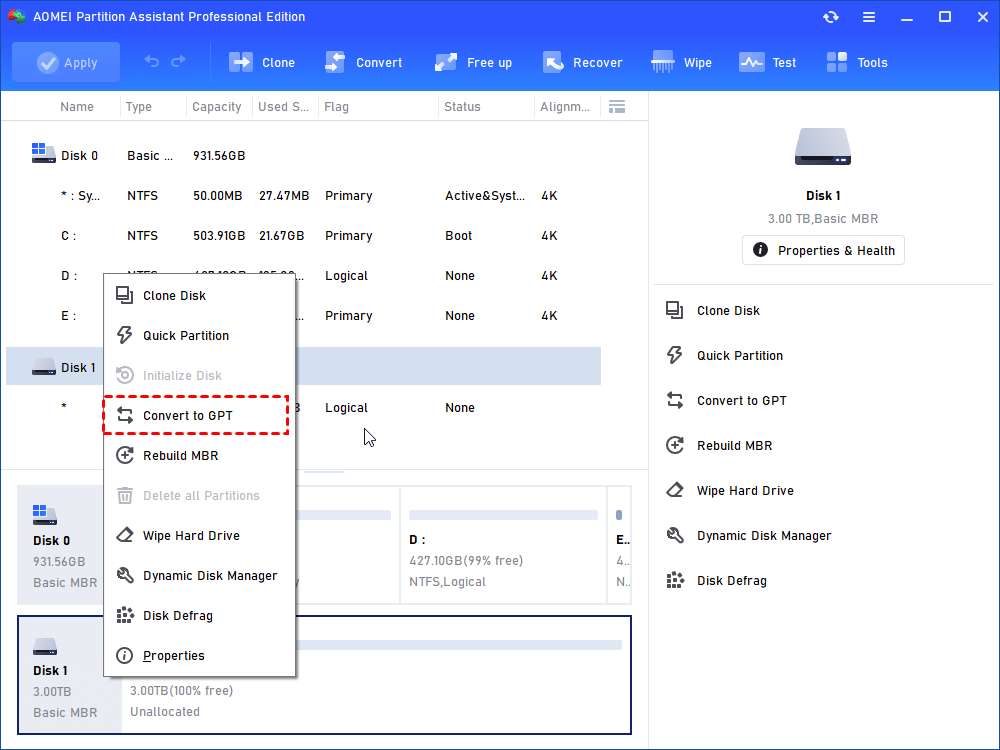
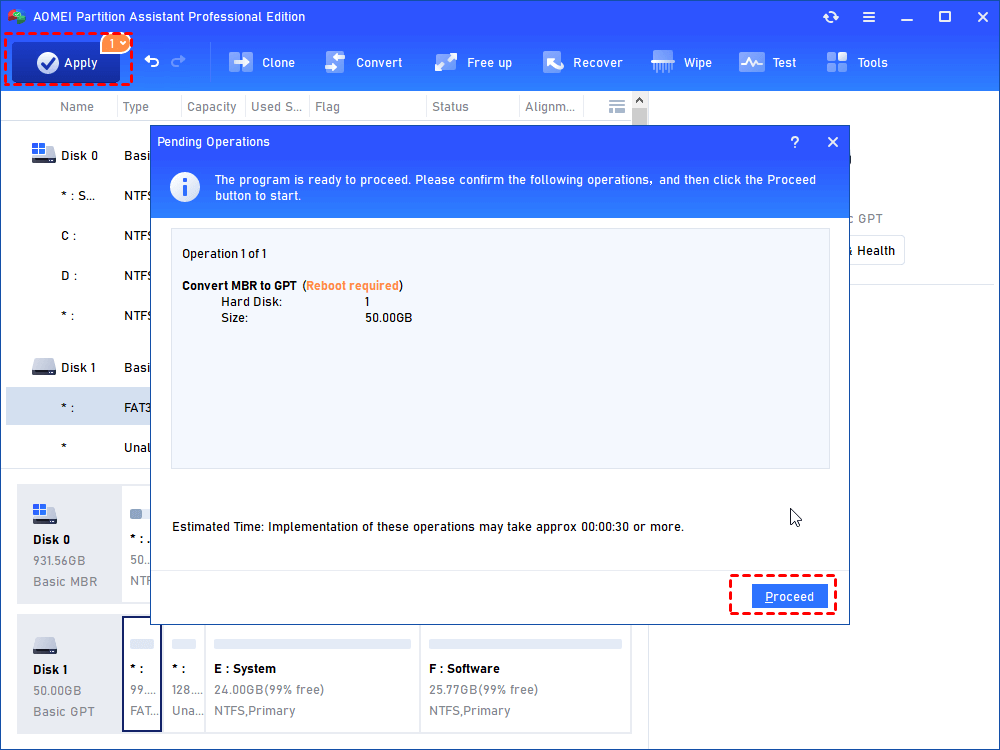
Step 1. Install and run AOMEI Partition Software. Right-click the disk you want to convert to GPT and select “Convert to GPT”.
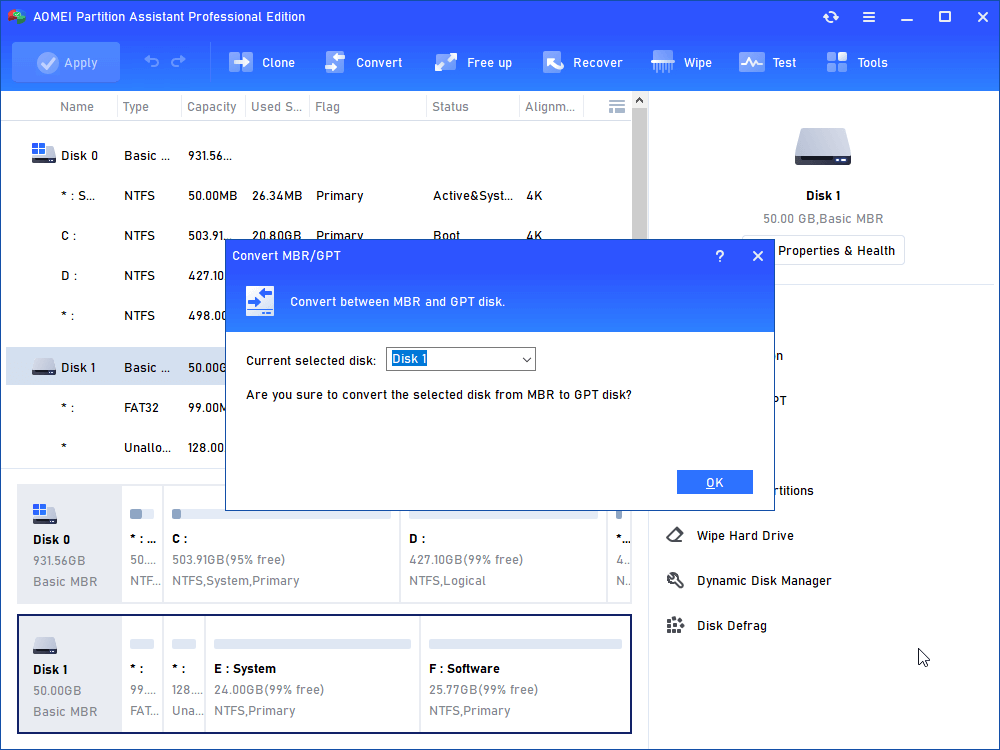
Step 2. Confirm your operation by clicking “OK” to continue.
Step 3. Click “Apply” button on the toolbar to commit the pending operation.
Fix 3. Enable TPM 2.0 and Secure Boot in BIOS
If your disk is already GPT but you still see “Windows 11 we couldn’t create a new partition”, TPM 2.0 or Secure Boot may be turned off. These features are required by Windows 11. Enabling them allows the system to meet installation requirements and helps the setup process correctly recognize and use the target disk.
Step 1. Restart your computer and enter the BIOS/UEFI settings, usually by pressing Del, F2, F12, or F10during startup.
Step 2. Under the Boot or Security tab, look for the TPM option (or called FTPM, PTT, Trusted Platform Module) or Secure Boot. Then, toggle the status to Enabled.
⚠️Note: If the boot mode is set to Legacy or CSM (Compatibility Support Module), change it to UEFI or UEFI only.
Step 3. Save your changes and exit BIOS. Restart your computer and verify in Windows:
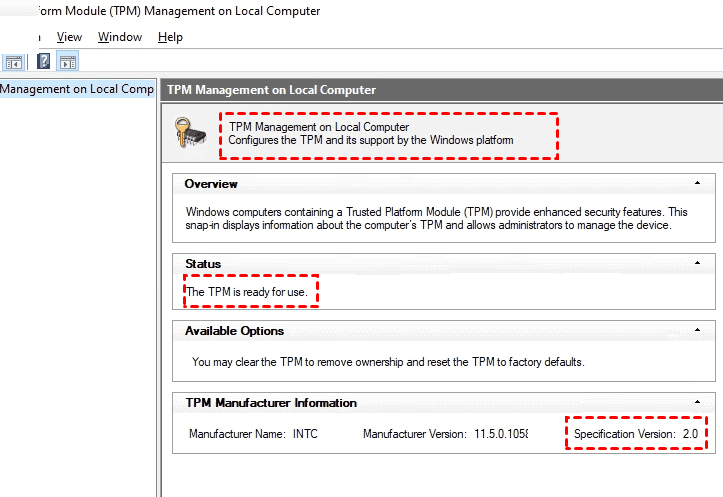
- Type tpm.msc in the Start menu and press Enter. It should show Status: The TPM is ready for use and Specification Version: 2.0.
- Open msinfo32 and check the Secure Boot State shows On.
Why your Windows cannot create a new partition or locate an existing one
When you install Windows, the system needs to detect your disk correctly and create the required partitions. If something goes wrong during this process, you may see errors like “We couldn’t create a new partition” or “We couldn’t locate an existing one.” These errors usually mean that Windows cannot properly communicate with your disk or the disk structure is not suitable for installation.
Below is a simple breakdown of common errors and their possible causes:
| Error message | Possible reasons |
|---|---|
| Windows cannot create a new partition or locate an existing one | Disk is not initialized correctly, partition table is damaged, or there are too many partitions |
| Error 0x8004240f | Disk format is not supported or partition style conflicts with system requirements |
| Error 0x80042468 | The selected disk has improper partition structure or lacks unallocated space |
| Setup cannot use the existing partition | Partition is not set as active or is corrupted |
| Windows cannot be installed to this disk | MBR and GPT mismatch with BIOS or UEFI boot mode |
| We couldn’t find any drives | Storage driver is missing or disk is not recognized by the system |
In most cases, this issue is caused by disk structure problems, incorrect partition style, or hardware detection issues. Understanding the exact error code can help you quickly find the root cause and choose the right fix, such as cleaning the disk, converting partition style, or loading the correct drivers.
Conclusion
In conclusion, the “We couldn’t create a new partition or locate an existing one” error is a common issue during Windows installation, especially on new SSDs or systems with mismatched settings. It is usually caused by problems with disk structure, partition style, or installation media. The good news is that it can be fixed with simple and practical methods. By recreating the installation USB, converting MBR to GPT, and enabling TPM and Secure Boot, you can resolve the issue step by step. Once your system and disk are properly prepared, Windows setup should run smoothly and complete without errors.
FAQs
1. Why does “We couldn’t create a new partition” appear during Windows installation?
This error usually happens when Windows setup cannot properly detect or manage the target disk. Common causes include damaged partition tables, incorrect disk format, or conflicts between MBR and GPT partition styles.
2. Can a faulty USB installer or ISO file cause this error?
Yes, a corrupted or incomplete Windows installation media can lead to this problem. Recreating the bootable USB using an official tool often fixes the issue.
3. Does deleting all partitions fix the problem?
In many cases, yes. Deleting all existing partitions and leaving only unallocated space allows Windows to create new partitions automatically during setup.
4. Is MBR vs GPT related to this error?
Yes. If your system uses UEFI but the disk is formatted as MBR, Windows may fail to create partitions. Converting the disk to GPT often resolves the issue.
5. Can external devices cause this installation error?
Yes. Extra drives, USB devices, or SD cards can confuse Windows setup and prevent partition creation. Disconnecting unnecessary devices can help fix the problem.

 as a preferred
source on Google
as a preferred
source on Google