




[Solved] How to Fix Error Code 0xc0000098 on Windows PCs?
A faulty update can trigger Windows error code 0xc0000098, preventing your device from starting. You will learn about BCD file corruption and discover simple methods to safely repair your Windows 10 computer.

By Irene Updated on June 3, 2026


🔶 Quick Overview
Windows error code 0xc0000098 is a critical boot failure triggered by corrupted or missing Boot Configuration Data (BCD). This comprehensive guide explores the root causes of this Blue Screen of Death and provides five proven methods to fix it. You will learn how to easily resolve the issue using AOMEI Partition Software, alongside native Windows recovery options like Automatic Repair, rebuilding the BCD via Command Prompt, repairing the Windows Image, and executing a System Restore. Finally, the article outlines essential preventive measures to secure your system against future startup failures.
How to fix Windows error code 0xc0000098?
Way 1. Run AOMEI Partition Software
Windows error code 0xc0000098 usually indicates a problem with the Boot Configuration Data. A smooth and effective solution is readily available to handle this issue without requiring advanced technical skills.
AOMEI Partition Software serves as an excellent tool for a quick, stress-free fix. This trusted disk management software features a highly intuitive interface designed for maximum convenience. The dedicated Boot Repair function eliminates the hassle of complicated manual troubleshooting.
Its smart algorithms will automatically scan, diagnose, and resolve complex startup problems. The software safely rebuilds the boot configuration to clear the error code instantly. Valuable time is saved, and system stability is restored effortlessly.
Step 1. Install and launch AOMEI Partition Software on a working PC, click "Recover" and choose "Boot Repair".
.png)
Step 2. Insert the USB, and then click the "create a bootable disk" option to create a WinPE "Boot Repair" disk if you cannot boot into the system.
.png)
Step 2. Boot the PC that cannot boot into WinPE. It will automatically load the Boot Repair tool and start the boot entries scan process. All boot entries will be displayed.
.png)
Step 3. Select the repairable boot entries you want to repair and click the "Repair" button to start the repair.
.png)
Step 4. Once the repair is successful, you can remove the bootable disk and boot the PC from the original system drive.
.png)
Way 2. Run Automatic Repair
Besides relying on external tools, Windows also includes several built-in recovery methods. One widely used option is Automatic Repair, which helps detect and fix common startup issues related to Windows Error Code 0xc0000098. This tool can launch on its own after multiple failed boot attempts or be opened manually through the Windows Recovery Environment. Follow the steps below to start Automatic Repair:
Step 1. Restart your computer by holding the power button to boot into repair mode. After repeating the process three times, it will enable the Automatic Repair to diagnose and fix boot issues.
Step 2. Alternatively, connect a bootable USB drive to your computer and restart it.
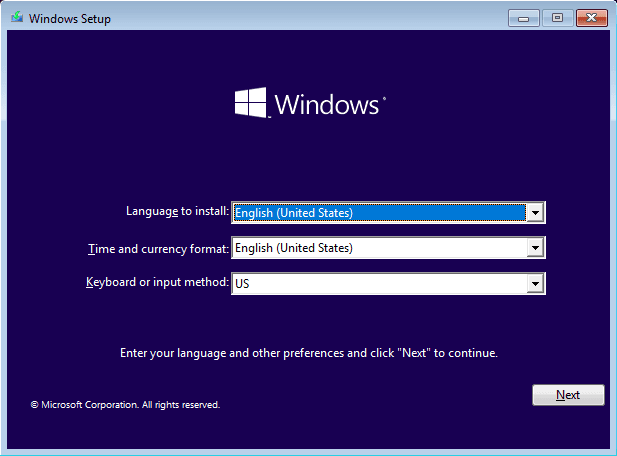
Step 3. Choose your language and other preferences, then click Next.
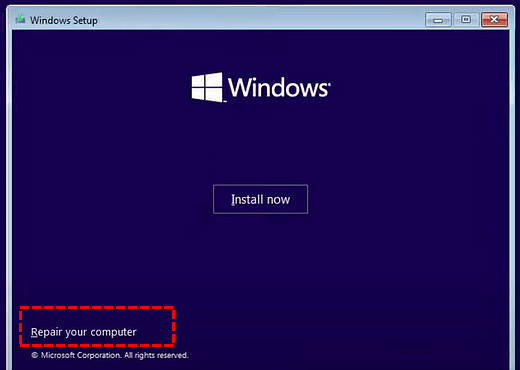
Step 4. Choose Repair your computer at the bottom left of the window.
Step 5: Click Troubleshoot > Advanced options.
Step 6: Select the Startup Repair tool to automatically detect and repair boot issues.
Way 3. Rebuild the BCD
Start your computer using the Windows installation media, which can help address File Boot BCD Windows 10 Error Code 0xc0000098.
▶ Windows 10: Go Repair your computer > Advanced options > Command Prompt. Alternatively, you can choose Start-up Repair at this step and let it repair automatically.
▶ Windows XP: You need to boot from Windows Recovery Console.
In Command Prompt, you can do the following attempts to repair.
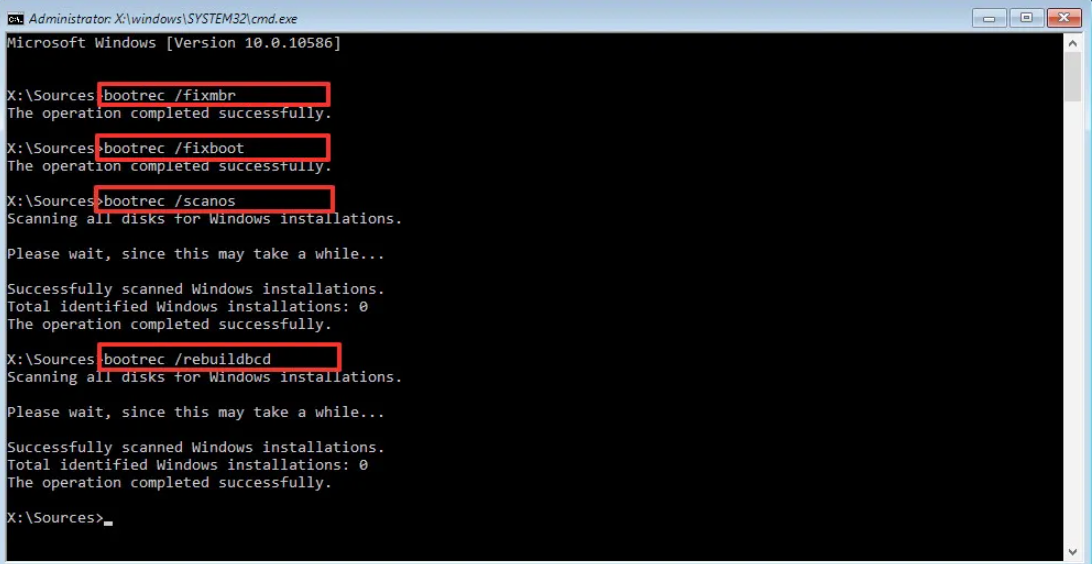
Step 1. Type the following commands in turn and each command comes with an Enter:
- bootrec.exe /fixmbr
- bootrec.exe /fixboot
- bootrec.exe /scanos
- bootrec.exe /rebuildbcd
Step 2. Type the following commands in turn and each command comes with an Enter.
• attrib –r –s –h c: \boot\bcd (unhide BCD file)
• del c: \boot\bcd (delete the BCD file)
• bcdboot c: \windows (create a new BCD on C drive)
Tips: You need to restart your machine to make those commands take effect.
Step 3. For the user who wants to perform a clean install to fix the “Windows failed to start file boot BCD in Windows 7/8/10” error or for other purposes, it is not bad to delete all data on the disk. Then, create a brand new boot BCD file along with the new operating system. Type the following commands:
• diskpart
• list disk
• select disk n (where n is the number of the disk you want to wipe)
• clean
• exit
🌟 Note: All data on the disk will be wiped, so the system won’t boot after you run clean. Think twice before you leap.
If you are not comfortable with the Command User Interface (CUI), you can erase the hard drive from BIOS using a Graphical User Interface (GUI), which can help resolve 0xc0000098 issues. After that, you can proceed with a clean installation if needed.
As mentioned earlier, some users may find command-line operations difficult, making GUI-based repair methods more convenient. Additionally, not having a Windows installation CD available can also be a challenge.
Way 4. Repair Windows Image
Sometimes, corrupt or missing system files can cause various boot errors, including the error 0xc0000098. Repairing the Windows image may help you restore these files. Here’s how to repair boot BCD in Windows 10 for 0xc0000098 with this method:
Step 1. Open Common Prompt.
Step 2. Type the following commands and press the Enter key. This command will take it takes 15-20 minutes as it scans and repairs any issues with the Windows image.
DISM /Online /Cleanup-Image /RestoreHealth
Step 3. After the DISM scan completes, restart your computer to check whether it has been repaired.
Way 5. Perform System Restore
If the solutions mentioned above fail to resolve Error Code 0xc0000098, you can try restoring your system to a previous state. This approach is effective if a restore point was created earlier. Follow the steps below to fix the issue using System Restore:
Step 1. Access System Restore from the Advanced options.
Step 2. Choose a restore point created recently, and then click Next.
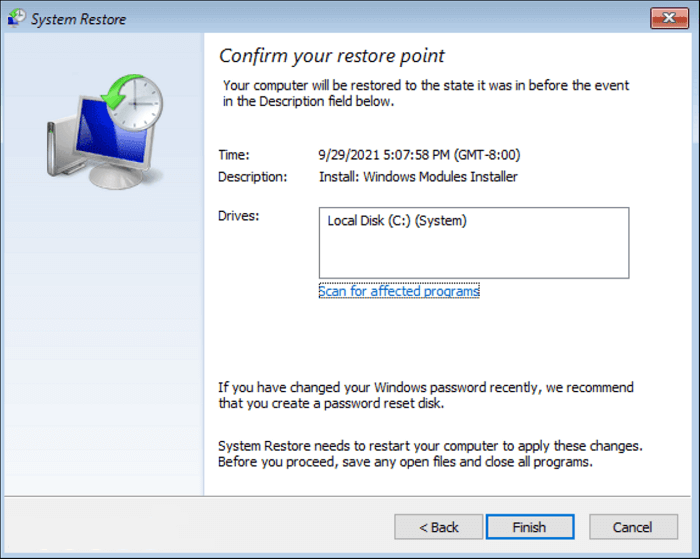
Step 3. Confirm the restore point in the next window and click Finish to restore your computer to that state.
🌟 Tips: System Restore can resolve startup problems by rolling the system back to an earlier state, especially when dealing with Windows Error Code 0xc0000098. However, keep in mind that any changes made after the selected restore point may be lost. It is recommended to back up important files before using this feature.
What is Windows error code 0xc0000098?
Staring at a blue screen of death (BSOD) instead of your familiar desktop can be incredibly frustrating. If your computer has suddenly refused to start, displaying the Windows error code 0xc0000098, you are likely wondering what just happened to your system. This specific error means that your PC cannot find the necessary instructions to load the operating system properly, usually pointing to a problem with the file boot BCD Windows 10 error code 0xc0000098. Let's break down exactly what this error entails so you know what you are dealing with.
Key details about this error:
| Feature | Description |
|---|---|
| Error code | 0xc0000098 |
| Associated file | \Boot\BCD |
| Affected operating systems | Windows 7, 8, 10, and 11 |
| Primary symptom | The PC fails to boot into the operating system and displays a blue recovery screen. |
| Core definition | A fatal error indicating that the Boot Configuration Data (BCD) file does not contain a valid operating system entry. |
Why does Windows error code 0xc0000098 occur?
It is also helpful to understand exactly what triggers the error code 0xc0000098 after fixing the issue to help avoid it in the furture. Your computer relies on a perfectly intact Boot Configuration Data (BCD) file to start up. When this file gets damaged, goes missing, or is altered unexpectedly, the boot process comes to a sudden halt. Here are the most common culprits behind this frustrating roadblock:
-
Failed or buggy updates: In some high-profile cases, a Microsoft's faulty Windows update causes boot failure with error 0xc0000098. If a system update fails or contains a bug that directly affects the boot sector, the BCD file can become unreadable.
-
Corrupted Boot Configuration Data (BCD): This is the most direct cause. The BCD file is essentially the roadmap Windows uses to start up. If this file is damaged by malware or system crashes, the system cannot load.
-
Disk write errors: Sudden power outages or forced shutdowns while Windows is actively writing data to the boot sector can severely corrupt your critical boot files.
-
Hardware failures: A failing Hard Drive Disk (HDD) or Solid State Drive (SSD) developing bad sectors exactly where the BCD file is stored will trigger the 0xc0000098 error during startup.
-
Disk cloning or partitioning errors: Incorrectly migrating your operating system to a new drive or altering system partitions without proper software can break the boot configuration paths.
How to safeguard your system against future boot failures?
Dealing with a complete system lockout is a stressful experience that nobody wants to repeat. Once you have resolved the 0xc0000098 error, taking proactive steps to protect your PC is essential. By implementing a solid backup strategy and maintaining your system's hardware health, you can ensure that future boot issues are nothing more than a minor inconvenience.
Preventive measures to protect your PC:
| Preventive strategy | Actionable steps |
|---|---|
| Implement regular system backups | Schedule automatic, full-system image backups to an external drive, NAS, or cloud storage. If the BCD file corrupts again, you can easily restore your system to a previous working state without losing any personal data. |
| Create a Windows recovery drive | Keep a bootable USB recovery drive handy. This ensures that even if a severe error completely locks you out of the OS, you have the tools ready to access the Windows Recovery Environment (WinRE) immediately. |
| Monitor hard drive health | Regularly run CHKDSK scans and use SMART monitoring tools to detect bad sectors early before they have a chance to corrupt crucial boot files. |
| Ensure stable power supplies |
Use an Uninterruptible Power Supply (UPS) for desktop computers to prevent sudden power loss during critical Windows updates or file-writing processes. |
Conclusion
In conclusion, Windows error code 0xc0000098 is mainly caused by problems with the Boot Configuration Data, which prevents your system from starting properly. Fortunately, there are several effective ways to fix it, from using tools like AOMEI Partition Software for an easy and automatic repair to applying built in options such as Automatic Repair, rebuilding the BCD, repairing the Windows image, or performing a System Restore. Each method offers a practical solution depending on your situation and technical level. After resolving the issue, taking preventive steps like regular backups and monitoring your disk health can help reduce the risk of future boot failures and keep your system running smoothly.
FAQs
🗨️ How to fix error code 0xc0000098 Windows 11 USB?
You can fix this error by booting your PC from a Windows 11 installation USB. After booting, choose Repair your computer, then go to Troubleshoot and Advanced options. From there, run Startup Repair to automatically fix boot issues. If that does not work, open Command Prompt and rebuild the BCD using bootrec commands. You can also use AOMEI Partition Software to create a bootable USB and repair boot problems with a simpler interface.
🗨️ What Windows versions get 0xc0000098?
This error can appear on multiple Windows versions, including Windows 7, Windows 8, Windows 10, and Windows 11. It is not limited to a specific version because it is related to boot configuration issues.
🗨️ How to fix corrupted Windows boot?
To fix a corrupted Windows boot, you can try Startup Repair from the Windows Recovery Environment. If that fails, rebuild the BCD using Command Prompt, or repair system files with the DISM tool. Another easier option is to use AOMEI Partition Software, which can automatically scan and repair boot records without requiring complex commands.
🗨️ What is error code 0xc00000e98?
Error code 0xc00000e98 is usually a variation or misreading of 0xc0000098. It refers to a boot failure caused by missing or damaged Boot Configuration Data, which prevents Windows from loading correctly.
🗨️ How do I rebuild the BCD without installation CD?
You can rebuild the BCD without a CD by accessing the Windows Recovery Environment. Restart your PC several times to trigger automatic repair, then go to Advanced options and open Command Prompt. Use bootrec commands such as rebuildbcd to fix the issue. If you cannot access recovery options, you can create a bootable USB using another computer or use AOMEI Partition Software to rebuild the boot configuration easily.

 as a preferred
source on Google
as a preferred
source on Google