




Laptop Hard Disk Crash: How to Recover Data from a Failing Drive
How to fix a laptop hard disk crash? On this page, you will learn the quick way to fix it and recover data from crashed logical/physical hard disk of laptop. Causes and other information are included.

By Ivy Updated on May 6, 2026


A laptop hard disk crash happens when your computer's hard drive malfunctions, making it impossible to access stored information. This situation is not uncommon in laptops, such as Toshiba, HP, or Dell.
If you've ever encountered a spinning or knocking sound when trying to turn on your computer, it might signal a hard drive crash. You might wonder how to recover data from a failed drive. Don’t worry, there are still ways to fix a laptop hard disk crash, either logical or physical.
What Causes a Laptop Hard Disk to Crash?
What kills a laptop's hard drive? Let's know 6 common reasons for the hard drive crash to help us fix hard drive errors and recover data from the crashed hard drive.
1️⃣ Mechanical wear: Over time, a hard drive's mechanical components, such as the read/write heads and spinning platters, can wear out, causing failure.
2️⃣ Overheating: Overheating can damage the sensitive components of your hard drive. Poor ventilation or cooling issues within your computer can cause overheating.
3️⃣ File corruption: Improper shutdown, sudden power outage, or system crash can lead to file corruption. If critical system files become corrupted, it may affect the overall functionality of the hard drive.
4️⃣ Power surges: Power surges caused by power fluctuations or lightning strikes can damage your hard drive's electronic components. Using a surge protector can help mitigate this risk.
5️⃣ Physical damage: Exposure to water, light, and strong magnetic fields can cause damage or even complete failure of the hard drive.
6️⃣ Human error: Accidental deletion of critical system files, improper installation of software or operating system updates, and other human errors can cause a hard drive to crash.
Physical Hard Drive Crash vs. Logical Hard Drive Crash
Before we fix the laptop's hard drive crash, you need to confirm it's actually crashed, usually classified as physical and logical hard drive crash. Meanwhile, there are some symptoms of hard disk failure in laptop.
📌 Physical hard drive crashing involves actual damage to the physical components of the hard drive, such as the mechanical parts or the disk platters. The symptoms are:
- The computer's operating system does not recognize the hard drive.
- Boot or installation error.
- The computer makes unusual noises (clicking, clunking, grinding, or whirring).
- The hard drive has physically visible damage (damaged circuit board or other visible component).
📌 Logical hard drive crashes are related to software issues or logical errors that affect the file system or data structure of the hard drive. Here are some common symptoms:
- The computer's blue screen appears.
- Cannot reboot your computer.
- Error messages appear indicating problems with reading or writing data, corrupted files, or a hard drive spinning but not detected.
- Sudden performance degradation, including slower processing, delays in accessing files, or freezing.
- Intermittent or persistent difficulty identifying the presence of the hard drive.
Case 1: Recover Data for Logical Laptop Hard Disk Crash
To fix a logical crashed laptop hard drive, try AOMEI FastRecovery. It allows you to create a bootable USB or ISO to boot laptop, but also recover data from hard drive that won't boot in Windows 11, 10, 8/8.1, 7, and Windows Server.
 AOMEI FastRecovery
- The intuitive interface and easy-to-follow guide make it easy to use for all users.
- Integrate Quick & Deep Scan to find all recoverable data for complete recovery.
- Retrieve deleted or lost documents, pictures, videos, audios, emails, compressed files, etc., up to 1000+ data formats.
- Organize and display data by Type or Path, allowing you to sort, search, filter, and preview files.
- Create a bootable USB to recover data from a failing drive of brands including Dell, Toshiba, Asus, Lenovo, Razer, Acer, Samsung, etc.
- Recover data in any scenario, such as system crashes, accidental deletion, disk formatting, lost partition, virus attacks, etc.
 100% Secure
- Prepare another working Windows PC to download and install AOMEI FastRecovery.
- The USB flash drive will be formatted in the process, and all data on it will be lost. Back up your important data, if there is any.
Step 1. Create a bootable USB
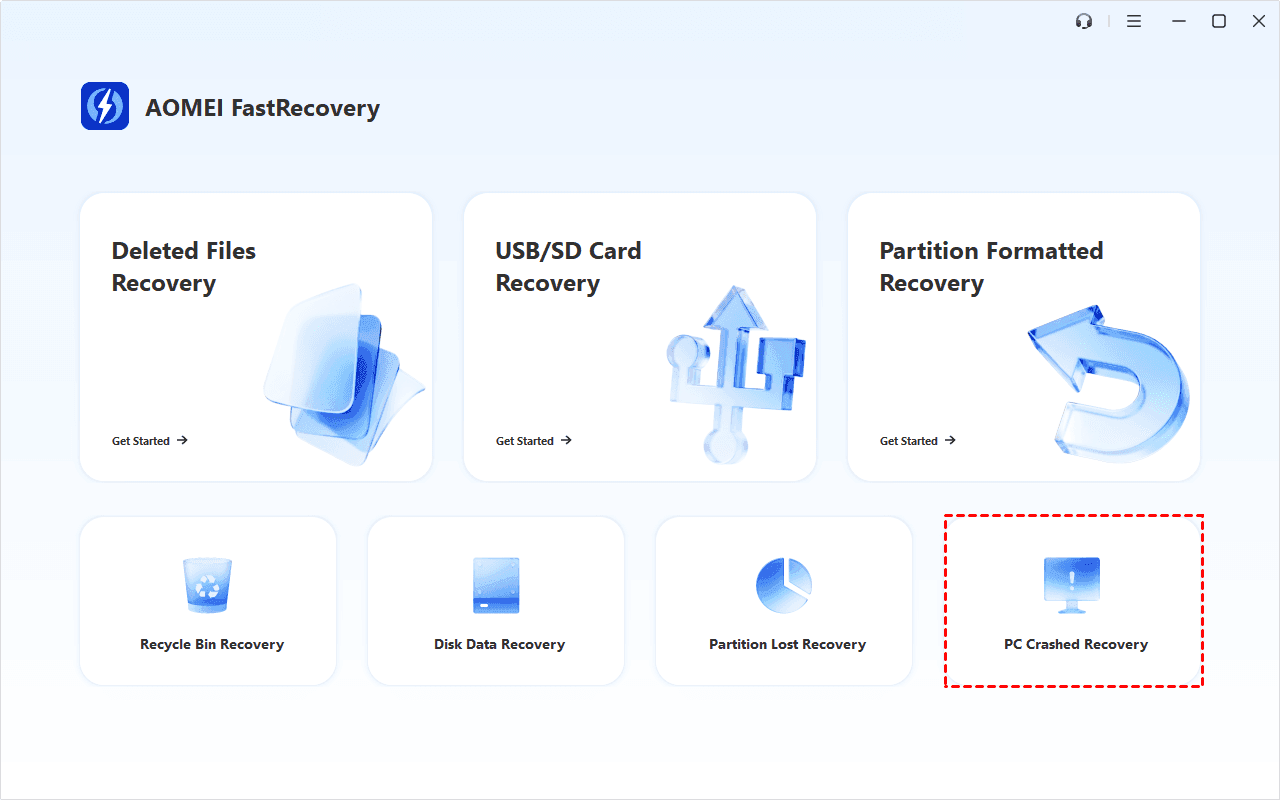
1. Download and install AOMEI FastRecovery on a working PC. On the main page, click PC Crashed Recovery in the lower right corner.
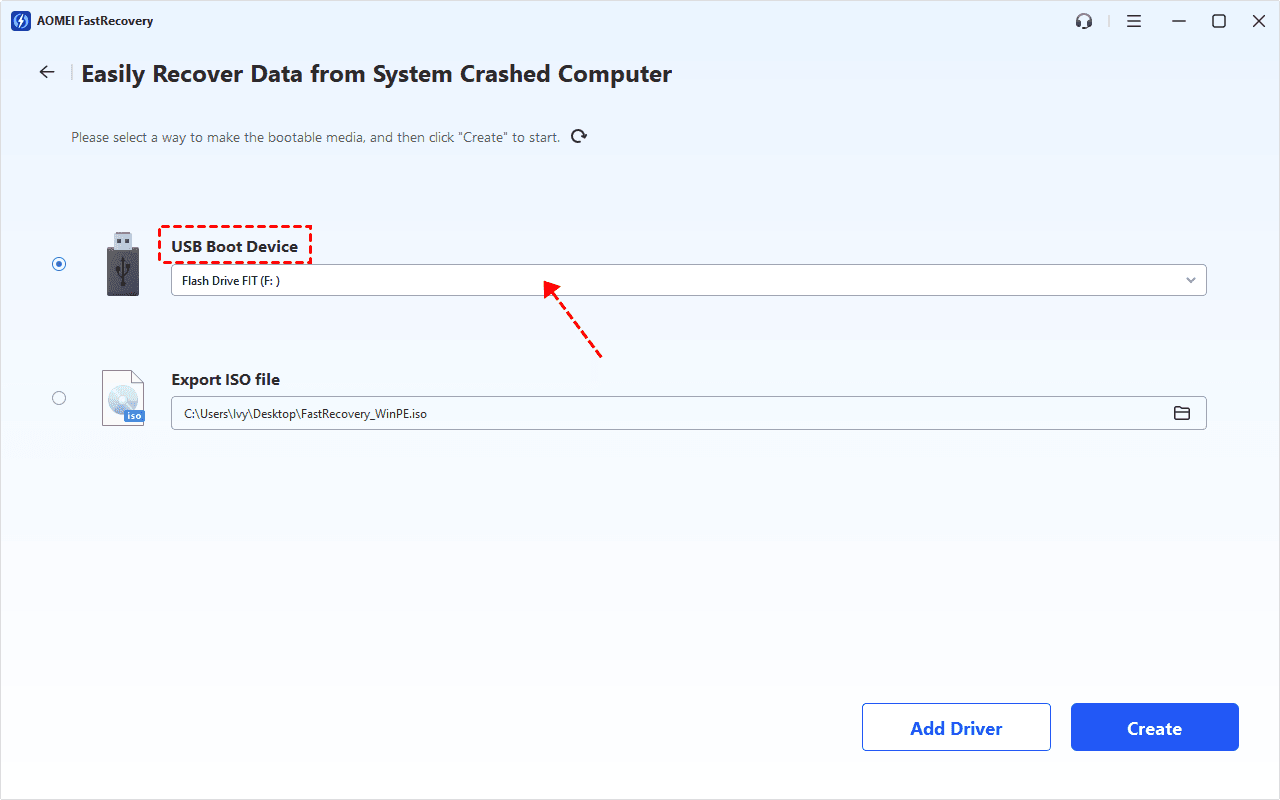
2. Check USB Boot Device.
3. Select a blank USB drive and click Create >Yes to format and create a bootable USB.
Step 2. Boot the crashed laptop
1. Connect the bootable USB to the crashed laptop. Restart your computer and press the BIOS key, usually F2, F10, ESC, etc.
2. Under the Boot tab, look for your bootable USB and move it to the first boot option.
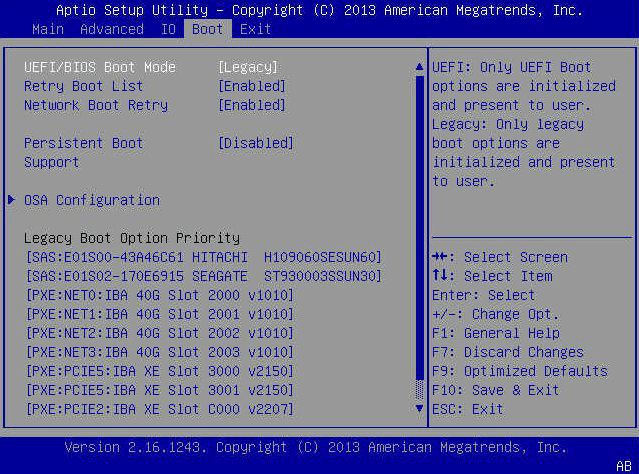
3. Press F10 to save changes and reboot.
Step 3. Recover data from a failed drive
1. After loading AOMEI FastRecovery, you will see all the recovery options.
- To recover deleted or lost data, click Deleted Files Recovery.
- To recover entire disk data, especially for hard drive with multiple partitions, click Disk Data Recovery.

2. Hover the mouse over the failing drive and click Scan to start the quick scanning process to find and display all the recoverable data.

3. Under the Type section, specify a data type (e.g., Images) and expand to see all the data formats. Sort them or search the name to locate files quickly.
4. Select the desired data and click Recover to bring your data back. Double-click to preview them if you are not sure.
-
Please select a location to save the recovered data, as restoring to the original location may result in data overwriting.
-
You can recover data from laptop hard drive for free, up to 500MB. To enjoy unlimited data recovery, you need to upgrade to the advanced edition of AOMEI FastRecovery.
Case 2. Recover Data from Physical Laptop Hard Drive Crash (2 Ways)
When it comes to physical hard drive crashes, there are still feasible ways to fix a crashed hard drive.
Way 1. Check the Hard Drive
The first step is to check if the hard drive is still usable. You can do this at home, or you can leave it to a computer expert to determine if the hard drive is still able to handle it.
If the hard drive damage is not serious, you can keep it for future use. Serious problems may require discarding the drive to be on the safe side.
Way 2. Seek Help from Recovery Services
If the hard drive is severely damaged and the data in the damaged physical hard drive is critical, consider seeking professional help from a data recovery service such as Geek Squad, DriveSaver, SlavageData, etc.
Choose a reputable data recovery service that has expertise in fixing and recovering data from crashed physical hard drives. Or, take advantage of the opportunity to upgrade to a brand new hard drive to improve performance.
How to Prevent Laptop Hard Drive Crash
Now that your data is safe and your hard drive is back in working order, it's easy to relax. However, to prevent yourself from experiencing the pain of a hard drive crash again, take a moment to focus on the following preventive measures.
1️⃣ Backup Your Crucial Data: Regularly back up your data to avoid extensive losses during a crash. You can try to use this free backup tool for Windows, like AOMEI Backupper Standard. In this case, you can easily restore files from backups.
2️⃣ Shut Down Safely: Always shut down your computer safely using the proper options instead of holding the power button. This helps prevent data corruption and file system issues.
3️⃣ Perform Health Checks: Check hard drive health regularly to detect potential problems early.
4️⃣ Protect Against Malware and Viruses: Install reputable antivirus software to protect your system from malware and viruses. Be cautious when opening apps or downloading files from unknown sources.
5️⃣ Avoid Overheating: Ensure your computer is adequately ventilated to prevent overheating. Dust and debris can accumulate inside your computer, so clean it periodically.
Conclusion
In this article, you can gain an effective way to fix the logical/physical laptop hard disk crash and perform laptop hard disk crash recovery. Moreover, AOMEI FastRecovery, a multifunctional hard drive data recovery tool, can also recover data from Dell laptop hard drive(won’t boot).
To avoid data loss again due to laptop hard disk crashing, you can also use this free Windows backup tool, AOMEI Backupper Standard. It can backup the system, file or folder, partition, and the whole disk to other storage devices.
FAQs
What happens when a laptop hard drive crashes?
It can cause irreversible damage and data loss. In the worst case, debris scraped off the damaged area may contaminate all heads and platters, leading to the destruction of all data on the drive.
Can laptop work after hard disk crash?
The ability of a laptop to work after a hard disk crash depends on the extent of the damage. If the hard drive is severely damaged, it may be challenging or impossible to recover data or get the laptop working without a replacement drive.
Can an HDD cause crashed?
A failing or faulty hard drive can indeed cause crashes and freezes in a computer. You can try running a diagnostic tool like CrystalDiskInfo to check the health of your HDD. Alternatively, connect the hard drive to another computer and see if that causes any problems.

 as a preferred
source on Google
as a preferred
source on Google