




[Full Guide] to Hard Disk Partition Recovery on Windows
Lost or deleted a partition on Windows? This page shows you how to recover it – plus fixes for when your partition won't show up.

By Lily Updated on October 22, 2026


A hard disk partition can disappear from File Explorer for several reasons, including accidental deletion, a missing drive letter, disk connection problems, or partition-table errors. The right recovery method depends on whether the partition still exists but is hidden, its space is marked as unallocated, or Windows cannot access the disk.
This guide explains how to perform hard disk partition recovery on Windows 11, 10, 8, and 7. You'll learn how to recover a lost or deleted partition and how to troubleshoot a partition that isn't showing up.
What to Do Before Hard Disk Partition Recovery
Before trying to recover a lost or deleted partition, take these precautions to reduce the risk of overwriting data or making the problem worse.
- Stop writing new data to the affected disk. Avoid saving files, downloading software, or installing applications on it. New data may overwrite information needed for recovery.
- Do not initialize or format the disk if it contains important data. These actions can change disk structures and complicate recovery. If Windows prompts you to initialize a disk unexpectedly, cancel the prompt until you understand the cause.
- Check the physical connection. For an external hard drive, try a different USB port or cable. If the drive makes unusual noises, repeatedly disconnects, or is not detected consistently, stop using it and consider professional recovery assistance.
- Open Disk Management to inspect the disk. Press Win + X and select Disk Management. Check whether the partition is listed, whether its space appears as Unallocated, and whether the disk is Offline or Not Initialized. Do not create a new volume simply because the space appears unallocated.
How to Recover a Lost or Deleted Hard Disk Partition
If a partition was deleted accidentally and its space now appears as Unallocated, hard drive partition recovery software may be able to locate the lost partition and restore its partition information along with data.
Method 1: Recover Disk Partition Using Partition Recovery Software
AOMEI FastRecovery provides a partition recovery workflow that scans a disk for lost or deleted partitions. It can help locate a missing partition and recover its accessible data.
 AOMEI FastRecovery
- Quick Scan and Deep Scan: Scan a drive for deleted and lost files using different scanning modes.
- Wide file type support: You can use it to recover photos, videos, audio files, documents, compressed files, and other data formats.
- Search and Filter: Narrow down scan results by file name, type, size, and other available criteria.
- Different recovery scenarios: Supports deleted file recovery, Recycle Bin recovery, formatted partition recovery, and recovery from SD cards or USB.
- Windows support: Supports data recovery on Windows 11, 10, 8, 7, and Windows Server.
 100% Secure
Follow the instructions below to recover data from lost partition and the partition itself with AOMEI FastRecovery:
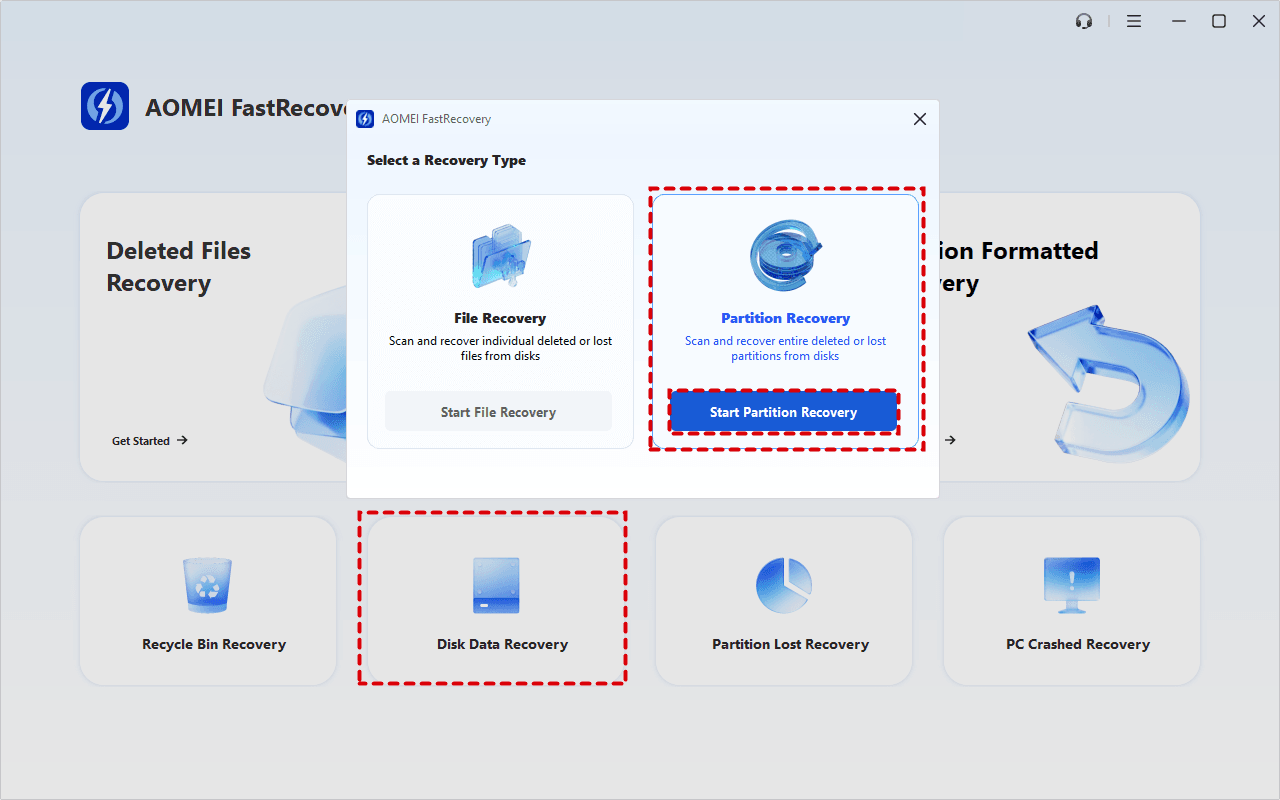
Step 1. Install AOMEI FastRecovery on a different drive from the one containing the lost partition. Launch the software, select Disk Data Recovery, and click Start Partition Recovery.
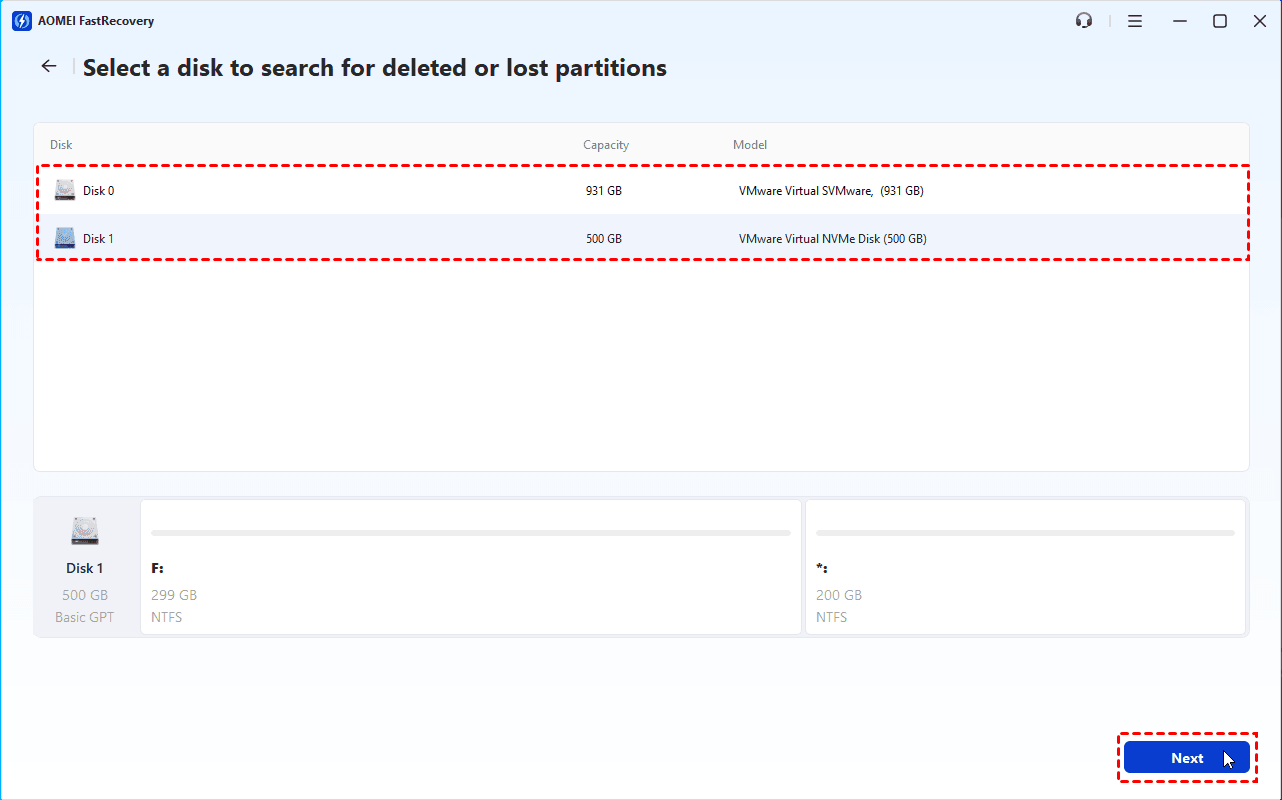
Step 2. Select the disk that contained the missing partition and click Next. Check its disk number, capacity, model, and partition layout to make sure you select the correct disk.
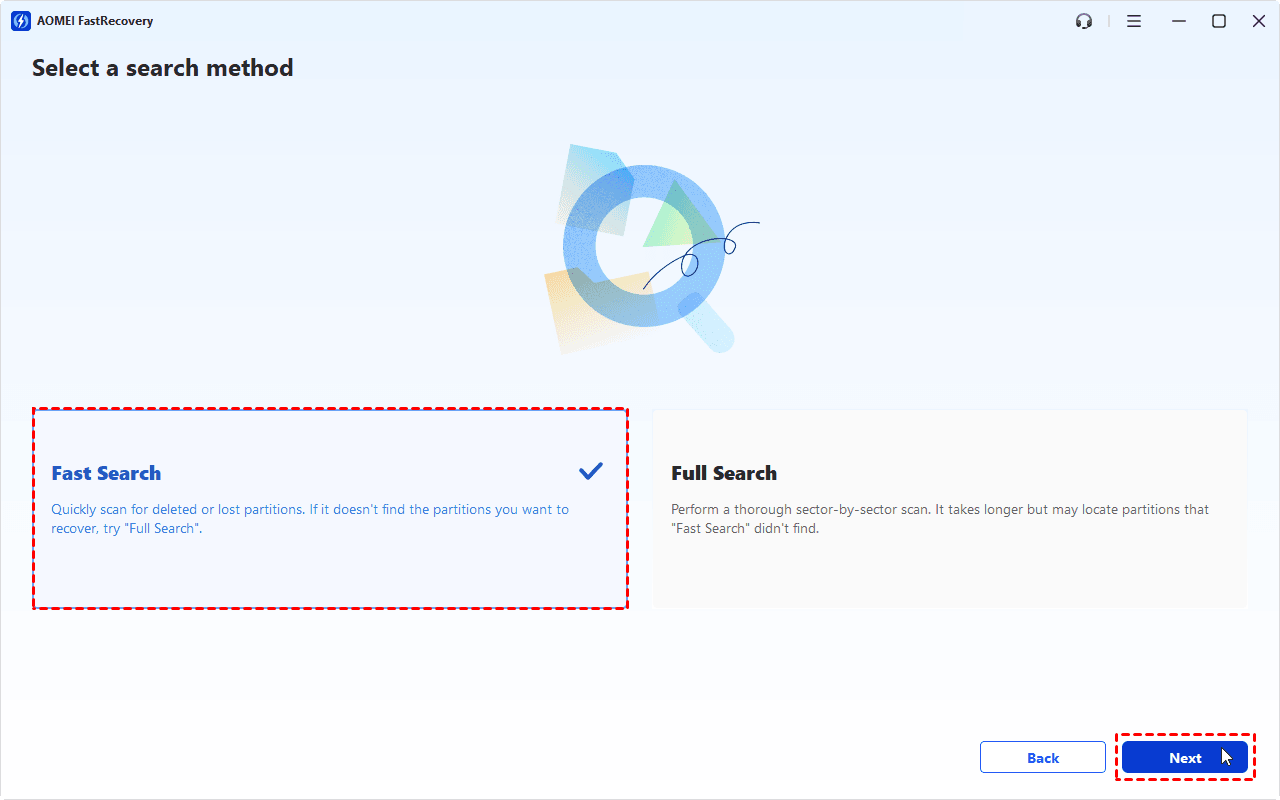
Step 3. Choose a search method and click Next to start scanning. Select Fast Search first to look for deleted or lost partitions quickly.
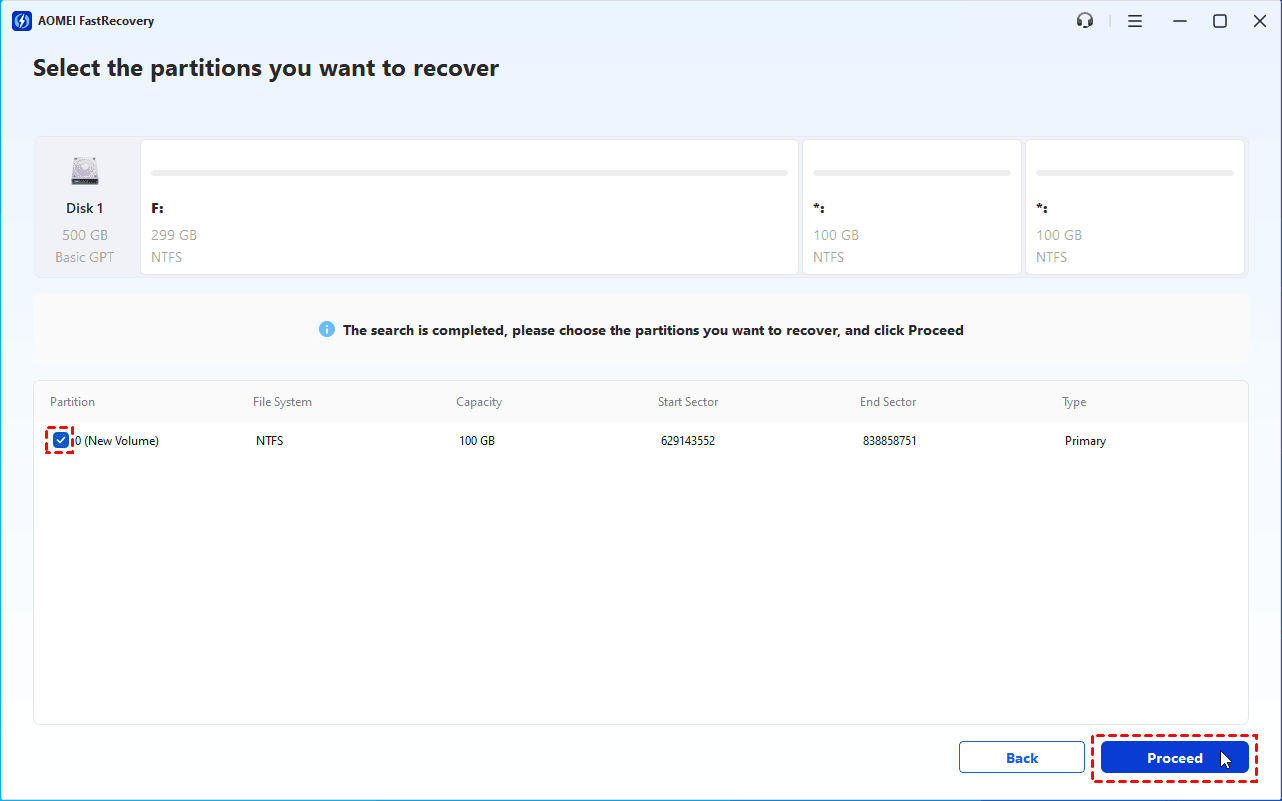
Step 4. When the scan finishes, review the detected partitions and their details. Select the partition you want to recover and click Proceed.
✍ Tip: If the target partition is not listed, go back and try Full Search, which performs a more thorough scan and may take longer.
Step 5. Wait for the recovery process to finish, then check File Explorer to see whether the partition is accessible. If it does not appear, open Disk Management and check whether assigning a drive letter is appropriate.
Method 2: Recover a Deleted Partition with TestDisk
TestDisk is a free, open-source utility that can search for lost partitions and, in suitable cases, restore partition-table entries. It can be useful when a partition has disappeared but the underlying data may still be present.
TestDisk uses a text-based interface. Follow these steps carefully to avoid irreversible data loss:
Step 1. Visit the official TestDisk website and download the version for your operating system. Extract the downloaded archive to a folder.
Step 2. Run testdisk_win.exe with administrator privileges. When it opens, select Create to create a new log file.
Step 3. Select the physical disk containing the lost partition. Confirm the disk by checking its capacity and model, then choose Proceed.
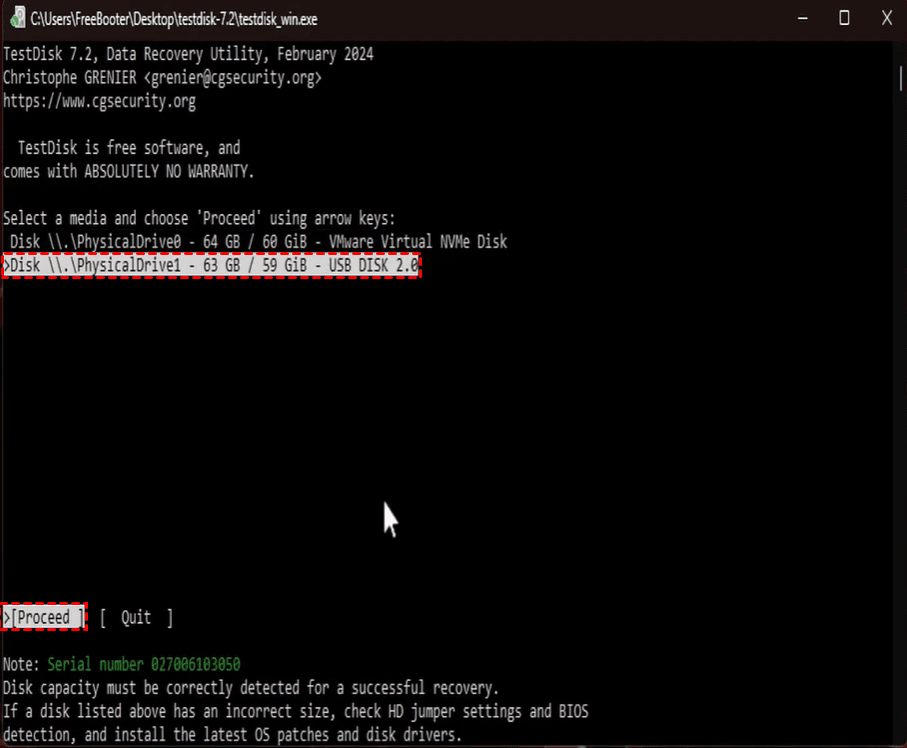
Step 4. Select the partition-table type suggested by TestDisk. The program usually detects the appropriate type, but verify it against the disk's actual configuration before continuing.
Step 5. Choose Analyse and run Quick Search to look for missing partitions.
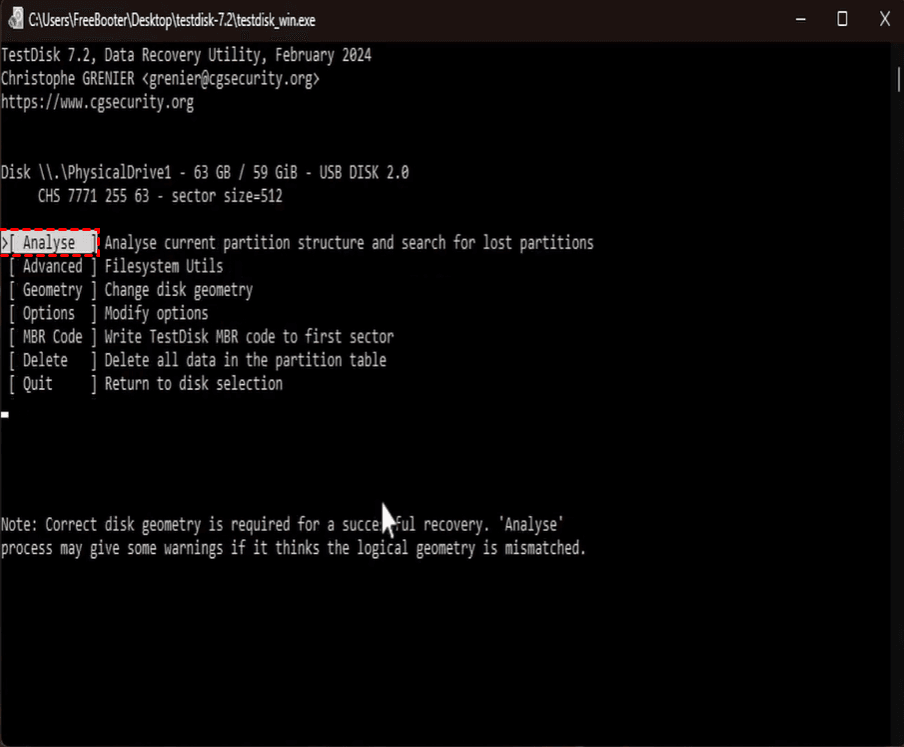
Step 6. If TestDisk identifies the correct partition, select the partition and press P to check whether the expected files can be seen.
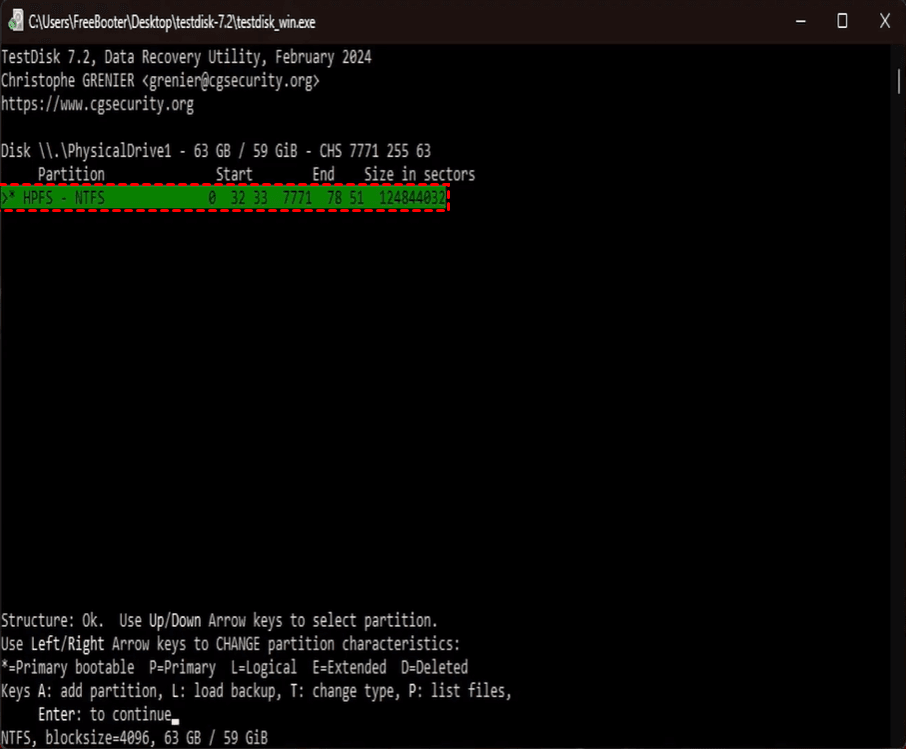
Step 7. If the files look correct, press Q to return to the partition list. Then press Enter to continue.
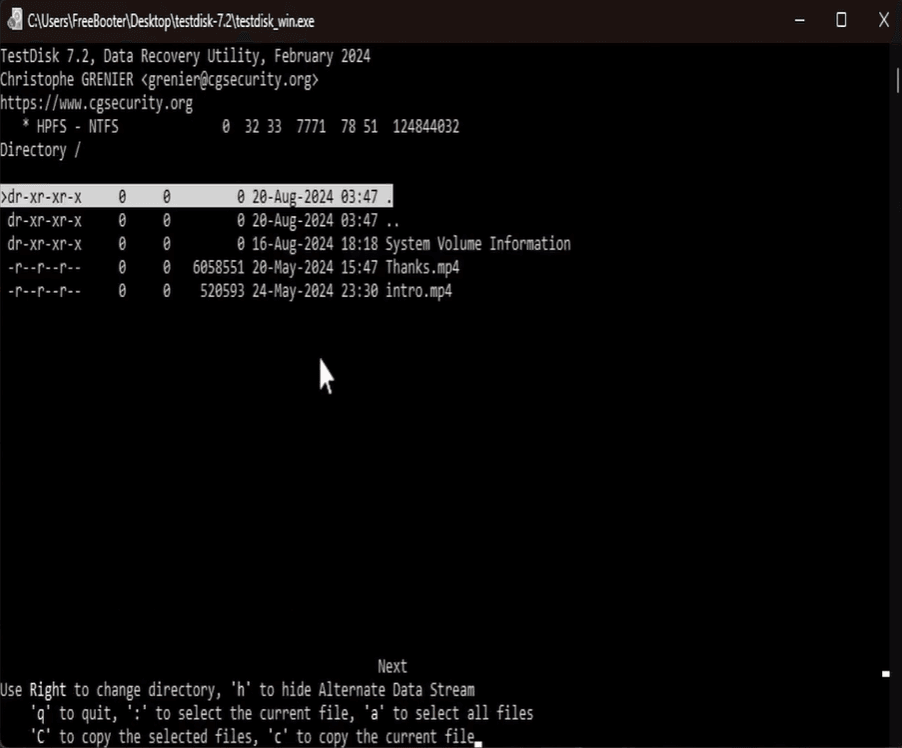
✍ Tip: If your only goal is to retrieve files, use the keys shown at the bottom of the window to copy recoverable files to another drive.
Step 8. Select Write and press Y to write the partition structure. Restart Windows if required and check whether the partition is accessible.
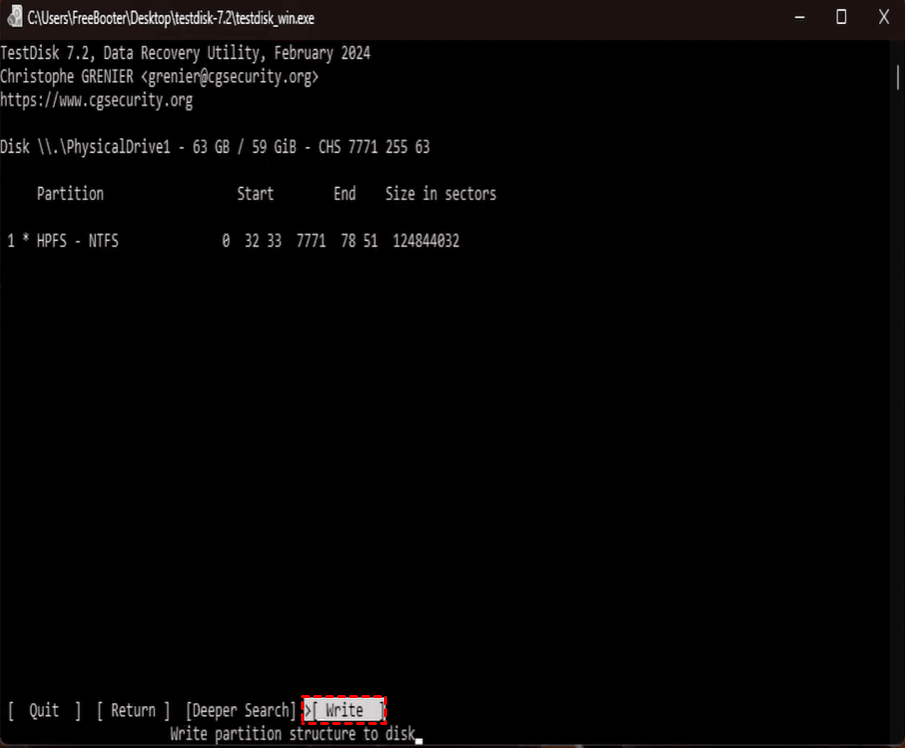
✍ Tip: If the expected partition is not found, select Deeper Search to conduct a more thorough search.
How to Fix a Hard Disk Partition That Is Not Showing
A partition that is missing from File Explorer is not necessarily deleted. It may still exist but lack a drive letter, or Windows may be unable to access the disk. Pick one method below to fix the disk partition not showing issue.
Case 1: Partition Is Present but Has No Drive Letter
If Disk Management shows the partition as healthy but File Explorer does not display it, the partition may simply lack a drive letter. Assigning one can make the volume accessible again, provided the partition and file system are intact.
Step 1. Press Win + X and select Disk Management.
Step 2. Locate the partition that is missing from File Explorer. Check its size and status to make sure it is the correct volume.
Step 3. Right-click the partition and select Change Drive Letter and Paths.
Step 4. Click Add, select an available drive letter, and click OK to apply the change.
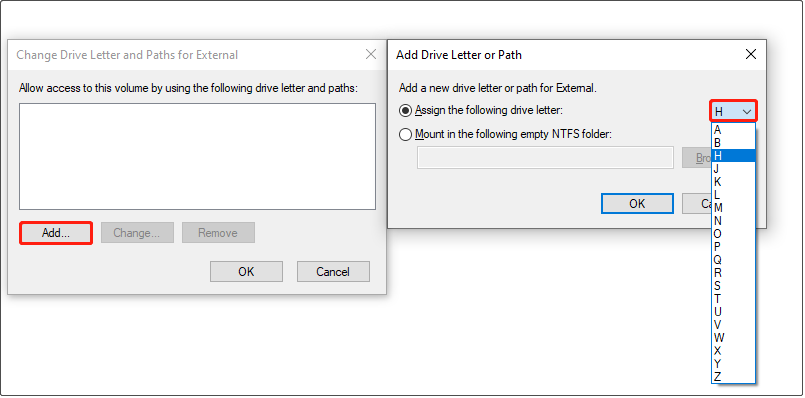
Step 5. Open File Explorer and check whether the partition appears.
Case 2: Disk Shows "Offline" or "Not Initialized"
If the entire disk is missing from File Explorer, check its status in Disk Management. An offline disk and an uninitialized disk require different responses.
👉 If the disk is Offline:
Step 1. Open Disk Management and find the disk marked Offline.
Step 2. Confirm that it is the correct disk, then right-click the disk label on the left and select Online.
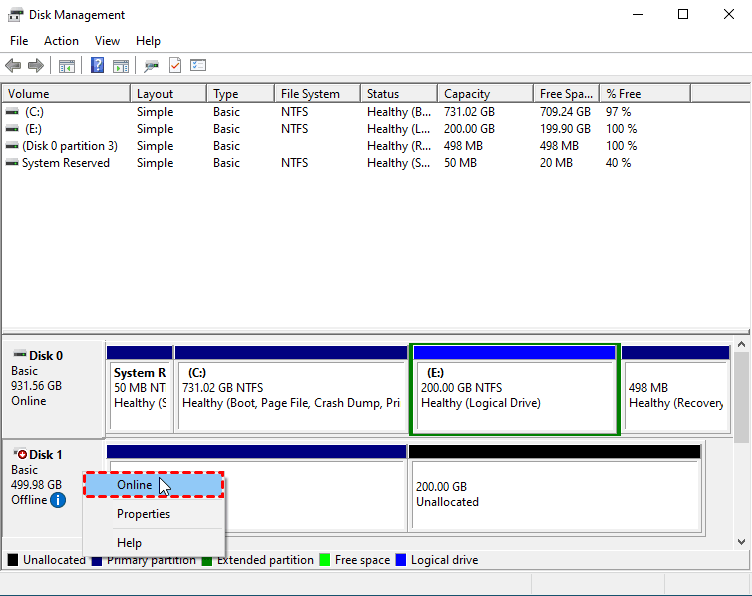
Step 3. Check whether the existing partitions appear and can be accessed.
✍ Tip: If the disk repeatedly goes offline or shows I/O errors, check the cable, port, power supply, and drive health before continuing.
👉 If the disk is Not Initialized:
✍ Tip: Initializing a disk can cause data loss. If the disk previously contained files or partitions, you may recover data from drive not initialized first.
Step 1. In Disk Management, locate the disk marked Not Initialized.
Step 2. Right-click the disk label on the left side and select Initialize Disk.
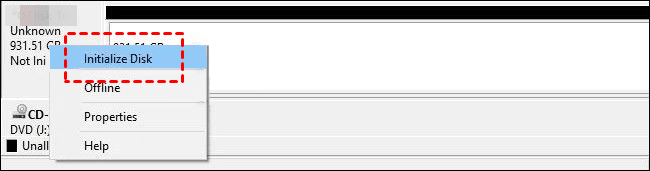
Step 3. Select GPT (for modern systems) or MBR and click OK to initialize the disk.
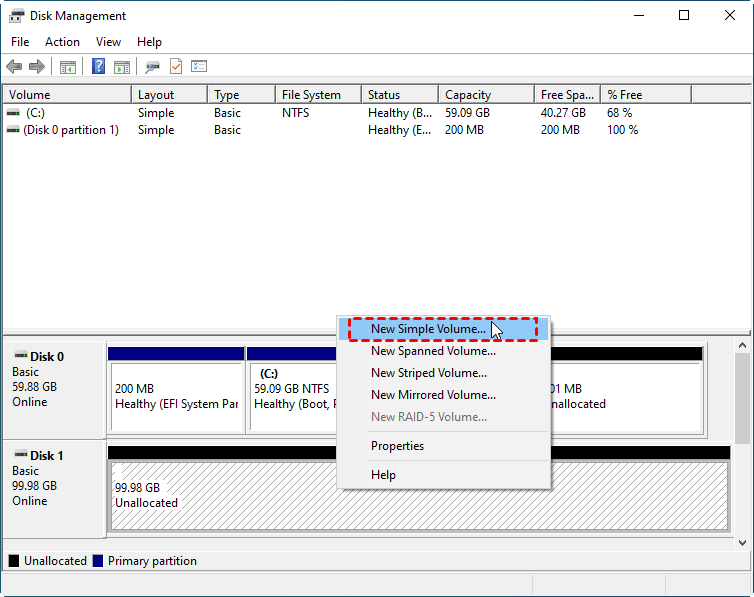
Step 4. Right-click the space marked as Unallocated, choose New Simple Volume, and follow the wizard to format it.
Hard Drive Partition Recovery for Different Situations
The right hard disk partition recovery method depends on why the partition disappeared and how Windows currently identifies it. Explore the guides below to find the method that best matches your situation.
- [Recover Unallocated Partition]: If your hard drive or SSD shows unallocated space in Disk Management after accidental partition deletion, this guide explains how to recover the lost partition and access your files. You can also learn how to reuse the disk space safely if the original files are no longer needed.
- [SSD RAW Partition Recovery]: If your SSD partition appears in Disk Management but Windows cannot recognize its file system, the volume may be marked as RAW. Read this guide to learn how to recover SSD RAW partition with professional partition recovery software and reformat the volume if you no longer need its existing data.
FAQs About Hard Disk Partition Recovery
1. Can I recover a deleted hard disk partition without losing data?
It may be possible if the original partition information and data have not been overwritten. Stop using the affected disk, avoid formatting or creating a new volume, and use a suitable recovery method. No method can guarantee success in every case.
2. Does initializing a disk recover a lost partition?
No. Initializing a disk creates new disk-partitioning information; it does not restore the original partition or its files. If a disk that previously contained data suddenly shows as Not Initialized, cancel the prompt and assess recovery options before proceeding.
3. Is TestDisk safe for partition recovery?
TestDisk is a legitimate open-source partition recovery tool, but using its write options incorrectly can change the partition table in ways that make recovery more difficult. Carefully verify the disk and partition details before applying changes. If you are unsure, avoid writing changes until you have a backup or expert guidance.
4. Should I format a partition that Windows cannot open?
Not if you need the data. A format operation can overwrite file-system information and complicate recovery. First determine whether the partition is RAW, unallocated, or otherwise inaccessible, then recover important files via data recovery software like AOMEI FastRecovery before attempting to format or repair it.
Verdict
Hard disk partition recovery starts with identifying why the partition disappeared. If it is still present but lacks a drive letter, changing the letter may restore access. If it has been deleted and appears as Unallocated, AOMEI FastRecovery or TestDisk may help locate it. If the disk is Offline or Not Initialized, investigate the cause before making changes.
The most important rule is to avoid formatting, initializing, or writing new data to a disk that contains files you need to recover. Check the disk status first, choose a method suited to the situation, and save any recovered files to a separate storage device.

 as a preferred
source on Google
as a preferred
source on Google