




How to Recover Unallocated Partition with Data in Windows
Unallocated partition with important data? Learn how to recover it in Windows – plus smart ways to reclaim that space if the data isn't needed anymore.

By Lily Updated on October 22, 2026


Why Does a Partition Become Unallocated?
Unallocated space is an area of a disk that Windows does not currently recognize as belonging to a usable partition. It appears as a black bar in Disk Management and cannot be accessed through File Explorer until it is allocated to a partition.
Several situations can cause a previously usable partition to become unallocated.
- Accidental partition deletion: You may have selected Delete Volume in Disk Management or removed a partition while using another disk utility.
- Partition resizing or disk management errors: An interrupted partition operation or an incorrect configuration change may leave part of the disk unallocated.
- Partition table corruption: Damage to the partition table can prevent Windows from recognizing an existing partition.
- Disk errors or unsafe disconnection: File system or disk errors may affect how Windows detects partitions, particularly on external drives.
- Cloned hard drive shows wrong size: An incomplete disk cloning or migration process may leave some disk space unallocated.
- A newly installed drive: Some disks contain unallocated space simply because they have not been partitioned yet.
🌟 To learn more about hard disk partition recovery, please check this complete guide.
How to Recover Unallocated Partition Without Losing Data
A specialized partition recovery software - AOMEI FastRecovery can help fix unallocated disk without losing data. It can locate the missing partition and recover it along with its accessible data.
 AOMEI FastRecovery
- Quick Scan and Deep Scan: Scan a drive for deleted and lost files using different scanning modes.
- Broad file type support: Recover Excel files, documents, photos, videos, audio files, compressed files, and other data formats.
- Search and Filter: Narrow down scan results by file name, type, size, and other available criteria.
- Varied recovery scenarios: Supports deleted file recovery, Recycle Bin recovery, formatted partition recovery, and recovery from SD cards or USB drives.
- Windows compatibility: Supports data recovery on Windows 11, 10, 8, 7, and Windows Server.
 100% Secure
Before starting, stop saving new data to the affected disk. Do not initialize, format, or create a new volume in the unallocated space. Then follow the instructions below to recover data from unallocated space and the partition structure:
Step 1. Install AOMEI FastRecovery on a drive other than the one containing the unallocated partition. Launch the software, select Disk Data Recovery, and click Start Partition Recovery.
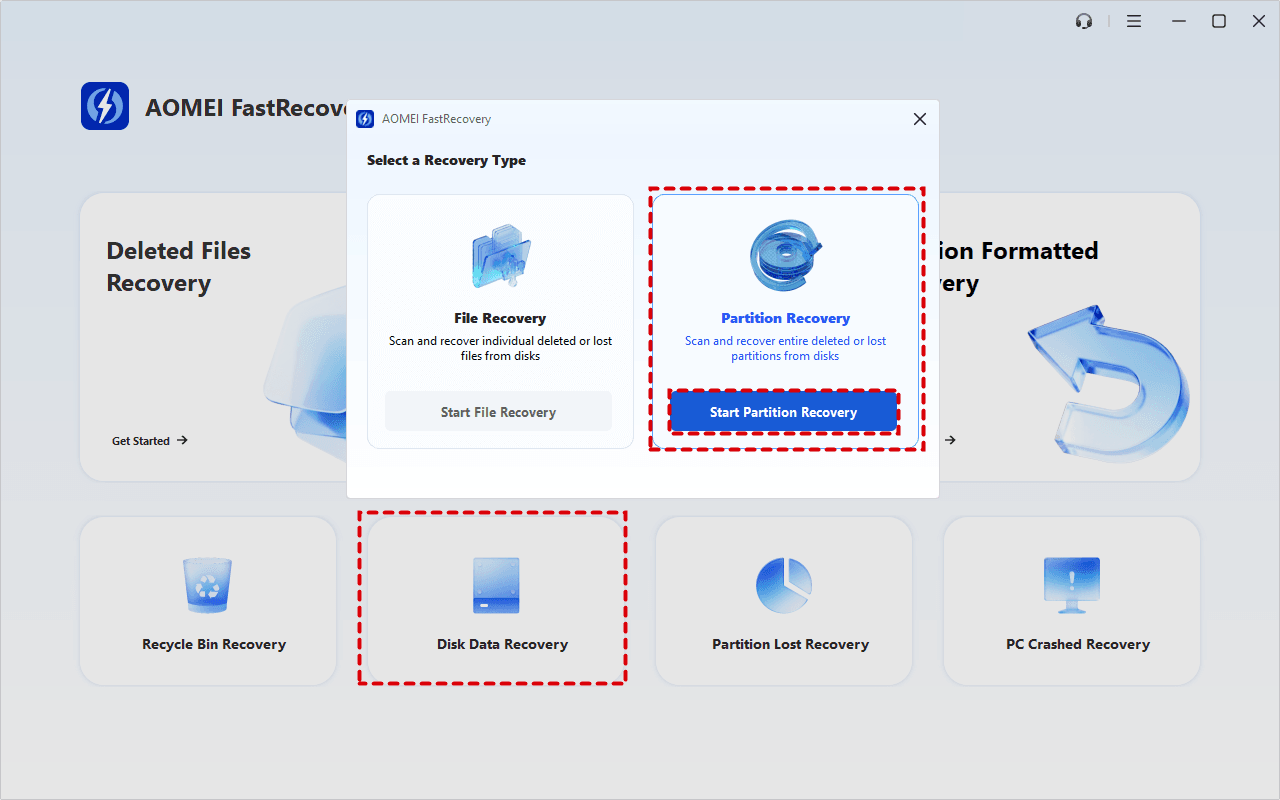
✍ Tip: If your only goal is to recover files from unallocated partition, click Start File Recovery to copy recoverable files to another drive.
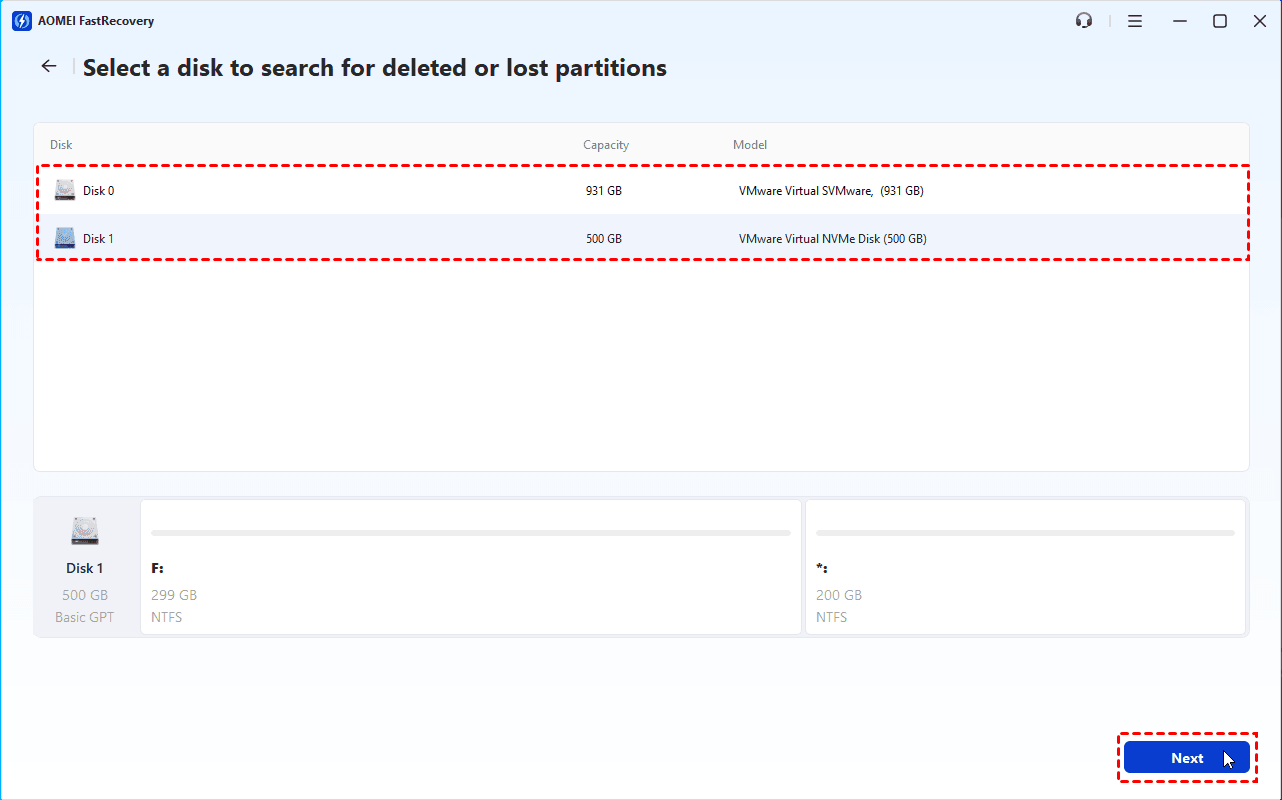
Step 2. Select the disk where the partition was lost and click Next. Verify the disk number, capacity, model, and partition layout to ensure you choose the correct disk.
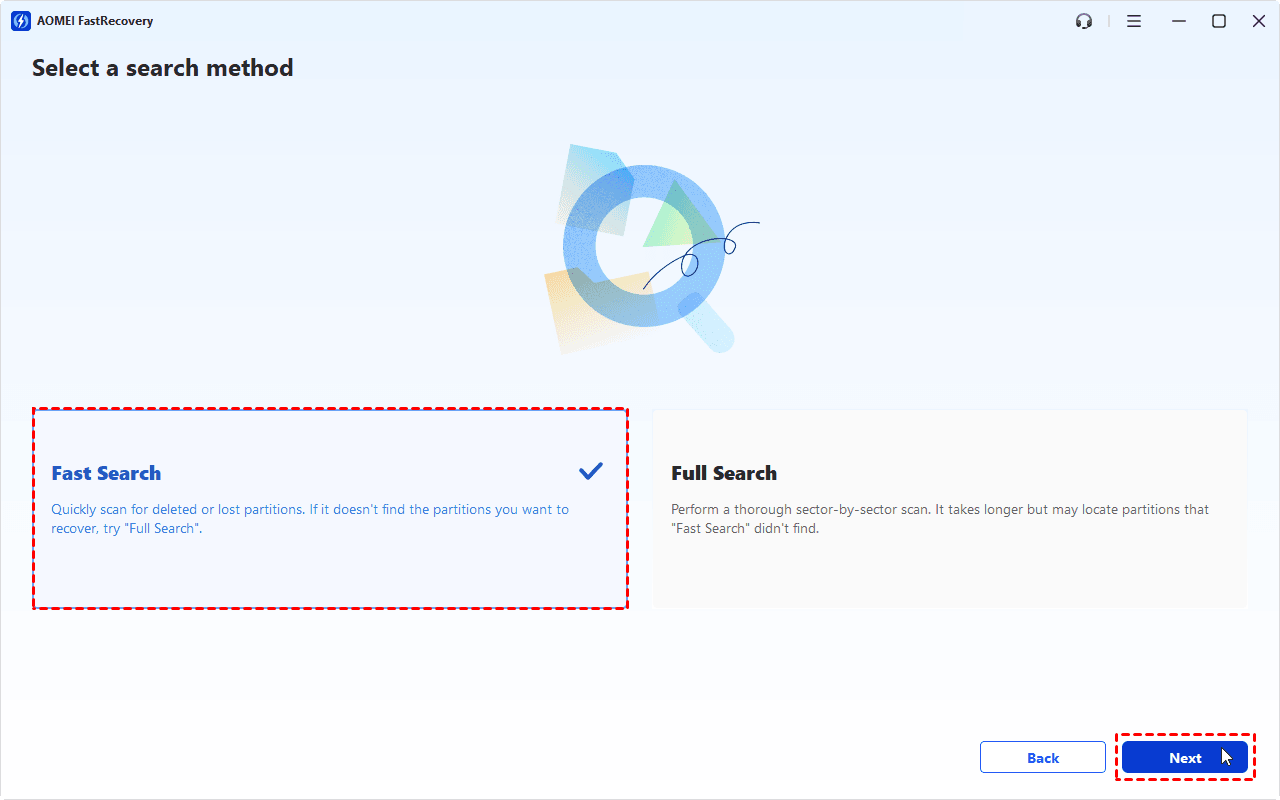
Step 3. Choose a scan method and click Next to begin scanning. Start with Fast Search to quickly locate deleted or lost partitions.
Step 4. Once the scan is complete, review the detected partitions and their details. Select the partition you want to recover and click Proceed.
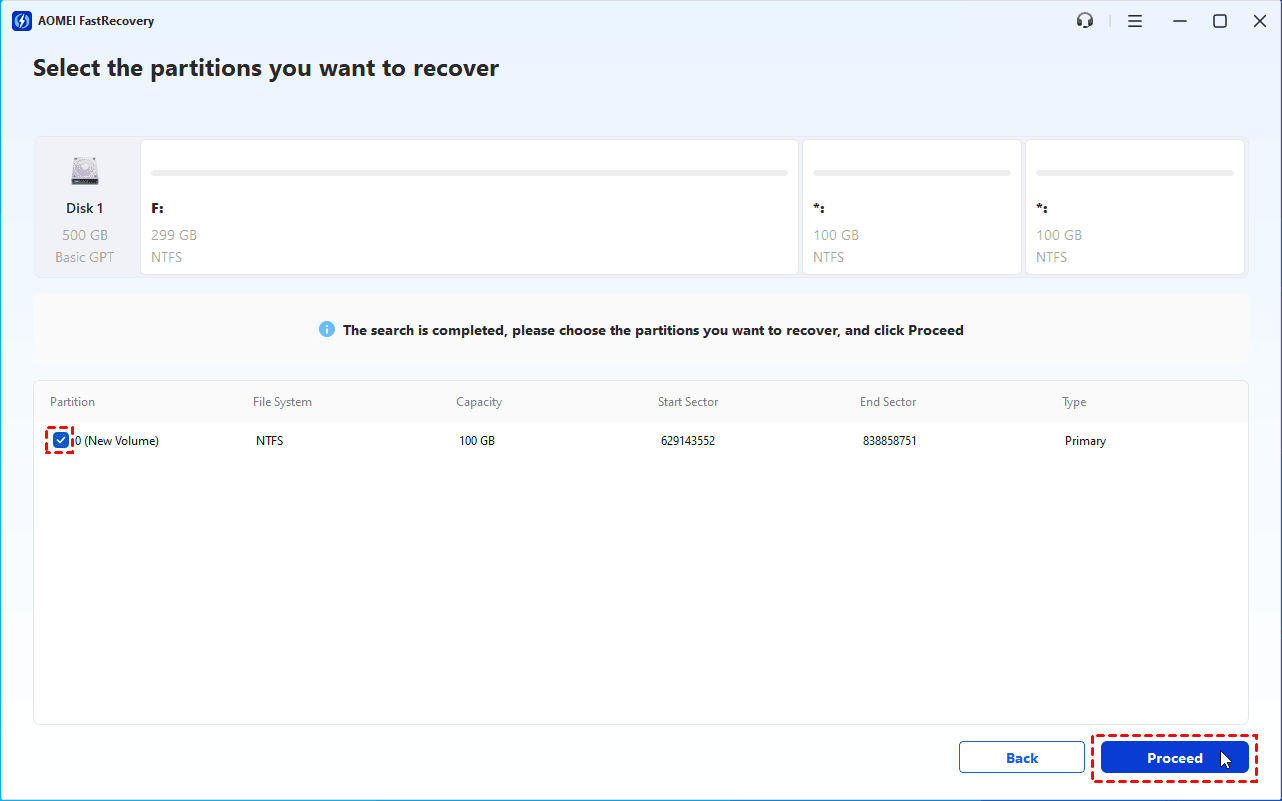
✍ Tip: If the target partition is not found, return to the scan options and try Full Search. This method performs a more thorough scan but may take longer.
Step 5. Wait for the recovery process to complete, then open File Explorer to check whether the partition is accessible. If it does not appear, open Disk Management and check whether assigning a drive letter can make it accessible.
Bonus: How to Reallocate Space (If Data is Not Needed)
If the unallocated space never contained important data, or you have already recovered and verified everything you need, you can reuse it in Windows Disk Management.
You can either create a new partition in the unallocated space or extend an existing partition. Choose the option that matches how you want to organize your storage.
Option 1: Create a New Partition (Fresh Start)
Creating a new volume makes unallocated space available for storing files. Please be aware that creating and formatting a new volume may overwrite information needed for recovery.
Step 1. Press Win + X and select Disk Management.
Step 2. Locate the correct disk and identify the unallocated space. Confirm the disk number and capacity before making changes.
Step 3. Right-click the unallocated space and select New Simple Volume.
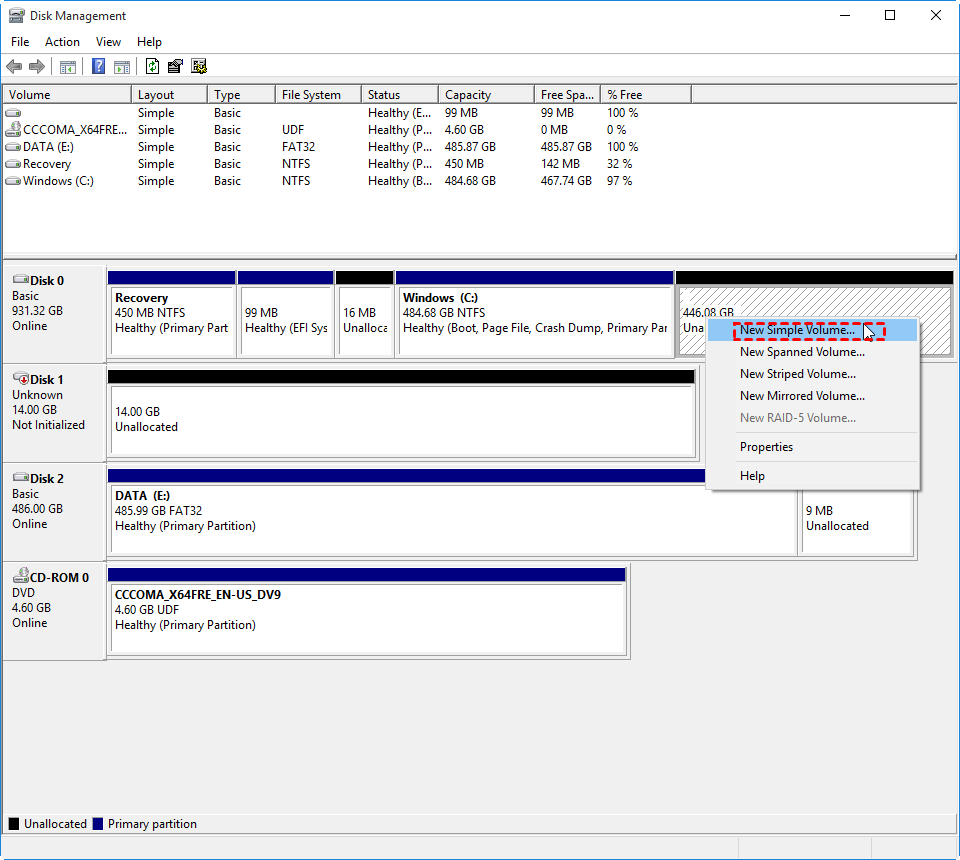
Step 4. In the New Simple Volume Wizard, click Next. Leave the default size (or adjust it) and click Next again.
Step 5. Assign an available drive letter and click Next.
Step 6. Choose a file system, such as NTFS for a typical Windows data volume. Enter a volume label if desired and click Next.
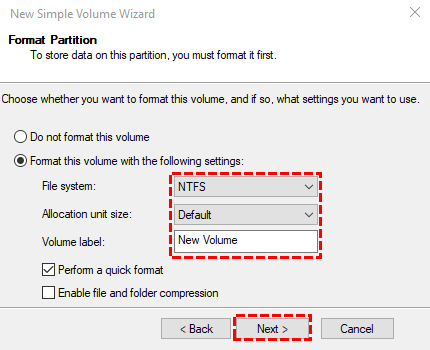
Step 7. Click Finish to complete the setup. Once the process finishes, the new volume should appear in File Explorer.
Option 2: Extend an Existing Partition (Merge Space)
If you want to increase the capacity of an existing volume rather than create another one, you may be able to extend that volume into the unallocated space.
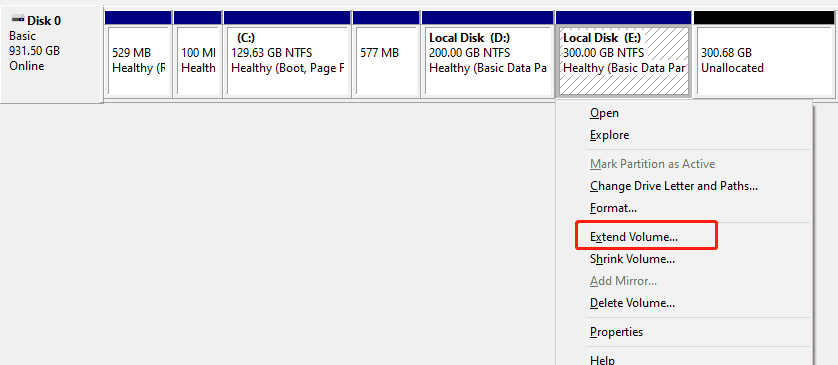
Windows Disk Management generally requires the unallocated space to be immediately to the right of the volume you want to extend and on the same basic disk. If the space is located elsewhere, the Extend Volume option may be unavailable.
Step 1. Open Disk Management by pressing Win + X and selecting Disk Management.
Step 2. Locate the volume you want to enlarge. Check the disk layout and confirm that the unallocated space is immediately to its right.
✍ Tip: If the unallocated space is not adjacent to the target volume, you can try the best partition management tool - AOMEI Partition Assistant to extend an existing partition.
Step 3. Right-click the target volume and select Extend Volume.
Step 4. When the Extend Volume Wizard opens, click Next.
Step 5. Specify how much unallocated space to add to the volume and click Next. You can use all available space or enter a smaller amount.
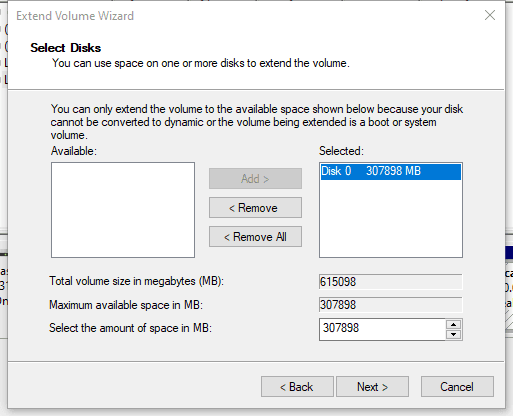
Step 6. Review the settings and select Finish to complete the operation. Then check the updated volume size in Disk Management and File Explorer.
FAQs About Unallocated Partition Recovery
1. Can I recover files from unallocated space without formatting it?
Yes, in some cases. If the space previously belonged to a deleted or lost partition, the original files may still exist on the disk. You can use AOMEI FastRecovery to recover files only or recover the lost partition along with files.
2. Does creating a new partition recover my old files?
No. Creating a new partition allocates the space for a new volume; it does not restore the original partition's file structure. Formatting or writing new data may overwrite information needed to recover the old files.
3. Is unallocated space the same as a RAW partition?
No. Unallocated space is not currently assigned to a recognized partition. A RAW partition exists as a volume, but Windows cannot recognize its file system as a supported, accessible one. The recovery approach differs, so check the disk layout in Disk Management before proceeding.
To Sum Up
If a partition becomes unallocated, first determine whether it previously contained files you need. Avoid formatting, creating a new volume, or writing data to the affected space until you have assessed recovery options.
- To recover unallocated partition along with files, AOMEI FastRecovery can do you a favor. It supports various recovery scenarios, such as recovering deleted pictures not in Recycle Bin.
- If the data is no longer needed, you can create a new volume or extend an eligible existing partition through Disk Management.

 as a preferred
source on Google
as a preferred
source on Google