




Accidentally Deleted Excel File? How to Recover It in 6 Ways
Accidentally deleting an Excel file can be stressful, especially when it contains important data. This guide explains six ways to recover deleted Excel files in Windows. It also covers how to recover unsaved workbooks.

By Lily Updated on October 12, 2026


If you accidentally deleted an Excel file, you may still be able to get it back without recreating your work. Windows offers several recovery options, including the Recycle Bin, Excel's built-in recovery features, and backup utilities. If the file was permanently deleted, data recovery software may also help.
This guide explains how to recover deleted Excel files in six practical ways. Follow the methods below based on whether you deleted the file recently, emptied the Recycle Bin, or previously enabled a backup feature.
Method 1. Restore the Deleted Excel File from the Recycle Bin
When you delete an Excel file normally in Windows, it may be moved to the Recycle Bin rather than permanently removed. This is the first place to check if you have just deleted a workbook.
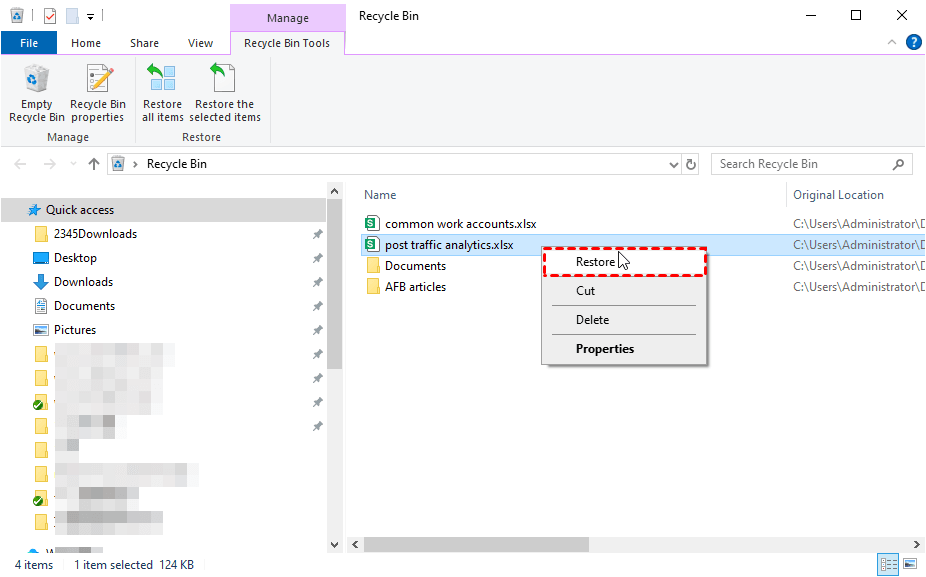
Step 1. Double-click the Recycle Bin icon on your desktop.
Step 2. Look for the deleted Excel workbook. You can sort the list by name or deletion date to make it easier to find.
Step 3. Right-click the file and select Restore. Windows will return it to its original location if that location is still available.
Method 2. Recover a Recently Deleted Excel File in Microsoft 365
If you recently deleted an Excel workbook stored in OneDrive or SharePoint, check the available file lists and recycle bin. Excel's Recent list may help you locate a workbook, although it does not guarantee recovery of a file that has been permanently deleted.
Step 1. Open Microsoft Excel and select File > Open > Recent.

Step 2. Look through the recent workbook list to see whether the file you need is still available.
Step 3. If you find the workbook, open it and use Save As to save a copy to a safe location.
Step 4. If the workbook was stored in OneDrive or SharePoint and is missing, open the corresponding online account and check its Recycle bin. Select the file and choose Restore if it is available.
Method 3. Recover Excel Files Using Microsoft Excel AutoRecover
Microsoft Excel includes an AutoRecover feature that can save recovery information while you work. It is mainly designed to help recover unsaved changes after an application crash or unexpected shutdown, rather than restore every deleted workbook. The steps below may help if AutoRecover was enabled and recovery data is still available.
Step 1. Open Microsoft Excel and select File > Options > Save.
Step 2. Check whether Save AutoRecover information every [X] minutes is enabled. If yes, look for the AutoRecover file location and copy the folder path.
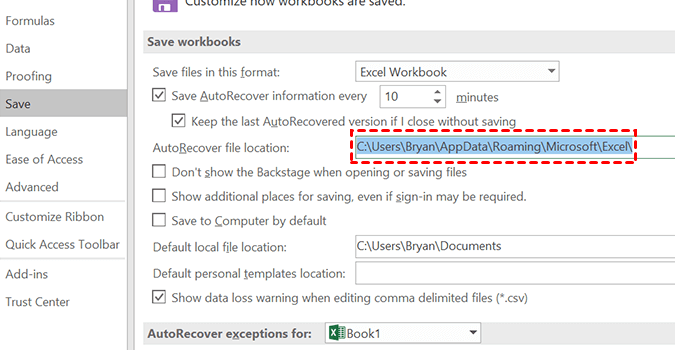
Step 3. Open File Explorer, paste the copied path into the address bar, and press Enter.
Step 4. Open the folder where your desired Excel file is located. Then click the Date modified column header to bring the most recent drafts to the top.
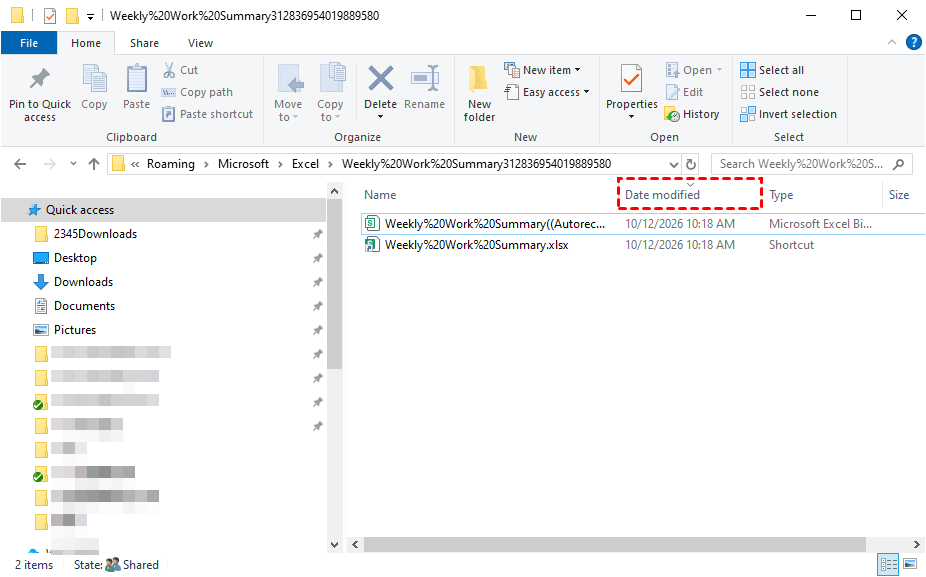
Step 5. Open the files to identify the one you're looking for, and once you have, click File > Save As.
Method 4. Recover Permanently Deleted Excel Files with Data Recovery Software
If the Excel file is missing from the Recycle Bin or was deleted using Shift+Delete, data recovery software may help you retrieve it. AOMEI FastRecovery can scan a drive for deleted files, including Excel workbooks, without requiring a previously created backup.
 AOMEI FastRecovery
- Supports multiple Excel file formats – Recovers common Excel files, including .XLS, .XLSX, .XLSM, .XLSB, .CSV, and other spreadsheet formats.
- Handles different data-loss scenarios – Helps recover Excel files lost due to accidental deletion, disk or partition formatting, system crashes, and virus attacks.
- Offers Quick Scan and Deep Scan – Uses Quick Scan to find recently deleted files and Deep Scan to search storage sectors more thoroughly for additional recoverable data.
- Finds specific Excel spreadsheets quickly – Lets users search for file names and filter scan results by file type, file size, and modification date to narrow down the results.
- Recovers Excel files from various storage devices – Supports recovery from internal and external hard drives, SSDs, USB flash drives, and memory cards, etc.
 100% Secure
🌟 Important: To improve your chances of recovery, stop saving new files to the affected drive. Avoid installing recovery software on the same drive where the deleted Excel file was stored, because new data could overwrite the file's contents.
Learn how to recover permanently deleted Excel files in Windows 10 with AOMEI FastRecovery below:
Step 1. Download, install, and launch AOMEI FastRecovery. Then select Deleted Files Recovery.

Step 2. Point to the drive or location where the Excel workbook was originally stored, then click Scan.
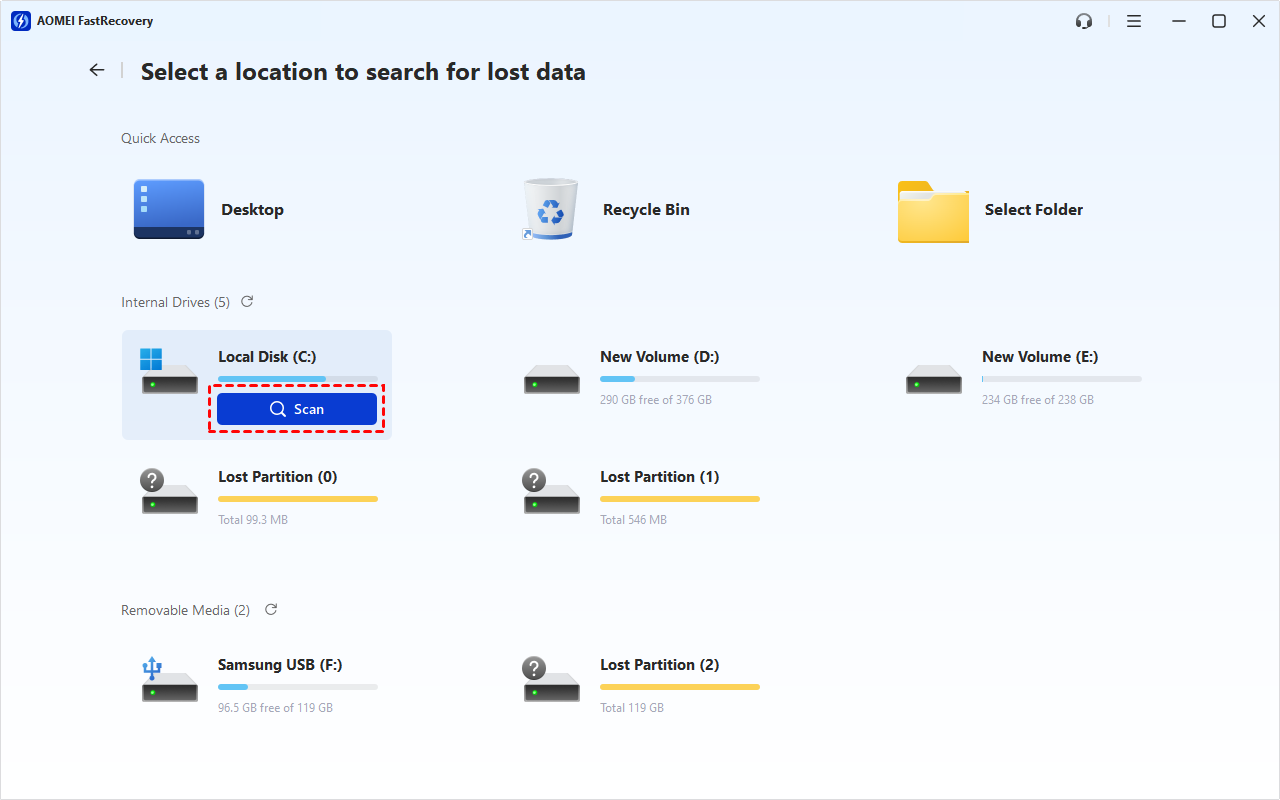
Step 3. Allow the scan to run. When the program displays the discovered files, you can search for the workbook's name or the .xlsx or .xls extension.
Step 4. Select the Excel file(s) you want to recover, click Recover, and choose a different destination to save them. Avoid saving recovered files back to the original drive.
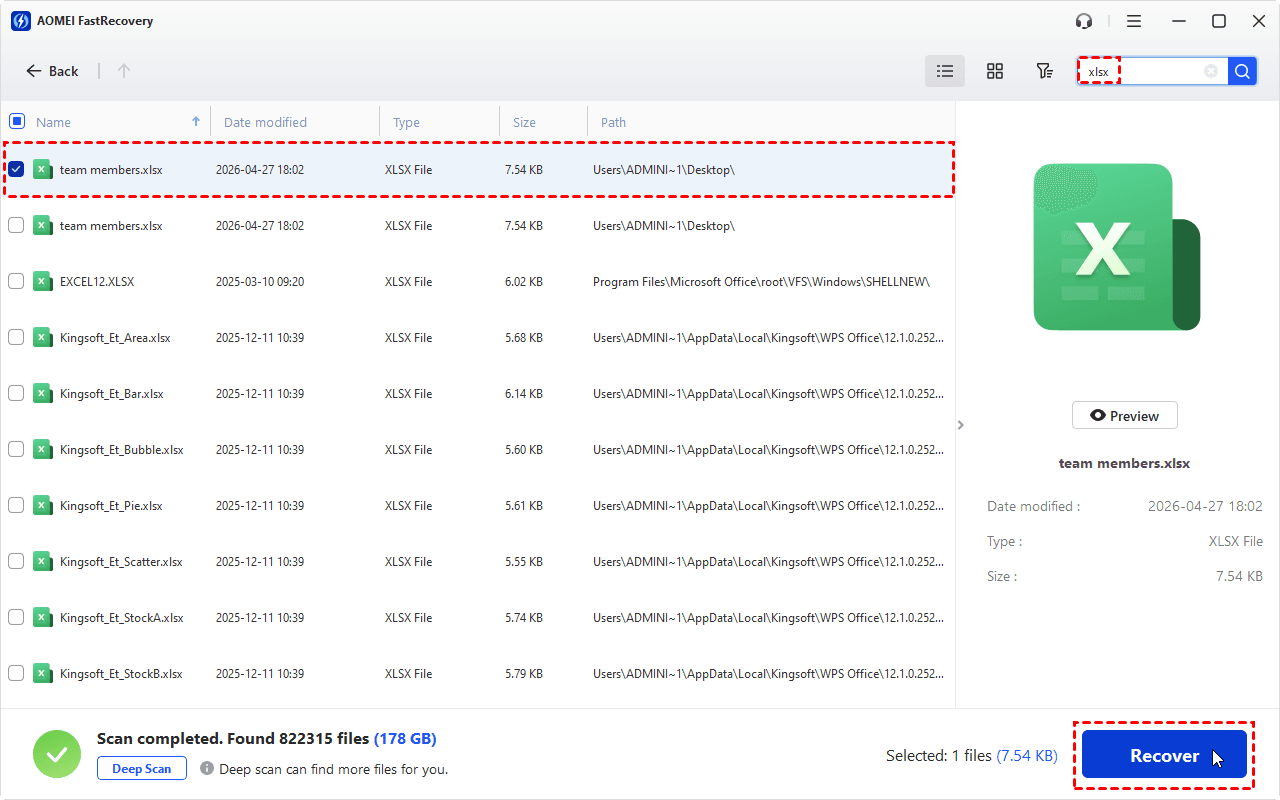
💡 Notes:
- If you can’t find your deleted files in the results, click the Deep Scan button at the bottom left to search every sector of the disk for more files
- If you are recovering data from an SSD that enables TRIM, the chances of successful data recovery may be lower. Because the command regularly clears unused data blocks on SSD.
Method 5. Restore a Deleted Excel File from Windows Backup
If you previously backed up your files using the Windows Backup and Restore utility, you may be able to retrieve an earlier copy of the deleted Excel workbook.
Step 1. Search for Control Panel in the Windows search box and open it.
Step 2. Select System and Security > Backup and Restore (Windows 7).
Step 3. If a backup is available, select Restore my files.
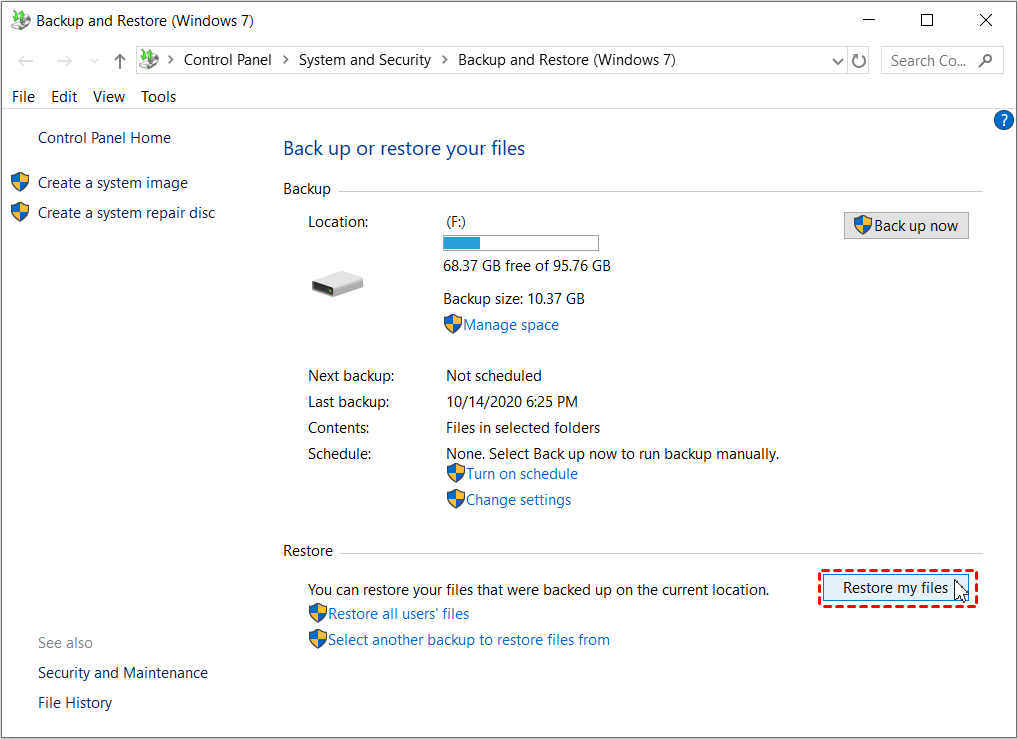
Step 4. Use Search, Browse for files, or Browse for folders to locate the Excel workbook you want to recover.
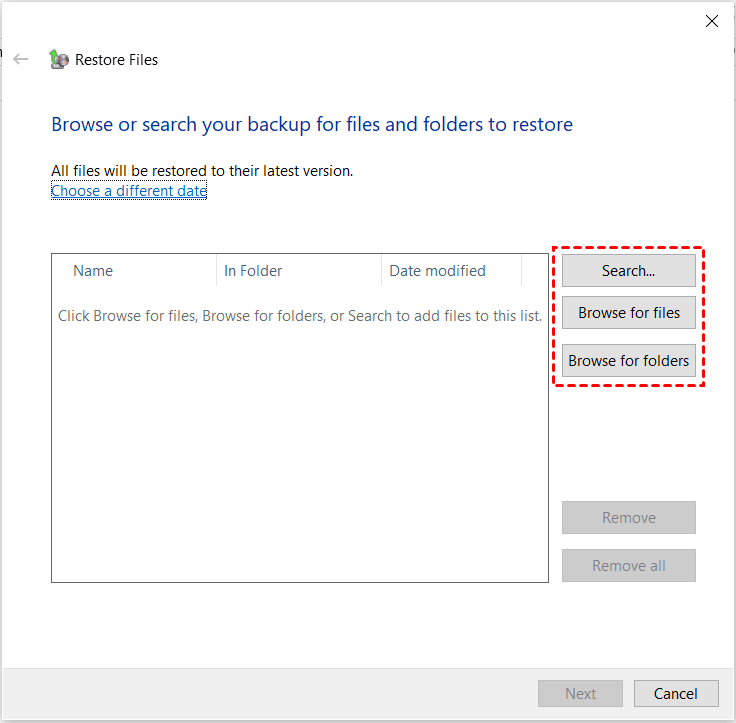
Step 5. Select where you want the recovered Excel file to be saved and click the Restore button.
Method 6. Recover an Earlier Excel File Version with File History
Windows File History can preserve earlier versions of files in selected folders when it has been enabled and configured with a backup destination. If the deleted Excel workbook was included, you may be able to restore a previous copy.
Step 1. Open Control Panel and select System and Security > File History.
Step 2. If File History is enabled and contains relevant backups, select Restore personal files.
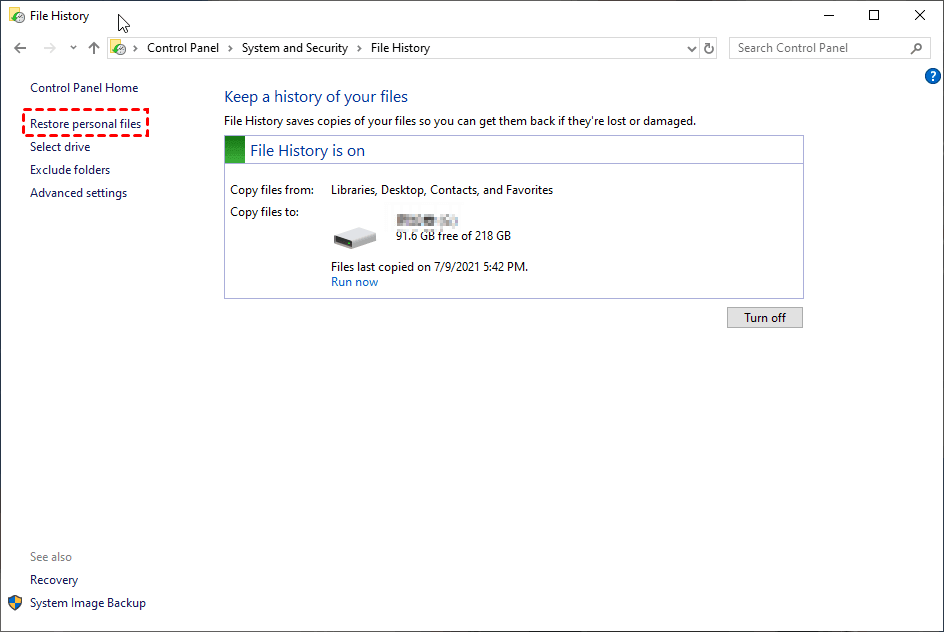
Step 3. Browse the available folders and dates to locate the Excel workbook you want to recover.
Step 4. Select the file and click the Restore button. You can then check the recovered Excel file in its original location.

💡 Note: If you want to keep an existing file with the same name, click the gear icon in the upper-right corner and select Restore to.
Bonus: How to Recover Unsaved Excel Files
Sometimes an Excel workbook is not deleted at all. You may close Excel without saving, experience a crash, or lose recent edits after an unexpected shutdown. In these cases, try Excel's built-in unsaved workbook and document recovery features.
💡 Note: These options depend on Excel having recovery data available. They may not work for a workbook that was deleted long ago or never had recovery information saved.
Option 1. Recover an Unsaved Workbook
Step 1. Open Excel and select File > Info.
Step 2. Choose Manage Workbook > Recover Unsaved Workbooks, if this option is available.
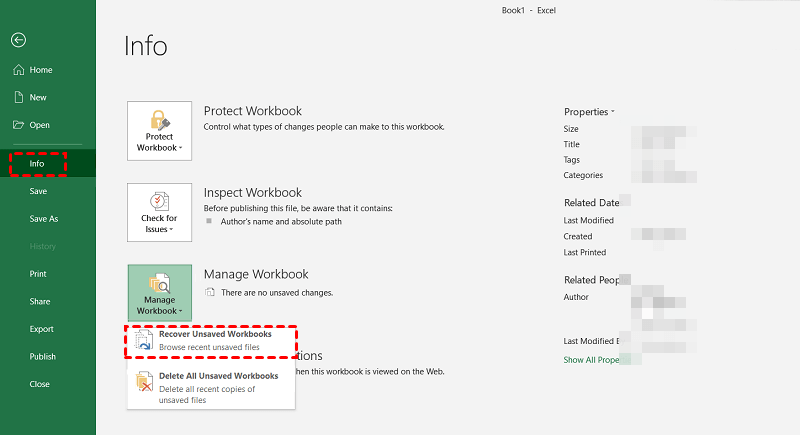
Step 3. Review the listed files and open the workbook that appears to contain your missing work.
Step 4. Select Save As and save the recovered workbook to a secure location.
Option 2. Check the Document Recovery Pane
Step 1. Reopen Excel after a crash or unexpected closure.
Step 2. If the Document Recovery pane appears, review the available recovered workbooks.
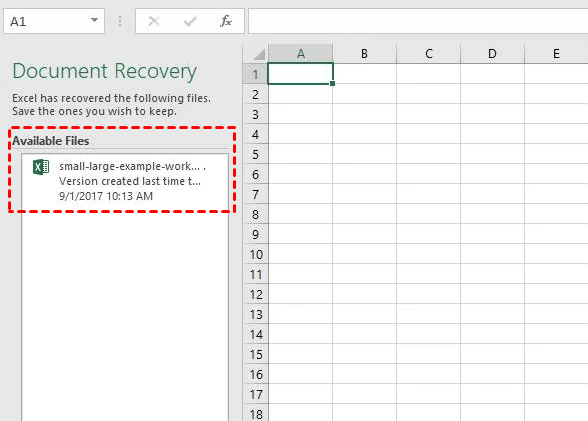
Step 3. Open the most relevant version and check whether it contains the changes you need.
Step 4. Save the workbook with File > Save As to preserve the recovered content.
How to Prevent Excel File Loss in the Future
The best way to reduce the impact of accidental deletion is to keep an extra copy of important workbooks. You can use OneDrive, File History, Windows Backup, or backup software to protect your Excel files.
AOMEI Backupper is one option for creating scheduled backups of important files and folders. It supports file, system, partition, and disk backups, with options to save backup images to internal or external drives, network locations, and supported cloud destinations.
To back up Excel files with AOMEI Backupper:
Step 1. Download, install, and open AOMEI Backupper on your Windows PC.
Step 2. Go to Backup and select File Backup.

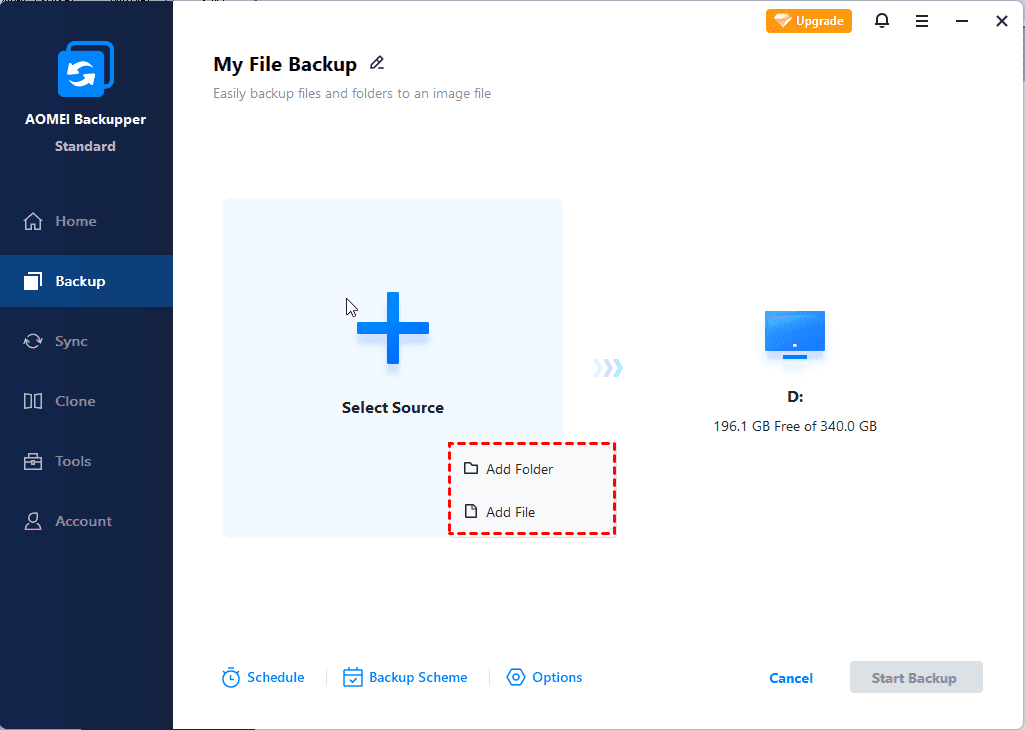
Step 3. Enter a task name if desired, then click Select Source to select your Excel workbooks or the folders containing them.
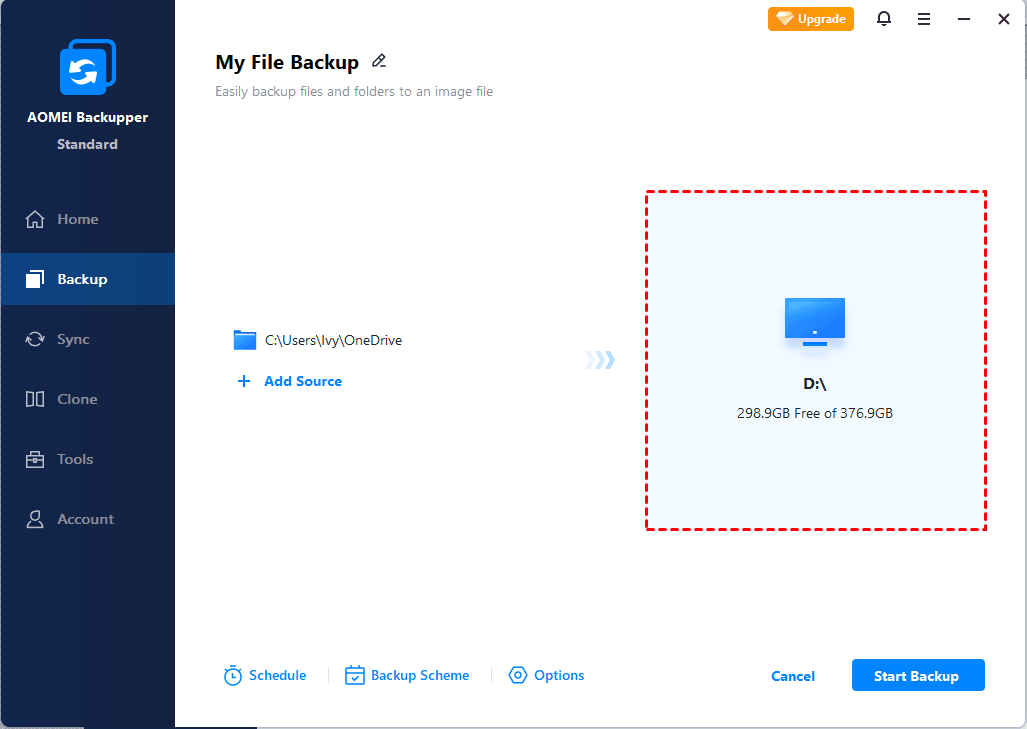
Step 4. Choose a destination for the backup, such as an external hard drive or network location.
Step 5. Configure a Schedule if you want the files to be backed up regularly, then click Start Backup.
FAQs About Recovering Deleted Excel Files
1. Can I recover an Excel file after emptying the Recycle Bin?
Possibly. If the file was permanently deleted, you can try data recovery software such as AOMEI FastRecovery or restore it from a backup. Success depends on whether the deleted data is still recoverable and has not been overwritten.
2. Where do deleted Excel files go in Windows?
Files deleted normally from a local drive usually go to the Recycle Bin. Files deleted from removable drives, network locations, or through certain deletion methods may bypass it. Cloud-stored files may have a separate online recycle bin.
3. Can Excel recover a file that was never saved?
Excel may recover an unsaved workbook through Recover Unsaved Workbooks or the Document Recovery pane if recovery data is available. If no recovery copy exists, Excel may not be able to restore the work.
Summary
Wondering accidentally deleted Excel file how to recover? You can try several recovery methods, including checking the Recycle Bin, using Excel's AutoRecover feature, or restoring the file from a Windows backup or File History.
If the workbook was permanently deleted and no backup is available, AOMEI FastRecovery is worth trying. Besides Excel files, it can also help you recover deleted photos from hard drive. Why not give it a shot?

 as a preferred
source on Google
as a preferred
source on Google