




How to Recover Recently Deleted Files from Recycle Bin [even After Emptied]
Don't worry if you accidentally empty the Recycle Bin. This article provides you with 5 simple and effective methods to recover files recently deleted from Recycle Bin with and without backups, along with step by step instructions.

By Ivy Updated on April 30, 2026


How to Recover Recently Deleted Files from Recycle Bin
The Recycle Bin folder is a temporary folder on the C: drive of a computer to store recently deleted files, which will be kept for 30 days after deletion. So you can easily restore deleted files from Recycle Bin.
Step 1. Double-click the Recycle Bin icon on the desktop.
Step 2. Locate recently deleted files, right-click them, and click Restore. To select multiple files, hold the "Ctrl" key.

- By default, these files will be restored to the original location. You can also manually drag themto another location.
- To avoid deleting files mistakenly, you can enable the "Display delete confirmation dialog" option in the Recycle Bin Properties window. Or change the retention time to 60 days or never.
Can I Recover Deleted Files after Emptying the Recycle Bin?
“I have lost some important files that are necessary for my small company. While cleaning up some useless data from my laptop, I accidentally put some files that are the backbone of my small business into the Recycle Bin and emptied them. The files were deleted yesterday. Can I recover files deleted from Recycle Bin? I need to get these files asap. Any help or advice is welcome. The files were photos.”
- Question from Reddit
The deleted files will be sent to the Recycle Bin directly when you press the Delete key to remove them. You can easily restore the deleted data from the Recycle Bin.
However, if you empty the Recycle Bin, or press Shift+Delete, or for large files, or deleted files on removable drives, these files will be permanently deleted. Fortunately, your files are still on the disk and recoverable, as Windows only deletes the file path instead of the data itself. To increase the success rate, please pay more attention to:
- Stop using the drive immediately.
- Don't add new data to the drive.
- Don't format the drive before recovery.
- Start data recovery as soon as possible, prioritizing methods with higher success rates.
How to Recover Permanently Deleted Files in Windows 11
Microsoft offers users different backup software such as File History, Backup and Restore (Windows 7), etc., to backup and restore deleted files after emptying Recycle Bin. You must enable them to save copies of files before losing data. If not, try data recovery software.
Method 1. Recover permanently deleted files using AOMEI FastRecovery 🔥
AOMEI FastRecovery is a reliable software that can recover permanently deleted files in Windows 11, 10, 8.1/8, 7, and Windows Server. In most cases, users don't think about backup, and some of them don't even know there is such a tool as backup software. Just try it if you don't have a backup.
-
Empty the Recycle Bin after deleting files.
-
Delete files using the "Shift + Delete" keys.
-
Files/folders are too big to recycle.
-
The Windows recycle bin is already too full to hold the deleted items.
AOMEI FastRecovery- Recoverable scope: Recover data in any scenario, such as permanent deletion, disk formatting or corruption, lost partition, system crashes, etc.
- 2 Scanning Mode: IntegrateQuick &Deep Scan to scan hard drive and find all recoverable data.
- 1000+ data formats: Recover deleted or lost images (JPEG, PNG, GIF, SVG), documents (DOC, XLSX, CSV, PPT), audios (MP3, CDA, WAV), videos (MP4, MOV, AVI, ASF, WMV), etc.
- Simplified layout: Organize data by type and path for easier navigation, providing options to sort, search, filter, and preview files.
- Recoverable items: Optionally restore entire disks, partitions, or specific files or folders.
- Multiple storage devices: Recover data from hard drives, SSDs, external disks, USB drives, SD cards, etc., regardless of the brands or size.
 100% Secure
- Don't download and install AOMEI FastRecovery to the drive containing deletedfiles, which may result in data overwriting.
- The free edition allows you to recover deleted files over 500MB. To enjoy unlimited data recovery, upgrading AOMEI Fast Recovery is a better and more cost-effective choice.
Step 1. Open FastRecovery after installing. Then, click Deleted Files Recovery to get started.

Step 2. Hover the mouse over the drive containing deleted files, and click Scan to start the quick scanning process and display all recoverable data.
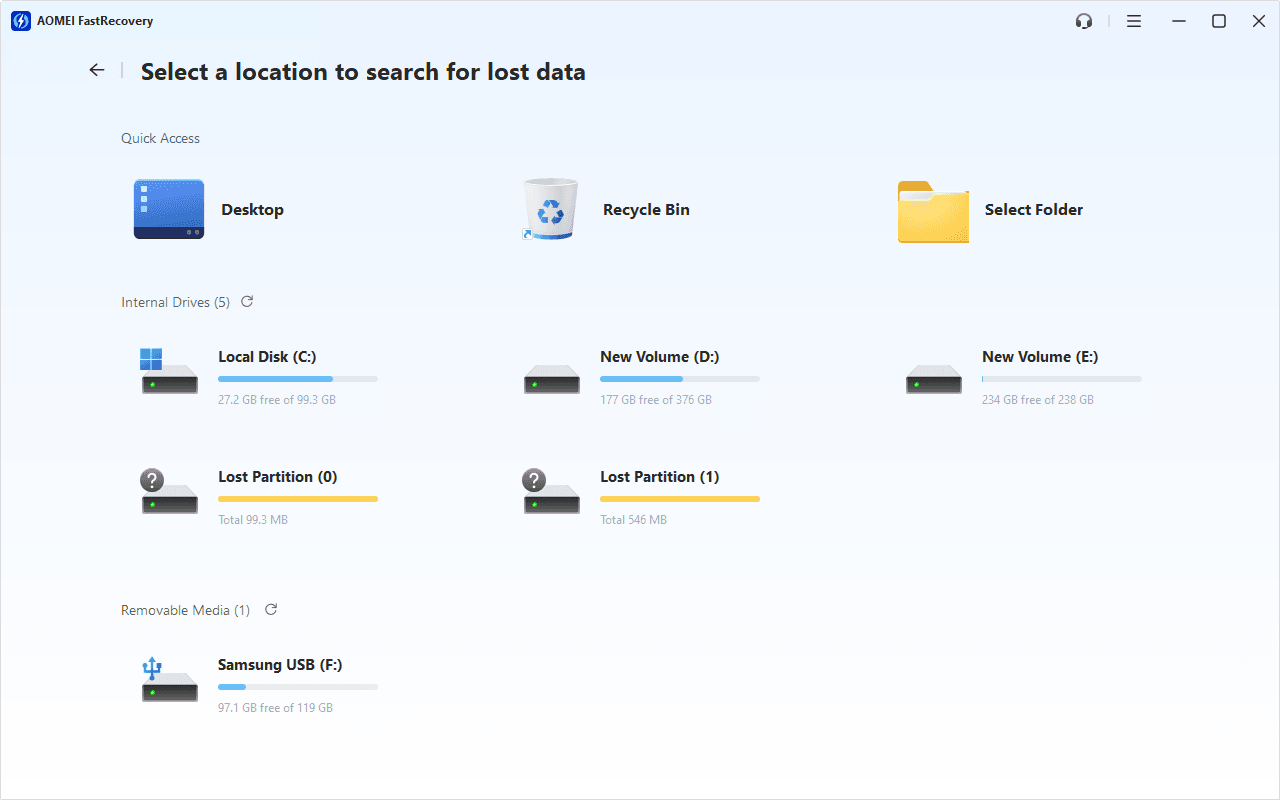
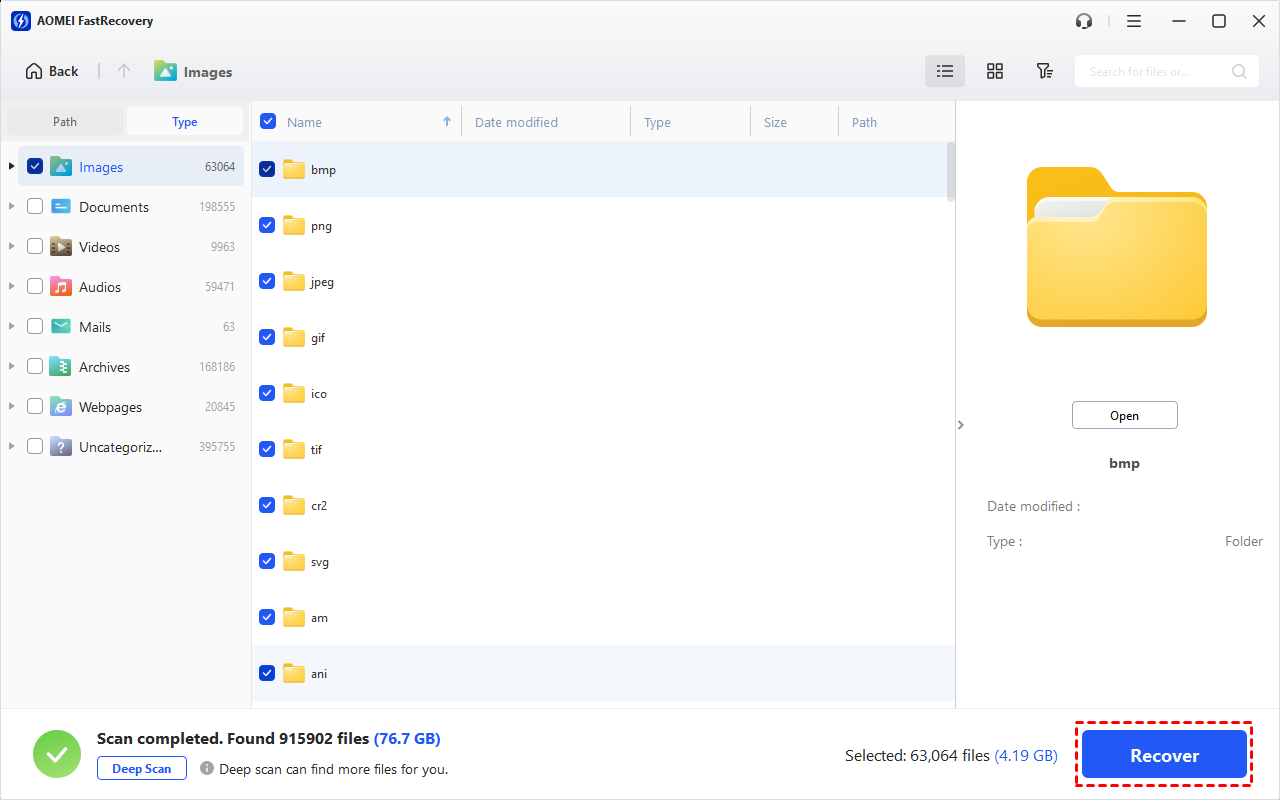
Step 3. Under the Type section, specify a data type (e.g., Images) and expand it to see all data formats. You can sort them or search the name to locate files quickly.
-
You can also locate deleted files by Path if you remember this.
-
Click the Deep Scan button if the Quick Scan fails. Deep Scan searches every sector of the disk to find more files.
Step 4. Select the deleted files you want and then click Recover to get them back quickly. Please select a new location to save them, as restoring to the original location may result in data overwriting.
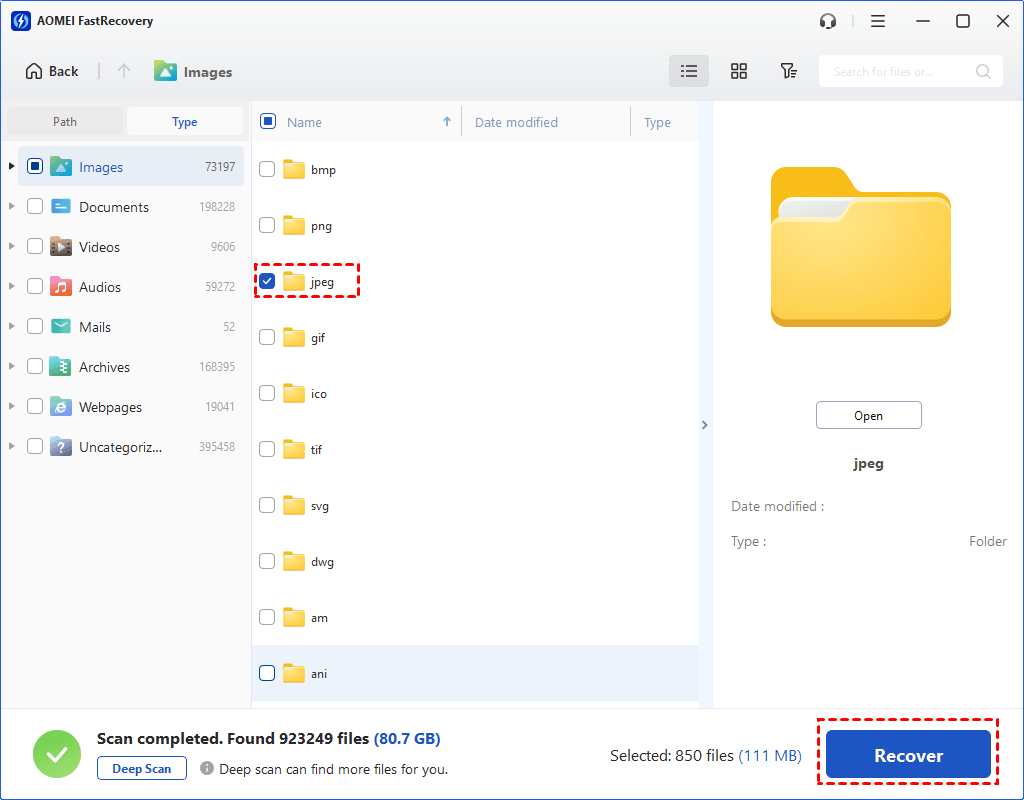
You will be asked to upgrade to the advanced edition of AOMEI FastRecovery to enjoy unlimited data recovery. The free edition supports up to 500MB.
Method 2. Restore files deleted from Recycle Bin using Windows File Recovery
Windows File Recovery is a free command-line utility, released by Microsoft, which aims to recover deleted or lost files in Windows 10 2004 edition and above. It requires users to learn the syntax and necessary parameters.
winfr source-drive: destination-drive: [/mode] [/switches]
- Two basic modes: Regular & Extensive, and two advanced modes: Segment & Signature.
- Ensure the destination drive (which stores the recovered files) is not the same as the source drive (which stores the permanently deleted files).
- You need to check the file system of the drive to specify the recovery mode.
- For more info, type winfr.exe to search.
Step 1. Check the file system of the hard disk. Right-click a partition of the hard disk and select Properties. Then, under the General tab, check the File system, usually FAT32 or NTFS.
Step 2. Select a recovery mode according to the file system and scenarios.
|
File system |
Scenarios |
Recommended mode |
|
NTFS |
Deleted recently |
Regular |
|
NTFS |
Deleted a while ago |
Extensive |
|
NTFS |
After formatting a disk |
Extensive |
|
NTFS |
A corrupted disk |
Extensive |
|
FAT and exFAT |
Any |
Extensive |
Step 3. Select the recovery switches you want.
|
Parameter / switch |
Description |
Supported mode(s) |
|
/n |
Scans for a specific file by using a file name, file path, file type, or wildcards. For example:
|
|
|
/y: |
Recover specific extension groups, comma separated |
Signature |
|
/p: |
Saves a log file of the recovery operation in a different location than the default location on the recovery drive (for example, D:\logfile). |
All |
|
/segment |
Segment mode, recovery option for NTFS drives using file record segments |
Segment |
|
/signature |
Signature mode, recovery option for all file system types using file headers |
Signature |
Step 4. Download Windows File Recovery from Microsoft Store and run it. Then, type the winfr commands based on your need.
For example, to recover a recently deleted word file named “Test” from the D: /working/Documents folder to E:, type:
winfr D: E: /r /n \Working\Documents\Test.docx
Method 3. Recover deleted files from Recycle Bin after empty using File History
File History is a free backup software in Windows 8.1 and later, which will automatically backup user data in Libraries, Desktops, Contacts, and Favorites. It's a good choice to recover recently deleted files from Recycle Bin without software.
Step 1. Press the Win + S keys to open the search bar. Type restore files and select it to open Restore your files with File History.
Step 2. In the Control Panel, check if File History is on and select Restore personal files.
Step 3. Look for the folder containing recently deleted files. Select them and click Restore to retrieve deleted file to original location.
Method 4. Restore deleted files using Previous Versions
File History still offers users a quick way to restore deleted files after emptying Recycle Bin - it's using Previous Versions.
Step 1. Locate the folder including deleted files, right-click, and select Properties.
Step 2. Under the Previous Versions tab, select the folder based on date and time. Click Restore to restore previous version of deleted files.
Method 5. Recover files deleted from Recycle Bin using Backup and Restore
Backup and Restore (Windows 7) is another backup tool on all versions of Windows. You can also choose to include a system image backup. Anyway, it helps to recover data in the event of data loss.
Step 1. Open Control Panel and select System and Security > Backup and Restore (Windows 7). Click Restore my files.
Step 2. Click Browse for files. Then, select the files you need and click Next.
Step 3. Specify the destination - original location or specified location according to your preferences. At last, click Restore to recover files deleted from Recycle Bin.
Bonus tips: How to prevent file deletion
Sometimes, you may still not recover files recently deleted from Recycle Bin because the files were overwritten by new data. To avoid such a case in the future, try the following suggestions:
1️⃣Make regular backups. The built-in backup software only copies the files in C: drive. To back up specific files and enjoy more flexible features, try AOMEI Backupper Standard.
2️⃣Increase the Recycle Bin maximum size. Right-click the Recycle Bin icon and navigate to Properties> Recycle Bin Location> Settings for selected location> Custom Size.
3️⃣Double-check deleted files. Be sure to delete only the files not needed. Meanwhile, don't use the Shift + Delete keys, which will permanently delete files from your computer, making data recovery difficult.

 as a preferred
source on Google
as a preferred
source on Google