




[Free] How to Recover Deleted Files from Recycle Bin in Windows 8
How to recover deleted files from Recycle Bin in Windows 8? You just need to find deleted files for recovery and click the Restore button. But what if your files are not in the Recycle Bin.

By Ivy Updated on March 25, 2026


Help! Need to recover deleted files on Windows 8
I have accidentally deleted some files from size: huge, size: large, size: medium, size: small. I am wondering if any of you guys know how to recover those files? I appreciate your help and sorry for the inconvenience.
- Question from Microsoft Community
Where do deleted files go on Windows 8 computers? Recently deleted files are located in the Recycle Bin. You can recover these files within 30 days. However, you can’t restore the huge/large deleted files if the deleted files are too large or much bigger than the storage size of the Recycle Bin. Similarly, there’s no way for you to restore permanently deleted files from the Recycle Bin after executing the following operations.
- Emptied the Recycle Bin manually or using the elevated command prompt.
- Pressed “Shift + Delete” to remove some files.
Please be calm! You still have a chance to restore deleted files in Windows 8 because your deleted/lost files might be on your PCs as long as they haven’t been overwritten by new data. Therefore, please avoid adding new data to your computers after data loss.
How to recover deleted files from Recycle Bin in Windows 8
If you need to recover deleted files from Recycle Bin in Windows 8, it means you accidentally deleted files recently. Here's how to get it back:
Step 1. Open the Recycle Bin in Windows 8.
Step 2. Locate the files you want to restore, right-click them, and select “Restore” to restore deleted files to the previously saved path.

How to restore deleted files after emptying the Recycle Bin
Sometimes, your files are not in the Recycle Bin, especially for large files, or when you use Shift + Delete. It means your files are permanently deleted, and in this situation, you have no choice but to restore files from backups or use top-rated data recovery software for Windows.
▶ Solution 1. Recover deleted or lost files with AOMEI FastRecovery (without backup)
How to recover deleted files from Recycle Bin on Windows 8 computers with ease? Utilize data recovery software like AOMEI FastRecovery to address your issues. This highly-praised tool benefits from rich industry experience, powerful features, and a user-friendly design.
AOMEI FastRecovery- Recover 1000+ data types, includingWord, Excel, PPT, Photos, Videos, Audio, Compressed files, and so on.
- Integrates Quick Scan and Deep Scan to find all recoverable data.
- Support search, filter, preview, crashed PC recovery, etc., making recovery simple and efficient.
- Support different storage devices (e.g., HDDs/SSDs, USB drives, SD cards) and NTFS, exFAT, FAT32, and ReFS file systems.
- 🔥 Free data recovery, up to 500 MB.
 100% Secure
Deep industry experience in the field of data recovery and advanced technology support provides a guarantee for hard disk data recovery. So why don’t you download it on your Windows 8 computers to check?
Step 1. After launching AOMEI FastRecovery on your PC. Hover the mouse over the drive and click Scan to get started.
Step 2. It will run Quick Scan automatically to find all the recoverable data and display them by Type or Path. You can sort them by name, date modified, type, etc.
📍📍📍Notes:
✅ For specific files or folders, directly type the name or extension in the search box.
✅ Click the Deep Scan button to find more data if Quick Scan can't.
✅ Click Path and select the Recycle Bin if you want torecover deleted files from Recycle Bin.
Step 3. Select the files you want to recover and preview them. Then click “Recover” and select a new location to save them. Restoring files to the original location may cause data overwriting.
▶ Solution 2. Recover deleted files using Backup and Restore (Windows 7)
Backup and Restore (Windows 7), first introduced in the Windows 7 operating system, is perhaps the most compatible Windows backup feature available. It allows you to restore deleted files if it's enabled.
Step 1. Open the Control Panel by searching for it in the search bar. Then, go to System and Security and click the “Backup and Restore (Windows 7)” button.
Step 2. Click the “Restore my files” button.
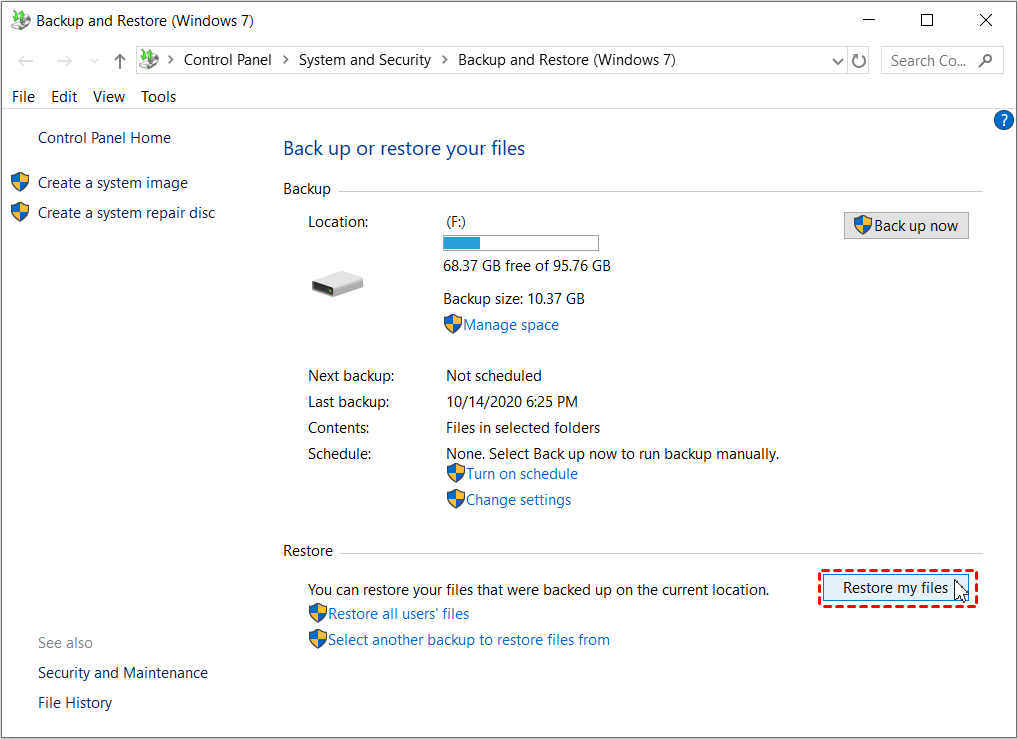
Step 3. Select the “Browse for files” or “Browse for folders” option to locate and recover deleted files in Windows 8.
Then, you can restore them to the original location or to a new saved path.
▶ Solution 3. Recover permanently deleted files via File History
When it comes to Windows 8 computers, free File History is necessary to mention because this feature first appeared in Windows 8. It can make copies of files in Documents, Music, Pictures, Videos, Desktop folders, and OneDrive offline files stored on your PCs and save them to external hard drive, USB drive, etc.
🌟Pro Tip: After activatingFile History, you can recover previous versions of files in File Explorer, without accessing this software.
Step 1. Search “Control Panel” in the search bar and open it. Then, go to System and Security and click the "File History" button.
Step 2. Click the “Restore personal files” option.
Step 3. It will take you to the File History Home page. Click the left or right arrow to find the backup containing deleted files and click the “Restore” button. Alternatively, click the Settings icon > "Restore to" if you want to save them to a new path.
Bonus tips: Recycle Bin shows empty but it is not!
Recycle Bin shows empty, but it is not! How to fix it? Use the elevated command prompt to reset the Recycle Bin.
Type “cmd” in the search bar and select “Run as administrator” to open it. Then enter “rd /s /q C:\$Recycle.bin” in the window and hit “Enter” to empty the deleted files of your selected drive in the Recycle Bin.
If your Recycle Bin icon is invisible to you, you can restore the Recycle Bin icon.
If you can ensure your files were not deleted from this temporary storage device, try to show hidden files, folders, and drives, or customize the storage size of it to view files in the Recycle Bin.
Wrapping up
This tutorial lists 4 solutions on how to recover deleted files from Recycle Bin in Windows 8, even if not in the Recycle Bin. Read them carefully and find the one that best suits you. AOMEI FastRecovery can recover deleted files in Windows 8, whether they are in the Recycle Bin or not, alongside a complete suite of recovery features, making this process simple and efficient.
In addition, everyone must make regular backups using Windows backup features, such as Backup and Restore (Windows 7), File History, or third-party backup software, AOMEI Backupper.

 as a preferred
source on Google
as a preferred
source on Google