




Where to Find Deleted Files on Windows 10 & Recover in 5 Ways
Deleted a file on Windows 10 and not sure where it went? This guide shows you where to find it – and how to recover it from the Recycle Bin, backups, or recovery software.

By Lily Updated on September 17, 2026


Where Are Deleted Files on Windows 10?
Accidentally deleting an important file can be stressful, especially when you are not sure where it went. Actually, Windows 10 handles deleted files differently depending on the deletion method. Here are the two most common situations.
Situation 1: Files Deleted with the Delete Option
Pressing Delete typically sends files to the Recycle Bin rather than removing them permanently. You can open the Recycle Bin, find the file, and restore it to its original location. Items stay there until you empty it, Windows auto-removes them, or space limits force older items out.
Situation 2: Files Deleted with Shift + Delete
Shift + Delete bypasses the Recycle Bin, treating the file as permanently deleted—as do some command-line operations. However, the data may still be recoverable: Windows marks the space as available, but until it's overwritten, recovery software can often find and restore the file.
If your deleted files are not in the Recycle Bin, avoid using the affected drive unnecessarily. In particular:
- Do not save new files to the drive where the deleted data was stored.
- Avoid continuing to use the affected drive more than necessary.
- Do not format the drive before attempting recovery.
These precautions can reduce the risk of overwriting the deleted data.
How to Recover Deleted Files from the Recycle Bin
If you only used the regular Delete option, the Recycle Bin should be the first place to check. Learn how to recover deleted files on Windows 10 from the Recycle Bin below.
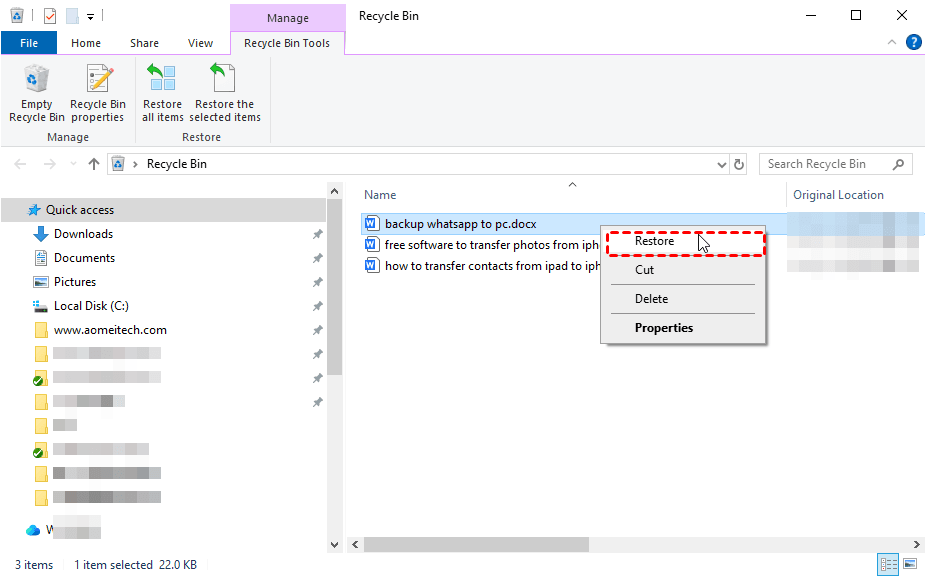
Step 1. Double-click the Recycle Bin icon on the desktop.
💡 Note: If you cannot see the Recycle Bin on your desktop, you can open File Explorer, enter “recycle bin” in the address bar, and press Enter to open the Recycle Bin.
Step 2. Browse through the items or use the available sorting options to locate the file or folder you need.
Step 3. Right-click the desired item and select Restore. Windows will return the file to its original location.
Bonus: Why Can't I Find Deleted Files in the Recycle Bin?
Sometimes you may check the Recycle Bin and still be unable to locate the file. If you are trying to determine where deleted files went on Windows 10, one of the following situations may explain it.
🎯 Deleted with Shift + Delete– Permanently removes the file, bypassing the Recycle Bin. Some Command Prompt deletions do the same. You'll need a backup or recovery tool.
🎯 Stored on a USB drive or SD card– Removable storage often skips the Recycle Bin. Stop using the device and try data recovery.
🎯 File too large– Windows permanently deletes files exceeding the Recycle Bin's capacity or when space is insufficient.
🎯 File is hidden– The file may exist but be invisible. In File Explorer: go to the View tab and check Hidden items.
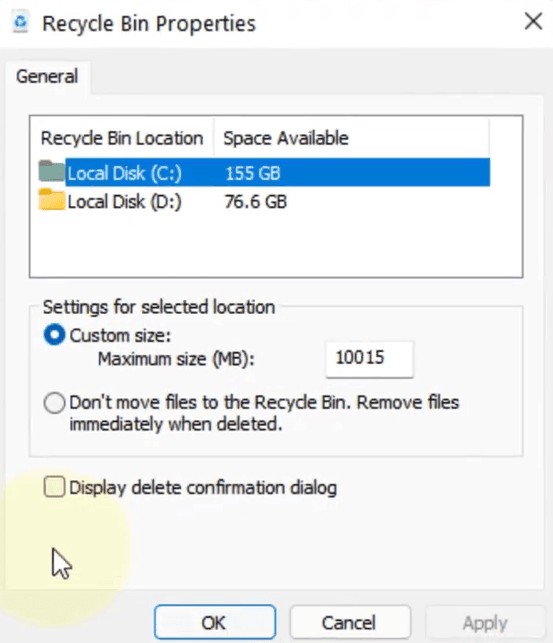
🎯 Recycle Bin disabled– If set to immediately delete, files won't be stored. Check: Right-click Recycle Bin > Properties > select drive > Make sure Custom size is selected instead of Don't move files to the Recycle Bin.
How to Recover Deleted Files Using Windows Backup
If the deleted files are no longer in the Recycle Bin, check whether you have an existing backup. Windows 10 provides built-in options such as Backup and Restore (Windows 7) and File History, depending on how your system was configured.
A backup can be a safer recovery option because it does not require you to scan the original drive for deleted data.
Recover Deleted Files with Backup and Restore (Windows 7)
If you previously configured Backup and Restore, you may be able to restore a copy of the missing file.
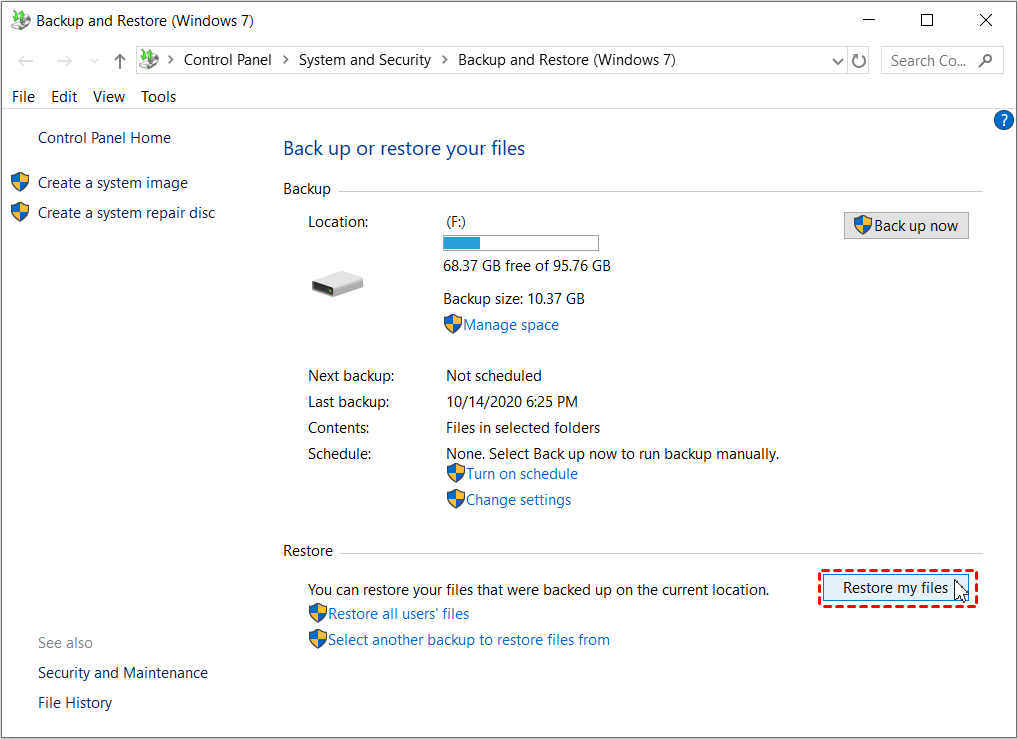
Step 1. Go to Control Panel > System and Security > Backup and Restore (Windows 7).
Step 2. When Backup and Restore (Windows 7) opens, click Restore my files.
Step 3. Use Search, Browse for files, or Browse for folders to locate the data you want to recover.
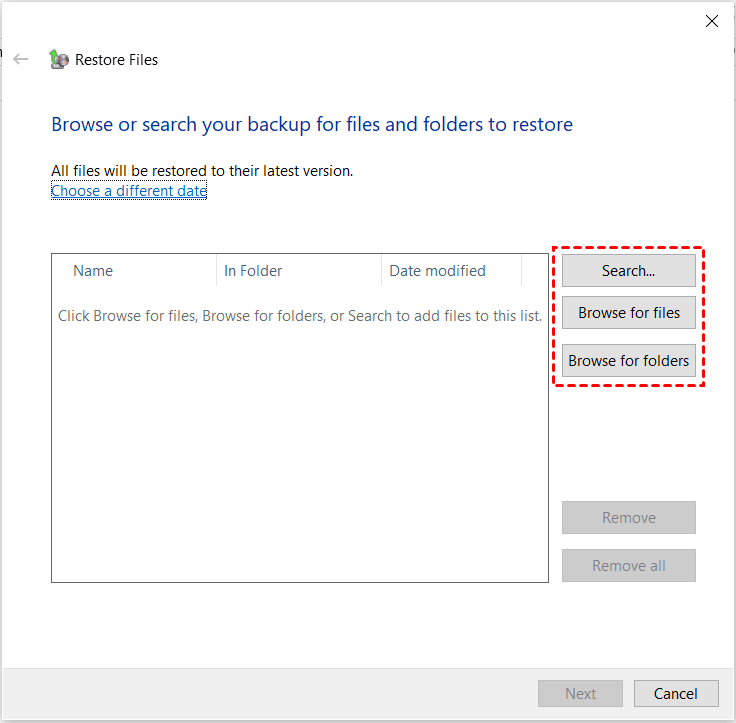
Step 4. Choose whether to restore the files to their original location or another location, then click Restore.
Restore Deleted Files from a Previous Version
If you created a backup using File History or created a system restore point for the drive containing the deleted files, you can recover an earlier copy.
Step 1. Navigate to the folder that previously contained the deleted files. Right-click it and select Properties. Then open the Previous Versions tab.
💡 Note: You can also right-click the folder and select Restore previous versions to go to the Previous Versions tab directly.
Step 2. You’ll see a list of previous versions of this folder. Pick an older date from the list before your files were deleted.
Step 3. Expand Open and select Open in File History to preview the content of the selected version. If the missing files are available, click Restore to get your files back.
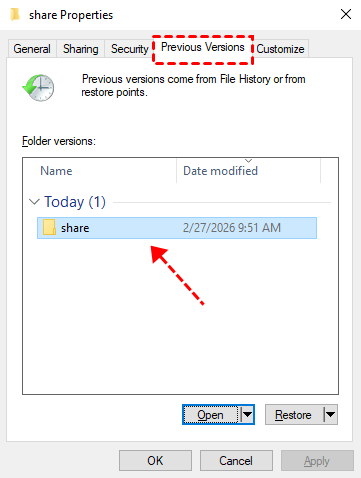
💡 Note: To avoid overwriting the current version, you can also restore to a different location by expanding Restore and selecting Restore to....
How to Recover Deleted Files Using Data Recovery Software
If you do not have a backup and the files are not in the Recycle Bin, data recovery software may be your next option. This approach is particularly useful for files removed with Shift + Delete or files that were deleted from external storage. Two available options are Windows File Recovery and AOMEI FastRecovery.
Recover Deleted Files in Windows 10 with Windows File Recovery
Windows File Recovery is Microsoft's command-line recovery utility. It can recover files from internal drives, external hard drives, USB devices, and SD cards in supported situations. Below are the requirements of using Windows File Recovery:
- Operating System: Windows 10 build 19041 (version 2004) or any newer Windows 10 or 11 release.
- Supported File Systems: Compatible with NTFS, FAT, exFAT, and ReFS storage architectures (such as HDDs, SSDs, USB sticks, and memory cards).
Follow the instructions below to recover permanently deleted files on Windows 10:
Step 1. Open the Microsoft Store, search for Windows File Recovery, and install the application.
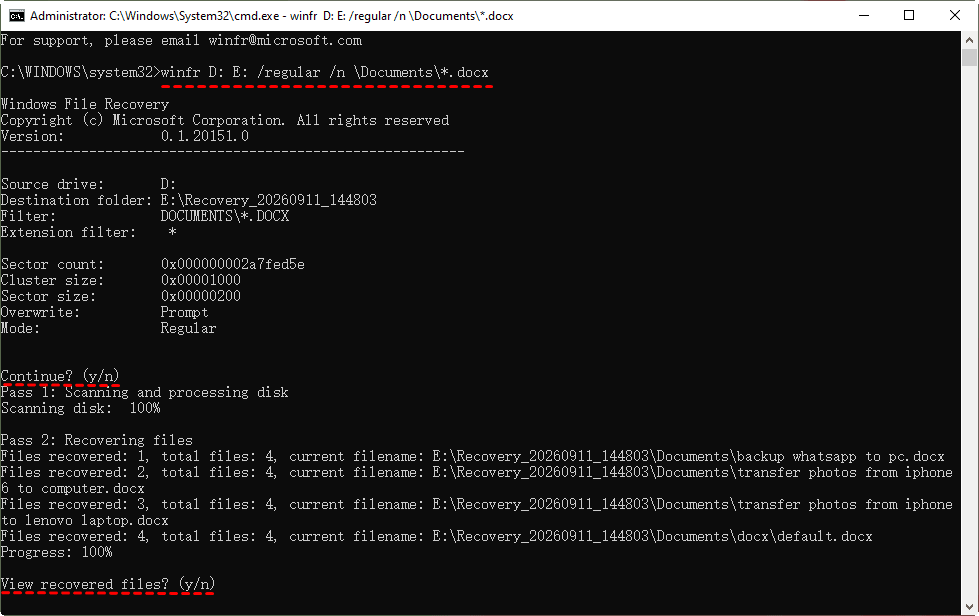
Step 2. Run Windows File Recovery to open a Command Prompt window. Then enter the command in the following format:
winfr source-drive: destination-drive: [/mode] [/switches]
💡 Notes:
- Your destination drive must be different from your source drive to avoid overwriting lost data.
- There are 2 basic modes you can use to recover files: Regular and Extensive. Regular Mode is best for recently deleted files on an NTFS file system while Extensive Mode is best for older deletions, formatted drives, or non-NTFS file systems.
For example, to recover DOCX files in the Documents folder from D: drive to E: drive:
winfr D: E: /regular /n \Documents\*.docx
Step 3. When you are prompted for confirmation to continue, enter Y to start the recovery operation.
Step 4. Wait for the scan and recovery process to finish. After recovery, enter Y to view recovered files.
💡 Notes:
- Windows File Recovery has limited effectiveness on SSDs, especially when an SSD enables TRIM.
- If your files are not recovered with the Regular mode, try again in Extensive mode.
Restore Permanently Deleted Files with AOMEI FastRecovery
If command-line recovery feels complicated, AOMEI FastRecovery provides a more straightforward graphical approach. It can scan local drives and supported external storage to search for deleted or lost files.
 AOMEI FastRecovery
- Perform a Quick Scan automatically and integrate Deep Scan to search for all recoverable files.
- Organize and display files by Type or Path, allowing you to sort, search, filter, and preview files before recovery.
- Support various file types, including Word documents, Excel spreadsheets, PowerPoint presentations, PDFs, ZIP files, JPG and JPEG images, PNG files, and more.
- Provide different recovery scenarios, such as deleted file recovery, Recycle Bin recovery, formatted partition recovery, and recovery from USB or SD cards.
 100% Secure
Here's how to perform Windows 10 deleted files recovery using AOMEI FastRecovery.
Step 1. Install AOMEI FastRecovery on a drive different from the drive where your data is lost. Open AOMEI FastRecovery and select Deleted Files Recovery from the main interface.

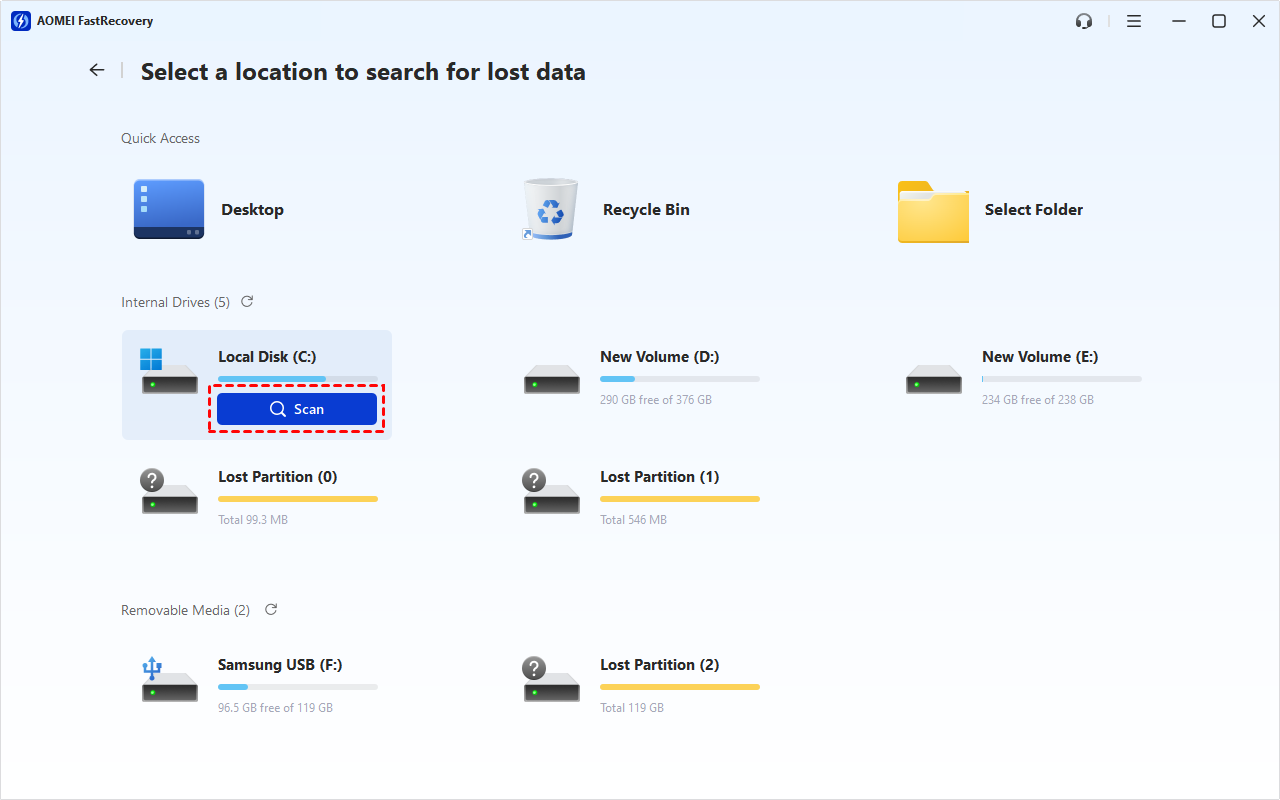
Step 2. Locate the drive where the deleted files were originally stored. Hover over the drive and click Scan. The software runs Quick Scan by default.
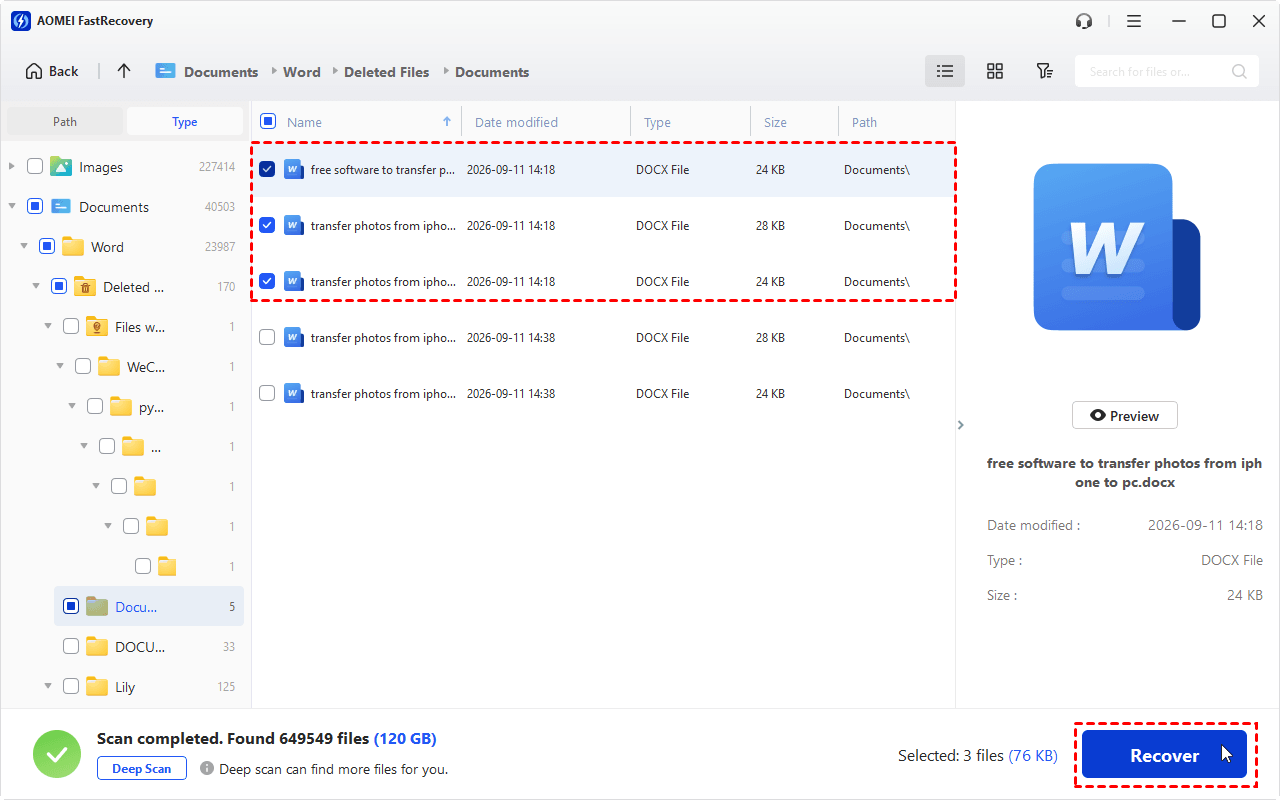
Step 3. After the scan finishes, you’ll see the deleted files listed by Type. Browse through the results to locate the files you need.
Step 4. Double-click the files to preview their content. Then select the files you want to recover and click Recover.
💡 Notes:
- The Preview feature is available in a paid edition. Please upgrade to enjoy this feature.
- If you can’t find your deleted files in the results, click the Deep Scan button at the bottom left to search every sector of the disk for more files.
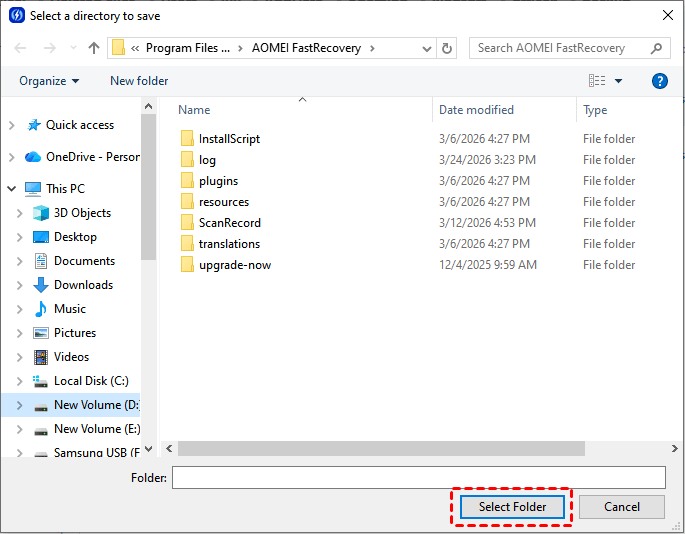
Step 5. In the pop-up window, select a different storage path for the recovered data and click Select Folder. Avoid saving the recovered files back to the same drive from which they were deleted.
FAQs About Deleted Files on Windows 10
1. Where are deleted files stored in Windows 10?
Files deleted with the regular Delete option are normally moved to the Recycle Bin. Files deleted with Shift + Delete may bypass the Recycle Bin, although their data may remain on the drive until the space is reused.
2. Can I recover permanently deleted files in Windows 10?
Yes, recovery is possible if the deleted data has not been overwritten or you have a backup. You can try Windows File Recovery or AOMEI FastRecovery to scan the affected drive. You can also restore lost files from the backup you created earlier.
3. How long do deleted files stay in the Recycle Bin?
There is no single fixed period that applies to every Recycle Bin configuration. Files remain there until they are manually removed, automatically cleared according to Windows settings, or displaced because of the Recycle Bin's size limit.
Conclusion
Knowing where to find deleted files on Windows 10 makes accidental deletion much easier to handle. When recovering deleted files in Windows 10, act fast—continued use of the drive increases the risk of overwriting the deleted data, making recovery harder or impossible.
A good recovery order is:
- Check the Recycle Bin.
- Look for a backup using Backup and Restore or File History.
- Check previous versions if they are available.
- Use Windows File Recovery if you are comfortable with command-line tools.
- Try AOMEI FastRecovery when you need a more convenient graphical recovery process.
To reduce the risk of permanent data loss, regularly back up important files to an external drive, local drive, network location, or supported cloud storage. Better safe than sorry!

 as a preferred
source on Google
as a preferred
source on Google