




Deleted Pictures Not in Recycle Bin? 4 Ways to Recover
If deleted pictures are not in the Recycle Bin, they may still be recoverable. This guide explains four ways to restore missing photos on Windows.

By Lily Updated on October 15, 2026


Why Are Deleted Pictures Not in the Recycle Bin?
Have you deleted important photos only to discover that they are not in the Recycle Bin? This can happen in the following situations:
- The Recycle Bin was emptied: Photos previously stored there may have been permanently deleted when you emptied it.
- You used permanent deletion: Pressing Shift + Delete can bypass the Recycle Bin.
- The files were too large: Files larger than the Recycle Bin's configured capacity may be deleted without being stored there.
- The photos were deleted from removable storage: Files deleted from USB drives, SD cards, and some other removable devices may bypass the Windows Recycle Bin.
- The Recycle Bin is corrupted: A damaged Recycle Bin may prevent deleted files from appearing or functioning correctly.
- The files are hidden rather than deleted: Photos may still exist but be hidden or stored in a different folder.
How to Recover Deleted Pictures Not in the Recycle Bin (4 Ways)
Before attempting recovery, stop saving new files to the drive where the photos were stored. New data can overwrite deleted file contents, reducing the chance of successful recovery.
Then choose a method to restore deleted photos from computer based on whether you have a backup and how comfortable you are with recovery tools. If you have no backup, start with Way 1 or Way 2. If you previously enabled Windows backup features, try Way 3 or Way 4.
Way 1. Recover Photos with Photo Recovery Software
When deleted pictures are not in the Recycle Bin and no backup is available, recovery software may be able to locate the remaining data. AOMEI FastRecovery is a Windows data recovery tool that scans supported storage devices for deleted or missing files.
 AOMEI FastRecovery
- Photo recovery: Search for supported image formats, including JPG, JPEG, PNG, and GIF.
- Multiple file types: Recover Excel files, Word documents, videos, audio files, and more.
- File filtering and search: Locate pictures by filename, file type, or available file information.
- Multiple data-loss scenarios: Attempt recovery after permanent deletion, an emptied Recycle Bin, or certain formatting and file-system problems.
- Windows compatibility: Supports Windows 11/10/8/7 & Servers and various file systems (NTFS, FAT32, exFAT, ReFS).
 100% Secure
Learn how to restore deleted photos from computer with AOMEI FastRecovery below.
Important precautions:
- Install the photo recovery software on a different drive from the one containing the deleted photos.
- Avoid saving new files to the affected drive.
- Save recovered pictures to another location rather than their original drive.
Step 1. Launch AOMEI FastRecovery on your Windows computer. Select Deleted Files Recovery or another suitable recovery option based on your situation.

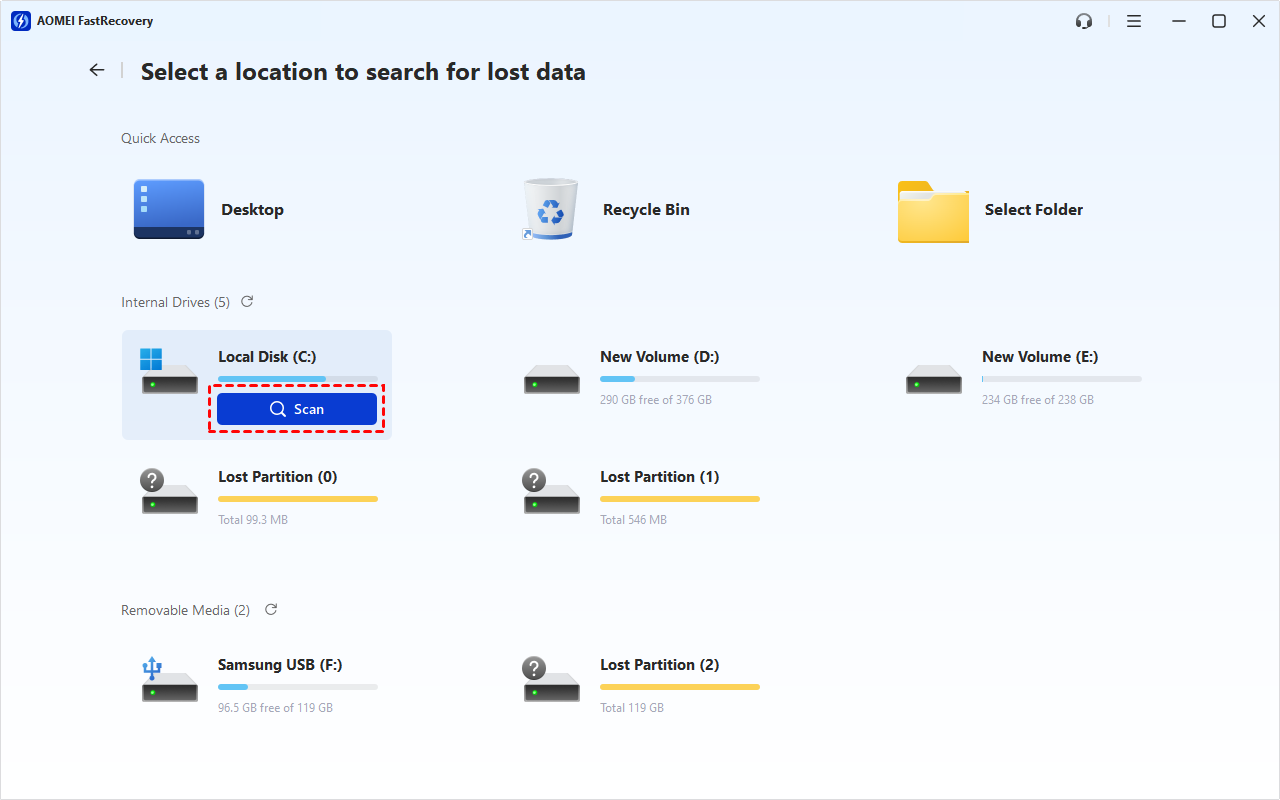
Step 2. Locate the drive where the pictures were originally stored, hover over it, and click Scan.
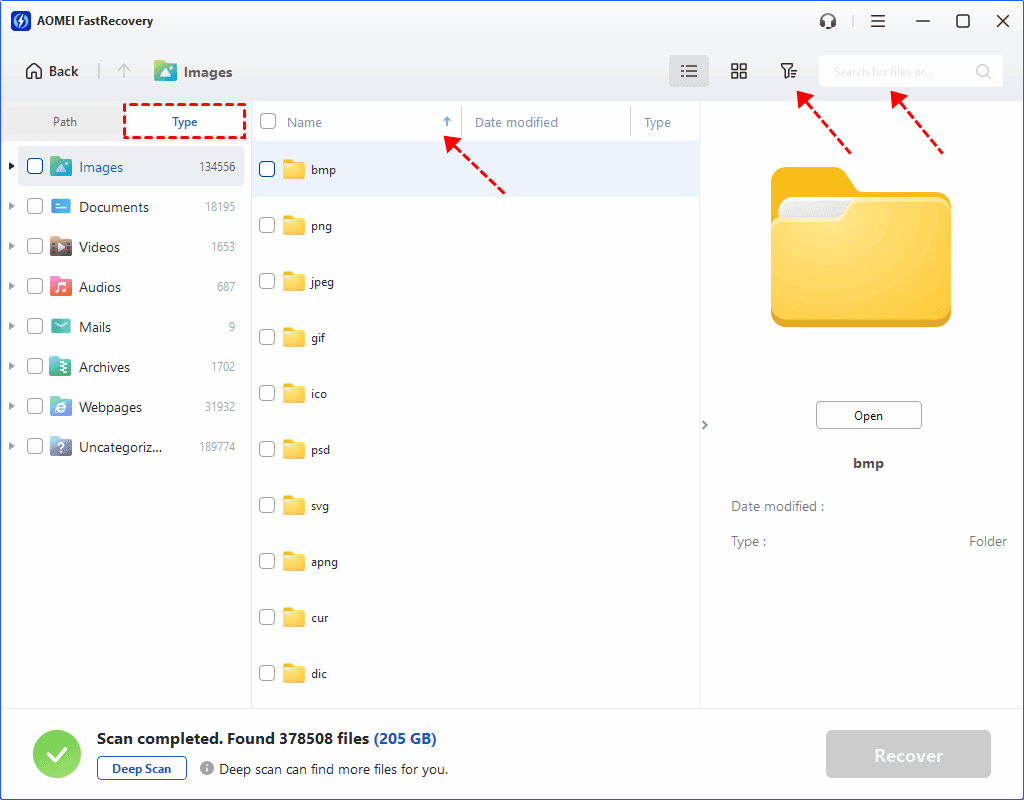
Step 3. Browse the scan results by Type or Path. Use the available search, filter, or sort features to locate your pictures. You can search by filename or image extensions such as .jpg and .png.
💡 Notes:
- If the pictures do not appear in the initial results, click the Deep Scan button at the bottom left to search for more files.
- You can double-click a supported image to preview it before recovery. This is a paid feature.
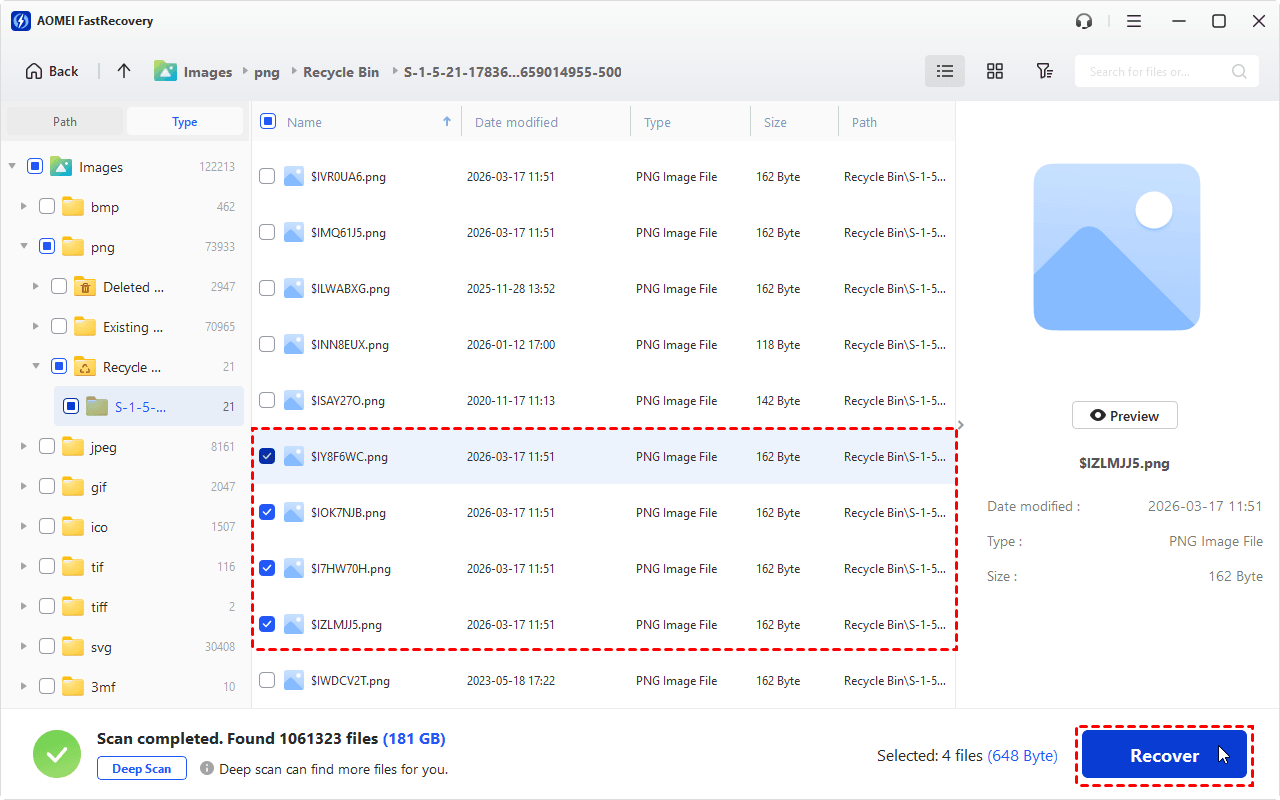
Step 4. Select the pictures you want to restore and click Recover.
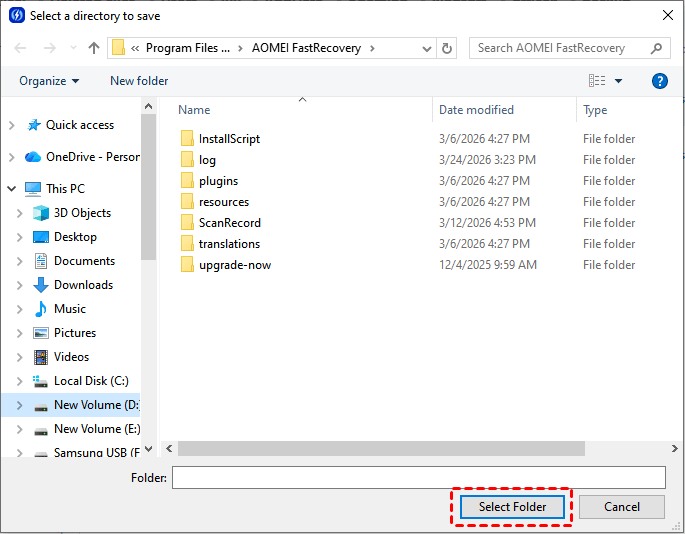
Step 5. Choose a different drive as the destination, then open the recovered files to verify that they are accessible.
Way 2. Recover Deleted Pictures Using Windows File Recovery
Windows File Recovery is Microsoft's command-line utility for recovering certain lost files on Windows 10 version 2004 and later supported versions. It can be useful if you prefer a built-in Microsoft tool, but you must choose the appropriate recovery mode and command switches.
|
File system |
Circumstances |
Recommended mode |
|
NTFS |
Deleted recently |
Regular |
|
NTFS |
Deleted a while ago |
Extensive |
|
NTFS |
After formatting a disk |
Extensive |
|
NTFS |
A corrupted disk |
Extensive |
|
FAT and exFAT |
Any |
Extensive |
Follow the instructions below to recover deleted pictures not in Recycle Bin with Windows File Recovery:
Step 1. Open File Explorer > This PC, right-click the drive where the pictures were stored, and select Properties to check its file system.
Step 2. Open the Microsoft Store, search for Windows File Recovery, and install the application.
Step 3. Run Windows File Recovery and enter a command using this format:
winfr source-drive: destination-drive: [/mode] [/switches]
For example, to recover JPG files from F: drive to D: drive, you can try:
winfr F: D: /extensive /n *.jpg
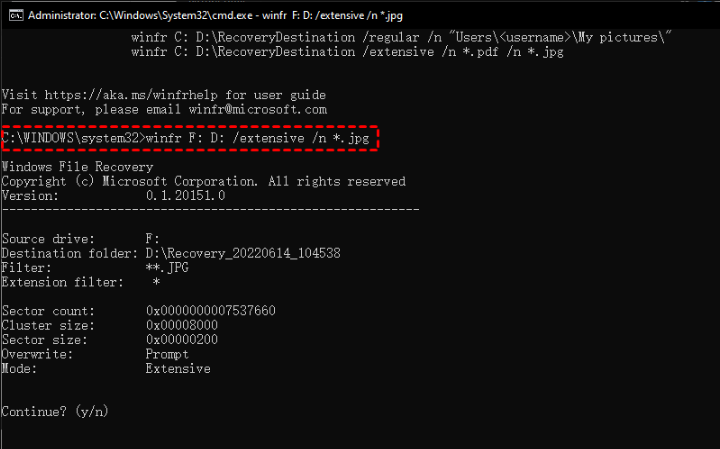
💡 Notes:
- Confirm that the recovery mode and filename filter are appropriate for your situation before running the command. You can add multiple filters, such as winfr F: D: /extensive /n *.jpg /n *.png.
- The source and destination must be different drives.
Step 4. When prompted to confirm, type Y and press Enter to begin the recovery process.
Step 5. Wait for the scan and recovery process to complete. Then, type Y when prompted to view the recovered files in the recovery folder created by the utility. Check whether the pictures you need are present and can be opened.
Way 3. Restore Deleted Pictures with File History
If File History was enabled and included the folders where your pictures were stored, you may be able to restore an earlier copy. This method will not work if no suitable backup version exists.
Step 1. Type Control Panel into the Windows search box and press Enter.
Step 2. Select System and Security > File History.
Step 3. Click Restore personal files and browse the available folders and dates to locate the pictures you want to recover.
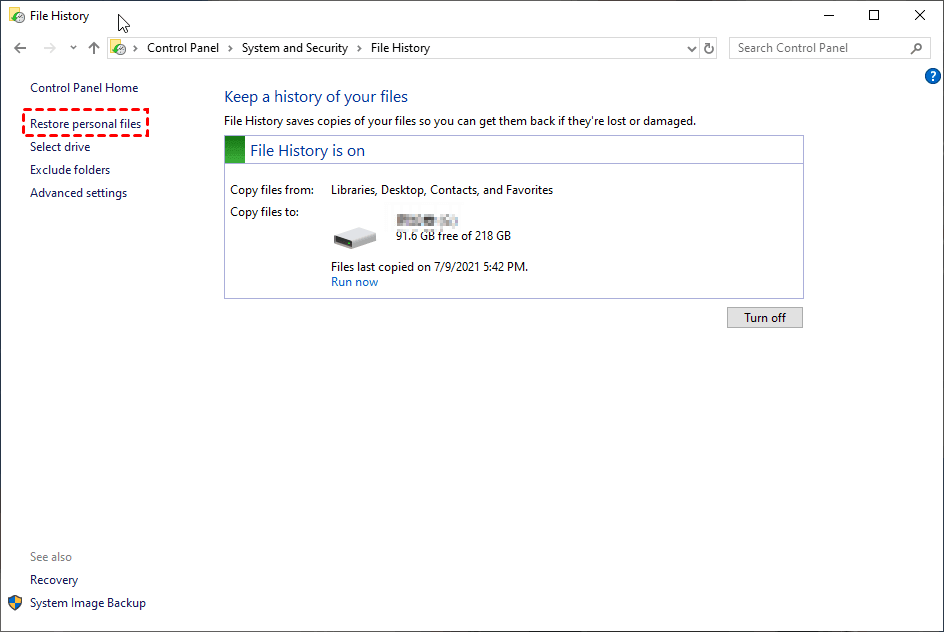
Step 4. Select the required pictures and click the Restore button. After restoration, check that the pictures open correctly.
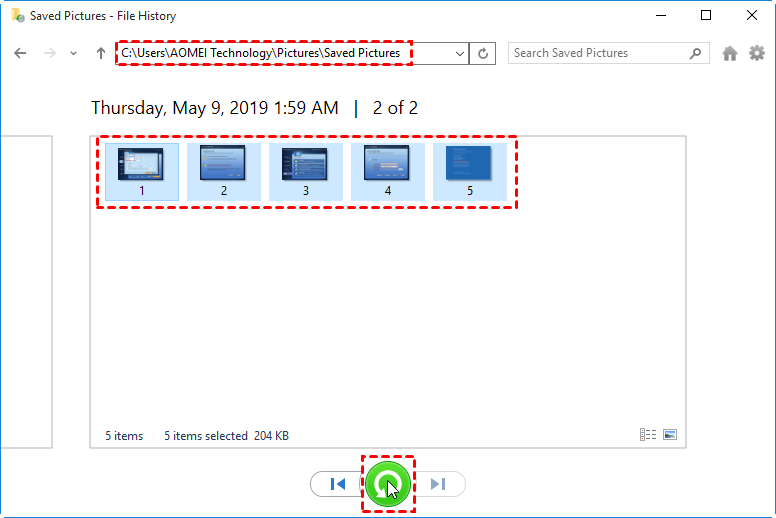
💡 Note: If you want to avoid overwriting existing files, click the Gear icon in the upper right corner, select Restore to, then choose another destination to save the restored pictures.
Way 4. Recover Deleted Pictures with Backup and Restore
Windows Backup and Restore is another option if you previously configured it to back up the folders containing your pictures.
Step 1. Open Control Panel > System and Security > Backup and Restore (Windows 7).
Step 2. If a suitable backup is available, click Restore my files.
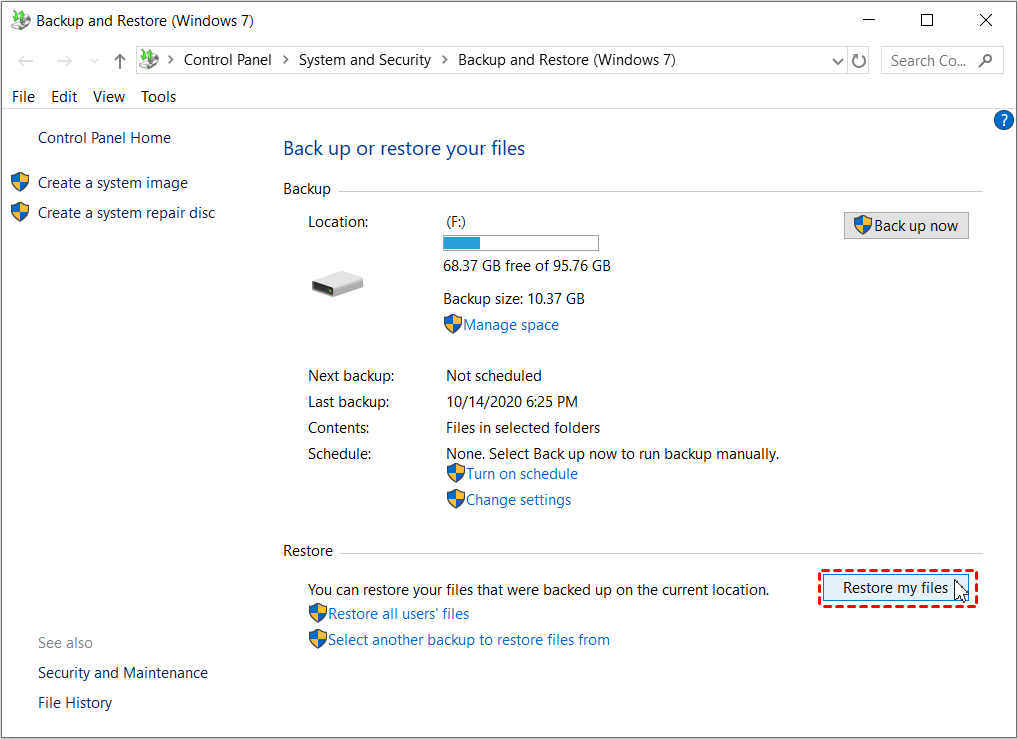
Step 3. Select Browse for files and locate the backup containing your deleted pictures. Click Next after selecting the required files.
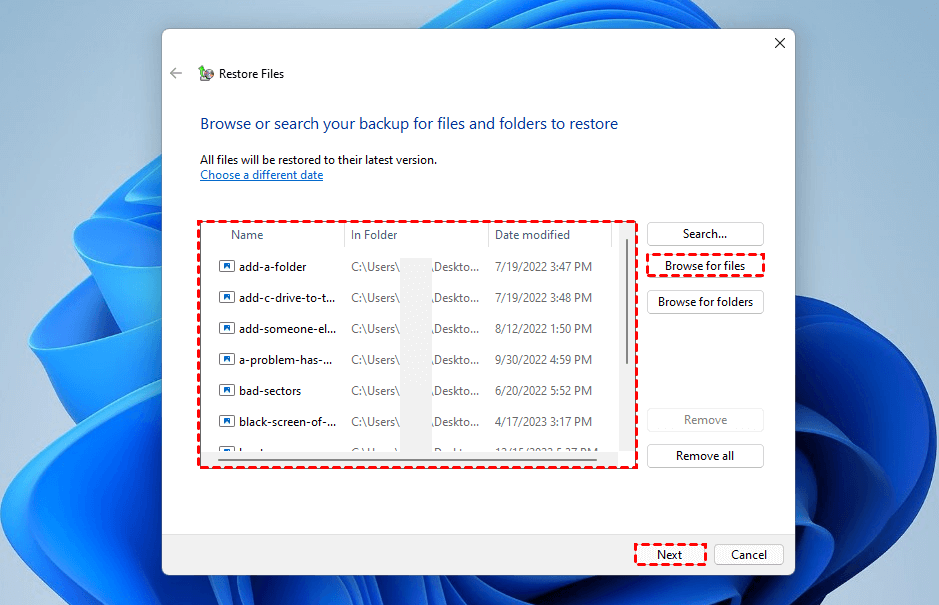
Step 4. Select a destination for the restored pictures and click Restore. Once the process finishes, open the destination folder to verify that the files are accessible.
FAQs About Deleted Pictures Not in Recycle Bin
1. How do I recover permanently deleted pictures in Windows 10 or 11?
First, stop saving new files to the drive where the pictures were stored. Then check your available backups, such as File History or Backup and Restore. If no suitable backup exists, you can scan the affected drive with a data recovery tool or try Windows File Recovery. Save recovered pictures to a different drive to reduce the risk of overwriting lost data.
2. Can I recover deleted pictures without backup software?
Yes. If the pictures were permanently deleted and no backup is available, you can try Windows File Recovery, Microsoft's command-line recovery utility, or a third-party recovery tool. However, recovery is not guaranteed, especially if the files have been overwritten or the storage device is failing.
3. Can deleted pictures be recovered from an SD card or USB drive?
Potentially, yes. Deleted pictures on an SD card or USB drive may be recoverable if their data has not been overwritten. Stop using the device, connect it to your computer, and scan it with a suitable recovery tool. If the device is physically damaged or repeatedly disconnects, avoid further attempts that could worsen the problem.
4. How can I prevent pictures from disappearing permanently?
Back up important pictures regularly to an external drive, NAS, or cloud storage. You can use Windows built-in tools or specialized backup software and verify that backups can be restored. Before deleting large batches of photos, confirm that you have selected the correct files and that any important copies are safely stored elsewhere.
Conclusion
Deleted pictures not in Recycle Bin? You may still be able to recover them. Without a backup, try AOMEI FastRecovery or Windows File Recovery as soon as possible, and avoid writing new data to the affected drive. If you previously enabled File History or Backup and Restore, check whether a suitable backup contains your photos. Recovery is not guaranteed, so once your pictures are restored, make regular backups to help protect them against future loss.

 as a preferred
source on Google
as a preferred
source on Google