




How to Recover Deleted SD Card Files Not in the Recycle Bin
Deleted files from SD card not in Recycle Bin may still be recoverable. Stop using the card, then choose a recovery scan or an existing backup based on where your files remain.

By Ivy Updated on September 17, 2026


You delete a folder from your SD card, realize it contained files you need, and open the Recycle Bin. Nothing is there. That’s a common situation with removable storage, and it doesn’t automatically mean your files are beyond recovery.
If you’re looking for deleted files from SD card not in Recycle Bin, stop using the card first. Don’t take more photos, copy anything onto it, or format it. New writes can overwrite the files you’re trying to retrieve.
Why SD Card Files May Skip the Recycle Bin
Windows typically treats an SD card as removable storage. Files deleted directly from that card usually bypass the Recycle Bin. Leaving the card plugged into your laptop doesn’t necessarily change that behavior.
The original location matters. If you copied photos to your PC and then deleted the computer copies, checking the Recycle Bin may help. If you deleted them from the SD card, repeatedly checking the Recycle Bin won’t bring them back.
Is there any method to recover deleted files from SD card?
Yes, deletion can make the space available for reuse while some file data remains. Recovery software searches for that remaining data, but results depend on the card’s condition and what happened after deletion.
| 🧩Your situation | ✅ Suitable method | 🔑 Key requirement |
|---|---|---|
| The card is detected, and you want a graphical recovery tool | AOMEI FastRecovery | The card must be accessible for scanning |
| You prefer a free command-line option | Windows File Recovery | Correct source and destination drive letters |
| You imported or backed up the files earlier | Retrieve the existing copies | The copies must contain the files you need |
| The card repeatedly disconnects or has visible damage | Seek professional recovery advice | Avoid repeated scans of unstable hardware |
Method 1: Recover Deleted Files from SD Card with AOMEI FastRecovery
👍 Best for: Recovering accidentally deleted photos, videos, documents, and more from a readable SD card through a graphical interface.
AOMEI FastRecovery is easy-to-use SD card recovery software that can help you find deleted files and select what to recover.
 AOMEI FastRecovery
- 🔎 Dual Scan Mode: Quick Scan for fast results; Deep Scan for a deeper search - each fits a different scenario.
- 🎯 Target Recovery: Deleted Files Recovery for a single partition; USB/SD Card Recovery for a whole disk. even with multiple partitions.
- 📚 1000+ data types: Recover deleted files, from documents to images, videos, audios, archive files, and more.
- 📂 Flexible Browsing: Navigate results by file type or folder path - clean, intuitive, and beginner‑friendly.
- 🚀 Pinpoint What You Need: Search, sort, and filter to quickly find files - with thumbnail previews so you know exactly what you're recovering.
- 💰 Free Tier: Recover data up to 500MB for free. Need more? Upgrade for unlimited recovery.
 100% Secure
Step 1. Connect the SD card to your Windows PC using a suitable card reader. Download and install AOMEI FastRecovery on your computer, not on the SD card. Open it and select Deleted Files Recovery.

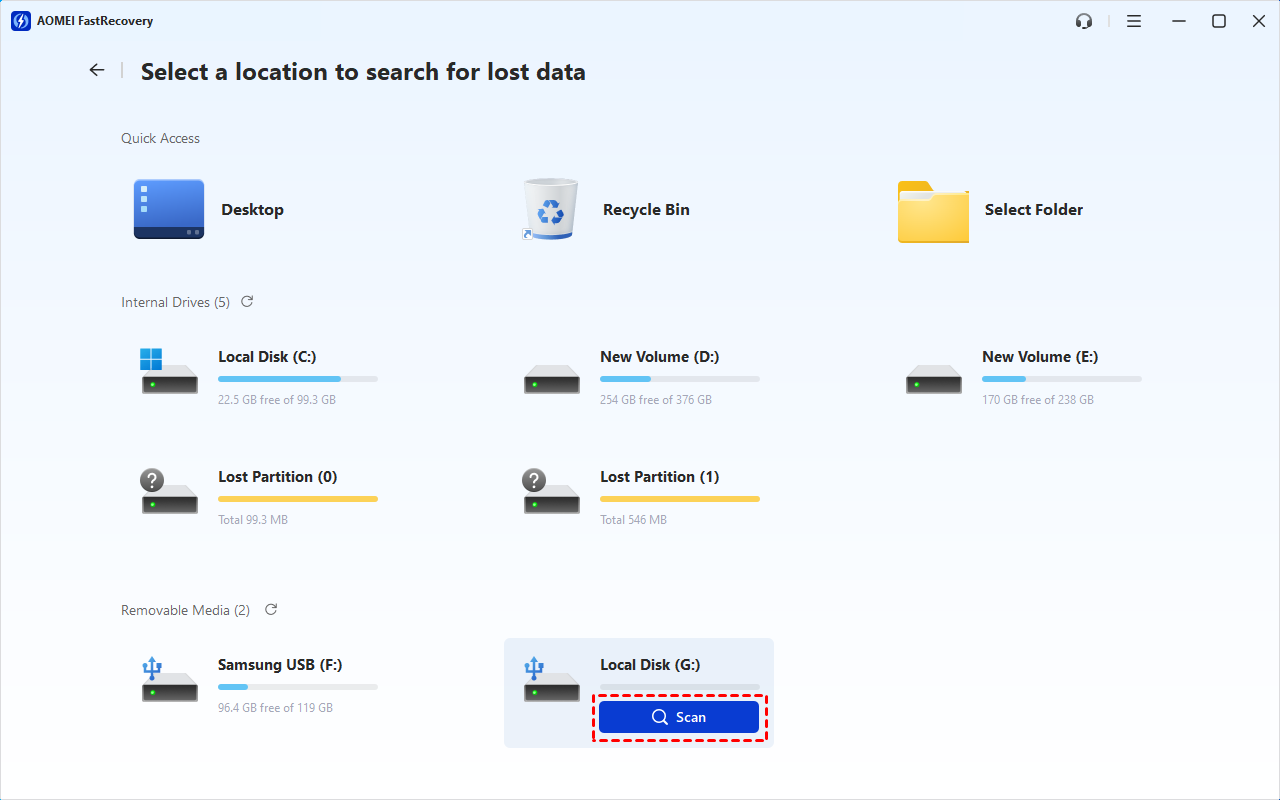
Step 2. Select the SD card, checking its drive letter and capacity so you don’t scan another drive. Click Scan.
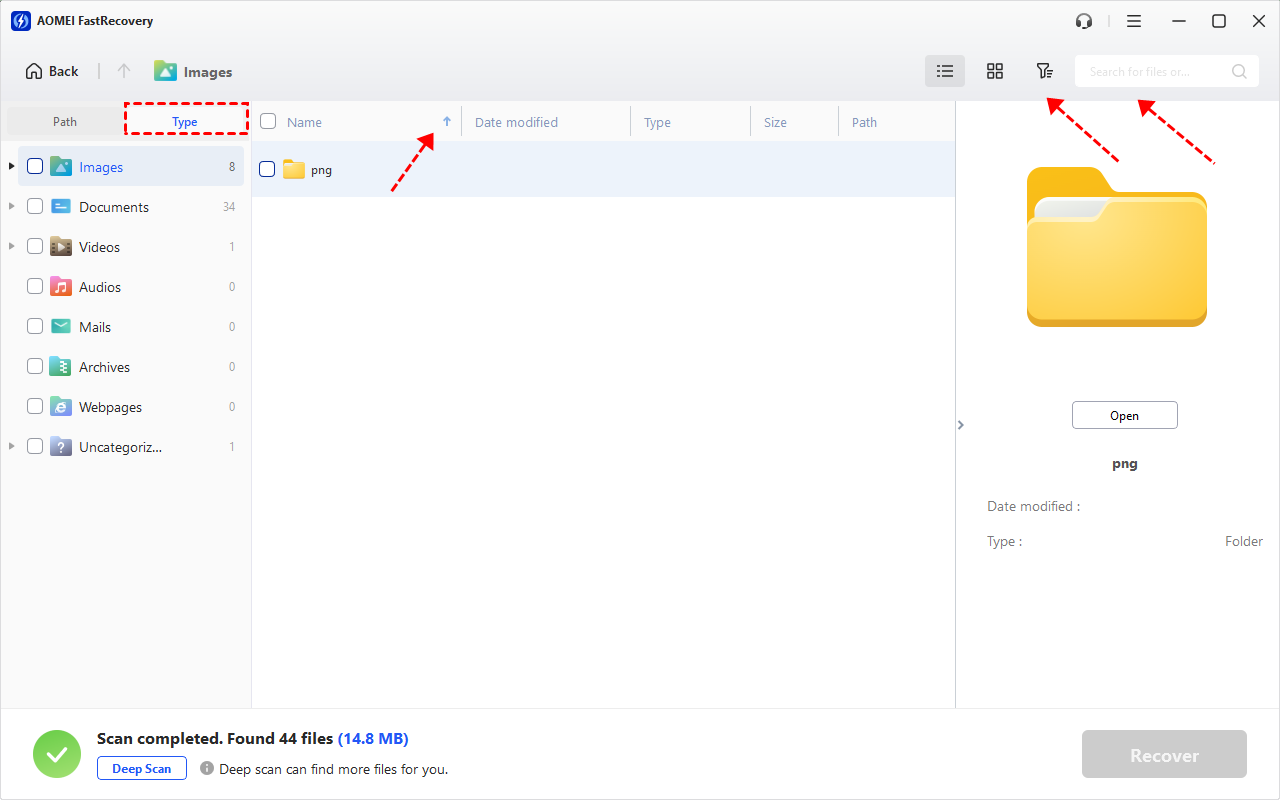
Step 3. Review the Quick Scan results. Browse by Type or Path, then search for a filename or extension, filter by type or size, or sort to narrow results.
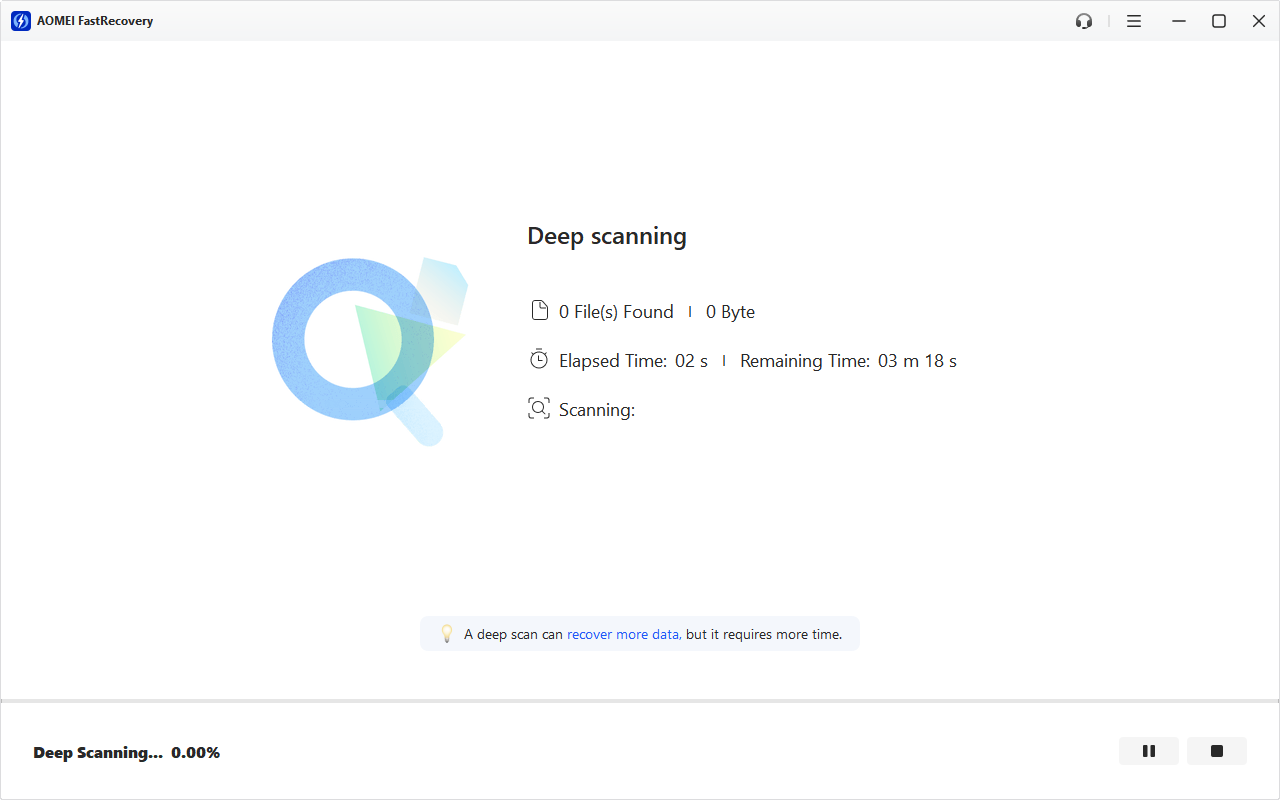
Step 4. If Quick Scan results fall short, click Deep Scan for a more thorough search. It may take longer.
Step 5. Review the scanned results. Then, select the files and click Recover. Save them to your computer or another drive, not back to the SD card.
- The free edition supports recovery of up to 500MB. Recovering more requires an upgraded edition.
- These steps also apply to recover deleted JPEG files, recover deleted MOV, and more.
Method 2: Recover Deleted Files from SD Card with Windows File Recovery
👍 Best for: Users comfortable using a free Microsoft command line app.
Windows File Recovery is another data recovery software, released by Microsoft, but requiring you to learn command and syntax. Its documentation specifies Extensive mode for FAT and exFAT storage, including commonly formatted SD cards. Try it if you are compatible with command line.
Step 1. Connect the card to your Windows PC with a compatible SD card reader. In File Explorer, check its drive letter and open Properties to identify the file system. Prepare a different drive with enough space for recovered files.
Step 2. Download and install Windows File Recovery from the Microsoft Store. Open it from Start and approve the permission prompt. Enter the following example command:
winfr E: D: /extensive
Here, E: is the source SD card and D: is the destination drive. Never use the SD card as both source and destination.
Press Y when prompted.
You can also recover specific files or folders, for example, to recover deleted jpeg from E: to D:, enter winfr E: D: /extensive /n *.jpg and press Enter. Replace the drive letter and extension with yours.
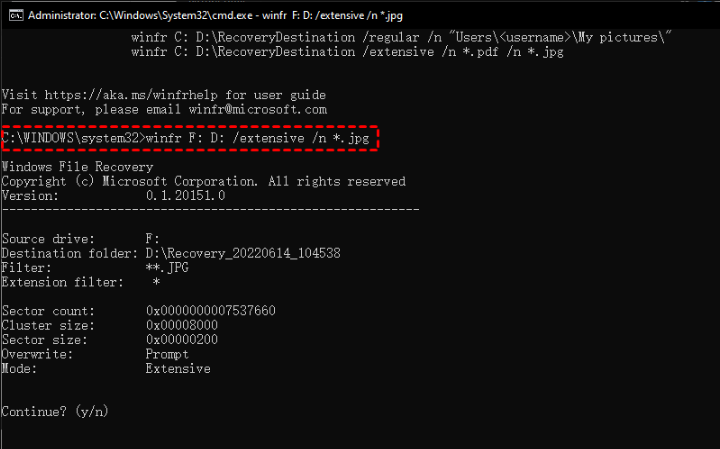
After recovery finishes, inspect the Recovery_ folder on the destination drive and open the files you need.
Method 3: Retrieve Existing Copies from Your Computer or Another Drive
👍 Best for: Files you previously imported or copied from the SD card to another location.
You may already have the files you need outside the card. For example, photos could be in a dated import folder on your PC, while documents may have copies on an external drive.
Step 1. Check the folders where you normally save data on your SD card, such as Pictures, Videos, or a project folder. Connect any external drive where you previously copied the files.
Step 2. Search those locations using a filename or extension. Open matching files and check if you find the right version.
Step 3. Copy the files you need into a recovery folder on your PC. Verify that the collection is complete before using the SD card again.
If those copies were also deleted, check whether File History saved an earlier version using the next method.
Method 4: Restore Files from Backup Copies with File History
👍 Best for: SD card files that were copied to your PC and backed up by File History before the computer copies were deleted.
This method restores a previous version of the folder on your computer. It requires a pre-deletion backup containing the files you need; simply connecting an SD card doesn’t create that history.
Step 1. Connect the File History backup drive to your computer, or make sure its network backup is accessible. In File Explorer, navigate to the folder containing deleted files, right-click it and select Restore previous versions.
Step 3. Select a folder version from before deletion. Expand Open and choose Open in File History to check your files.
Step 3. Return to the Previous Versions tab. Expand Restore, choose Restore to…, and select a different folder on your PC to avoid replacing the current folder.
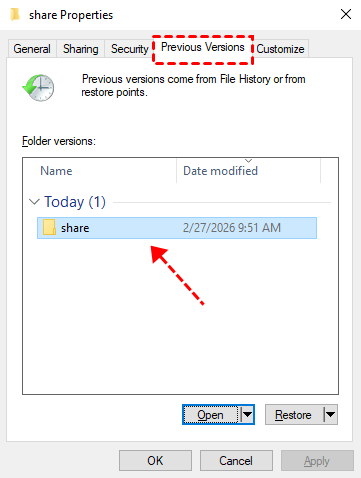
Step 5. Open the restored files and confirm that they contain the information you need.
If File History doesn't show any versions, turning it on now won't bring back files deleted earlier. Use an SD card recovery software instead.
FAQs About Deleted SD Card Files
Can I recover SD card files for free?
Possibly. An existing copy costs nothing to retrieve, Windows File Recovery is free, and AOMEI FastRecovery allows up to 500MB of free recovery. None of these options guarantees that deleted files remain recoverable.
Why are there no previous versions of my SD card folder?
There may be no saved history covering that folder. Previous Versions isn’t an automatic archive of everything ever stored on a card. If no relevant backup exists, consider scanning the card instead.
What if my computer cannot detect the card?
Try another compatible reader or USB port. If the card remains undetected, repeatedly disconnects, or shows physical damage, stop repeated recovery attempts and consider professional help. This guide to microSD card recovery covers additional situations beyond straightforward deletion.
Should I format the card if Windows asks me to?
No, cancel the prompt while you still need the files. Formatting isn’t a prerequisite for deleted-file recovery. If you already formatted it, follow the separate guidance for recovering files from formatted SD card.
Why won’t a recovered file open?
Its contents may be incomplete, overwritten, or damaged. Keep the recovered copy on another drive and check whether an intact backup exists. Renaming the extension won’t reconstruct missing file contents.
In the End
Finding deleted files from SD card not in Recycle Bin starts with preserving the card. Use an existing copy if you have one; otherwise, scan a readable card with the recovery method that suits you. Once your files open correctly, keep an additional copy before using the card again.

 as a preferred
source on Google
as a preferred
source on Google