




How to Recover Data from Micro SD Card: 4 Proven Methods
Need to recover data from Micro SD card? This guide covers 4 proven methods - attrib for hidden files, AOMEI FastRecovery for most users, Windows File Recovery for command-line users, and professional service for physical damage. Keep reading.

By Ivy Updated on July 14, 2026


You've got hundreds of photos on your Micro SD card - travel memories, family moments, important shots. Then one day, you pop the card into your phone or computer, and everything is just... gone. Maybe you accidentally formatted it. Maybe the card got corrupted. Maybe you're not even sure what happened.
Sound familiar? You're not alone. This question comes up constantly in tech forums. The good news: in most cases, those photos are still recoverable. This guide covers 4 reliable ways to get them back, from simple commands to professional services.
Quick Guide: Which Recovery Method Should You Use?
| ❓ Your Situation | 🎯 Best Method |
|---|---|
| Files are hidden, not deleted | Method 2: attrib command |
| Files were deleted or formatted, and you want the easiest option | Method 1: AOMEI FastRecovery |
| You're comfortable with command lines and want a free option | Method 3: Windows File Recovery |
| The card is physically damaged (cracked, bent, or not recognized) | Seek a professional recovery service |
Method 1: Recover Data from Micro SD Card with AOMEI FastRecovery (Easiest)
🔥 Best for: Most users - accidental deletion, formatting, or file system corruption.
AOMEI FastRecovery is a professional data recovery tool that can recover deleted or lost data from Micro SD cards quickly and easily. It supports all major Micro SD card types (microSD, microSDHC, microSDXC) and file systems, including FAT32, exFAT, and NTFS.
 AOMEI FastRecovery
- 🔎 Dual-Scan Mode: Quick Scan for recently deleted files, Deep Scan for complex data loss. Together, they give you the best chance of recovery.
- 📁 1000+ Data Types: Recover deleted or lost images (JPG/JPEG, PNG, GIF), videos (MP4, MOV, AVI, WMV), audio (MP3, CDA, WAV), documents, and more.
- 🛡️ Wide Range of Scenarios: Recover files from accidental deletion, disk formatting, system crashes, unbootable drives, and more.
- 🚀 Find Your Files Fast: Browse by type or path, preview files, and recover only what you need. No more digging through endless lists.
- ✅ Safe & Easy to Use: Read-only, no data overwriting. simple, intuitve interface.
- 🎁 Try It with No Risk: Free edition recovers up to 500MB - no commitment, no quality compromise.
 100% Secure
How to recover data from Micro SD card with AOMEI FastRecovery:
Step 1. Download and install AOMEI FastRecovery on your Windows PC. Connect your Micro SD card using a card reader. Then, click Deleted Files Recovery for fast recovery.

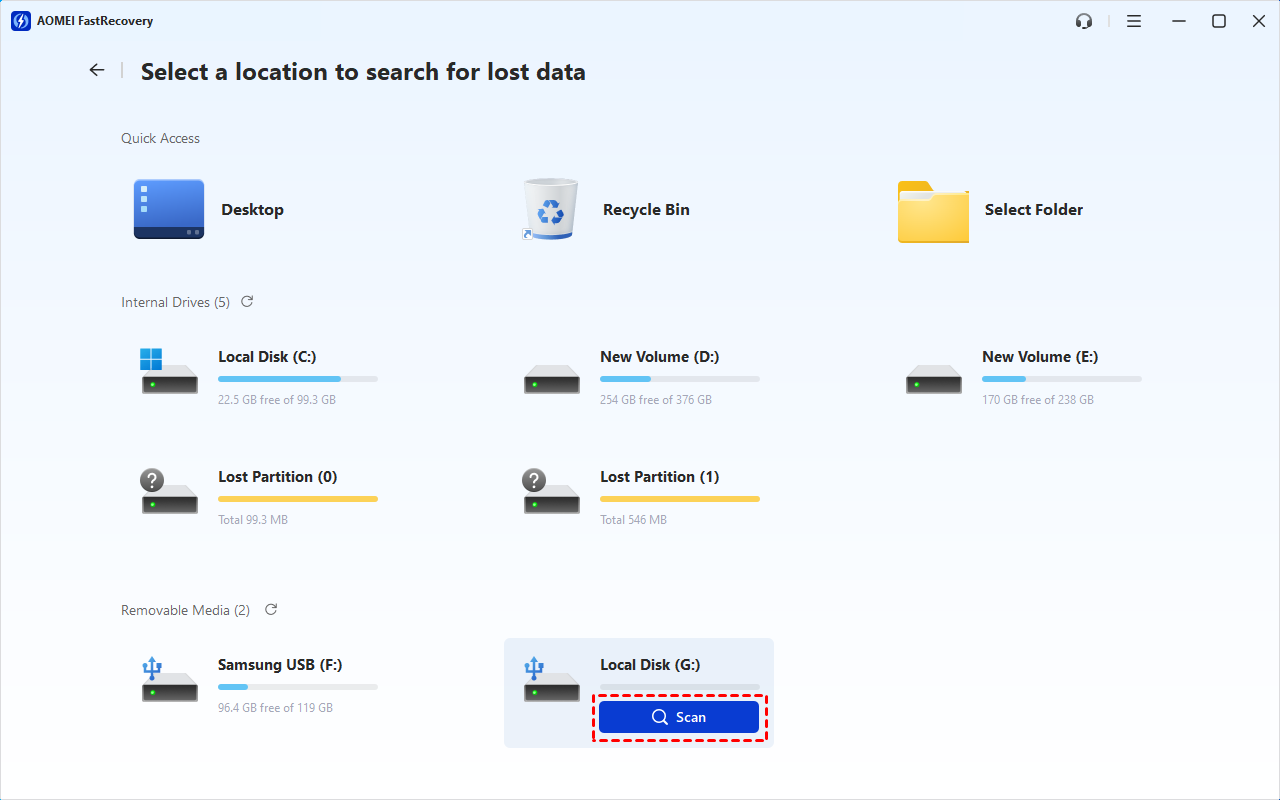
Step 2. Hover your mouse over the Micro SD card drive and click Scan. The software will automatically run Quick Scan to scan the card and find recoverable photos.
Step 3. Once the scan completes, you'll see all recoverable files organized by type. Under the Type section, check Images and select all the formats you want to recover, then click Recover.
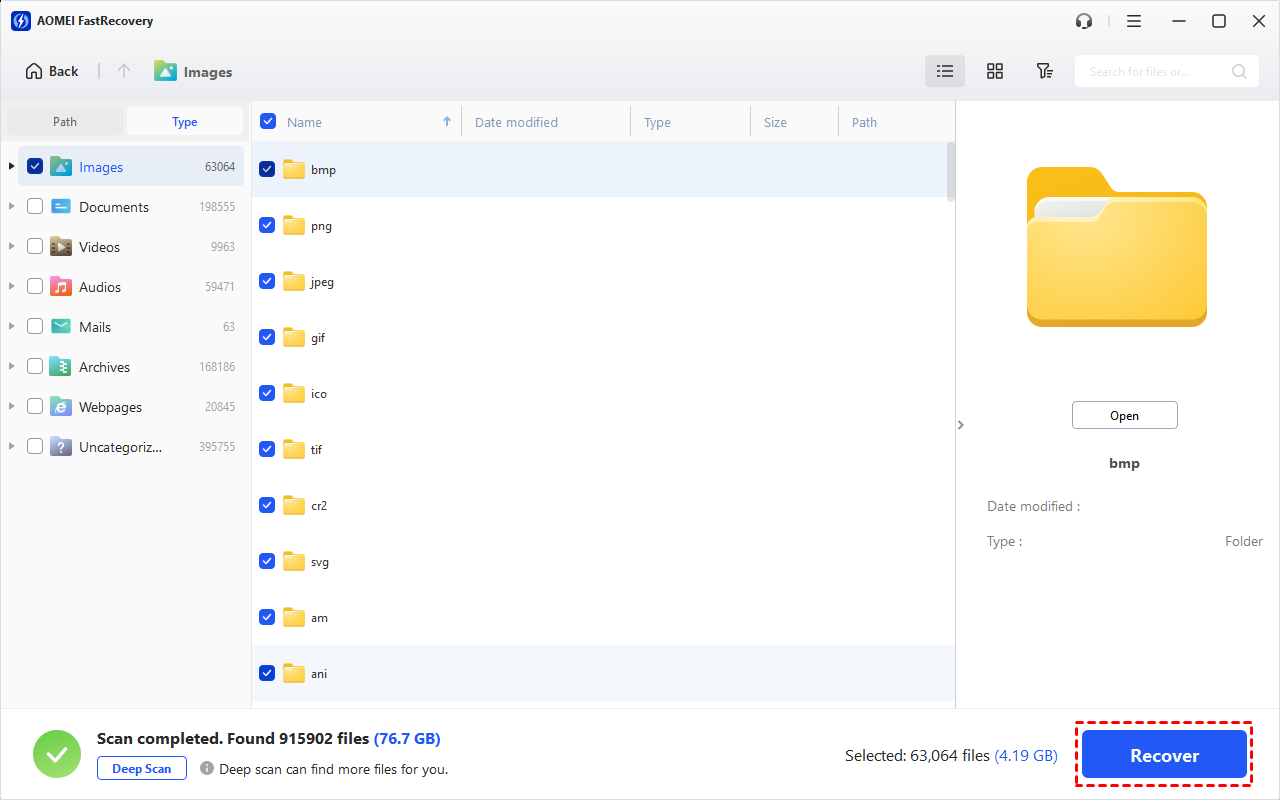
To locate your photos quickly, use the Search box to type file names (e.g., .jpg, .png), or click the Filter button to narrow down by file type (Images, Documents, etc.) or size. You can also preview files by double-clicking them.
⚠️Important Note: Do not save them back to the original SD card, as this may overwrite the data you're trying to recover. Always choose a different drive or folder on your computer.
Method 2: Unhide Files and Folders Using the Attrib Command
✅ Best for: When your files are still on the card but hidden - often due to virus attacks or system errors.
If your files are not deleted but hidden, you can use the attrib command to unhide them. This method is simple and doesn't require any third-party software.
Step 1. Connect your Micro SD card to your Windows PC using a card reader. Press Win + R, type cmd, and select Run as administrator.
Step 2. In the Command Prompt window, type the following command and press Enter. Replace X: with your Micro SD card's drive letter.
attrib -h -r -s /s /d X: \*.*
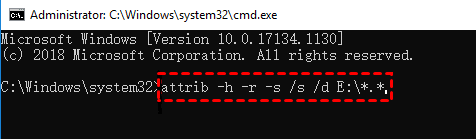
Wait for the process to complete. Your hidden files and folders should now be visible in File Explorer.
Method 3: Recover Data with Windows File Recovery (Free Command-Line Tool)
✅ Best for: Users comfortable with command lines who want a free Microsoft-built tool.
Windows File Recovery is a free command-line recovery tool provided by Microsoft. It's powerful but requires typing commands and selecting the right recovery mode.
Preparation: Check Your Micro SD Card's File System
Before using Windows File Recovery, you need to know your card's file system.
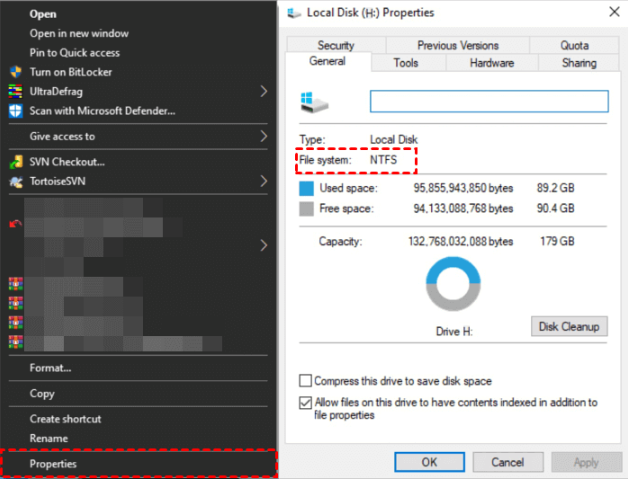
Connect your Micro SD card to your computer. Open This PC, right-click your Micro SD card, select Properties, and look for the File System entry. It will show NTFS, FAT32, or exFAT.
How to Recover with Windows File Recovery
Step 1. Open the Microsoft Store, search for Windows File Recovery, and install it. Open the program as an administrator.
Step 2. Choose the right recovery mode based on your file system:
| File System | Situation | Recommended Mode |
|---|---|---|
| NTFS | Deleted recently | Regular |
| NTFS | Deleted a while ago | Extensive |
| NTFS | Formatted or corrupted | Extensive |
| FAT/exFAT | Any | Extensive |
Step 3. Choose the right switches to control what files to recover.
|
Switches |
Definition |
Supported mode(s) |
|
/n |
Filter the scan range: scans for a specific file with its file name/path/type, etc. |
All |
|
/y: |
Recover specific extension groups. |
Signature |
|
/k |
Recovers system files. |
NTFS Segment |
|
/u |
Recovers undeleted files, for example, from the Recycle Bin. |
NTFS Segment |
Step 4. Enter the recovery command. For example,
To recover JPG photos from Micro SD card drive F: to drive D:, type:
winfr D: E: /extensive /n *.jpg
To recover multiple file types:
winfr D: E: /extensive /n *.jpg /n *.png /n *.mp4
Step 5. Type Y and press Enter to start Micro SD card recovery.
👍 Pros: Free, built-in Microsoft tool, powerful. 👎 Cons: Command-line interface; not user-friendly for beginners; requires selecting the correct mode.
When DIY Recovery Software Isn't Enough
The first three methods work for logical data loss, including accidental deletion, formatting, or file system corruption. However, if your Micro SD card is physically damaged, software recovery won't help. In that case, you'll need to contact a professional data recovery service.
⚙️ How it works:
Professional data recovery services use specialized equipment to read data directly from the card's memory chips. They can often recover data even when the card's controller is damaged.
💡 What to expect:
-
Cost: Usually expensive ($100-$1000+ depending on the damage)
-
Turnaround time: Typically 3-10 business days
-
Success rate: Generally high for physical damage, but not guaranteed
-
Privacy concerns: Your data will be handled by technicians, so choose a reputable service
🔍 How to choose a recovery service:
- Check reviews: Look for services with verified customer reviews.
- Ask about the process: A good service will explain its recovery process.
- Get a quote upfront: Most services offer free evaluation and quotes.
- Check data security policies: Ensure they have proper data protection protocols.
FAQs
1. Can I recover data from a Micro SD card for free?
Yes, you can use the attrib command to unhide files, or Windows File Recovery (free) to recover deleted files. AOMEI FastRecovery also offers a free trial that recovers up to 500MB of data.
2. What should I do first after I lose data from my Micro SD card?
Stop using the card immediately. Do not take new photos, do not format the card, and do not write any new data to it — this prevents overwriting the deleted files you want to recover.
3. Can I recover data from a physically damaged Micro SD card?
If the card is physically damaged (cracked, bent, or not recognized by any device), DIY recovery software won't work. You'll need to contact a professional data recovery service.
4. How long does Micro SD card recovery take?
Software-based recovery typically takes 10-30 minutes, depending on the card size and the number of files. Professional services typically take 3-10 business days.
5. What file formats does AOMEI FastRecovery support?
AOMEI FastRecovery supports over 1000 file types, including JPG, PNG, GIF, RAW formats (CR2, NEF, ARW), MP4, MOV, AVI, DOC, XLSX, and many more.
How to Prevent Micro SD Card Data Loss
Prevention is always better than recovery. Here are four practical steps to protect your Micro SD card data:
Eject safely: Always eject your Micro SD card properly before removing it from your device to avoid file system corruption.
Handle with care: Avoid exposing Micro SD cards to extreme temperatures, moisture, or physical shock.
Back up regularly: Use free backup software like AOMEI Backupper Standard to schedule automatic backups of your Micro SD card to your computer or external drive.
Keep spare cards: Carry an extra Micro SD card so you never have to delete files to free up space on the go.
Final Words
Recovering data from a Micro SD card is often simpler than you think — as long as you act quickly and choose the right method.
Here's the simple rule:
-
Start with Method 1 (attrib command) if your files are hidden, not deleted.
-
Use Method 2 (AOMEI FastRecovery) for most deletion and formatting scenarios — it's the easiest and most reliable option.
-
Try Method 3 (Windows File Recovery) only if you're comfortable with the command line and want a free option.
-
Seek a professional recovery service if the card is physically damaged or none of the software methods work.
Most importantly: stop using the card immediately. Every photo you take or file you save after deletion increases the risk of overwriting the data you're trying to recover.
Your files are worth saving. Start recovery now.

 as a preferred
source on Google
as a preferred
source on Google