




How to Recover Ext4 Partition in Windows (Step-by-Step Guide)
Need to recover an Ext4 partition after accidental deletion or a partition problem? This guide explains 2 practical recovery approaches and retrieve important files with data recovery software.

By Jonna Updated on September 11, 2026


I Accidentally Deleted a Partition. How Can I Recover It?
I dual-boot Windows 11 and Linux on my desktop. Yesterday, while managing my storage spaces in Disk Management, I accidentally deleted my Ext4 partition, thinking it was an unallocated scratch drive. Now, Linux won't boot, and all my work files stored on that drive seem gone. Is there any way to recover an Ext4 partition without formatting or losing my data?
Yes, a deleted or lost Ext4 partition can be recovered. As long as the sector space has not been overwritten by new files, the underlying data structures remain intact. This guide will walk you through the essential steps to recover Ext4 partition quickly and safely.
Overview of Ext4 Partition
The Fourth Extended Filesystem (Ext4) is a robust, journaling file system developed for Linux kernel platforms. Introduced as the successor to Ext3, Ext4 delivers improved performance, better storage allocation, and support for massive storage volumes (up to 1 Exabyte partition size and files up to 16 Terabytes).
Windows natively uses NTFS, FAT32, or exFAT file systems. When an Ext4 drive is attached to a Windows PC, Disk Management may mark it as "RAW" or "Unallocated." There are many problems caused by partition loss, like deleted partition now won't boot. Partition loss typically happens due to:
- Accidental Deletion: User error during disk management tasks.
- Missing Drive Letter: The partition exists, but Windows unassigns its mounting path.
- Partition Table Corruption: Damaged MBR or GPT headers caused by abrupt system crashes or power failures.
Way 1. How to Recover Lost Ext4 Partition via CMD
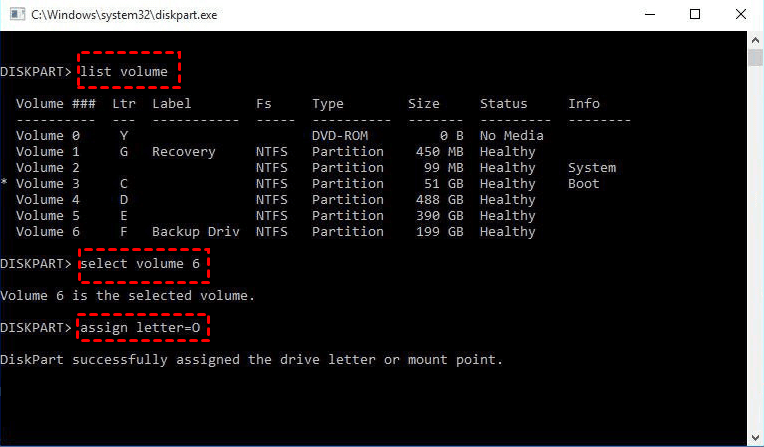
If your Ext4 partition hasn't been permanently deleted but has lost its drive path or become invisible in File Explorer due to system glitches, you can reassign a drive letter using the DiskPart command in Command Prompt for lost partition recovery.
If DiskPart reports errors or the partition was completely deleted, moving to a dedicated partition recovery tool is recommended. This method works best if the partition structure is intact but missing a mount point. Proceed carefully when entering command parameters.
Step 1. Press Win + S, type cmd, right-click Command Prompt, and choose Run as administrator.
Step 2. Type diskpart and press Enter to launch the disk management CLI tool. Display all connected drives by typing list disk.
Step 3. Identify your target disk number and select it (replace X with your disk number): select disk X.
Step 4. List all volumes on the selected drive: list volume.
Step 5. Locate the volume corresponding to your missing Ext4 layout (often listed with no drive letter or labeled as RAW). Select it (replace Y with your volume number): select volume Y.
Step 6. Assign an unused drive letter to make it accessible again (replace Z with your preferred letter): assign letter=Z. Type exit to close DiskPart.
Way 2. How to Recover Deleted Ext4 Partition with AOMEI Partition Assistant
When an Ext4 partition is completely erased, or its partition table entry is deleted, standard Windows tools like Disk Management cannot restore it. In such cases, AOMEI Partition Assistant provides a straightforward, graphical solution to search the hard drive and recover deleted Ext4 partition headers intact.
-
Partition Recovery Wizard: Scans sectors for lost partition boundaries (MBR/GPT) for Windows system partition missing.
-
Broad File System Support: Handles Ext2, Ext3, Ext4, FAT32, NTFS, and exFAT partitions.
-
User-Friendly Interface: Graphical step-by-step layout suitable for non-technical users.
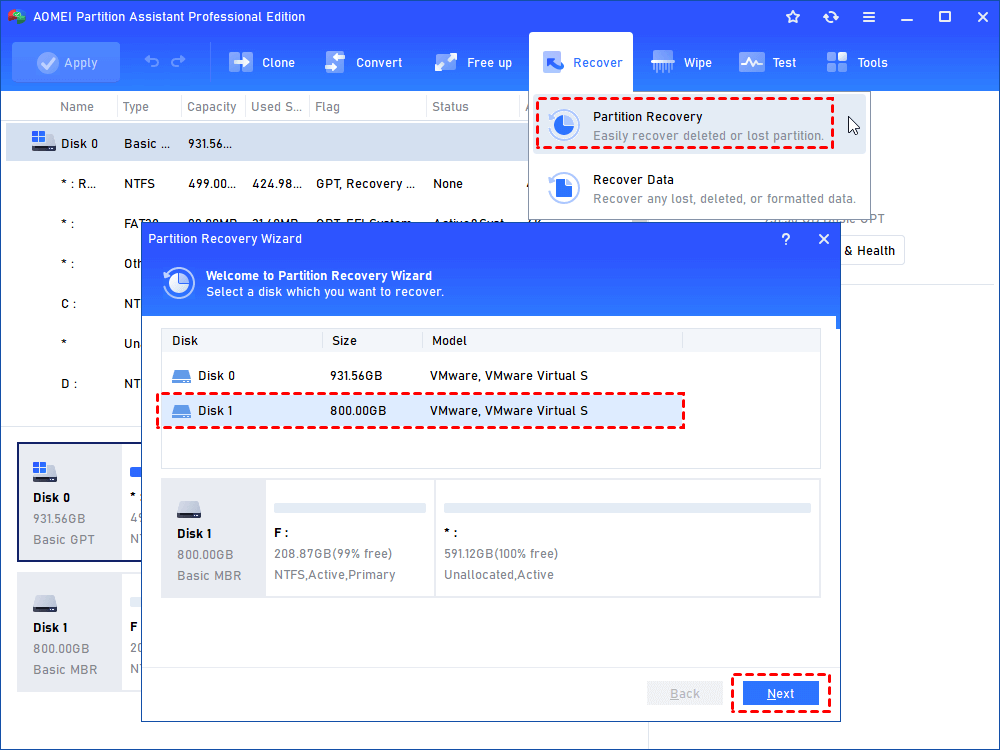
Step 1. Install AOMEI Partition Assistant on your Windows PC. Open the software, click on the Recover tab in the top navigation panel, and select Partition Recovery. Choose the physical disk where the deleted Ext4 partition was originally located, then click Next.
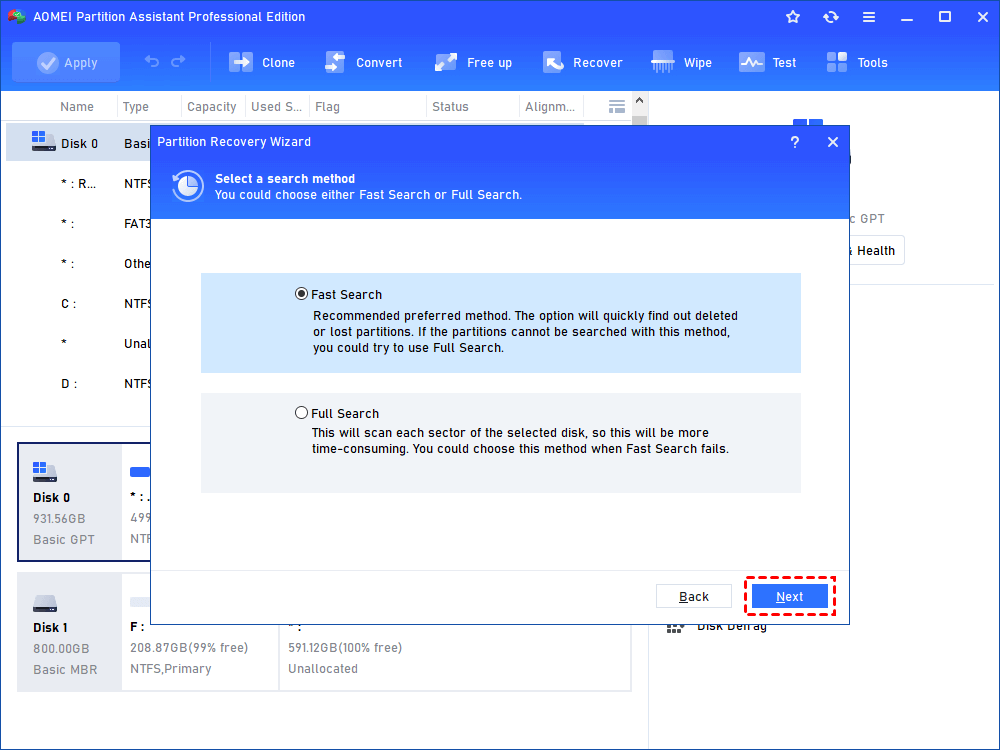
Step 2. Choose a Search Method:
-
Fast Search: Quickly scans the first sector of each block on the target disk to locate deleted volumes in seconds.
-
Full Search: Scans every sector across the disk sequentially. Use this option if Fast Search fails to locate the missing Ext4 volume.
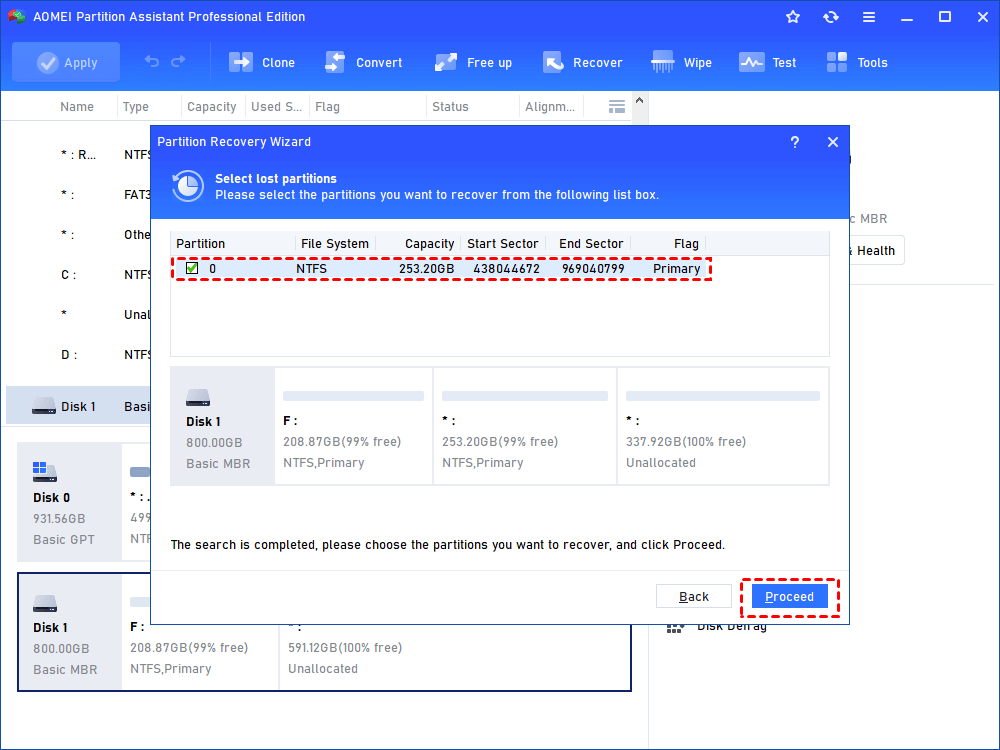
Step 3. The tool will list all detected lost partitions along with their file system types (Ext4), sizes, and start/end sectors. Check the box next to your deleted Ext4 partition.
Step 4. Click Proceed to start the Ext4 partition recovery process. Once completed, a confirmation window will appear stating that the partition has been successfully restored.
Way 3. How to Recover Data from Ext4 Partition using Data Recovery Software
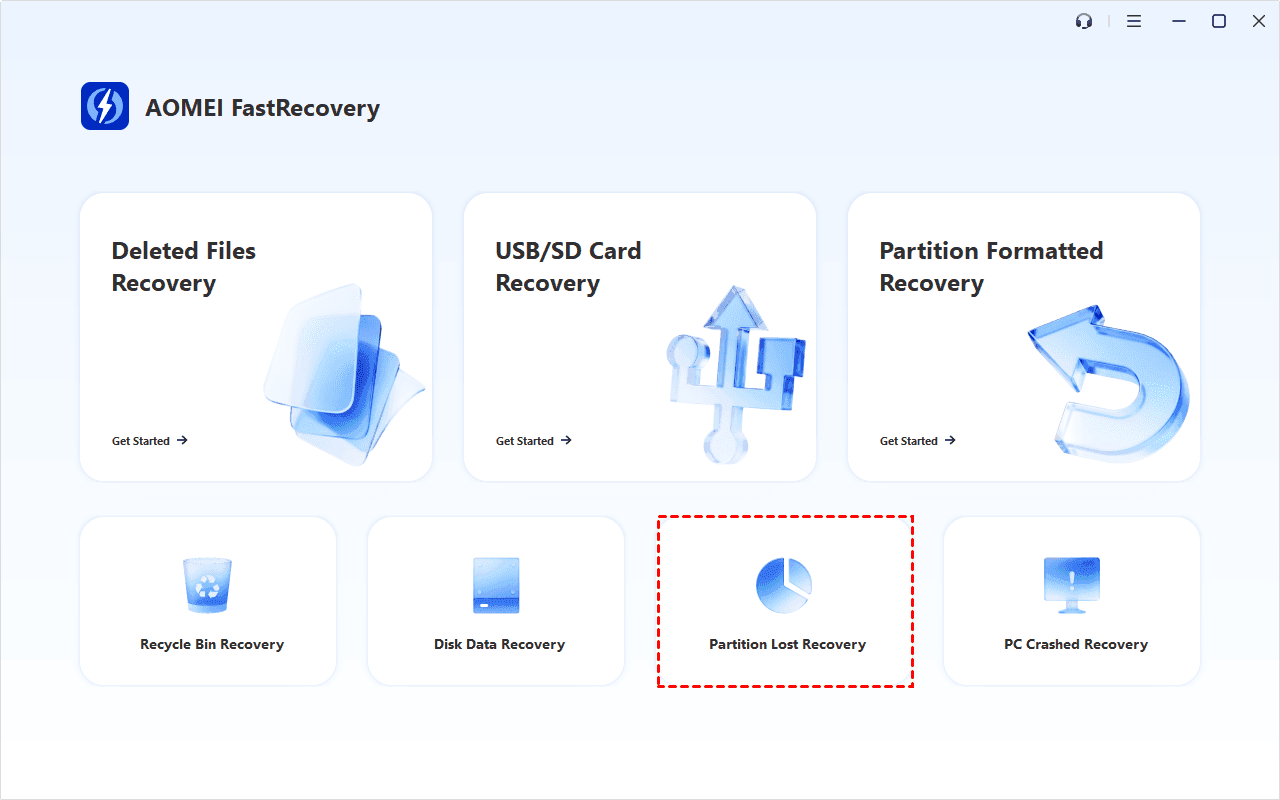
In some cases, the partition structure itself might be too severely corrupted to rebuild directly, or you may only need specific files stored inside the Ext4 volume. In this scenario, running a dedicated data recovery tool like AOMEI FastRecovery can scan the raw sectors and restore Ext4 partition data directly to a safe location.
Step 1. Open AOMEI FastRecovery after installing. Then, choose Partition Lost Recovery.
Step 2. Choose the drive or unallocated area containing your lost Ext4 data and click Scan. It will scan your partition deeply to find all recoverable data on it.
Step 3. Let the software scan sector-by-sector for file headers (documents, images, videos, archives). Filter the search results by file type or extension to locate essential items.
Step 4. Select the target files and restore them to an external drive or a different healthy Windows partition (NEVER save recovered files back to the original affected drive).
FAQs on Ext4 Partition Recovery
#1. Can Windows natively read Ext4 partitions?
No. Windows does not come with native file system drivers for Ext4. To read, edit, or copy files from an Ext4 drive inside Windows, you will need third-party utilities like Ext2Fsd, DiskInternals Linux Reader, or WSL2 (Windows Subsystem for Linux).
#2. Is it possible to recover an Ext4 partition after formatting?
Yes, but the approach differs. Formatting rewrites file system metadata. You cannot simply "unformat" a partition entry using standard partition tools; instead, you must use deep data recovery software to scan raw sectors and retrieve lost files individually.
#3. What is the difference between Ext3 and Ext4?
Ext4 is the upgraded successor to Ext3. It supports larger file sizes (16TB vs 2TB), bigger partition capacities (1EB vs 16TB), unlimited subdirectories, and improved performance through extent-based storage layout.
#4. What should I do if my recovered Ext4 partition shows as RAW in Windows?
Because Windows does not natively support Ext4, an intact Ext4 partition may still display as "RAW" or "Unformatted" in Windows Disk Management. Boot into a Linux Live USB environment or use a third-party Linux reader software on Windows to check your files.
Conclusion
Losing an Ext4 volume does not mean your data is gone forever. By taking fast action and avoiding disk writes, you can quickly recover an Ext4 partition in Windows.
For missing drive letters or hidden paths, using Command Prompt (DiskPart) provides a quick built-in fix. For deleted partitions or damaged partition tables, employing a reliable tool like AOMEI Partition Assistant offers a safe, automated path to rebuild your drive structure. Finally, keeping regular backups of your critical partition data using dedicated backup software remains the best defense against unexpected data loss.

 as a preferred
source on Google
as a preferred
source on Google