




How to Recover Data from Drive Not Initialized: Full Guide
Drive not initialized? Don't panic. Learn how to recover your data safely, fix disk access errors, and avoid losing important files in the future.

By Lily Updated on October 13, 2026


Why Does a Hard Drive or SSD Become Not Initialized?
When a drive appears as “Not Initialized” in Disk Management, Windows cannot properly recognize its disk initialization or partition information. This does not necessarily mean the drive is empty or that every file has disappeared. Several issues can cause this problem:
- Corrupted partition table: Damage to the MBR or GPT partition information may prevent Windows from recognizing existing partitions.
- Connection problems: A loose SATA cable, faulty USB port, damaged enclosure, or insufficient power can interrupt communication with the drive.
- File system or disk metadata damage: Logical errors may prevent Windows from reading the drive's existing structure.
- Bad sectors or hardware failure: Physical deterioration can make critical disk information unreadable.
- Driver or compatibility issues: Outdated storage drivers or problems with the storage controller may prevent Windows from detecting the disk correctly.
- Unexpected shutdown or system crash: An interrupted disk operation can sometimes damage partition information or other disk structures.
Before Recovering Data from Uninitialized Disk
Before attempting to recover data from an uninitialized disk, take a few precautions to reduce the risk of further damage.
- Do not initialize the disk yet. Windows may offer to initialize the disk using MBR or GPT. If the disk contains important files, cancel the prompt until you have assessed the situation.
- Do not format the drive. Formatting can overwrite file system information and complicate recovery.
- Avoid writing new data to the disk. Do not save files, install applications, or create new partitions on the affected drive.
- Check the physical connection. If it is an external drive, try another known-good USB cable or port. For an internal drive, check the power and data connections only if you can do so safely.
- Watch for hardware failure symptoms. Repeated clicking, grinding, disappearing from Windows, or unusually slow responses may indicate physical damage. Stop using the drive if these symptoms occur, and consider professional data recovery for valuable files.
- Prepare another storage device. Save recovered files to a different healthy drive, not the uninitialized disk itself.
How to Recover Data from Uninitialized Hard Drive
Since Windows can't read the file system, you need a tool that scans the raw disk sectors. AOMEI FastRecovery is a Windows data recovery tool designed to help retrieve deleted or lost files from supported storage devices.
 AOMEI FastRecovery
- Recover Data in 3 Easy Steps: Perform quick & deep scan to find deleted or lost files, then filter and preview data before recovery.
- Support 1000+ File Types: Documents (TXT, DOC, XLSX), images (JPG, PNG, TIF), videos (MP4, MOV, AVI), audio files (MP3, CDA, WAV), archives (7Z, ZIP, RAR), and more.
- Support 500+ Storage Devices: HDD/SSD (Seagate, Toshiba, WD), USB flash drives (Samsung, SanDisk, Kingston), SD cards (PNY, Panasonic, Crucial), cameras (Nikon, Canon, Sony), and more.
- Cover Most Data Loss Scenarios: Recover files from emptied Recycle Bin, formatted drive, accidental deletion, virus attack, crashed computer, and more.
 100% Secure
Follow these steps to recover data from an uninitialized hard drive or SSD using AOMEI FastRecovery:
Step 1. Connect the uninitialized hard drive or SSD to your computer. If Windows displays an initialization prompt, select Cancel.
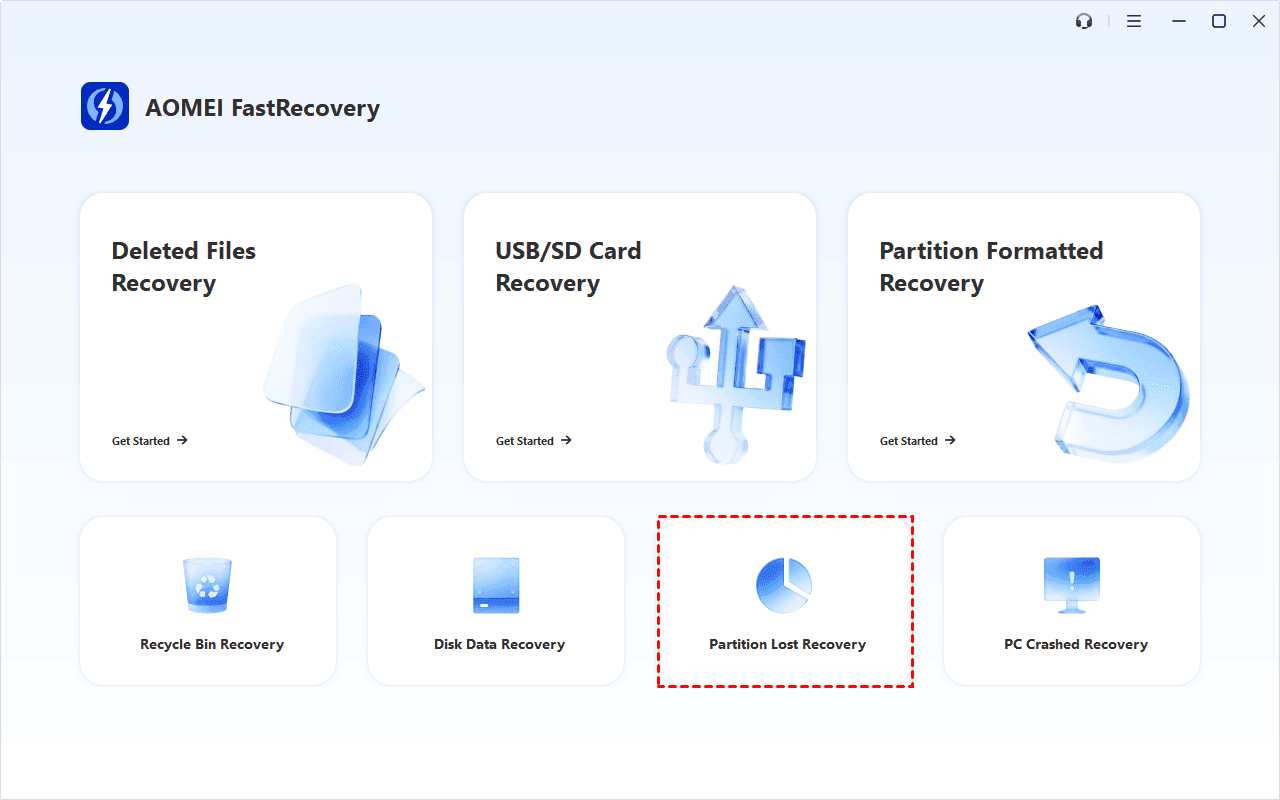
Step 2. Install AOMEI FastRecovery on a different drive from the affected disk to avoid unnecessary writes. Then launch the program and select Partition Lost Recovery.
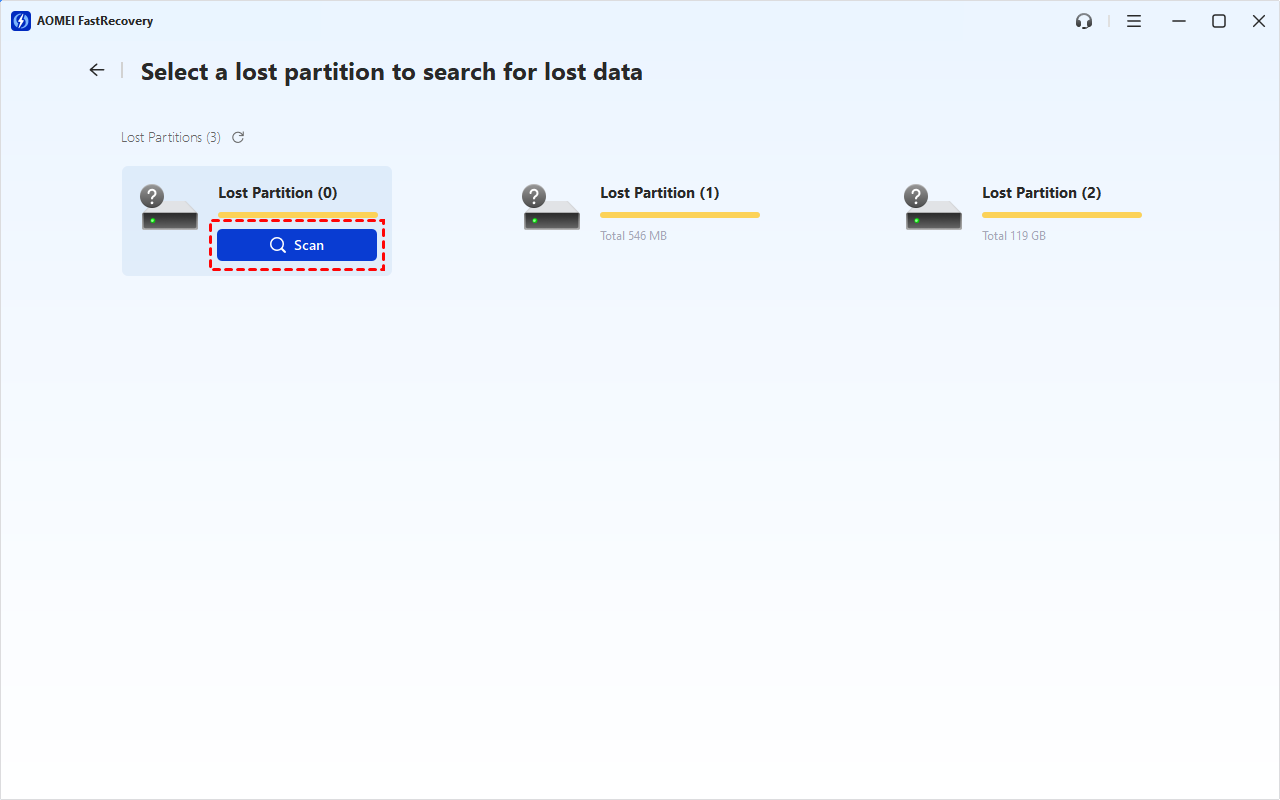
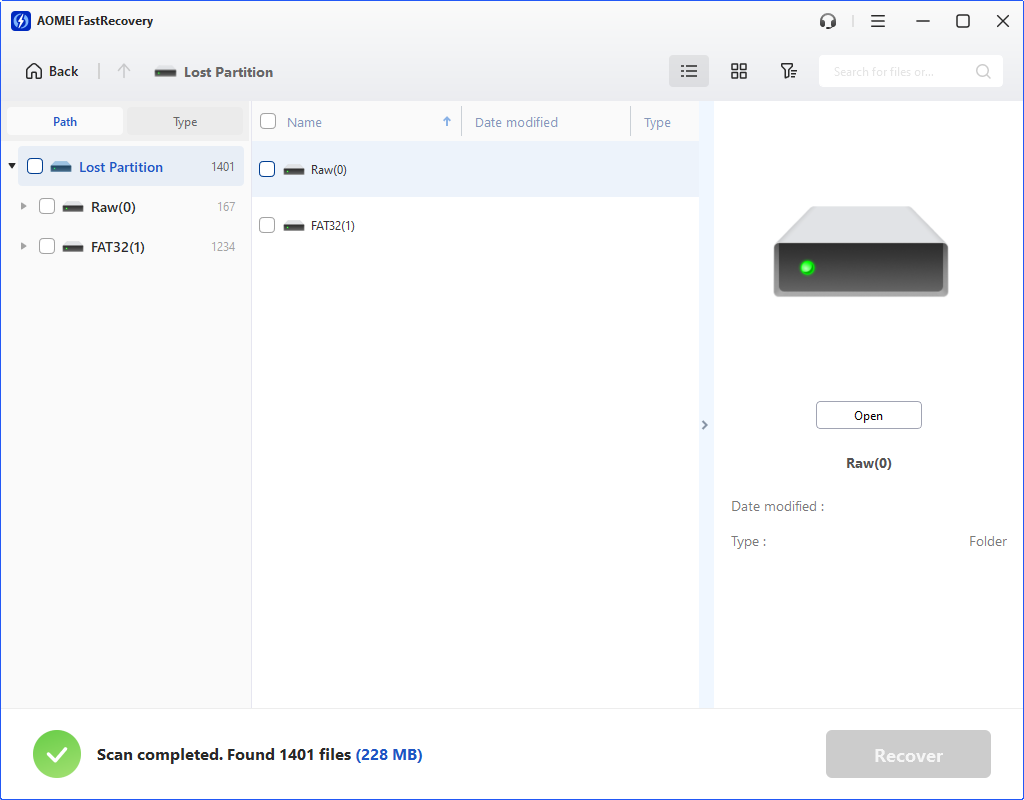
Step 3. The uninitialized drive will be shown as Lost Partition. Select the target and click Scan. It will start Deep Scan automatically to find your data on the lost partition.
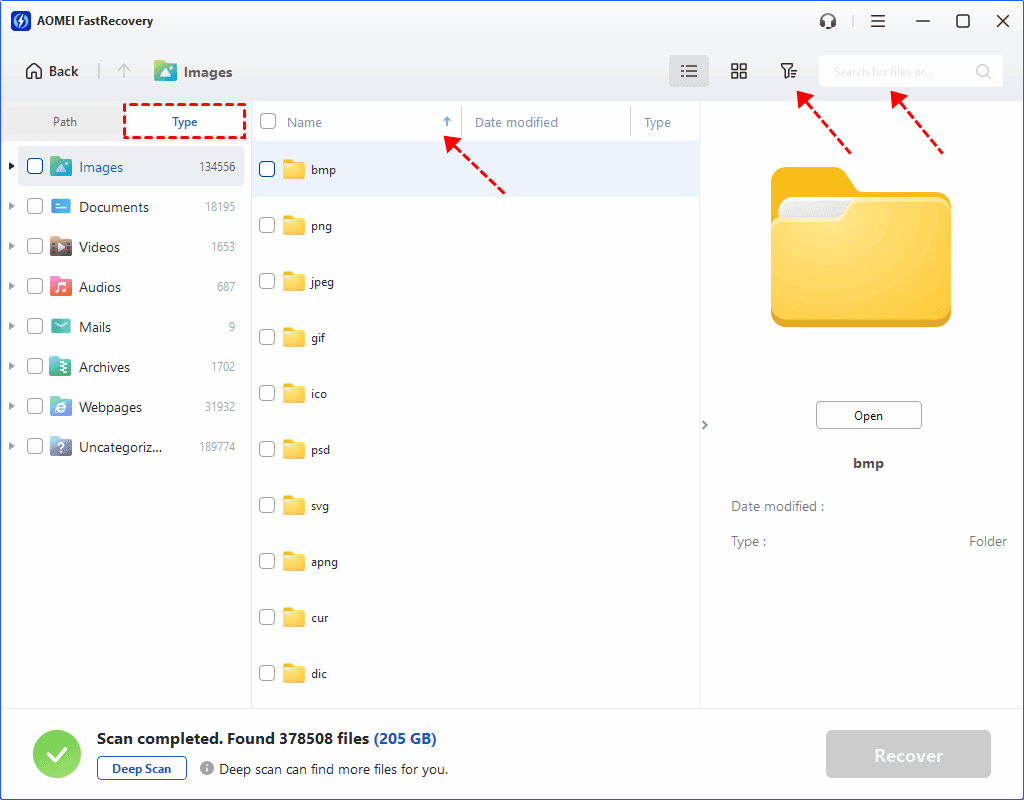
Step 4. The scan results will be displayed by Type. You can use the Sort, Search, and Filter options to narrow down the results.
Step 5. Select the files you need to recover and click Recover. Then choose a destination folder on a different healthy drive to complete the recovery process.
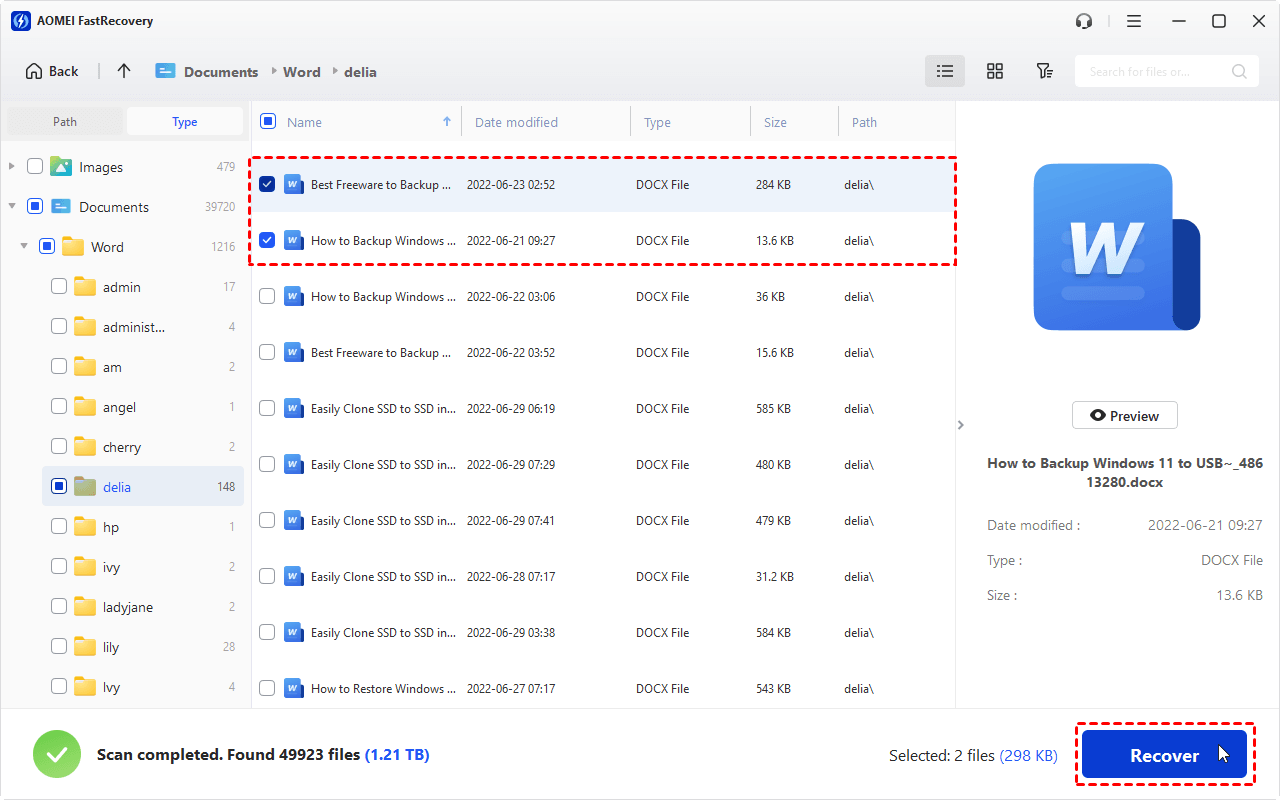
💡 Note: If you want to recover the lost partition entirely, click Path in the top-left corner, check the partition you need and click Recover.
How to Fix a Drive That Shows “Disk Not Initialized”
After recovering your important files, you can initialize disk without losing data using the following steps:
Step 1. Press Win + X and select Disk Management.
Step 2. Locate the disk labeled Not Initialized. Confirm its identity and capacity carefully so you do not select the wrong drive.
Step 3. Right-click the disk label on the left side and select Initialize Disk.
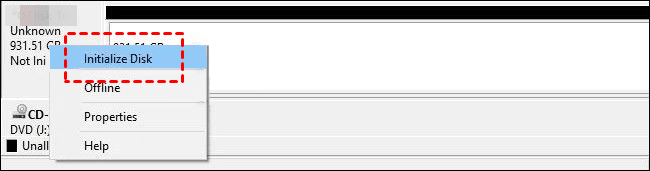
Step 4. Choose a partition style and click OK to initialize the disk.
- GPT (GUID Partition Table): Generally recommended for modern Windows computers and UEFI-based systems.
- MBR (Master Boot Record): May be needed for compatibility with some older systems and devices.
Step 5. If the disk now displays as Unallocated, right-click the unallocated space and select New Simple Volume. Follow the wizard to assign a drive letter and format the volume using an appropriate file system, such as NTFS for typical Windows use.
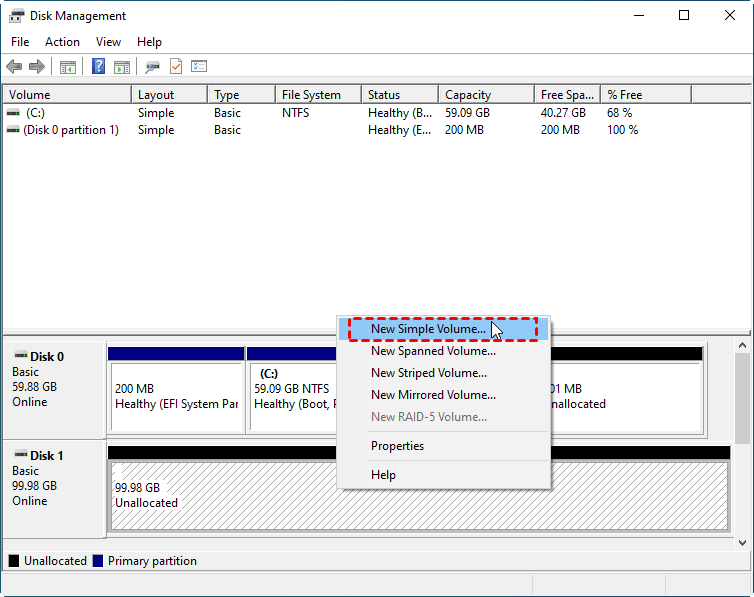
Step 6. Open File Explorer and check whether the drive appears now.
How to Prevent Disk Initialization and Data Loss Problems
You cannot prevent every disk error, but a few precautions can reduce the risk of losing important files.
- Back up important data regularly. Keep at least one backup on a separate physical drive or another reliable storage location. For business-critical files, consider maintaining an additional off-site copy.
- Use safe hardware connections. Replace damaged cables and avoid unreliable USB hubs or power adapters.
- Eject external drives safely. Close files and applications using the drive before disconnecting it.
- Monitor drive health. Pay attention to repeated read errors, unusual noises, slow performance, and unexpected disconnections.
- Avoid unnecessary disk operations. Do not initialize, format, repartition, or run destructive commands on a disk until you understand the consequences.
- Keep recovery tools available. Knowing how to use data recovery software before an emergency can help you respond more quickly.
- Protect against power interruptions. Use a reliable power supply and consider a UPS for desktop computers and storage systems that are important to your work.
Verdict
When Windows reports that a hard drive or SSD is not initialized, it does not automatically mean your data is gone. The issue may result from corrupted partition information, a connection problem, a driver issue, or physical drive damage.
If you need to recover data from an uninitialized hard drive, avoid initializing or formatting it until you have checked your recovery options. AOMEI FastRecovery is one option to try when the drive is accessible and the problem is related to recoverable data loss. Besides lost partition recovery, you can also use it to do USB bootable data recovery. Why not give it a shot?

 as a preferred
source on Google
as a preferred
source on Google