




How to Recover Data from WD External Hard Disk Which Is Not Detecting
This article describes the symptoms, causes, and how to recover data from WD external hard disk which is not detecting. Also, there are 7 proven ways to solve the WD external hard drive not detected issue.

By Ivy Updated on May 28, 2026


WD My Passport External Hard Drive Not Showing Up
“Hello, I have a 2TB WD MyPassport HDD. All of a sudden it was not getting detected by the file manager, and when I looked in the disk management it was showing the disk is not initialized and it prompted me to initialize it, but I’m afraid that by doing so I will lose important data in the drive. I will attach the screenshot. Can anybody please help me? I have already tried with another pc, and by using another usb cable, it still won’t work.”
In fact, the process of initializing disk will not delete any data but it will if you format the disk afterward. Besides, it will cause data overwriting, making it impossible to recover data. Below are 4 common symptoms of a non-detecting WD external hard disk:
- The drive doesn't have a drive letter, thereby not showing up in File Explorer.
- You receive error messages like "USB device not recognized", “You need to format the disk before you can use it”, etc., when plugging it in.
- The drive showing as Unallocated or Unknown/Not Initialized in Disk Management.
- No physical signs of the drive, such as no LED light, and no spinning sound.
If you find any of the above symptoms, it means your WD external hard drive is not detected. Continue to read this article to get the possible reasons and learn how to recover data from WD external hard drive below.
Why WD External Hard Drive Is Not Detecting?
If you are sure the WD external hard drive is not detected, it’s necessary to find out what is causing the situation. We collect some of the possible reasons below:
- Faulty USB Cable or Port: Sometimes, it's as simple as a bad connection.
- Driver Issues: Outdated or corrupted drivers can cause detection problems.
- Power Supply Problems: Insufficient power supply can make the drive undetectable.
- File System Corruption: The file system on the drive might be corrupted by malware or viruses.
- Firmware Issues: Sometimes, outdated firmware can lead to detection problems.
- Physical Damage: Dropping the drive can cause internal damage, making it unreadable.
Steps to Recover Data from WD External Hard Disk Which Is Not Detecting
Sometimes, you may find the WD external hard disk is not showing up in File Explorer, but in Disk Management, the drive letter may be missing or showing as Unallocated or Unknown/Not Initialized.
In this case, you can employ reliable data recovery software like AOMEI FastRecovery to recover data from WD external hard drive which is not detecting in Windows 11, 10, 8,7, and Windows Servers. It’s easy to navigate and use, even for beginners.
 AOMEI FastRecovery
- Integrate Quick Scan & Deep Scan (core technologies ) to find all recoverable data, ensuring a high recovery rate.
- 1000+ data types: Recover deleted images (GIF, PNG, JPG/JPEG, PNG), videos (MP4, MOV, AVI, WMV), documents (TXT, DOC, XLSX, CSV, PDF, PPT), etc.
- Organize and display deleted or lost files by Type or Path, allowing you to sort, search, filter, and preview files, making it easier and faster to find files.
- Supports all series of WD external hard drive, such as such as My Passport, WD Elements, My Book, WD Black etc., and FAT32, NTFS, exFAT, ReFS file systems.
- Handle different data loss scenarios such as accidental deletion, disk formatting, system crashes, or virus attacks.
- Recover data from non-detecting WD external hard drive for free, up to 500MB.
 100% Secure
Now, FREE download this Western Digital recovery software to a working computer for WD external hard disk data recovery!
-
For a higher data recovery possibility, please stop using this drive immediately and avoid writing new data to it after data loss.
-
Don't download and install AOMEI FastRecovery to WD external hard disk as it may cause data overwritting.
Step 1. Select Your Scenarios
Connect your WD external hard disk, such as My Passport, and ensure it's properly connected to your PC. Then, launch the WD external hard drive data recovery software - AOMEI FastRecovery and click Disk Data Recovery.
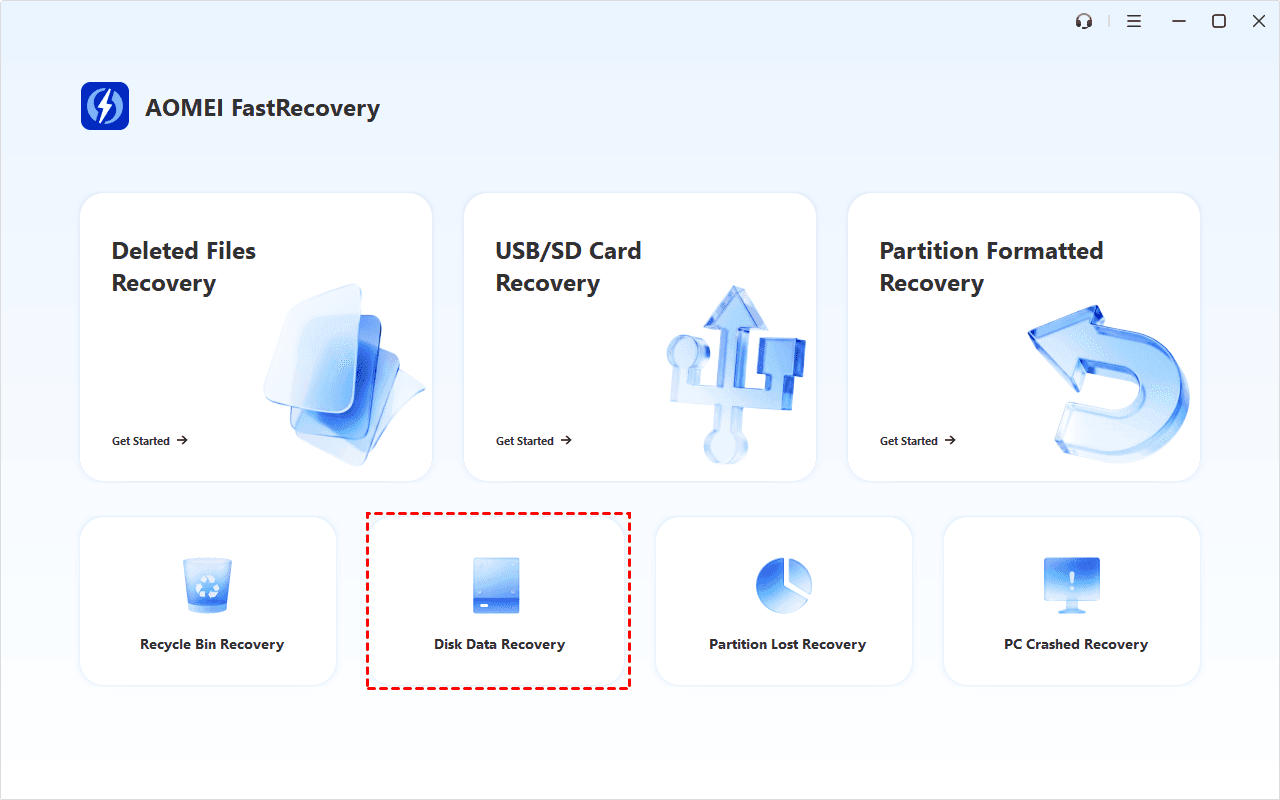
For specific files or folders or to boost speed, select Deleted Files Recovery. All of them does not cause any damage.
Step 2. Scan Your WD External Hard Disk
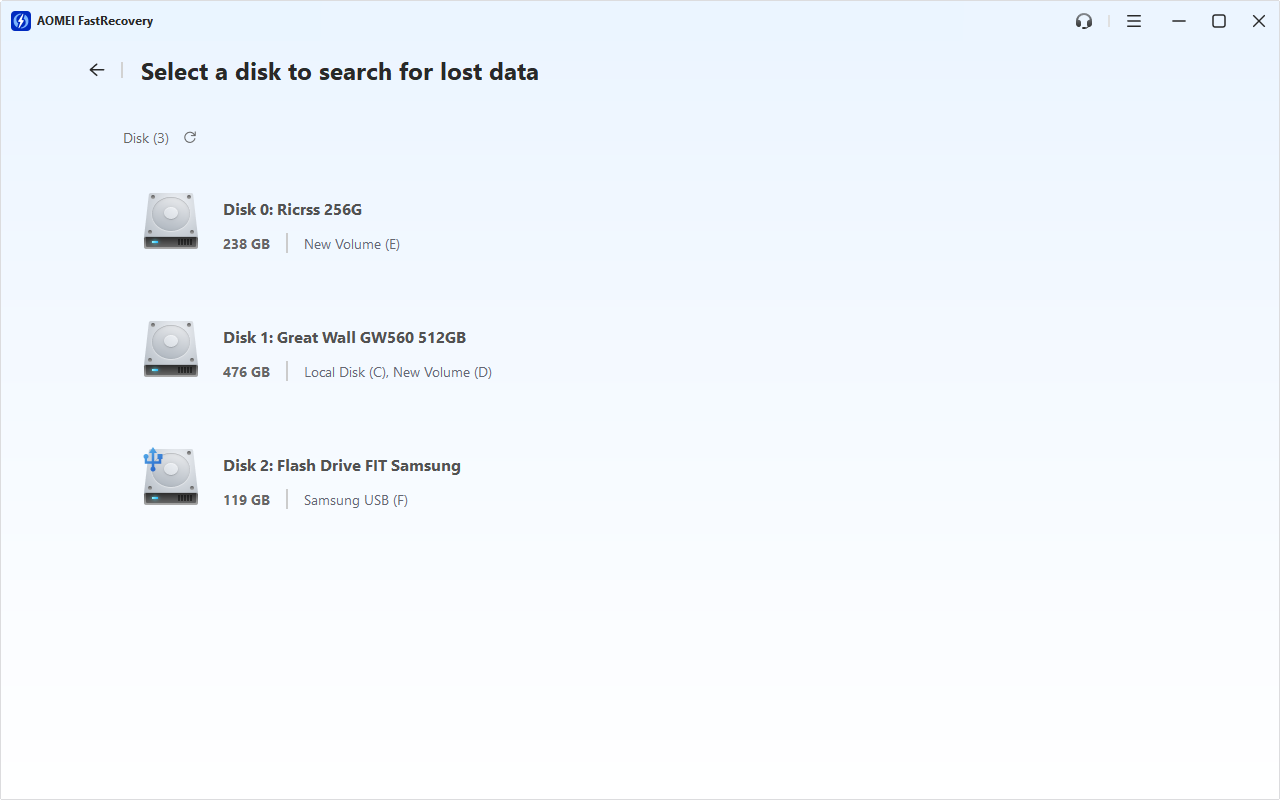
It will display all available drives, including the WD external hard disk. Hover the house over it and click Scan.
Step 3. Scan Your WD External Disk
The software will start a deep scanning process automatically to find lost files on the WD external hard disk. You won't have to wait long. Scan time mainly depends on disk size and health, especially regarding bad sectors or file system corruption.
During scanning, you can click the Stop or Pause button if you select the wrong disk or something goes wrong.
Step 4. Fast Search Deleted or Lost Files
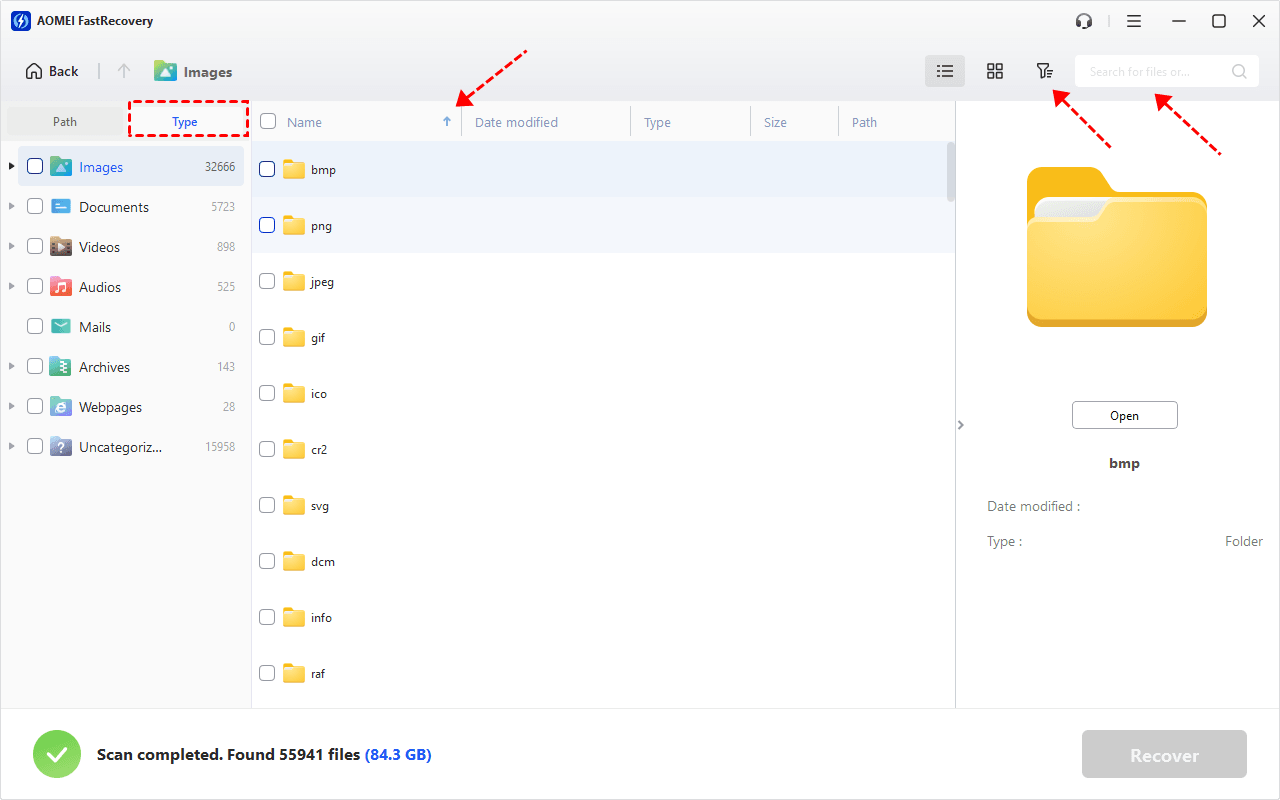
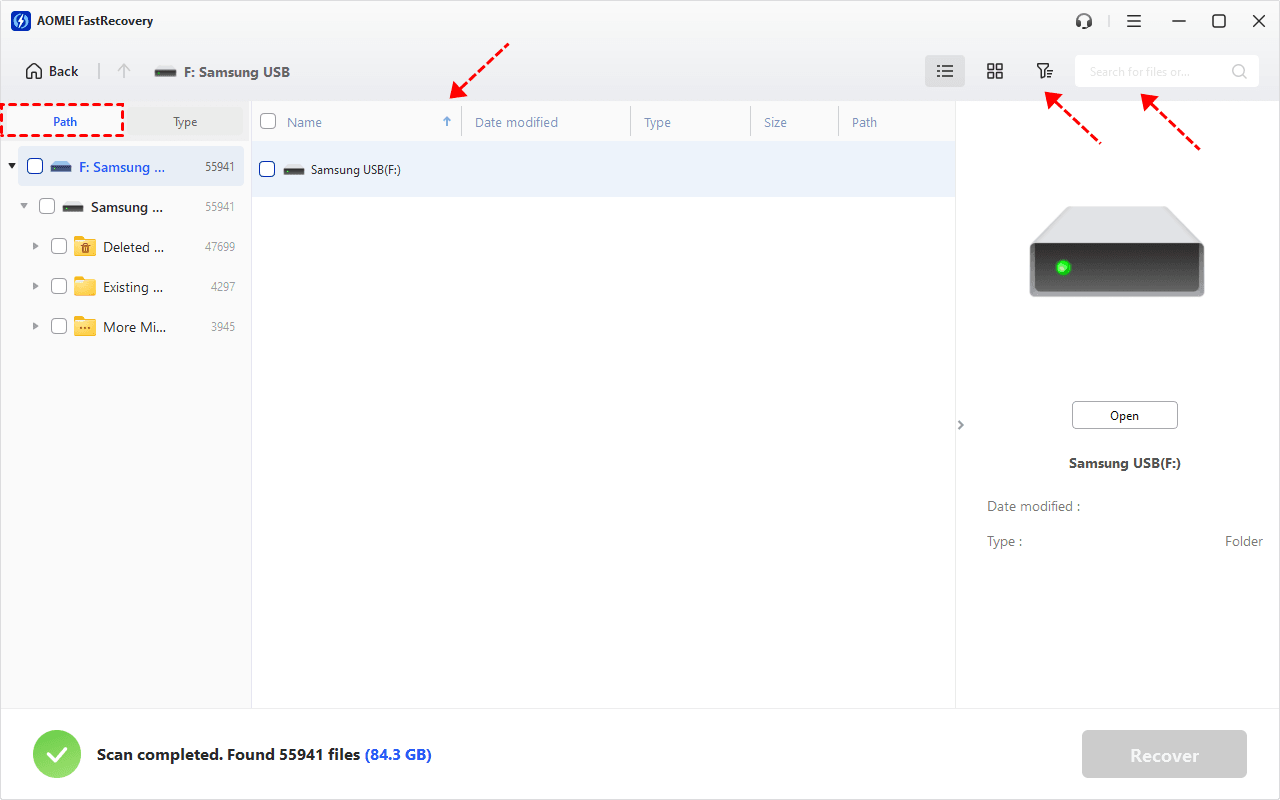
Wait for the process to complete. To restore all data, under the Type section, select all data types and formats. Or go to the Path section, check all subdirectories for complete recovery.
For specific files or folders, you can make use of the sort, search, filter, and preview options to find files quickly.
👉Under the Type section:
- Specify the data type (i.e., Images) and specific formats (i.e., png, jpg, gif, svg, etc), then click the arrow next to type, size, date modified, etc., to sort files.
- To locate files quickly, type the file name or extension (i.e., png, jpg, gif, svg, etc) in the search box.
- Or use the filter feature, similar to the Type category, allowing you to further specify the size of files, from less than 512 KB to 1GB above.
- Once found, double-click the files to preview.
👉 Under the Path section: Expand Deleted Files/Existing Files to find any data you want to recover.
- The Type categories and filter options include all supported data types, such as images, videos, documents, mails, web pages, compressed files, etc.
- You can preview a wide range of data formats, such as wav, ico, jpg, png, bmp, jpeg, tif, svg, gif, mp4, mp3, txt, xlsx, pdf, ini, docx, etc.
Step 5. Recover Data from Not Detected WD External Hard Drive
Select the desired data on the WD external hard disk and click the Recover button. Please select a new location to store data on the WD external disk. Because retrieving files to their original location may overwrite the space occupied by lost data, resulting in permanently deleted files.
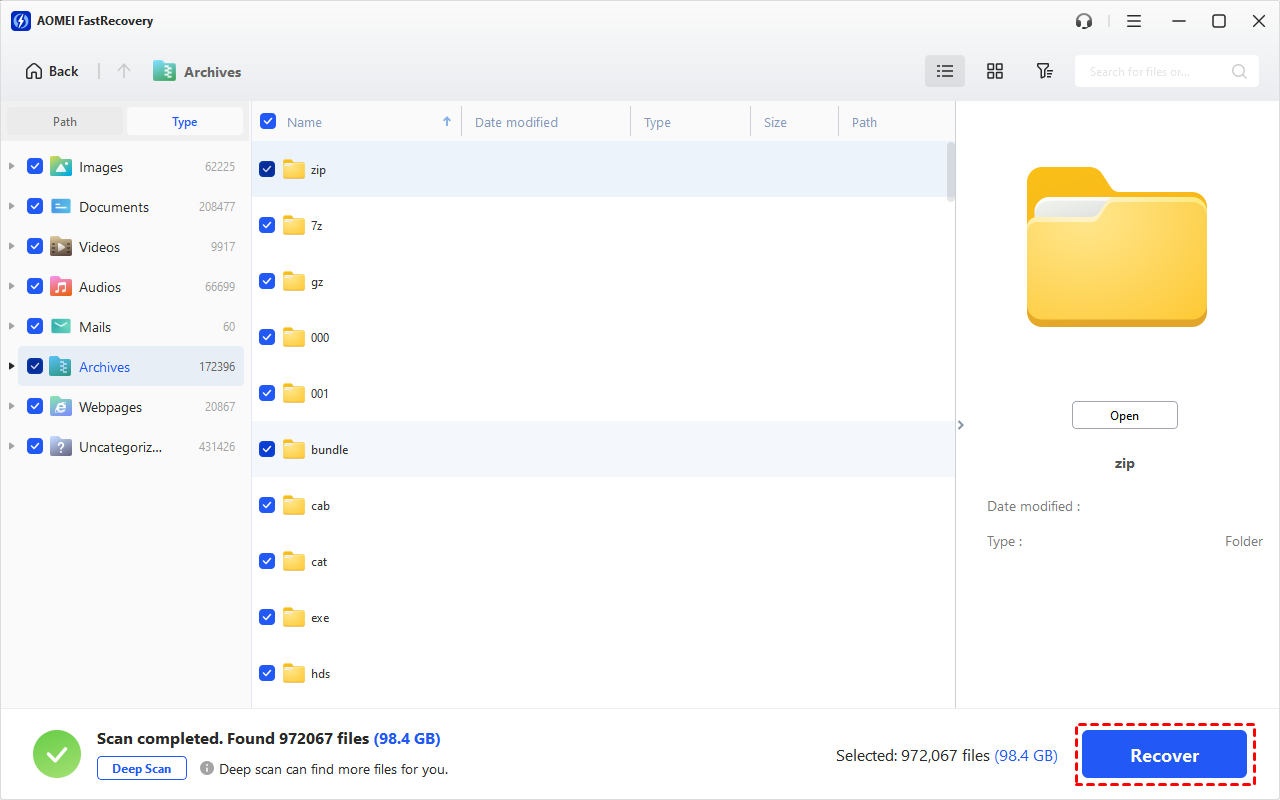
It allows you to recover data for free over 500MB when WD external hard drive is not detected. To recover all data, upgrade AOMEI FastRecovery to the advanced editions.
You can also use it to recover files from WD Elements, WD Black, My Book, etc.
7 Fixes to WD External Hard Drive Not Detected
Let's dive into 7effective fixes to get your WD external hard drive detected again. Here’s a mix of solutions you can try:
Fix 1: Check USB Connections and Ports
Often, the issue lies with the USB connection. You can try to unplug and plug WD external hard drive using the USB cable, or a different one. If it’s still not working, try a different USB port on the computer.
Fix 2: Try a Different PC
If the WD external hard drive is not showing up, try connecting it to another computer and check if it’s detected. If yes, your problem may be caused by a previous computer. If not, continue to read the next method.
Fix 3: Update Disk Drivers
Outdated or corrupted drivers can prevent the WD external hard drive from being detected. Try to update disk drivers as follows:
Step 1. Press Win + X and select Device Manager.
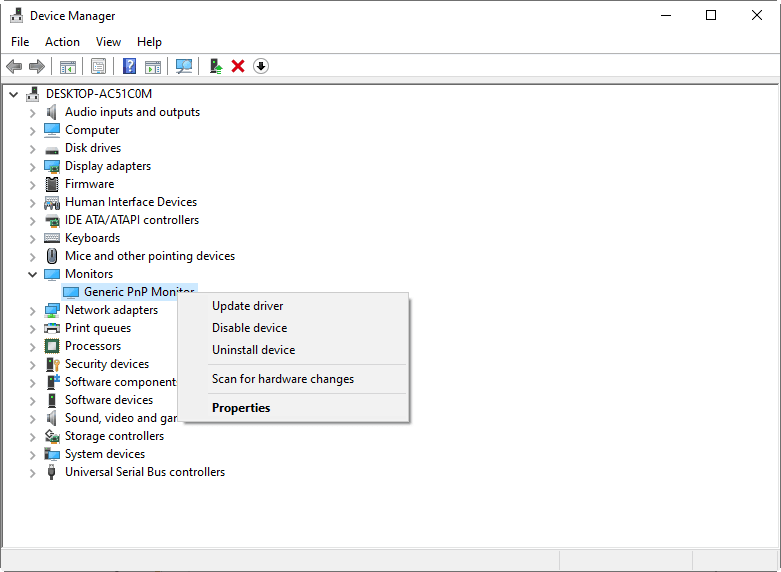
Step 2. Expand Disk drives, locate the WD external hard drive, right-click it, and select Update driver.
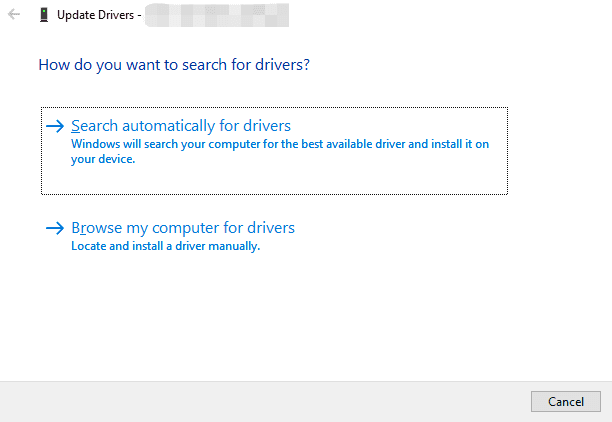
Step 3. In the following window, select Search automatically for drivers option.
Fix 4. Initialize Disk Showing Not initialized
Sometimes, you may find that WD external drive showing “Unknown, Not Initialized” in Disk Management. In this case, you need to initialize the disk with the following steps.
Step 1. Press Win + X and select Disk Management.
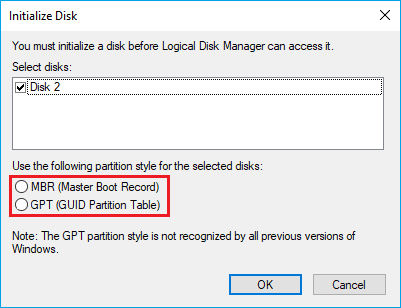
Step 2. Locate the WD external hard disk showing Not Initialized. Right-click it and select Initialize Disk.
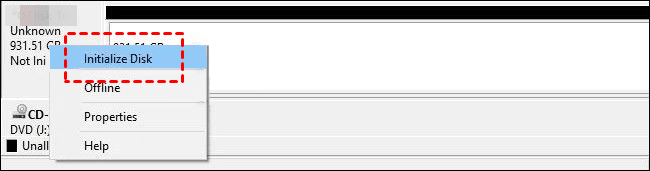
Step 3. Check the WD external disk and select MBR or GPT as the partition style. Then, click OK.
Fix 5. Create a New Simple Volume
Your disk may be displayed as Unallocated in Disk Management and at this time the easiest method is to create a new simple volume with it. But this process including formatting will overwrite data and the space occupied by them unless you recover data from unallocated space first.
Step 1. Open Disk Management. Right-click the unallocated space and click New Simple Volume.
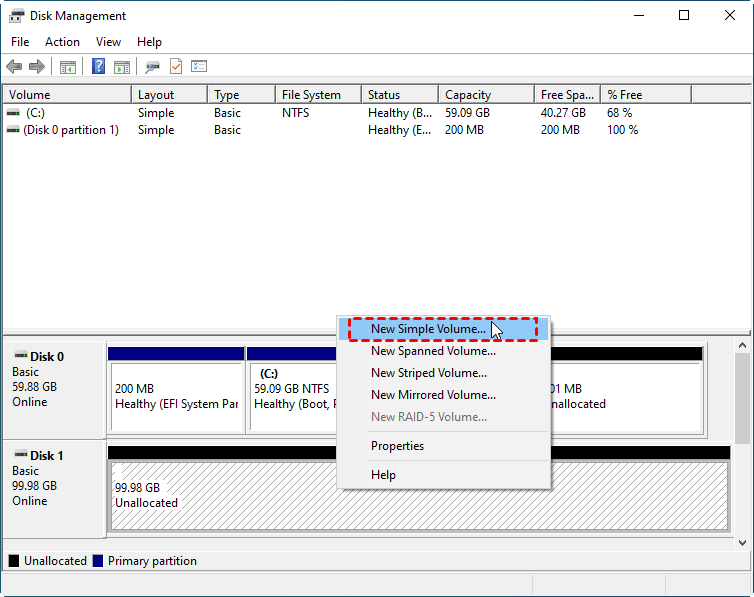
Step 2. In the New Simple Volume Wizard, click Next.
Step 3. Follow the on-screen instructions to specify volume size, drive letter, and file system. At last, decide whether to perform a quick format or not and click OK.
Fix 6. Assign a New Drive Letter
Sometimes, the cause of the WD external hard drive not showing up is missing a drive letter or there is a conflict between drive letters. You can try to assign a new drive letter or change it.
Step 1. Open Disk Management. Locate the WD external hard drive, right-click it, and select Change Drive Letter and Paths.
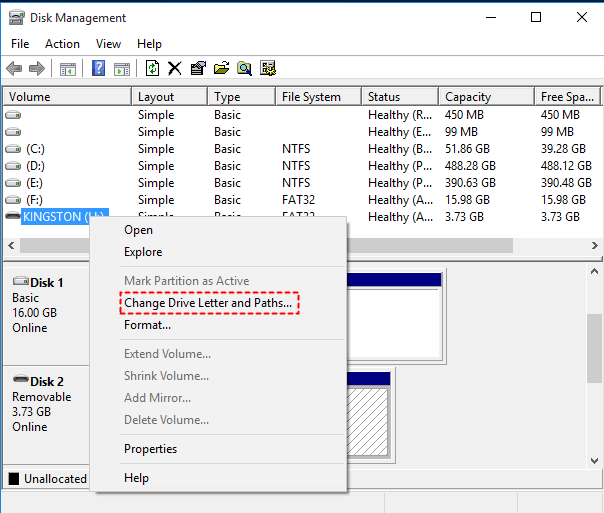
Step 2. In the following window, click Add and OK to assign a new drive letter to it.
Step 3. If the problem is a drive letter conflict, click Change. You can then select a new drive letter.
Fix 7. Repair Disk Error using CHKDSK
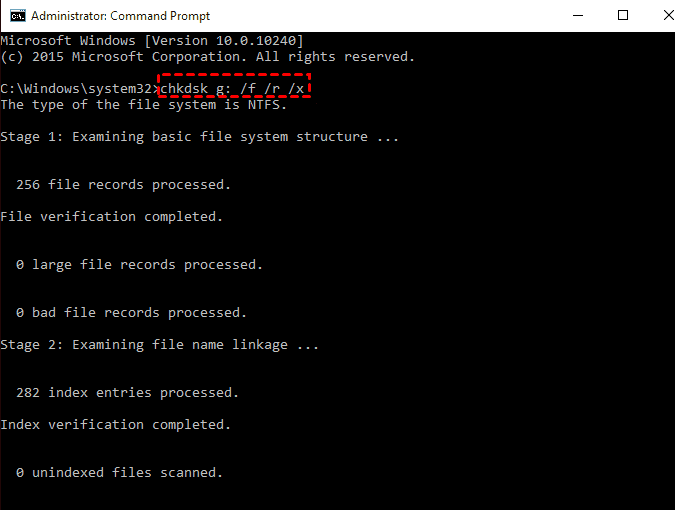
If there is a problem with the disk or it has file system errors, try the chkdsk command.
Step 1. Type cmd in the search box and select Run as administrator.
Step 2. Type chkdsk X: /f /r /x and press Enter to check your disk and fix any errors it finds. Replace X with your drive letter.
Fix 8. Format the Disk
If your disk is formatted with an unsupported file system, it will cause WD external hard drive not detected. So you can choose to format the disk with a compatible file system, such as FAT32, NTFS, etc.
Step 1. Press Win + X and select Disk Management. Right-click the WD external Hard Drive and select Format.
Step 2. Specify a compatible file system, such as FAT32 or NTFS, and be sure you use the quick format method. Then, click OK.

Conclusion
This article solves two important issues, one is how to recover data from WD external hard disk which is not detecting and the other is how to fix the WD external hard drive not showing up issues.
Since some methods are risky, such as the chkdsk command, or format disk, please remember to recover data from WD external hard disk first. And always, always backup files regularly to avoid these headaches in the future

 as a preferred
source on Google
as a preferred
source on Google