




How to Run SSD RAW Partition Recovery on Windows
An SSD RAW partition may appear when Windows cannot recognize its file system. This article explains how to perform SSD RAW partition recovery in Windows and explores repair options when you no longer need the data.

By Lily Updated on October 22, 2026


Why Does an SSD Partition Become RAW?
A RAW partition is a volume whose file system Windows cannot recognize or access normally. It does not necessarily mean that all the files have disappeared, but Windows may be unable to read the file system information needed to locate them. Common causes include:
- File system corruption: Damage to file system metadata may prevent Windows from recognizing an NTFS, FAT32, or exFAT volume.
- Improper disconnection: Removing an external SSD while files are being written can interrupt operations and potentially damage file system information.
- Power loss or system crashes: Unexpected shutdowns during disk activity may leave the file system in an inconsistent state.
- Disk errors: Problems with the SSD, its controller, connection, or storage interface can make the partition inaccessible.
- Partition changes: Incorrect partition management operations or interrupted resizing may affect the volume's structure.
- Windows compatibility or recognition issues: Windows may not recognize a file system created by another operating system or one it does not support.
🌟 To learn more about hard disk partition recovery, please check this complete guide.
How to Recover RAW Partition Without Losing Data on SSD
When an SSD partition becomes RAW, your first priority should be retrieving important files rather than trying to make the volume usable immediately. Follow the guidance below.
Before SSD RAW Partition Recovery
Take the following precautions before attempting recovery:
- Stop using the affected SSD. Avoid copying files to it, installing applications on it, or saving recovered files to it. New writes can overwrite recoverable information.
- Do not format the RAW partition. If Windows prompts you to format the drive, cancel the prompt until you have recovered the important files.
- Avoid running CHKDSK on the RAW volume. CHKDSK generally cannot repair a volume when Windows reports its file system as RAW. It is not a substitute for recovering files from an inaccessible partition.
- Check the SSD connection. If the SSD is external, try another compatible USB port or cable if connection problems are suspected. If the drive repeatedly disconnects or reports errors, avoid repeated scans.
- Consider an SSD's TRIM behavior. If files were deleted or the storage area was discarded, TRIM and the SSD's internal garbage collection may reduce the chances of recovery. Results depend on the drive and the circumstances.
Use RAW Partition Recovery Software
If Windows cannot access the RAW partition, dedicated recovery software may help locate it and bring it back to normal. AOMEI FastRecovery is one option for attempting to retrieve inaccessible or RAW partitions.
 AOMEI FastRecovery
- Simple interface: A graphical interface helps users perform recovery without relying entirely on command-line instructions.
- File scanning: Run Quick Scan or Deep Scan to look for deleted or missing files on a supported drive.
- File organization: Browse detected files by type or path and use available search, filter, sort, and preview options.
- Varied recovery scenarios: Supports deleted file recovery, Recycle Bin recovery, formatted partition recovery, and recovery from SD cards or USB drives.
- Support for 500+ storage devices: HDD/SSD (Seagate, Toshiba, WD), USB flash drives (Samsung, SanDisk, Kingston), SD cards (PNY, Panasonic, Crucial), cameras (Nikon, Canon, Sony), and more.
 100% Secure
Follow these steps to recover a RAW partition on SSD:
Step 1. Download and install AOMEI FastRecovery on a drive other than the affected SSD. Launch the software, select Disk Data Recovery, and click Start Partition Recovery.
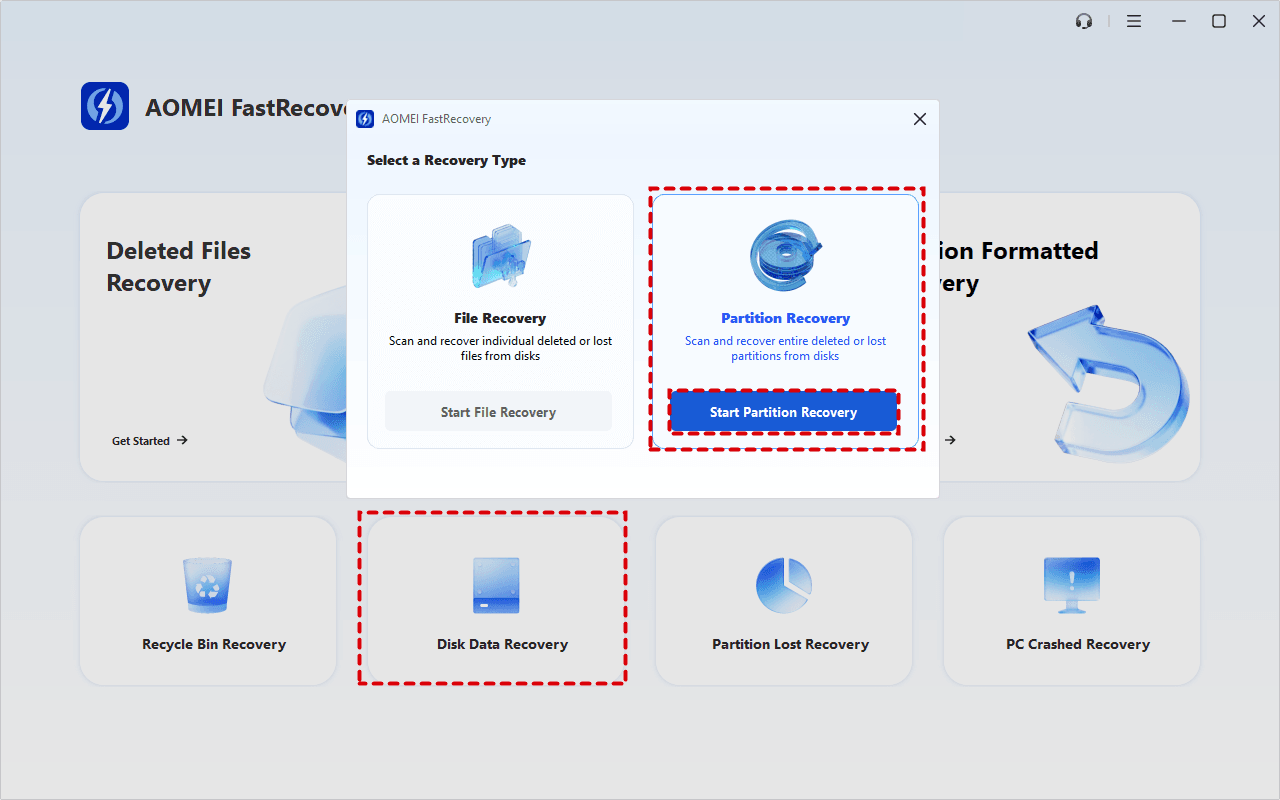
✍ Tip: If your goal is to recover files from RAW partition, click Start File Recovery to copy recoverable files to another drive.
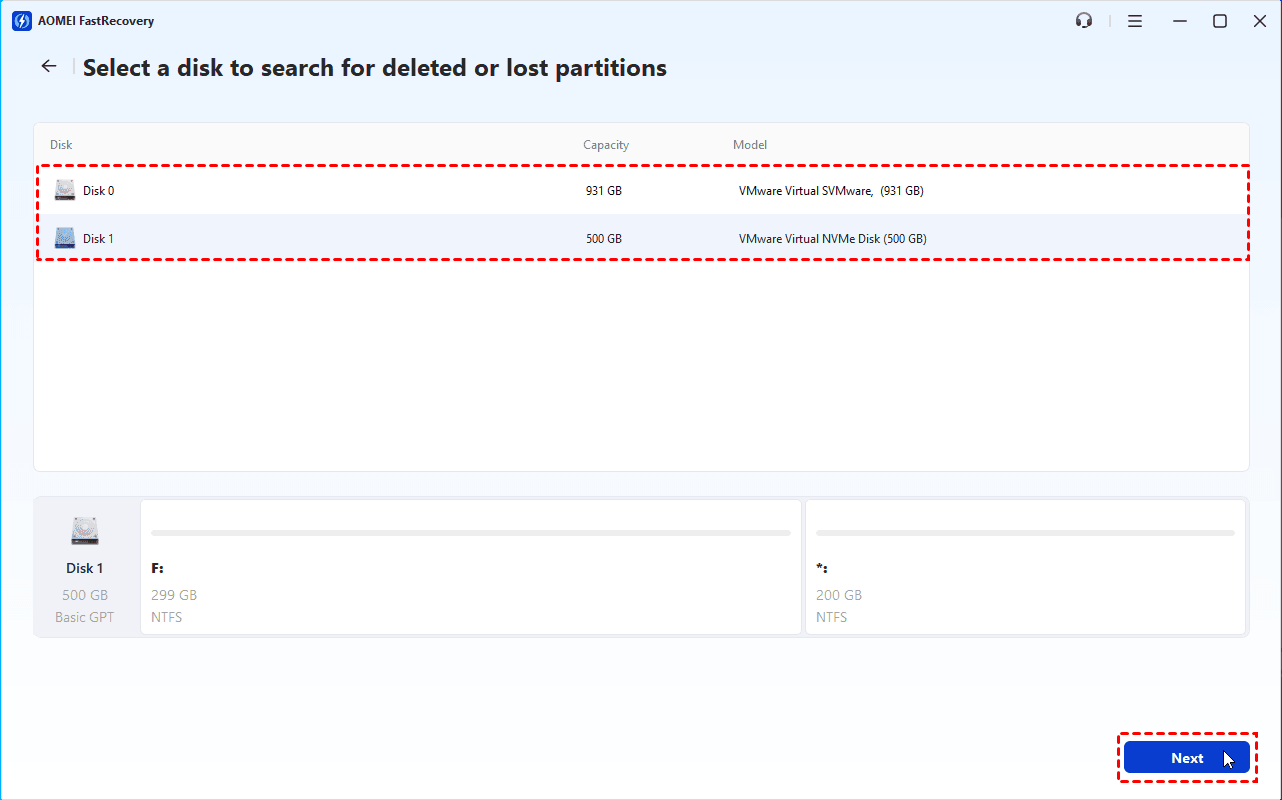
Step 2. Select the affected SSD in the available disk list and click Next. Check the disk number, capacity, model, and partition layout to identify the correct storage device.
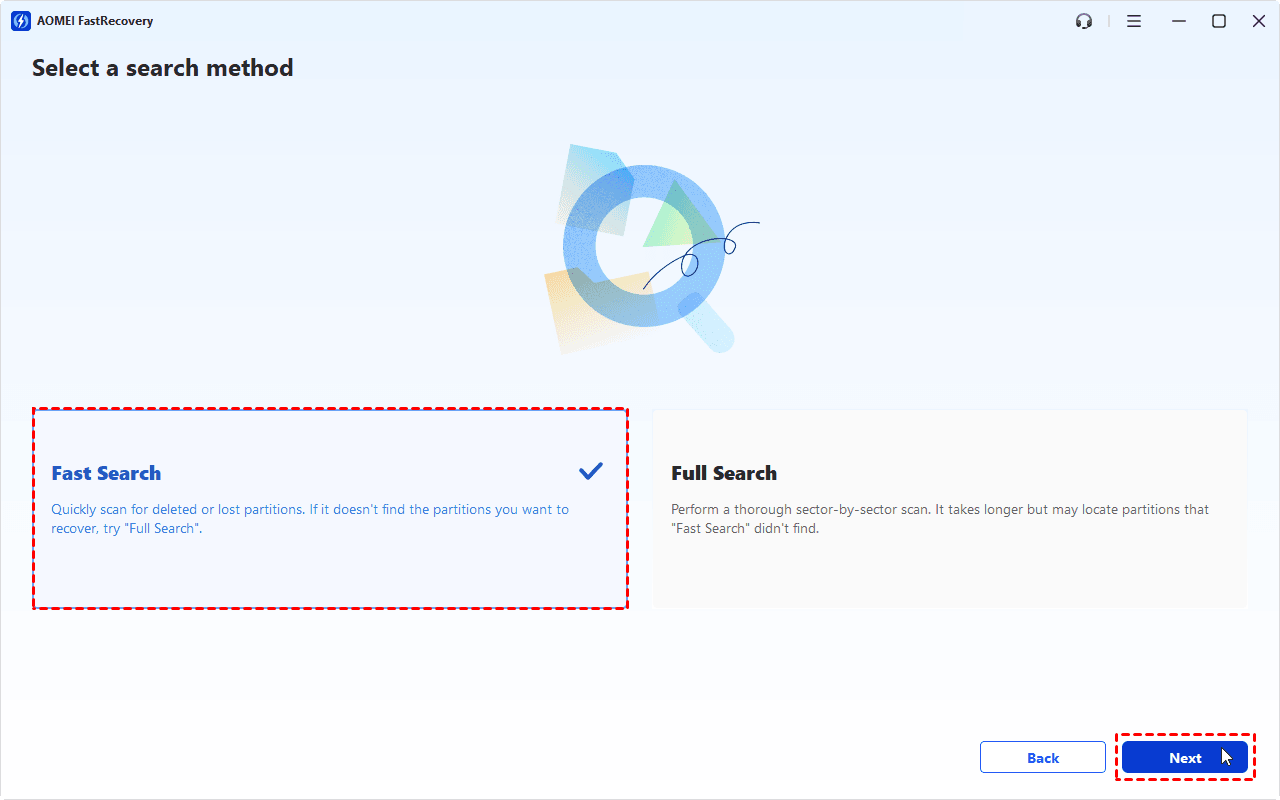
Step 3. Choose a scan method and click Next to begin scanning. Start with Fast Search to quickly locate deleted or lost partitions.
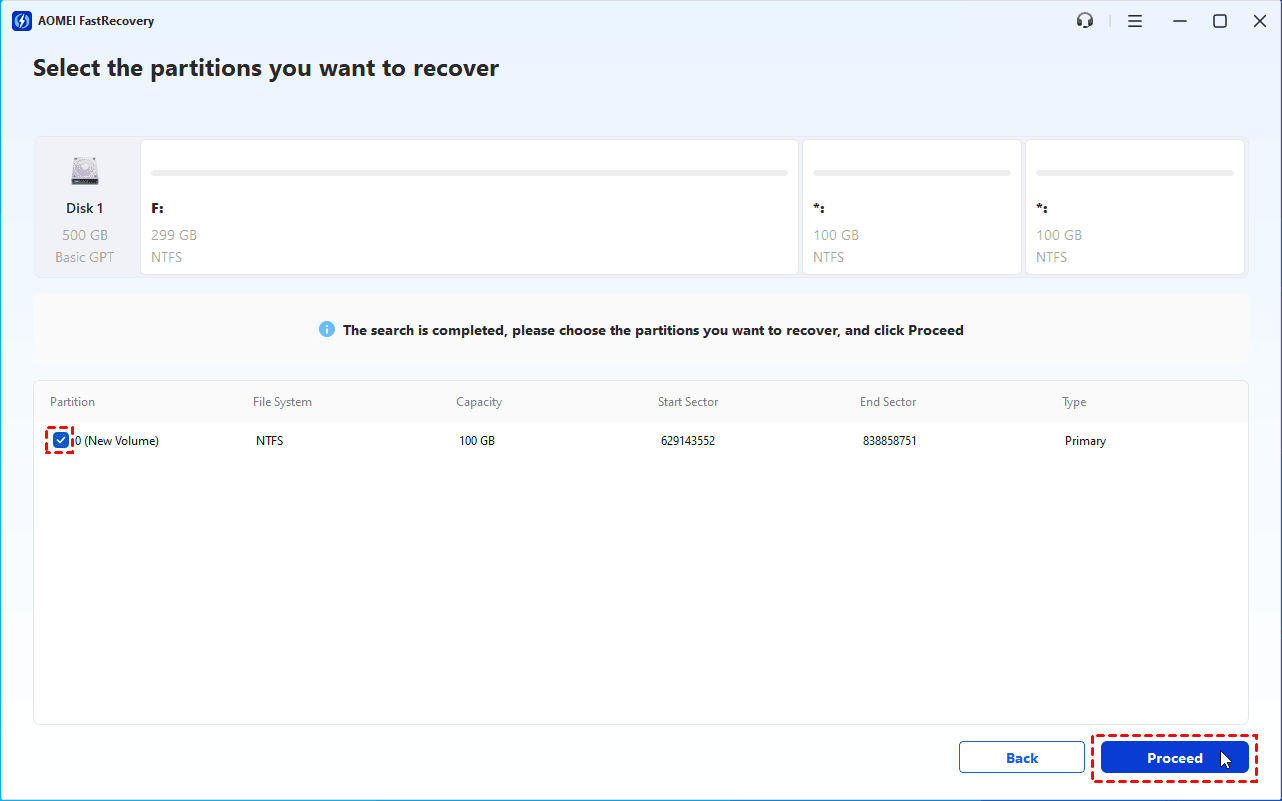
Step 4. After the scan finishes, review the detected partitions and their details. Select the partition you want to recover and click Proceed.
✍ Tip: If the expected partition is not listed, go back and try Full Search for a more thorough scan. This may take longer.
Step 5. Wait for the recovery process to finish. Then open File Explorer and check whether the SSD partition is accessible. If it does not appear, use Disk Management to assign a drive letter or restart your computer.
Bonus: How to Reformat a RAW SSD (If Data is Not Needed)
If you no longer need the files on the RAW SSD or have already recovered and verified them, you can reformat the partition to make it usable in Windows again. You can do this through Disk Management or DiskPart.
🔔 Warning: Formatting a RAW partition can destroy remaining file system information and make data recovery more difficult. Confirm that you have selected the correct SSD and that no important files remain to be recovered before proceeding.
Option 1: Using Disk Management
Disk Management provides a graphical way to format a RAW partition without using command-line tools. Follow the steps below:
Step 1. Press Win + X and select Disk Management.
Step 2. Locate the RAW partition on your SSD. Right-click the RAW partition and select Format.
Step 3. Enter a volume label, choose a file system such as NTFS, and check Perform a quick format. Click OK and confirm the warning if prompted.

Step 4. Wait for the formatting process to finish. Open File Explorer to check whether the SSD partition is accessible.
✍ Tip: If Format is unavailable or the operation fails, the SSD may have partition or hardware problems. Check the drive's connection and health before trying another method.
Option 2: Using DiskPart
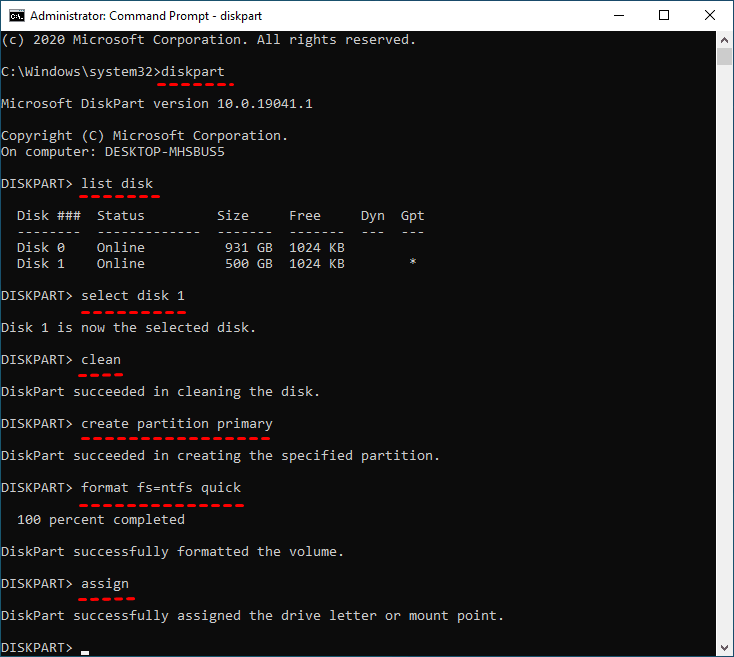
DiskPart is a Windows command-line utility that can manage disks and partitions. It may help when Disk Management cannot format a RAW volume, but you must identify the correct disk and partition before running any commands.
Step 1. Press Win + S, type “cmd”, right-click Command Prompt, and select Run as administrator.
Step 2. Enter the commands according to your situation.
👉 If the SSD contains only one partition:
- diskpart
- list disk
- select disk * (replace * with the disk number of your SSD; you may identify it by disk size)
- clean
- create partition primary
- format fs=ntfs quick
- assign
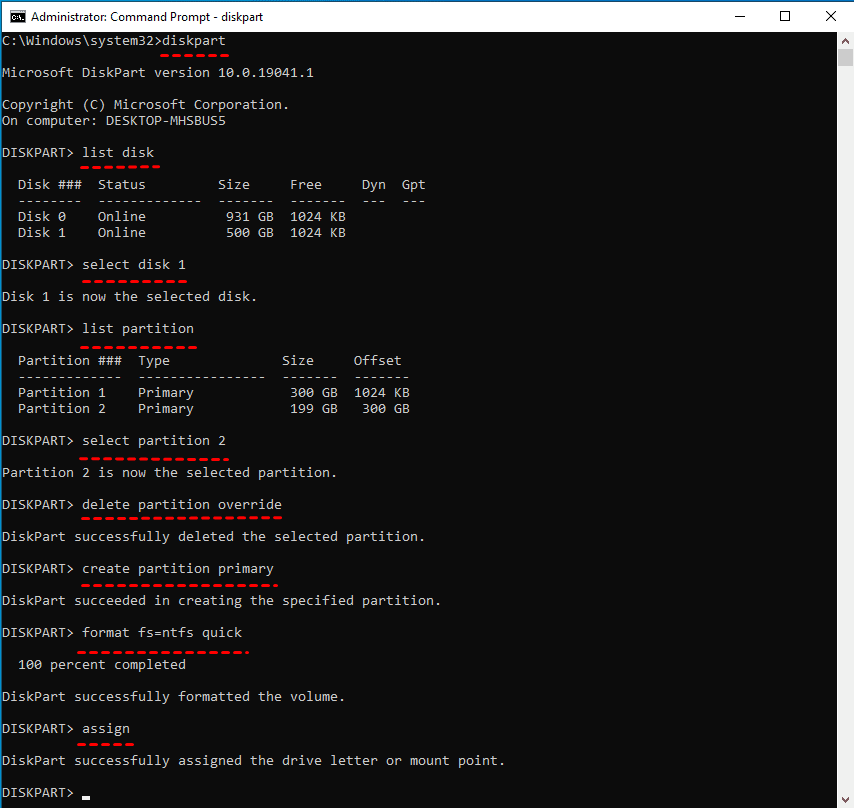
👉 If the SSD contains multiple partitions:
- diskpart
- list disk
- select disk * (replace * with the disk number of your SSD)
- list partition
- select partition * (replace * with the partition number of the RAW partition; you may identify it by partition size)
- delete partition override
- create partition primary
- format fs=ntfs quick
- assign
Step 3. Exit Command Prompt. Then open File Explorer to confirm that the new volume appears and is accessible.
FAQs About SSD RAW Partition Recovery
1. Can I recover a RAW partition on an SSD without formatting it?
Yes, recovery software like AOMEI FastRecovery is able to restore a RAW partition without formatting it first. Avoid writing new data to the SSD. The success rate depends on the condition of the file system, the SSD, and whether the original data has been overwritten or discarded.
2. Does formatting a RAW SSD recover my files?
No. Formatting creates a new file system so Windows can use the volume again. It does not restore the original files and may make subsequent recovery more difficult. Recover important data before formatting.
3. Can CHKDSK fix a RAW SSD partition?
Usually not. CHKDSK is designed to check supported file systems, and Windows generally cannot run a normal CHKDSK repair on a volume identified as RAW. If the files matter, attempt data recovery first rather than forcing a repair.
4. Is RAW partition recovery possible on an external SSD?
Yes, provided the SSD is detected and its data remains recoverable. Check the USB cable, port, and power connection if the drive is unstable. If the partition appears as RAW, avoid formatting it and use a recovery method appropriate for the situation.
Wrapping Up
Now you know how to perform SSD RAW partition recovery in Windows and how to fix RAW drive errors if the data is no longer needed. AOMEI FastRecovery works well for identifying and recovering lost/deleted partitions. What’s more, you can use it to recover deleted photos from a Dell laptop. Don’t hesitate to try it out!

 as a preferred
source on Google
as a preferred
source on Google