




Can You Recover Data from SD Card After Format? Full Guide
Formatted your SD card by accident? Don't panic. Learn 4 ways to recover your files on Windows and Mac – and get your data back.

By Lily Updated on October 14, 2026


What Causes an SD Card to Be Formatted?
An SD card can be formatted intentionally or accidentally. Below are some common situations:
- Accidental formatting: You may select the wrong SD card or confirm a format prompt without realizing that the card contains important files.
- File-system compatibility: A camera, computer, or other device may require a particular file system and prompt you to format the card.
- Unexpected disconnection: Removing an SD card while files are being read or written can corrupt its file system, sometimes making the card appear unformatted.
- Malware or file-system errors: Malware, corruption, or other storage errors may make an SD card inaccessible and lead to a format prompt.
- Formatting by a camera or other device: Some devices ask users to format a card before use, which can result in data loss if the card contains existing files.
Can You Recover Data from SD Card After Format?
Yes, you may be able to recover data from an SD card after formatting. The chances of success depend on the type of format performed, whether new data has overwritten the lost files, and the condition of the card. A quick format typically removes file-system references rather than immediately erasing every file's contents, while a full format or continued use of the card may make recovery more difficult.
🌟 Important: If you accidentally formatted your SD card and lost important photos, videos, or documents, stop using it immediately. Do not save new files to it or format it again. Doing so can help improve the chance of retrieving your files.
How to Recover Data from an SD Card After Format on Windows
Windows users can try recovery software, Microsoft's Windows File Recovery utility, or an existing backup. Choose the method that best matches your technical experience and whether a backup is available.
Method 1. Recover Formatted SD Card Data with AOMEI FastRecovery
AOMEI FastRecovery is a Windows data recovery tool designed to find recoverable files in several data-loss situations, including accidental deletion and disk formatting. It may be useful when you have formatted an SD card and do not have a backup.
 AOMEI FastRecovery
- Broad file support: Recover more than 1,000 types of files. You can use it to recover Excel files, Word documents, photos, videos, emails, and compressed files, etc.
- Multiple recovery scenarios: Handle data loss caused by accidental deletion, formatting, and certain system problems.
- Flexible scanning: Use Quick Scan and Deep Scan to search for deleted or lost files.
- File filtering: Browse files by path or type, and use search, sorting, and filtering options to find specific items.
- Windows compatibility: Support Windows 11, 10, 8, and 7, as well as supported Windows Server versions.
 100% Secure
Learn how to recover photos from formatted SD card using free SD card data recovery software below:
Step 1. Insert the SD card into your computer using a compatible card reader. Make sure Windows detects it. If Windows asks you to format the card, cancel the prompt rather than formatting it again.
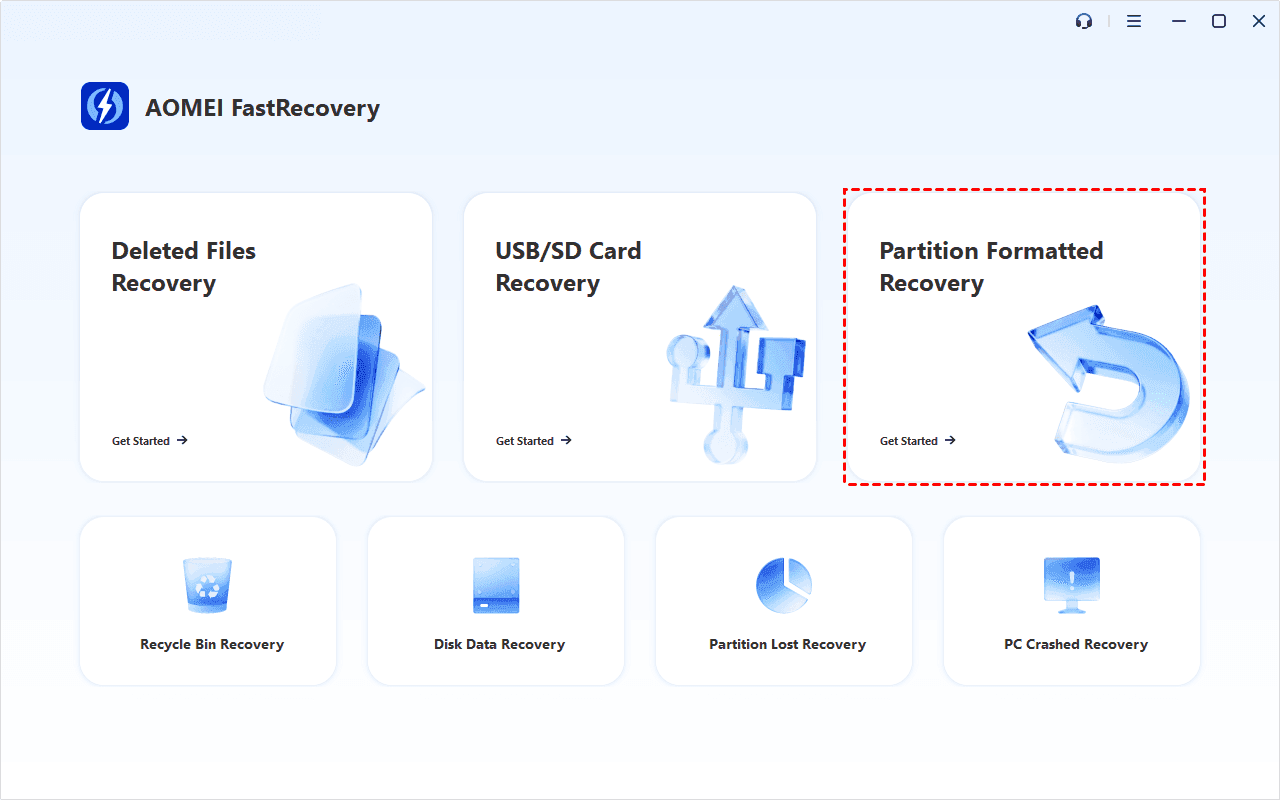
Step 2. Download and install AOMEI FastRecovery on your computer. Launch AOMEI FastRecovery and select Partition Formatted Recovery.
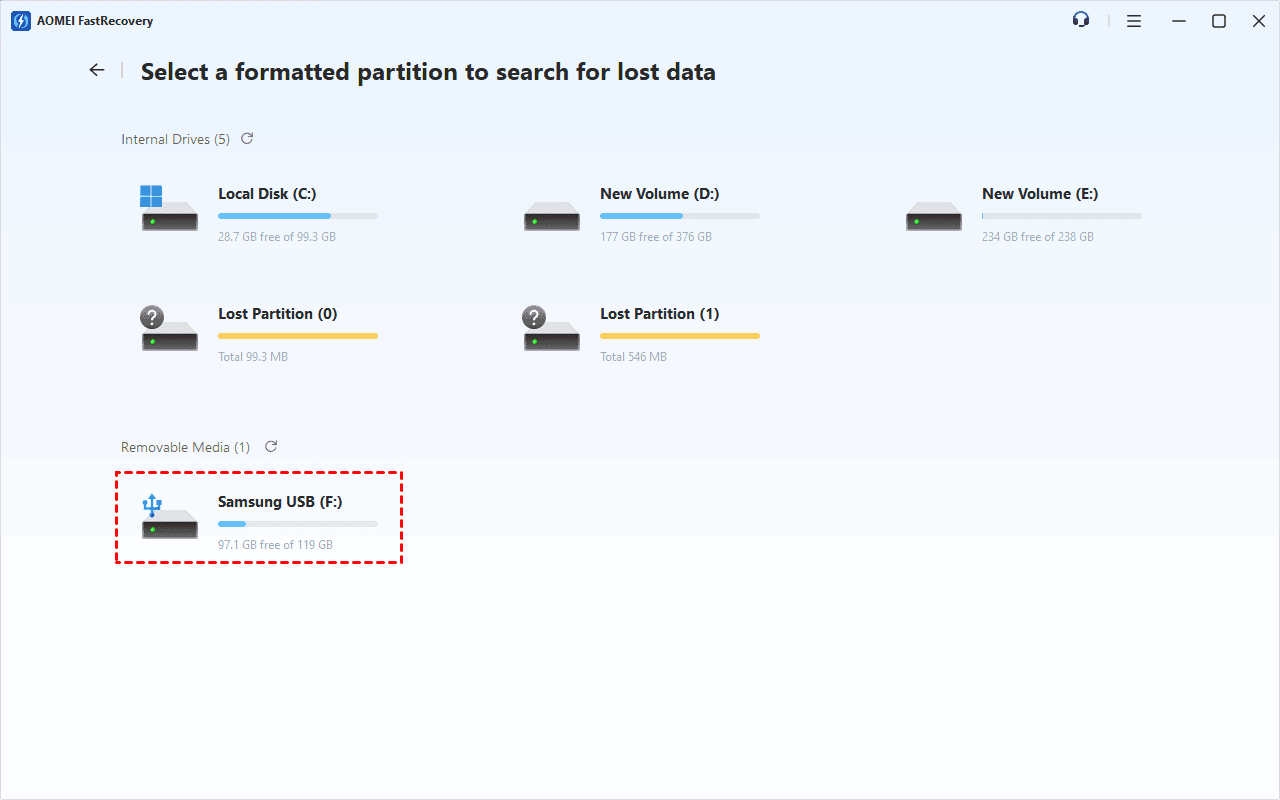
Step 3. Locate the SD card you want to recover data from and click Scan. Allow the software to search for recoverable files.
Step 4. Review the files detected by the scan. You can browse by file type or path and use available search, filter, and sort features to locate specific photos, videos, and documents.
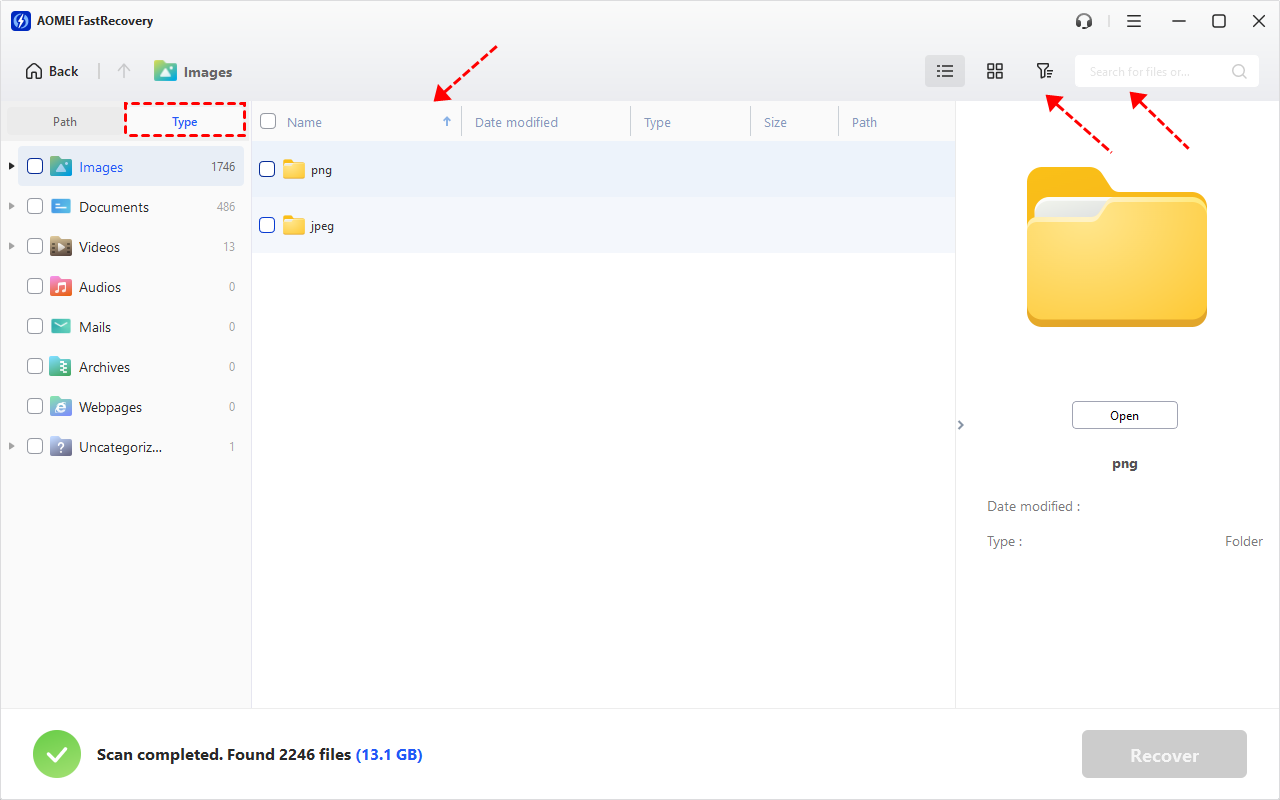
💡 Note: You can double-click a file to preview its content. Please upgrade to enjoy this feature.
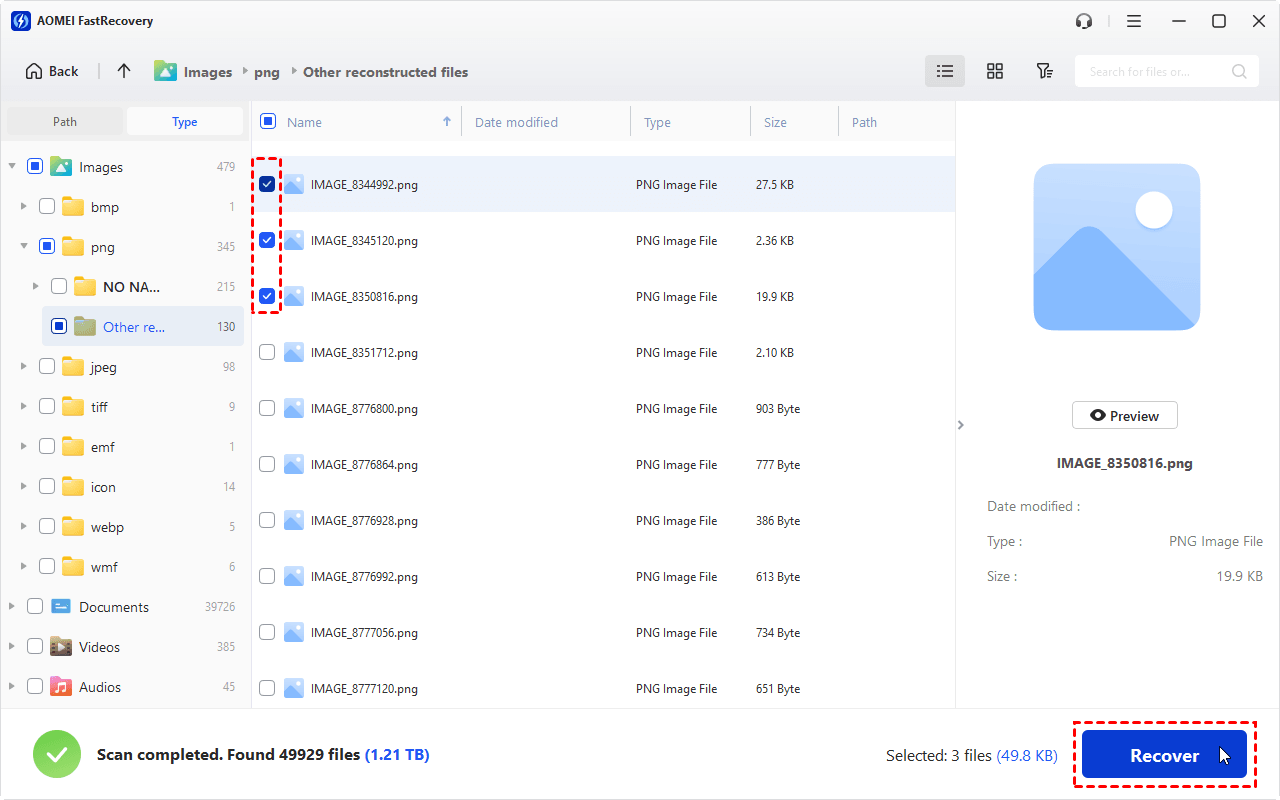
Step 5. Select the photos you want to restore and click Recover. Then choose a folder on your computer or another healthy storage device to save recovered files.
Method 2. Recover Formatted SD Card Files with Windows File Recovery
Windows File Recovery is a command-line utility from Microsoft for recovering certain lost files from local storage devices. The utility is intended for Windows 10 version 2004 and higher and it works with NTFS, ReFS, FAT, and exFAT file systems. You can choose the correct recovery mode based on the file system and loss scenario.
◆ Regular Mode: Best for recently deleted files on NTFS drives.
◆ Extensive Mode: Best for older files, formatted drives, corrupted NTFS partitions, or FAT/exFAT/ReFS devices.
◆ Signature Mode: Best for recovering specific file types (like photos or videos) from cameras or SD cards.
Follow the instructions below to recover photos from formatted SD card with Windows File Recovery:
Step 1. Insert the card and check its drive letter in File Explorer or Disk Management.
Step 2. Open the Microsoft Store, search for Windows File Recovery, and install the utility.
Step 3. Run Windows File Recovery and enter the right command. The general command format is:
winfr source-drive: destination-drive: [/mode] [/switches]
For example, if the SD card is drive F: and you want to save recovered files to drive E:, please input:
winfr F: E: /signature
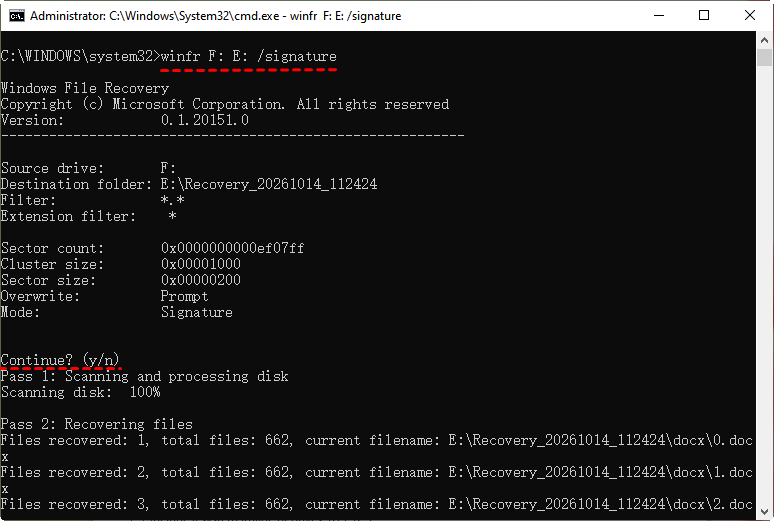
Step 4. When you are prompted for confirmation to continue, enter Y to start the recovery operation.
Step 5. Wait for the scan and recovery process to finish. After recovery, enter Y to view recovered files.
💡 Note: Windows File Recovery can be less convenient for beginners because it relies on command-line syntax. Incorrect drive letters or switches may prevent recovery. If you prefer a graphical interface, consider SD card data recovery software instead.
Method 3. Recover Formatted SD Card Files from a Backup
If you backed up the SD card's files before formatting, restoring the backup is often the simplest approach. Since Windows File History and Backup and Restore can’t help you backup files from an external device, you may pick a third-party backup tool like AOMEI Backupper.
Let’s say you have backed up files on your SD card with AOMEI Backupper before formatting. Follow these steps to restore your SD card files:
Step 1. Launch AOMEI Backupper and go to Home > Restore.
Step 2. Select the file backup task from the list and click Next.

Step 3. Select the backup image version and the files or folders you want to restore, then click Next.

Step 4. Select a destination path to save the restored files and click Start Restore. If you want to restore to the original location, please connect the SD card to your computer first.

How to Recover Deleted Files from an SD Card on macOS with PhotoRec
Mac users can try PhotoRec, a file recovery utility that supports various file formats and storage devices. It uses a text-based interface rather than a typical graphical window, so follow the prompts carefully. Recovery results depend on the condition of the card and whether the original data has been overwritten.
Step 1. Connect the SD card to your Mac with a compatible reader. Download PhotoRec from its official distribution source and install it on your Mac.
Step 2. Launch the utility through Terminal. You may enter your Mac password to use PhotoRec. Then choose the SD card where you want to recover deleted files and press Enter.
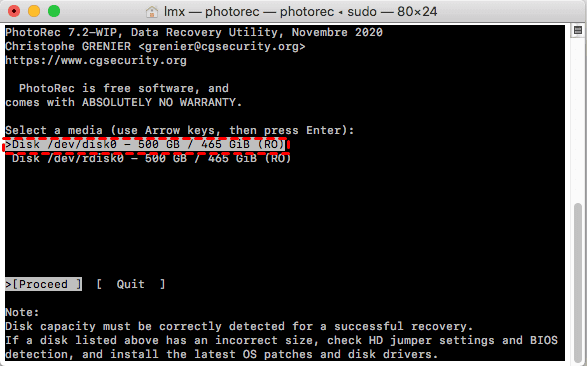
💡 Note: Double-check the device capacity and other identifying details so you do not scan the wrong disk.
Step 3. Follow PhotoRec's prompts to choose the appropriate partition and file-system settings.
Step 4. Select a folder on your Mac or another storage device to save the recovered files. Press C to begin SD card file recovery.
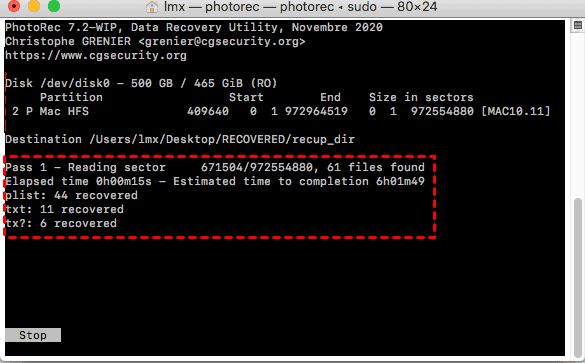
Step 5. Open the destination folder to check the recovered photos, videos, and documents to confirm that they are usable.
💡 Note: PhotoRec may recover files without their original filenames or folder structure. If preserving filenames and directories is important, review the tool's documentation before starting.
FAQs About Recovering Data from a Formatted SD Card
1. Can you recover data from an SD card after a quick format?
Often, yes. A quick format typically recreates file-system structures without immediately overwriting all the underlying data. Recovery software may find some of the lost files if the card has not been used since formatting. Success is not guaranteed, and the chances may decrease as new data is written.
2. Can you recover data from an SD card after a full format?
Recovery may be much more difficult after a full format, because the process may overwrite or otherwise make previous data inaccessible. The exact behavior depends on the device, operating system, and formatting process. If the files are important, stop using the card and consider professional recovery if software scans cannot find them.
3. Can I recover photos from a formatted SD card without a backup?
Yes, it may be possible. You can try a compatible recovery tool such as AOMEI FastRecovery on Windows or PhotoRec on macOS. Stop using the card and save recovered files to a different device. If the card is physically damaged, repeated software scans may not help.
4. Why can't my computer detect my formatted SD card?
A faulty card reader, damaged connector, file-system corruption, partition problems, or a failing SD card may prevent detection. Try another compatible reader or USB port if the card appears physically intact. If it remains undetected or repeatedly disconnects, avoid formatting or initializing it, as these actions may complicate recovery.
To Sum Up
So, can you recover data from an SD card after format? Yes, recovery may be possible, especially if the card was quick-formatted and the lost data has not been overwritten. Windows users can try AOMEI FastRecovery, Windows File Recovery, or an existing backup, while Mac users can try PhotoRec.
Choose a method that fits your situation, and always save recovered files to a different storage device. For the future, back up important SD card files regularly and avoid formatting a card until you have confirmed that its contents are safely stored elsewhere.

 as a preferred
source on Google
as a preferred
source on Google