




Excel Keeps Crashing in Windows 10? Fix It Fast without Losing Files
Is Excel keeping crashing in Windows 10 and disrupting your work? This guide collects proven solutions to fix Excel crashes, and recover important data quickly.

By Ivy Updated on June 29, 2026


My Excel is constantly crashing
Excel Crashes after Update
I recently was prompted to install an Excel update, and now the program keeps crashing under certain circumstances.
If I open an Excel sheet and try to open a second one, once I click "open", Excel crashes and the program closes. I thought it was an issue related to my specific Excel files, but I got the same problem starting with a new blank sheet
- Question from Microsoft Community
Microsoft Excel crashes can happen unexpectedly, especially when you’re working on important spreadsheets or handling large amounts of data. Many users report issues such as Excel not responding, freezing, crashing after saving, or suddenly closing without warning.
In some cases, Excel may display error messages like “Microsoft Excel has stopped working” or “Excel is not responding”, leaving users worried about unsaved or missing files. The good news is that these problems are often fixable, and your Excel files may still be recoverable.
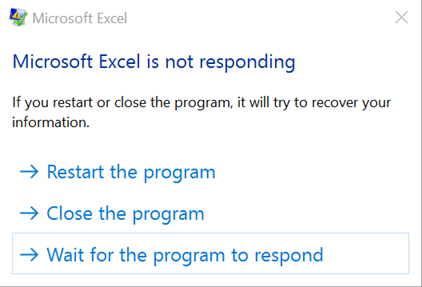
In this guide, we’ll explain the common causes of Excel keeps crashing in Windows 10 and how to fix the issue step by step without losing data.
Possible causes of Excel constantly crashing
A bunch of factors lead to excel crashes computer in Windows 10 as follows:
- Insufficient resources. Apps running consume the CPU and memory; if too many running programs and background processes exist, Excel is prone to crash. Also, too many animations and graphics in sheets cause this.
- Conflicts caused by add-ins. Though add-ins are meant to improve your experience, it sometimes causes interference and conflicts.
- Faulty updates. Windows OS and software updates bring improvements as well as some bugs occasionally. This is not rare. Some users have reported that the computer won’t start after a Windows update.
How to fix Excel keeps crashing in Windows 10
We can start with the causes to figure out how to fix it if Excel crashes when opening files or editing sheets.
Fix 1. Disable unwanted apps
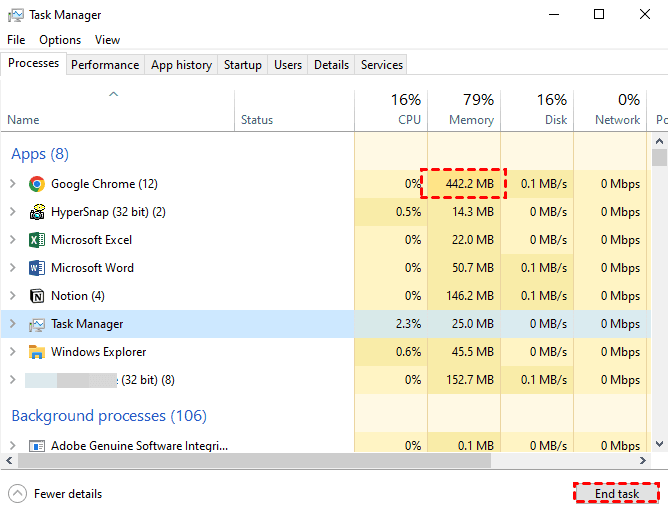
As mentioned above, insufficient resources can lead to this issue. Sometimes, it causes severer problems like computer crashes. You can directly close some unwanted apps. Don’t forget to save your data before closin).
Or, right-click the taskbar and select Task Manager. Choose an unwanted app and click End Task to close it, especially those consuming a large proportion of CPU or memory.
Fix 2. Remove rules or formatting
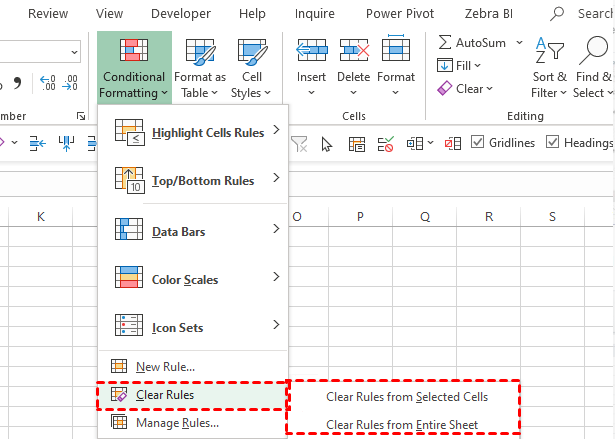
Rules, graphics, formatting, and animations can also use up the CPU, causing high memory usage in Windows 10 and even crashes. If the Excel crashes not too frequently and can leave you some time and a chance to make some editing and changes, you could try removing some rules/formats/animations.
For example, clear the Rules:
Step 1. Select the whole sheet or a range > click Conditional Formatting.
Step 2. Click Clear Rules and then select Clear Rules from Selected Cells or Clear Rules from Entire sheet.
Fix 3. Start Excel in Safe mode
Running Excel in Safe mode can help bypass add-ins, resource-consuming features, settings, etc. Microsoft Excel allows users to enable a Safe mode manually by pressing the Win+R key, inputting Excel /safe, and clicking OK.

Fix 4. Disable add-ins
Add-ins, like Excel add-ins, COM add-ins, etc., are meant to offer you a better user experience, but from time to time, it also brings problems.
You can now enable the add-ins one by one to find out which one causes the Excel to keep crashing in Windows 10 issue.
Step 1. File > Options > Add-ins > select COM Add-ins under Manage > click Go.
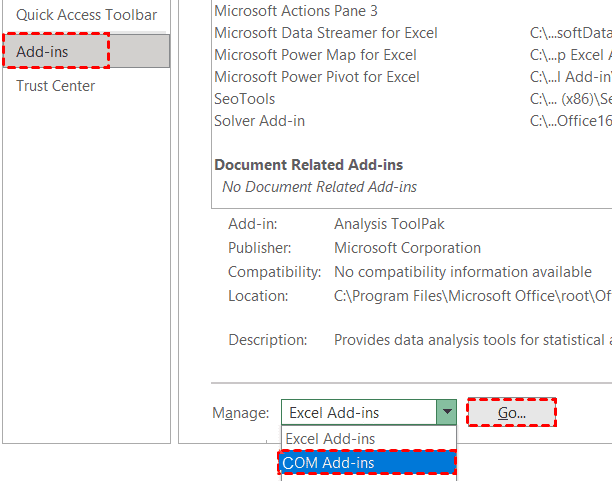
Step 2. Clear all checkboxes to disable add-ins and click OK.
Step 3. Restart Excel normally and see if it crashes. If not, enable the add-ins one by one and restart Excel to find what causes Excel crashes.
Fix 5. Use MS Office Repair
Microsoft also offers an inbuilt tool for MS Office. When you meet issues like Office apps starting error, crashing problems, etc., the tools will be of some help.
Step 1. Go to Control Panel > Programs > Programs and Features. Then, locate the Microsoft Office app, right-click on it and click Change.
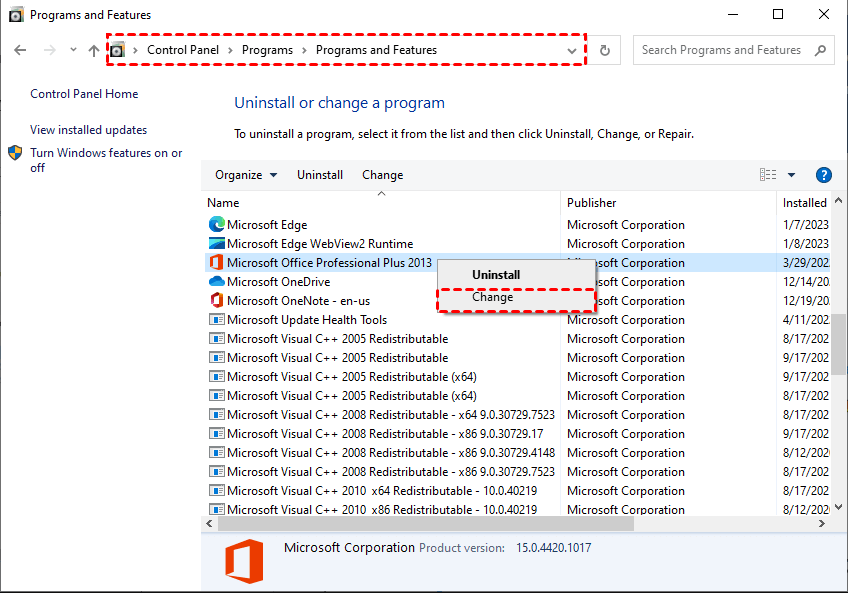
Step 2. Choose Quick Repair > Repair.

Fix 6. Install new or faulty updates
Windows updates and Microsoft Office updates can both bring problems. If you can recall when the issue started (after which update), you could locate and uninstall that update file to fix it.
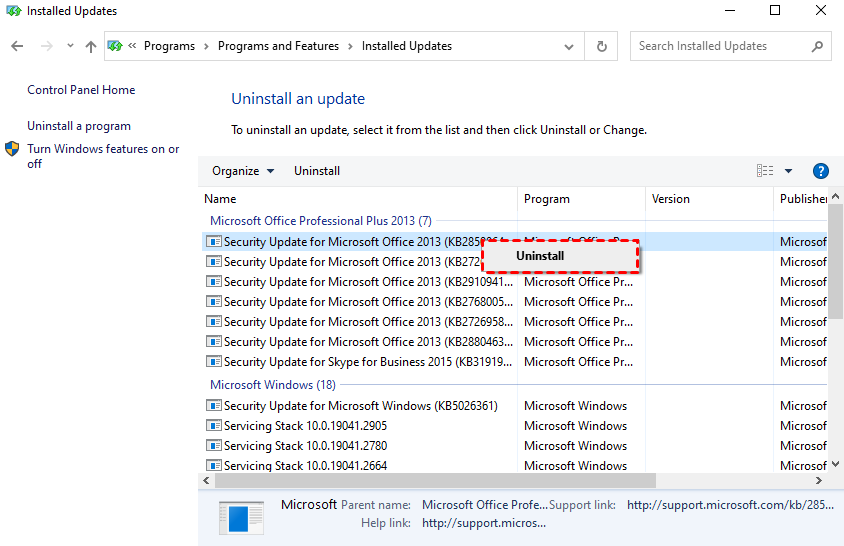
👉 Uninstall Microsoft Office updates:
Step 1. Start Control Panel > Programs > Programs and Features > View installed updates.
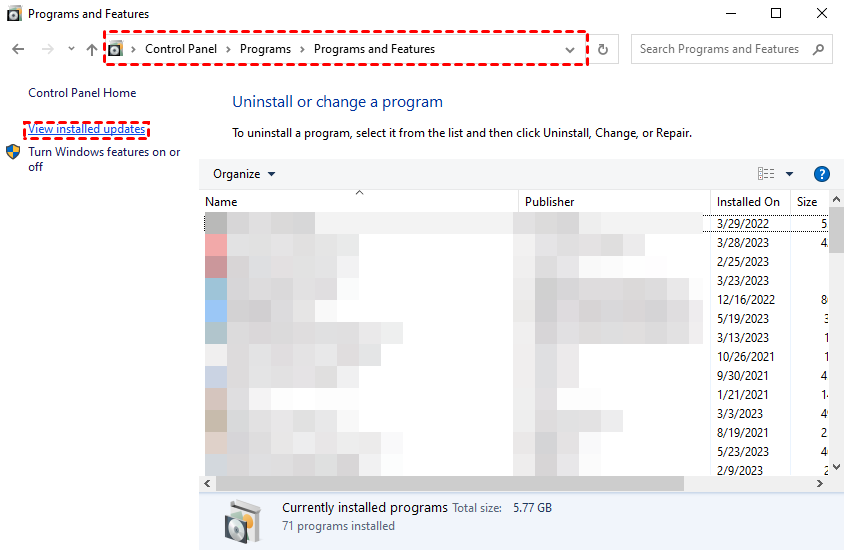
Step 2. Find the faulty Microsoft Office update and click Uninstall.
👉 Uninstall Windows updates:
Locate the malfunctioning update file under Microsoft Windows, right-click it and select Uninstall.
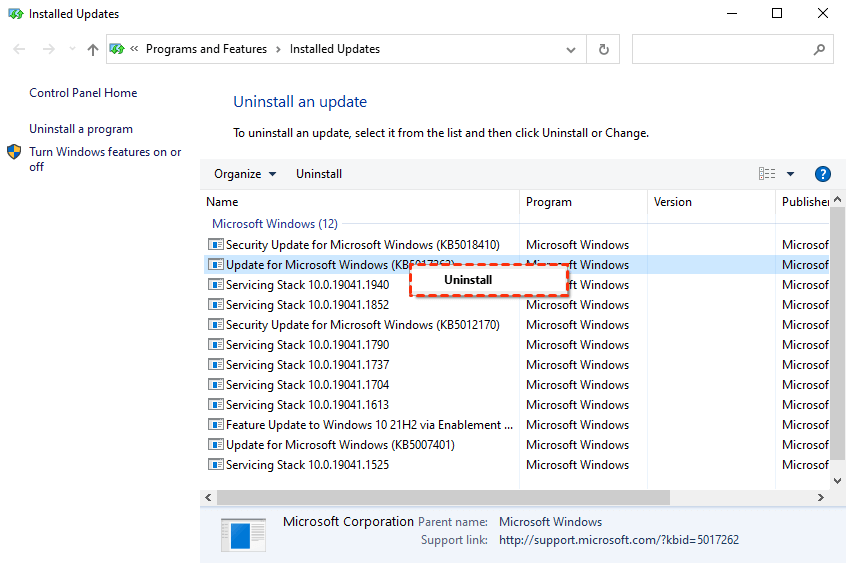
Thus, you could delete Windows update files in Windows 10 and fix the issue that Excel keeps crashing in Windows 10.
How to recover lost Excel files
What is more annoying than Excel crashes when opening files and editing sheets? Undoubtedly, it is Excel file loss.
When the program crashes, it leaves no time for you to save your work. So your Excel file is probably lost. Moreover, this is a common and unsettling occurrence.
But don’t worry, this part aims to teach you how to recover unsaved or deleted Excel files.
Method 1. Recover unsaved Excel files after crash using AutoRecover
Excel saves your changes every 10 minutes (by default). If you enable the AutoRecover features, try to recover unsaved Excel files. Be sure you open unsaved files more than 10 minutes.
Step 1. Start Excel. Then, click File > Open > Recover Unsaved Workbooks.

Step 3. Then, locate the unsaved files you need to recover and click Open. Don’t forget to save the Excel file to a new location.
Method 2. Recover deleted Excel files in Windows 10 or 11 using software
File deletion is one of the biggest reasons for Excel loss. Many users may accidentally delete Excel files they spent hours or even days creating, without knowing how to recover them.
In this case, using a professional Windows Excel file recovery software will be the easiest and most efficient method. AOMEI FastRecovery will be your trusted and reliable assistant. Designed with simplicity and ease of use in mind, it addresses various data loss scenarios and enables users to find deleted or lost data quickly and easily.
 AOMEI FastRecovery
- 🔥 It has a free edition that can recover data, up to 500MB.
- 🔎 Integrate Quick Scan & Deep Scan (core technologies ) to find all recoverable data, ensuring a high recovery rate.
- 📚 Recover deleted documents (XLSX, TXT, DOC, CSV, PDF, PPT), images (GIF, PNG, JPG/JPEG, PNG), videos (MP4, MOV, AVI, WMV), etc., up to 1000 data formats.
- 🧬 Organize and display data by Type or Path, with options to sort, search, filter, and preview files, making it easier and faster to find files.
- 💾 Supports HDDs/SSDs, external drives, USB drives, SD cards, etc., and NTFS, FAT32, exFAT, ReFS file systems.
- 👾 Handle different data loss scenarios such as accidental deletion, formatted disk, system crashes, virus attacks, etc.
 100% Secure
Step 1. Install and run AOMEI FastRecovery. Then, click Deleted Files Recovery, specifically designed for quick recovery.

Step 2. Hover the mouse over the drive where you store the Excel files and click Scan.
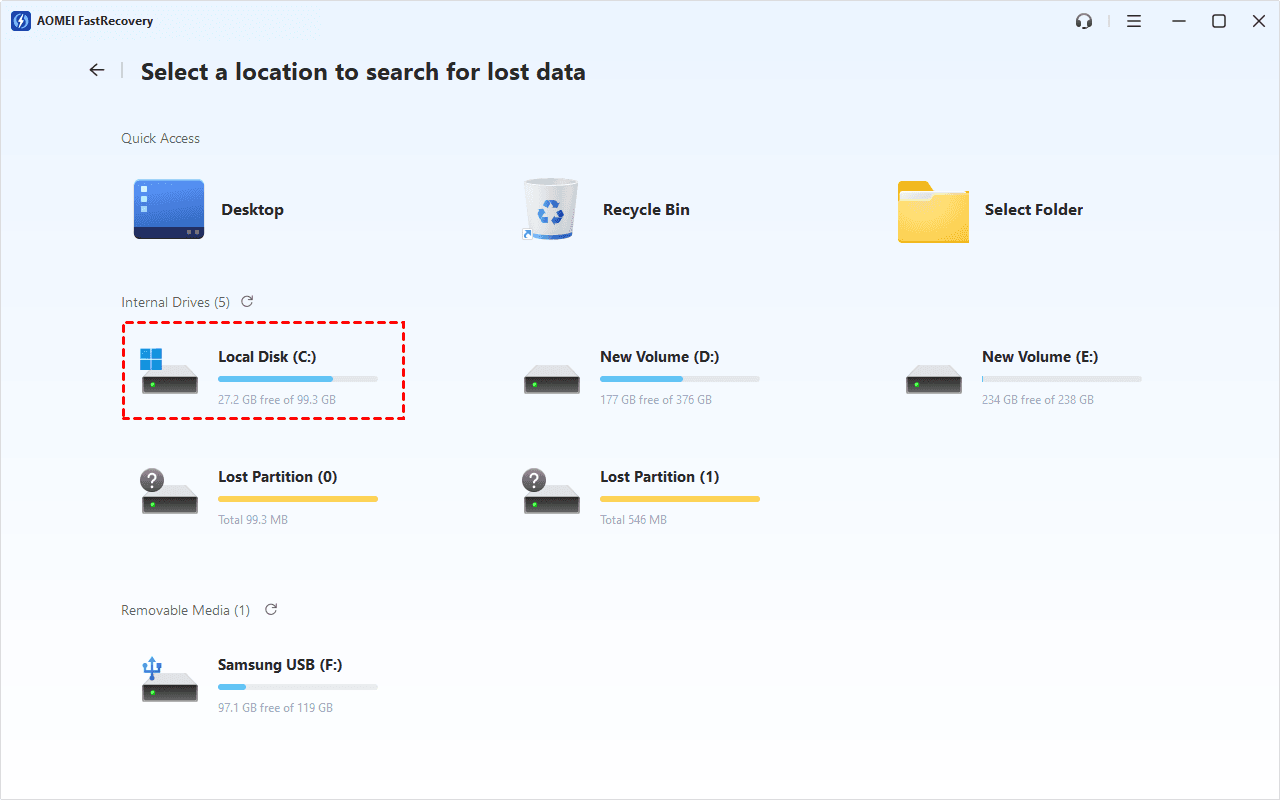
Step 3. It will automatically start a quick scanning process to scan your hard drive for deleted and missing files. You won't have to wait long.

Step 4. Wait for the process to complete. You can select files by Type or Path, allowing you to sort, search, filter, and preview files to find them easily and quickly.
👉Under the Type section:
- Specify the data type (i.e., Documents) and specific formats (i.e., xlxs), then click the arrow next to type, size, date modified, etc., to sort files.
- To locate files quickly, type the file name or extension (i.e., .xlxs) in the search box.
- Or use the filter feature, ideal for recovering large files. Similar to the Type category, allowing you to further specify the size of files, from less than 512 KB to 1GB above.
- Once found, double-click the Excel files to preview.

👉 Under the Path section: Expand Deleted Files/Recycle Bin to find any data you want to recover. Make sure you know the original location of lost Excel files.
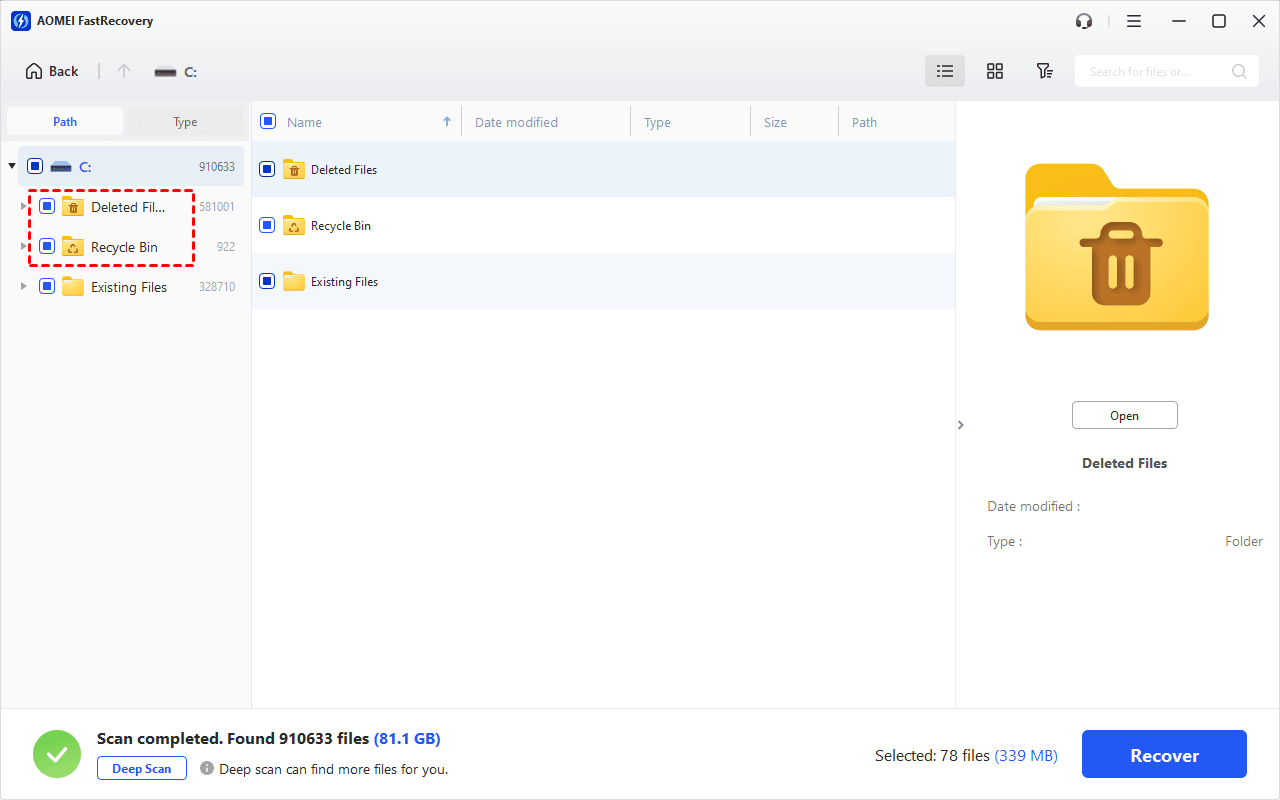
- The Type categories and filter options include all supported data types, such as images, videos, documents, mails, web pages, compressed files, etc.
- Please select a new location to save the recovered data, significantly preventing potential data overwriting.
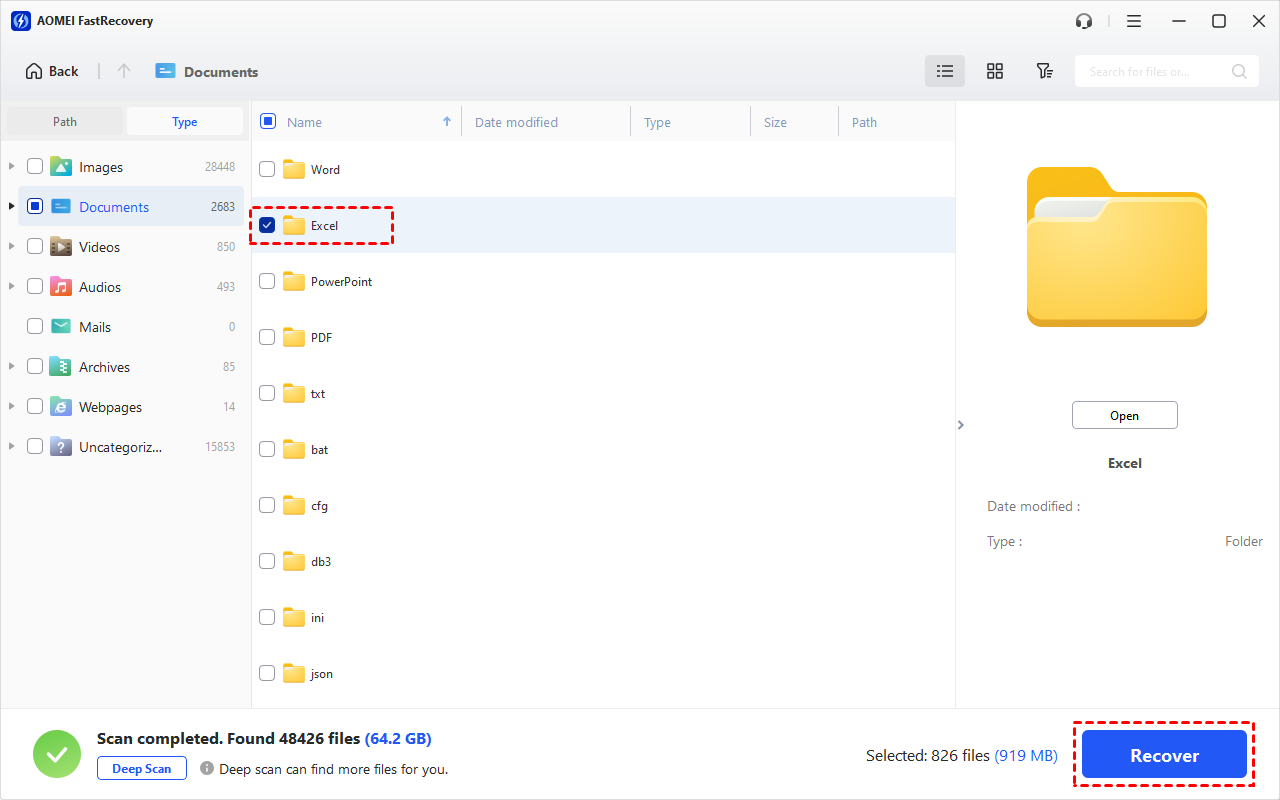
Step 5. Select the Excel files you need and click Recover to recover deleted Excel files in a breeze.
-
You can get Excel files back for free, up to 500MB. To recover all files, please upgrade to the advanced editions.
-
In addition, you can still recover deleted Word files, PPT, PSD, MP4, SVG, etc., up to 1000 data formats.
Wrapping up
Users who have met Excel keeps crashing in Windows 10 could refer to this guide and get some help. Insufficient resources, faulty updates, add-ins, etc., can cause this issue. Users could start with these factors and check if the solutions fit their situation.
Also, this post teaches how to recover unsaved Excel files and recover deleted Excel files using the AutoRecover feature and a reliable data recovery app for Windows – AOMEI FastRecovery.

 as a preferred
source on Google
as a preferred
source on Google