



Top 2 Ways to Wipe Empty Space in Windows 10/11
Worried about deleted files being recovered from your Windows 10 or 11 drive? This guide explains how to wipe empty space using both a built-in tool and professional software.

By Lily Updated on May 8, 2026


Why Wipe Empty Space in Windows 10/11?
When you delete files in Windows 10 or Windows 11, the files are not immediately erased from the hard drive. Instead, Windows simply marks the storage space as available for new data. Until that space is overwritten, deleted files can often be recovered using professional recovery software. Here are the main reasons to wipe empty space in Windows 10/11:
- Protects sensitive data – Securely erase financial records, passwords, photos, and work documents.
- Prevents recovery after disposal – Essential before selling, donating, or recycling a computer.
- Improves privacy & compliance – Helps businesses and privacy-conscious users meet security policies.
- Secures external drives & USB devices – Ensures deleted data on portable media can’t be restored.
- Leaves current files untouched – Only deleted data remnants are removed; existing files, apps, and Windows remain intact.
Tips Before Wiping Empty Space in Windows 10/11
Before you wipe empty space in Windows 10 or Windows 11, it is important to prepare your system properly. The following tips can help ensure a safer and smoother experience.
🎯 Back Up Important Files First
Wiping free space is generally safe, but it is always recommended to create a backup of important data before making disk-related changes. You can backup critical files to an external hard drive, a NAS device, cloud storage services, or another internal drive.
🎯 Close Running Programs
Background applications may continue writing temporary files during the wiping process. Closing unnecessary programs can help avoid interruptions and improve wiping efficiency.
🎯 Keep Your Computer Powered On
Interrupting the process unexpectedly may leave incomplete overwriting operations. If you are using a laptop, connect it to a charger before starting. Desktop users should avoid shutting down or restarting the system during the operation.
🎯 Choose the Right Wiping Method
Two methods will be described in this article. Choose one way that best fits your needs.
|
Feature |
||
|
Interface |
Command-line |
Graphical user interface |
|
Ease of Use |
Better for advanced users |
Beginner-friendly |
|
Wipe Free Space |
Yes |
Yes (unallocated space) |
|
Wipe Entire Disk |
No |
Yes |
|
Wiping Algorithms |
Basic overwrite |
Multiple methods including DoD and Gutmann |
|
Additional Features |
None |
Backup, cloning, sync, restore |
|
Best For |
Users who want a free built-in tool |
Users who want advanced and convenient wiping features |
Method 1: Wipe Empty Space with Built-in Cipher Command
Windows includes a built-in command-line tool called Cipher that can securely overwrite deleted data stored in free disk space. Learn how to wipe free space on Windows 10/11 in detail below:
Step 1. Press Windows + S and type cmd. Right-click Command Prompt and select Run as administrator.
Step 2. In Command Prompt, type cipher /w:E: and press Enter. You may replace E: with the drive letter you want to clean.
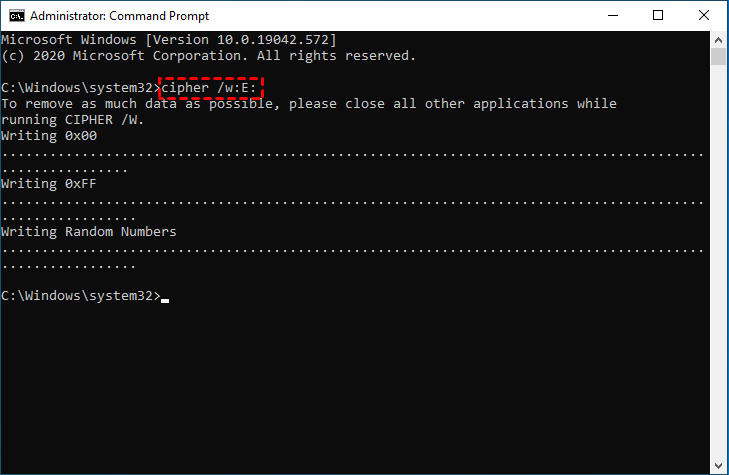
💡 Note: The /w parameter allows you to wipe empty space without affecting your existing files or installed programs.
Step 3. Wait for the process to complete. During the process, Cipher typically performs multiple passes using different patterns.
Method 2: Wipe Empty Space with Professional Disk Wiping Software
If you prefer a simpler and more advanced solution, you can use AOMEI Backupper Professional for disk wiping. Compared with built-in command-line tools, it provides a graphical interface, multiple wiping methods, and flexible disk cleaning options.
 AOMEI Backupper
- It supports disk, partition, and unallocated space wiping.
- It works with internal/external HDDs, SSDs, and USB drives.
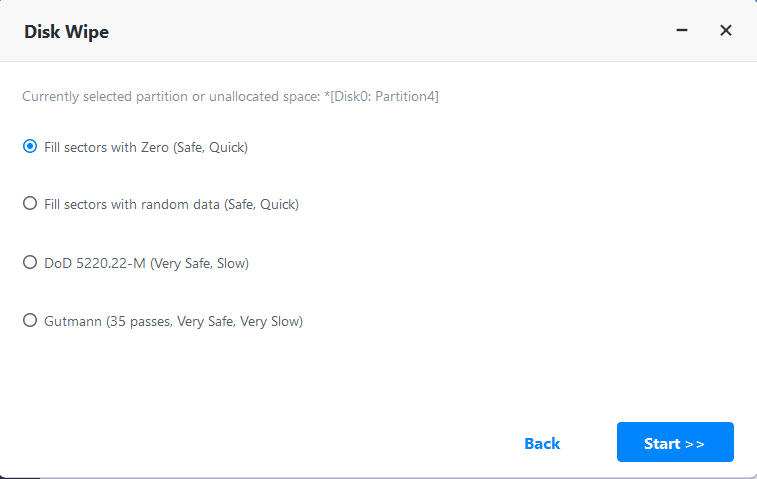
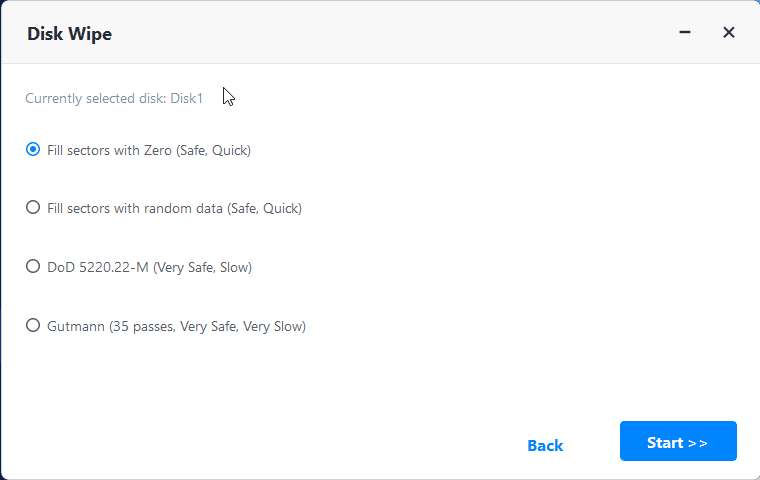
- It offers multiple wiping methods, including Fill sectors with Zero, Fill sectors with random data, DoD 5220.22-M, and Gutmann.
- It enables you to create bootable media so as to perform bootable disk wipe.
 100% Secure
Before starting, download and install AOMEI Backupper Professional on your computer.
Case 1: Wipe Unallocated Space
This option overwrites only unused and deleted data areas while keeping your existing files and partitions intact. It is ideal if you simply want to prevent recovery of deleted files.
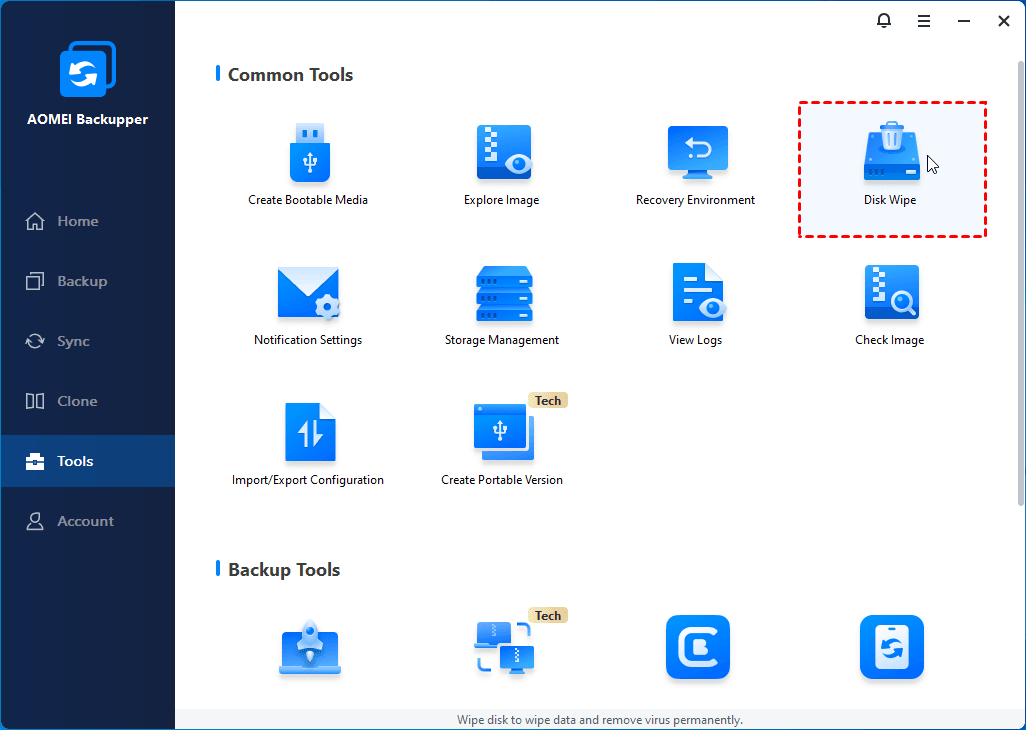
Step 1. Launch AOMEI Backupper. Click Tools > Disk Wipe.
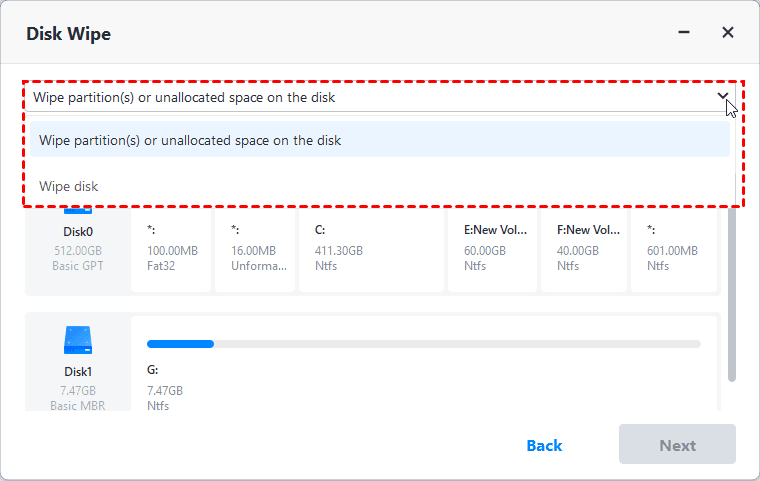
Step 2. In the pop-up window, select Wipe partition(s) or unallocated space on the disk from the drop-down menu.
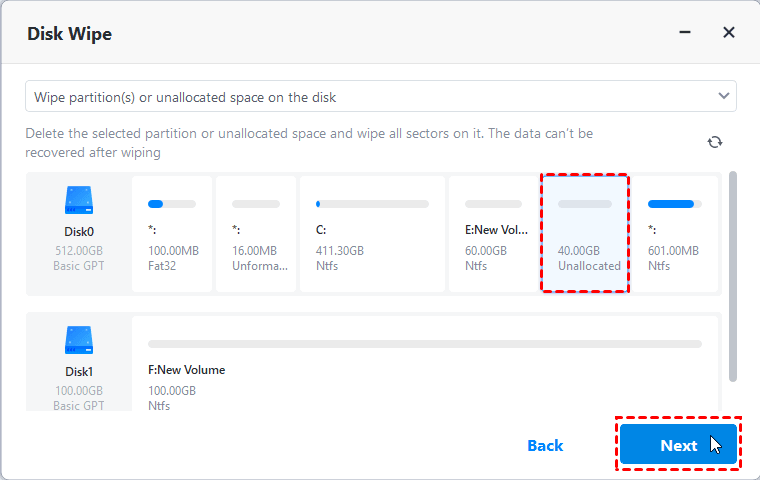
Step 3. Click on the unallocated space you want to wipe and click Next.
Step 4. Choose a wiping method based on your need and click Start to begin the wiping process.
Case 2: Wipe All Disk Space Including Free Space
If you want to completely erase a hard drive, including existing files, partitions, operating systems, and free space, you can choose the full disk wipe option.
Step 1. Open AOMEI Backupper. Click Tools > Disk Wipe.
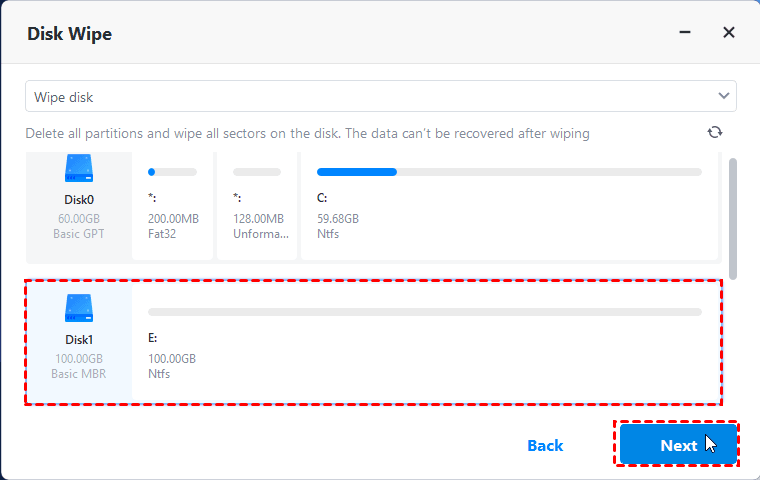
Step 2. In the Disk Wipe window, select Wipe disk, choose the target disk you want to erase, and click Next.
Step 3. Select a wiping method and click Start. Once the process finishes, all data on the selected disk will be permanently removed.
FAQs About Wiping Empty Space in Windows 10/11
1. Does wiping empty space delete existing files?
No. Wiping empty space only overwrites deleted data stored in unused sectors of the drive. Your current files, installed programs, and Windows system data will remain intact unless you choose a full disk wipe option.
2. Is it safe to wipe empty space on SSDs?
Yes, but it should be done carefully. SSDs manage deleted data differently from traditional hard drives and already use features such as TRIM. Frequent overwriting may reduce SSD lifespan, so if needed, perform SSD secure erase via manufacturer-recommended secure erase tools.
3. How long does it take to wipe free space?
The required time depends on several factors, including:
- Drive size
- Amount of free space
- Disk speed
- Selected wiping algorithm
A large HDD with extensive free space may take several hours to complete the process.
Conclusion
Wiping empty space in Windows 10/11 is an effective way to permanently remove traces of deleted files and improve data privacy without affecting your current files. In this guide, you learned how to wipe free space using the built-in Cipher command as well as more advanced solutions like AOMEI Backupper Professional.
While Cipher provides a free built-in option, AOMEI Backupper offers a more user-friendly interface, flexible wiping methods, and full disk wiping capabilities. Why not give it a shot?

 as a preferred
source on Google
as a preferred
source on Google