




How to Completely Erase C Drive on Windows 10 or 11 (3 Ways)
With 3 effective methods, you can easily erase C drive on Windows 10 or 11, either to reinstall Windows or before selling, donating, recycling, etc. Scroll down to learn more!

By Ivy Updated on December 22, 2025


The C drive is the core of a Windows PC as it holds the Windows operating system, boot loader, essential system services, installed software, user profiles, etc. When the computer powers on, it relies on files stored on the C drive to start correctly and function normally.
However, it doesn't always run smoothly. Accumulating updates, installed programs, etc., can severely run out of space, making it necessary to wipe C drive and reinstall Windows. To learn more, keep reading.

What Does It Mean to Erase C Drive (and Why)?
While erasing Erasing C drive refers to completely removing everything stored on the primary system partition, rendering your system unbootable and unusable. Unlike routine maintenance tasks, erasing C drive leaves the computer without a functioning OS until Windows is reinstalled, typically for system resets, severe troubleshooting, or secure data removal.
- Before Selling, Donating, or Recycling a PC: A full wipe removes personal files, saved passwords, user accounts, and system traces, ensuring that sensitive information cannot be recovered using recovery tools.
- Fix Severe System Errors or Malware Infections: In cases of deep system corruption, persistent errors, or advanced malware infections, partial repairs may not fully resolve the problem. Erasing the C drive removes all compromised files and hidden threats, providing a completely clean and stable system.
- Preparefor a Clean Reinstallation: Wiping C drive before reinstalling Windows helps eliminate leftover system files, outdated drivers, and conflicting configurations from previous installations. Itensures the new Windows setup runs smoothly without inheriting issues.
How to Erase C Drive on Windows 10 or 11 Using Built-In Tools
Windows includes several built-in tools (e.g., Reset this PC, DiskPart) that allow you to erase C drive without installing third-party software.
Method 1: Erase C Drive with Reset This PC (for Clean Installation)
The Reset This PC feature removes installed applications, user accounts, and personal files while reinstalling Windows. By choosing the option to clean the drive, it willoverwrite data to reduce the chance of recovery. This method is ideal when preparing a PC for resale or resolving persistent system issues.
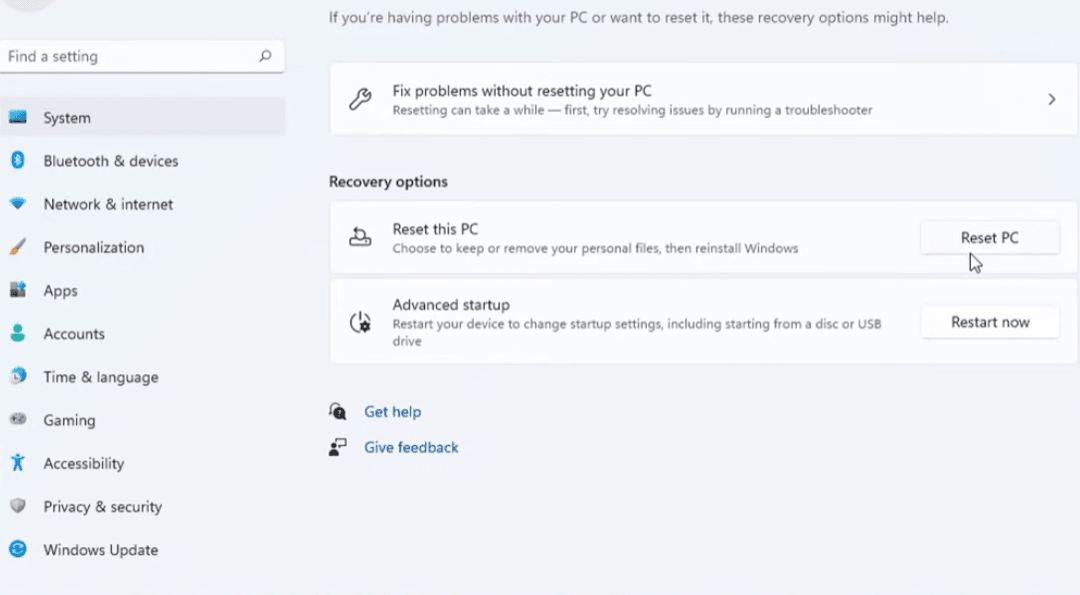
Step 1. On Windows, go to Settings > System >Recovery.
Step 2. Under Reset this PC, click Reset PC.
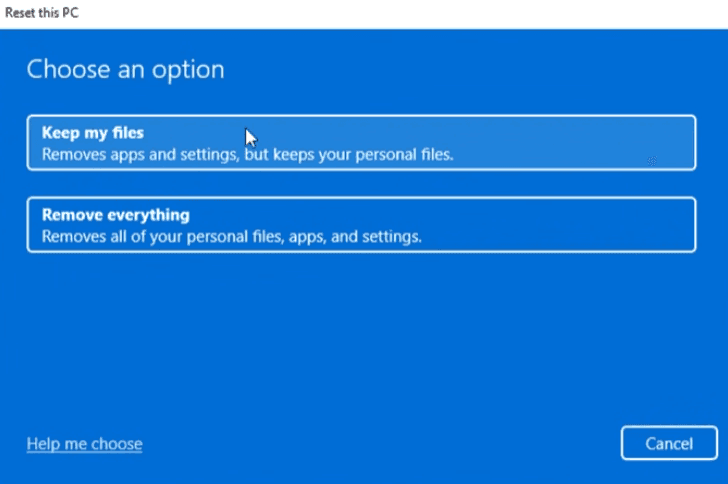
Step 3. Select Remove everything to erase all files, apps, and accounts.
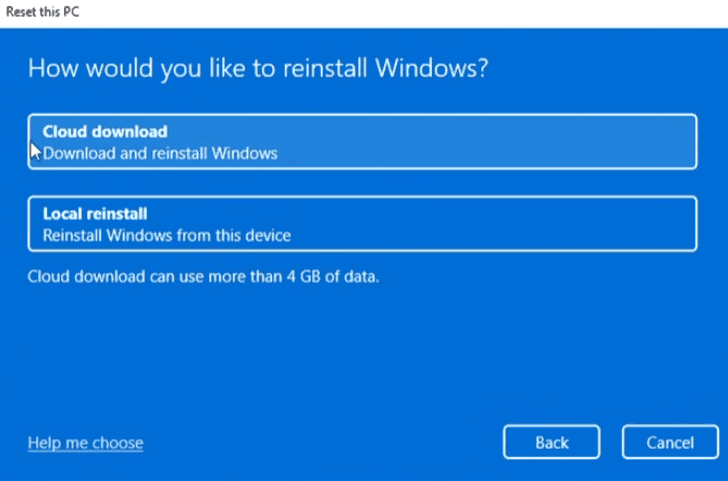
Step 4. When prompted, select Local reinstall or Cloud download (either works for erasing C drive).
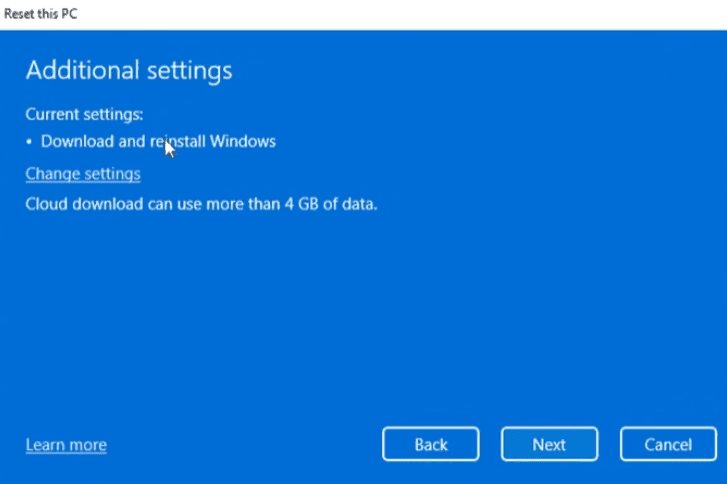
Step 5. Click Change settings (if available). Turn on Clean data to overwrite files and confirm your choices. Click Next> Reset to begin erasing C drive.
You can also wipe a drive from the BIOS if your computer is not bootable.
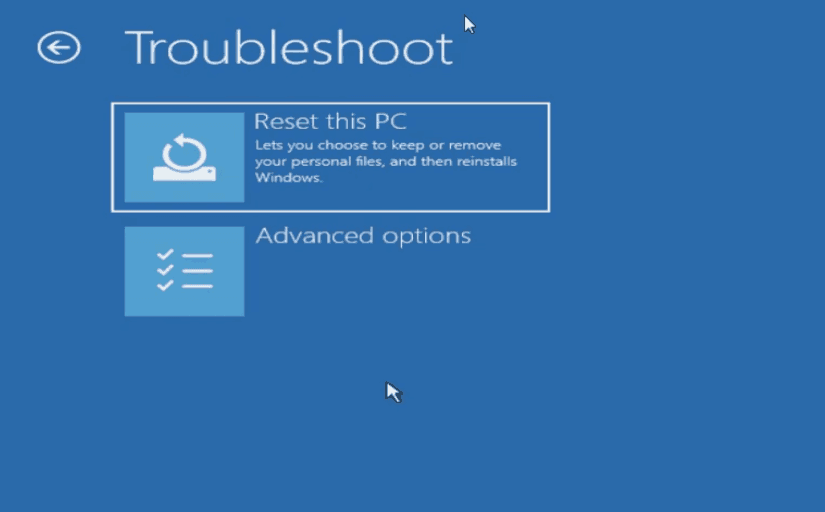
- Force boot it 2-3 times to trigger Automatic Repairand click Advanced options.
- Then, click Troubleshoot >Reset this PC. Be sure to select Remove everything and Fully clean the drive.
Method 2: Wipe C Drive Using DiskPart
DiskPart is a command-line utility that allows you to clean all partitions and dataat a low level. It offers complete control over disk operations but must be used carefully, making it ideal for advanced users.
💡Warning: Selecting the wrong disk or issuing incorrect commands can permanently erase the drive, resultingin irreversible data loss. Be sure to double-check the disk detail.
Step 1. Prepare a Windows installation USB and connect it to your computer. Then, try to boot from it.
- Restart the PC and press the BIOS key, usually F2, F10, ESC, Del, etc., to access the BIOS/UEFI settings window.
- Switch to the Boot tab and set the USB drive as the first boot option.
- Press F10 to save changes and reboot.
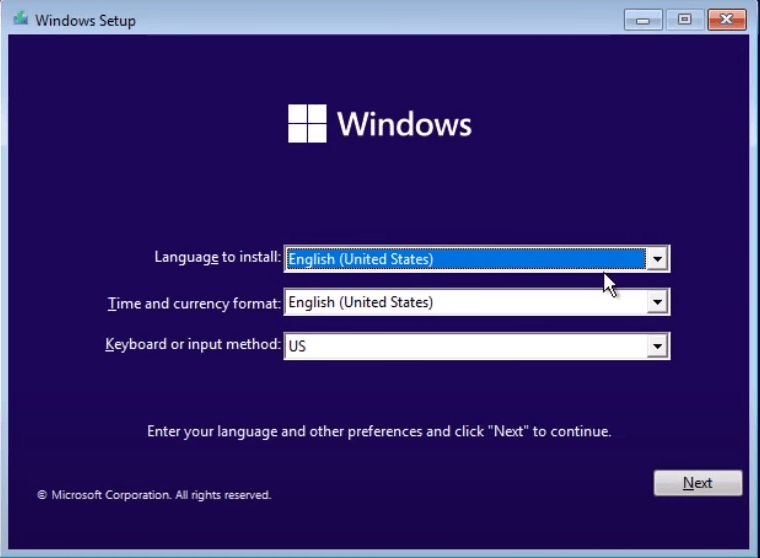
Step 2. After loading, you’ll see the Windows Setup screen. Press Shift + F10 to open Command Prompt. Step 3. Type diskpart and press Enter to open this utility.
Step 4. Then, type the following commands to select and wipe a drive from the BIOS.
- list disk
- select disk 1
- clean all
- exit
How to Securely Erase C Drive on Windows 10/11
In many cases, the built-in tools remove file references without fully overwriting the underlying data, leaving recoverable fragments behind, particularly on traditional HDDs. For sensitive data, such erasure is far from sufficient.
Unlike built-in tools, dedicated disk wiping software - AOMEI Backupper Professional allows you to wipe different disk types and offer advanced algorithms, bootable disk wipe, etc., to meet diverse user needs.

 AOMEI Backupper
- 3 wiping options: Wipe partition(e.g., C drive), unallocated space, or the entire drive.
- 4 disk wiping levels: File sectors with zero, random data, DoD 5220.22-M, and Gutman.
- Bootable disk wipe: Create a bootable USB to wipe a drive from the BIOS.
- Storage compatibility: Wipe HDDs/SSDs, external hard drives, USB drives, etc.
- More advanced backup features: Support file backup, system backup, schedule backup, etc., for data protection.
 100% Secure
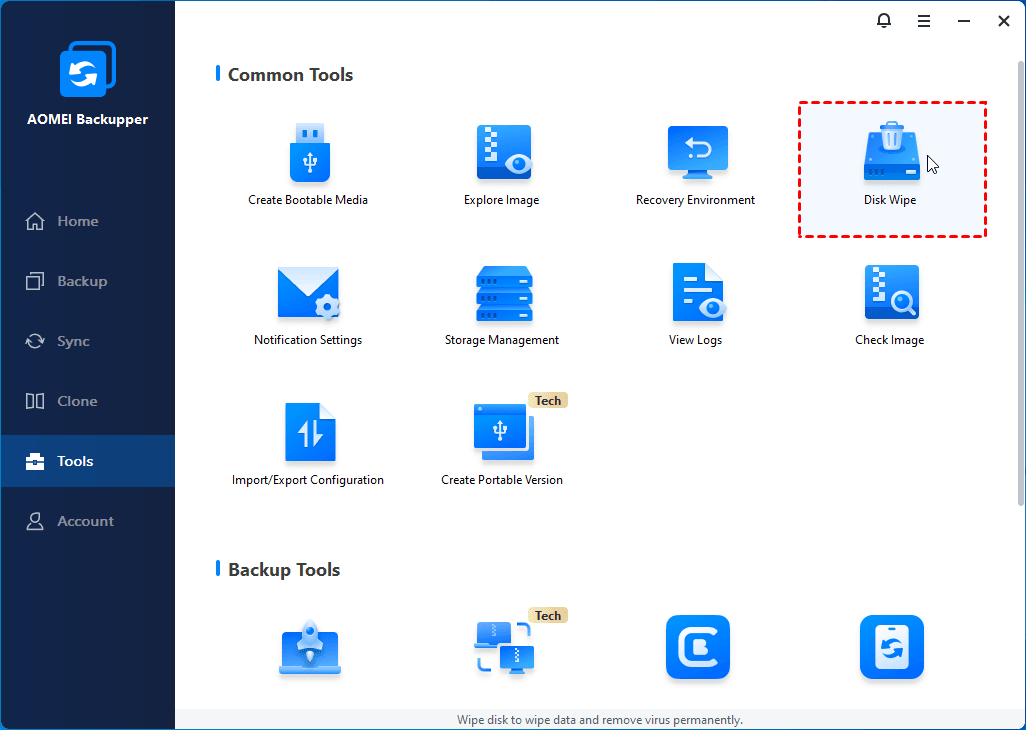
Step 1. Open AOMEI Backupper after installing. Then, go to Tools and click Disk Wipe.
Step 2. Select Wipe partition(s) or unallocated space on the disk. Choose the C drive and click Next.
You'll be told that wiping the system disk needs to be executed in reboot mode. Click OK to continue.
Step 3. Select a disk wiping method, depending on how thoroughly you want to erase C drive.
- Fill sectors with Zero - Quick but relatively basic.
- Fill with random data - Safer than Zero.
- DoD 5220.22-M - Multiple passes, based on U.S. Department of Defense standards.
- Gutmann - 35 passes, extremely secure but very slow.
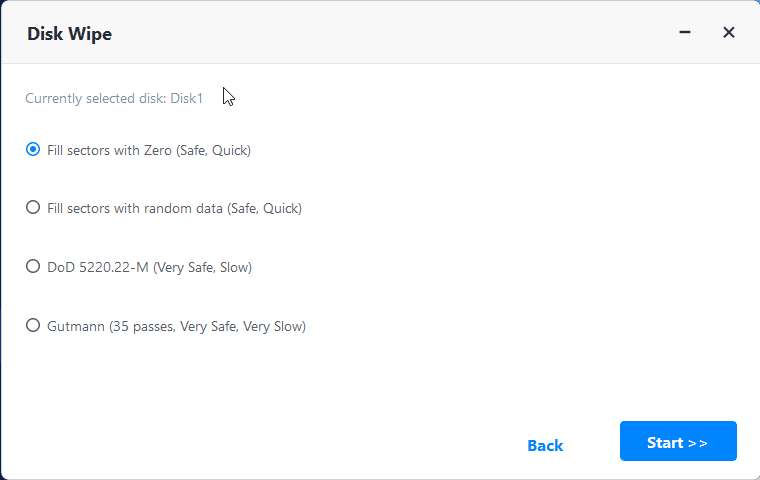
Step 4. At last, click Start to wipe C drive. It will be executed in reboot mode.
In addition, you can also use this software to wipe USB flash drive, unallocated space, SATA drive, NVMe SSD, etc.
Conclusion
No matter you want to reinstall Windows or before recycling, selling, donating, etc., you’ll get how to erase C drive on Windows 10 step by step, 3 methods in total. Note built-in tools usually do not fully overwrite the drive, leaving data recoverable. It’s suggested to use a dedicated disk wiping software - AOMEI Backupper to erase sensitive data.

 as a preferred
source on Google
as a preferred
source on Google