




How to Wipe USB Flash Drive Completely (4 Methods)
With 4 effective methods, you can easily wipe USB flash drive in Windows 10 or 11, either slightly or completely. Scroll down to learn more!

By Ivy Updated on March 18, 2026


What Does It Mean to Wipe a USB Flash Drive?
Wiping a USB flash drive means completely removing all data by overwriting it with new data so that nothing can be recovered. This goes beyond simply deletion or quick format. Below is a quick comparison between wiping vs. deleting vs. formatting:
|
Action |
What It Does |
Recoverable? |
Best For |
|
Deleting |
Removes file references from the fle system but leaves actual data on the rive. |
Yes |
Free space quickly; Remove unneeded files. |
|
Formatting |
Recreates the file system and prepares the drive for use. Quick format removes the index while full format checks bad sectors and overwrites partial data. |
Partially |
Repair file system errors; prepare USB for reuse. |
|
Wiping (Secure Erase) |
Overwrites all sectors with zeros, random data, etc., to destroy old data completely. |
No |
Securely erases sensitive data before selling, donating, or sharing it; Or remove malware. |
Before You Begin - Important Precautions
Before wiping a USB flash drive, it’s important to take a few safety steps to prevent accidental data loss and avoid wiping failures.
- Backup critical data before wiping: Wiping is permanent and irreversible. To avoid data loss, it’s necessary to backup files to an external drive, USB drive, etc.
- Check for physical damage: Check the USB for any visible damage, such as cracked housings, loose connectors, or unstable ports, etc., before wiping USB drive in Windows 10 or 11.
- Choose the right wipe method: Quick wipes overwrite the drive lightly and are fast, but less securewhile full or secure the entire drive, ideal for sensitive data, malware removal, or fixing corrupted USB drives.
How to Wipe USB Flash Drive Step by Step
Here are 4 useful methods to wipe USB flash drive on Windows 10 or 11. Select the right method based on your needs.
Method 1: Wipe a USB Drive using Disk Wipe Tool (Fully and Thoroughly)
AOMEI Backupper Professional is one of the most powerful disk wiping tools with an integrated Disk Wipe feature. It can:
- wipe partition(s), unallocated space, or entire disk, e.g., hard drive, SSD, USB flash drive, etc.,
- offer different wiping levels, including fill sectors with zero, random data, DoD 5220.22-M, and Gutman.
- Create a bootable USB to perform a bootable disk wipe.
- support more advanced backup and clone features, such as file backup, system backup, schedule backup, etc., for continuous data protection or system migration.
Step 1. Download and install AOMEI Backupper. Then, go to Tools and click Disk Wipe.

Step 2. Select Wipe Disk, then the USB drive you want to erase.
Step 3. Select a disk wiping method - Fill sectors with Zero, random data, DoD 5220.22-M, and Gutman. This depends on if you want to lightly or completely erase the USB drive.
- Fill sectors with Zero - Fast, basic wipe, suitable for HDDs.
- Fill with random data - Better security than Zero.
- DoD 5220.22-M - Multiple passes, based on U.S. Department of Defense standards.
- Gutmann Method - 35 passes; extremely secure but very slow.
At last, click Start to wipe USB flash drive.
In addition, you can also use this software to wipe hard drive or SSD, even outside the operating system, which is bootable disk wipe.
Method 2: Wipe USB Flash Drive using File Explorer (Simple & Basic)
This is the most basic method to wipe a USB drive, especially when you just need to reformat the USB drive, remove files, or fix basic file system errors.
Step1. Connect your USB flash drive to a Windows PC. Open File Explorer and locate the USB drive under This PC.
Step 2. Right-click the USB drive and select Format.
Step 3. Select a file system (e.g., NTFS, FAT32, etc) and check Quick Format for fast wipe. Or uncheck Quick Format for a more thorough wipe.
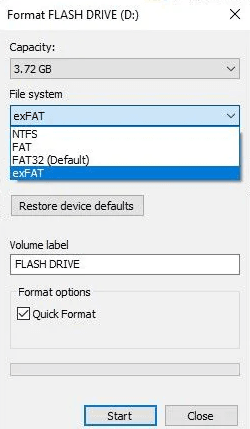
Step 4. At last, click Start. Wait for the process to finish. Full Format takes longer as Windows scans and overwrites sectors.
Method 3: Wipe a USB Drive with Disk Management (Refresh the Drive)
Try to delete partitions and re-create a new one in Disk Management if the USB drive won’t format in File Explorer it has multiple partitions.
Step 1. Connect your USB drive to a Windows PC. Right-click the Start menu and select Disk Management.
Step 2. In the lower panel, locate your USB drive, right-click it, and select Delete Volume. Be sure to identify the USB drive correctly by size.
Step 3. Click Yes to confirm.
Step 4. Repeat the above steps for each partition until the entire USB drive appears as unallocated space.
Step 5. Right-click the Unallocated Space and select New Simple Volume. Click Next and follow the on-screen wizard to create a new partition. You can choose to perform a quick or full format.
Method 4: Securely Wipe a USB Using Diskpart (for Advanced Users)
Diskpart is a powerful command-line utility that operates at a low level to fully erase and rebuild a USB drive, for drives suffering from severe corruption, malware infections, or persistent errors that standard formatting cannot fix.
⚠️ Warning: diskpart is irreversible. Make sure you select the correct drive, or you may erase other drives.
Step1. Connect the USB drive to your Windows PC. Type cmd in the Start menu and select Run as administrator.
Step 2. Type diskpart and press Enter to launch the diskpart utility.
Step 3. Remove the partition table and all data, type:
- list disk
- select disk 2
- clean
Step 4. Create a new partition and format the USB, type:
- create partition primary
- select partition 1
- format fs=fat32 quick
- Assign
Step 5. Type exit to leave DiskPart.
Conclusion
This article describes 4 effective methods and shows you how to wipe USB flash drive step by step, either partially or completely. The safest method is using the disk wipe tool - AOMEI Backupper, which allows you to wipe partitions, unallocated space, or the entire disk, with different levels.

 as a preferred
source on Google
as a preferred
source on Google