




Best Free USB Clone Tool to Clone USB Drive on Windows 11/10
Discover how to use a USB clone tool to quickly and safely copy data from one USB drive to another. Follow our guide with AOMEI Cloner for an easy and reliable cloning experience.

By Lily Updated on August 12, 2026


In today’s digital age, USB drives are essential tools for storing and transferring data. Whether upgrading your storage, backing up important files, or transferring data to a new device, a reliable USB clone tool is crucial. This article will explore the best free USB cloning tool and a step-by-step guide to clone your USB drive easily.
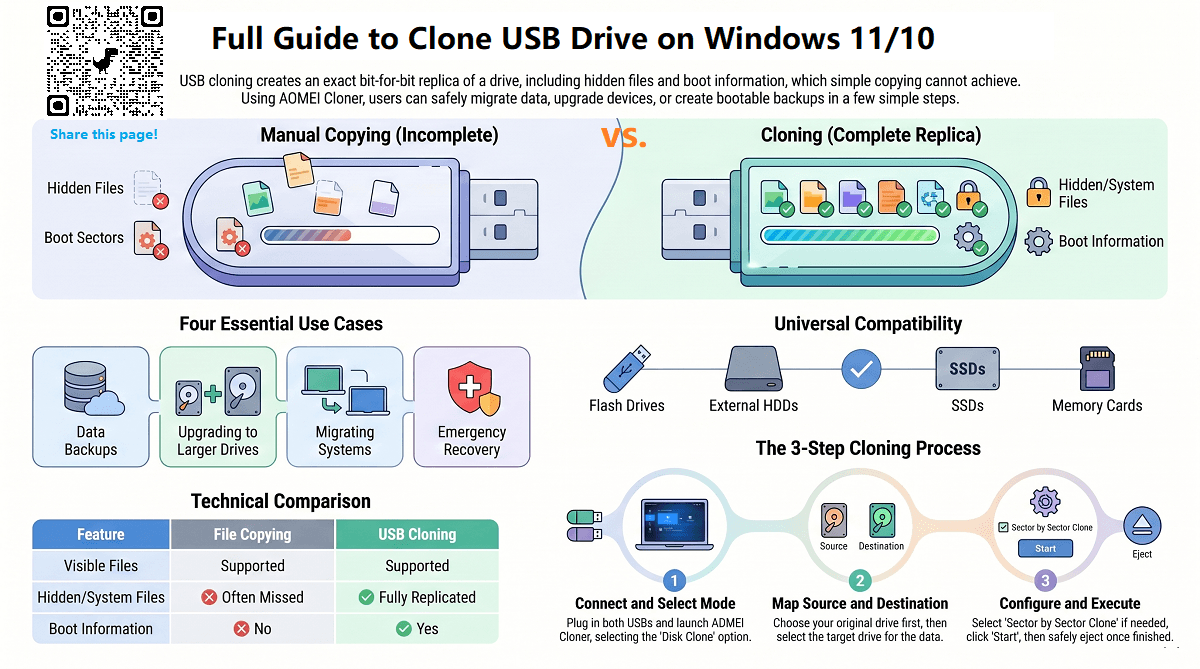
What Is a USB Clone Tool?
A USB clone tool is software designed to duplicate the contents of one USB drive onto another. This process ensures that all data, including files, partitions, and system settings, is copied precisely. It’s a quick and efficient way to back up or transfer data without risking data loss or corruption. Here are the top reasons to use a USB clone tool:
- Data Backup: Protect important files by creating an identical backup.
- Device Upgrade: Transfer data from an old USB drive to a new one.
- Data Migration: Easily move files between systems or devices.
- System Recovery: Restore a USB drive to its original state in case of failure.
Continue reading and see the best free USB clone software to clone USB drive on Windows 11/10.
Best Free USB Clone Tool for Windows PC
When choosing the right tool, it's important to consider operation difficulty, compatibility, functionality, safety, and user reviews. AOMEI Cloner Free stands out for its user-friendly interface and powerful features. With a few clicks, you can easily clone the USB drive to another drive.
 AOMEI Cloner
- Full Disk Clone: Clones the entire USB drive, including hidden files.
- Partition Clone: Select a specific partition to clone.
- Bootable Media Creation: Allows you to create a bootable USB, CD, or DVD to perform cloning from WinPE.
- Compatibility: Works with all kinds of USB drives, including flash drives and external hard drives.
 100% Secure
In short, this tool is perfect for IT experts and computer beginners. It is 100% clean and has no bundled software. You can download it for free and try it out!
How to Clone USB to USB without Losing Data
AOMEI Cloner allows you to completely clone a USB flash drive to another USB drive or other device such as an external hard drive, portable drive, memory card, etc. Follow the steps and see how to clone a USB stick on a Windows PC:
Step 1. Connect the source and target USB drives to your computer.
Step 2. Download and install AOMEI Cloner. Launch the software, and select the Disk Clone option.
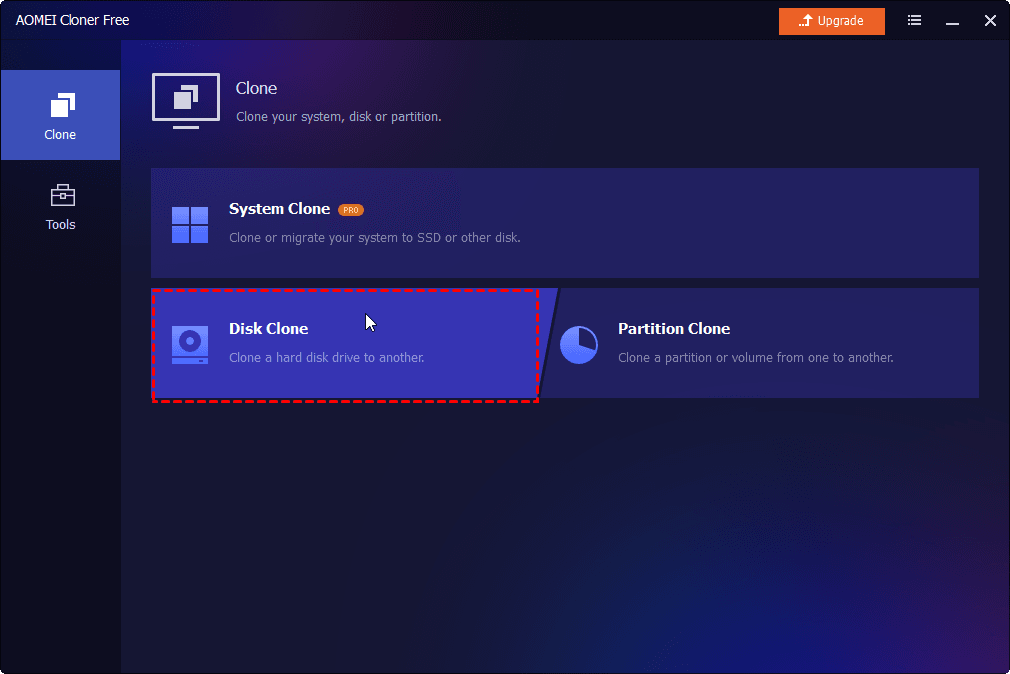
💡 Note: The Free edition only supports cloning non-system disks. If your USB drive contains system files (e.g., a bootable USB), please upgrade to AOMEI Cloner Professional.
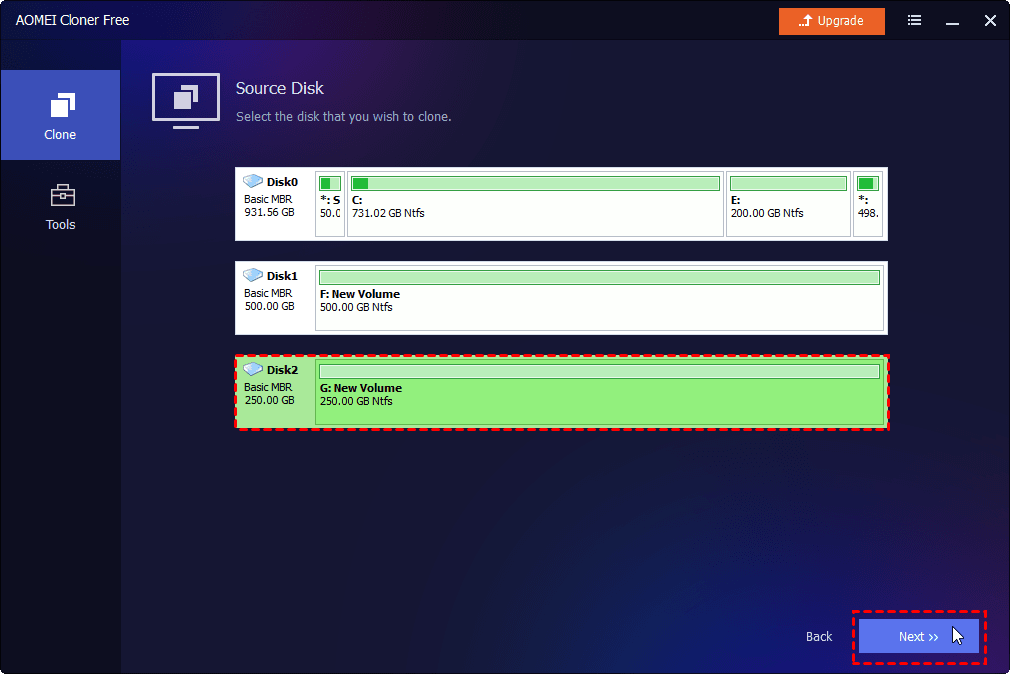
Step 3. Click Select Source Disk. In the pop-up window, select the source USB drive you want to clone and click Next.
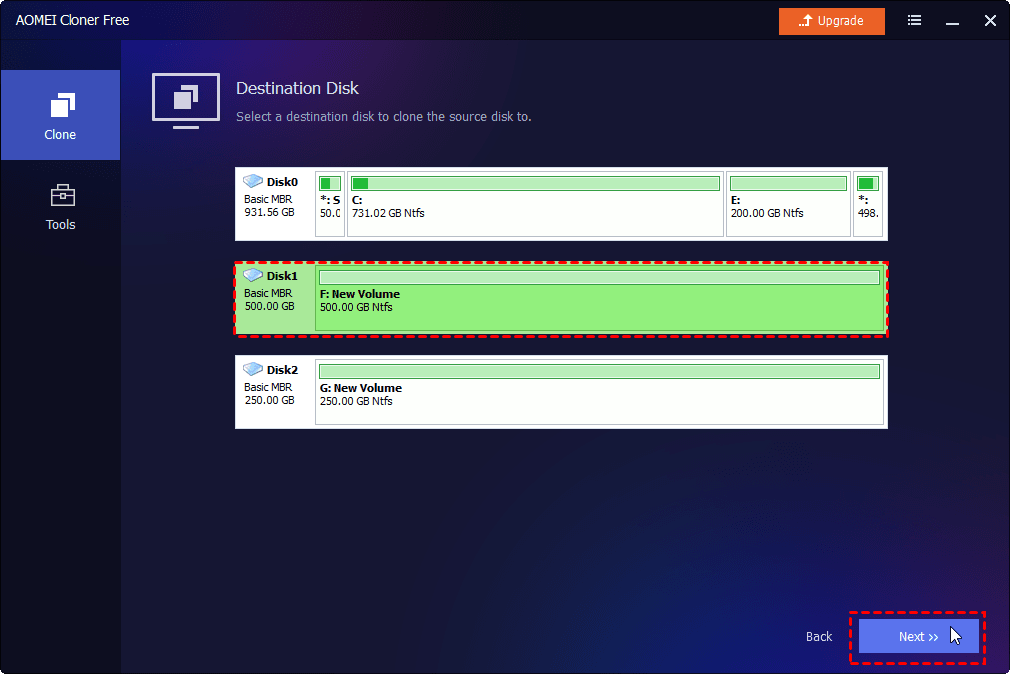
Step 4. Click Select Destination Disk. In the pop-up window, select the destination USB drive and click Next.
Step 5. Do more configurations with Edit Partitions or Sector By Sector Clone as necessary and click Start Clone.
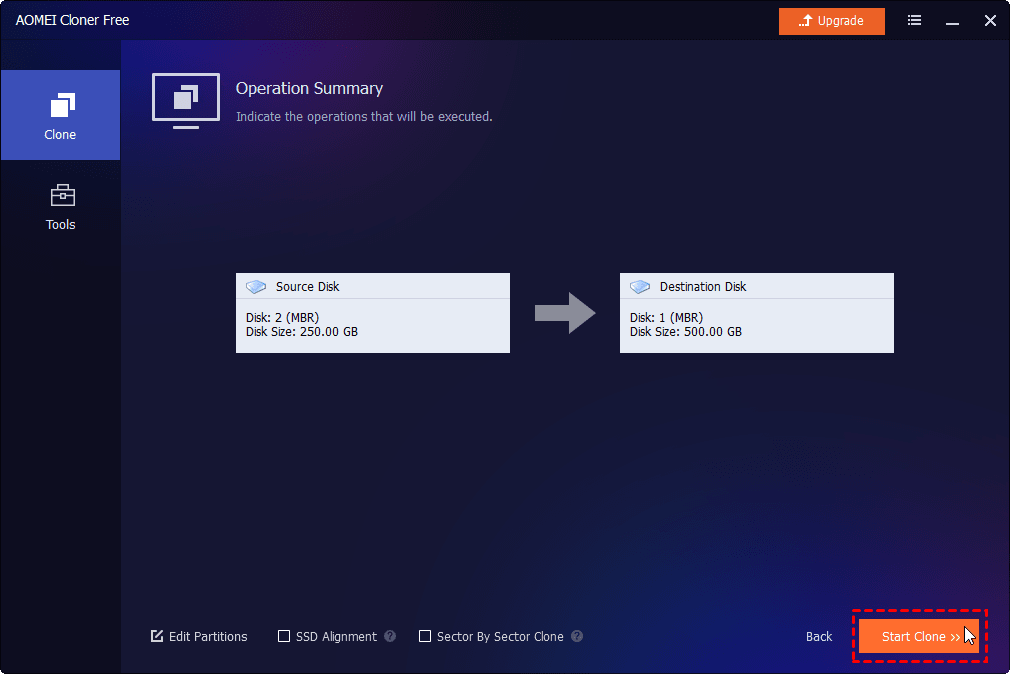
Step 6. Backup important data on the target USB because cloning will overwrite everything on the target disk. Then click Start Clone to begin cloning USB to USB.
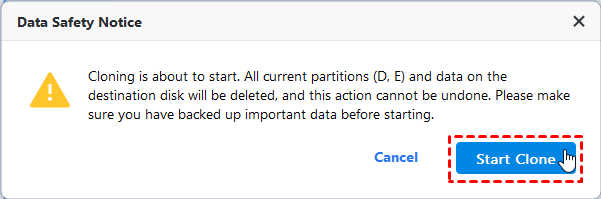
Once setup is complete, please wait for the process to finish. Check the tips for successful USB cloning:
- Check USB Capacity: Ensure the target USB has enough storage to hold all data from the source USB.
- Use High-Quality USB Drives: Opt for reliable brands to avoid data corruption.
- Safely Eject Drives: Always eject your USB drives properly after cloning to prevent data loss.
Related Guides for Cloning USB Drives
Cloning a USB drive is useful in many situations, whether you want to duplicate files, create a bootable backup, migrate Windows, or transfer data to a larger storage device. The guides below cover the most common USB cloning scenarios so you can choose the right solution for your needs.
If you need to duplicate one flash drive to another, this guide explains the easiest ways to transfer files, partitions, or even bootable data between two USB devices. It is ideal for users upgrading to a larger USB drive, creating backups, or distributing identical USB content across multiple devices.
Sometimes a USB drive no longer provides enough storage space for growing files and backups. This tutorial shows how to clone a USB drive directly to an HDD or SSD while preserving file structure, partitions, and boot information. It is especially useful for long-term storage, data protection, or moving portable data onto a computer drive.
Need a portable copy of your entire hard drive? This guide focuses on cloning a hard disk to a USB drive for backup, recovery, or portability purposes. It is a practical solution for users who want to carry system images, create emergency recovery drives, or store a duplicate copy of important data externally.
For users who want a portable operating system or bootable backup, this guide explains how to clone Windows directly to a USB drive. It covers steps to migrate the operating system to a USB drive and boot your system from the USB drive.
FAQs about Cloning USB Drives
1. Can I clone a bootable USB drive?
Yes, you can clone a bootable USB drive. AOMEI Cloner Professional can create an exact copy of a bootable USB drive, including the boot sector and system files. After cloning, the new USB drive will remain bootable.
2. Can I clone a larger USB drive to a smaller one?
Yes, you can clone a larger USB drive to a smaller one. However, you should make sure the used space on the source USB is smaller than the capacity of the target USB drive. Also, your cloning software should support intelligent cloning, which copies only used sectors instead of the entire drive.
3. What is the difference between cloning and copying files on a USB drive?
Copying files transfers only visible data, while cloning creates an exact replica of the entire USB drive, including hidden files, partitions, file systems, and boot information. Cloning is the better option when creating backups or migrating bootable drives.
Conclusion
A reliable USB clone tool simplifies data backup, migration, and system recovery. With tools like AOMEI Cloner, you can efficiently clone your USB drive in just a few steps. Whether for personal use or professional needs, USB cloning ensures your data is always secure and accessible.

 as a preferred
source on Google
as a preferred
source on Google