




How to Erase or Wipe Windows 10 Hard Drive Completely
With two effective methods, you can erase or wipe Windows 10 hard drive completely, along with step by step instructions. Scroll down to learn more!

By Ivy Updated on December 22, 2025


Erasing a Windows 10 hard drive is more than just deleting files, it prevents your sensitive data, such as banking details, passwords, private photos, etc., from being recovered before selling, recycling, or donating. Standard "deleting" or even "formatting" doesn't actually remove data, it just hides it from the operating system.
In addition, you can also use it to remove malware or system errors to restore health, or for a clean installation of Windows 10 - remove leftover registry keys, broken drivers, and fragmented temporary filesand maximizes your “free” space from day one. Let’s get started!

What Do You Need?
Beforeperforming a diskwipe, you must ensure that your data is safe and your hardware is ready for reinstalling. A few minutes of preparation can prevent hours of frustration later.
- Backup important files (e.g., User’s folder, browser bookmarks, game files) before erasing, as the operation is irreversible and the data is unrecoverable.
- Sign out of Microsoft accounts and deactivate software licenses. Many modern software like Adobe Creative Cloud, Microsoft Office, Steam games, etc., use "device-based" licensing. If you don’t deactivate the software before wiping hard drive, the license may remain "trapped" on the device.
- Identify theerasure method: HDDs use magnetic platters, with the optimal erasure method being multiple overwrites. SSDs/NVMe, on the other hand, use flash memory and require firmware-based commands like "Secure Erase" or "Cryptographic Erase".
Method 1: Wipe Hard Drive in Windows 10 using Reset This PC
If you are looking for a straightforward way to wipe hard drive in Windows 10without downloading third-party software, try Reset this PC in the Windows settings.
Step 1. On Windows 10, navigate to Settings > Update & Security > Recovery. Click Get Started under Reset this PC.
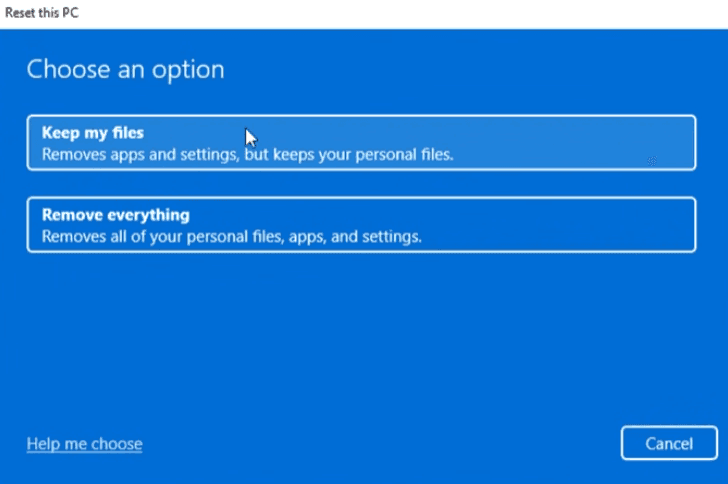
Step 2. Select Remove Everything. This option will delete personal files, apps, and settings, effectively restoring Windows 10 to its factory state.
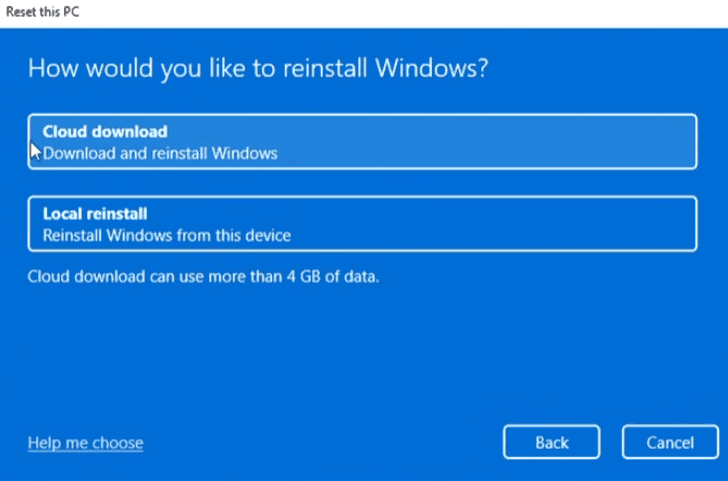
Step 3. Select Cloud Download or Local reinstall. You can choose to download a fresh copy of Windows from Microsoftor use existing Windows files on the device. Cloud Download is more reliable if system files are damaged.
Step 4. Select Remove Files and Clean the Drive. It performs a "NIST Clear" wipeand takes significantly longer, but makes data recovery more difficult.
Note: Just Remove My Filesis essentially a quick format,markingthe space as "available" but not immediately overwritingdata. While fast, the data is recoverable. Use this only if you keepsthe PC for yourself.
Step 5. Select Only the drive where Windows is installed. Only available when your PC has multiple drives.
Step 6. Review all the settings and click Reset to erase Windows 10 hard drive.
Method 2: Completely Erase Windows 10 Hard Drive using Dedicated Tools
Unlike built-in tools, dedicated disk wiping software enables you to completely erase Windows 10 hard drive or SSD and offers users more options, even bootable disk wipe, regardless of disk types and wiping methods.
AOMEI Backupper Professional is one of the best tools to wipe a disk and is fully compatible with different operating systems. With it, you can directly wipe hard drive in Windows 10 or create a bootable USB to wipe a drive from the BIOS.

 AOMEI Backupper
- 3 wiping options: Wipe partition, unallocated space, or the entire drive.
- 4 disk wiping levels: File sectors with zero, random data, DoD 5220.22-M, and Gutman.
- Different disk types: Wipe HDDs/SSDs, external hard drive, USB drive, etc.
 100% Secure
In addition, it still supports more advanced backup features, such as file backup, system backup, schedule backup, etc., for data protection, especially useful for users who don’t have a backup in place.
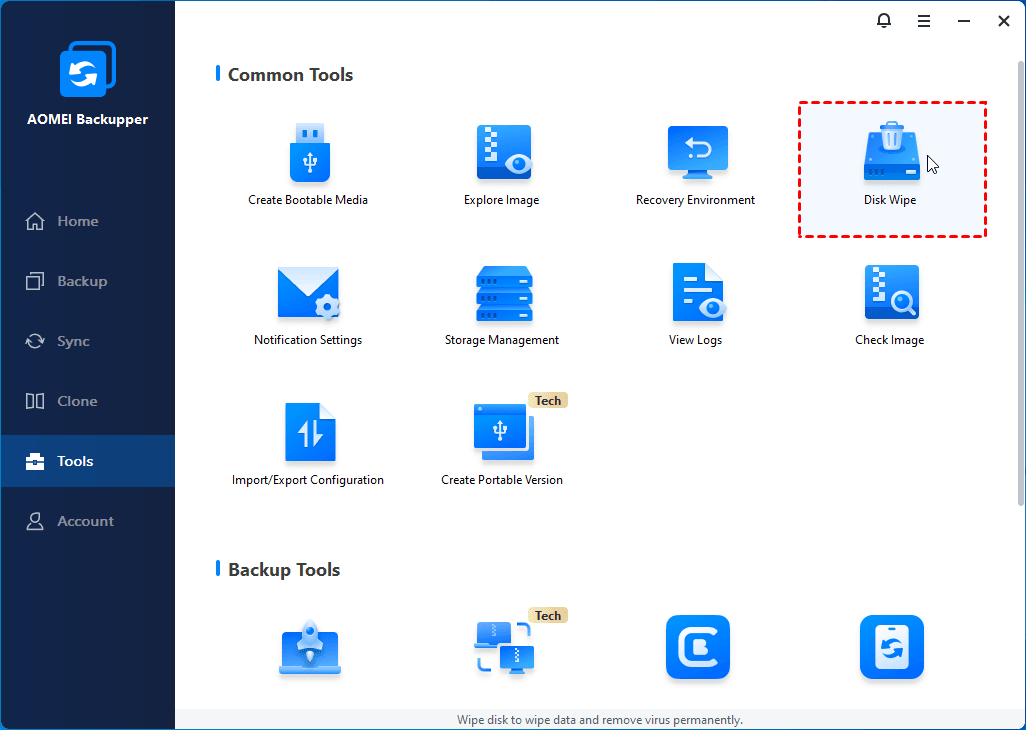
Step 1. Open AOMEI Backupper after installing. Under the Tools tab, click Disk Wipe.
Step 2. Select Wipe disk, then the hard drive in Windows 10 you want to erase.
You'll be told that wiping the system disk needs to be executed in reboot mode. Click OK to continue.
Step 3. Select a disk wiping method, depending on how thoroughly you want to erase a hard drive.
- Fill sectors with Zero - Quick, but relatively basic.
- Fill with random data - Safer than Zero.
- DoD 5220.22-M - Multiple passes, based on U.S. Department of Defense standards.
- Gutmann Method - 35 passes, extremely secure but very slow.
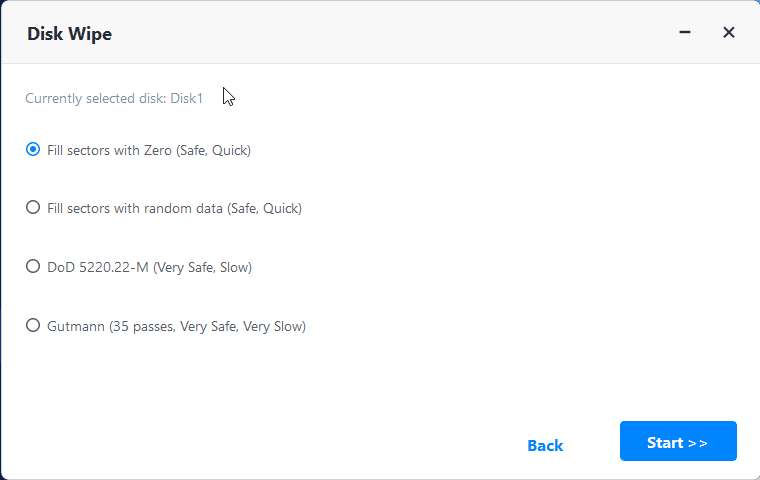
Step 4. At last, click Start to wipe hard drive in Windows 10. It will be executed in reboot mode.
In addition, you can also create a bootable USB drive to wipe hard drive from BIOS, especially useful for an unbootable system.
Conclusion
This article describes how to erase Windows 10 hard drive in two methods. Try Reset this PC if you want a fresh setup or to remove malware or system errors. Try a dedicated eraser - AOMEI Backupper if you want to remove everything on the drive, not just mark it as “free” space.
With 3 disk wiping options and 4 methods of operation, it meets diverse needs. Except for wiping hard drive, you can also use it to wipe USB flash drive, unallocated space, external drive, etc., even performing a bootable disk wipe.

 as a preferred
source on Google
as a preferred
source on Google