




How to Transfer Files from Server to Server - 4 Easy Ways
This page shows you how to transfer files from server to server using free file transfer software and 3 more options. Read on to learn how to move files between Windows servers easily.

By Jonna Updated on April 30, 2026


File transfer between servers refers to the process of automatically transferring data or files from one machine to another. Many situations may need to transfer files from server to server; for example, data backup and recovery, data migration (such as the submission of bids and proposals, loan applications, the archiving of legal documents, and financial reports), environment syncing, B2B collaboration, and various types of business transactions all rely on the movement of files.
In this guide, you will explore 4 practical methods so you can figure out how to copy files from one server to another server in Windows efficiently and securely.
Method 1. Transfer Files from Server to Server via File Transfer Software
If you prefer a straightforward, less technical approach, file transfer software is often the easiest way to go. Instead of typing commands or configuring protocols manually, you can rely on an intuitive interface to do server to server transfer.
AOMEI Backupper Server is a professional and reliable data transfer software that stands out for its reliability and ease of use. It’s particularly useful for Windows-based servers and offers a wide range of features beyond simple file transfers.
 AOMEI Backupper
- Various sync solutions: Sync data and the changes between source and destination using various methods such as Basic Sync, Mirror Sync, Real-Time Sync, or Two-Way Sync to meet your specific needs.
- Automatic Sync: You can sync files daily, weekly, monthly, etc., and more precisely, you can even set the synchronization date, time, or intervals.
- Multiple storage options: It allows syncing files across PCs, and a wide range of storage paths, including internal and external drives, USB devices, network drives, etc.
 100% Secure
You can download its 30-day free trial! And follow the guide below to perform file transfer from server to server ( Server 2012/2016/2019/2022/2025 (including R2)/SBS 2003/2008/2011 as well as Windows systems are supported).
👉Prerequisites:
- Ensure that both of your Windows Server computers are on the same network.
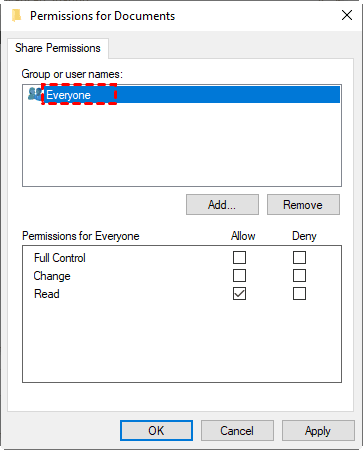
- Create a shared folder on the server computer where you want to synchronize files, and grant full control permissions for everyone.
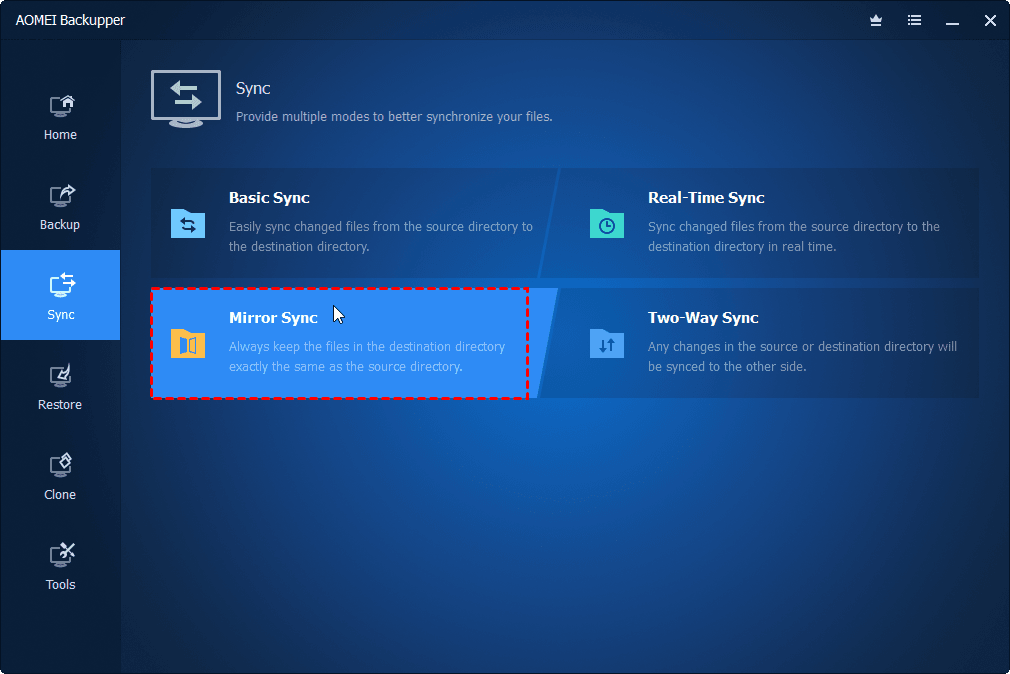
Step 1. Run AOMEI Backupper Server, and click Sync > Basic Sync.
You can also choose other sync modes:
- Real-Time Sync: Sync files and their changes in real-time, the fastest sync frequency among all the sync methods.
- Mirror Sync: Mirror data from source to destination and ensure the data is always safe in the destination path.
- Two Way Sync: Monitor changes in both the source and destination directories; if a change occurs in either one, it is immediately synchronized to the other.
Step 2. Click Select Source to choose all the data you want to sync on the source server.
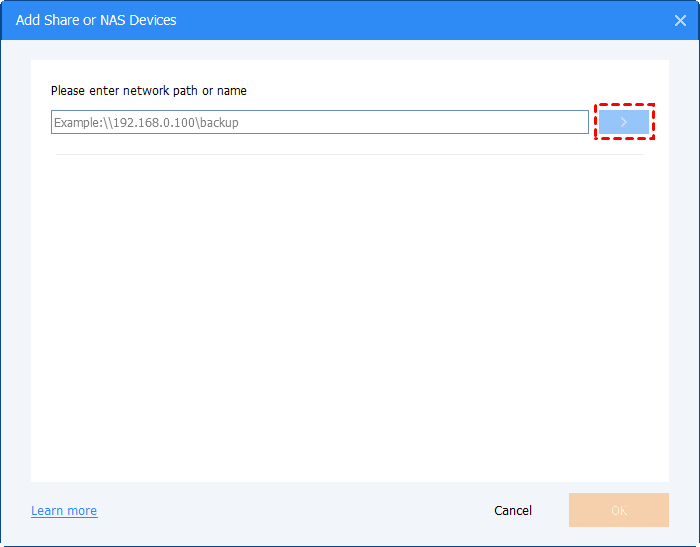
Step 3. Then, click the PC icon on the right side > go to Network Share > click Add Network Share > type the network path and select the shared folder you made before in the source network location.
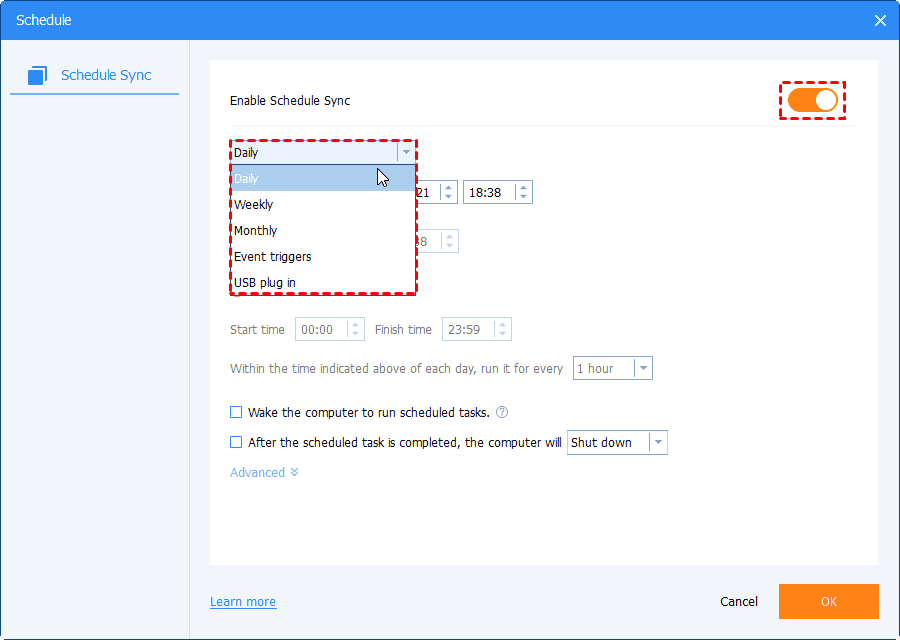
Step 4. (Optional) To keep automatic sync, you can click Schedule Sync > Enable Schedule Sync and select a sync mode as needed.
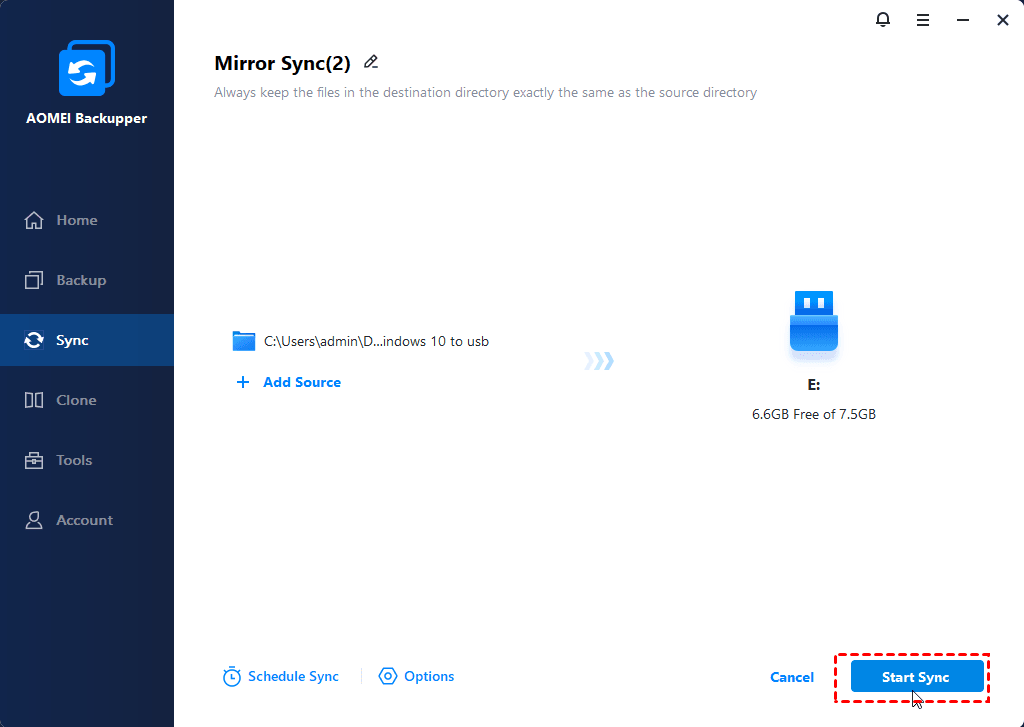
Step 5. Confirm the settings and click Start Sync to automatically transfer files from server to server.
Method 2. Transfer Files between Two Servers with FTP
FTP, or File Transfer Protocol, is one of the oldest and most widely used methods for transferring files. Despite its age, it remains relevant due to its simplicity and broad compatibility. When you use FTP, you connect to a server using a client application and upload or download files as needed. It’s especially useful for web hosting environments.
To transfer files from server to server using FTP, you typically need access to both servers and an FTP client like FileZilla. In the following, we will show you how to perform a FileZilla server to server transfer:
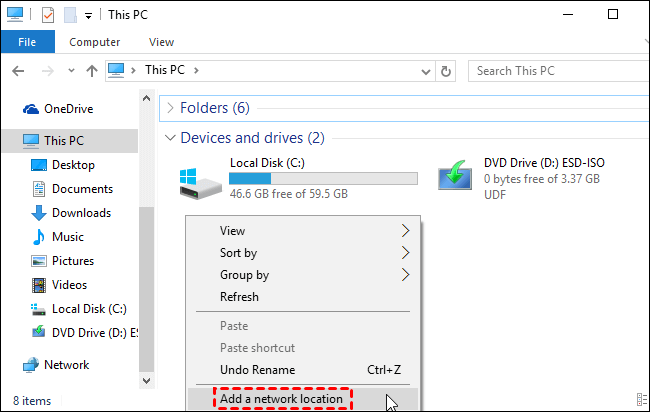
Step 1. Open File Explorer > select This PC > right-click anywhere blank > choose Add a network location. Then, click on Choose a custom network location.
Step 2. Type the FTP server address (ftp://server.com), and enter the username and password if asked. You may also check Log on anonymously for limited access.
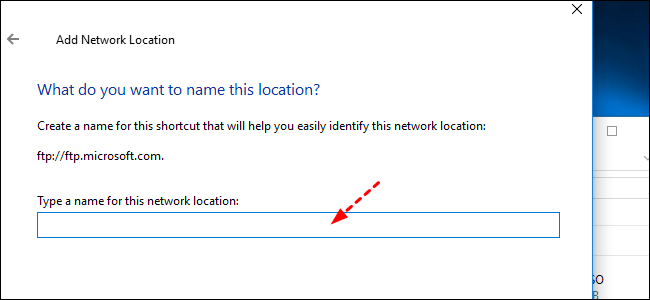
Step 3. Enter the name of this network location. Then, you can copy & paste files into this created FTP server folder for FTP file transfer from one server to another.
While this method is straightforward, it does have limitations. FTP can be slow for large file transfers. Also, standard FTP does not encrypt data, making it vulnerable to interception. For better security, you may also try transferring files from one server to another server using SFTP or FTPS instead.
Method 3. Copy Files from One Server to Another Server using SCP
SCP (Secure Copy Protocol) is a powerful and secure option to move files from server to server. It operates over SSH, ensuring that your data is encrypted during transfer. But it should be noted that if two files on the local and remote systems have the same name and location, SCP will overwrite the file without issuing a warning.
Unlike FTP, SCP allows direct server-to-server transfers without needing an intermediary device. This makes it faster and more efficient for large datasets. To use SCP, you’ll need command-line access. But this might seem intimidating with the syntax to use at first. Step-by-step guide to copy files from server to server in Linux or Windows Server using SCP:
👉Notes:
- The basic SCP command syntax is scp [OPTIONS] [SOURCE] [DESTINATION].
- You can add the (@:) to add the server address.
Step 1. Open the command prompt in Windows Server and run as administrator.
Step 2. Then, type related contexts according per your need:
#1. Transfer files from local server to remote server
Use scp [OPTION] local-file-or-directory user@remote-ip:/directory/.
#2. Transfer files from remote server to local server
Use scp [OPTION] user@remote-ip:/remote-file /local-directory/.
#3. Transfer files between two remote servers
Use scp [OPTION] user@remote-ip:/directory/ user@remote-ip:/directory/.
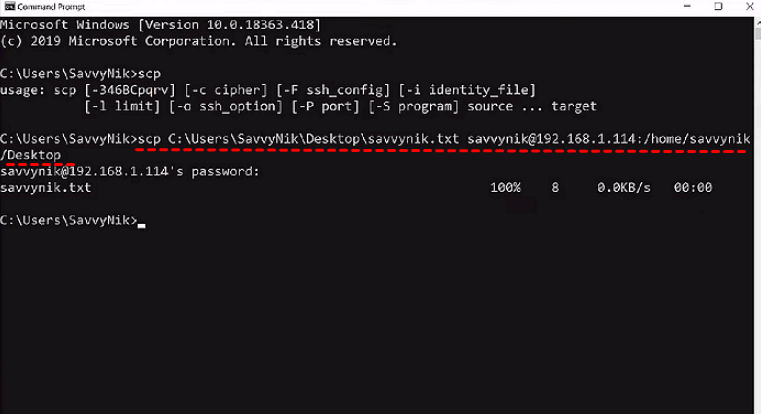
For example, to transfer a document from the desktop on the local C: drive to a remote host 192.168.1.114/home/savvynik/desktop, type as follows:
Method 4. Using Rsync to Copy Files between Servers
Rsync, which is usually used to transfer data from server to server in Linux, can also be used to transfer data from server to server on Windows. It is a command-line utility designed for efficient file synchronization. It only transfers changed portions of files, making it incredibly fast.
To sync a local server with a remote server using Rsync, you need to first ensure SSH access is configured between your local and remote servers, as well as Rsync installed on both systems. Then, follow the methods below:
#1. Specify Multiple Source Directories:
Use rsync -av /path/to/source1/ /path/to/source2/ /path/to/destination/ to transfer multiple directories.
This command synchronizes the directories /path/to/source1/ and /path/to/source2/ to /path/to/destination/.
#2. With a Symlink Directory:
This means to create a directory that contains symbolic links (symlinks) to all the directories to sync. It requires:
- Create a new directory, such as ~/tobackup/.
- In that directory, create a symbolic link for each directory you want to sync.
- Use the Rsync command with the -L option; this option instructs Rsync to treat symbolic links as the actual directories they point to:
rsync -aL ~/tobackup/ /path/to/destination/
FAQs on Server-to-Server Data Transfer
#1. How long does it take to transfer files from one server to another?
The time required depends on several factors:
- File size and number of files
- Network speed and latency
- Transfer method used
- Server performance
Small transfers may take seconds, while large datasets can take hours or even days.
#2. What is the best way to transfer files between Windows servers?
For Windows environments, dedicated software solutions are often the best choice.AOMEI Backupper Server is particularly effective because it offers a graphical interface, scheduling options, and reliable performance. It simplifies the process and reduces the risk of errors.
#3. Why is my PC taking so long to transfer files?
Common reasons for slow file transfer from server to server may include:
- Slow network connection
- Large file sizes
- Disk performance issues
- Background processes
Conclusion
It is not complicated to transfer files from server to server with the right method. Whether you’re managing a small website or handling enterprise-level data, the right method can save time, reduce errors, and improve efficiency.
File transfer software like AOMEI Backupper Server offers simplicity and ease of use. FTP provides a familiar and accessible approach. SCP delivers secure and direct transfers, while Rsync stands out for its efficiency and advanced features.
Besides, for an entire PC migration, including OS and settings, you can try the System Backup & Restore, and Disk or System Clone functions of AOMEI Backupper Server, which ensures a bootable migration.

 as a preferred
source on Google
as a preferred
source on Google