




How to Transfer Messages to New iPhone: 4 Methods
Learn how to transfer messages to new iPhone with 4 reliable and simple methods here. Check then and move your text messages from old iPhone to a new iPhone easily.

By Jonna Updated on August 19, 2026


Getting a new iPhone is exciting, but moving years of conversations can be a headache if you don't know which method to use. If you're searching for the best way to transfer messages to new iPhone, there are several reliable options, including using iCloud Sync, iCloud Backup, iTunes, and professional iPhone transfer software. The right choice depends on whether you want to transfer all your data or move only selected messages.
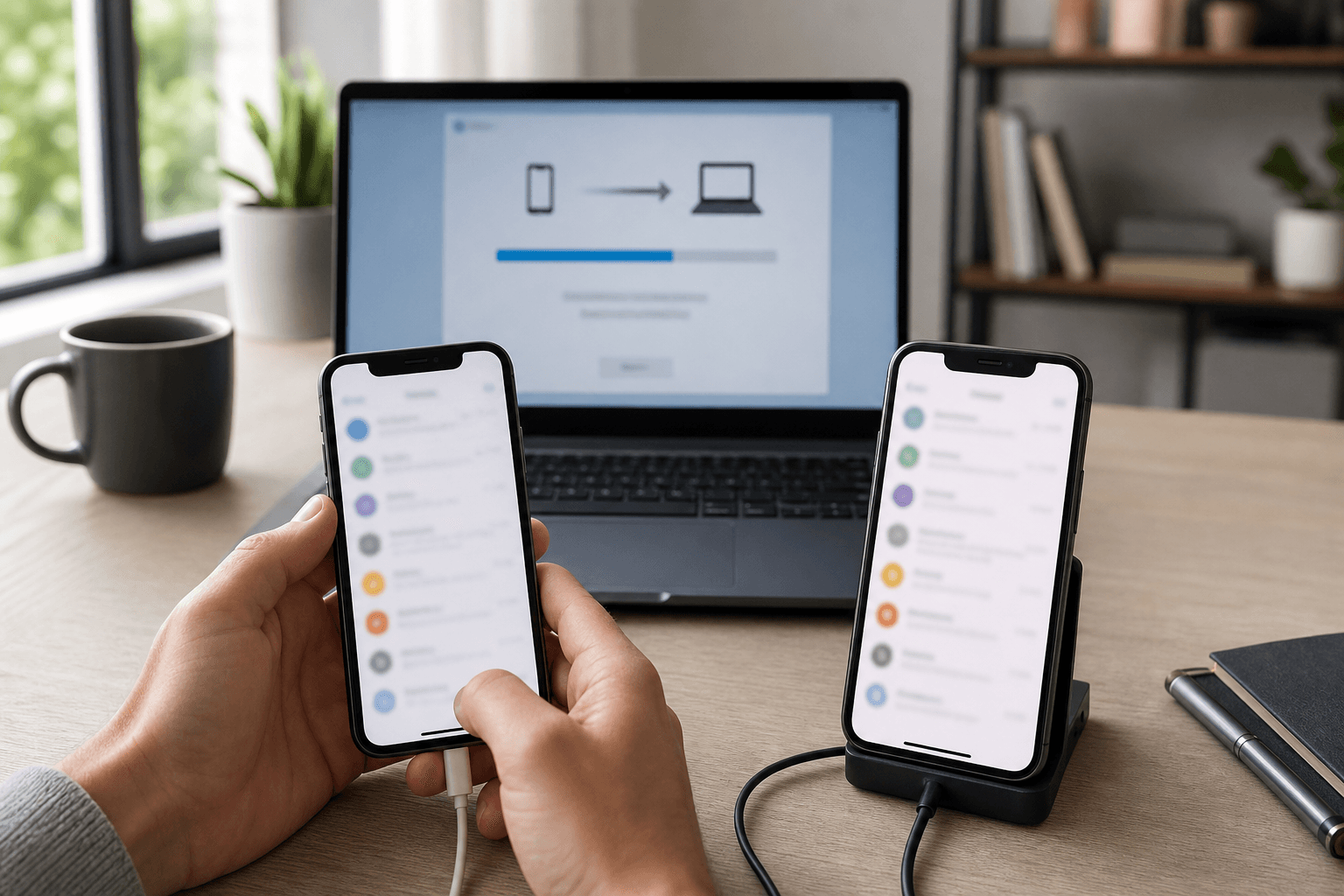
Is There a Way to Transfer Old iMessages to a New iPhone?
The short answer is YES! Apple provides multiple built-in mechanisms to help you transfer old iMessages and SMS texts to a new device. Additionally, robust third-party solutions exist if you prefer a direct, customized data transfer without relying on cloud services or full device restores.
Depending on how you prefer to handle your data, you can choose between:
-
iCloud Syncing: Automatic, cloud-based, requiring a stable Wi-Fi connection and available cloud storage.
-
iCloud Backup & Restore: Best when setting up a fresh device right out of the box.
-
iTunes / Finder Backup: Traditional, computer-based full system backup and restore.
-
Direct iOS Management Software: Fast, customizable, selective, and works completely offline.
🌟 Pre-Transfer Checklist:
Make sure both your old and new iPhones are updated to the latest available version of iOS, logged into the correct Apple ID (if using cloud methods), and connected to a stable Wi-Fi network or a PC/Mac computer.
How Can I Transfer Messages to New iPhone?
Below are the 4 most dependable methods to move your text messages and iMessages to your new iPhone. Review each method to see which best fits your current situation.
| Transfer Method | Speed | iCloud Required | Data Overwrite Risk | Selective Transfer |
| AOMEI FoneBackup | ⚡ Ultra Fast (USB) | ❌ No | ❌ No (Safe) | ✅ Yes |
| iCloud Sync | 🐢 Medium (Wi-Fi) | ✅ Yes | ❌ No | ❌ No (All or none) |
| iCloud Backup | 🐢 Slow (Wi-Fi) | ✅ Yes | ⚠️ Yes (During setup) | ❌ No |
| iTunes / Finder | ⚡ Fast (USB) | ❌ No | ⚠️ Yes (Full erase) | ❌ No |
Way 1. Transfer Messages to New iPhone with iCloud Sync
If both your old and new iPhones are already set up and signed into the same Apple ID, you can use Apple's native Messages in iCloud feature to transfer messages from iPhone to iPhone. This method syncs your conversation history across all logged-in Apple devices in real time.
👉 How to transfer text messages to new iPhone via iCloud Sync:
Step 1. On your Old iPhone, open Settings > tap your Apple ID Name / Profile at the top > select iCloud. Under the Apps Using iCloud section, tap Show All, find Messages, and turn the toggle ON.
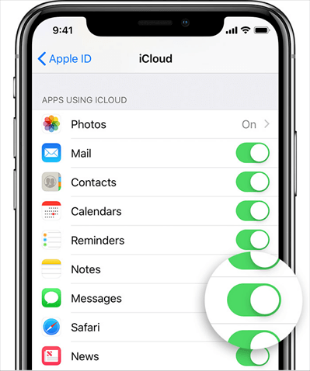
Step 2. Ensure your old phone is connected to Wi-Fi and plugged into a charger. Wait a few minutes to allow your message database to fully upload to iCloud.
Step 3. On your New iPhone, ensure it is logged into the same Apple ID. Then, go to Settings > Apple ID > iCloud > turn Messages ON.
Step 4. Open the native Messages app on your new iPhone. You will see a notification at the bottom saying "Downloading Messages from iCloud." Keep your phone connected to Wi-Fi until the sync completes.
📢 Note: This requires sufficient iCloud storage. If your 5GB of free storage is full, message syncing will pause.
Way 2. Move Text Messages to New iPhone via iCloud Backup
If you are setting up a brand-new iPhone right out of the box and want to migrate everything - including apps, settings, photos, and messages - restoring an iCloud Backup is the standard Apple path.
👉 Here is how to move messages via iCloud backup:
Step 1. Go to Settings > [Your Name] > iCloud > iCloud Backup. Tap Back Up Now and wait for the process to complete to create a fresh backup on your old iPhone.
Step 2. To set up your New iPhone, turn on your new iPhone and begin the initial setup. Select your language, region, and connect to a Wi-Fi network.
Step 3. When you reach the Transfer Your Apps & Data screen, select Restore from iCloud Backup.
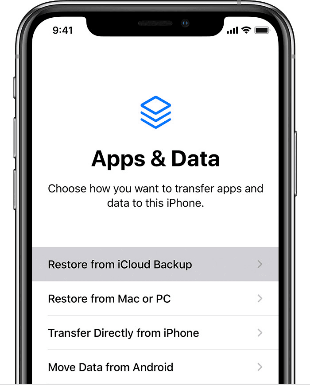
Step 4. Sign in with your Apple ID and password, then select the most recent backup file you just created on your old phone.
Step 5. Keep the device connected to Wi-Fi and power until the restoration process finishes completely. All your old SMS and iMessages will be restored alongside your other device data.
Way 3. Move Messages to New iPhone using iTunes / Finder
If you do not have enough iCloud storage and prefer not to use third-party cloud services, you can perform a traditional iPhone messages backup and restore using iTunes (on Windows or older macOS) or Finder (on macOS Catalina and later).
👉 How to Transfer Messages via iTunes or Finder:
Step 1. Connect your old iPhone to your computer using a USB cable and launch iTunes (or open Finder on Mac).
Step 2. Click on the device icon to view the summary screen.
Step 3. In the Backups section, choose This Computer. Check the box for Encrypt local backup if you wish to include sensitive account data and passwords, then click Back Up Now.
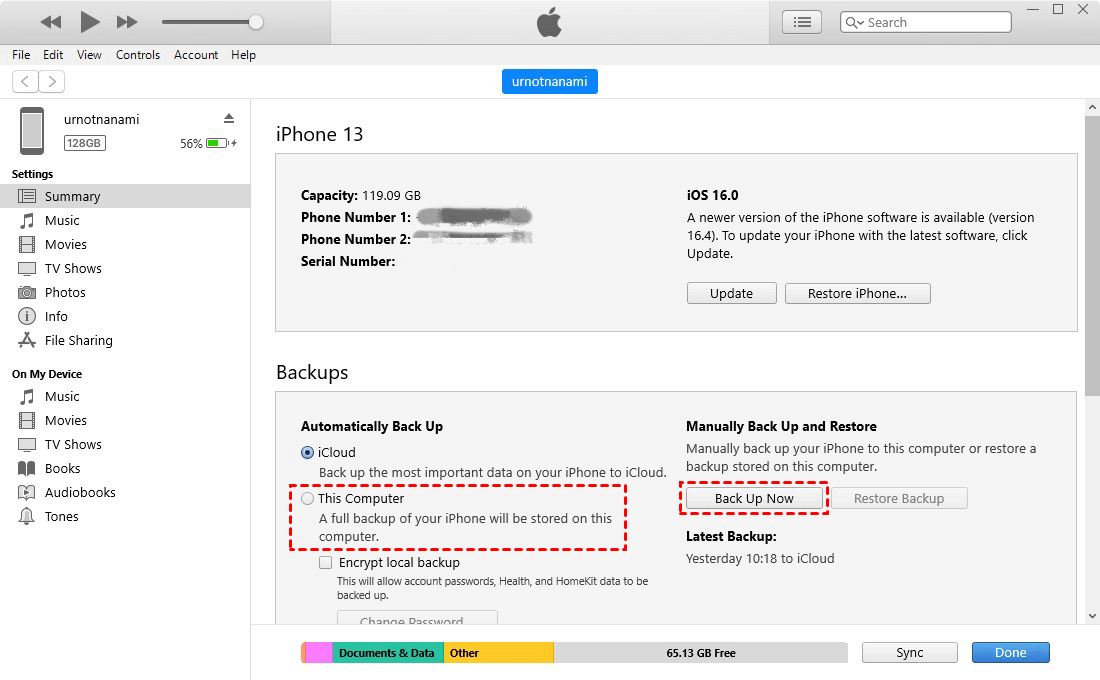
Step 4. Once the backup is finished, disconnect the old iPhone and plug in your new iPhone.
Step 5. In iTunes/Finder, click Restore Backup, select the backup file you just created, enter your encryption password if prompted, and click Restore.
Way 4. Transfer Text Messages to New iPhone without iCloud or iTunes
While Apple's native tools are powerful, they come with notable limitations. iCloud offers only 5GB of free storage, which quickly runs out if you have large message attachments. Meanwhile, iTunes full restores overwrite all existing data on your target iPhone. If you want a fast, flexible method that works without cloud limits or data overwriting, AOMEI FoneBackup is the top choice.
AOMEI FoneBackup is a professional iOS data management software designed to backup, restore, and transfer iOS data directly between iPhones/iPads or between an iPhone and a PC. It allows you to selectively transfer just your messages or perform a complete phone-to-phone transfer in minutes.
 AOMEI FoneBackup
- No Storage Limits: Transfer gigabytes of message history without paying for iCloud storage subscription upgrades.
- Selective or Full Transfer: Preview and select specific messages, or transfer everything at once.
- No Data Erasure: Selectively add messages to your new iPhone without erasing existing data on it.
- Fast USB Speed: Transfer thousands of messages and heavy media attachments via USB cable within minutes.
- Broad Compatibility: Supports all iOS versions and iPhone models, including the latest iPhone series.
 100% Secure
Option 1: Selective Message Transfer (Transfer Only Messages)
Step 1. Download and install AOMEI FoneBackup on your Windows PC. Connect your old iPhone to the PC using a USB cable and tap Trust when prompted.
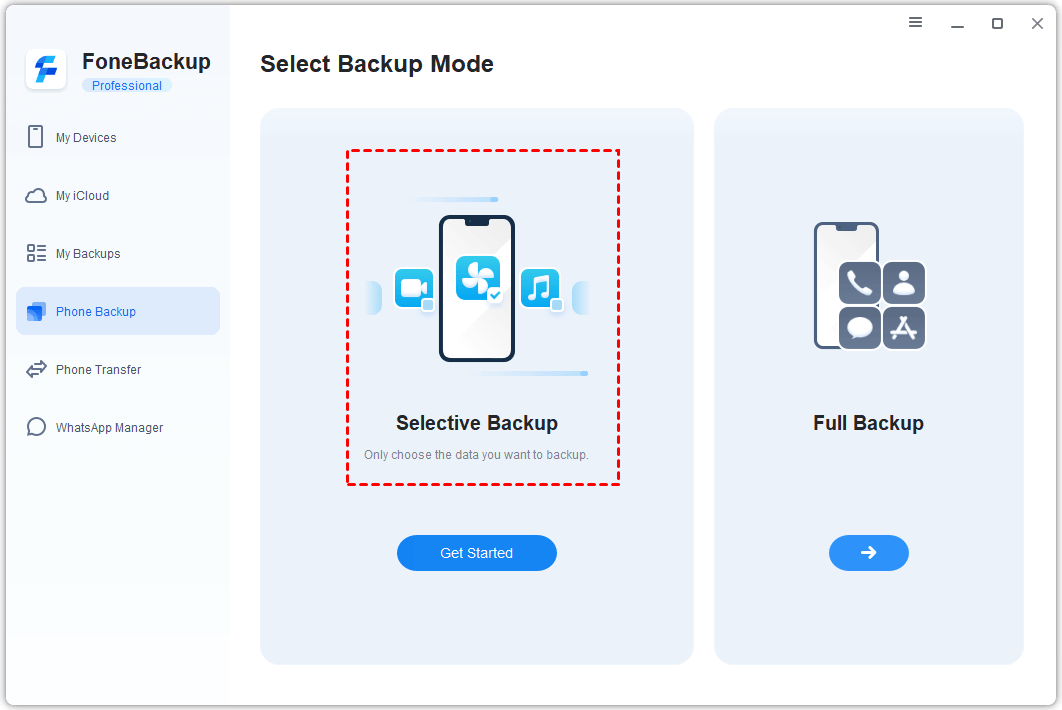
Step 2. Launch AOMEI FoneBackup. On the main interface, click Phone Backup > select Selective Backup, then click Get Started.
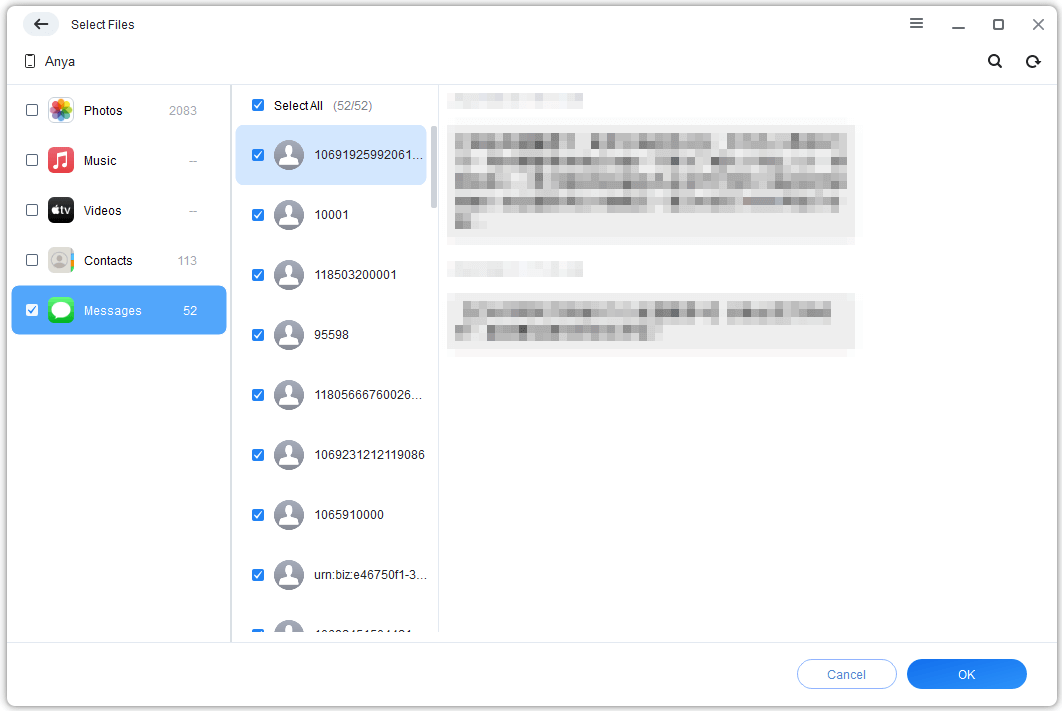
Step 3. Click the Messages icon to preview and select the specific text messages or iMessage threads you wish to migrate. Click OK.
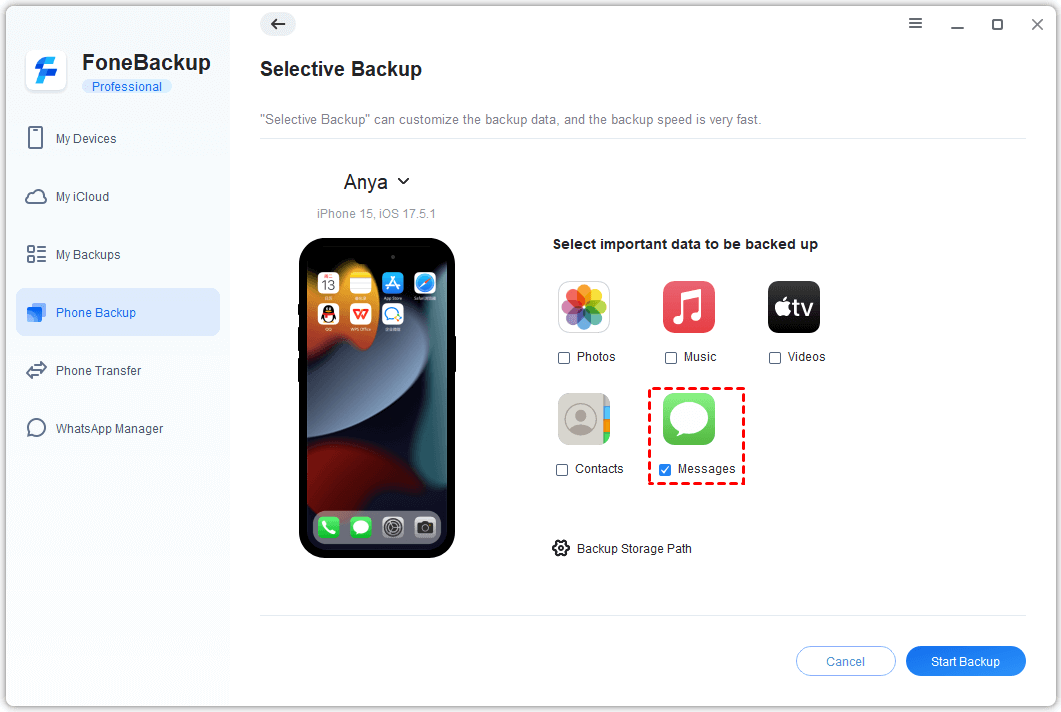
Step 4. Choose a destination path on your computer to save the backup, then click Start Backup.
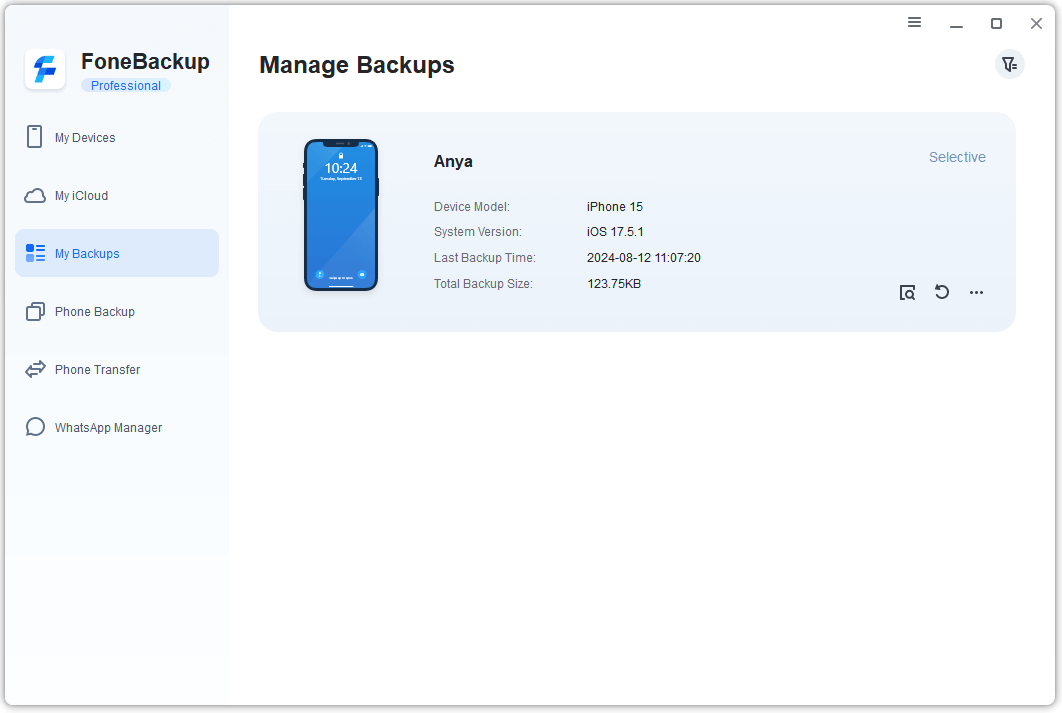
Step 5. Disconnect your old iPhone and connect your new iPhone to the PC. Go to My Backups, select your message backup, and click Restore to transfer them onto your new iPhone.
Option 2: One-Click iPhone-to-iPhone Transfer (Full iPhone Migration)
Step 1. Connect both your old and new iPhones to your computer using USB cables.
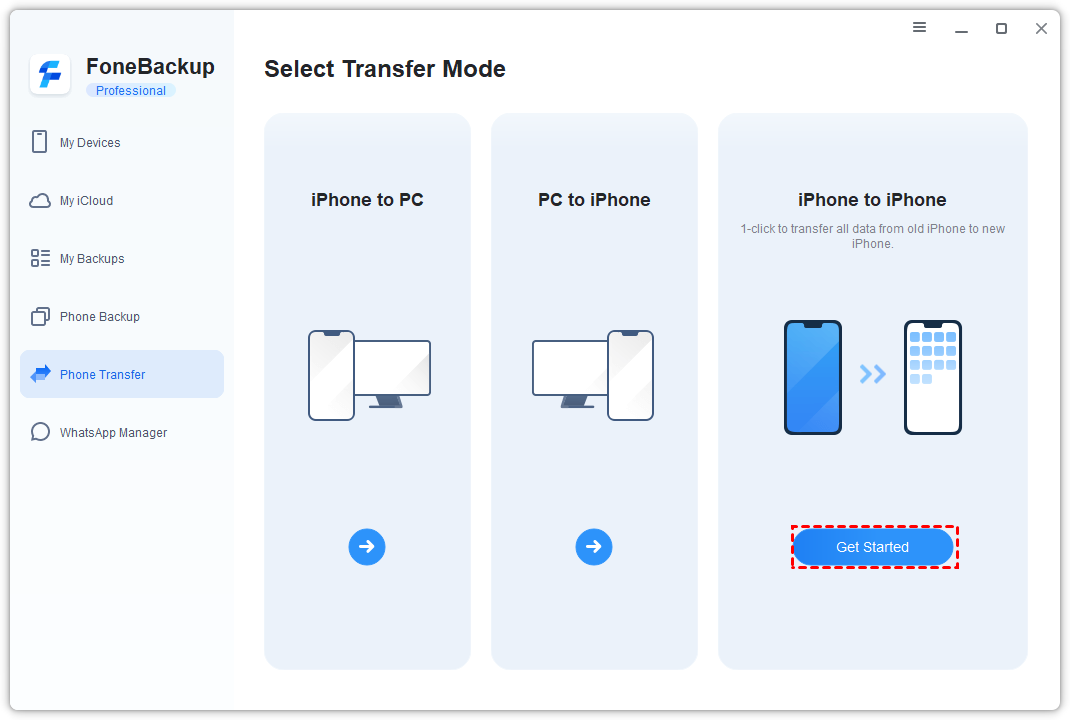
Step 2. Open AOMEI FoneBackup and select Phone Transfer > iPhone to iPhone > click Start Transfer.
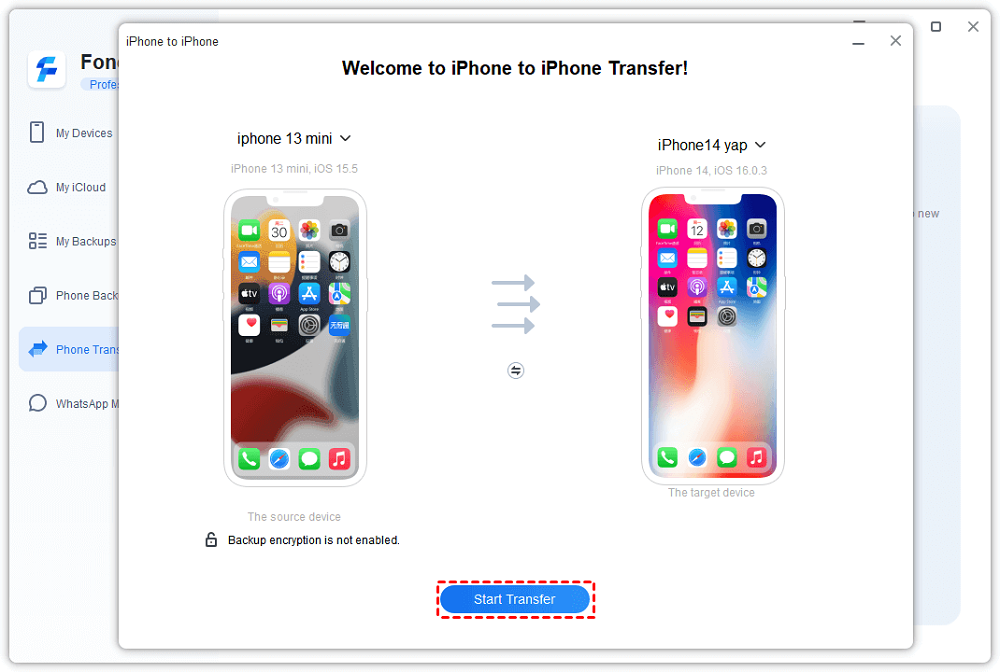
Step 3. Enable backup encryption if you want to transfer private health records or keychain data. Click Start Transfer to begin moving all data (including messages) directly.
FAQs About Transferring Messages to New iPhone
Q1: Why didn't my text messages transfer to my new iPhone?
Messages did not transfer to new iPhone usually happens for three main reasons:
1. Messages in iCloud was turned off on either device;
2. You ran out of iCloud storage, preventing the sync;
3. Both iPhones are signed into different Apple IDs.
Ensuring both devices share the same Apple ID and using AOMEI FoneBackup or verifying iCloud settings usually fixes this issue.
Q2: Will I lose my text messages if I upgrade to a new iPhone?
No, you will not lose your messages as long as you perform a proper transfer or backup before resetting or trading in your old iPhone. Choosing a direct USB transfer software like AOMEI FoneBackup ensures 100% data retention.
Q3: Does transferring messages move media attachments like photos and videos?
Yes! All four methods described in this guide will transfer message attachments (photos, voice notes, videos, and documents) along with the text content, provided you have sufficient storage space.
Q4: Can I transfer messages from Android to a new iPhone?
Yes, during the initial setup of your new iPhone, you can use Apple's official "Move to iOS" app on Android to transfer text messages, contacts, and photos wirelessly. If you want to transfer music from Android to iPhone, or move photos, files, etc., AOMEI FoneBackup offers a mobile tool that allows you to do it with ease.
Conclusion
Learning how to transfer messages to new iPhone doesn't have to be confusing or stressful. Whether you prefer cloud syncing via Apple’s native features or traditional iTunes restores, you have plenty of options available to ensure your irreplaceable conversations remain intact.
For users who want a hassle-free, fast, and flexible experience without cloud storage limits or the risk of overwriting existing iPhone data, AOMEI FoneBackup stands out as the most reliable solution. With its ability to perform selective message restoration and direct device-to-device transfers over high-speed USB, you can get your new iPhone configured exactly how you want it in just a few clicks.

 as a preferred
source on Google
as a preferred
source on Google