




3 Simple Ways to Transfer Messages from iPhone to iPhone SE
Learn how to transfer messages from iPhone to iPhone SE with 3 easy methods. Move all or selected messages using AOMEI FoneBackup, iCloud, or iTunes. Step-by-step guide.

By Kelsey Updated on May 26, 2026


How to transfer messages from iPhone 7 to iPhone SE
I have many old messages on my old iPhone 7, so could anybody tell me how to transfer these messages to my new iPhone SE? Thanks!
- Question from Apple Community
If that sounds like you, you're not alone. Getting a new iPhone SE is exciting that A15 Bionic chip, the familiar home button, all that speed. But before you get too carried away, there's something you shouldn't leave behind: your messages. Those old conversations with friends, the ones that made you laugh when you were down. Maybe even some important info buried in a chat you'll need later. The point is, your text messages tell your story. And you don't have to leave them on your old phone. This guide walks you through three ways to transfer messages from iPhone to iPhone SE, whether you want everything, just a few conversations, or something in between.
| Method | Best For... | Keeps Existing Data? | Selective Transfer? |
|---|---|---|---|
| AOMEI FoneBackup | Moving specific conversations, no data loss | Yes | Yes |
| iCloud Sync | Wireless transfer, keeping messages across devices | Yes | No |
| iTunes | Full backup, moving everything at once | No (replaces data) | No |
Method 1. Transfer Selected Messages with AOMEI FoneBackup
Sometimes you don't want to move everything. Maybe you just need that one conversation with your mom, or the thread where your friend sent those vacation photos. For that, you need a tool that lets you pick and choose. AOMEI FoneBackup is a solid choice. It's an iPhone management tool that lets you preview your messages and select exactly which ones to transfer. Nothing more, nothing less.
 AOMEI FoneBackup
- Pick Specific Messages: Only want that one thread? Done.
- 1-Click iPhone Backup: Fully back up photos, videos, contacts, messages, app data, settings, and more to PC, external drive, SSD, USB, or NAS.
- WhatsApp Backup & Transfer: Back up WhatsApp/WhatsApp Business to PC and transfer chats, photos, videos, and stickers between iPhones with one click.
- iCloud Manager: Upload, download, delete, and sync iCloud photos, videos, contacts, and Drive files across accounts efficiently.
- Wide compatibility: Support all iOS versions, including the latest iOS 26 and all models of iPhone, including iPhone 17/16/15, iPad, and iPod.
 100% Secure
Step 1. Download and install AOMEI FoneBackup on your Windows PC. Connect your old iPhone with a USB cable and tap "Trust This Computer" when prompted.
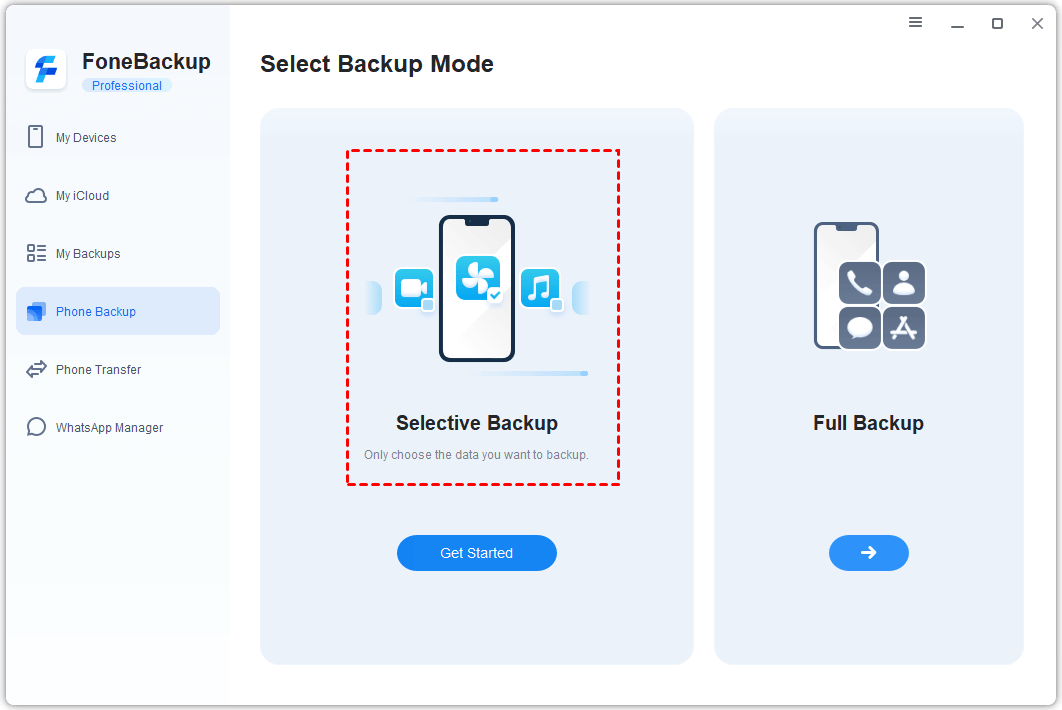
Step 2. Open AOMEI FoneBackup. On the home screen, click Phone Backup > Selective Backup.
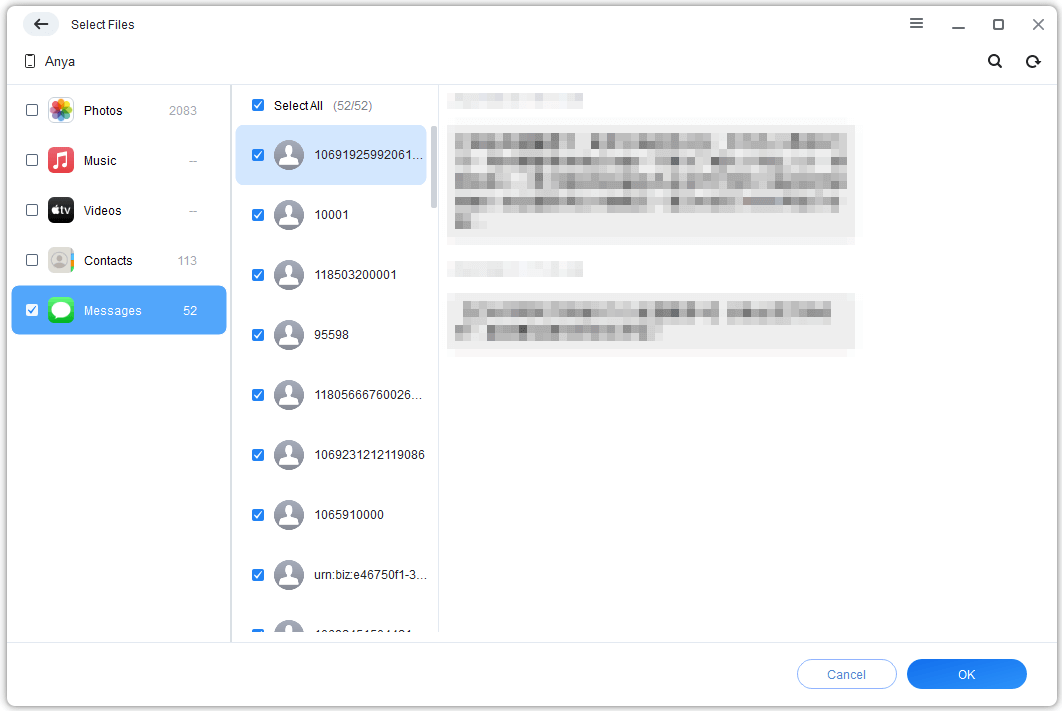
Step 3. Click to open the Messages preview. Select the specific conversations or individual messages you want to transfer. Click OK when you're done.
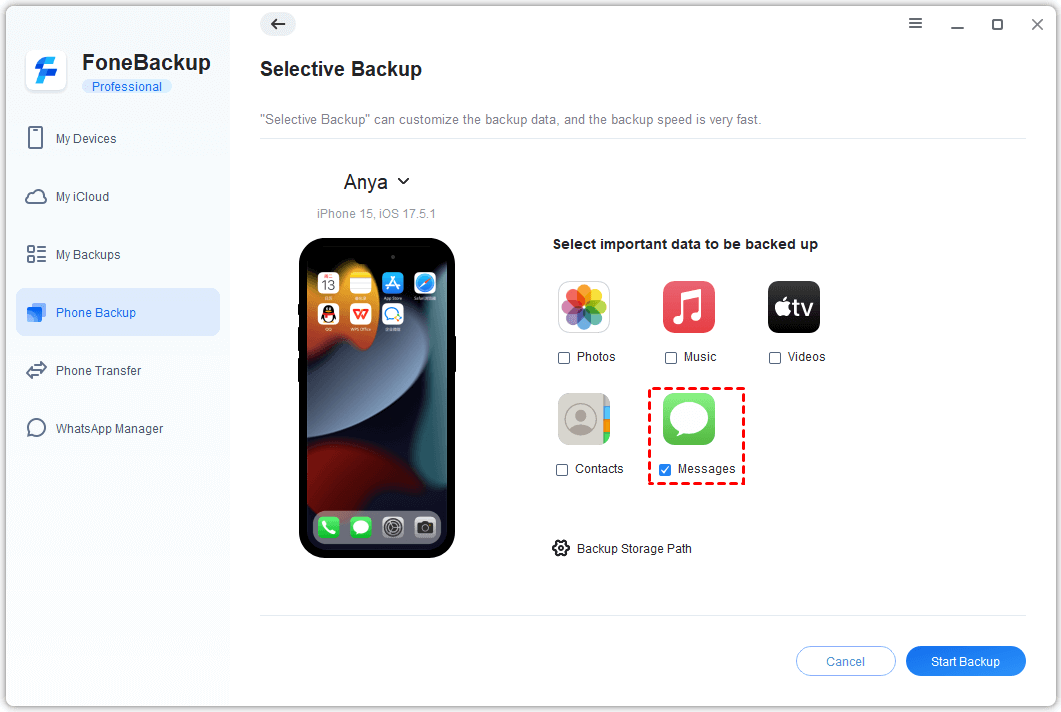
Step 4. Choose a folder on your computer to save these messages temporarily. Click Start Backup to copy them from your old iPhone to the PC.
Step 5. Disconnect the old iPhone and connect your new iPhone SE. In AOMEI FoneBackup, go to My Backups, find the backup you just made, and click Restore. Confirm the messages and click Start Restore. Done.
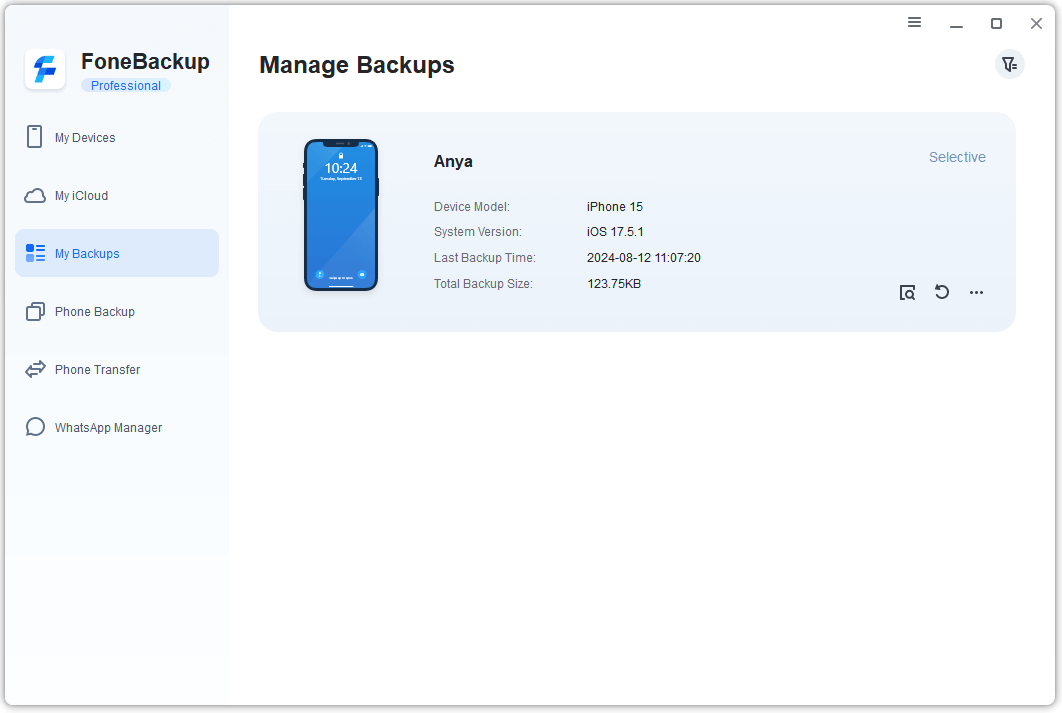
AOMEI FoneBackup also has an iPhone to iPhone Transfer feature if you want to move everything at once - settings, apps, messages, the whole package.
Method 2. Sync Messages to iPhone SE with iCloud
If you'd rather not mess with cables, iCloud can handle the job wirelessly. This method syncs your messages across all devices signed into the same Apple ID. No backups, no computers, just a toggle switch.
🔍What you need:
- Both iPhones are connected to Wi-Fi
- Both signed into the same Apple ID
- Enough iCloud storage (5GB free, but messages don't take much)
Step 1. On your old iPhone, go to Settings > tap your name at the top > iCloud.
Step 2. Find Messages and toggle it ON. If your phone asks to merge messages, go ahead and confirm.
Step 3. On your new iPhone SE, do the exact same thing. Go to Settings > your name > iCloud > toggle on Messages.
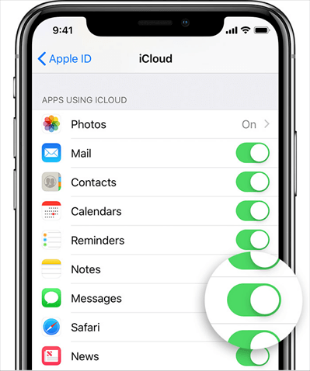
Step 4. Wait a few minutes. Your messages will start appearing on the new iPhone. How long depends on how many you have and your Wi-Fi speed.
Method 3. Transfer Everything Between iPhones with iTunes
If you want to move everything from your old iPhone to the new SE - messages, photos, apps, settings, iTunes (or Finder on newer Macs) is the traditional route. It creates a full backup of your old phone and restores it to the new one.
Important: This method replaces everything on your new iPhone SE. If you've already set it up and added stuff, it'll be overwritten. Also, iTunes doesn't let you pick just messages, it's all or nothing.
Step 1. Download and install iTunes on your PC (if you don't have it). On a Mac with macOS Catalina or later, use Finder.
Step 2. Connect your old iPhone to the computer with a USB cable. In iTunes, click the device icon near the top left. (In Finder, select your phone from the sidebar.)
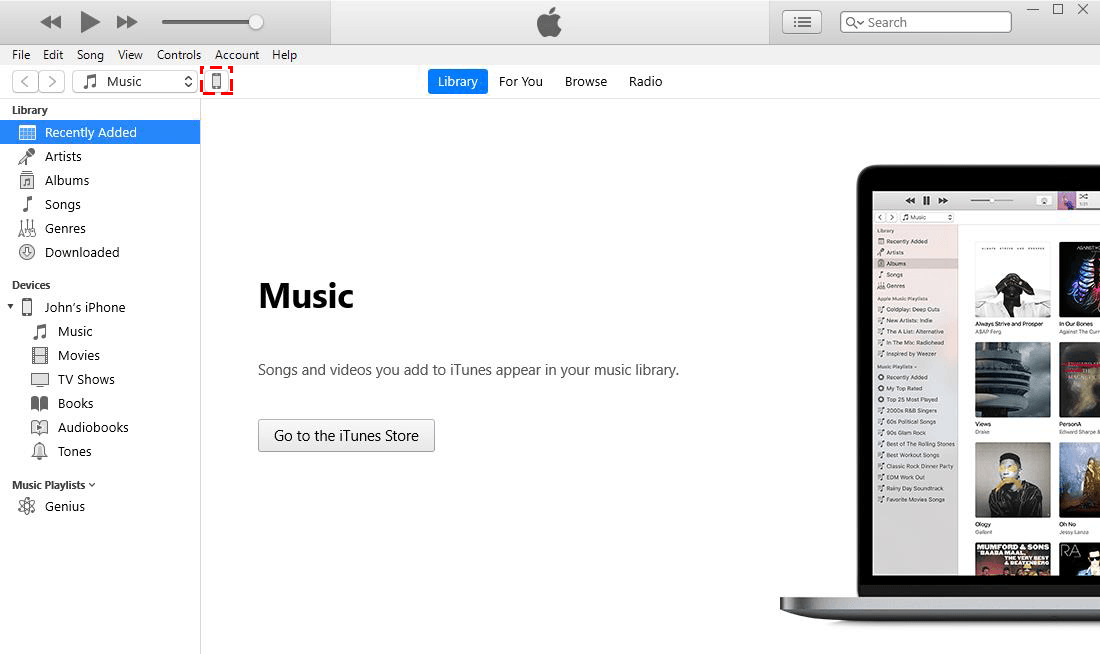
Step 3. Under Backups, choose This Computer. Then click Back Up Now. Wait for it to finish.
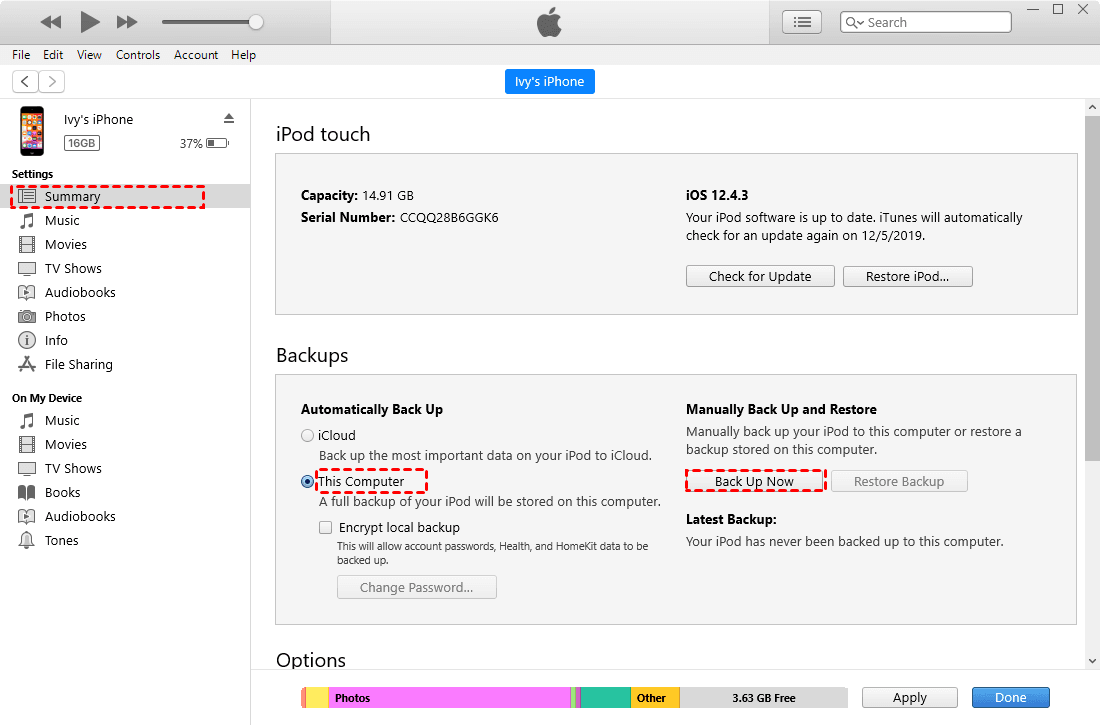
Step 4. Disconnect the old iPhone. Connect your new iPhone SE. In iTunes or Finder, click Restore Backup. Pick the backup you just made and click Restore.
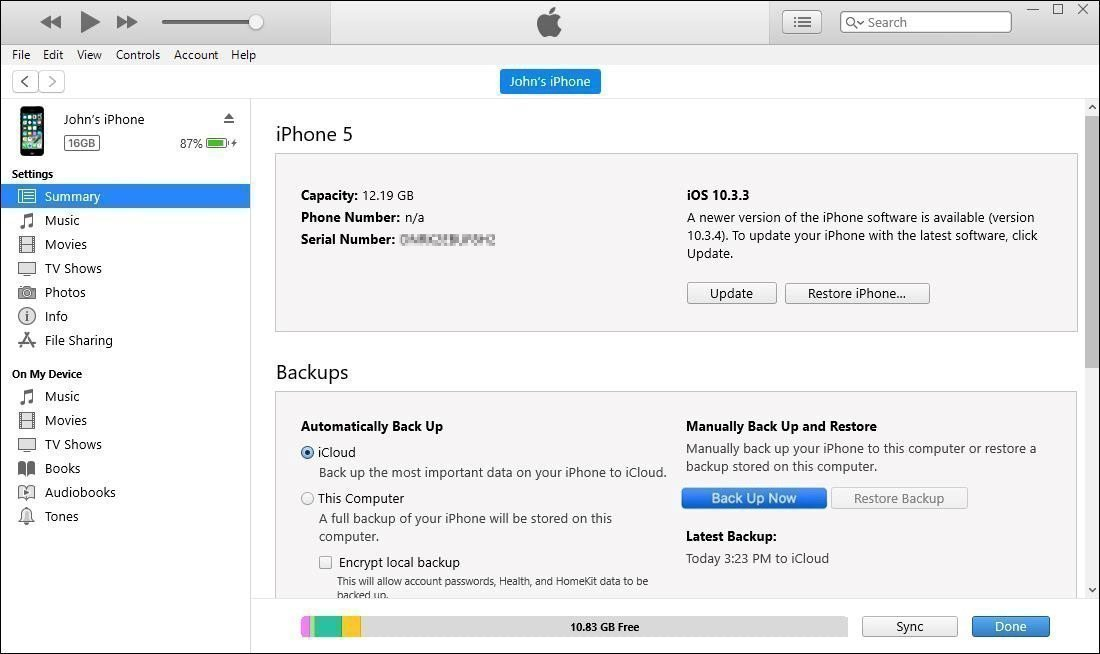
Step 5. Let the restoration complete. Your new iPhone SE will restart, and all your messages (and everything else) will be there.
The Bottom Line
So, how to transfer messages from iPhone to iPhone SE? You've got options. iCloud works wirelessly but syncs everything. iTunes is thorough but wipes your new phone. If you want control—to pick just the messages that matter, AOMEI FoneBackup is the way to go. Give it a try and keep your conversations exactly where you want them.
AOMEI FoneBackupEasily to backup and restore iPhone data, transfer data between PC and iPhone, and manage iCloud and WhatsApp data.

 as a preferred
source on Google
as a preferred
source on Google