




Answered : Can I Retrieve iMessages from iCloud? [2026 Guide]
Wondering can I retrieve iMessages from iCloud? It depends. Learn when recovery is possible, how to restore from backup, and a smarter way to save messages forever.

By Kelsey Updated on May 26, 2026


Can I retrieve deleted iMessages from iCloud?
Is it possible to retrieve past deleted messages from my iCloud? I read where if a backup occurred before deleting the message, then it is not possible to obtain. Is this correct? Could I retrieve the messages?
- Question from Apple Community
If you've ever accidentally deleted an important text message, a conversation with a loved one, some crucial info, or a memory you wanted to keep, you've probably asked yourself: can I retrieve iMessages from iCloud? The answer isn't a simple yes or no. It depends entirely on how you had your messages set up before they were deleted. This guide walks you through exactly when you can recover messages, how to do it, and what to do if iCloud won't work for you.
Can You Retrieve Deleted iMessages from iCloud?
Here's the honest answer: it depends on how you were using iCloud.
🧩Scenario 1: You had iCloud Backup turned on (and a backup exists from before you deleted the messages)
Yes, you can recover them, but only by doing a full restore of your iPhone from that backup. This wipes everything on your phone and replaces it with the backup. Not ideal, but it works.
🧩Scenario 2: You only had Messages in iCloud enabled (syncing, not backup)
Sorry, but no. Messages in iCloud keeps your conversations synced across devices, but it doesn't keep old versions. Once you delete a message on one device, it's gone everywhere. No undo.
So before you get your hopes up, check which one you were using.
How to Restore iMessages from iCloud (If You Have a Backup)
If you had iCloud Backup turned on before deleting those messages, and a backup exists from before the deletion, here's how to get them back.
- This will erase everything on your iPhone and replace it with the backup.
- Any data created after that backup will be lost.
- You'll need to sign back into apps and reset some settings afterward.
- This only works if the messages were not being synced via Messages in iCloud (that toggle was OFF).
Step 1. Check if you have a recent backup
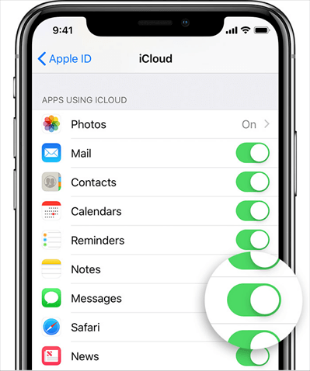
Before wiping anything, go to Settings > your name > iCloud > Manage Storage > Backups. Tap your device and see when the last backup happened. If it's from before you deleted the messages, good.
Step 2. Create a fresh backup (optional but smart)
If there's anything on your phone now you don't want to lose, go to Settings > your name > iCloud > iCloud Backup and tap Back Up Now. This saves your current data separately.
Step 3. Erase your iPhone
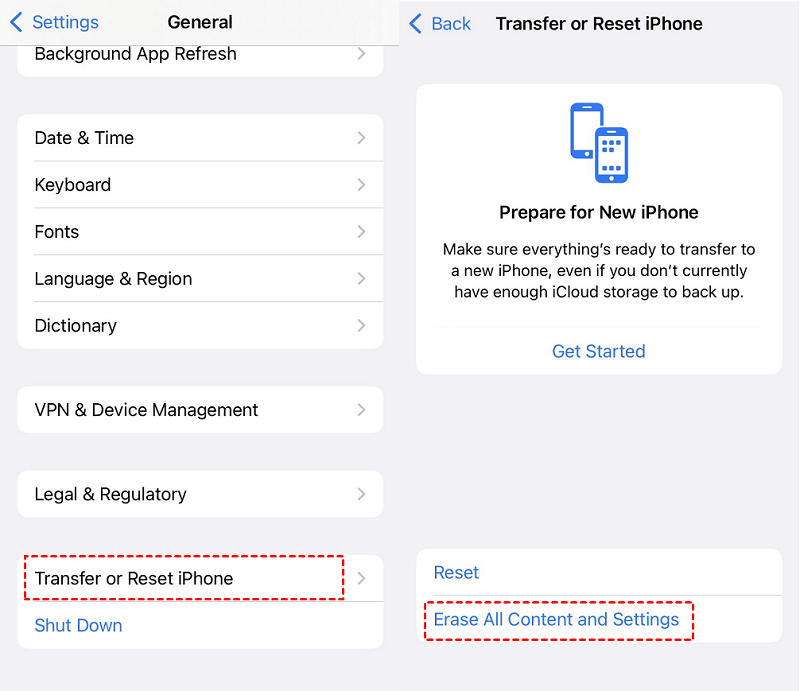
- Go to Settings > General > Transfer or Reset iPhone (on iOS 15 or later, it's under "Reset").
- Tap Erase All Content and Settings. Enter your passcode and confirm.
Step 4. Set up your iPhone and restore from backup
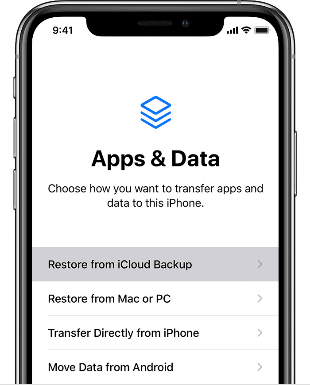
- Your iPhone will restart. Follow the setup prompts until you reach the Apps & Data screen.
- Tap Restore from iCloud Backup.
- Sign in with your Apple ID.
- Choose the backup you checked earlier (the one from before the messages were deleted).
Step 5. Wait for the restore to finish
This can take a while, depending on your internet speed and backup size. When it's done, your messages should be back.
-
If the backup you restored from doesn't have the messages, they're probably gone for good via iCloud.
A Better Way: Backup iPhone Messages with AOMEI FoneBackup
iCloud is unpredictable; you never really know what's in a backup until you restore it. And if you rely on Messages in iCloud syncing, deleted messages vanish forever with no way back.
If you want actual control over your message backups, AOMEI FoneBackup is a smarter choice. It's a Windows tool that lets you see, choose, and save your messages to your computer, so you always have a copy you can restore later.
 AOMEI FoneBackup
- See your messages before backing up: No guessing what's included.
- Pick what to save: Only want that one important thread? Done.
- Unlimited storage: Your computer's hard drive, not 5GB of iCloud space.
- Actually view backups anytime: Browse your saved messages without restoring.
- Transfer between iPhone and PC: Move media files and personal data to PC/iPhone instantly - no iCloud or Wi-Fi required.
 100% Secure
How to back up iPhone messages with AOMEI FoneBackup (5 simple steps):
Step 1. Download and install AOMEI FoneBackup on your Windows PC. Connect your iPhone with a USB cable and tap "Trust This Computer" when prompted.
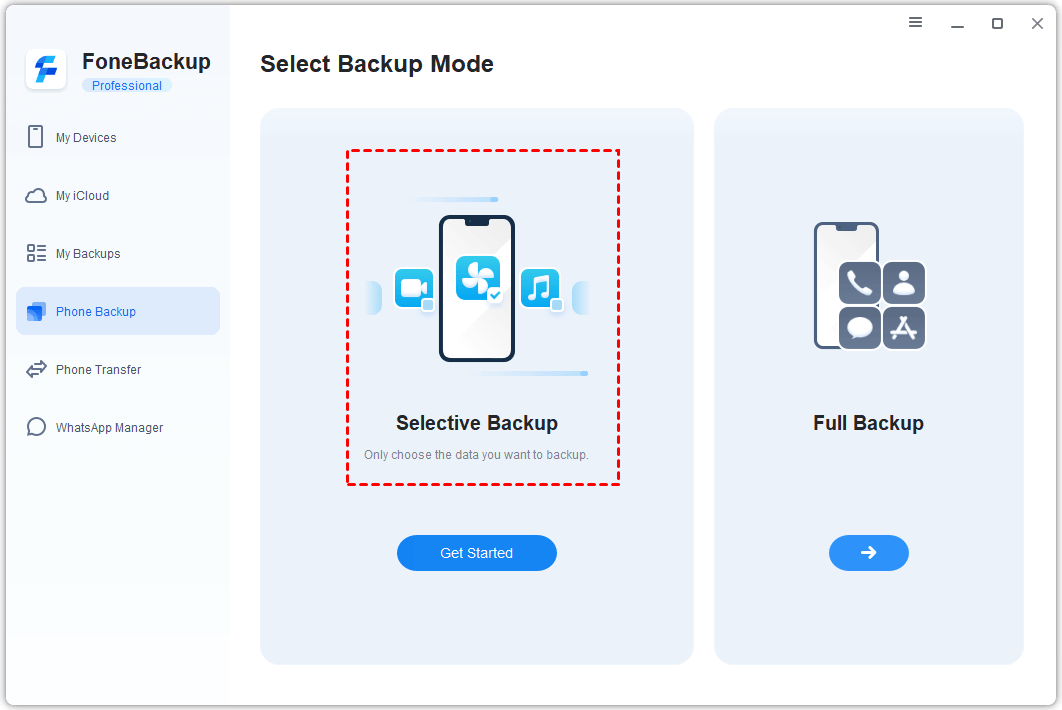
Step 2. Open AOMEI FoneBackup. On the home screen, click Phone Backup, then choose Selective Backup.
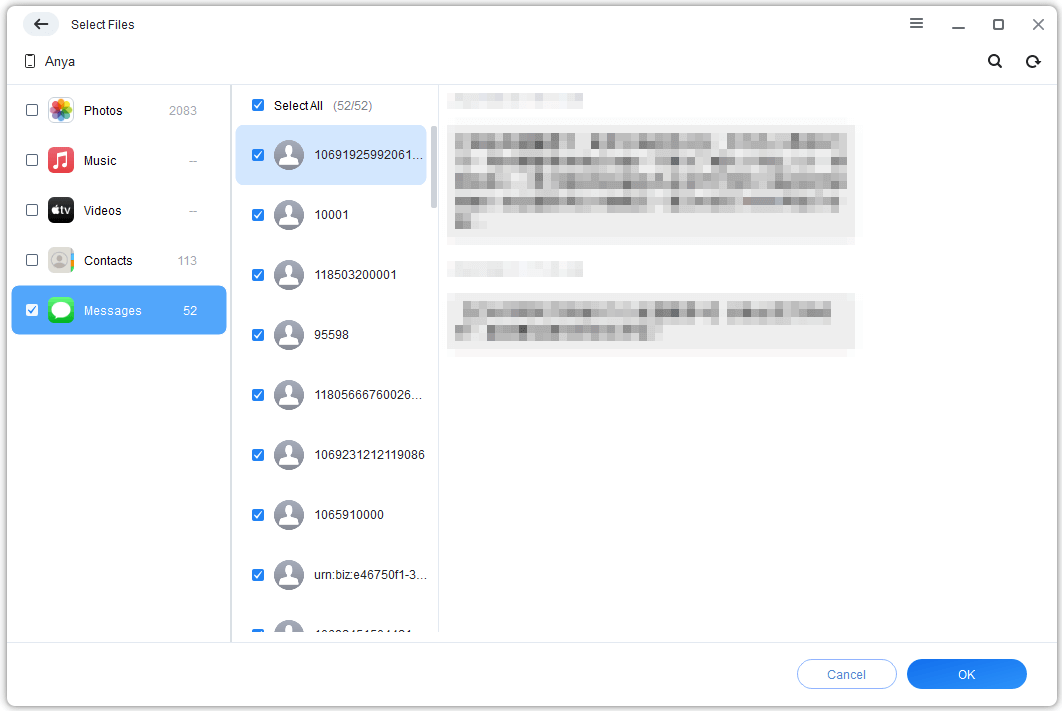
Step 3. Click the Messages icon. You'll see a preview of all your conversations. Select the specific messages or threads you want to save. Click OK.
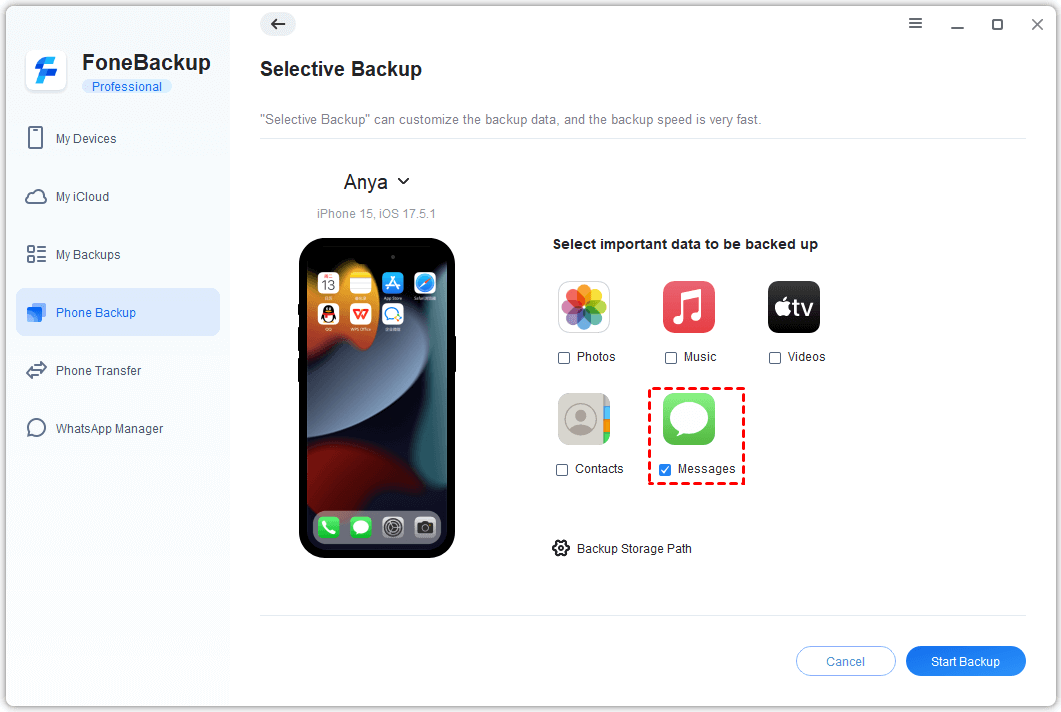
Step 4. Choose a folder on your computer to store these messages. Click Start Backup. The messages copy from your iPhone to the PC.
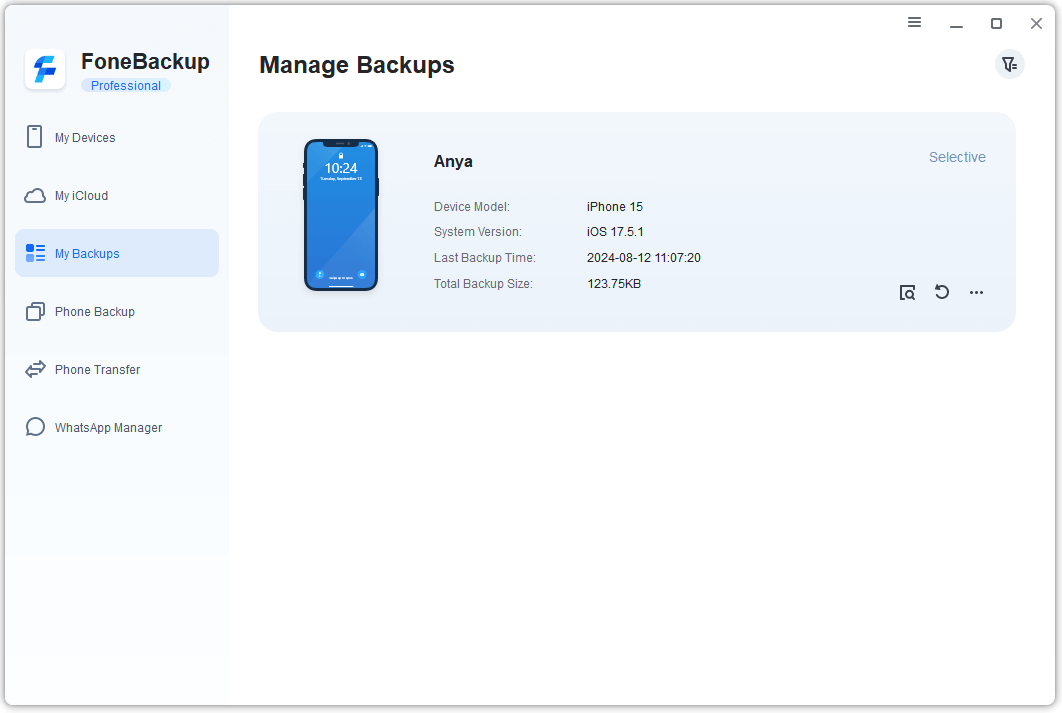
Step 5. When it's done, go to My Backups to see your backup. You can browse, restore, or delete it anytime.
-
AOMEI FoneBackup also offers Full Backup if you want to save everything on your iPhone in one go. And if you ever need to transfer messages to a new iPhone, its transfer functions have you covered.
The Bottom Line
So, can I retrieve iMessages from iCloud? Yes, if you had an iCloud backup from before the deletion and you're willing to wipe your phone to restore it. But if you only had Messages in iCloud syncing enabled, those messages are gone for good. For real peace of mind, AOMEI FoneBackup lets you back up your messages on your terms—see them, pick them, and restore them without the gamble.

 as a preferred
source on Google
as a preferred
source on Google