




Best Free iPhone to PC Transfer Software (2026 Guide)
If your iPhone is running out of storage or you simply want to back up important data, read this article to get the best free iPhone file transfer software for Windows.

By Lily Updated on July 8, 2026


Why You Need iPhone to PC Transfer Software
Using your iPhone daily naturally leads to large amounts of data being stored on the device. Without proper management, storage issues and data loss risks can occur. Here are the most common reasons to transfer iPhone data to a computer:
1. Free Up iPhone Storage
Photos, 4K videos, and app data can quickly fill up your iPhone. Transferring files to a PC helps you reclaim space without deleting important content.
2. Create a Reliable Backup
A local backup on your computer protects your data from accidental deletion, system crashes, or device loss.
3. Easier File Access and Editing
Once files are on your PC, you can easily edit videos, organize photos, or manage documents more efficiently.
4. Avoid iTunes and iCloud Limitations
While Apple provides iTunes and iCloud, they come with drawbacks such as:
- Limited free iCloud storage (5GB)
- Slow transfer speed for large files
- Complex syncing restrictions
- Risk of overwriting existing data in iTunes
Because of these limitations, many users prefer third-party iPhone transfer tools.
Best File Transfer App for iPhone to PC Free
Among various solutions available, one tool stands out for its simplicity and performance: AOMEI FoneBackup. It is designed to help users transfer and back up iPhone data to Windows computers with just a few clicks.
 AOMEI FoneBackup
- Transfer photos, videos, music, contacts, and more.
- No data loss or file compression during transfer.
- Supports selective or full data export.
- Allows preview before transferring files.
- Compatible with all iOS devices and versions.
- Works with Windows 11/10/8/7.
 100% Secure
Download the best free software for iPhone to PC transfer now!
How to Transfer Files from iPhone to PC (Step-by-Step)
In this part, I’ll show you how to transfer selected files or all iPhone data to PC separately. Pick one way that best fits your needs.
Method 1: Transfer Selected Files to PC
If you just want to transfer selected files to PC, follow these steps:
Step 1. Connect your iPhone using a USB cable.
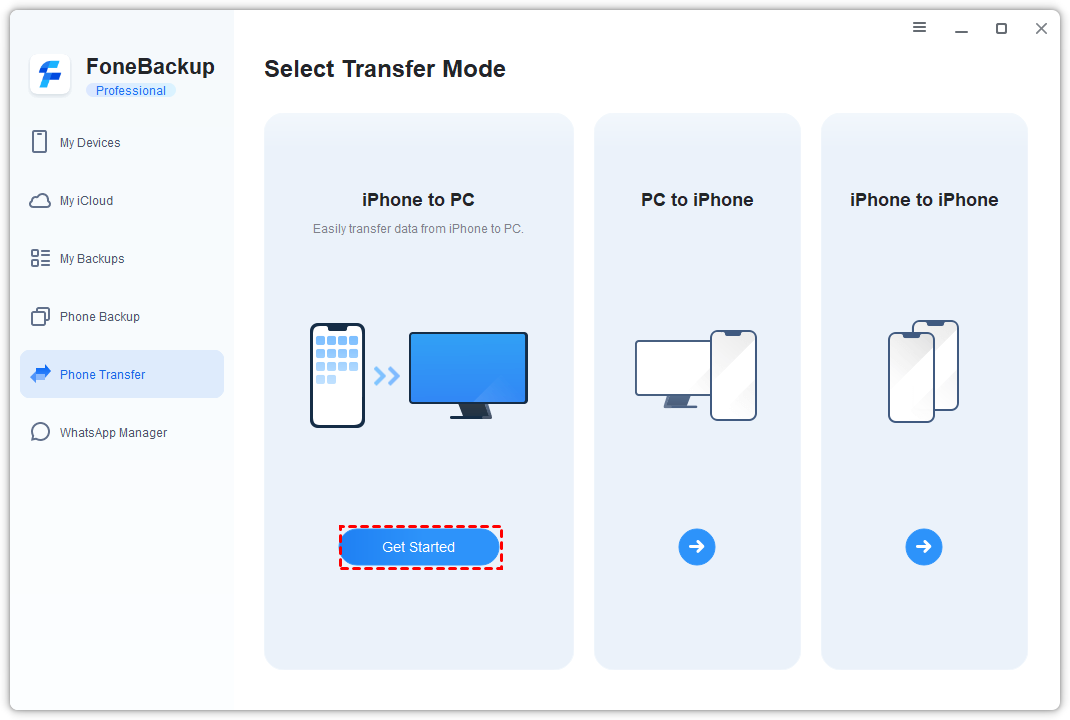
Step 2. Install and launch AOMEI FoneBackup on your Windows PC. Then select Phone Transfer > iPhone to PC > Get Started.
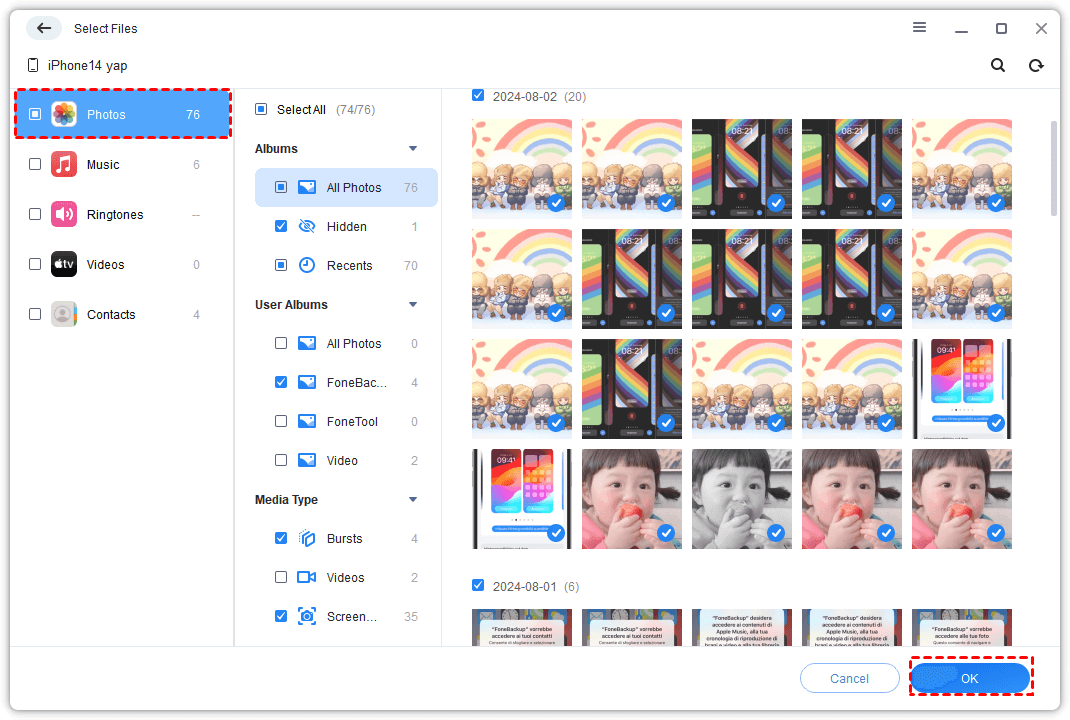
Step 3. Choose the data category you want to transfer, such as Photos, Contacts, or Music. In the next window, check the items to be transferred and click OK.
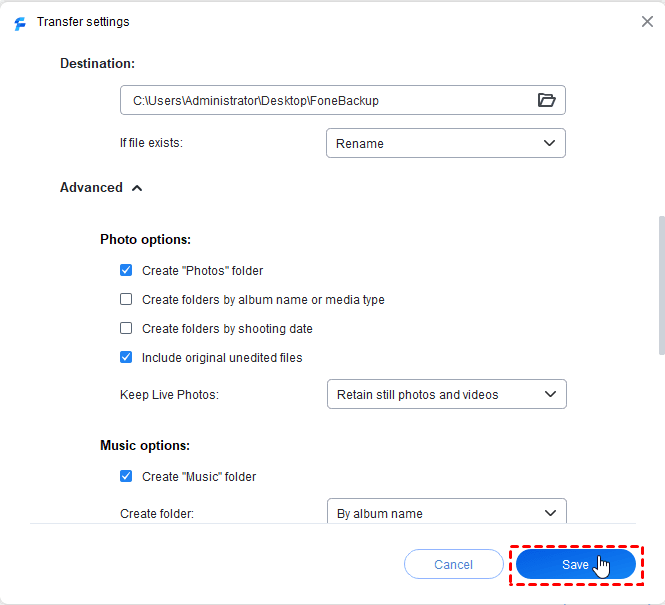
Step 4. Click Transfer Settings to set the storage path and some other settings as you want. Then click Save.
Step 5. Click Start Transfer. Your selected files will be exported to your PC in minutes.
Method 2: One-Click Full iPhone Backup to PC
If you want a complete backup of your device, follow the instructions below. This method is ideal before resetting your iPhone or upgrading to a new device.
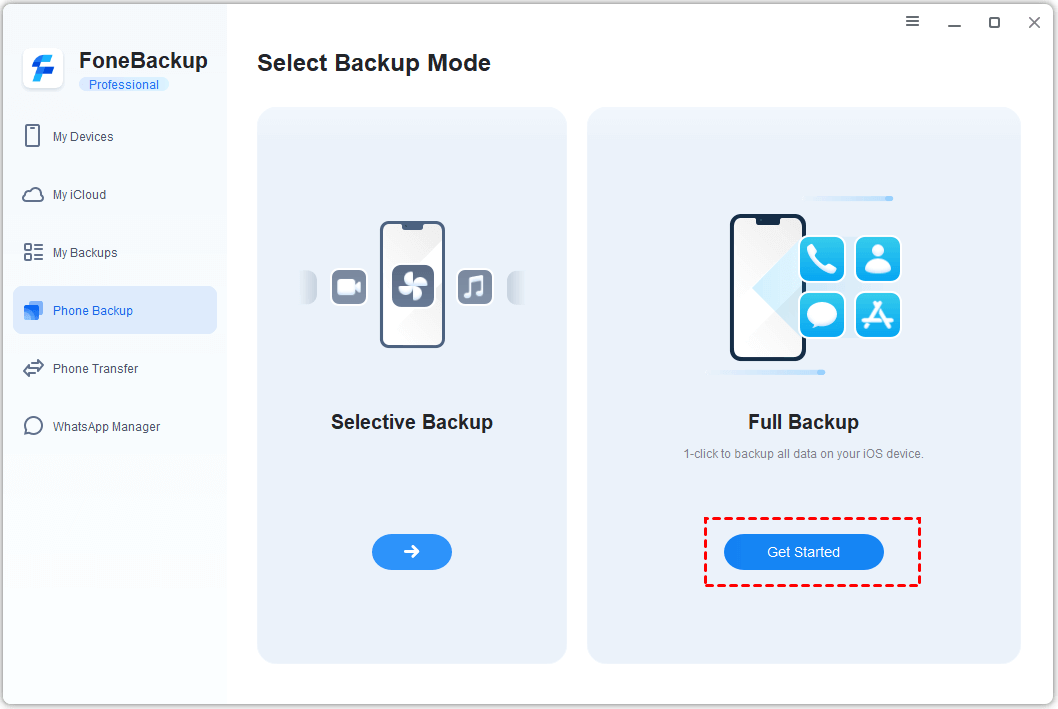
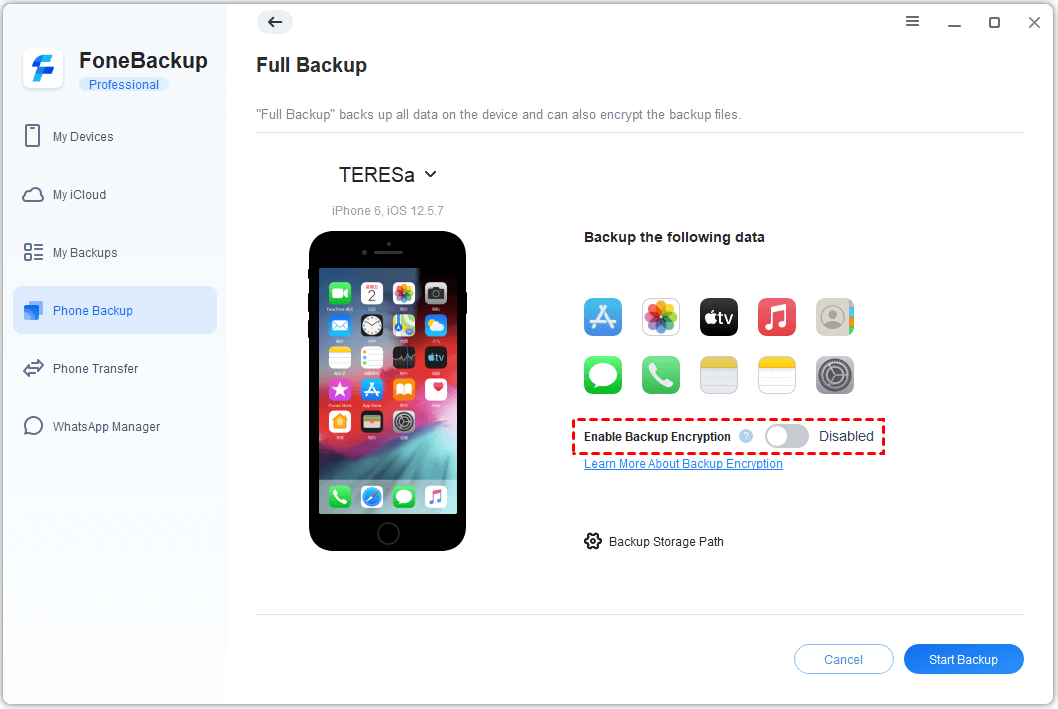
Step 1. Connect your iPhone to PC. Open AOMEI FoneBackup and go to Phone Backup > Full Backup > Get Started.
Step 2. Enable Backup Encryption if needed. Then choose a storage location on your PC by clicking Backup Storage Path.
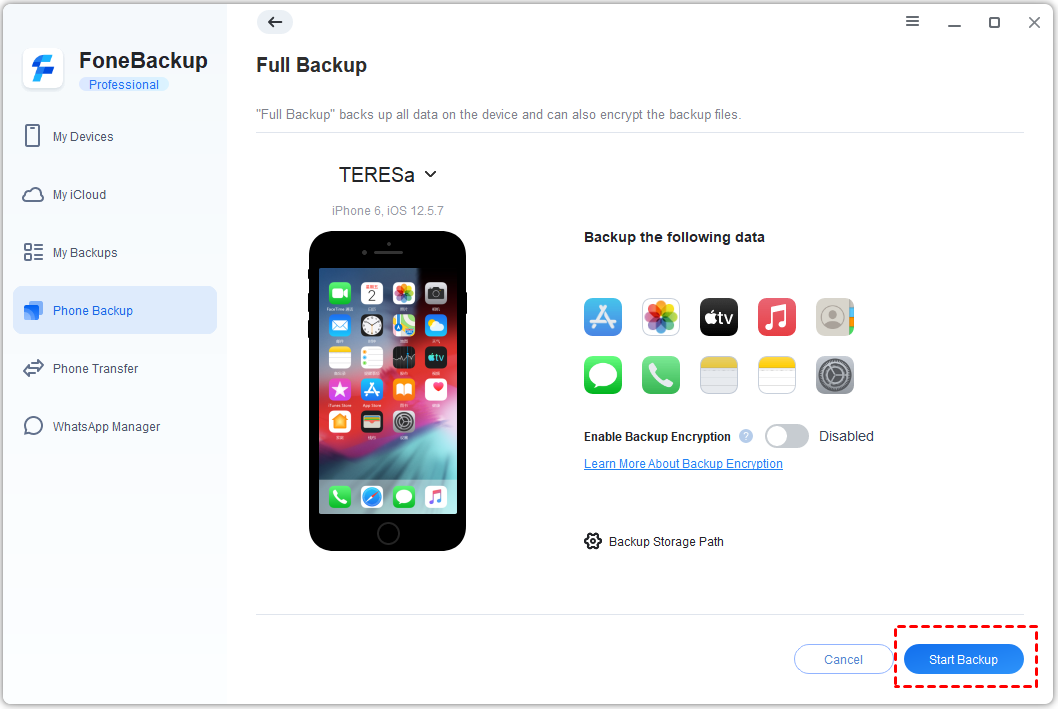
Step 3. Click Start Backup to begin the task.
Bonus: iTunes vs iCloud vs AOMEI FoneBackup
iTunes and iCloud are Apple's official solutions for backing up and managing iPhone data. Learn more about iTunes, iCloud, and AOMEI FoneBackup from the following table:
|
Feature |
iTunes |
iCloud |
AOMEI FoneBackup |
|
Free storage |
Yes |
5GB only |
Unlimited (local) |
|
Transfer speed |
Moderate |
Slow for large files |
Fast |
|
File preview |
No |
Limited |
Yes |
|
Transfer Photos/Videos |
Limited |
Requires iCloud Photos |
Yes |
|
Transfer Large Files |
Slow with full backup |
Depends on internet speed |
Fast USB transfer |
|
Internet Required |
No |
Yes |
No |
🌟 Key takeaway:
For users who frequently transfer data between an iPhone and a Windows PC or want greater control over what gets backed up, AOMEI FoneBackup offers the most versatile feature set. Meanwhile, iCloud excels in convenience, and iTunes remains a reliable free option for full-device local backups.
FAQs About iPhone to PC Transfer Software
1. Is there really a free iPhone to PC transfer tool?
Yes. Several tools offer free versions that allow basic file transfer and backup without payment.
2. Can I transfer photos directly from iPhone to Windows PC without software?
Yes, but it is limited. Windows File Explorer supports basic photo import, but lacks advanced management features.
3. Does transferring data erase iPhone content?
No, professional transfer tools copy data without deleting anything from your iPhone.
4. What file types can be transferred?
Most tools support:
- Photos
- Videos
- Music
- Contacts
- Messages
5. What is the safest method for iPhone backup?
A local backup to a PC using dedicated software is generally safer and more controllable than cloud-only solutions.
Final Thoughts
What is the best free iPhone to PC transfer software to move photos, videos, and contacts from iPhone to PC? While Apple’s built-in tools work for basic syncing, they are often limited in flexibility and speed.
A dedicated tool like AOMEI FoneBackup provides a faster, simpler, and more reliable way to transfer or back up iPhone data—especially for users who frequently handle large files or want full control over their data. Don’t hesitate to try it out!

 as a preferred
source on Google
as a preferred
source on Google