




How to Sync iPhone Contacts to Outlook with 5 Methods
Syncing iPhone contacts to Outlook is essential for professionals and individuals who manage communications across multiple platforms. This article provides a complete overview of available methods, with complete guides.

By Jonna Updated on August 26, 2026


For many professionals and individuals alike, the contact list stored on an iPhone represents an essential digital asset. Meanwhile, Microsoft Outlook remains one of the most widely used email and personal information management tools in the workplace. Keeping these two systems synchronized ensures that you never miss an important connection and can access your contacts seamlessly across devices.
This guide explores the most effective methods to sync iPhone contacts to Outlook, including through simple iPhone setings, using export & import methods, and so forth. Let's check now!
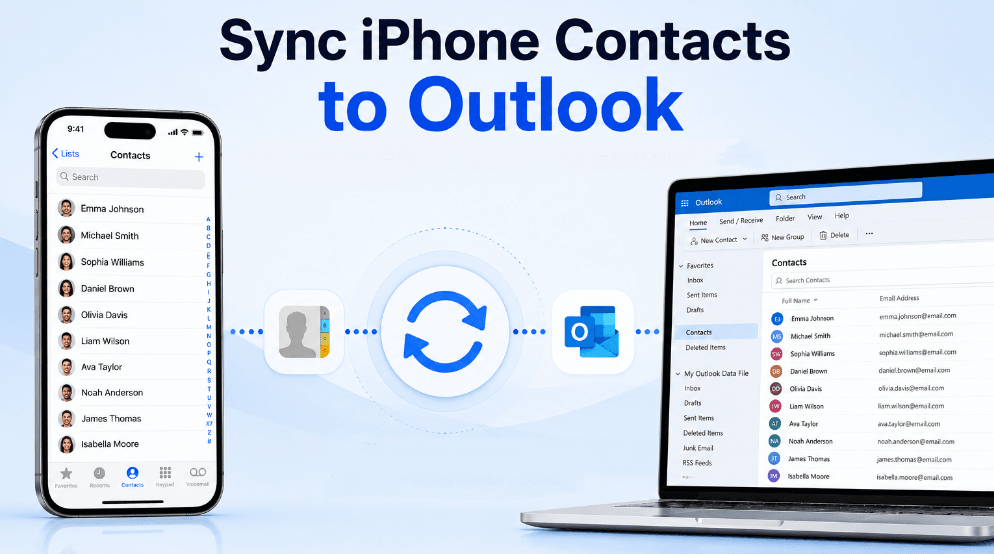
How to Sync iPhone Contacts to Outlook in 5 Simple Ways
Here are 5 methods for transferring iPhone contacts to Outlook. You can choose the one that suits your situation. Before starting, please go to Settings on iPhone > tap Contacts > select Accounts, and make sure that your Outlook or Microsoft account is added.
Method 1. Sync iPhone Contacts to Outlook Using iTunes
iTunes is the default tool for managing iDevices and offers a feature that allows you to export your iPhone contacts directly to Outlook. Download the latest version of iTunes to your computer to learn how to sync your iPhone contacts to Outlook.
Step 1. Download and install iTunes on your Windows computer. Connect your iPhone using a USB cable, and run iTunes.
Step 2. Click the iPhone icon in iTunes > Open the Info section > Choose Sync Contacts with Outlook.
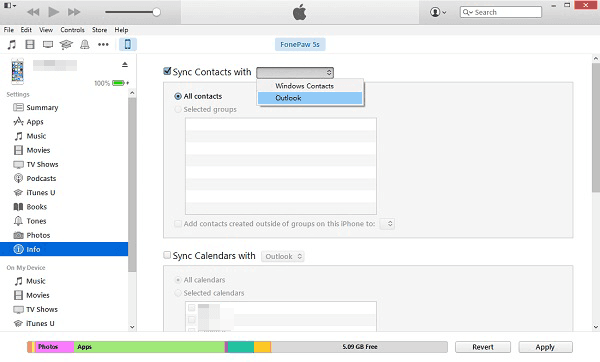
Step 3. Select All Contacts to sync all iPhone contacts or click Selected Groups to sync only selected contacts from a group.
Step 4. Then, click Apply to synchronize contacts between your iPhone and Outlook.
Method 2. Transfer iPhone Contacts to Outlook with AOMEI FoneBackup
If you want a simple and flexible way to manage iPhone contacts, AOMEI FoneBackup is a useful option. This tool is an iPhone data management and transfer tool designed for Windows users. It allows you to transfer, back up, and manage different types of iPhone data, including contacts, photos, videos, music, and more.
 AOMEI FoneBackup
- Selective Contact Transfer - Choose specific contacts instead of transferring all information at once.
- Backup iPhone Contacts - Create a local backup of your iPhone contacts for an extra layer of protection.
- Easy iPhone Data Management - Besides contacts, it can also back up and transfer iPhone photos, videos, music, and messages.
- No Dependence on Cloud Storage - Transfer data through computer or back up iPhone to PC/NAS/USB drive, no need for iCloud.
 100% Secure
Part 1. Transfer iPhone Contacts to Outlook
Step 1. Install and open AOMEI FoneBackup on the Windows computer. Connect the iPhone with a USB cable, unlock it, and tap Trust This Computer if prompted.
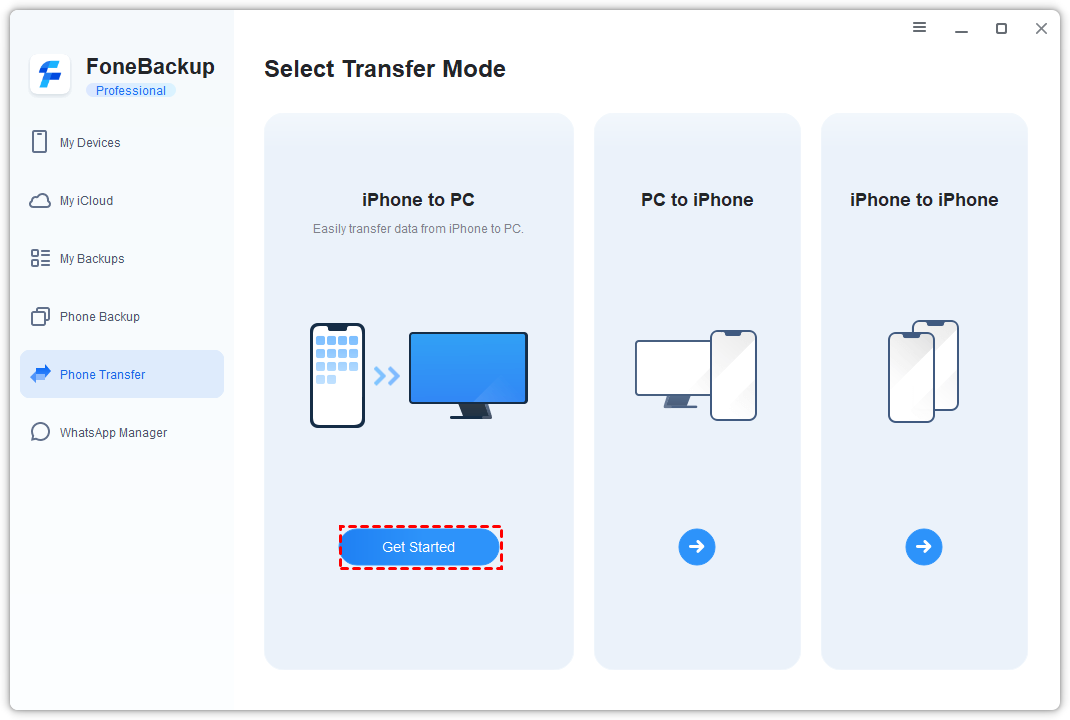
Step 2. Choose Phone Transfer > iPhone to PC > Get Started.
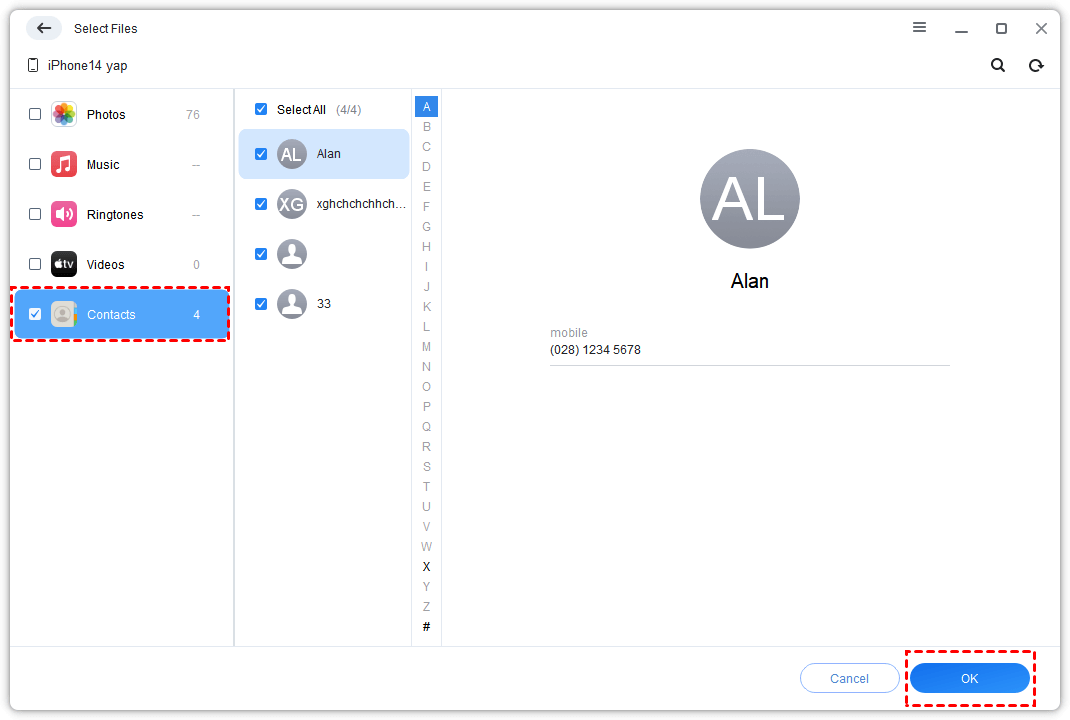
Step 3. Choose Contacts, select the contacts you need, and click OK.
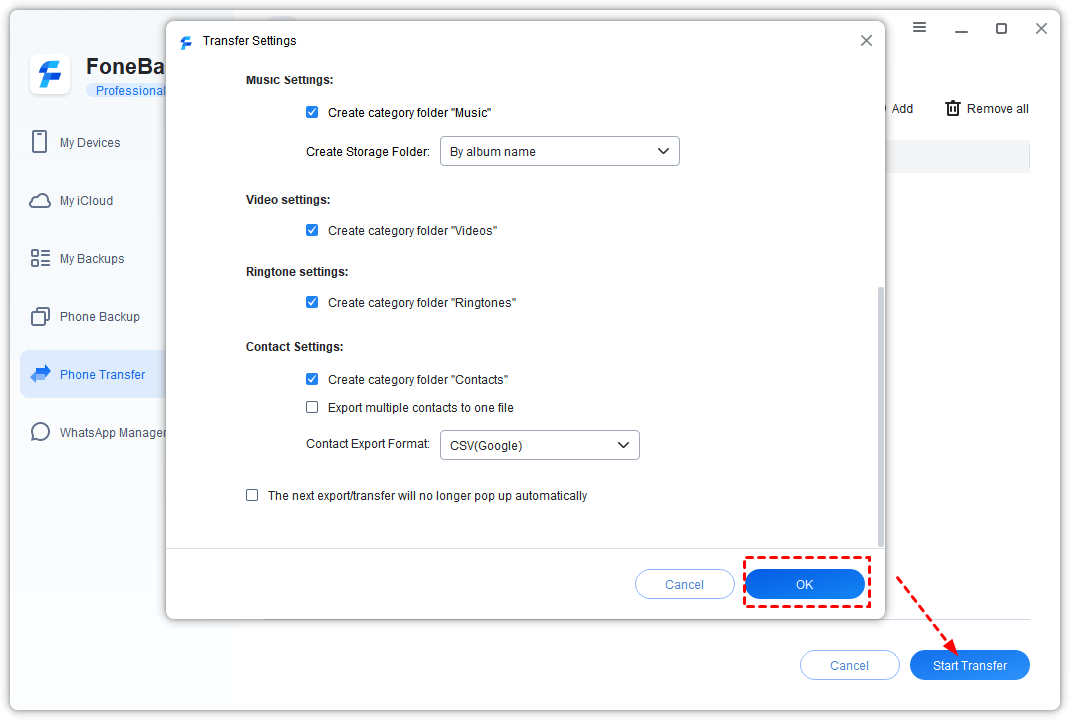
Step 4. Open Transfer Settings, choose the destination folder and available contact file format, then click Start Transfer.
Part 2. Import iPhone Contacts to Outlook
Step 5. Open Outlook on the computer and go to File > Open & Export > Import/Export.
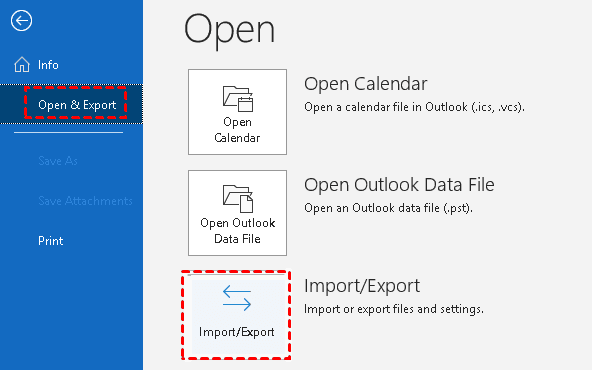
Step 6. Choose Import from another program or file, select the exported contact file type, choose the file, and import it into the Contacts folder.
After the import finishes, open Outlook's People or Contacts view and check names, phone numbers, email addresses, and duplicate handling before deleting anything from the iPhone.
Method 3. Sync iPhone Contacts to Outlook Using iCloud
iCloud is one of Apple's built-in solutions for syncing contacts. If you use both an iPhone and Outlook, you can export iCloud contacts and import them into Outlook.
Step 1. On iPhone, open Settings > [your name] > iCloud and confirm Contacts is turned on if iCloud is your contact source.
Step 2. On the computer, open iCloud.com in a browser and sign in with the same Apple Account.
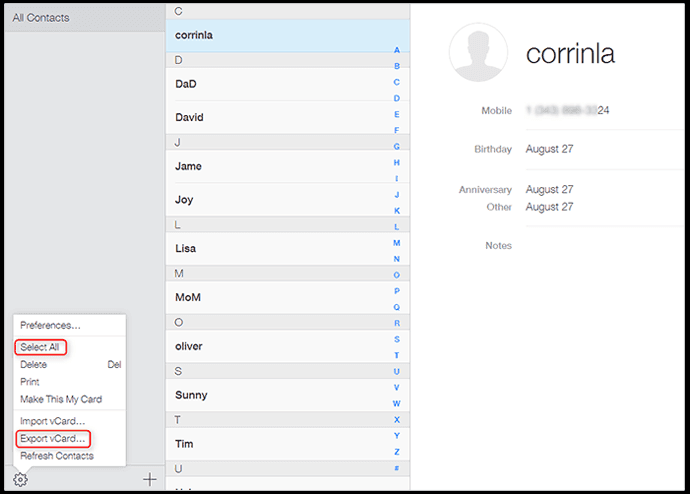
Step 3. Open Contacts, click on the gear icon, click Select All or select the specific contacts you need, then choose Export vCard.
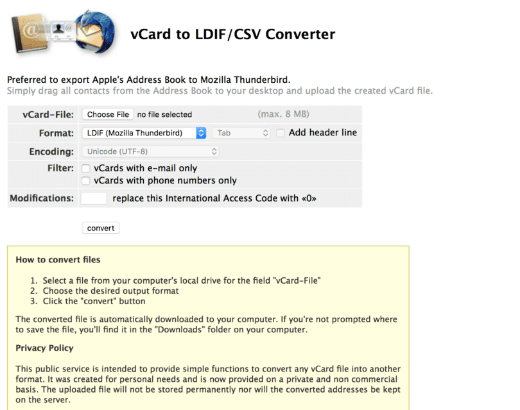
Step 4. Convert vCard to CSV before importing iPhone contacts to Outlook if your Outlook version requires a CSV file for bulk import. (You may use a vCard converter: https://labs.brotherli.ch/vcfconvert/)
Step 5. In Outlook, use File > Open & Export> Import/Export or the current Outlook import option.
This route is good for one-time migration. If you want contacts to keep updating both ways, account-level sync through Outlook.com, Exchange, or Microsoft 365 may be more suitable.
Method 4. Sync iPhone Contacts to Outlook with Microsoft Account
If Outlook is meant to be your main contact account, adding the account to iPhone can be cleaner than exporting files. Apple supports adding contact accounts such as Microsoft Exchange and other internet-based services in iPhone settings. This method is especially relevant for users who want future contacts to stay tied to the Microsoft account.
Step 1. On iPhone, open Settings > Apps > Contacts > Contact Accounts.
Step 2. Tap Add Account and choose Outlook.com, Microsoft Exchange, or your organization's provider.
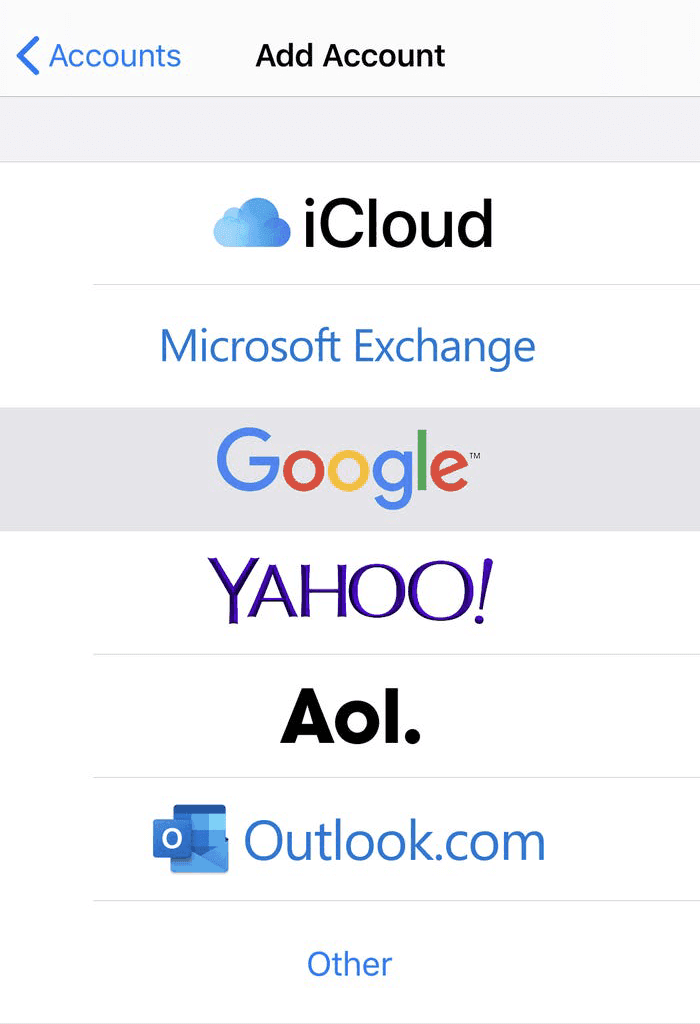
Step 3. Sign in and finish account verification.
Step 4. Turn on Contacts for that account and click Save.
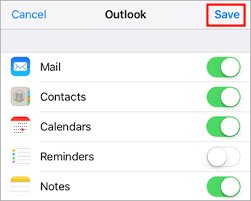
Step 5. Set the preferred default contact account if you want new contacts saved to Outlook going forward.
For work or school accounts, the available options may depend on the organization's Microsoft 365, Exchange, Intune, or security settings. If contacts do not appear, check with the administrator before changing account data.
Method 5. Sync iPhone Contacts to Outlook through Exchange
If your company has an Exchange server, you can choose to sync Office 365 contacts with your iPhone via Exchange. Please note that this option may only be available when your iPhone is connected to the company's internal network.
Step 1. Go to Settings on your iPhone > Scroll down and tap Accounts & Passwords > Tap Add Account > Select Exchange.
Step 2. Enter your email, username, and password > Tap Next.
At this point, your iPhone will connect to the Exchange server > Enter the server address in the Server field > Finally, enable the Contacts sync feature to sync your iPhone contacts with Outlook.
Why Are My iPhone Contacts Not Syncing with Outlook?
Sometimes contact synchronization does not work as expected. Here are common fixes.
#1. Check Account Settings: Make sure your Outlook account is correctly added to your iPhone. Go to Settings > Contacts > Accounts to confirm that Contacts synchronization is enabled.
#2. Restart Devices: Restart both your iPhone and computer. Temporary software problems can prevent synchronization.
#3. Check Internet Connection: Cloud-based synchronization requires a stable connection.
#4. Update iOS and Outlook: Outdated software may cause compatibility problems. Update iOS, the Outlook app, and Microsoft services.
#5. Confirm Default Contact Account: Your iPhone may save new contacts to iCloud instead of Outlook. Check Settings > Contacts > Default Account to choose Outlook if you want new contacts automatically stored there.
FAQs About Syncing iPhone Contacts to Outlook
#1. How do I sync iPhone contacts to Outlook automatically?
Add your Microsoft Outlook or Exchange account to your iPhone and enable Contacts. New contacts can then sync automatically.
#2. Does syncing contacts delete existing iPhone contacts?
Normally, syncing only adds or updates contacts. However, it is recommended to create a backup before changing synchronization settings.
#3. Is iCloud required to import iPhone contacts to Outlook?
No. iCloud is helpful if the contacts are already stored there, but local contacts can also be exported to a computer and imported into Outlook.
#4. Why are some contacts missing after syncing?
Missing contacts may be stored in another account, such as Gmail or iCloud. Check all accounts under Settings > Contacts > Accounts.
#5. Should I use CSV or vCard for Outlook contacts?
vCard is common for Apple contacts, while CSV is often easier for bulk imports in Outlook. Choose the format your Outlook version accepts best.
Conclusion
The best way to sync iPhone contacts to Outlook depends on where the contacts are stored today and whether you need a one-time import or continuing account sync. Use AOMEI FoneBackup for a Windows export-and-import path, iCloud when contacts already live in iCloud, and Outlook.com or Exchange settings when Microsoft should be the long-term contact account.
If you prefer a more flexible way to manage iPhone contacts locally, AOMEI FoneBackup offers a convenient solution for backing up iPhone and transferring supported iPhone data through your computer.

 as a preferred
source on Google
as a preferred
source on Google