




How to Get Contacts from iCloud to iPhone: 4 Ways That Work
Moving contacts from iCloud to iPhone doesn't have to be complicated. Here are 4 ways to get contacts from iCloud to iPhone whether you're using the same Apple ID, a different one, or recovering lost contacts.

By Ivy Updated on August 13, 2026


"I got a new iPhone and all my contacts are in iCloud, but they're not showing up. I've tried turning Contacts on and off in Settings, but nothing happens. Help!"
- Question from an iPhone user
Sound familiar? You're not alone. This is one of the most common frustrations iPhone users face when trying to get contacts from iCloud to iPhone.
The challenge is that there's no single "right" way - it depends entirely on your situation:
-
Same Apple ID on both devices? A simple Settings toggle does the job.
-
Different Apple IDs? You'll need to export and import contacts.
-
Accidentally deleted contacts? iCloud.com has a recovery feature.
-
Just want specific contacts? Selective export is your best bet.
Here are 4 ways to get contacts from iCloud to iPhone - each suited to a different scenario.
Quick Selection: Which Method Should You Use?
| Your situation | Best method | What it does |
|---|---|---|
| Same Apple ID on iPhone and iCloud | Method 1: Settings Sync | Syncs all iCloud contacts to iPhone automatically |
| Different Apple IDs (or selective transfer) | Method 2: iCloud.com + AOMEI FoneBackup | Export specific contacts to computer, then import to iPhone |
| Contacts were deleted accidentally | Method 3: iCloud Data Recovery | Restores deleted contacts from an earlier version |
| Need full device restoration | Method 4: iCloud Backup Restore | Restores everything, but erases existing iPhone data |
Before You Start: Check Your iCloud Contacts Settings
If you've already tried turning on iCloud Contacts but nothing appears, check these common issues first:
1. Check that Contacts is actually enabled: Go to Settings > [your name] > iCloud. Under "Saved to iCloud", make sure Contacts is toggled on.
2. Refresh your contacts: Open the Contacts app and swipe down from the top of the list to refresh.
3. Check you're signed in with the same Apple ID: Go to Settings > [your name] and verify the Apple ID shown matches the one where your contacts are stored.
4. Check your default account: Go to Settings > Apps > Contacts > Default Account (iOS 18+) or Settings > Contacts > Default Account (iOS 17 or earlier). Make sure iCloud is selected.
5. Check for iCloud service outages: Visit the Apple System Status page to check if iCloud Contacts is experiencing issues.
Method 1. Sync Contacts from iCloud to iPhone via Settings (Same Apple ID)
If you're logged into the same Apple ID on both your iPhone and iCloud, syncing contacts is just a toggle away. Turn on Contacts in iCloud settings, and all your iCloud contacts will automatically appear in the Contacts app.
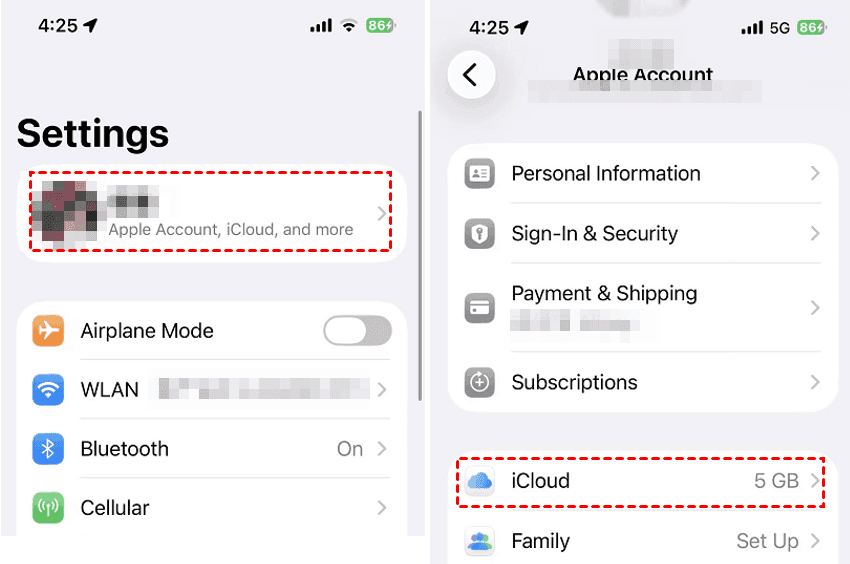
Step 1. Connect your iPhone to a stable Wi-Fi network. Go to Settings > [your name] > iCloud.
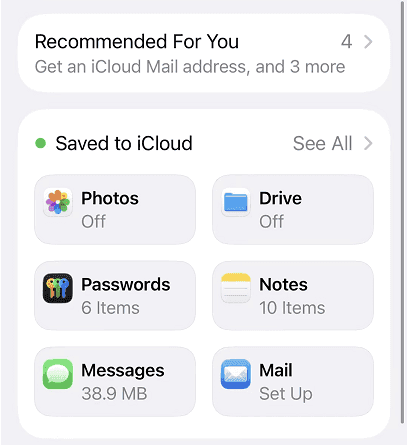
Step 2. Under "Saved to iCloud", tap See All, then turn on Contacts.
Step 3. When prompted, tap Merge to combine iCloud contacts with any contacts already on your iPhone.
Refresh the Contacts app to see if your iCloud contacts appear. If you have many contacts, it may take a few minutes for all to appear.
Method 2. Get Contacts from iCloud to iPhone using AOMEI FoneBackup (Different Apple IDs)
If you're using a different Apple ID on your iPhone than the one where your contacts are stored, you can't simply turn on iCloud sync. The contacts won't appear because they're in a different account. Instead, you need to export contacts from iCloud.com and then import them to your iPhone.
AOMEI FoneBackup is a professional iOS data management software that can help you export and import contacts from PC to iPhone in a sfew simple clicks.
Step 1. Download and install AOMEI FoneBackup on your Windows PC. Go to My iCloud, sign in with the Apple ID that contains your contacts.
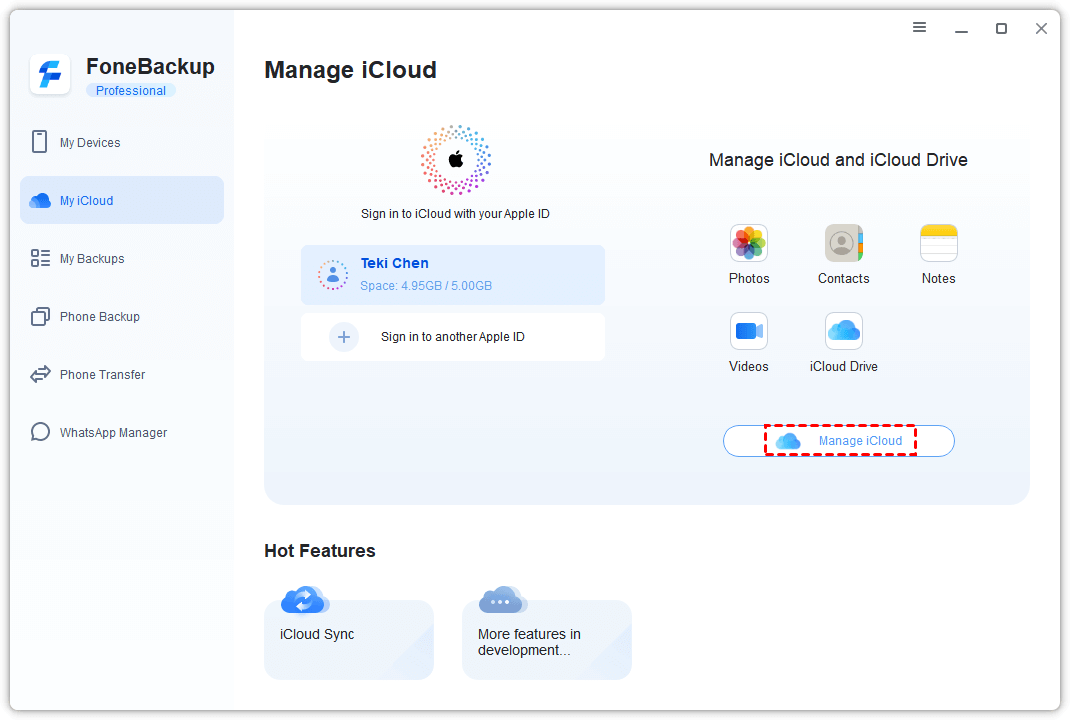
Step 2. Click Manage iCloud.
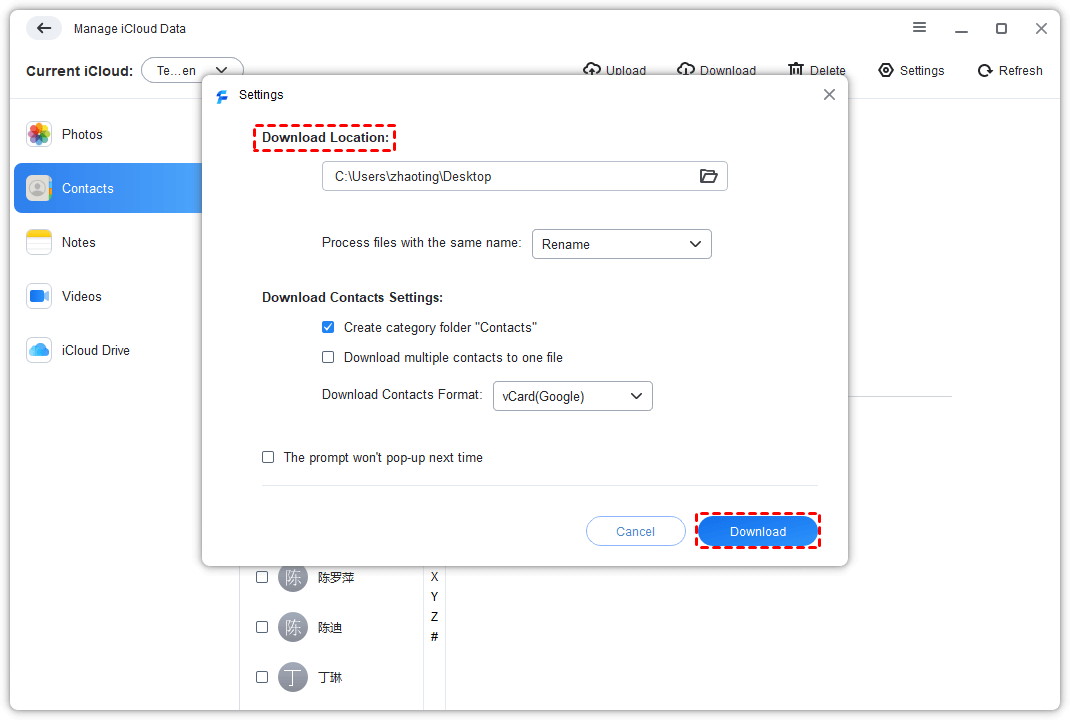
Step 3. Check the Contacts icon to preview and select the contacts you want to transfer. Then, click Download to save them to your computer.
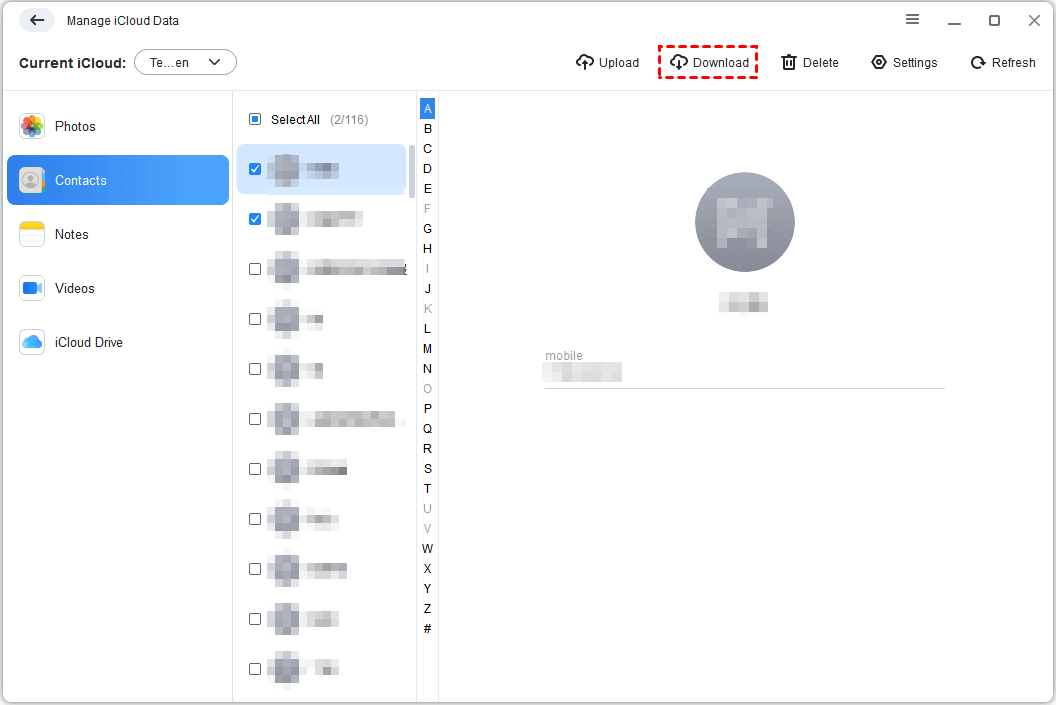
Step 4. In the pop up Settings window, select where you want to save your contacts. Click Download again.
Step 5. Go back to My iCloud, click Sign in another Apple ID to log in with the target Apple ID - the one you're using on your iPhone.
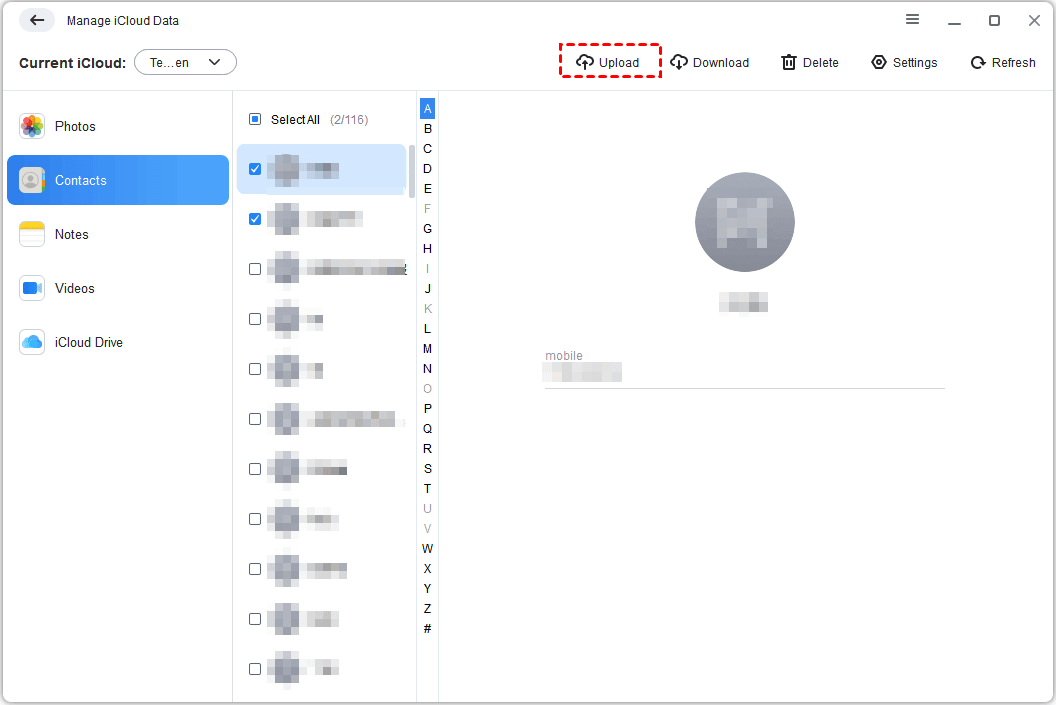
Step 6. Click Manage iCloud > Contacts and click Upload to add contacts to iCloud.com. This will sync contacts to your iPhone automatically.
-
iCloud Sync: Sync contacts directly from one Apple ID to another - no export & import needed.
-
iPhone Transfer: Transfer contacts from PC to iPhone directly without relying on iCloud.
Method 3. Restore Deleted Contacts from iCloud.com
iCloud automatically backs up your contacts, so you can restore to an earlier version if you've deleted any. This restore will replace your existing contacts on all devices. Before restoring, iCloud takes a snapshot of your current contacts, just in case you need to go back.
Step 1. Go to iCloud.com and sign in with your Apple ID.
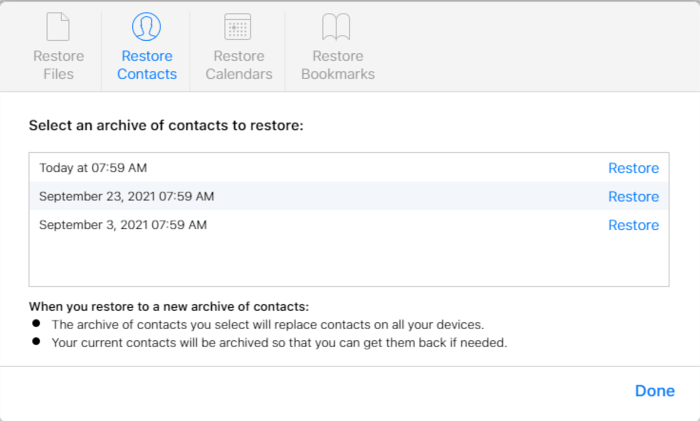
Step 2. Scroll to the bottom of the page and click Data Recovery > Restore Contacts.
Step 3. You'll see a list of available contact versions with dates. Select the date before you deleted the contacts and click Restore > confirm.
After the restoration completes, you'll receive a confirmation email at your Apple ID email address.
Method 4. Restore from iCloud Backup (Full Recovery)
This method restores your entire device from an iCloud backup, including contacts, photos, messages, app data, and settings. However, it will erase all existing data on your iPhone first. Make sure you have an iCloud backup that contains your contacts.
✅ When to use this method:
-
You just got a new iPhone and want to set it up with all your data, not just contacts.
-
Your old iPhone was lost or replaced
-
You don't mind erasing your current iPhone data
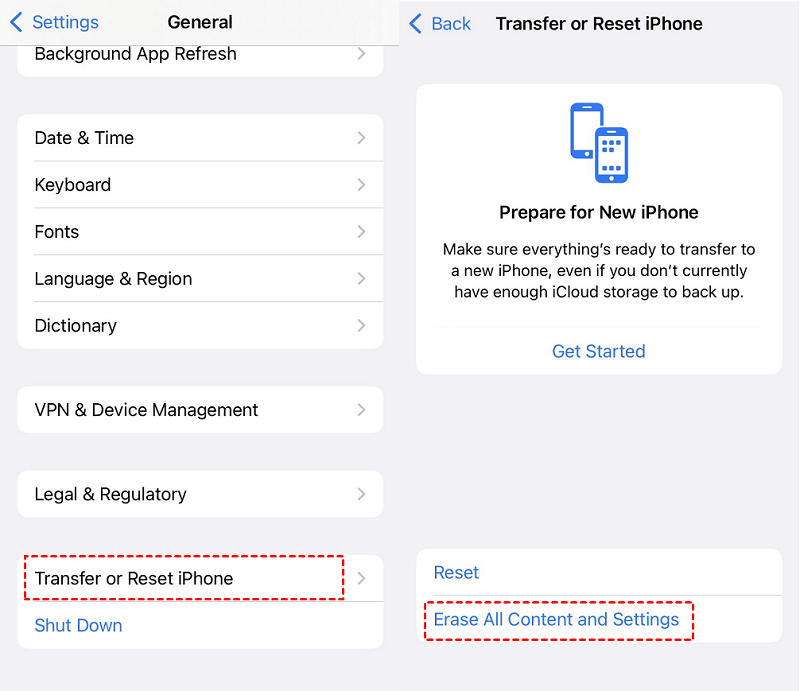
Step 1. On your iPhone, go to Settings > General > Transfer or Reset iPhone > Erase All Content and Settings.
Step 2. After the iPhone restarts, go through the setup process until you reach the Apps & Data screen and select Restore from iCloud Backup.
Step 3. Sign in with your Apple ID and choose the backup that contains your contacts. Then, follow the prompts to complete the restoration.

Full Comparison of All Methods
| Method | 👍 Best For | Same Apple ID | Selective Transfer | Erases iPhone | Wireless |
|---|---|---|---|---|---|
| Settings Sync | Quick, automatic sync | Yes | No (syncs all) | No | Yes |
| AOMEI FoneBackup | Different Apple IDs, selective export | No | Yes | No | Partially (export to computer) |
| iCloud Data Recovery | Recovering deleted contacts | Yes | No (restores all) | No (replaces existing) | Yes |
| iCloud Backup Restore | Full device setup | Yes | No (restores all) | Yes | Yes |
FAQs
Q: Why are my iCloud contacts not showing up on my iPhone?
To find why iCloud contacts not showing up on iPhone, check the following items:
- Check that Contacts is enabled in Settings > [your name] > iCloud;
- Open the Contacts app and swipe down to refresh;
- Ensure you're signed in with the correct Apple ID;
- Check that iCloud is set as your default account in Settings > Apps > Contacts > Default Account.
Q: Can I transfer contacts from a different iCloud account to my iPhone?
Yes, AOMEI FoneBackup offers users an iCloud Sync feature, which allows to transfer contacts from one Apple ID to another Apple ID easily and effeciently. You don't need to export and import manually.
Q: What happens when I tap "Merge" after turning on iCloud Contacts?
Tapping Merge combines your existing iPhone contacts with your iCloud contacts. They become a unified list, and any changes you make on one device sync to all others.
Q: Can I transfer only some contacts from iCloud to iPhone?
Yes, AOMEI FoneBackup lets you select specific contacts from iCloud.com and transfer to iPhone. But you need to export contacts from iCloud first. Here are two methods in the following:
- Use Export vCard in iCloud.com
- Download contacts from iCloud using iCloud Manager (in AOMEI FoneBackup).
This is particularly useful if you only need to transfer a handful of contacts rather than your entire address book.
Final Recommendation
Here's how to choose the right way to get contacts from iCloud to iPhone:
Same Apple ID? Use the Settings sync. It's the fastest, simplest option - no extra tools required.
Different Apple IDs, or only want specific contacts? Use AOMEI FoneBackup. It lets you selectively transfer contacts without overwriting what's already on your iPhone.
Accidentally deleted contacts? Use iCloud Data Recovery. Restore them from an earlier version directly from iCloud.com - no erase, no restore.
Setting up a new iPhone? Restore from iCloud Backup during setup. It restores everything, but it will erase your current iPhone first. Only use this if you're starting fresh or don't mind wiping your device.

 as a preferred
source on Google
as a preferred
source on Google