



How to Back Up iPhone without iCloud for Free
This guide explains 2 free ways to backup iPhone without iCloud, with options for a complete device backup or specific data.

By Ivy Updated on August 17, 2026


Your iCloud storage is full, but you need a current backup before updating, resetting, selling, or replacing your iPhone. Paying for more cloud space is not your only option. You can save a local iPhone backup on a Windows PC without using iCloud.
For greater control over the backup content and destination, use AOMEI FoneBackup. If you prefer an Apple tool for a full device backup, use Apple Devices. Both methods work without taking up iCloud storage.
Full Backup or Selective Backup: Which Do You Need?
Before choosing a tool, decide what you expect the backup to do. A full backup and a selective backup serve different purposes.
A full backup creates a recovery copy containing all the device data and settings. It is useful before you reset your iPhone, install a major update, or move to another device. However, a full backup is not necessarily a normal folder in which you can open every photo, message, or app file.
A selective backup lets you choose categories or individual items, such as photos, videos, contacts, messages, and music. It is a better fit when you only need to protect important personal files or want more control over the required computer space.
Neither type should be confused with copying the DCIM photo folder. Exporting photos protects those media files, but it does not create a restorable backup of your iPhone settings and other data.
Quick Guide to Back Up iPhone to PC Without iCloud
Choose a method based on what you need from the backup:
| ❓ Your situation | 🎯 Recommended method | 💡 Main consideration |
|---|---|---|
| You want a guided full backup with a selectable destination | AOMEI FoneBackup - Full Backup | The backup is managed through AOMEI FoneBackup |
| You only need selected photos, videos, contacts, messages, or music | AOMEI FoneBackup - Selective Backup | Coverage depends on the selected supported categories |
| You want an Apple-format device backup on Windows | Apple Devices | Intended mainly for complete restoration rather than browsing individual files |
| You need protected data such as saved passwords or Health data | An encrypted local backup | Store the encryption password somewhere safe |
Before starting, check that the PC or connected external drive has enough free space. Use a reliable data cable, unlock the iPhone, and approve the trust request if it appears.
Method 1. Back Up iPhone without iCloud or iTunes using AOMEI FoneBackup
👍 Best for: You use a Windows PC and want to choose between a full iPhone backup and selected data, with control over the local storage.
AOMEI FoneBackup is a free backup software that allows you to backup iPhone to PC without iCloud or iTunes. You can choose to backup entire iPhone or only selected data.
 AOMEI FoneBackup
- 💾Full Backup: Create a local backup of all data on your iPhone- no iCloud or Wi-Fi required.
- 🎯 Selective Backup: Preview and choose what to back up, including music, messages, photos, and more.No compression, no quality loss.
- 📂Flexible Storage: Save backups to any location: computer folder, external drive, USB drive, NAS, and more.
- 🔍 View Anytime: Access and check your backups whenever you need.
- 💰 Totally Free: Backup what you need without paying a cent. No subscriptions, no paywalls.
 100% Secure
Option 1. Create a Full iPhone Backup on Windows PC
Use this option when you want a recovery copy before an iOS update, factory reset, repair, or device replacement.
Step 1. Install and open AOMEI FoneBackup on your Windows PC. Connect your iPhone with a USB cable, unlock it, then tap Trust if asked.
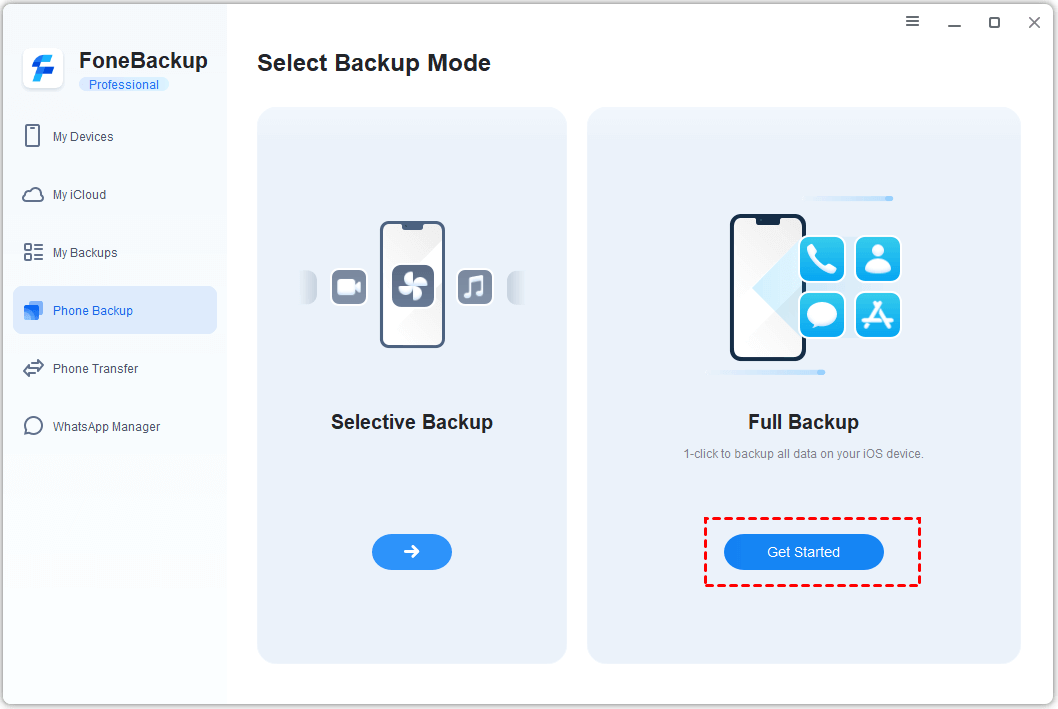
Step 2. Select Phone Backup in the left panel. Choose Full Backup, then click Get Started.
Step 3. If required, turn on Enable Backup Encryption and create a password. Select Backup Storage Path and choose where to keep the backup.
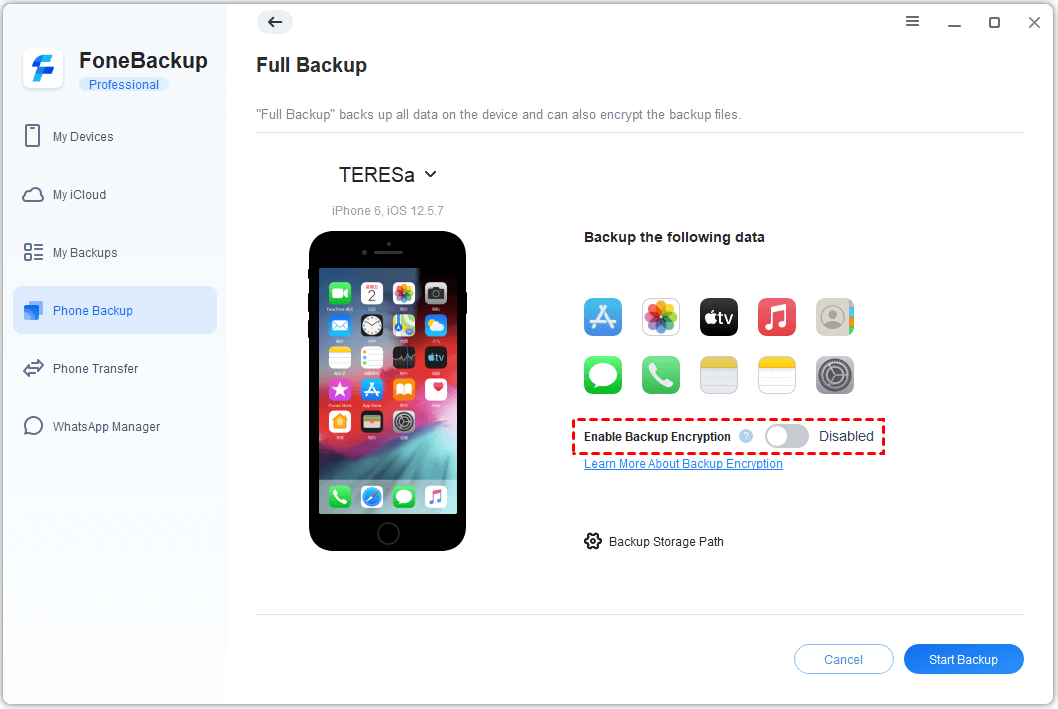
Step 4. Click Start Backup. Keep the iPhone and storage device connected until the completion status appears.
Option 2. Back Up Selected iPhone Data to PC
Use Selective Backup when you only need certain photos, videos, contacts, messages, or music. This can reduce the required storage space and makes it easier to focus on your most important files.
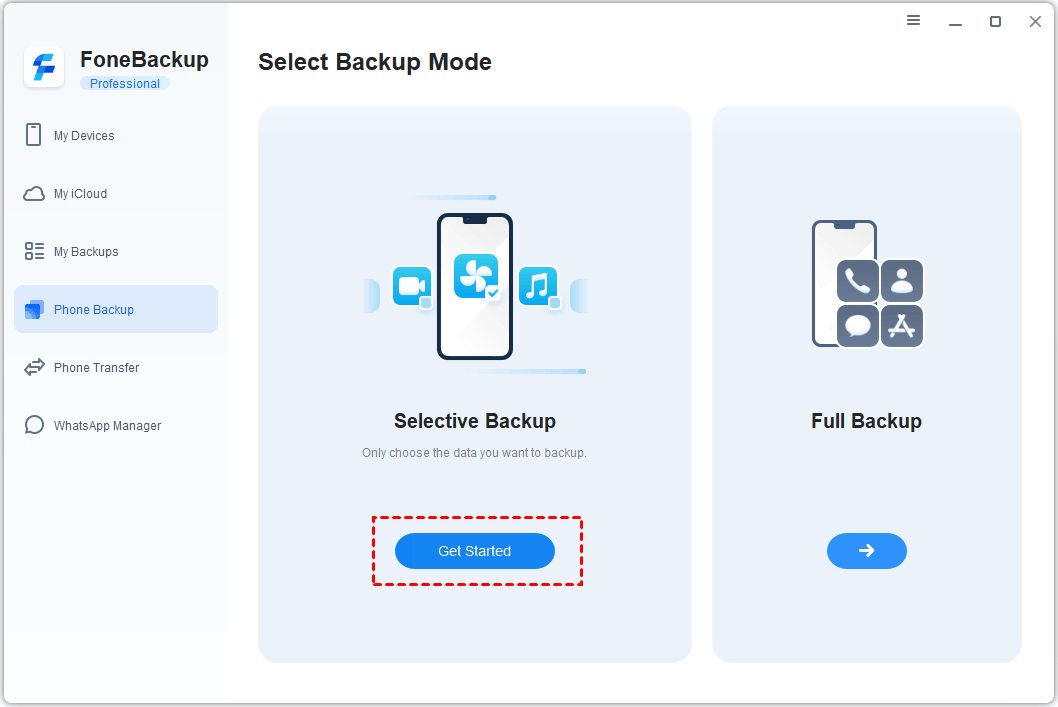
Step 1. Open Phone Backup, select Selective Backup, and click Get Started.
Step 2. Click the Photos icon to preview and select the photos you want to transfer. You can also select Messages, Music, etc.
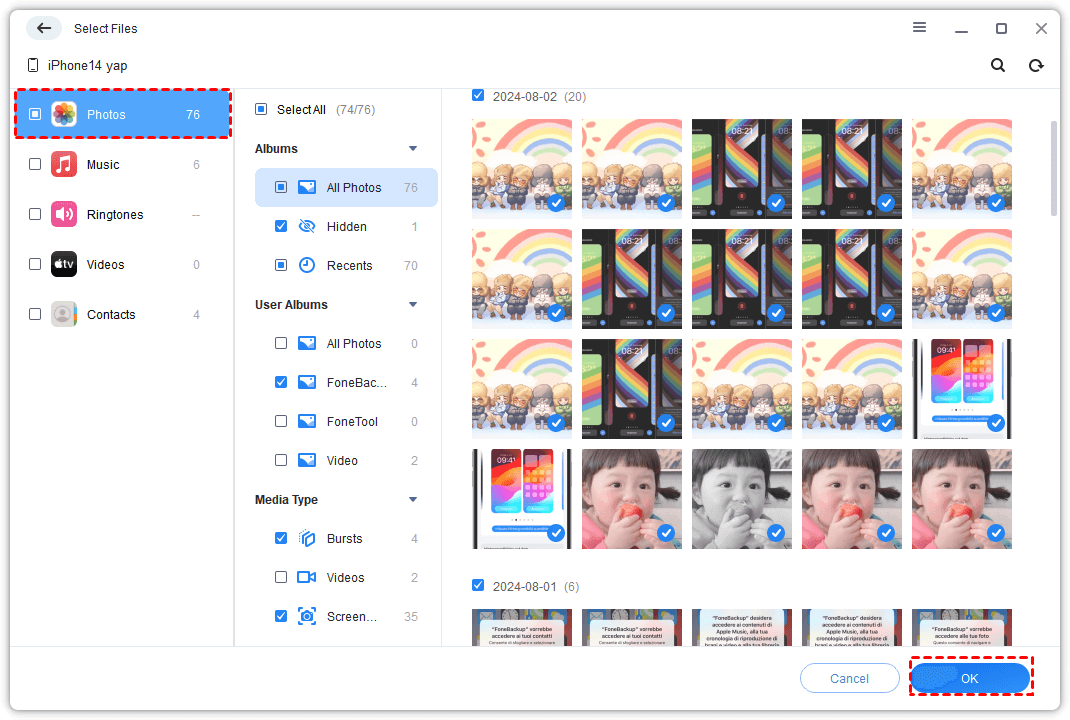
Step 3. Click Backup Storage Path to choose where you want to save your backup. It can be a folder on the PC, external disk, USB stick, NAS, and more. At last, click Start Backup.
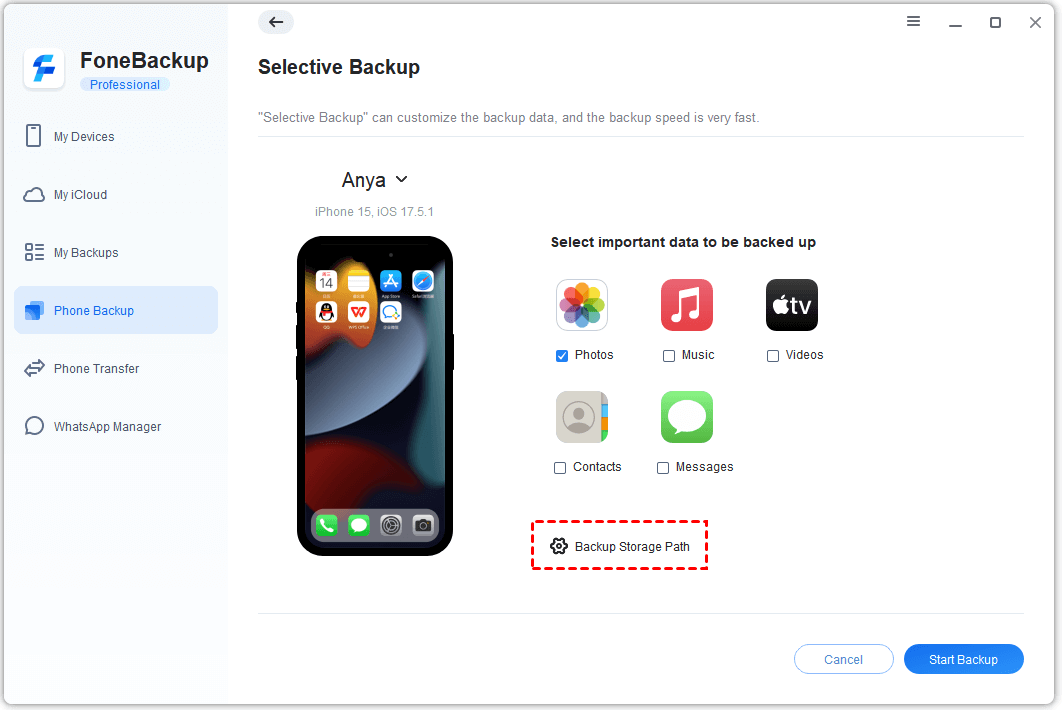
Wait for the task to finish before disconnecting your iPhone. Then check your backup under My Backups. If you can't see your files, refer to iPhone files not showing up on a PC.
Method 2. Back Up iPhone Without iCloud Using Apple Devices
👍 Best for: You want to create a local, Apple-format iPhone backup on a Windows PC and mainly expect to use it for complete device restoration.
Apple Devices is Apple’s current device-management application for supported Windows PCs. If it is unavailable on your computer, iTunes can still provide the older backup method.
Follow these steps to create the backup:
Step 1. Open Apple Devices on the Windows PC. Connect and unlock your iPhone, then tap Trust if asked.
Step 2. Click the iPhone icon in the Apple Devices sidebar.
Step 3. Select General, then choose Back up all of the data on your iPhone to this computer and click Back Up Now. Keep the iPhone connected until the process ends.
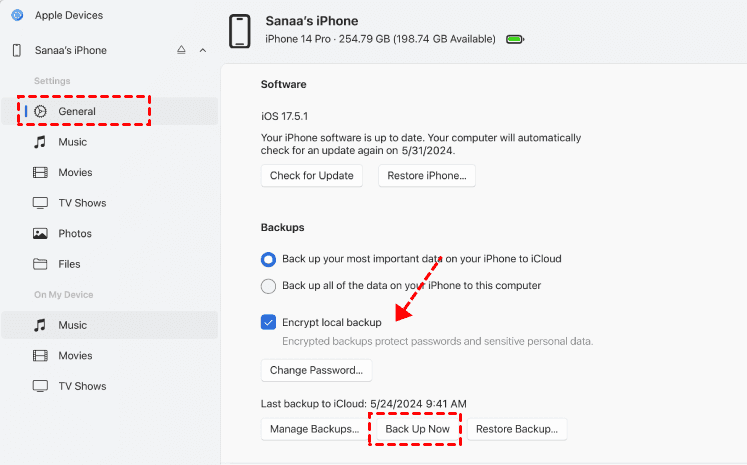
To include protected categories such as saved passwords, Wi-Fi settings, Health data, and call history, select Encrypt local backup and create a password.
Check the displayed date and time of the latest backup when the process finishes. Do not lose the encrypted backup password. Without it, you may not be able to use that backup during restoration.
Check Whether Your Local Backup Worked
A completed progress bar is useful, but you should confirm the result before erasing, resetting, trading in, or repairing the original iPhone.
Use this short checklist:
- Confirm that the program displays a successful completion status.
- Check that the latest backup date and time are correct.
- Make sure the backup appears in AOMEI FoneBackup or Manage Backups in Apple Devices.
- For a selective backup, open the record and inspect several selected items.
- Confirm that the destination drive remains connected and accessible.
- Save an encryption password somewhere you can recover it later.
If the backup is missing or its date is wrong, reconnect the iPhone and create a new backup. Do not remove data from the original device until a valid backup is visible.
Compare Two Ways to Back Up iPhone to PC without iCloud
| Factor | AOMEI FoneBackup | Apple Devices |
|---|---|---|
| 👍 Best for | Flexible Windows backup | Apple-format device backup |
| Full backup | Yes | Yes |
| Selective backup | Yes | Not supported |
| Backup destination | a PC folder, external drive, USB stick, NAS, etc | Managed Windows backup location |
| Internet required for backup | No cloud upload required | No cloud upload required |
| Individual data selection | Yes, in Selective Backup | No |
| Main advantage | More control over content and destination | Apple-provided restoration workflow |
| Main limitation | Backup is managed through AOMEI FoneBackup | Backup content is not designed for normal file browsing |
| Choose it when | You want full or selective control | You mainly want a complete recovery backup |
The decision is straightforward:
- choose AOMEI FoneBackup when you want to select data or control where the backup is stored.
- Choose Apple Devices when you specifically want Apple’s local Windows backup.
FAQs
1. Can I back up my iPhone without iCloud or a computer?
Not as a complete local device backup. Without a computer, most alternatives upload selected data to another cloud service or copy files to compatible external storage. Those options do not necessarily preserve the data and settings needed for a complete iPhone restoration.
2. Can I back up my entire iPhone to a Windows PC?
Yes. You can use Full Backup in AOMEI FoneBackup or select Back up all of the data on your iPhone to this computer in Apple Devices. Backup coverage still depends on the method, encryption, and data already synchronized with online services.
3. Is Apple Devices replacing iTunes on Windows?
Apple Devices is the current Apple application for managing, backing up, restoring, and syncing an iPhone on supported Windows PCs. If Apple Devices is not installed or supported in your environment, iTunes can still provide the older workflow.
4. Does a computer backup include photos and messages?
It can include locally stored photos and messages, but content already synchronized through iCloud may not be included in the computer backup. The exact coverage also depends on the backup method and selected options.
5. Should I encrypt my local iPhone backup?
Enable encryption when you need protected categories such as saved passwords, Wi-Fi settings, website history, Health data, or call history. Store the password safely because an encrypted backup may be unusable without it.
6. Can I back up my iPhone without iCloud on a Mac?
Yes. On macOS Catalina 10.15 or later, connect the iPhone, select it in Finder, open General, choose Back up all of the data on your iPhone to this Mac, and click Back Up Now. This article focuses on Windows PC methods because AOMEI FoneBackup is Windows-based.
Summary and Final Recommendation
You do not need extra iCloud storage to keep a current iPhone backup:
- Choose AOMEI FoneBackup Full Backup for a guided local backup with a selectable destination.
- Choose AOMEI FoneBackup Selective Backup when you only need supported personal files.
- Choose Apple Devices when you prefer Apple’s Windows backup format for full-device restoration.
- Turn on backup encryption when protected categories must be included, and always save the password.
For a Windows PC, AOMEI FoneBackup provides the more flexible path because you can choose between a full backup and selected data before saving the result locally.

 as a preferred
source on Google
as a preferred
source on Google