



How to Import VCF to iPhone: 4 Effective Ways
Need to import VCF contacts to your iPhone? Learn 4 simple ways – direct, via email, iCloud, or Outlook – without losing any details.

By Lily Updated on August 21, 2026


A VCF file, also known as a vCard, is a standard format for storing contact information. It can contain details such as names, phone numbers, email addresses, physical addresses, birthdays, and notes. Because VCF is widely supported by iOS, Android, Windows, and macOS, it is a convenient way to move contacts between devices.
If you have a VCF file saved on your computer and want to transfer the contacts to your iPhone, there are several ways to do it. Before choosing a method, take a quick look at how these solutions compare:
|
Method |
Connection |
Effectiveness |
Difficulty |
Large File Transfer |
|
AOMEI FoneBackup |
Wired |
High |
Easy |
Super-fast |
|
|
Wireless |
Low |
Easy |
Slow |
|
iCloud |
Wireless |
Medium |
Moderate |
Slow |
|
Outlook |
Wireless |
Medium |
Moderate |
Slow |
Method 1. Import VCF to iPhone Directly with AOMEI FoneBackup
If you want to import VCF contacts to iPhone quickly and directly, AOMEI FoneBackup is an easy option. It lets you transfer .vcf or .csv contact files from a computer to an iPhone through a USB connection.
 AOMEI FoneBackup
- Transfer VCF/CSV contacts between a PC and iPhone.
- Move more than 1,000 contacts in a short time.
- Transfer contacts directly to the iPhone Contacts app.
- Use a USB connection instead of depending on cloud storage.
- Support newer iPhone models and iOS versions.
 100% Secure
Here's how to import VCF file to iPhone with AOMEI FoneBackup.
Step 1. Connect your iPhone to the computer with a USB cable. Launch AOMEI FoneBackup and connect the iPhone. If this is the first connection, tap Trust on your iPhone when prompted.
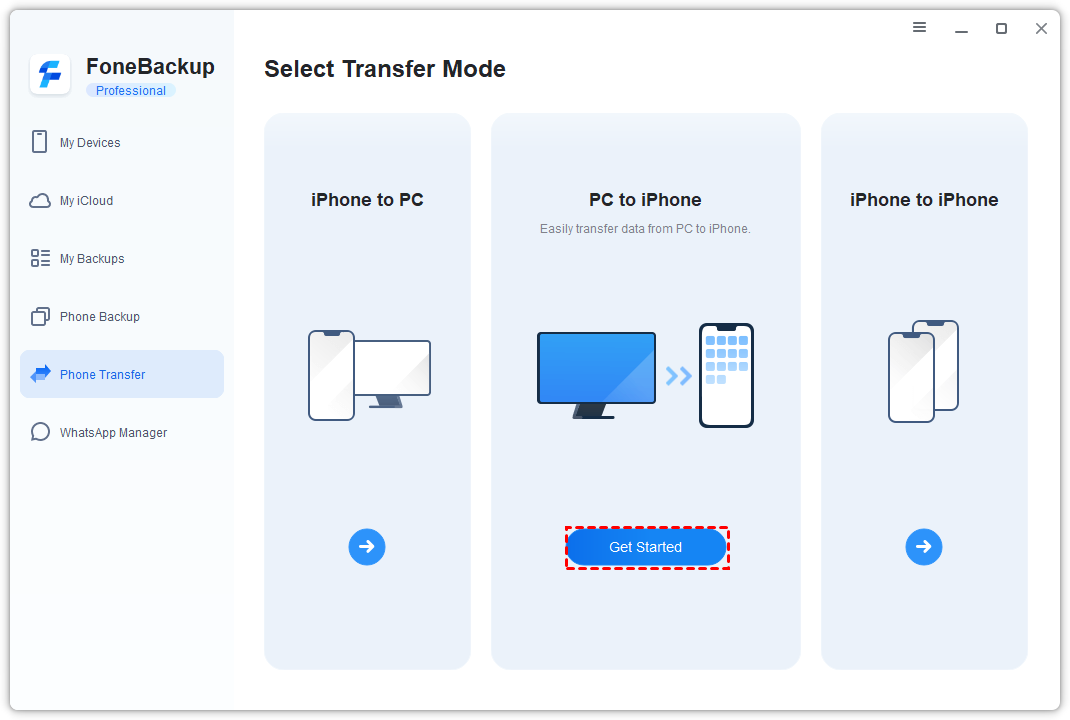
Step 2. From the main interface, select Phone Transfer > PC to iPhone, then click Get Started.
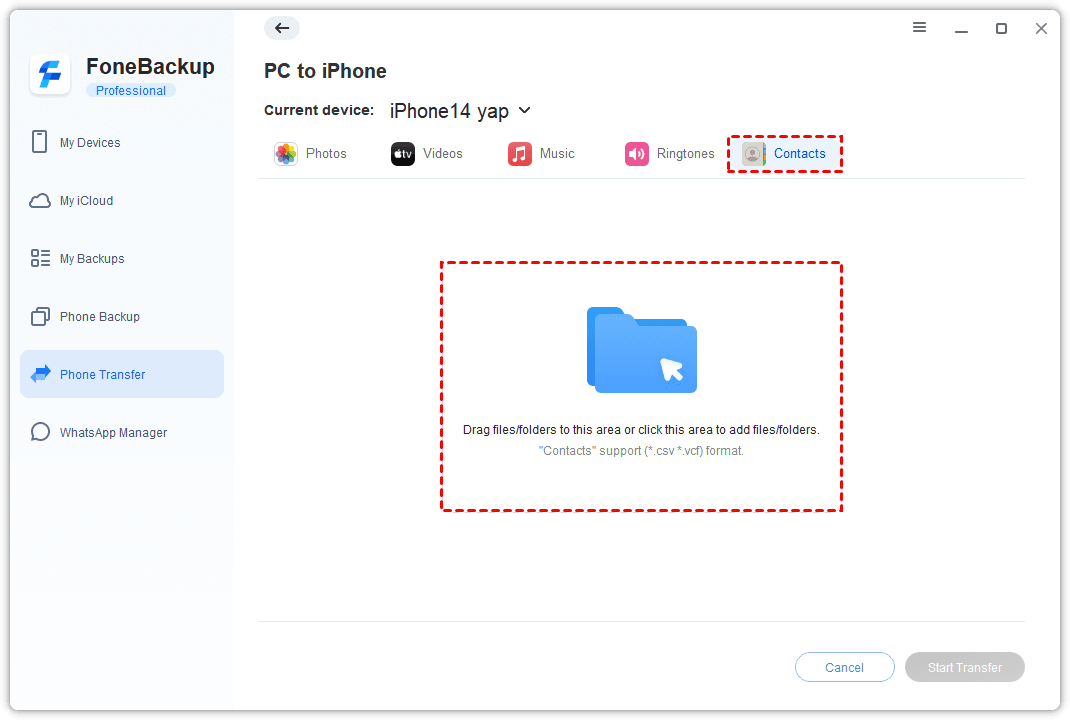
Step 3. Select the Contacts icon. Click the blue folder to browse for the VCF file on your computer, or drag and drop the VCF file into the designated area.
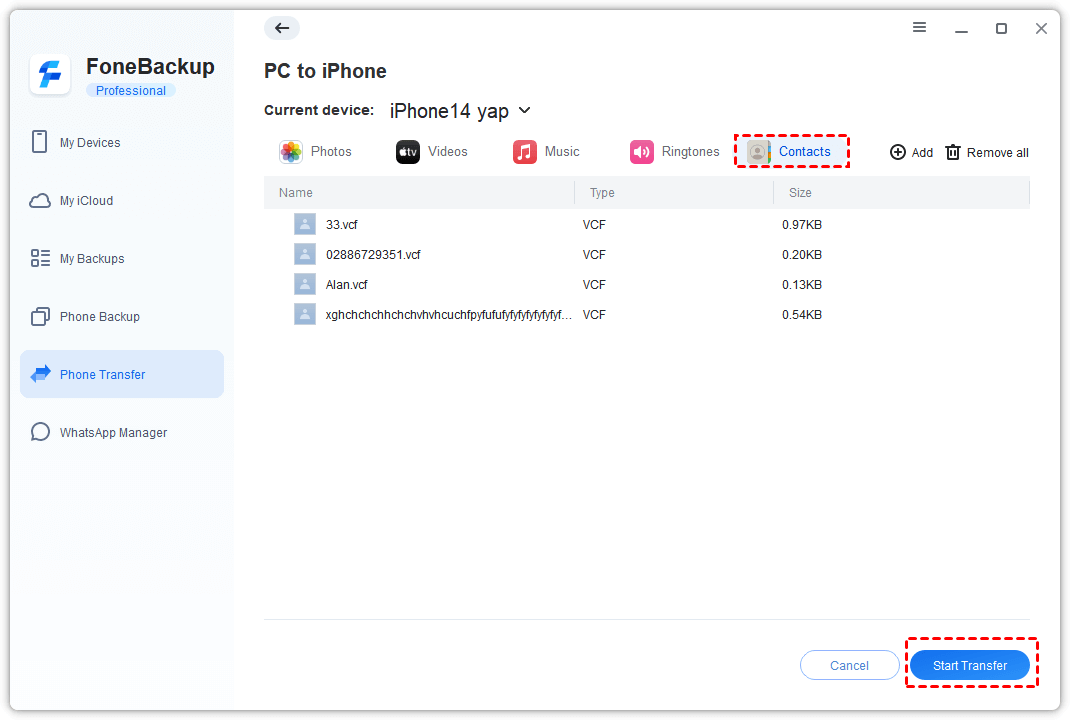
Step 4. Check the contacts you want to transfer and click Start Transfer. The selected VCF contacts will then be imported to your iPhone.
Step 5. Open the Contacts app on your iPhone to check the imported information. Contact details such as names, phone numbers, email addresses, addresses, birthdays, and notes can be transferred together.
🌟 Bonus: How to Export a VCF File from iPhone to PC
If you need to back up iPhone contacts as a VCF file or transfer them to another device, AOMEI FoneBackup can also help.
Step 1. Connect your iPhone to the computer and open AOMEI FoneBackup.
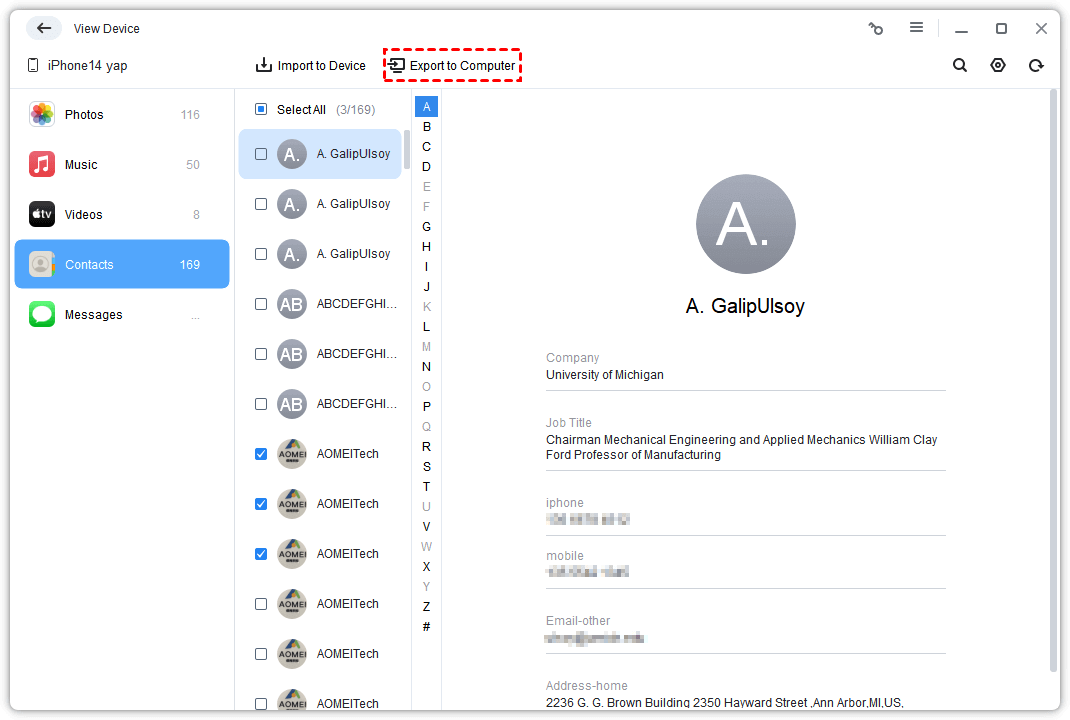
Step 2. Go to My Devices > Data Explorer > Contacts.
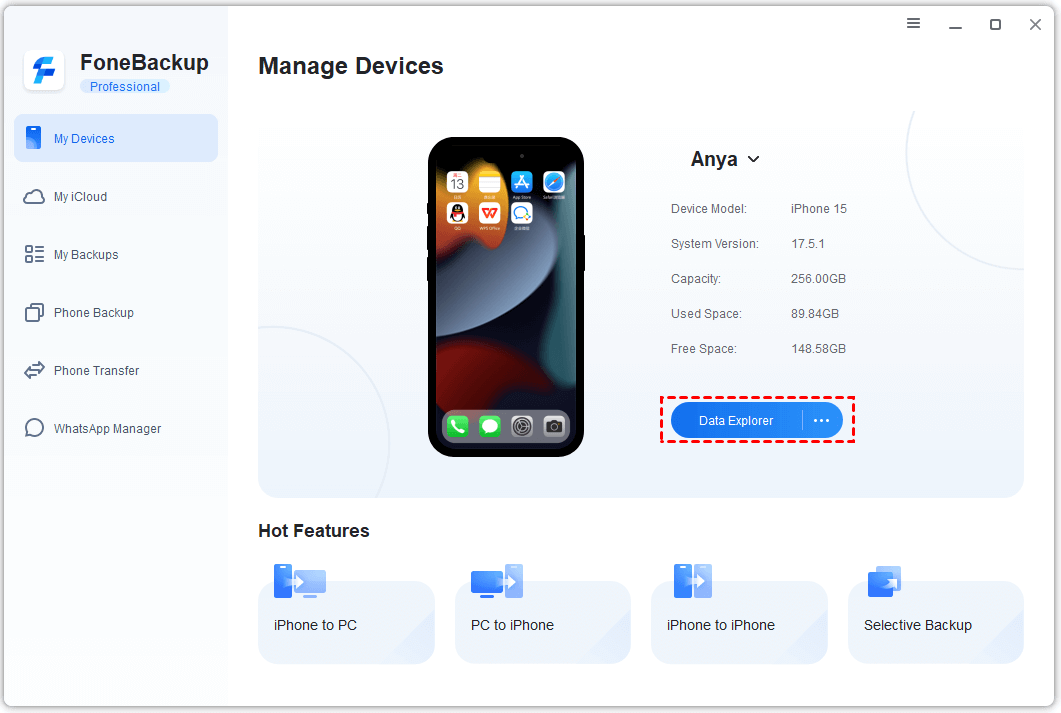
Step 3. Click the Settings icon in the upper-right corner to choose a destination path to save the exported file. You can also choose to save contacts as vCard (VCF) or CSV. Then click Save.
Step 4. Select the contacts you want to export and click Export to Computer.
Method 2. Import VCF File to iPhone via Email
Email is another simple way to transfer a VCF file to iPhone. This method is useful when you only need to import a small number of contacts and already have an email account configured on your iPhone.
Step 1. On your computer, create a new email and attach the VCF file. Send the message to an email account that you can access on your iPhone.
Step 2. On your iPhone, open the Mail app and find the email containing the VCF attachment.
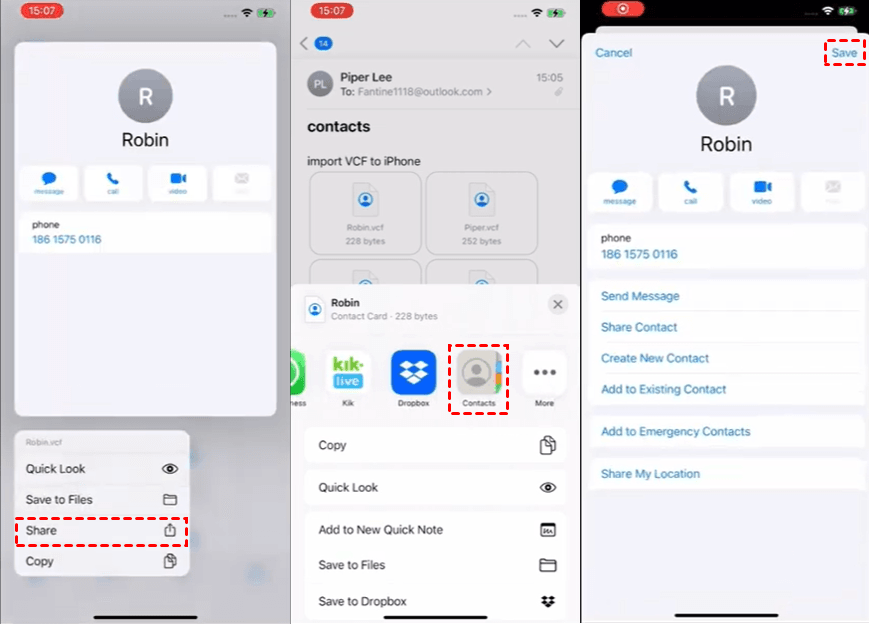
Step 3. Tap the VCF attachment to open it. Then select Share > Contacts to open the VCF file with the Contacts app.
Step 4. Tap Save on the top right. This will import all the contact information contained in the VCF file directly into your iPhone's Contacts app.
✍ Tip: This method doesn't require additional transfer software, but it can be inconvenient for very large VCF files or numerous contact files.
Method 3. Transfer vCard to iPhone with iCloud
If you regularly use iCloud to synchronize contacts, you can import a VCF file through iCloud Contacts and then sync the contacts to your iPhone.
Before starting, make sure your iPhone is signed in with the same Apple Account used for iCloud and that you have a stable Internet connection.
Step 1. On your computer, open iCloud.com and sign in with your Apple Account. Select Contacts to access your iCloud contacts.
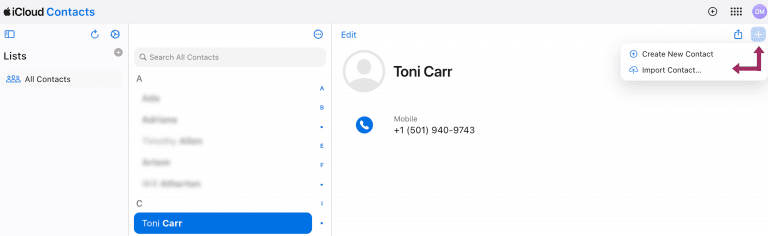
Step 2. Click the plus icon on the top right and choose Import vCard. Select the VCF file from your computer and upload it.
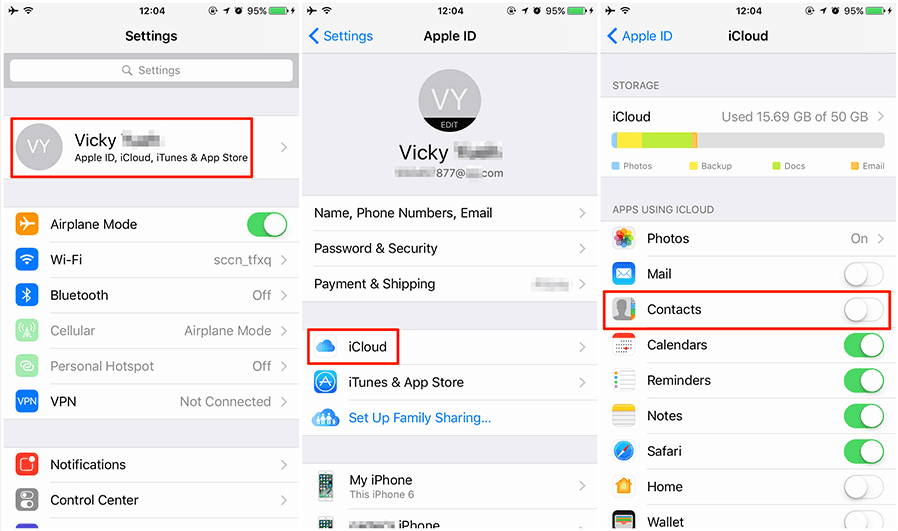
Step 3. On your iPhone, open Settings > [your name] > iCloud. Turn on Contacts and wait for iCloud to synchronize the imported contacts.
Step 4. Open the Contacts app on your iPhone and verify that the contacts have appeared.
✍ Tip: Importing contacts through iCloud requires an Internet connection and may not be the best choice if your iCloud account has storage limitations.
Method 4. Import VCF Contacts to iPhone via Outlook
You can also use Outlook to transfer VCF contacts to your iPhone. This approach is similar to using email and can be useful if you already manage your contacts or email through Outlook.
Step 1. On your computer, open Outlook.com and sign in to your Outlook account.
Step 2. Create a new email and attach the VCF file you want to transfer. Then send the email to your own Outlook account.
Step 3. On your iPhone, open the Outlook app and locate the email containing the VCF attachment.
Step 4. Tap and hold the VCF file, then choose Save to Files.
Step 5. Open the Files app, go to the folder where you saved the VCF file, and select the VCF file.
Step 6. Tap the Share icon on the bottom left. Then choose Contacts > Save.
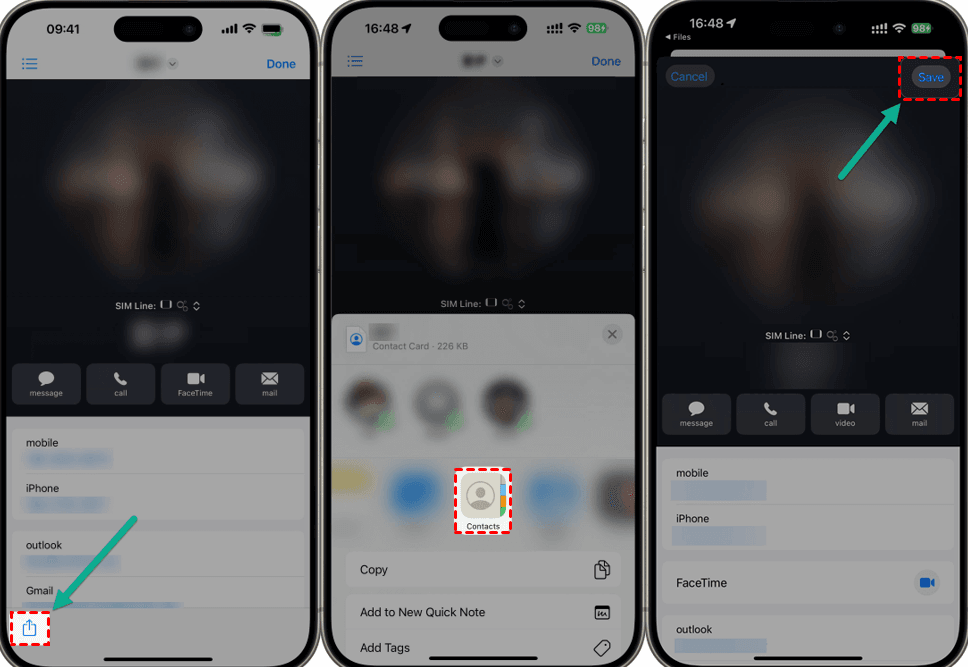
Step 7. Open the Contacts app to confirm that the contacts were imported successfully.
FAQs About Importing VCF to iPhone
1. Can I import a VCF file directly to iPhone?
Yes. You can import a VCF file to iPhone using email, iCloud, Outlook, or a direct transfer tool such as AOMEI FoneBackup.
2. How to open VCF files on iPhone?
iPhone supports VCF files. You can open a VCF attachment and use the available contact options to add the information to the Contacts app.
3. How do I import multiple VCF contacts to iPhone?
For multiple VCF files or a large contact list, a direct transfer method is more convenient. AOMEI FoneBackup can transfer VCF/CSV contact files from a computer to an iPhone through USB.
Final Words
Knowing how to import VCF to iPhone gives you several ways to move contacts from a computer or another platform. Email and Outlook are convenient for small transfers, while iCloud is useful when you already rely on Apple's cloud synchronization.
If you need to transfer a large number of contacts or want a direct method without using iCloud, AOMEI FoneBackup provides a simple USB-based solution. What’s more, it offers the best way to transfer photos from PC to iPhone. Why not give it a shot?

 as a preferred
source on Google
as a preferred
source on Google